

Let's do it together!
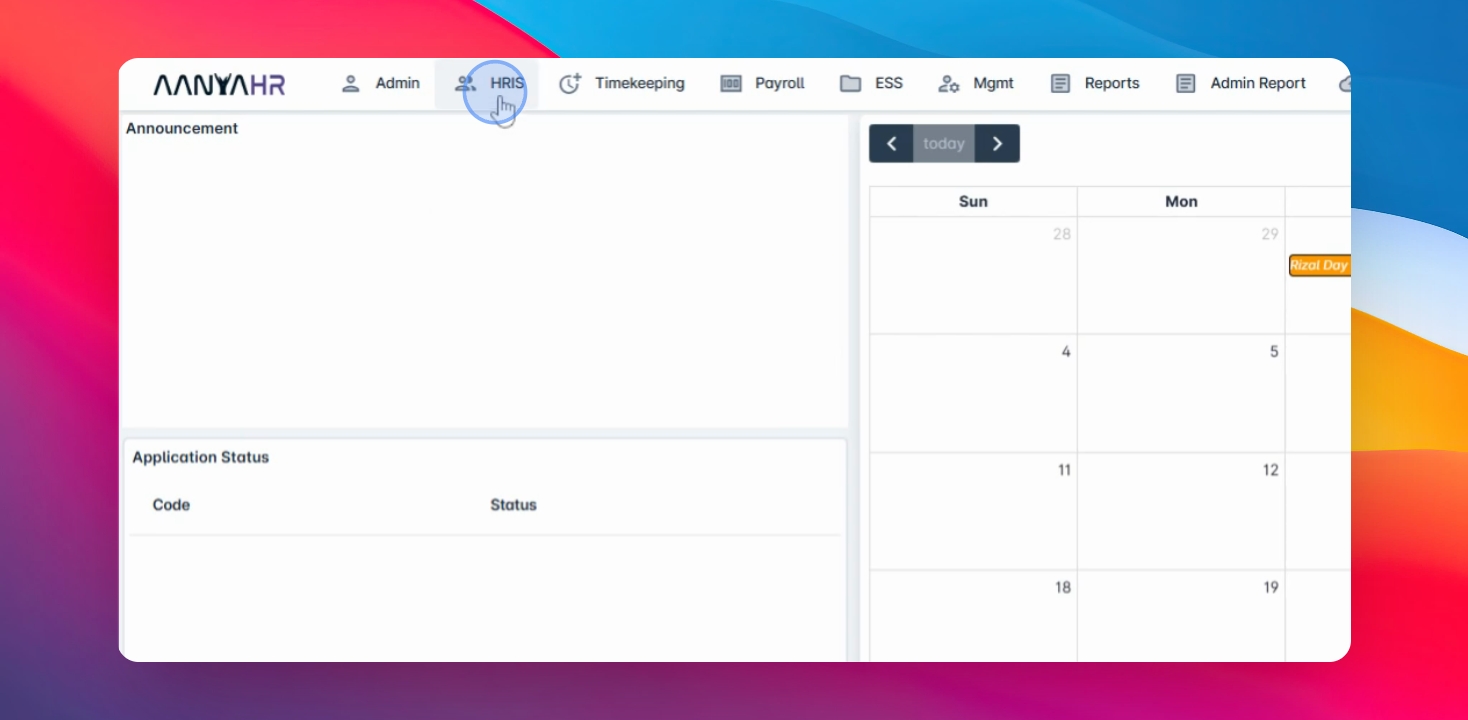
Step 1: Access HRIS
Go to the HRIS module to start adding a new employee.
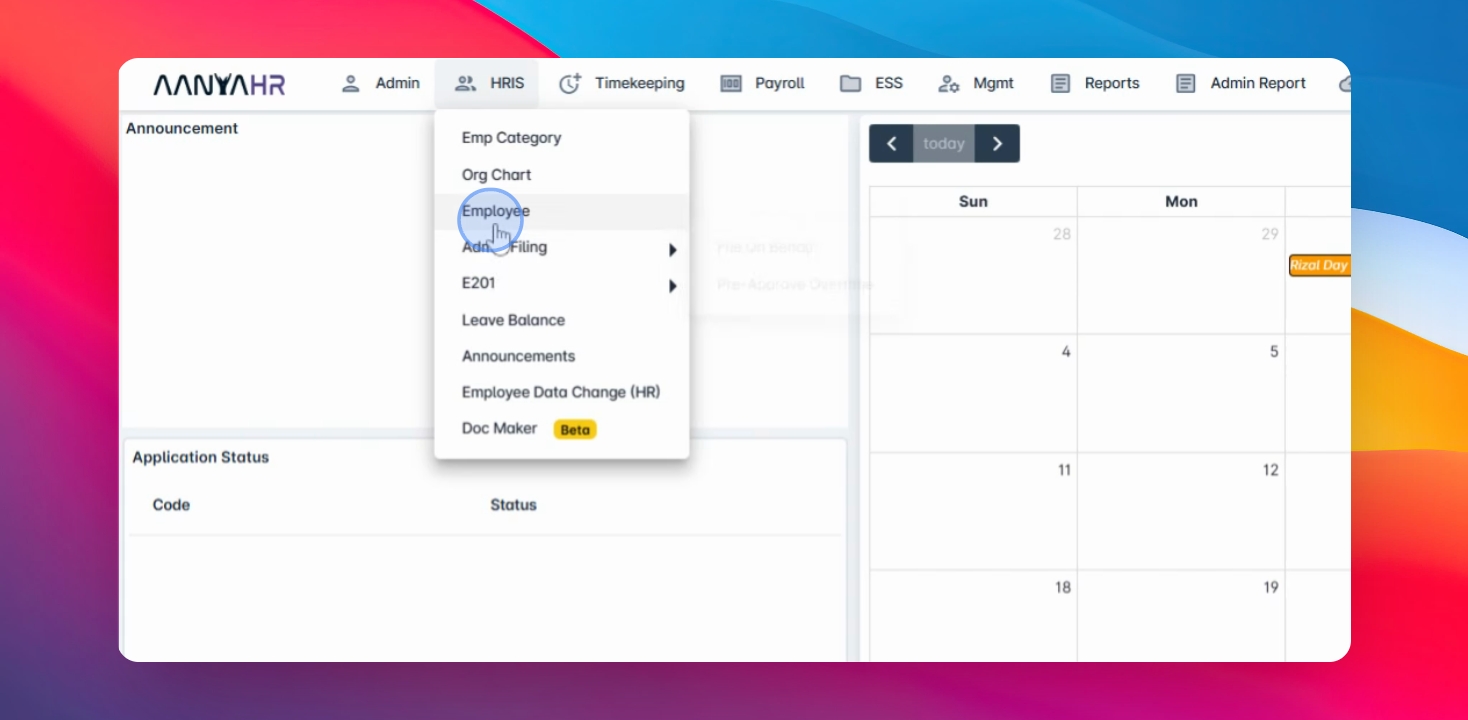
Step 2: Select Employee
Select Employee from the module options.
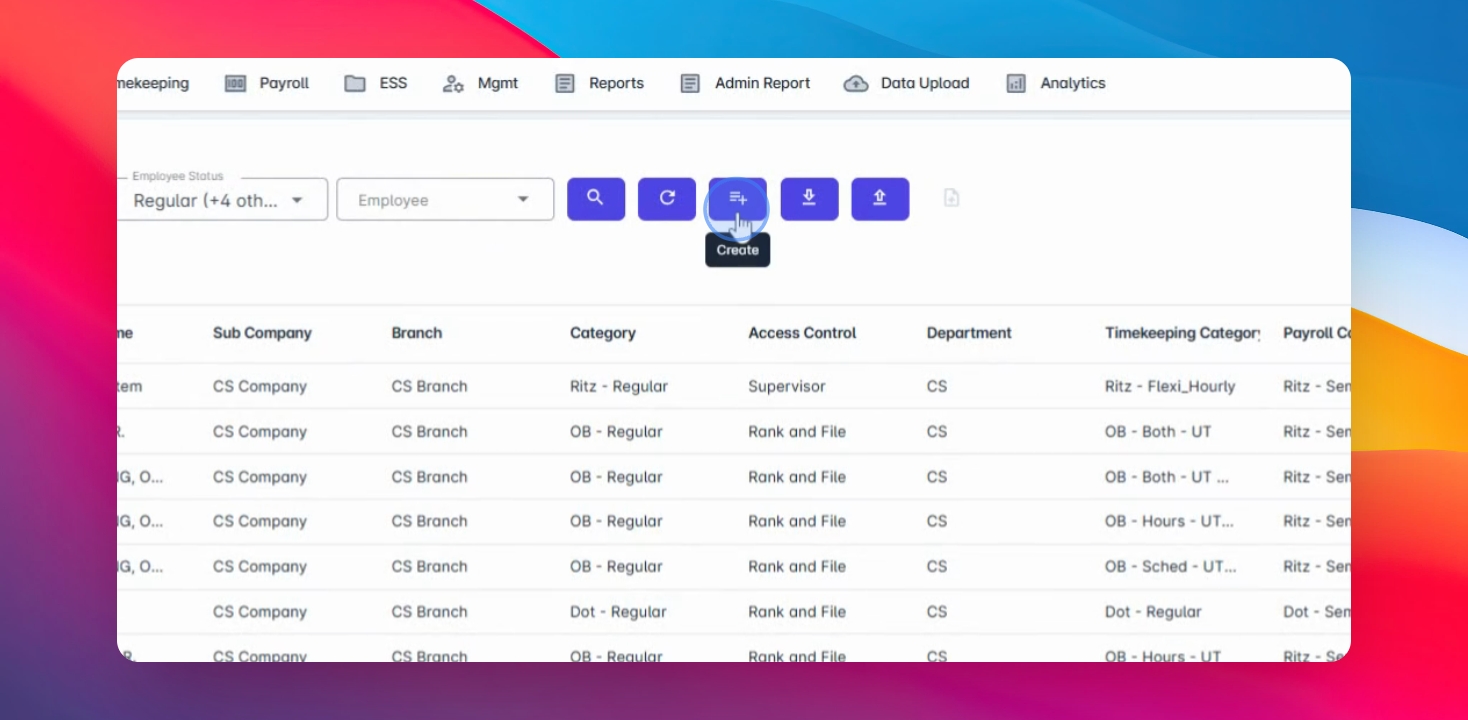
Step 3: Create New Employee
Click the Create button to initiate the employee addition process.
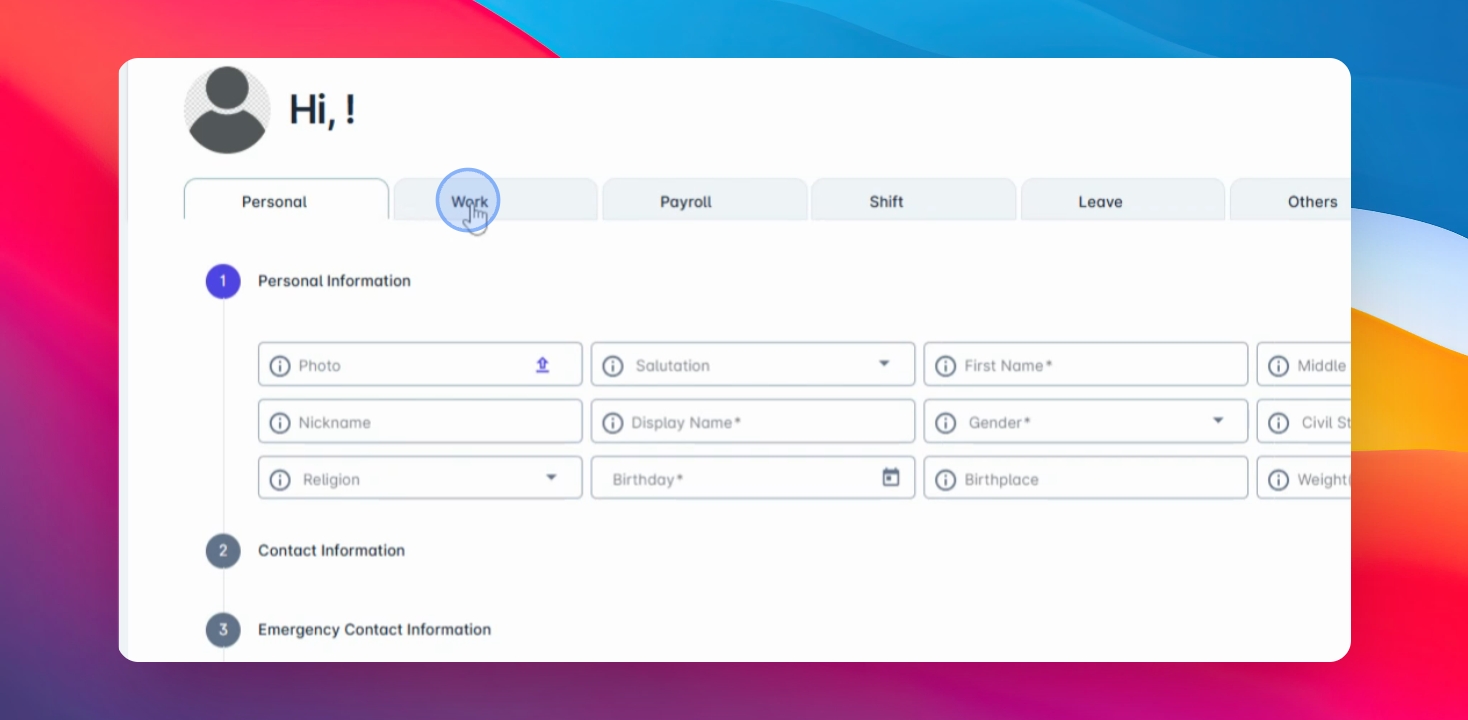
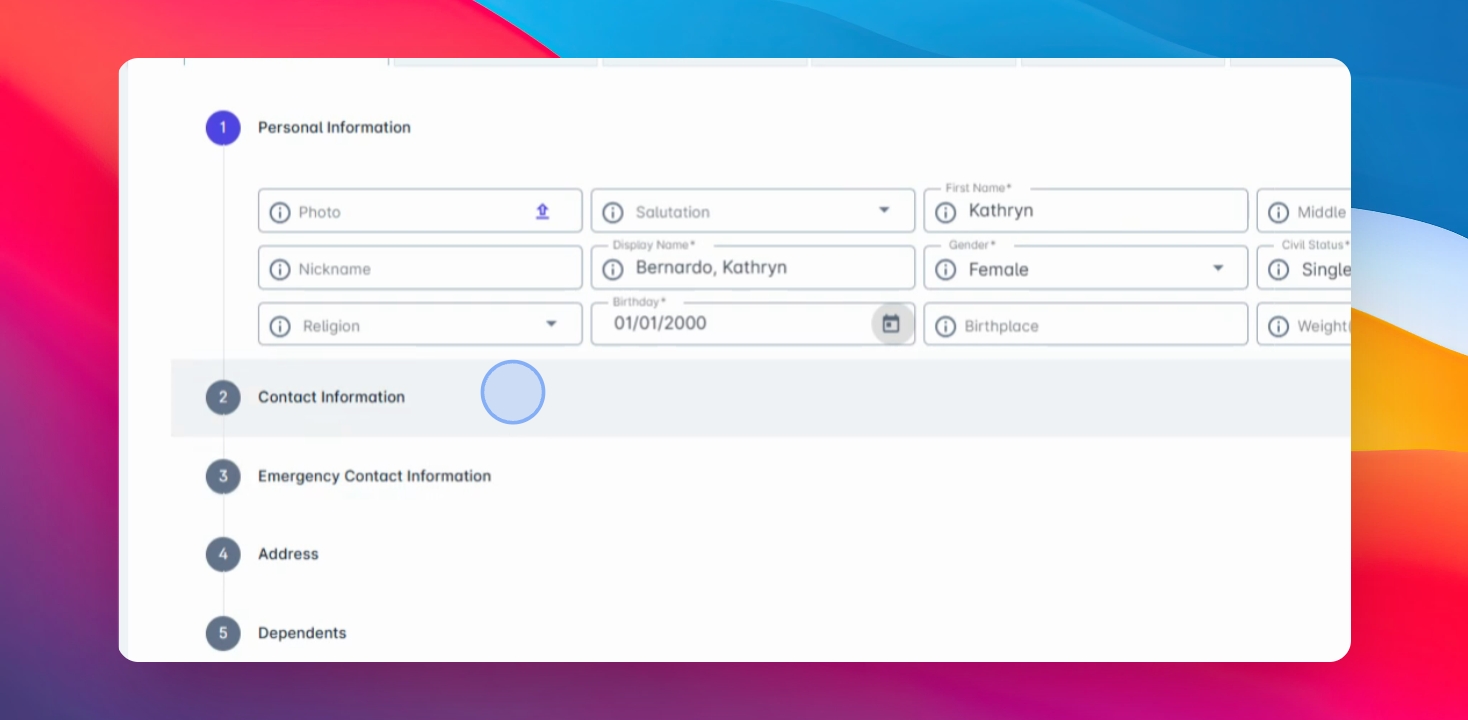
Step 4: Fill Personal Info
Complete the required fields in the Personal tab, including first name, last name, gender, civil status, nationality, and birthday.
Step 5: Enter Contact Info
Input the employee's contact information including mobile number and both present and permanent addresses, ensuring to select the country.
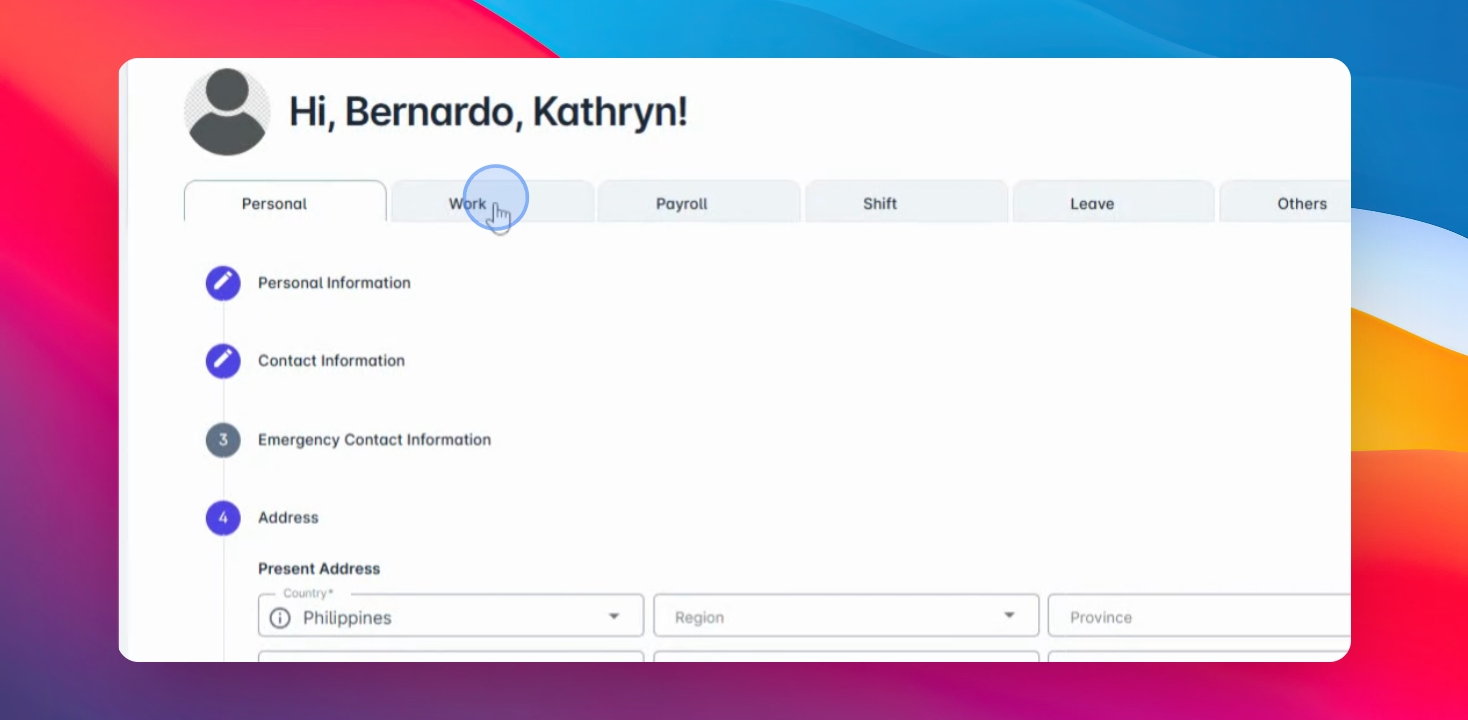
Step 6: Switch to Work Tab
Navigate to the Work tab to enter work-related information.
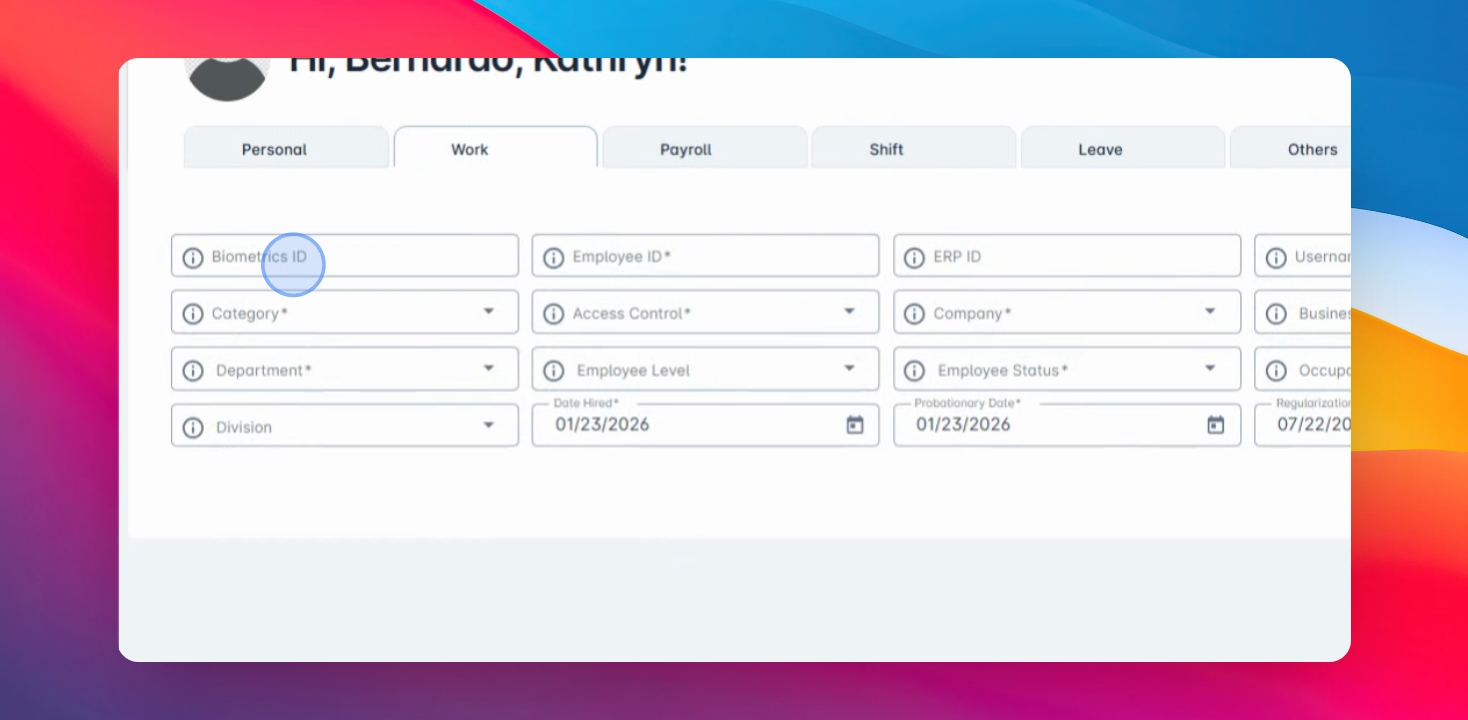
Step 7: Input Work Details
Enter the employee's ID, username, supervisor, employee category, access control, and complete other required fields like company, branch, and department.
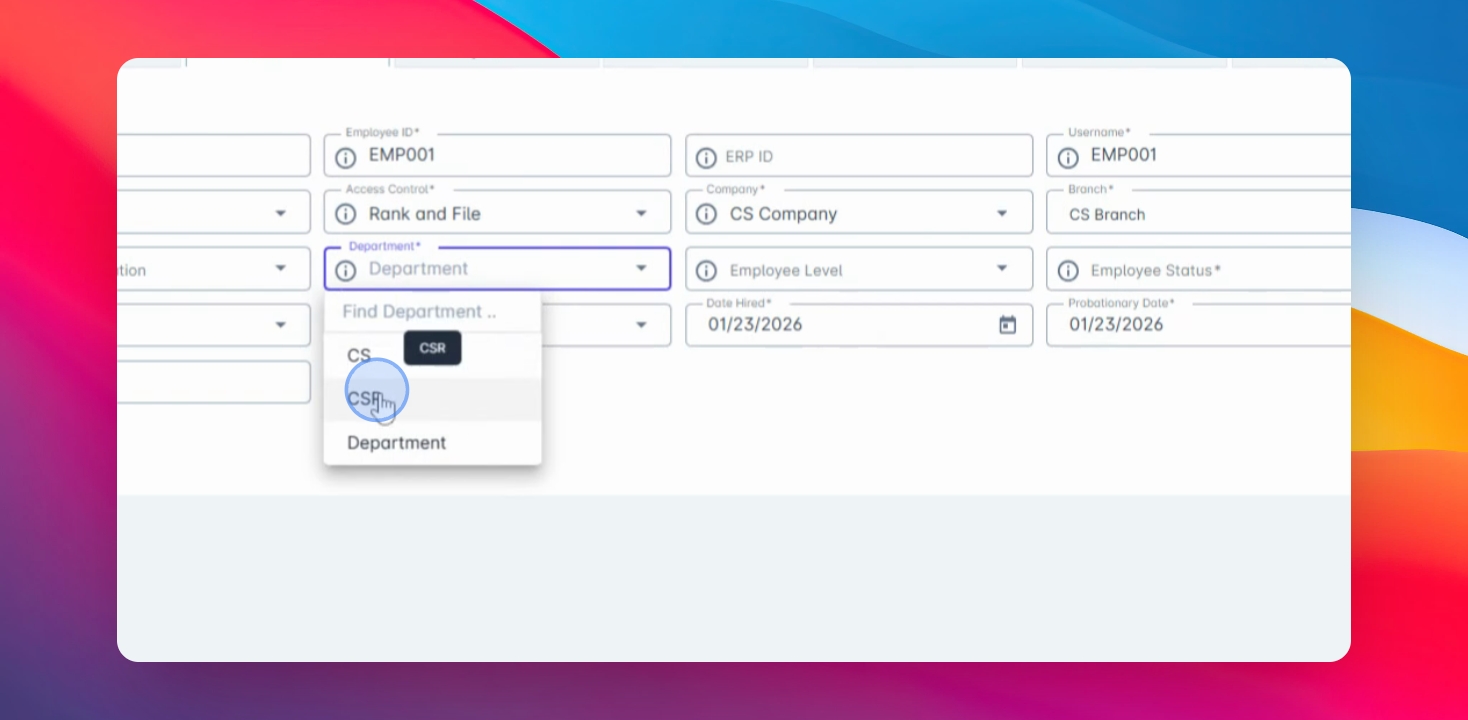
Step 8: Complete Employment Info
Fill in the remaining employment-related fields such as employee status, occupation, date hired, provisionary date, and regularization date.
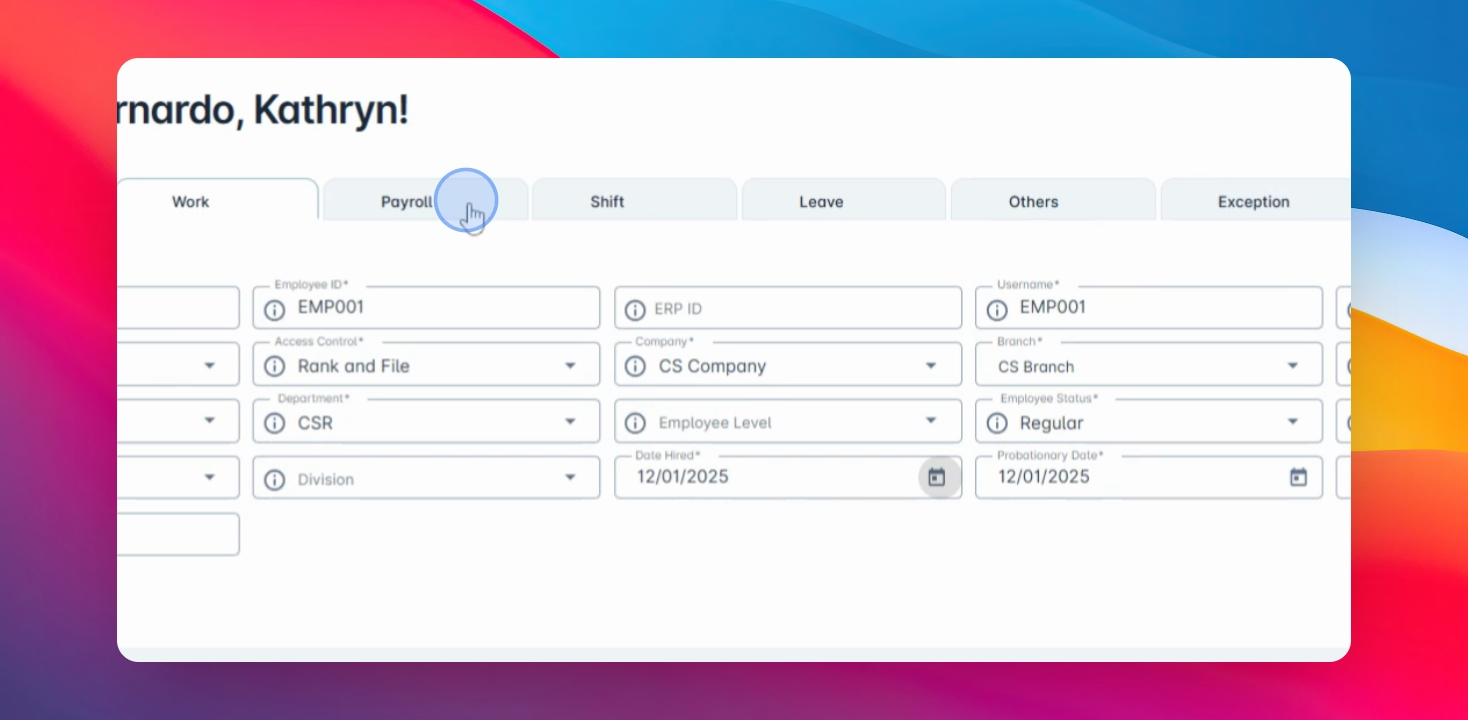
Step 9: Go to Payroll Tab
Proceed to the Payroll tab to set up payroll information.
Step 10: Set Payroll Categories
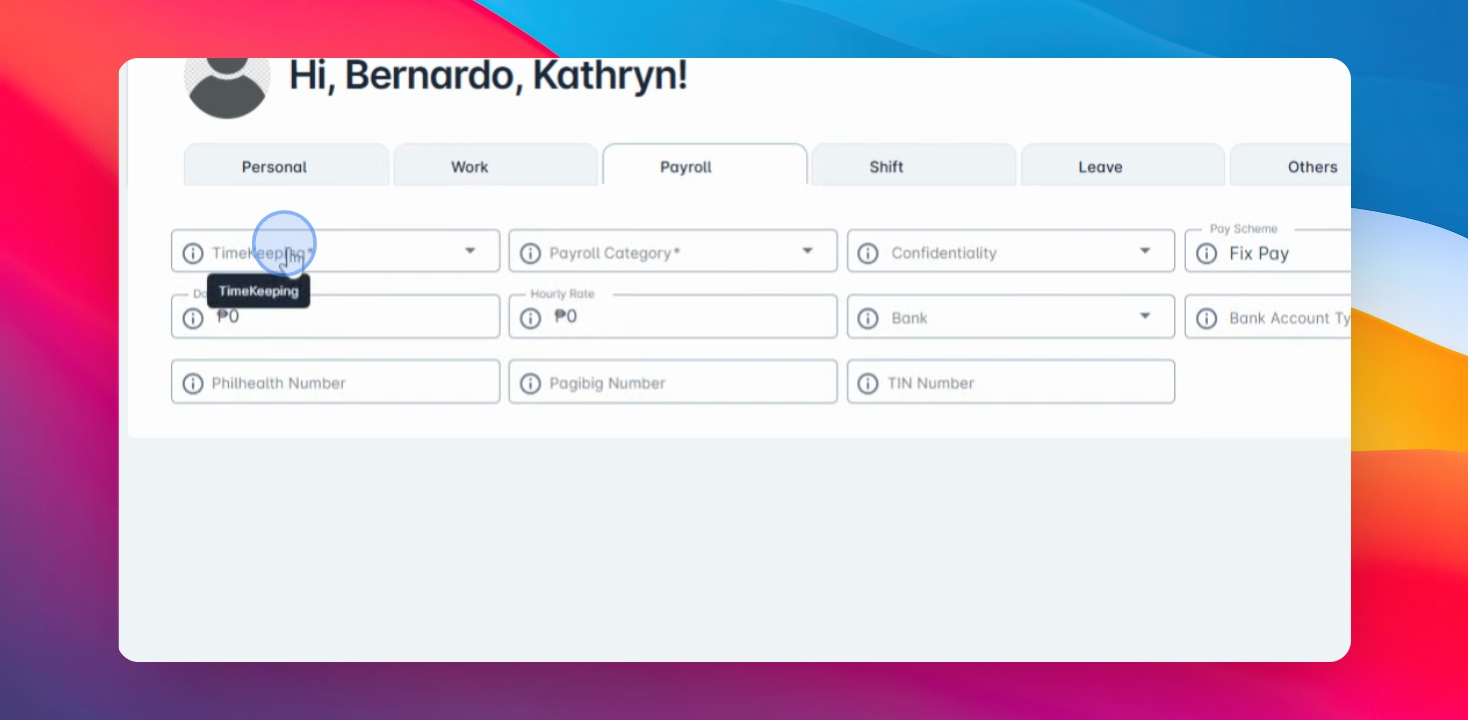
Select the appropriate timekeeping and payroll categories based on your company setup.
Step 11: Define Confidentiality
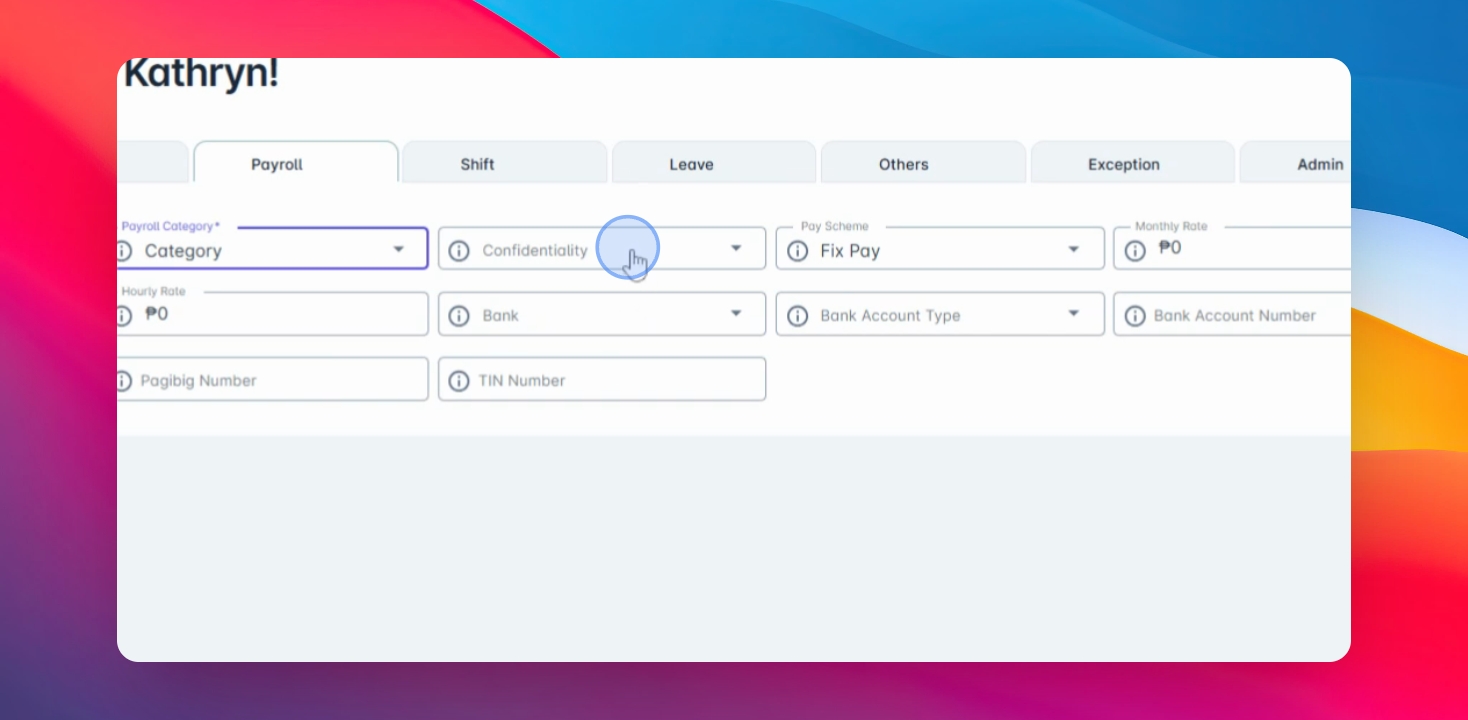
Choose the confidentiality level and pay scheme for the employee.
Step 12: Enter Payment Info
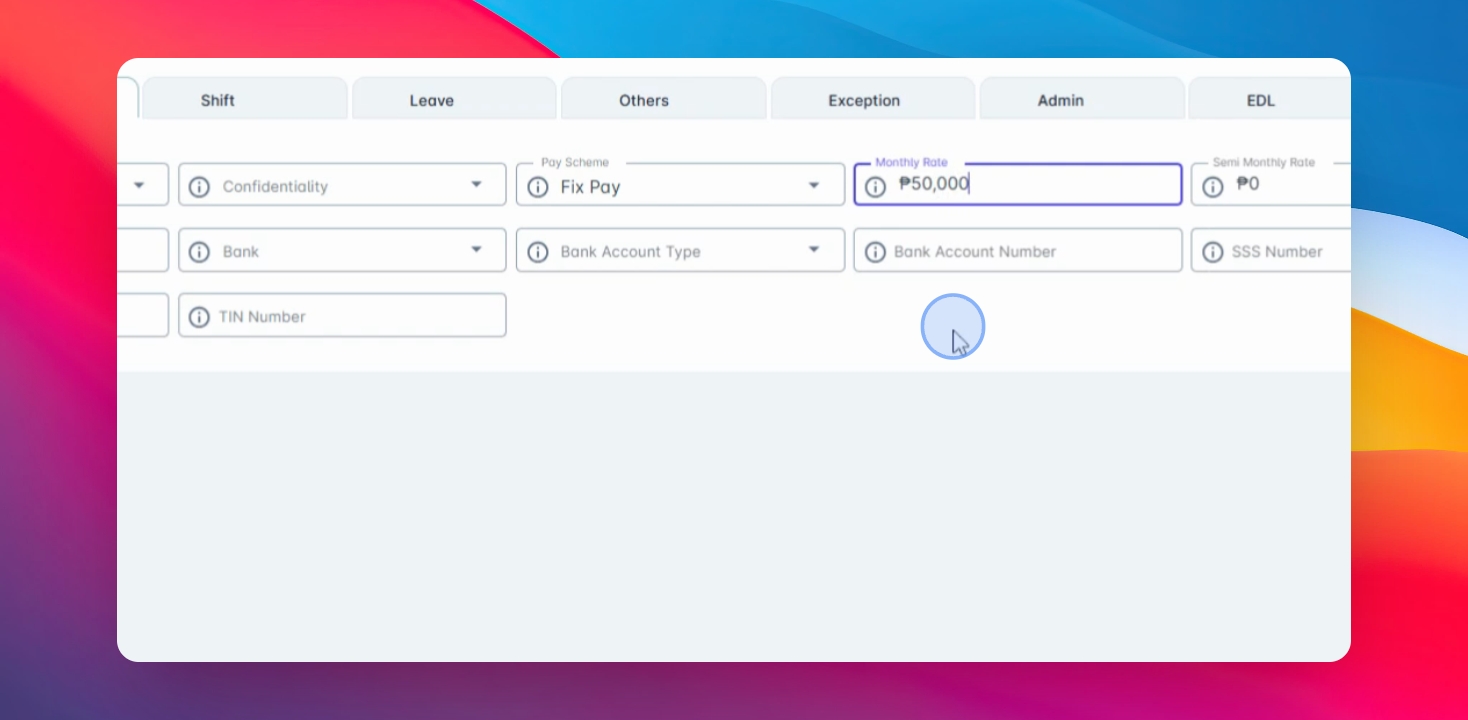
Input the monthly rate for fixed pay and any available bank details, government IDs, and team information.
Step 13: Save Employee Record
Once all required fields are filled, click Save to create the employee record.