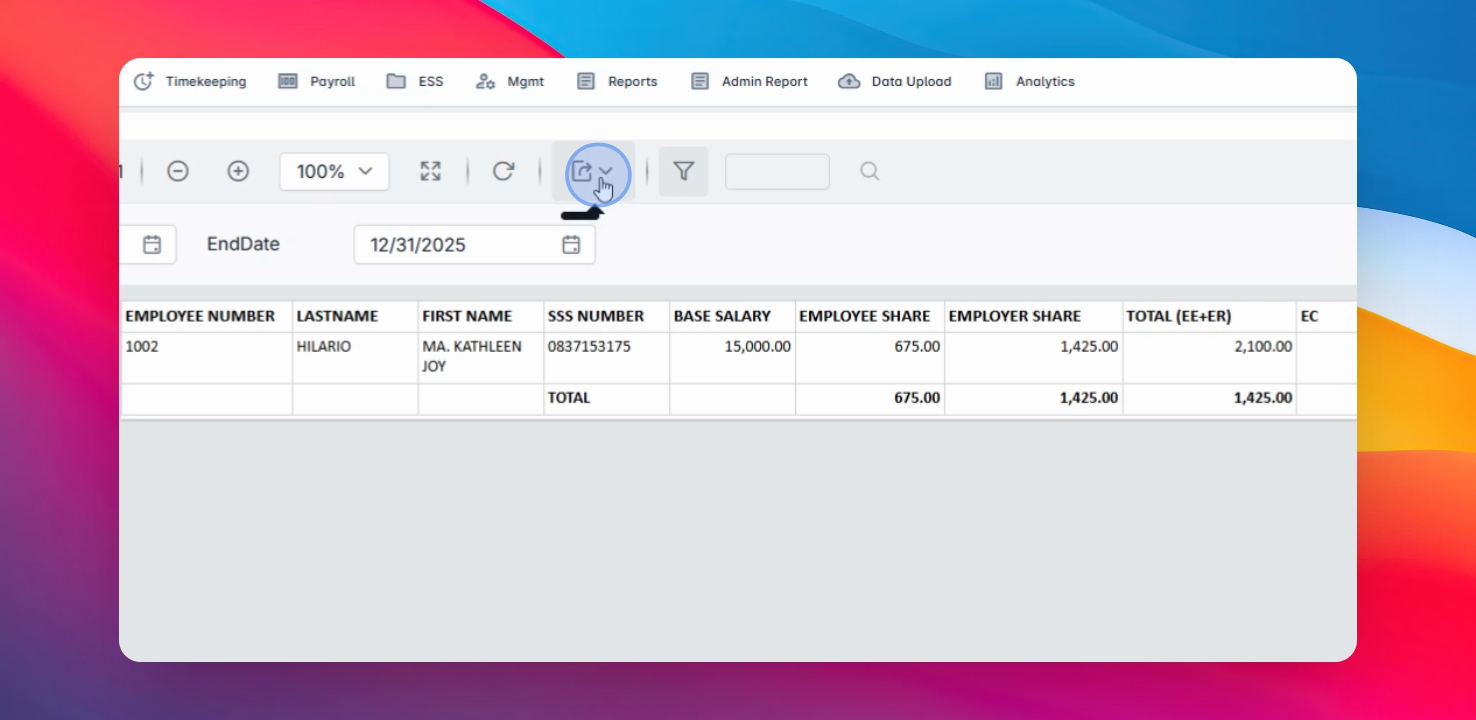
This tutorial covers how to generate government reports in HR. Let's look at the steps:
Step 1: Ensure Payroll Processed
First, please ensure that you already process payroll run from the Payroll module to be able to generate government monthly reports.
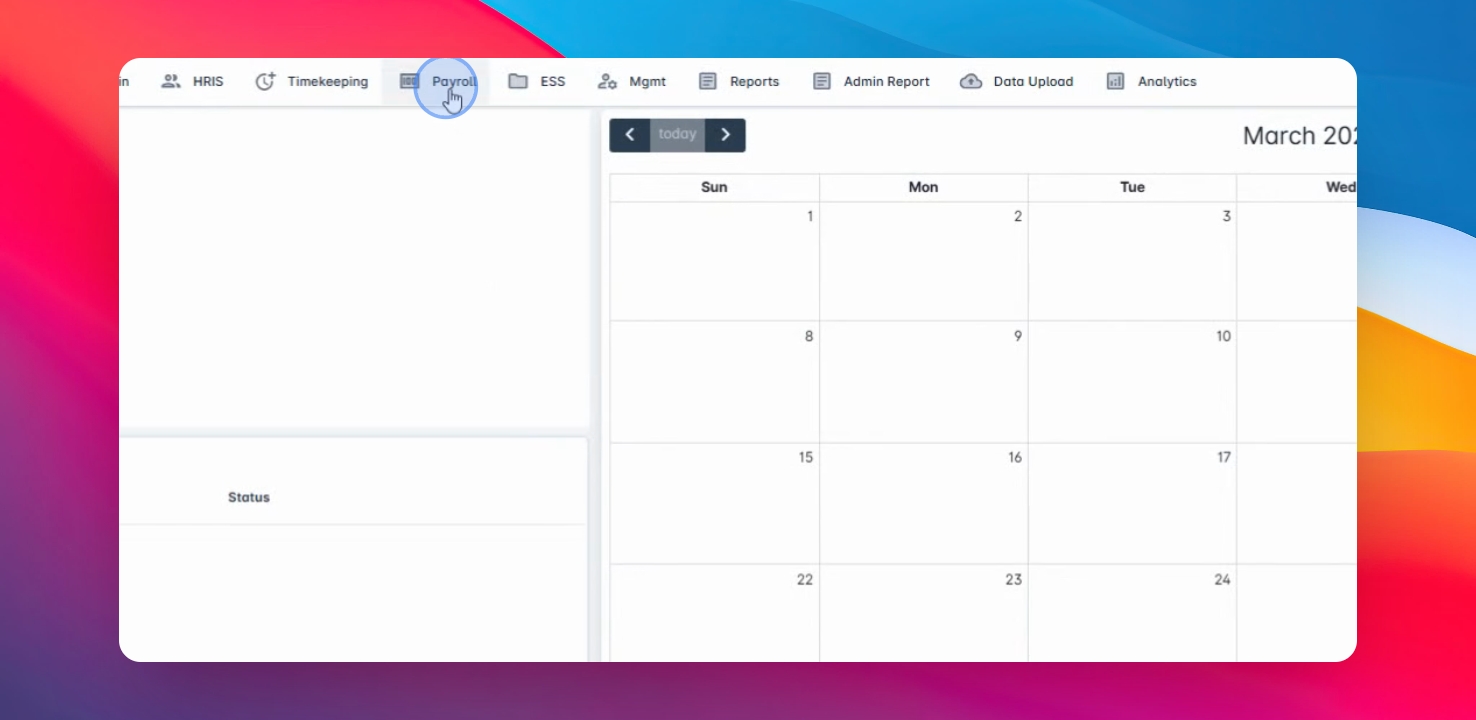
Step 2: Access Report Section
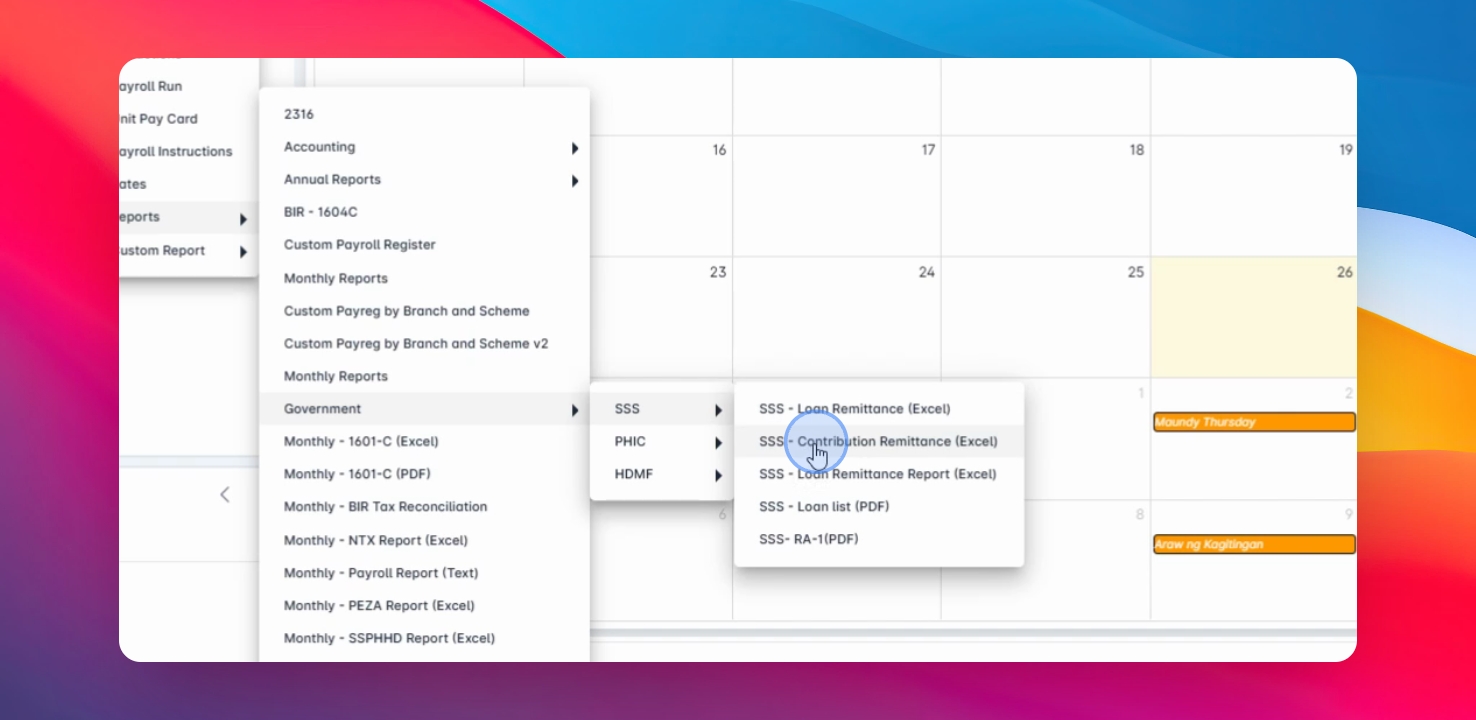
If done, you may proceed to the Payroll menu, go to the Report section over to government.
Step 3: Select Report Tools
You must select the report tools to generate from NSIS BillHealth.
We have set different lists of reports that can help you with your monthly report.
Step 4: Example for SSS Reports
Now proceed to make an example for SSS Pro mission remittances.
Step 5: Select Date Range
First, select the month date range from the monthly reports and click on View Report.
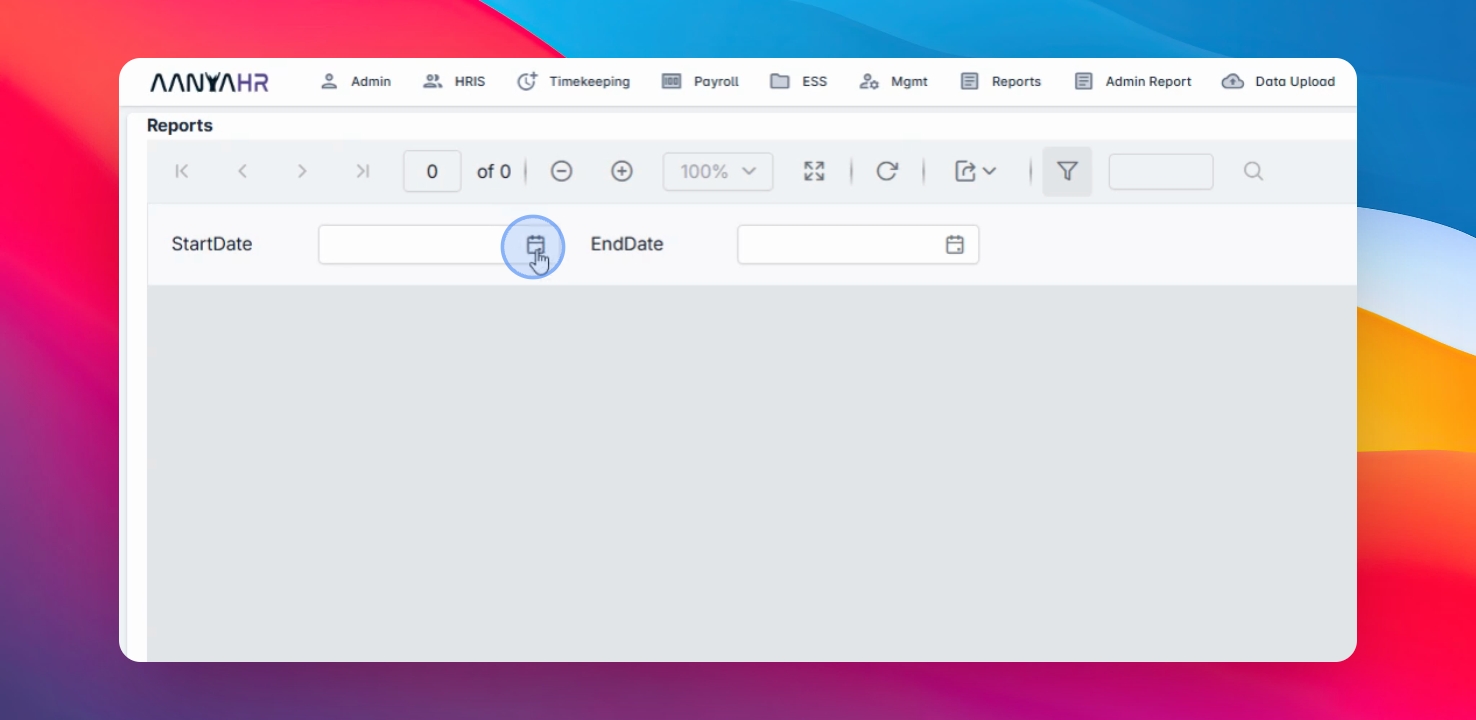
This is based on the period created from December 1 to 3125 period.
Step 6: Download Report
This can also be downloaded into Excel format just by clicking.