

This video will guide you on how to manage your billing and account details on our billing portal. Let's look at the steps:
Step 1: Access Portal
Libitado will send an email invitation with your one time password to access the Billing portal.
Step 2: Create Password
Log in for the first time, the portal will prompt you to create a new password and confirm it before proceeding.
Step 3: Login
When the update is complete, click Login to continue to your dashboard.
Step 4: Open Client Menu
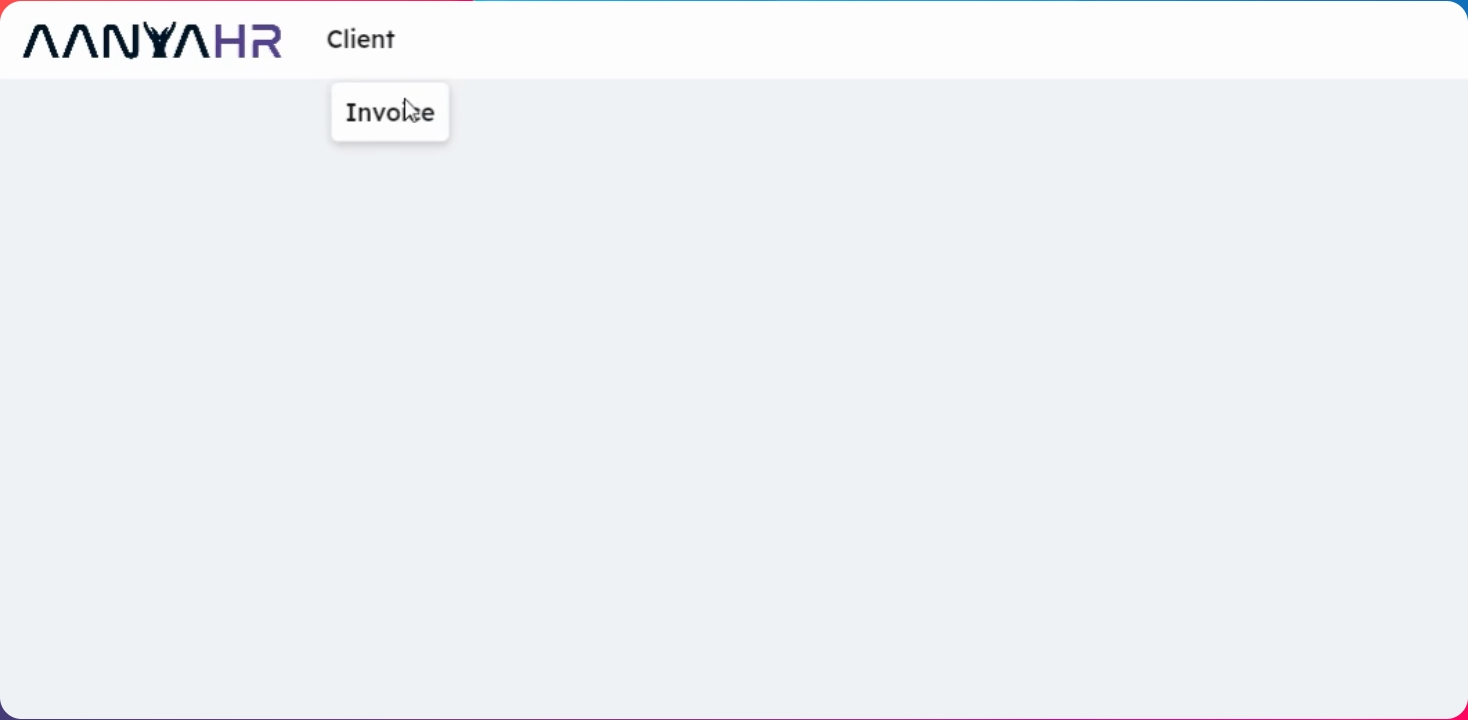
Next, open the client menu.
Step 5: View Invoices
In the left navigation, click on Invoice. Here you will see your outstanding invoices, clearly organized by recency.
Step 6: Review Invoice Details
For a quick review, each line replaces the invoice number, Invoice date, due date, amount, with total and status indicator showing due, overdue, or partially paid.
Step 7: Download Invoice
To download your invoice, click on the three dots beside the invoice number and click on View.
Step 8: See Invoice Details
From this screen, you can see your invoice details and download it to PDF or record.
Step 9: Navigate to Paid Tab
Next, navigate to Paid Tab, which lists all settled invoices and paid billing statements for your account.
Step 10: Review Canceled Transactions
For complete transparency, any canceled transactions will be reflected in the canceled sections, and you can switch to View All tab to review every transaction across the status.