

Employee Upload
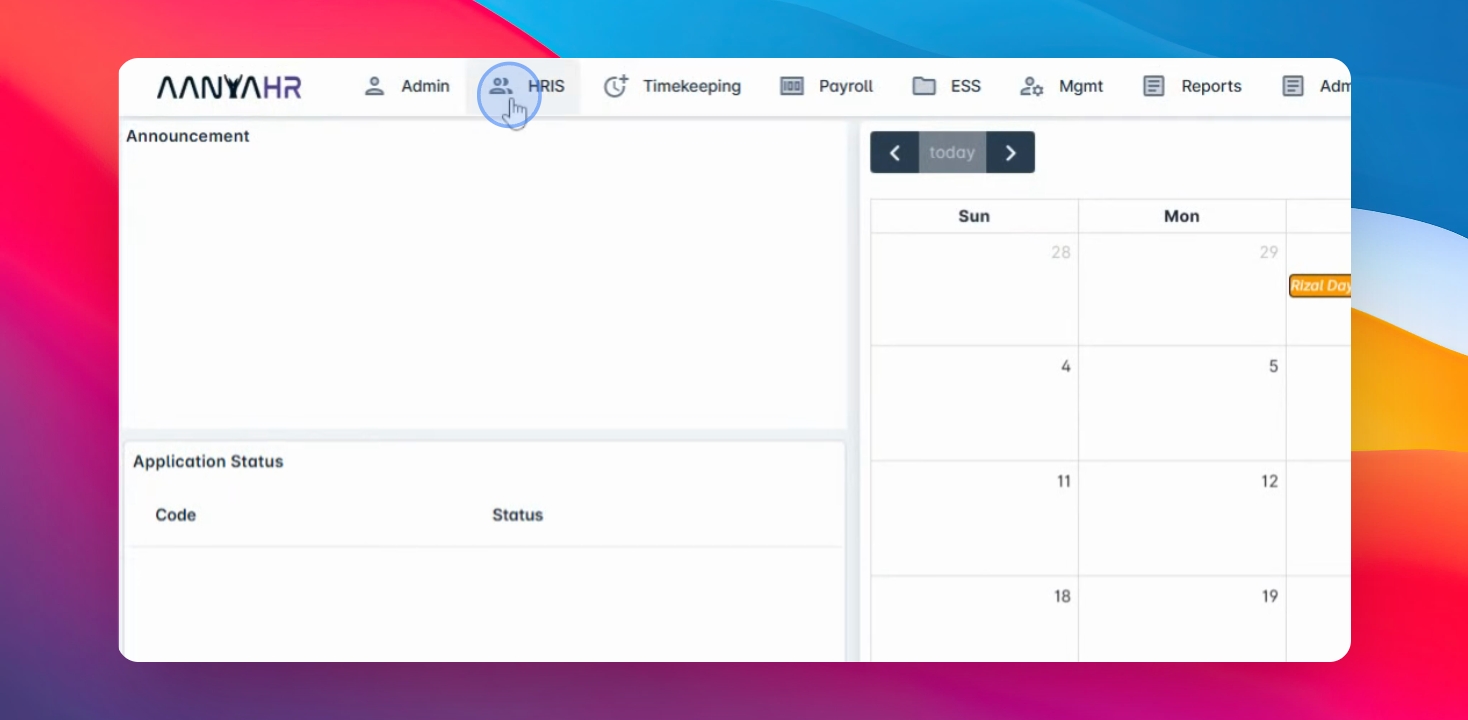
Step 1: Access HRIS
Go to the HRIS menu to start the upload process.
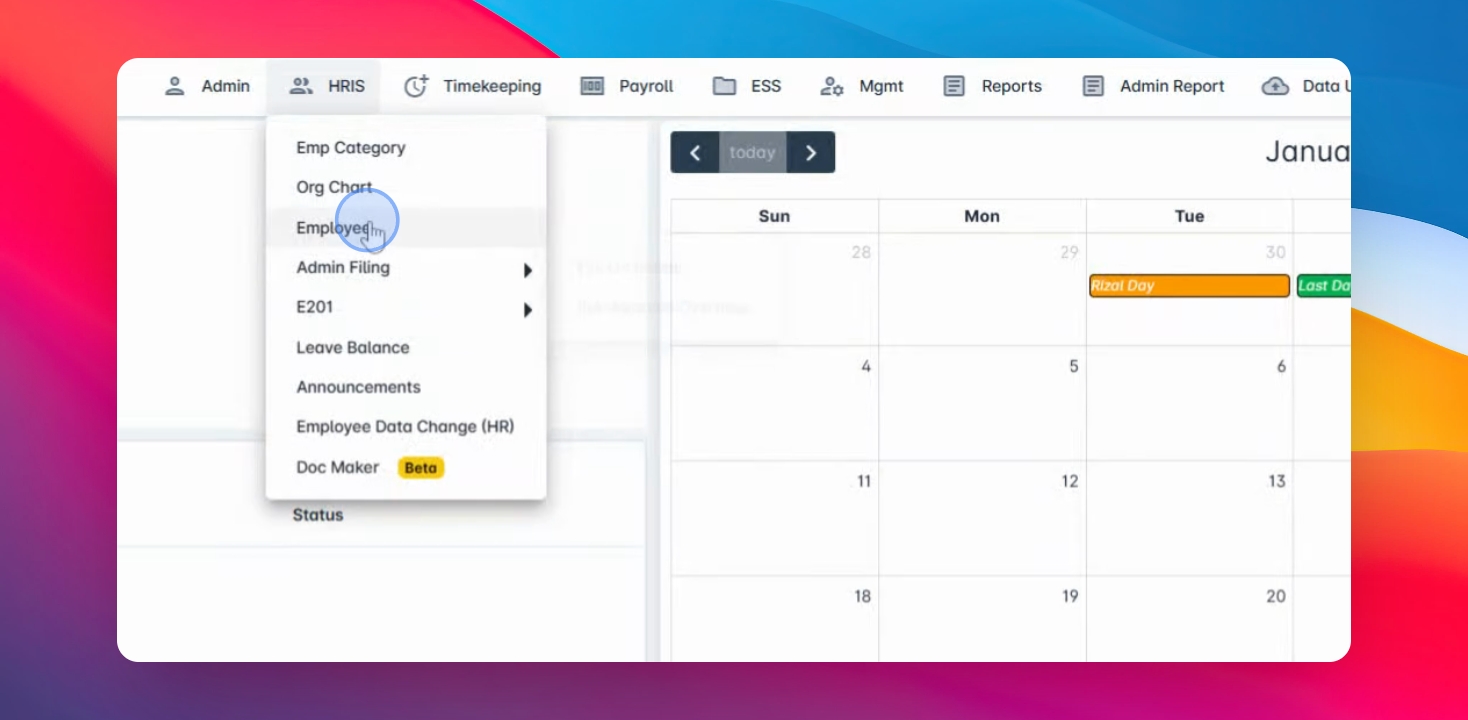
Step 2: Select Employee
Click on Employee to access employee management options.
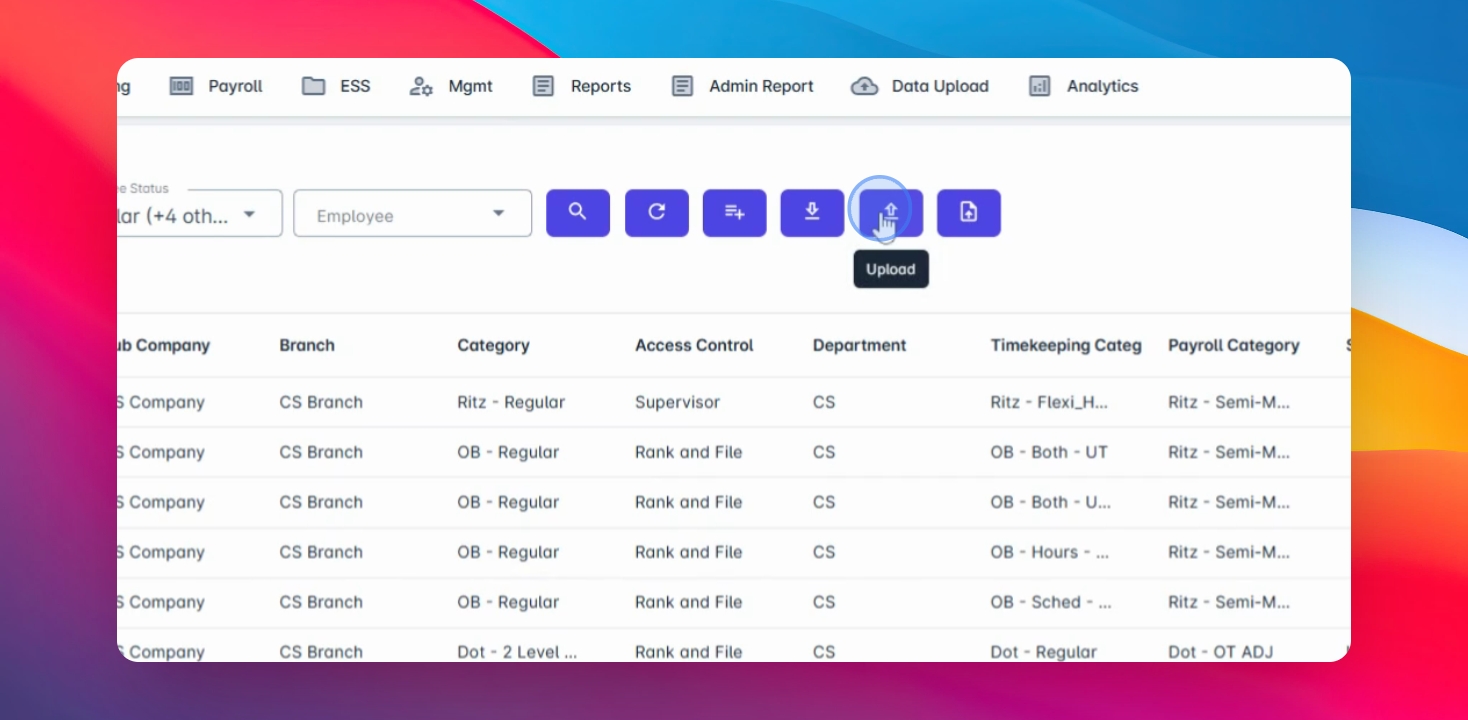
Step 3: Click Upload
Click the Upload button, indicated by the arrow up icon.
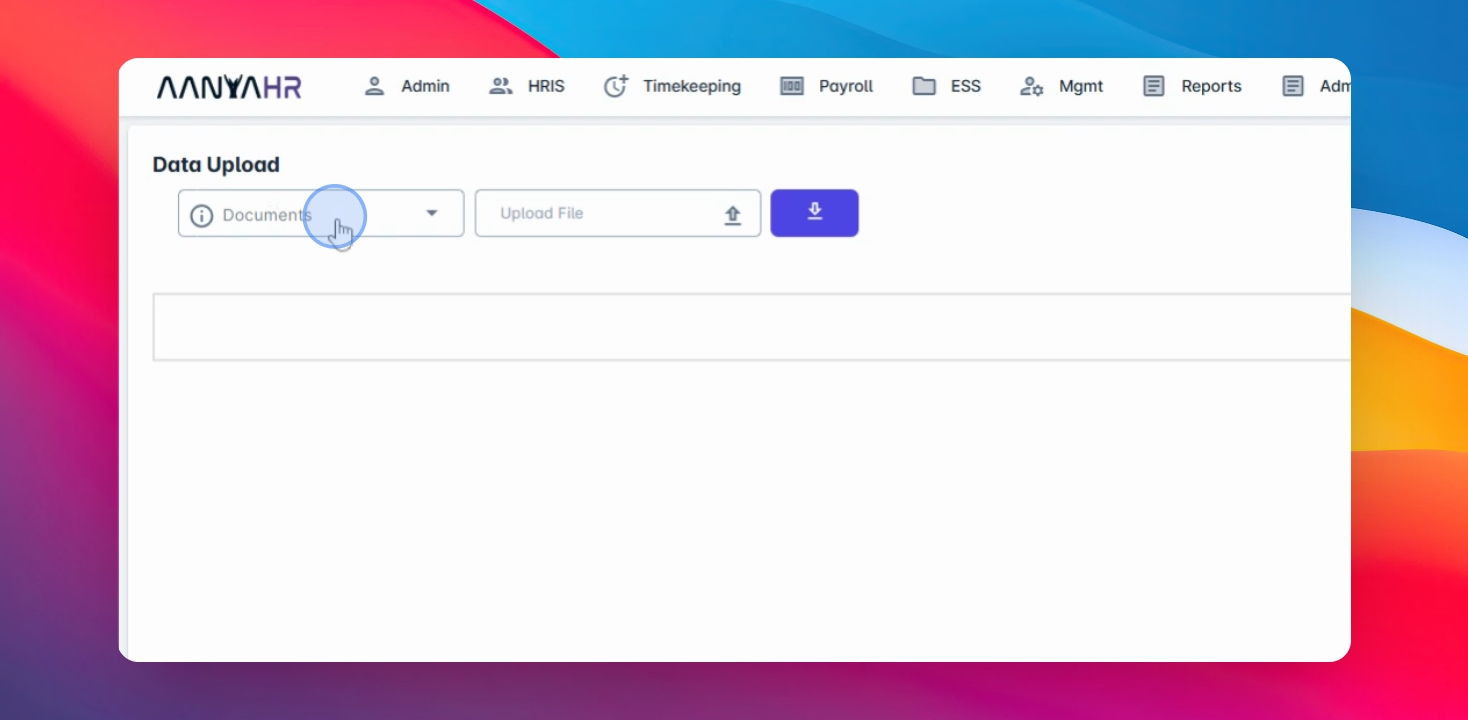
Step 4: Prepare Templates
Complete the two required templates for the upload: Employee Upload and Employee Information Upload.
Step 5: Fill Employee Upload
Provide basic information such as employee IDs, names, birthday, and essential details in the Employee Upload template.
Step 6: Fill Employee Info Upload
Include additional details like company, branch, job title, salary, and government IDs in the Employee Information Upload template.
Step 7: Upload Employee
Select New Employee Upload and choose your completed file.
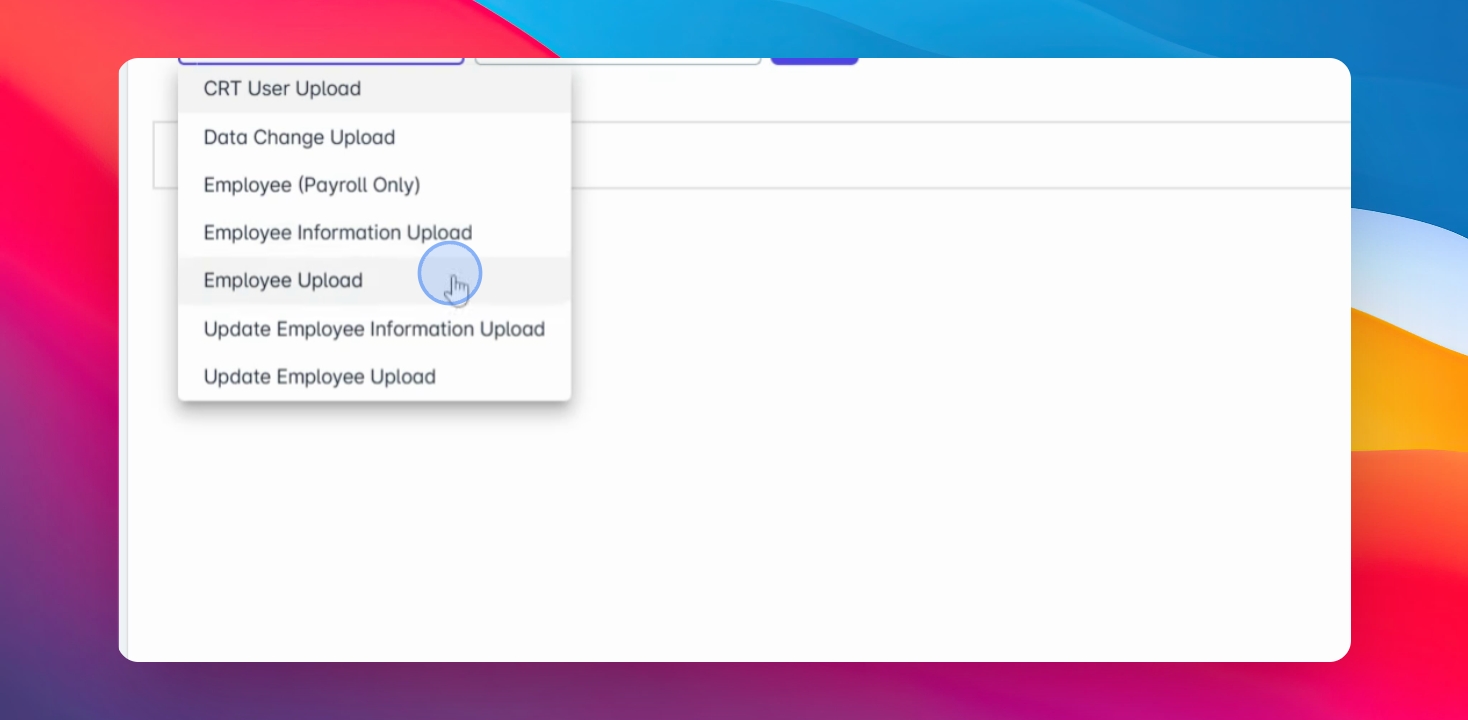
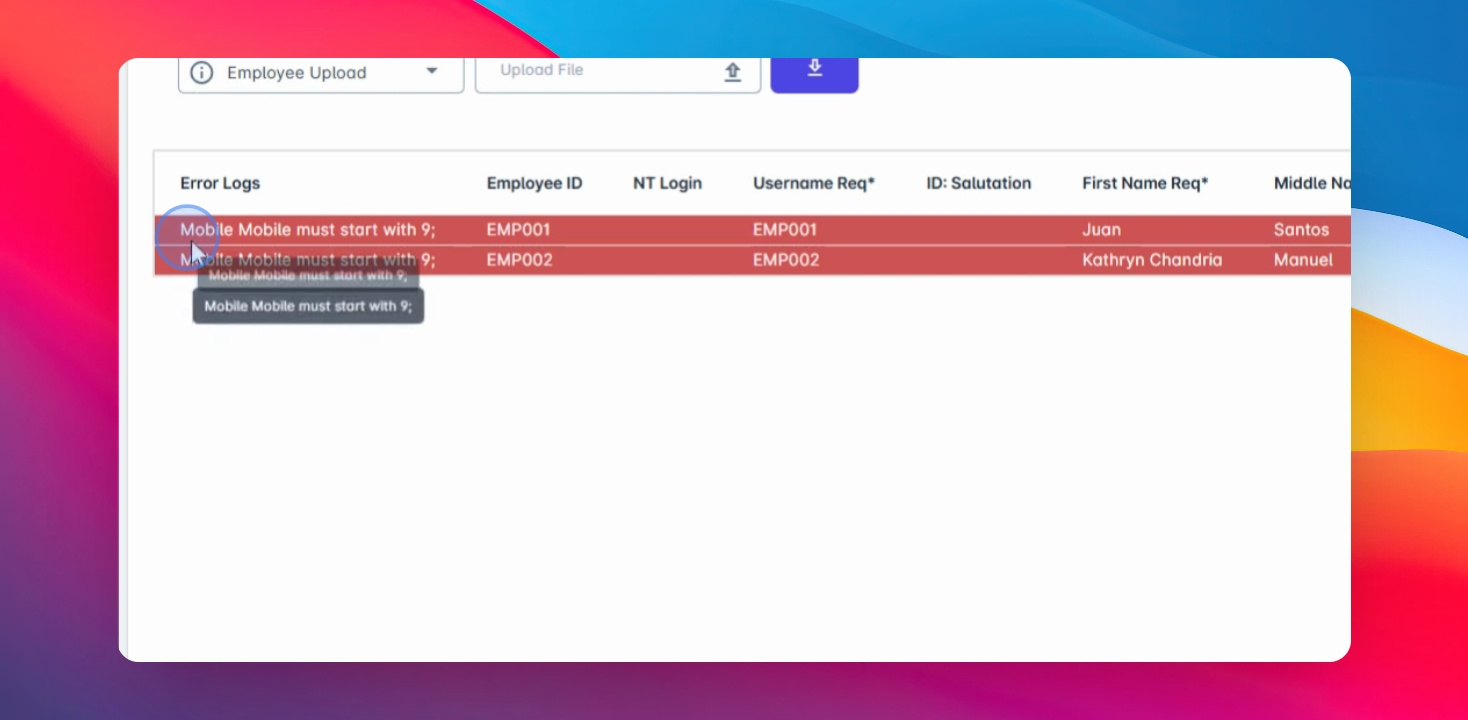
Step 8: Check for Errors
Review any errors displayed on the screen after the upload.
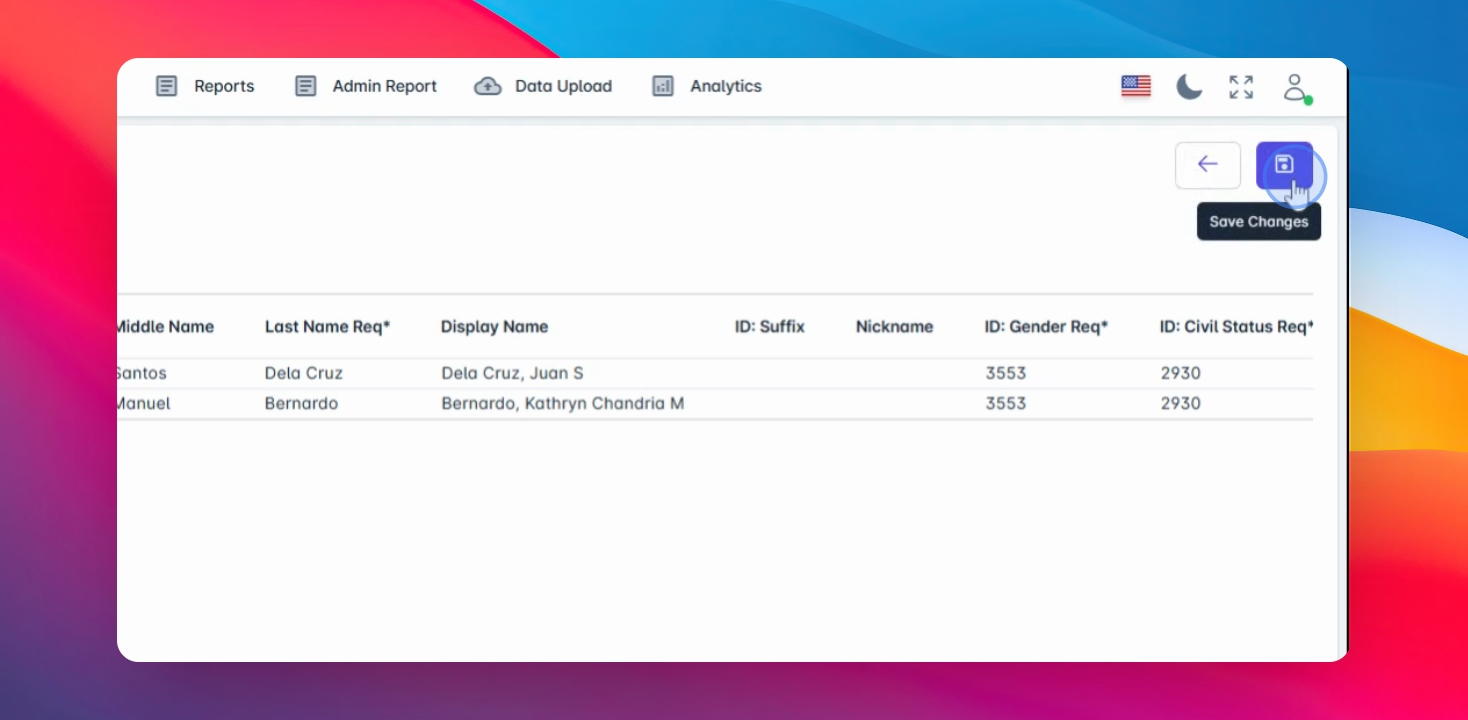
Step 9: Save Employee Upload
If everything is correct, click Save to proceed with the upload.
Step 10: Upload Employee Info
Now, upload the employee information by selecting Employee Information Upload as the document type and choosing your file.
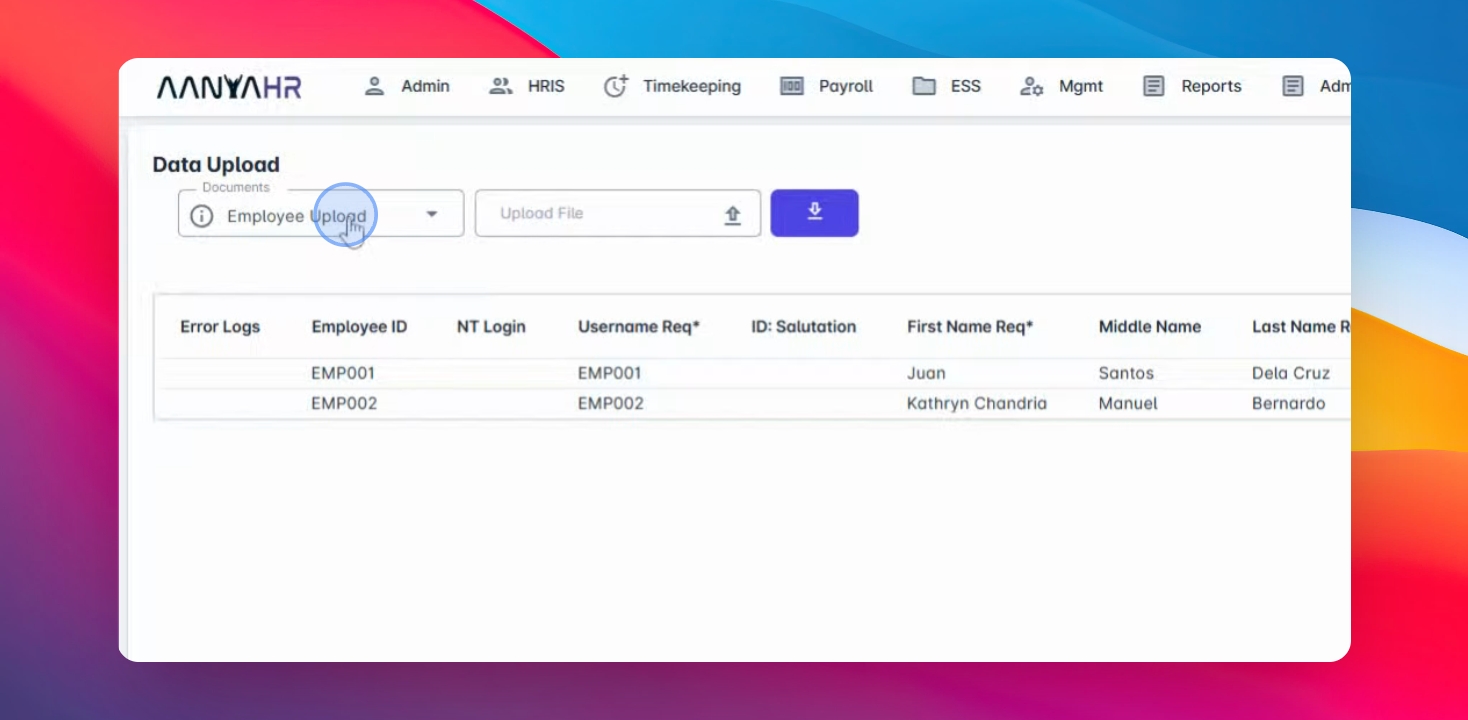
Step 11: Check Info Errors
Review any errors displayed on the screen for the employee information upload.
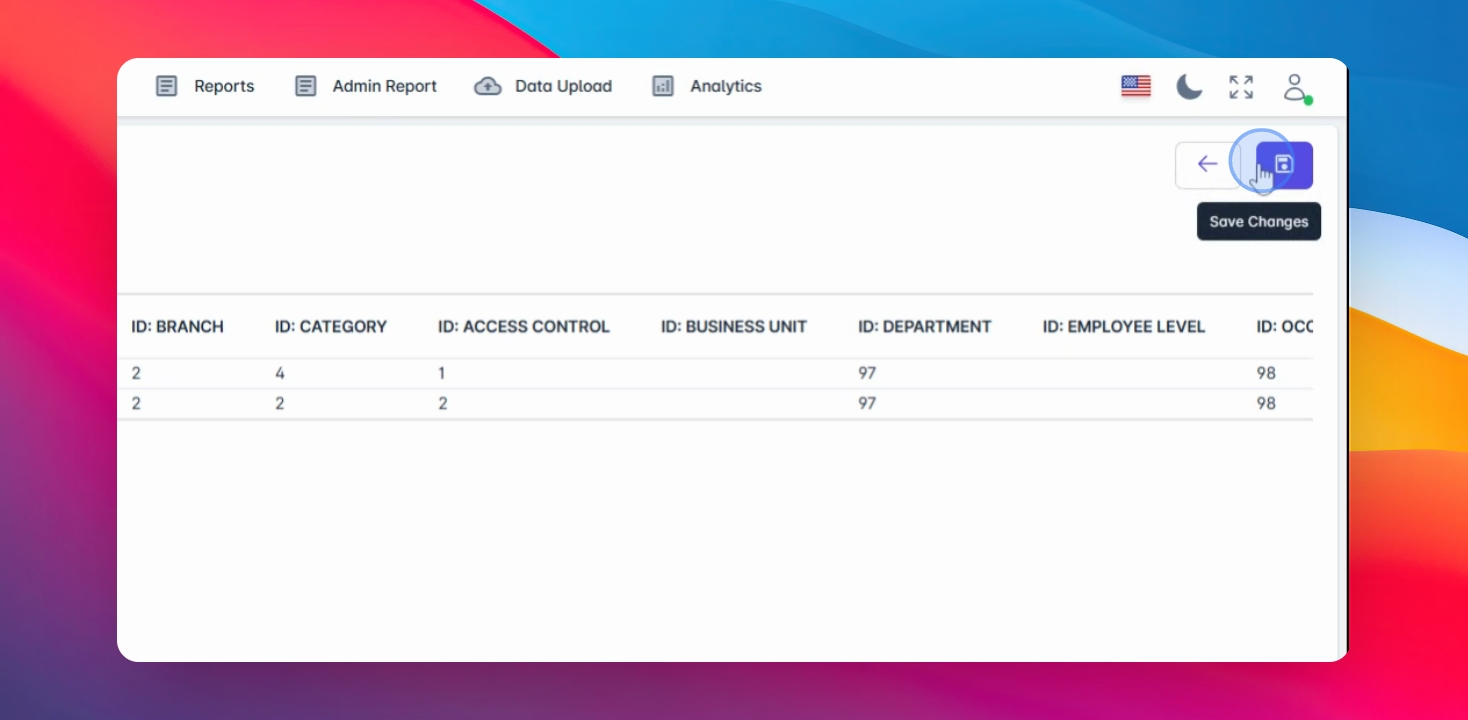
Step 12: Save Changes
Once everything is correct, click Save changes to finalize the upload.
Step 13: Confirm Upload
Your new employee is now successfully uploaded into the system.