

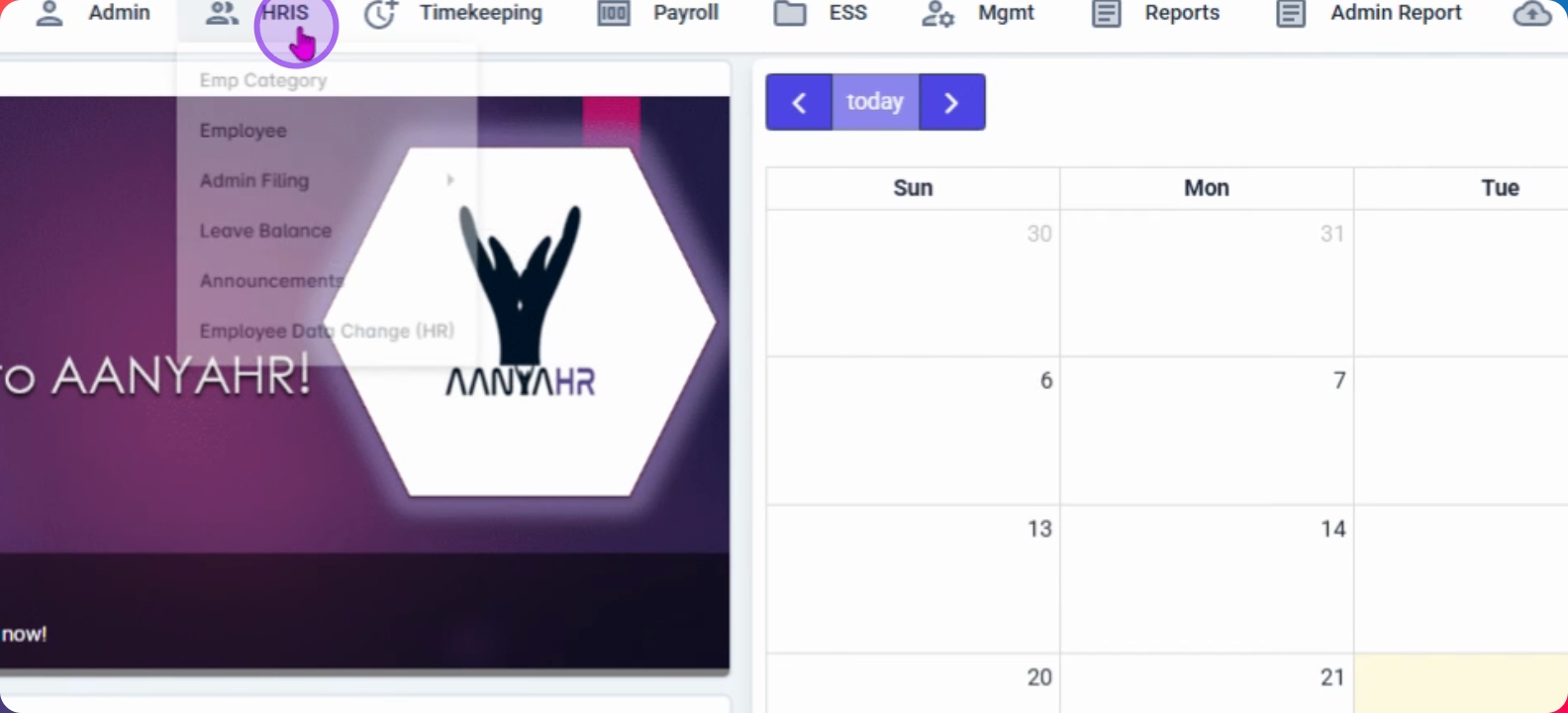
First, navigate to the HRIS module.
Then, select Employee Category.
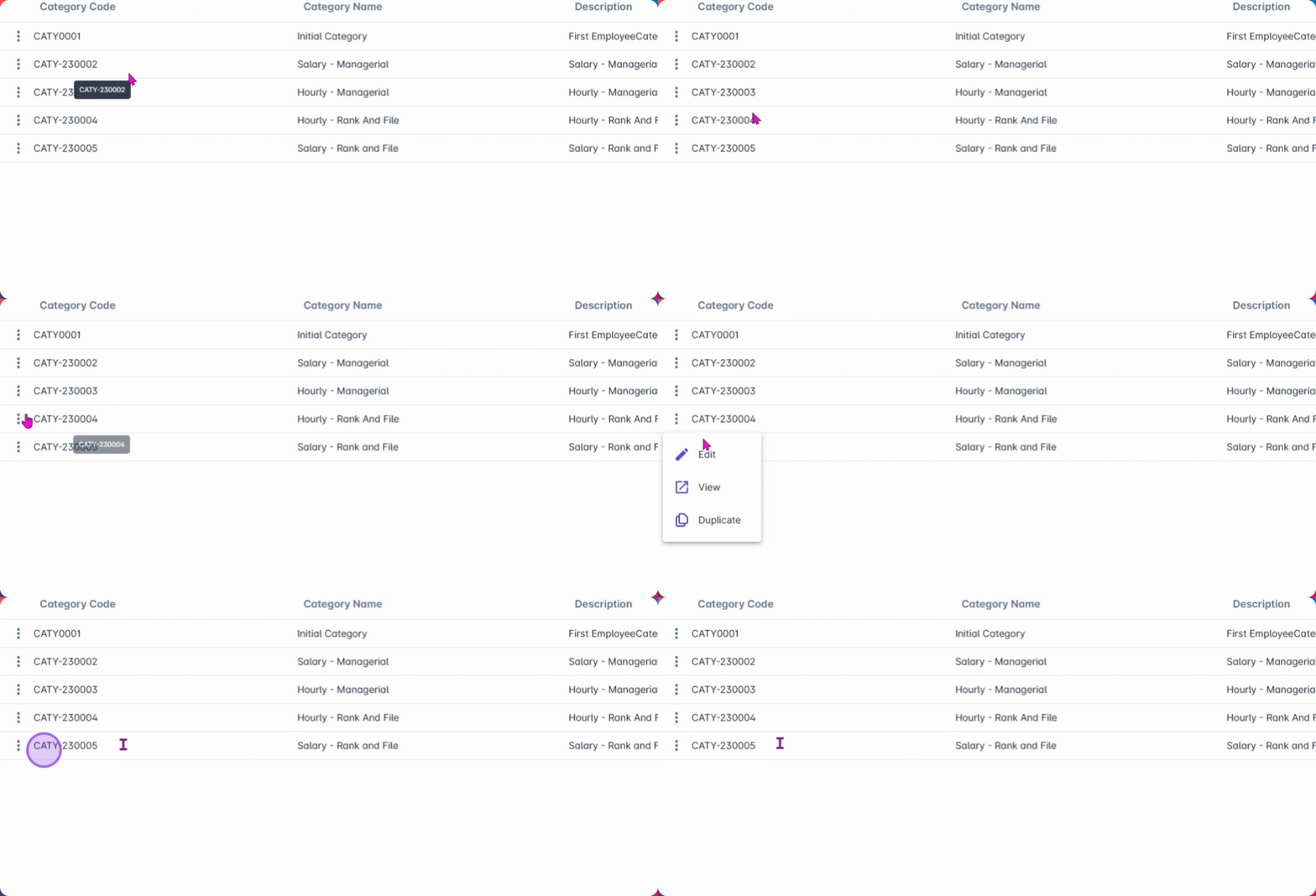
Edit the specific employee category where regularization settings need to be applied.
On the front page, locate the Regularization Approval Duration column.
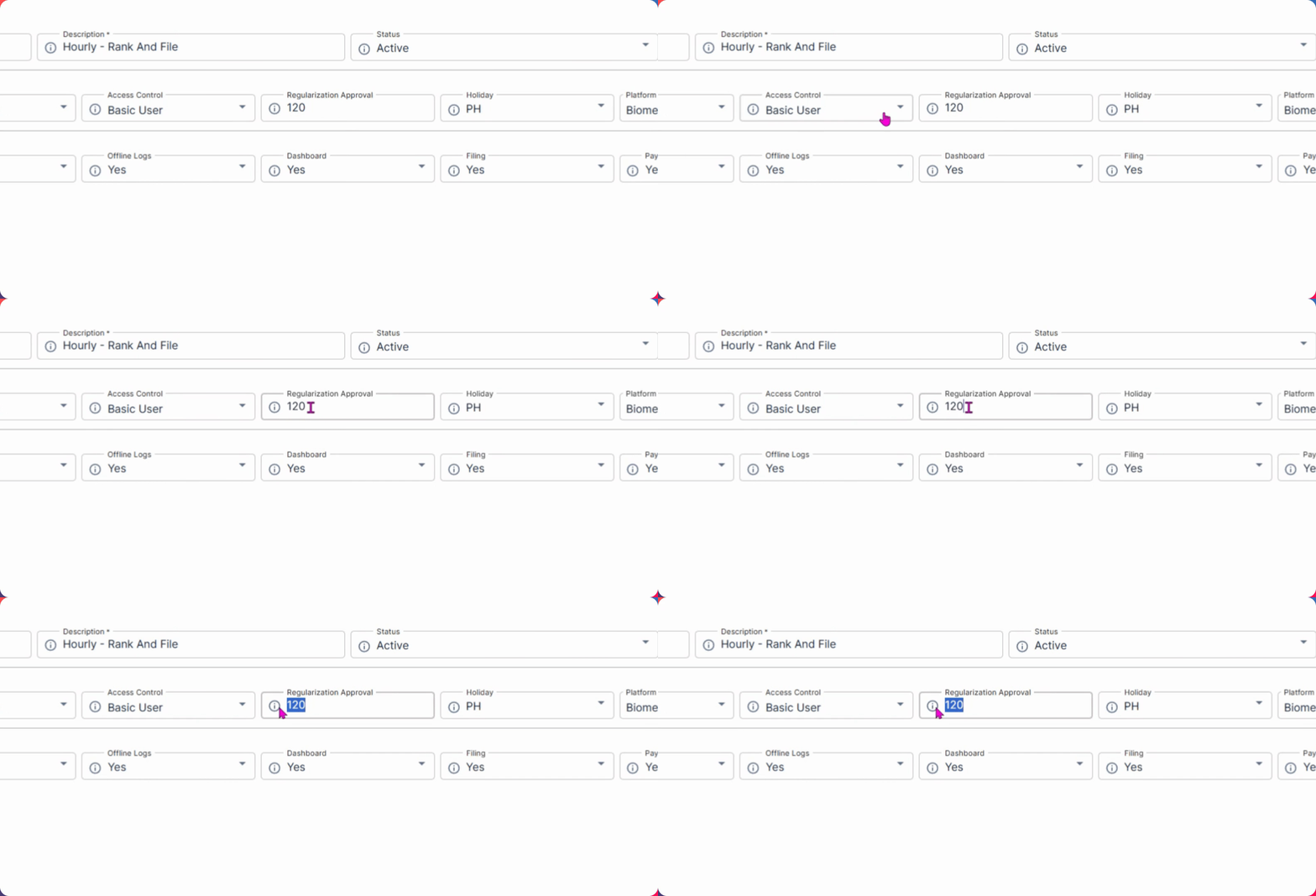
Enter the number of days before the employee's regularization date to notify the approver for review, for example, 120 days.
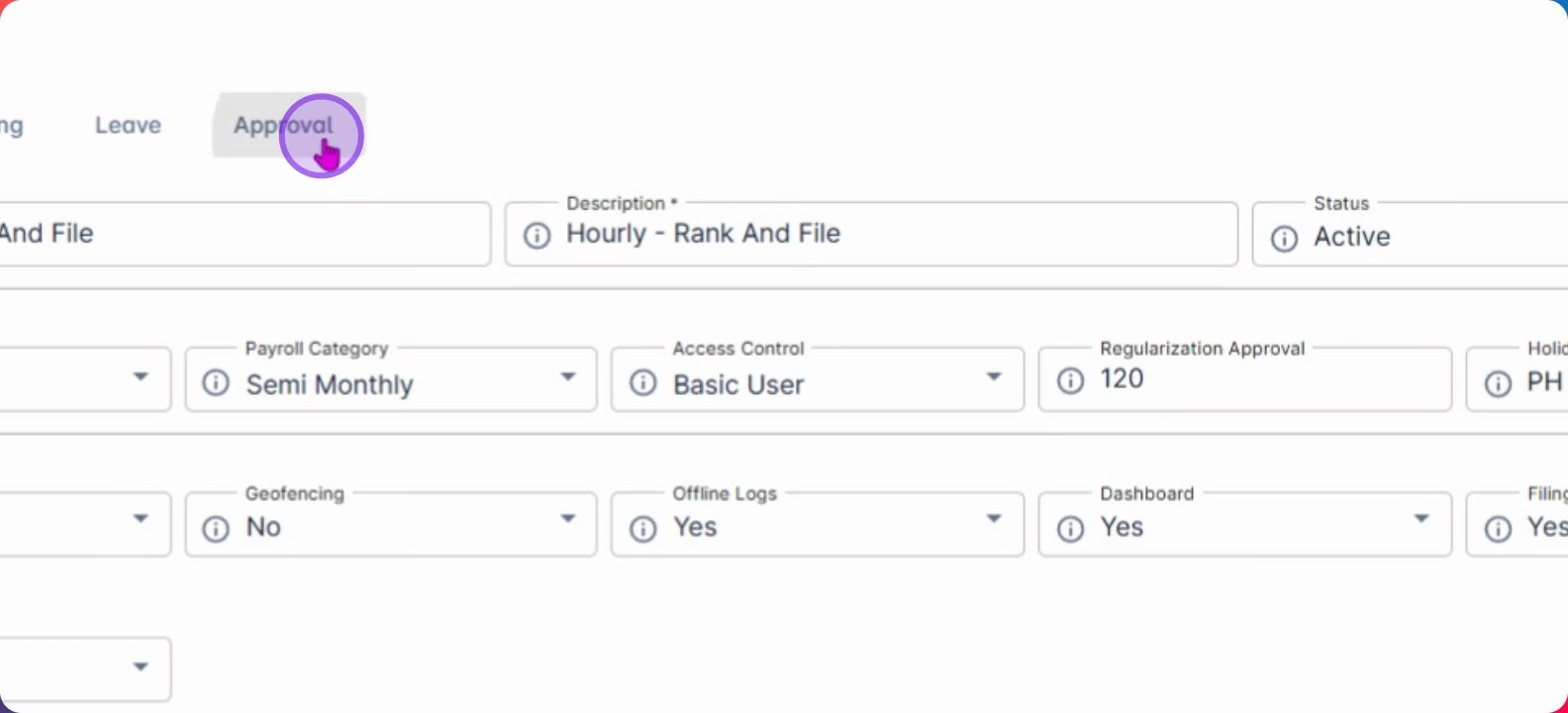
Upon inputting approval, locate or navigate to the approval module.
Assign the approver for employee regularization.
You can create a special approval workflow if required.
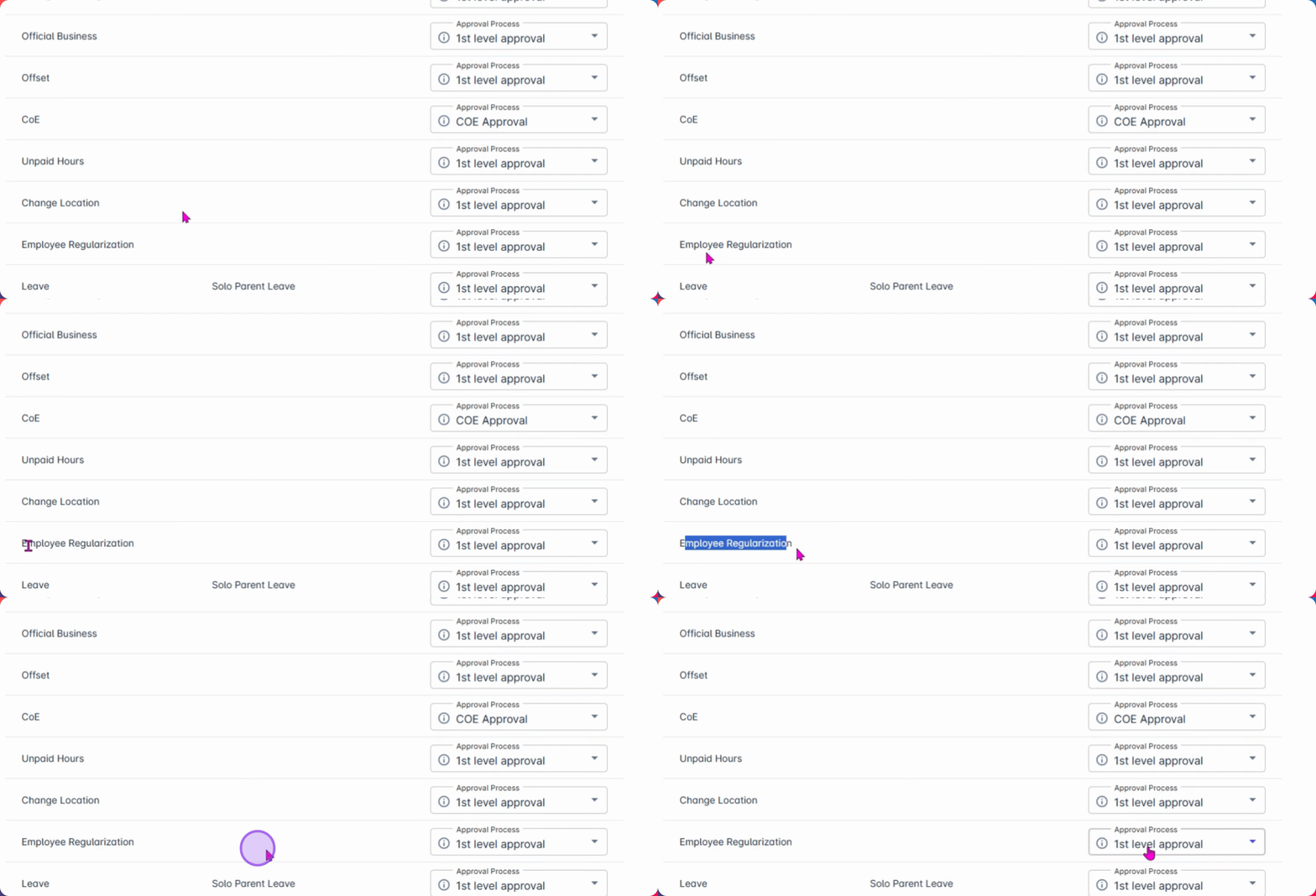
Click Save to apply the changes.
Next, activate the Employee Organization Approval process.

The system will automatically store all employees under Employee Category in the Approval Bucket of the approver to review the regularization date after 120 days.
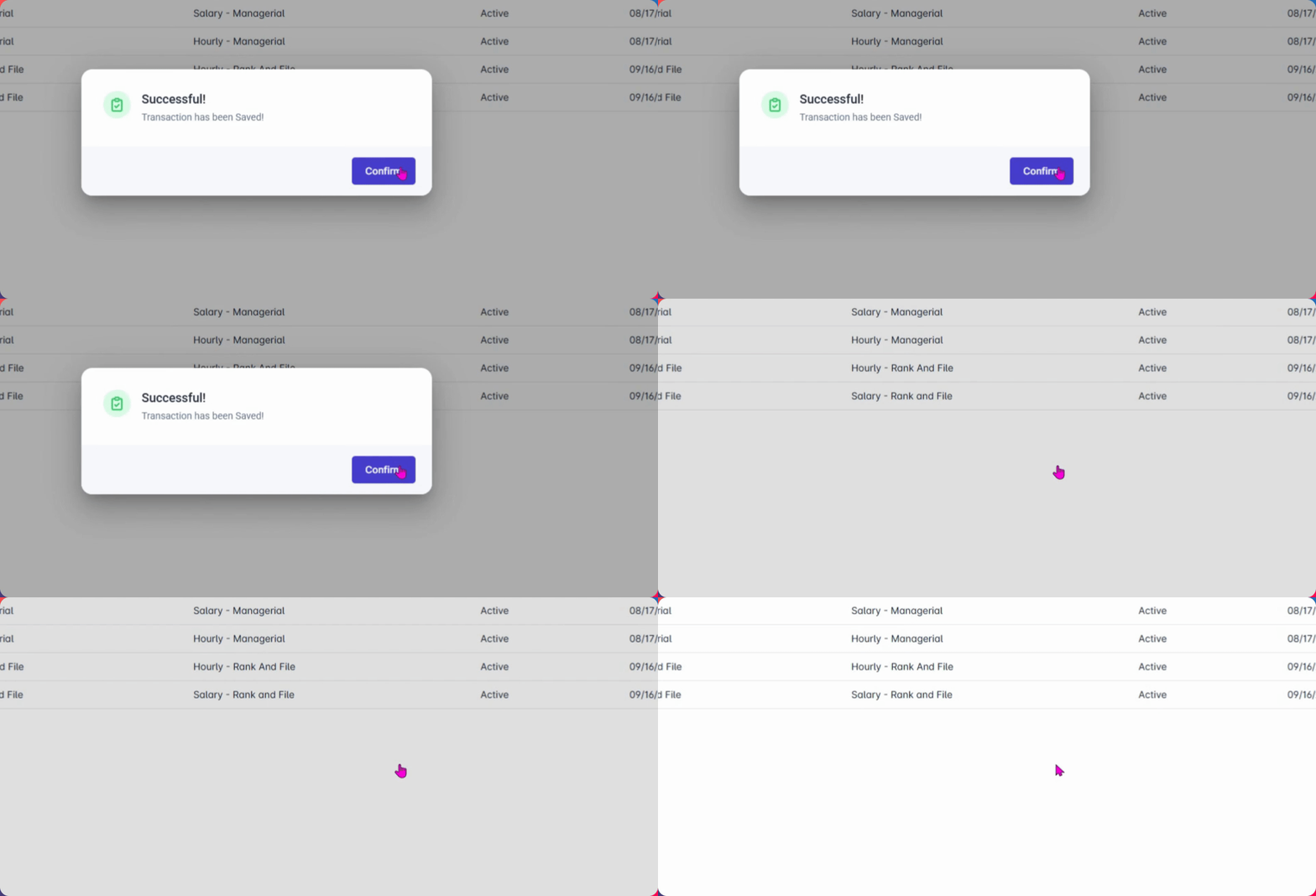
By following these steps, you will successfully set up the Employee Regularization Approval process, ensuring a streamlined transition for employees.