

Follow the steps below to create a requirements group, assign it to an employee category, and manage an employee’s required documents.
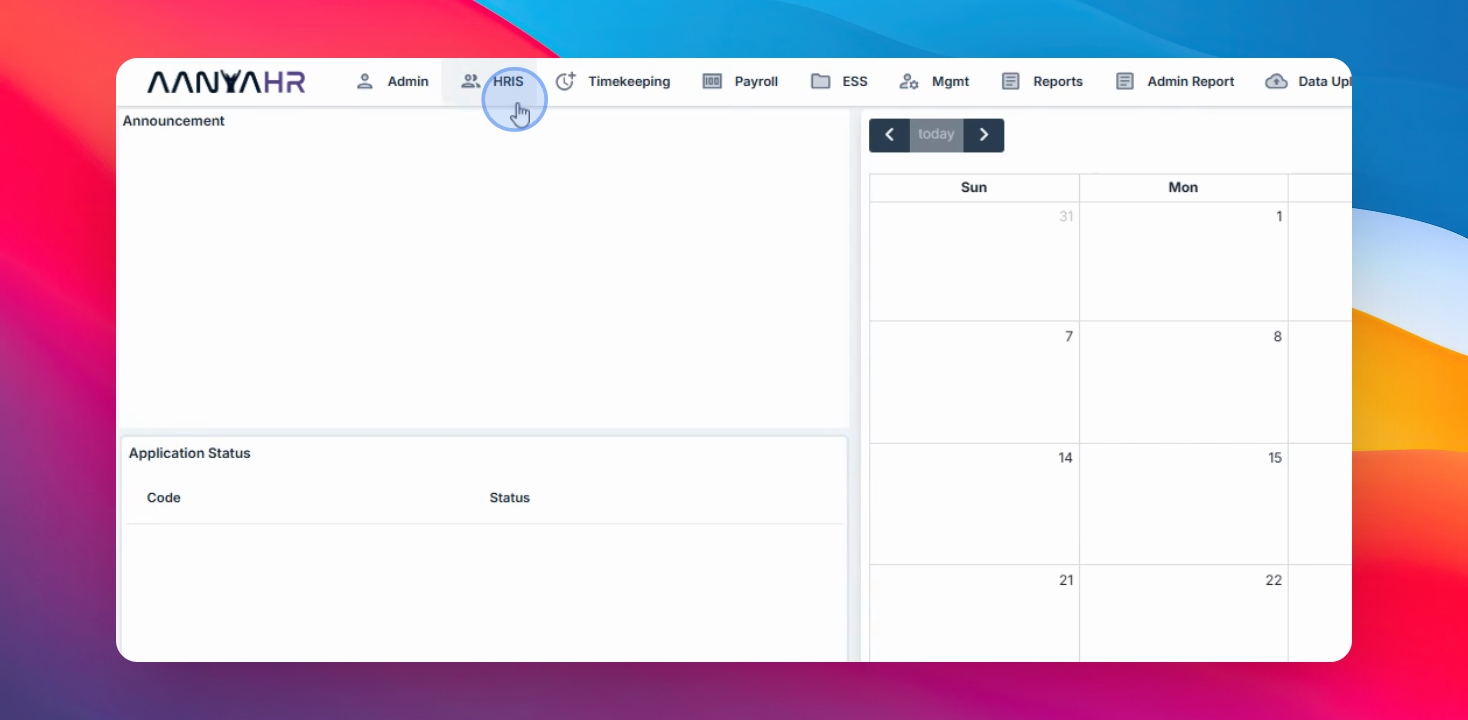
Step 1: Go to HRIS Requirements
Navigate to HRIS E2001 requirements in your system. From here, you can create and manage the requirement groups that will be assigned to employees.
Step 2: Verify Requirements Group
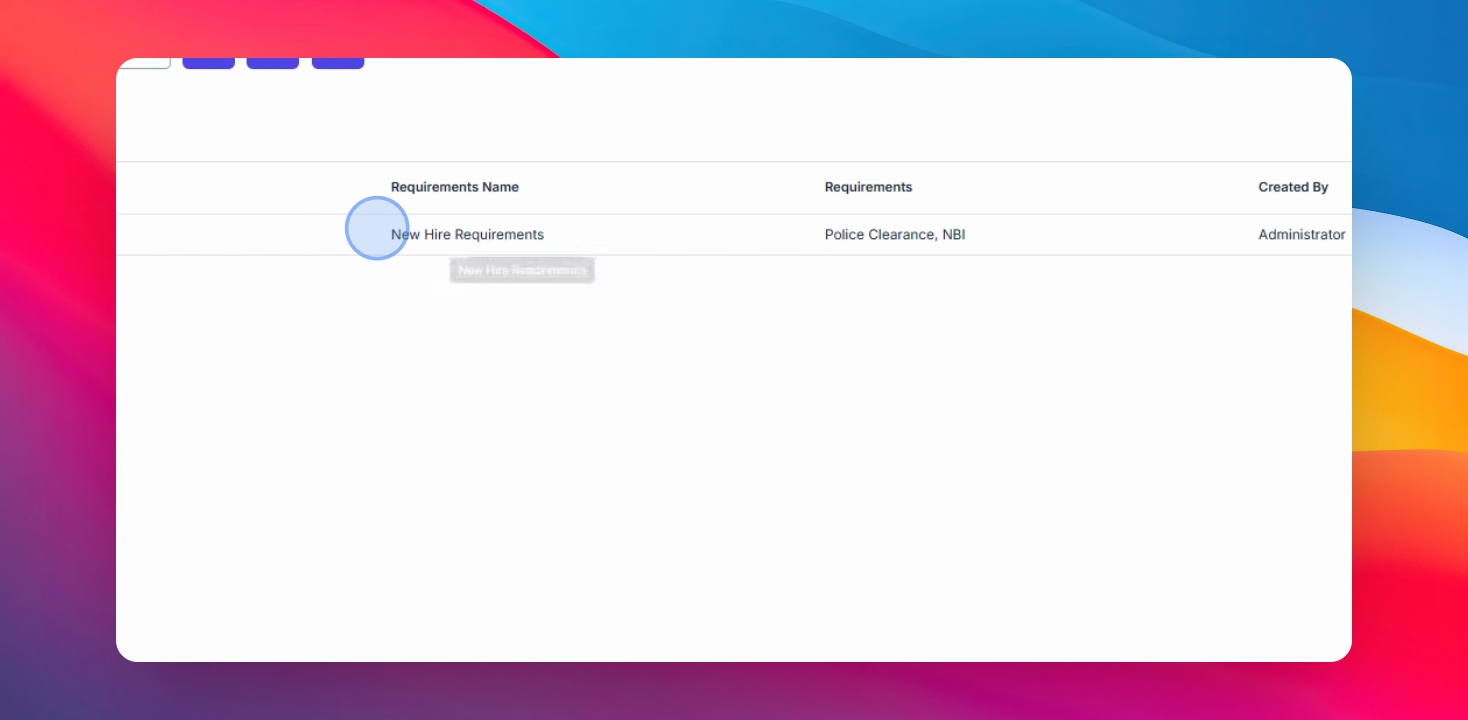
Before assigning requirements to employees, ensure that you have already created the Requirements Group that will be used for your E201 setup.
Step 3: Assign Group to Employee Category
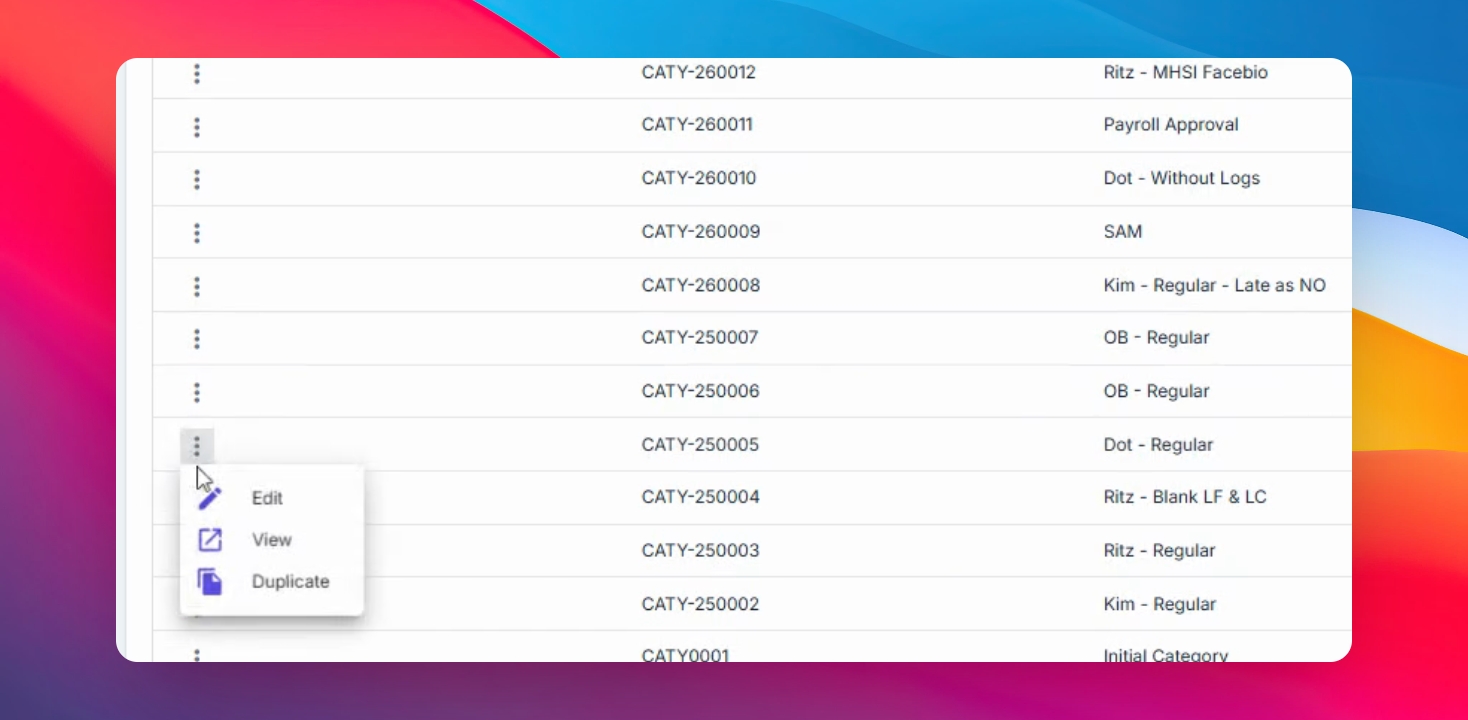
Navigate to HRIS > Employee Category. Select the employee category for which you want to set the new hire requirements. The created requirements group should appear here.
Step 4: Select and Save Requirement Group
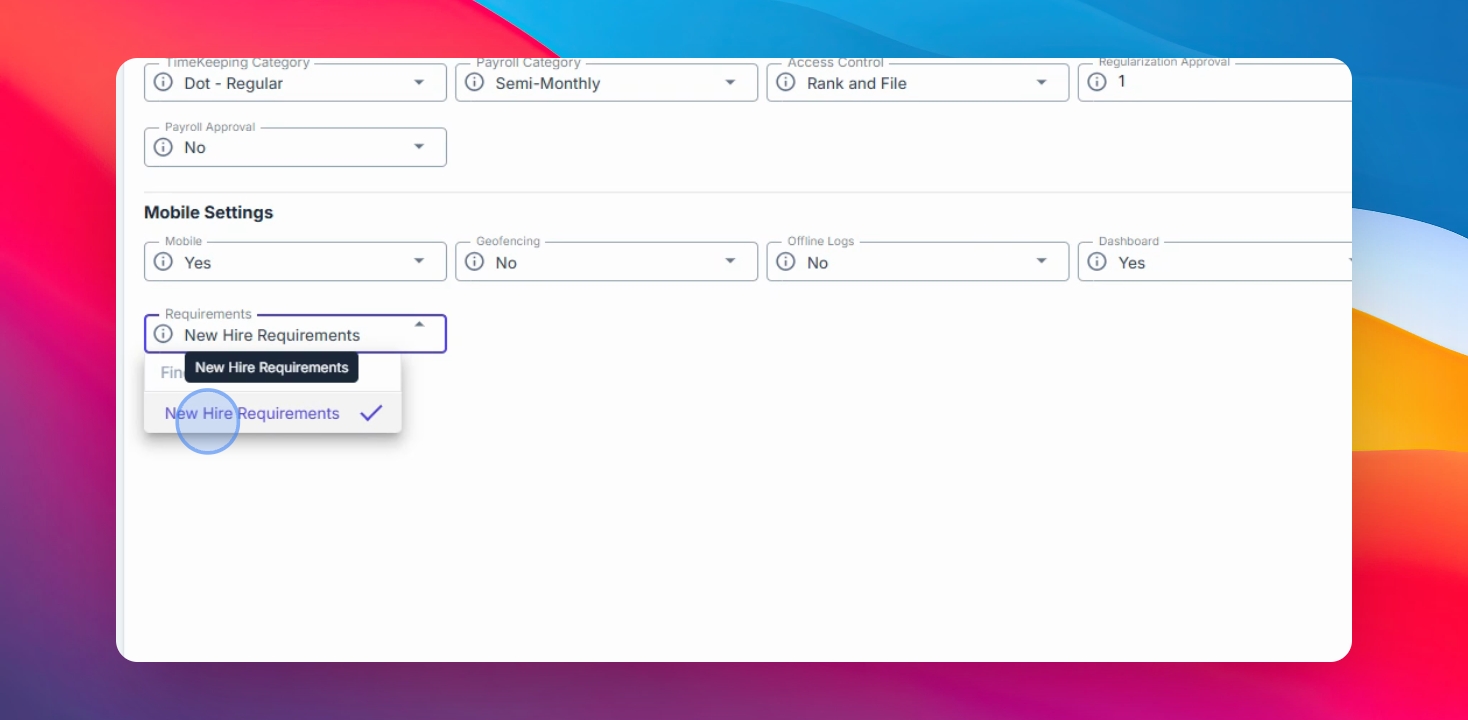
Select the requirement group you want to assign and click Save Changes.
Step 5: Find Employee in E201
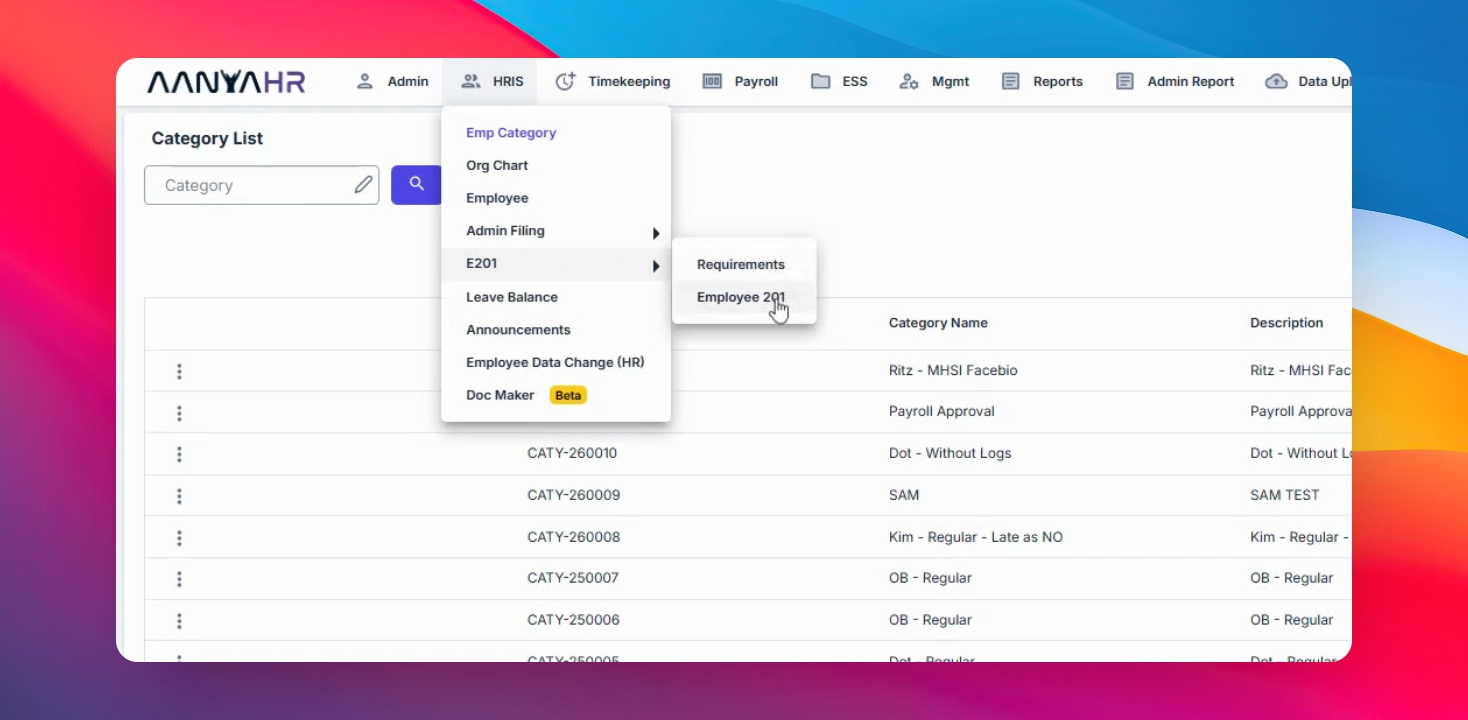
Go to HRIS > E201 > Employee E201 . Search for your employee using the tag type field and click the three dots beside the employee ID.
Step 6: Edit Employee Details
Click on Edit to access the employee's details.
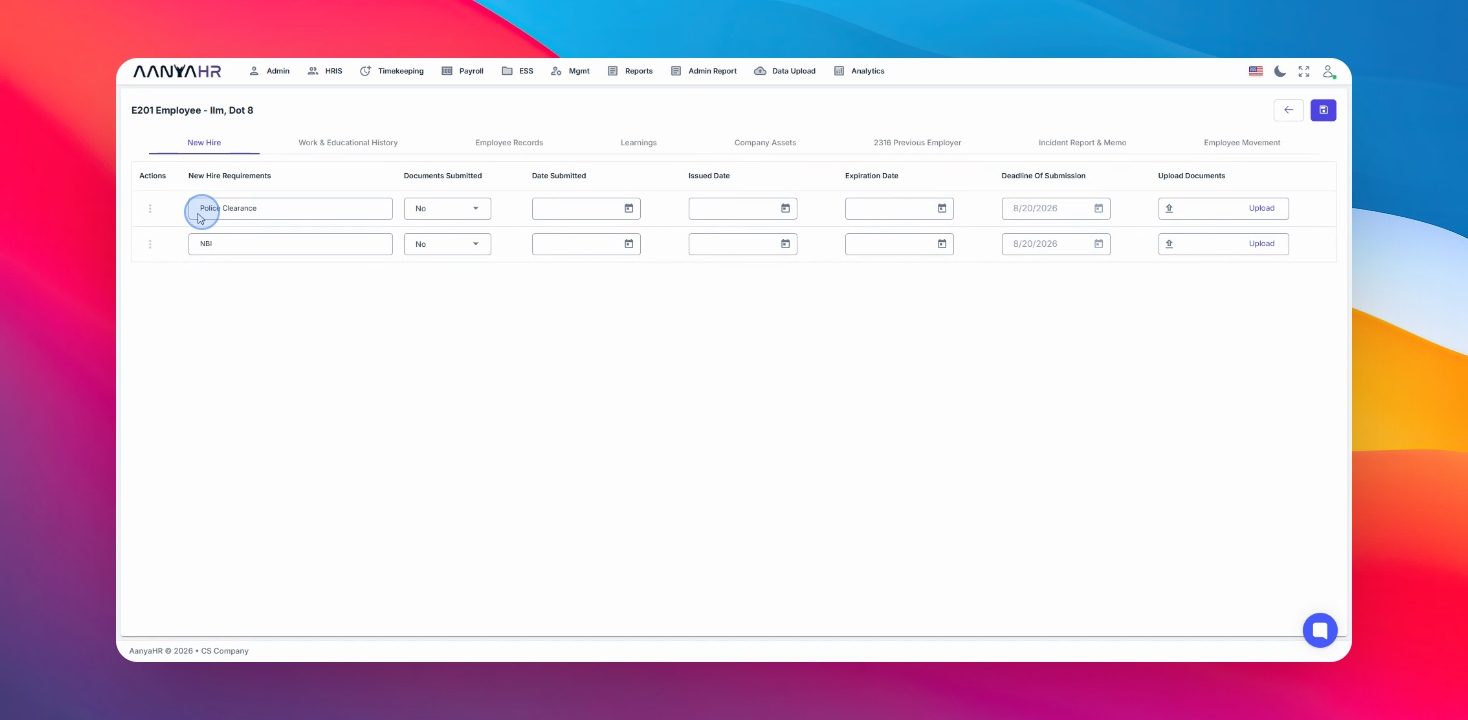
Step 7: Modify New Hire Requirements
You can now view and modify the assigned New Hire Requirements for the selected E201 employee based on the configured requirements group.
You have now learned how to set up and manage New Hire Requirements for E201 employees in AanyaHR. By creating requirement groups and assigning them to employee categories, you can standardize onboarding requirements and efficiently track document compliance for new hires.