

This guide explains how to submit a payroll run for approval, including how to cancel and revise submissions. Let's look at the steps:
Step 1: Create Payroll Run
Create your payroll run before proceeding to approval.
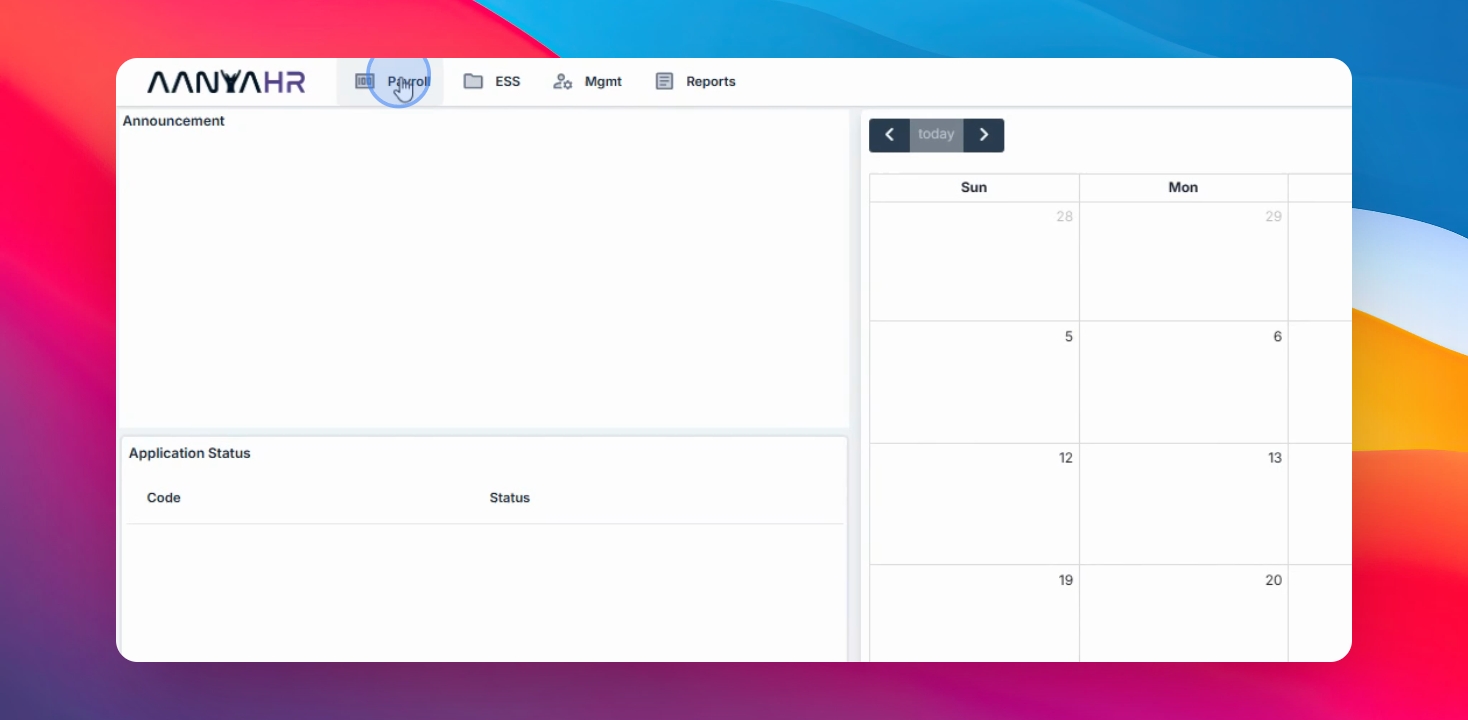
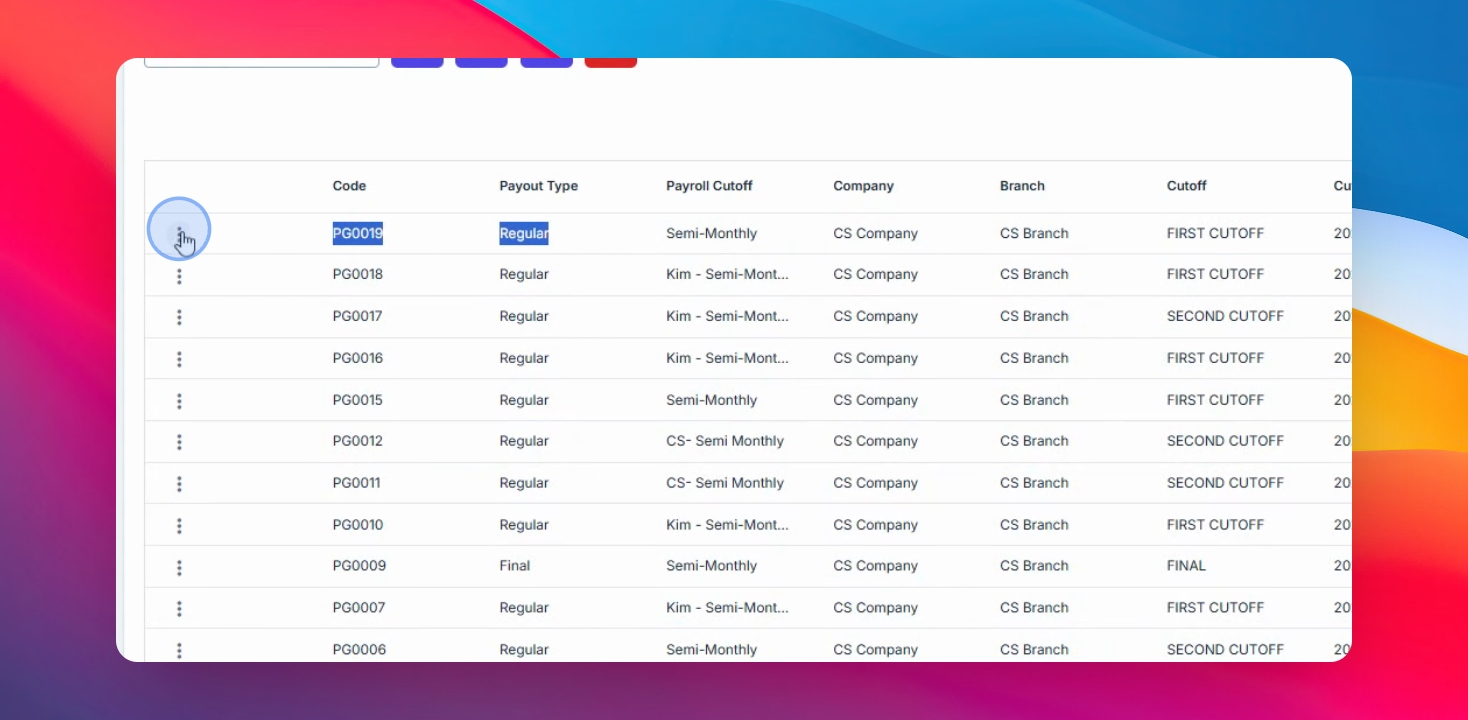
Step 2: Open Payroll for Editing
Click Edit on the payroll run.
Navigate to the last tab or select Generate Payroll, then click the Payroll Approval button.
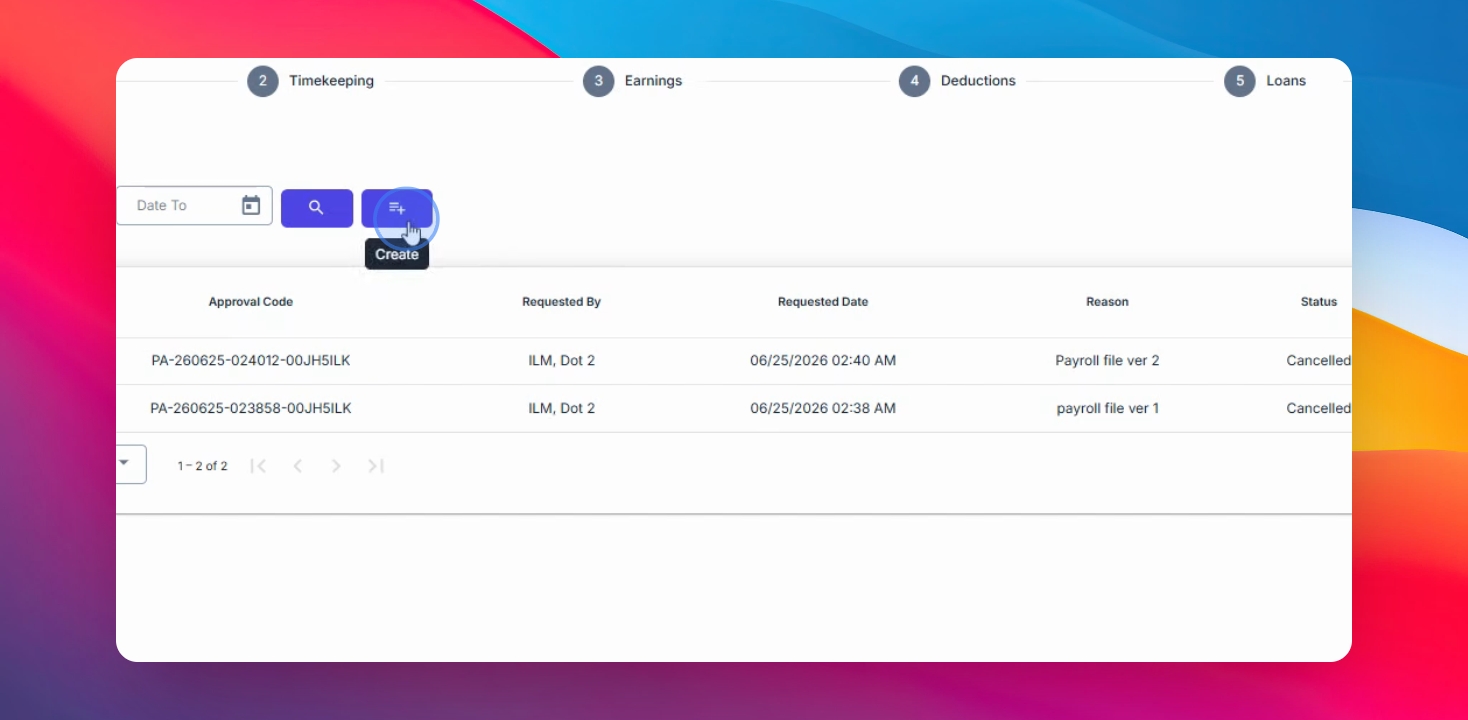
Step 3: Create Approval Request
Click the Create button to start the approval process.
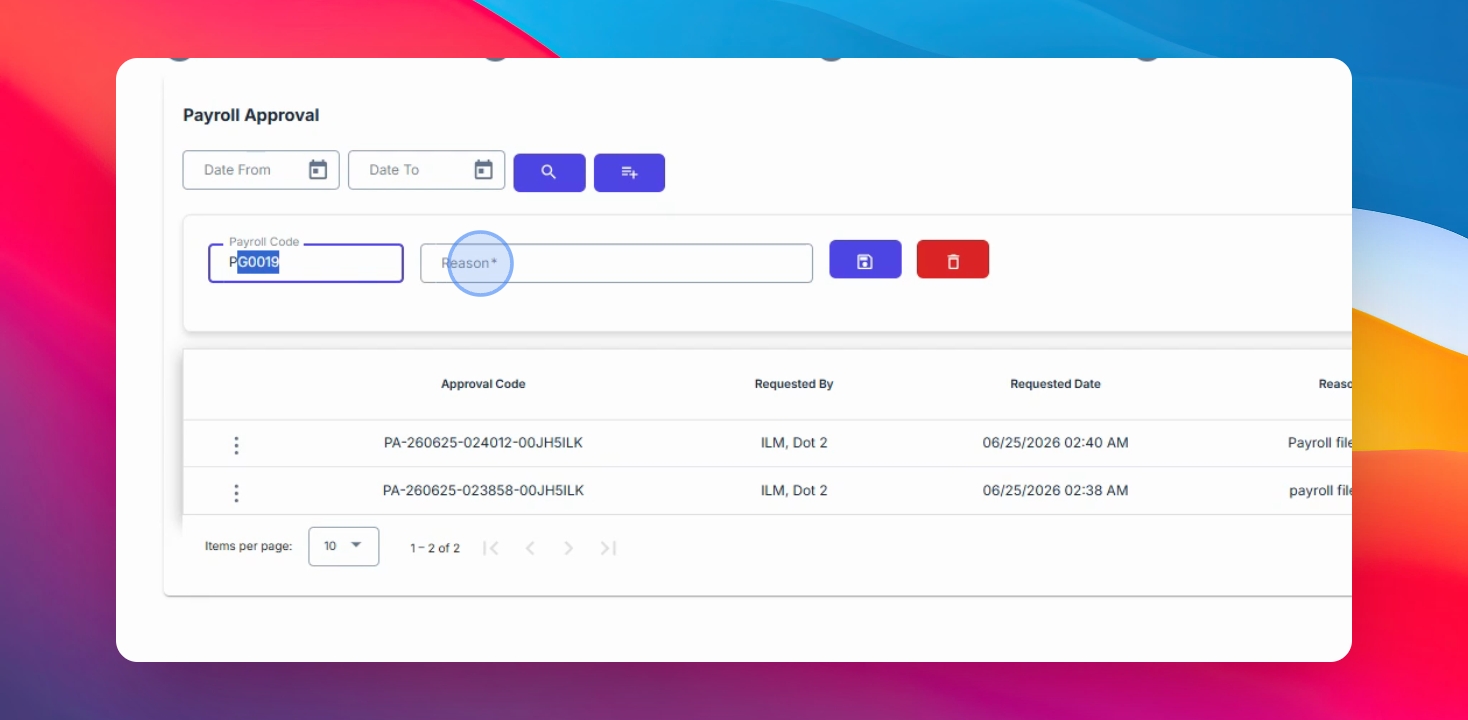
Step 4: Enter Remarks and Save
The payroll code will appear. Enter your remarks or reason. Once completed, click Save to submit the payroll for approval.
Step 5: Wait for Approval
After saving, the page reloads. You can no longer edit the payroll run unless it is disapproved or cancelled.
Step 6: Cancel Submitted Payroll (If Needed)
If revisions or additional supporting documents are needed, you may cancel the approval request.
To do this:
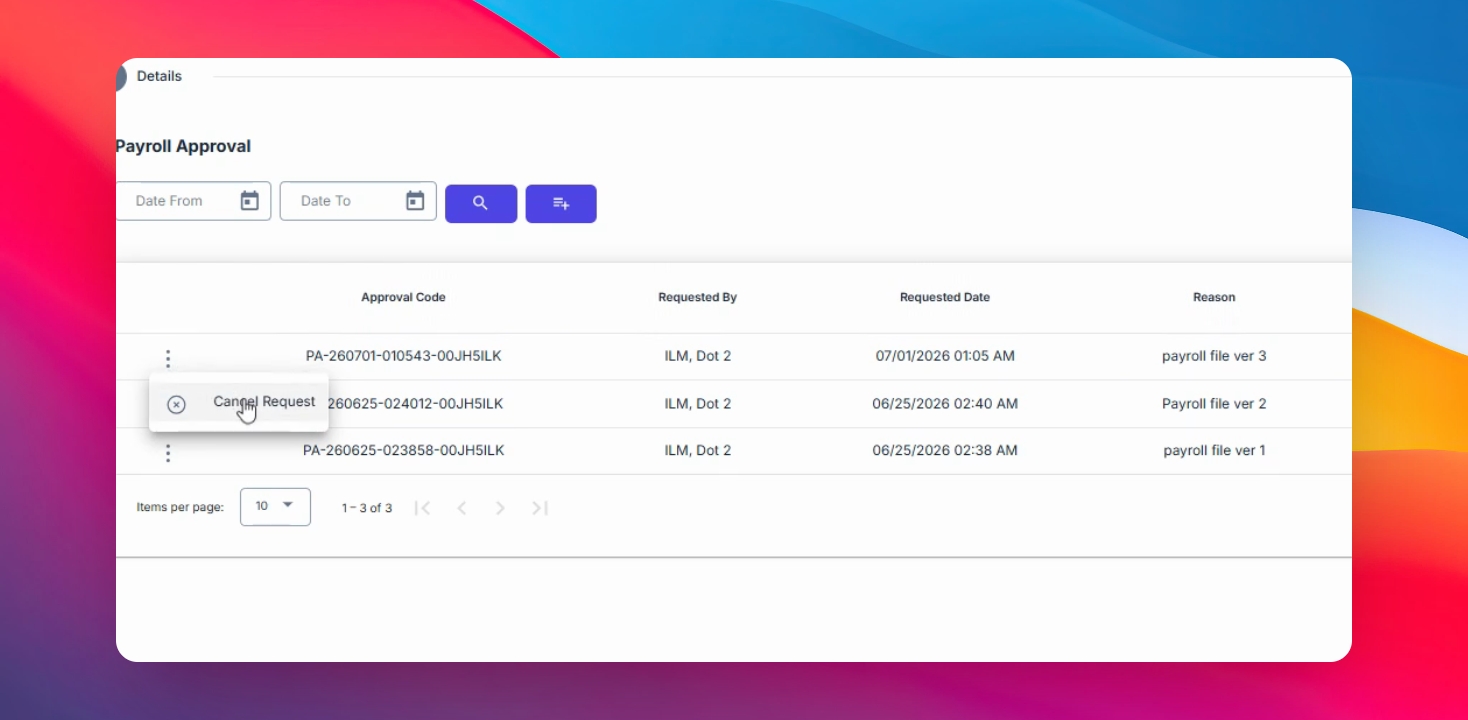
Click the Payroll Approval button.
Click the three dots beside the approval code.
Select Cancel Request.
Step 7: Edit After Cancellation
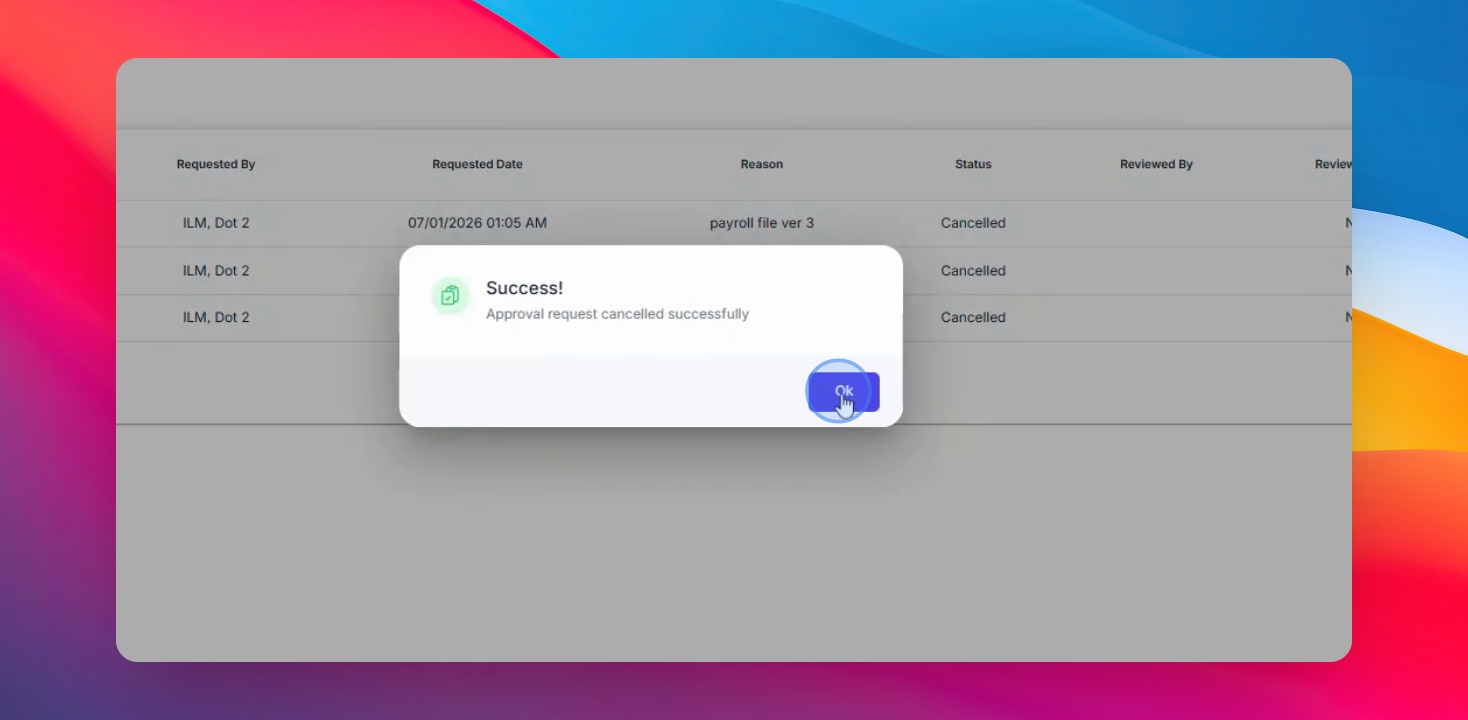
After the approval request is canceled, you will be redirected back to the payroll run. You may now make the necessary changes and submit the payroll for approval again. The system retains the complete approval history for audit and tracking purposes.
Additional Information
The Payroll Approval button displays the current status of the payroll request, including:
Pending
Approved
Canceled
Disapproved
You can also view detailed approval information, including:
Approval Code
Requested By
Request Date
Remarks
Approval Status
Approver
Approval Date
Approver's Remarks