TL;DR
1
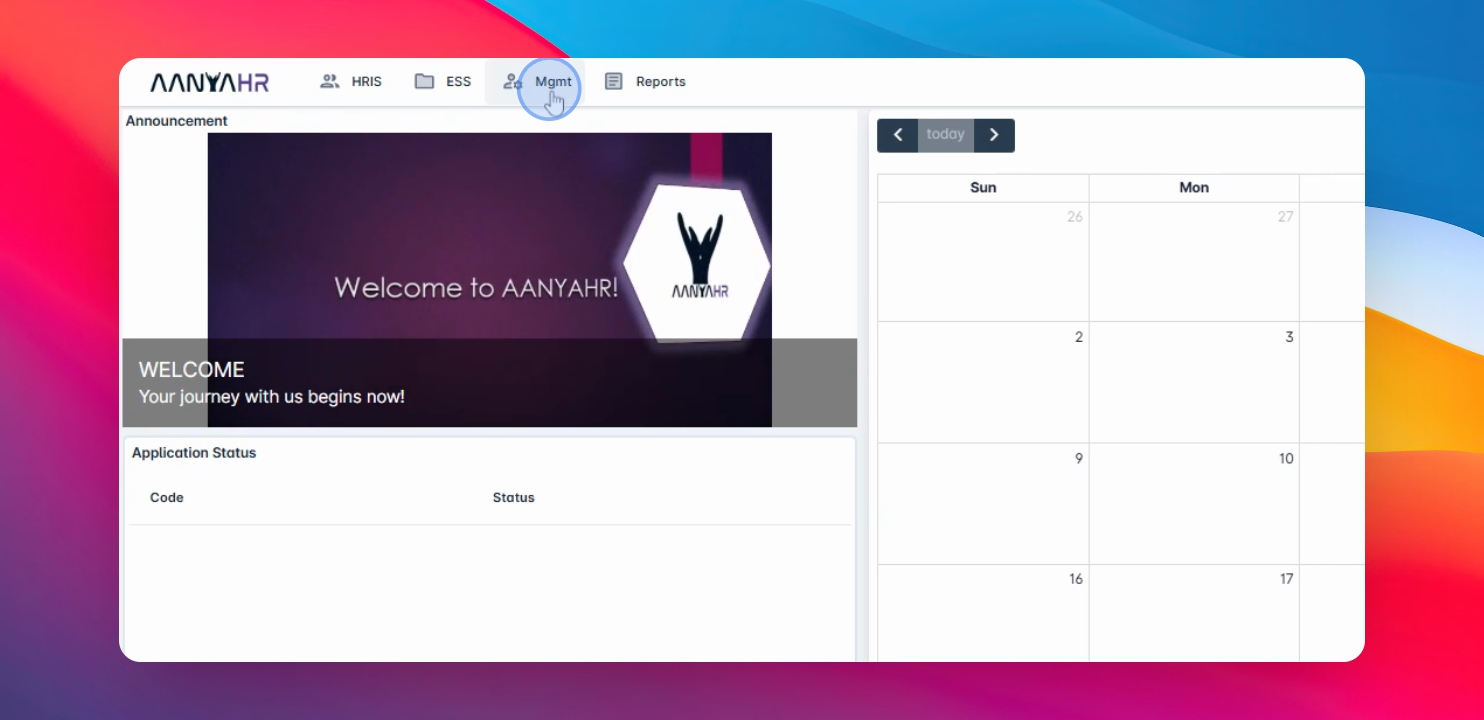
Open Management Module
Navigate to the Management module to start.
2
Click Approval
Access the Approval list view to see requests.
3
Process Change Logs
View pending change logs for approval.
4
Approve or Disapprove
Click Approve or Disapprove based on your action.
5
Confirm Action
Follow prompts to confirm your approval or disapproval.
Let's Do It Together!
Step 1: Open Management Module
Go to the Management module.
The management module opens.
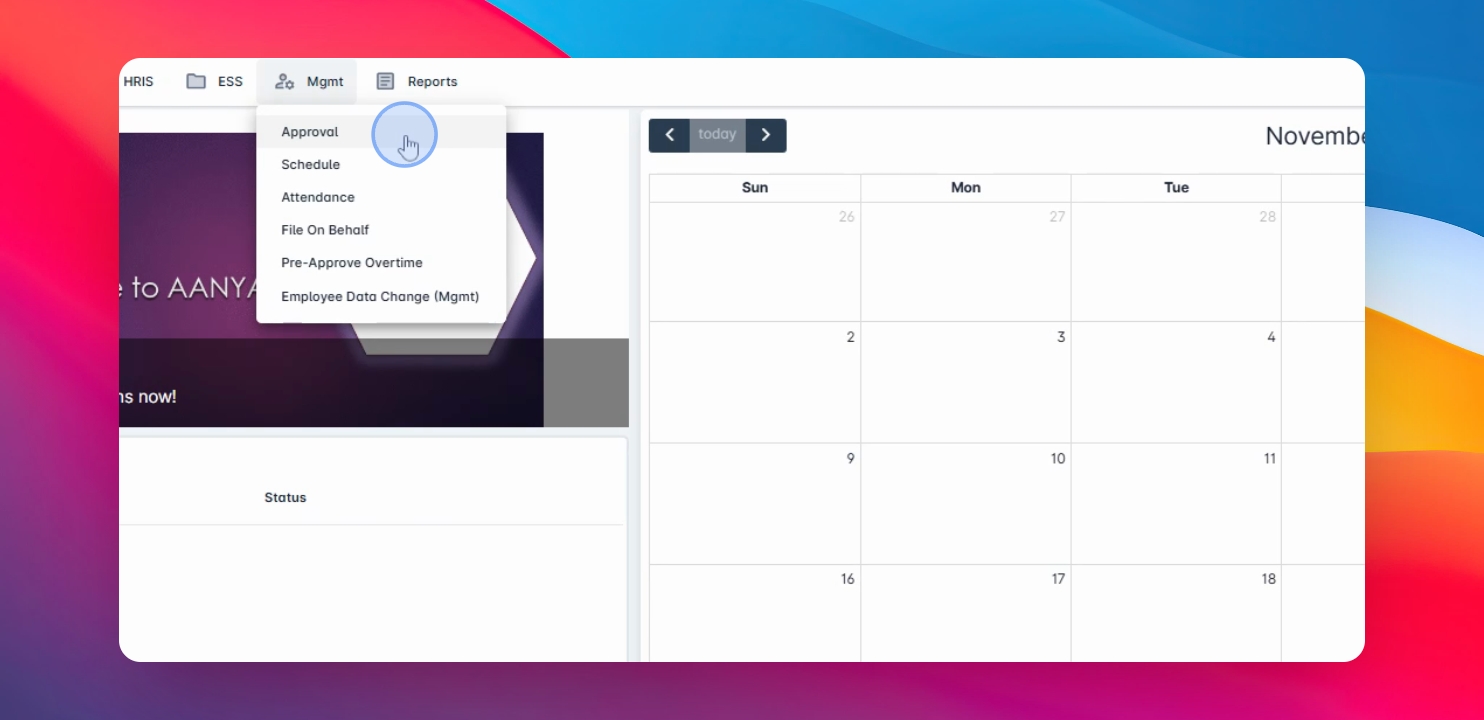
Step 2: Click Approval
Click Approval.
The Approval list view displays all filing types with pending requests.
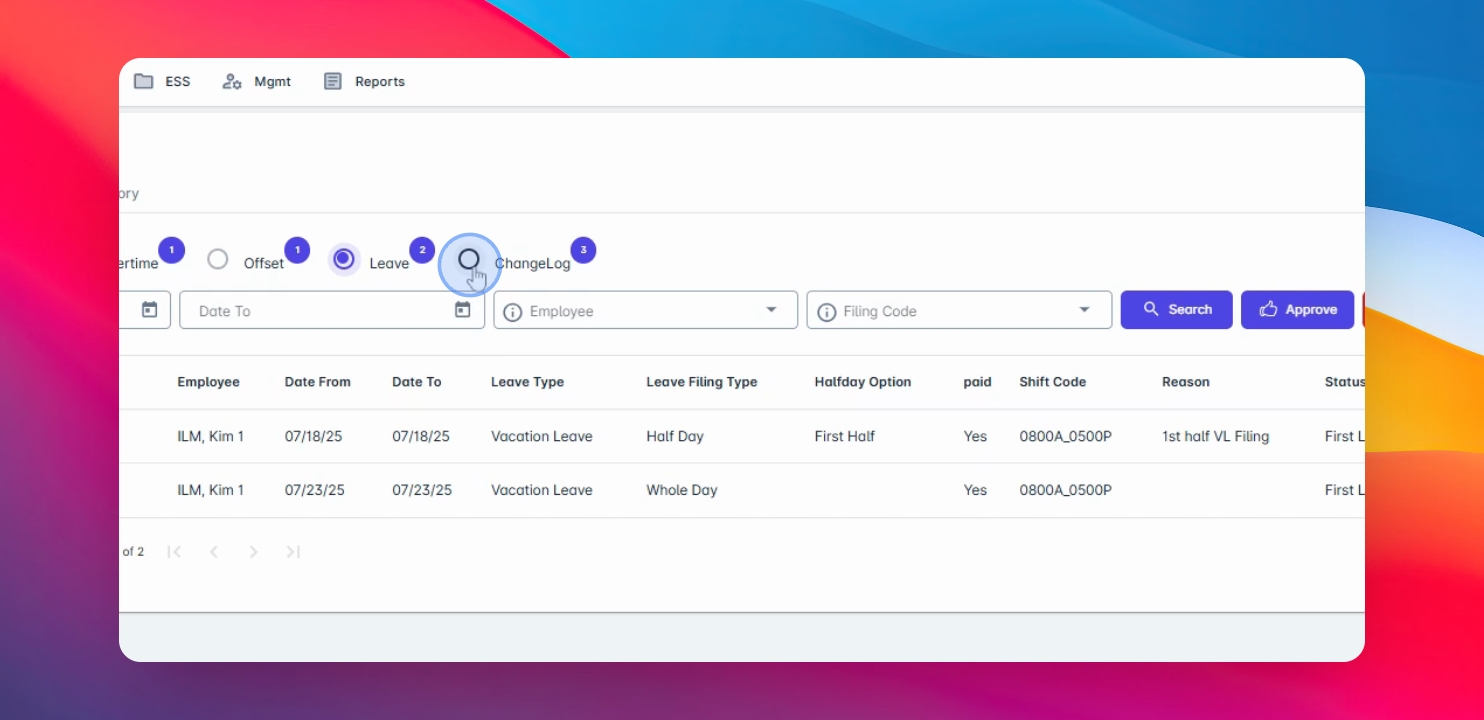
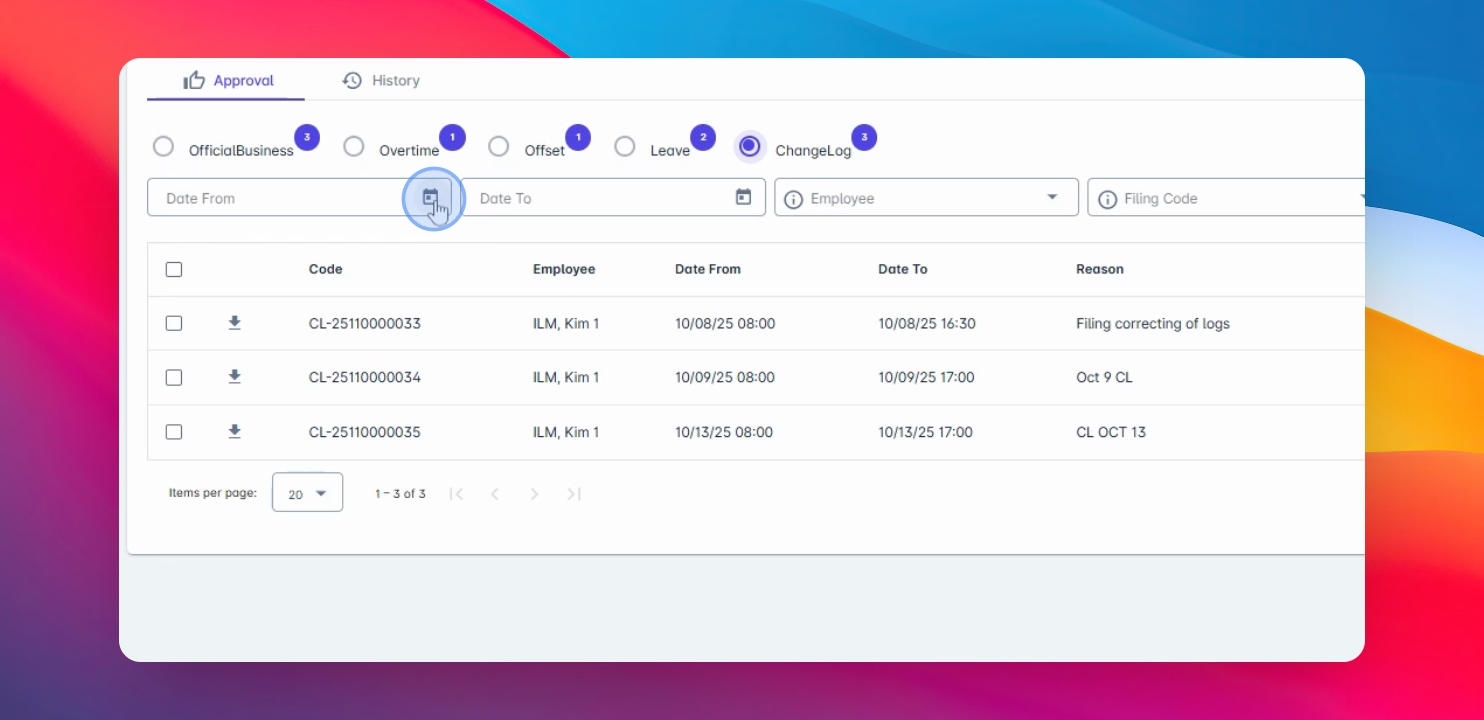
Step 3: View Change Logs
Click on Change logs.
All pending change logs for approval are displayed.
Step 4: Use Filters (Optional)
Optionally, use filters to narrow down the list.
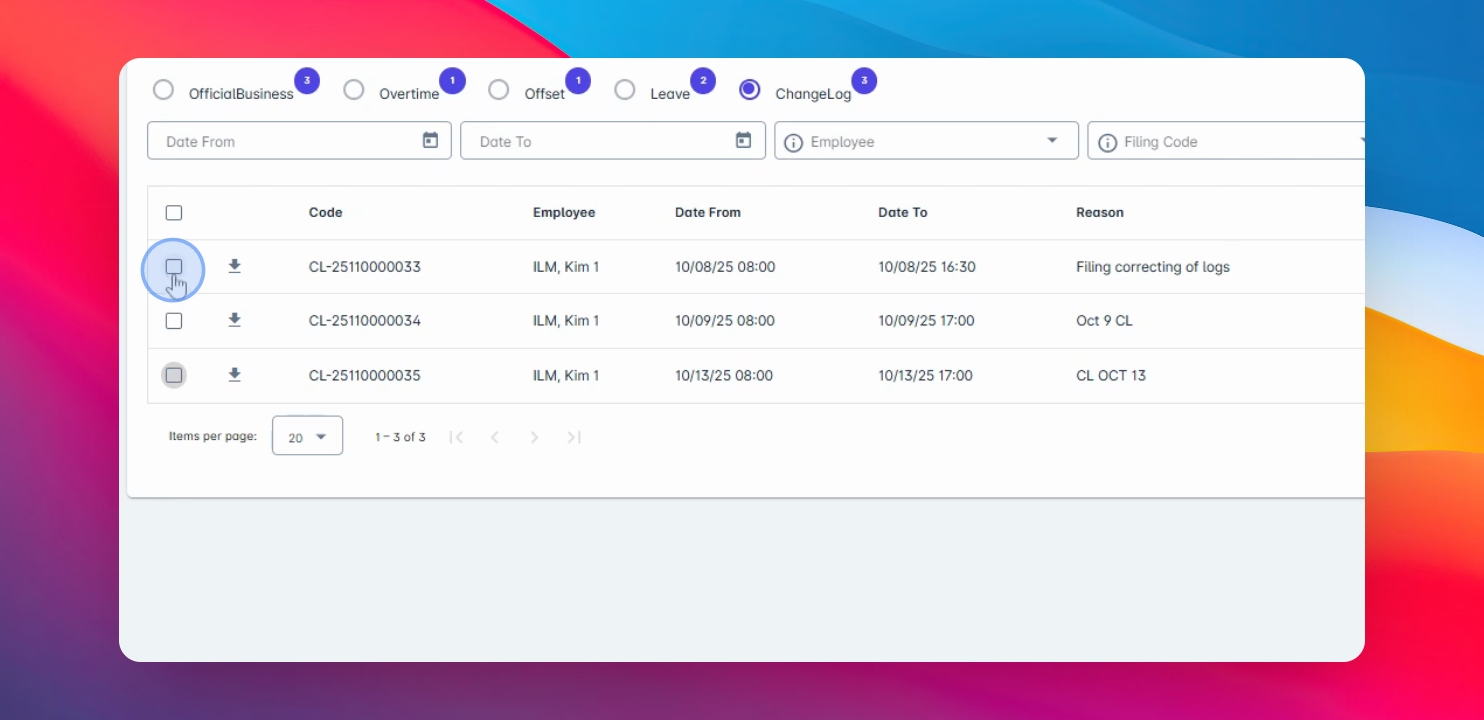
Step 5: Approve the Request
Click Approve to approve the request.
A confirmation window appears.
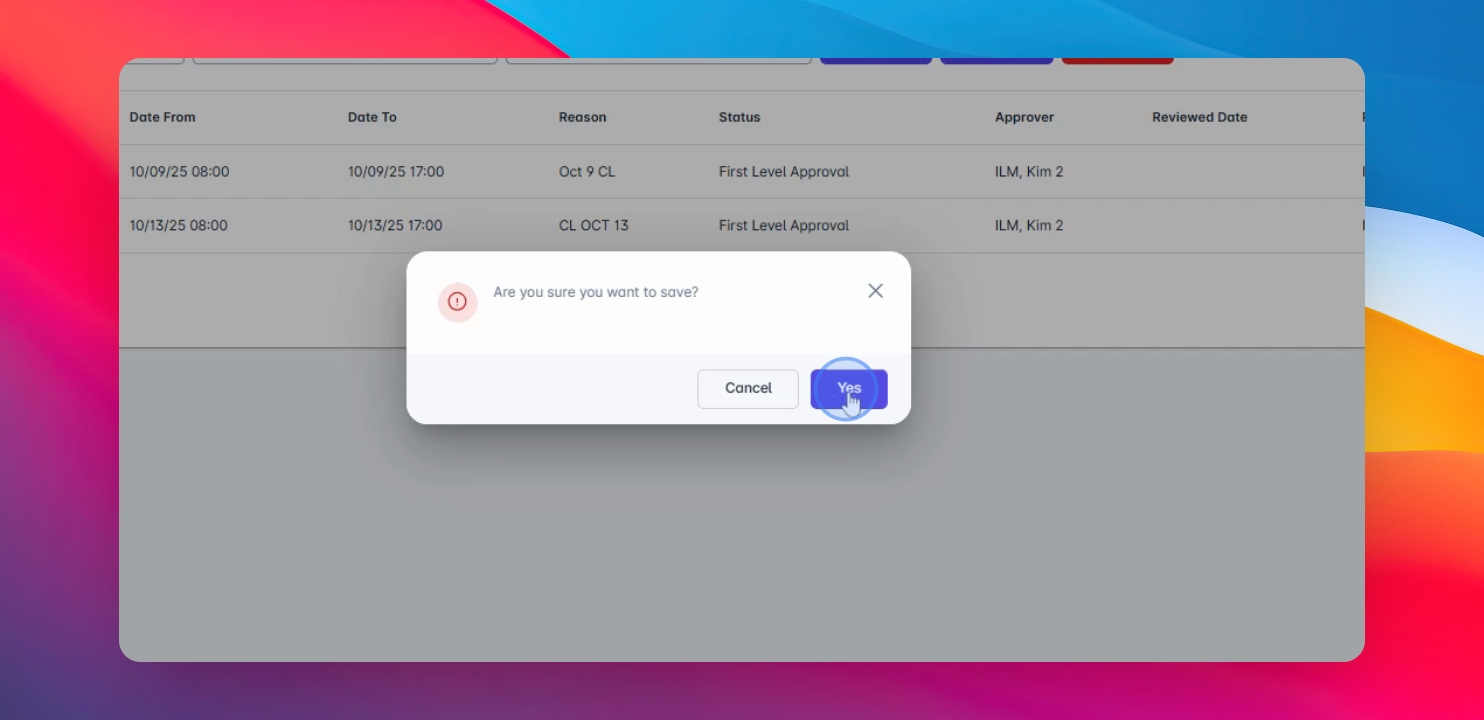
Step 6: Confirm Approval
Click yes in the confirmation window.
The approval is confirmed successfully.
Step 7: Confirm Final Approval
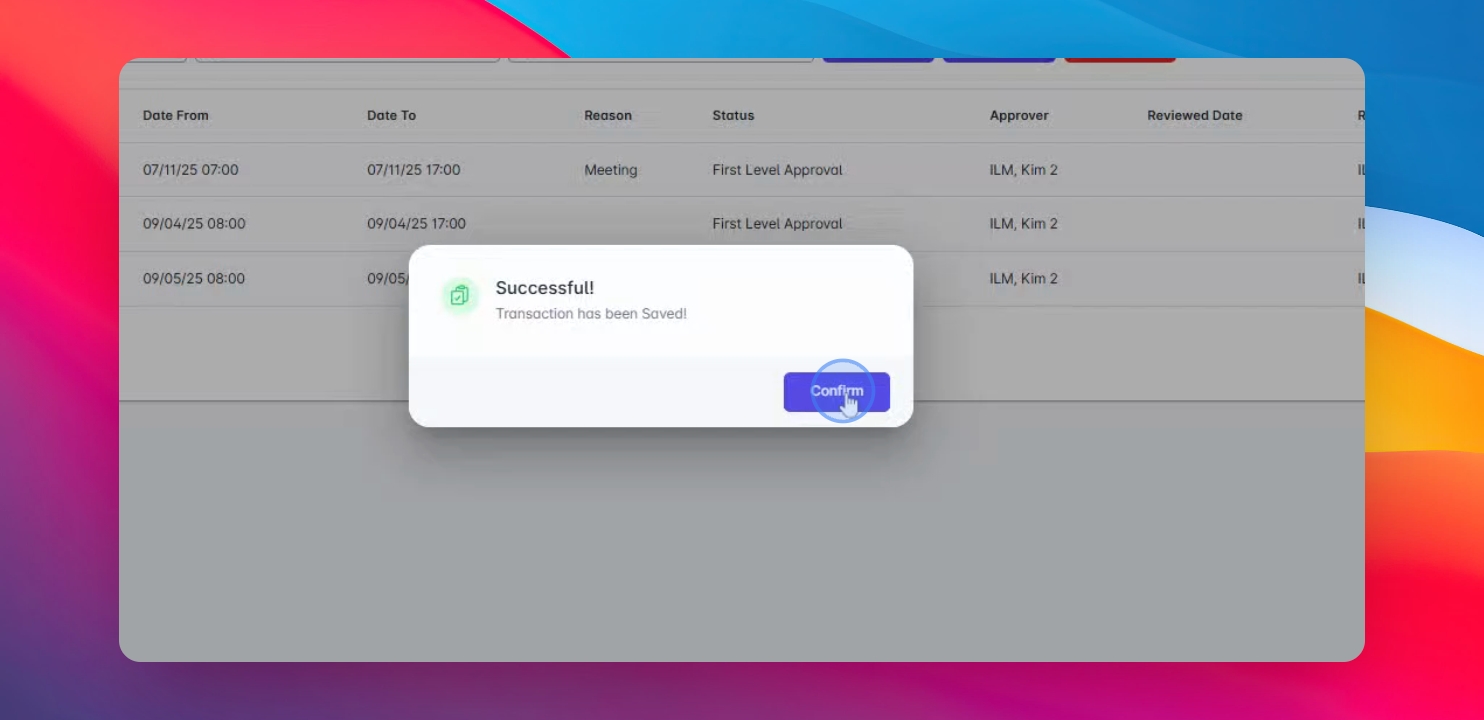
Click Confirm after successful approval.
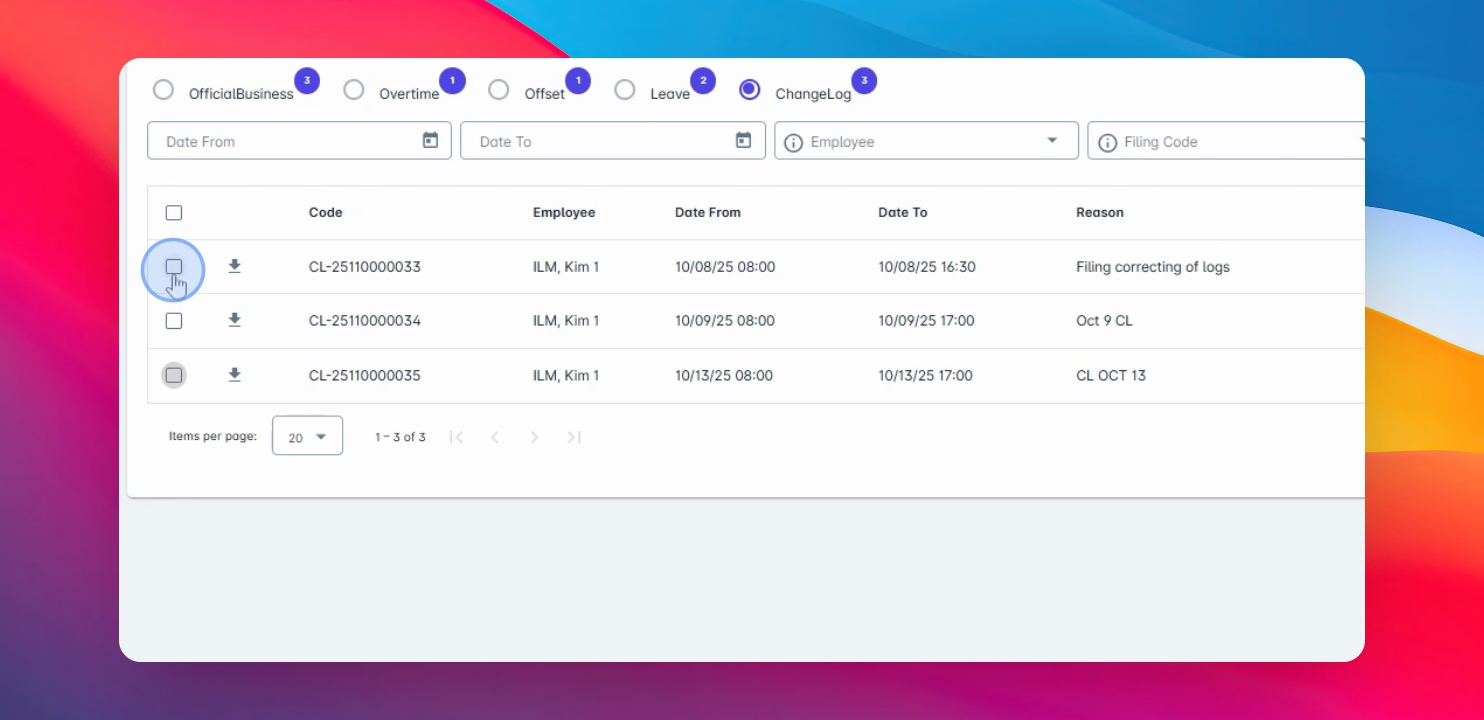
Step 8: Disapprove the Request
Click disapprove to reject the request.
A Remarks window appears.
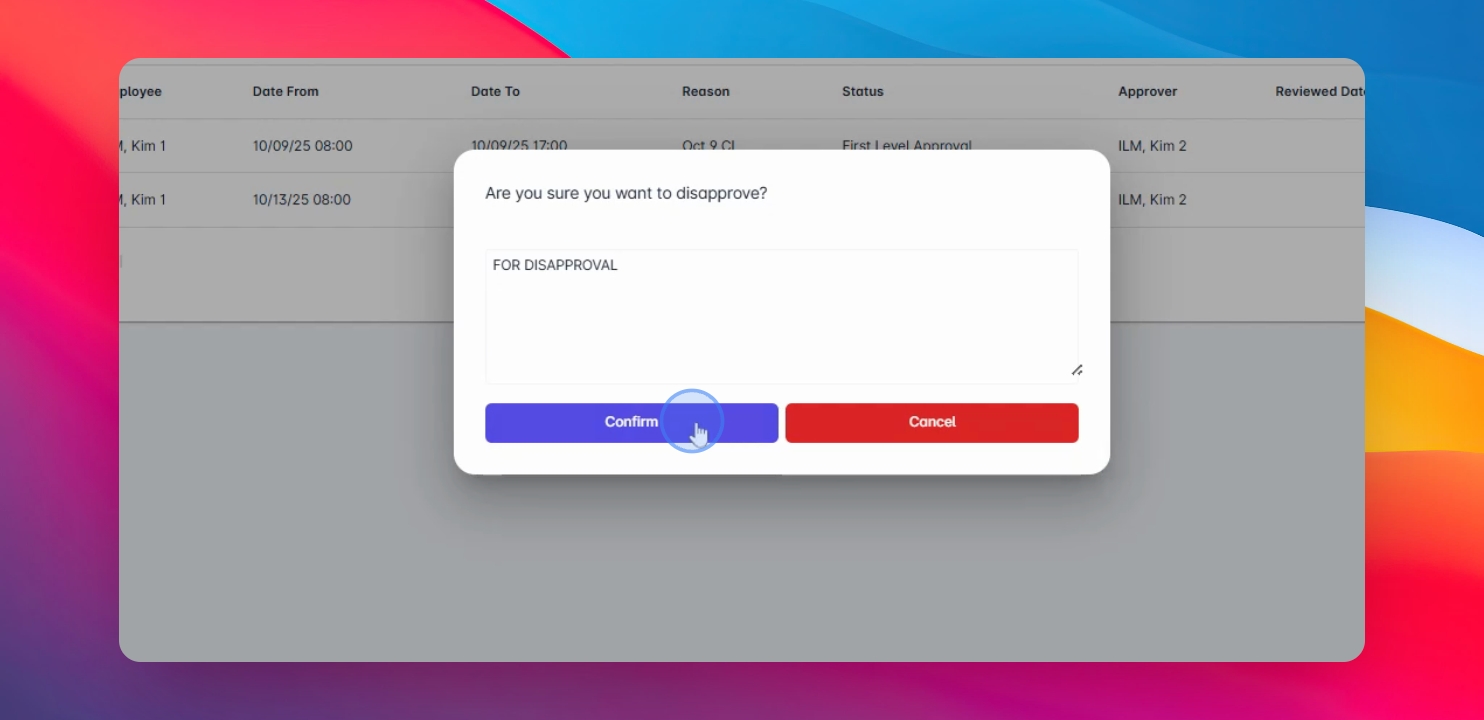
Step 9: Enter Remarks
Enter your reason for disapproval.
Step 10: Confirm Disapproval
Click Confirm after entering remarks.
Step 11: Finalize Disapproval
Click yes to proceed with the disapproval.
The disapproval is confirmed successfully.
Step 12: Confirm Final Disapproval
Click Confirm after successful disapproval.