Let's do it together!
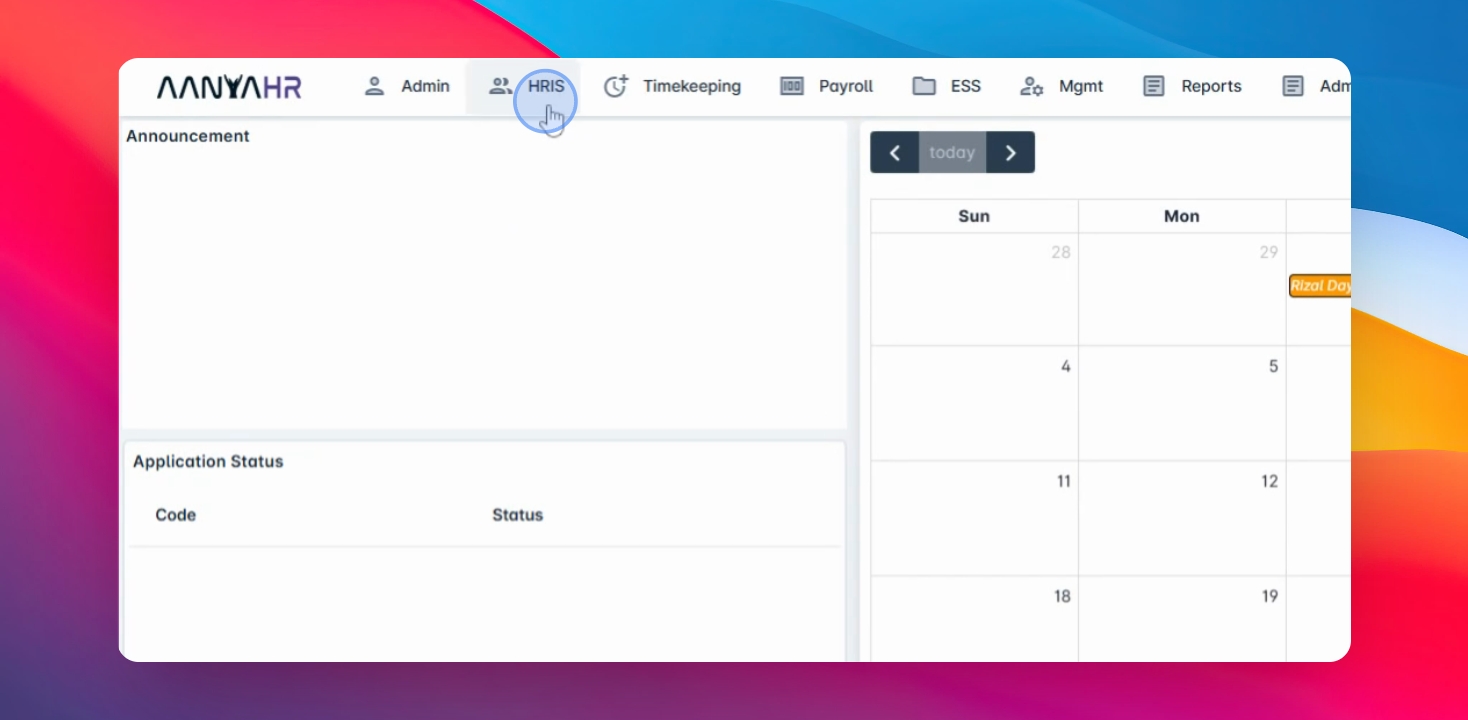
Step 1: Access HRIS
Open the HRIS interface to begin managing employee leave balances.
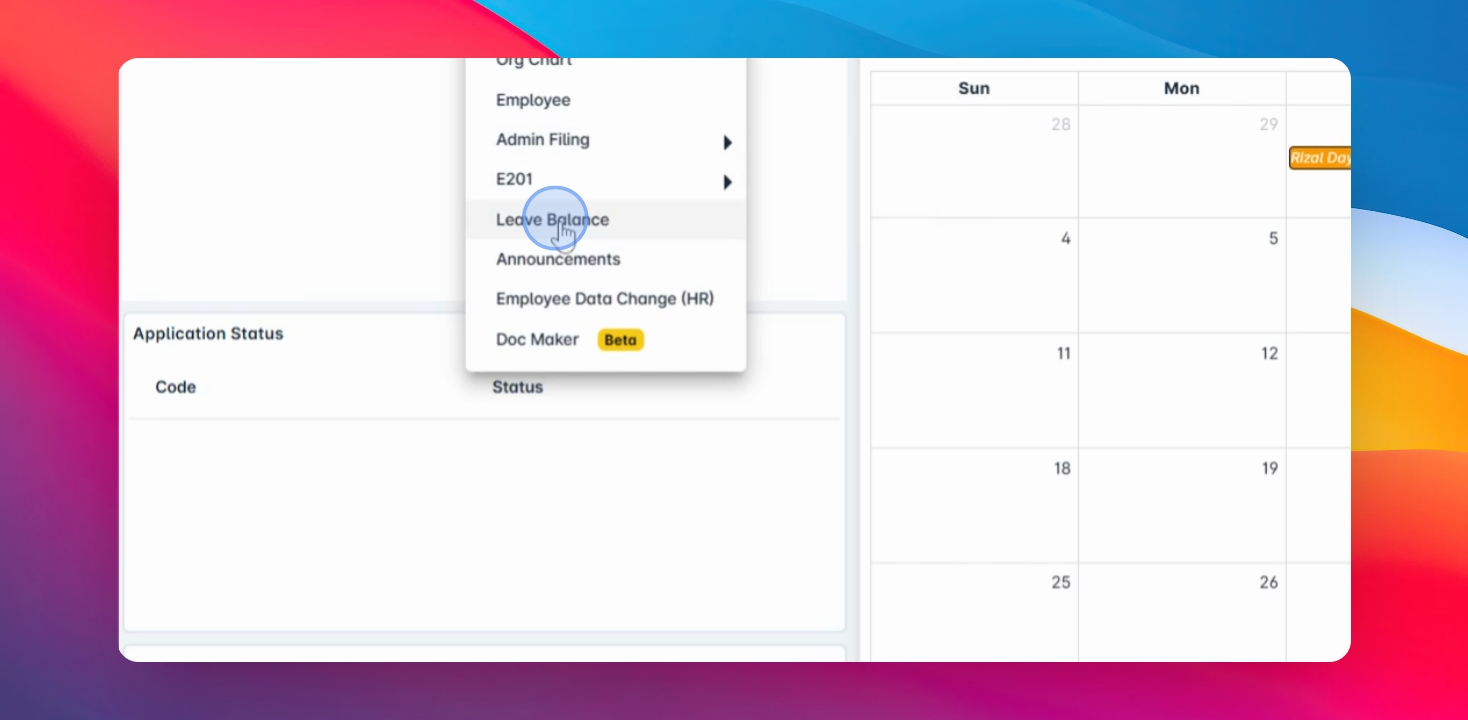
Step 2: Navigate to Leave Balance
Go to the Leave balance section to view employee leave information.
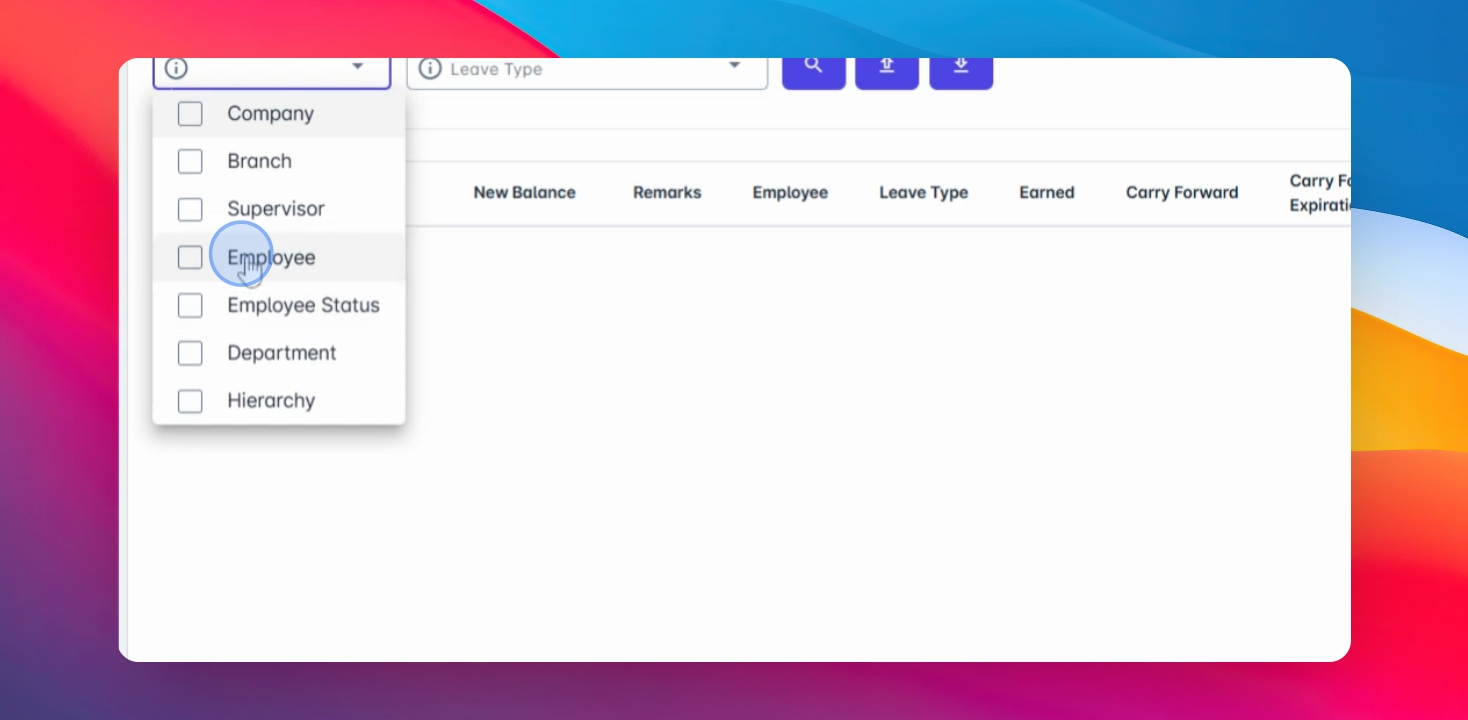
Step 3: Select Tag Type
Select your preferred tag type to easily search for the employee you want to modify or add balance.
Step 4: Filter Employees
Use the employee tag type filter to narrow down your search.
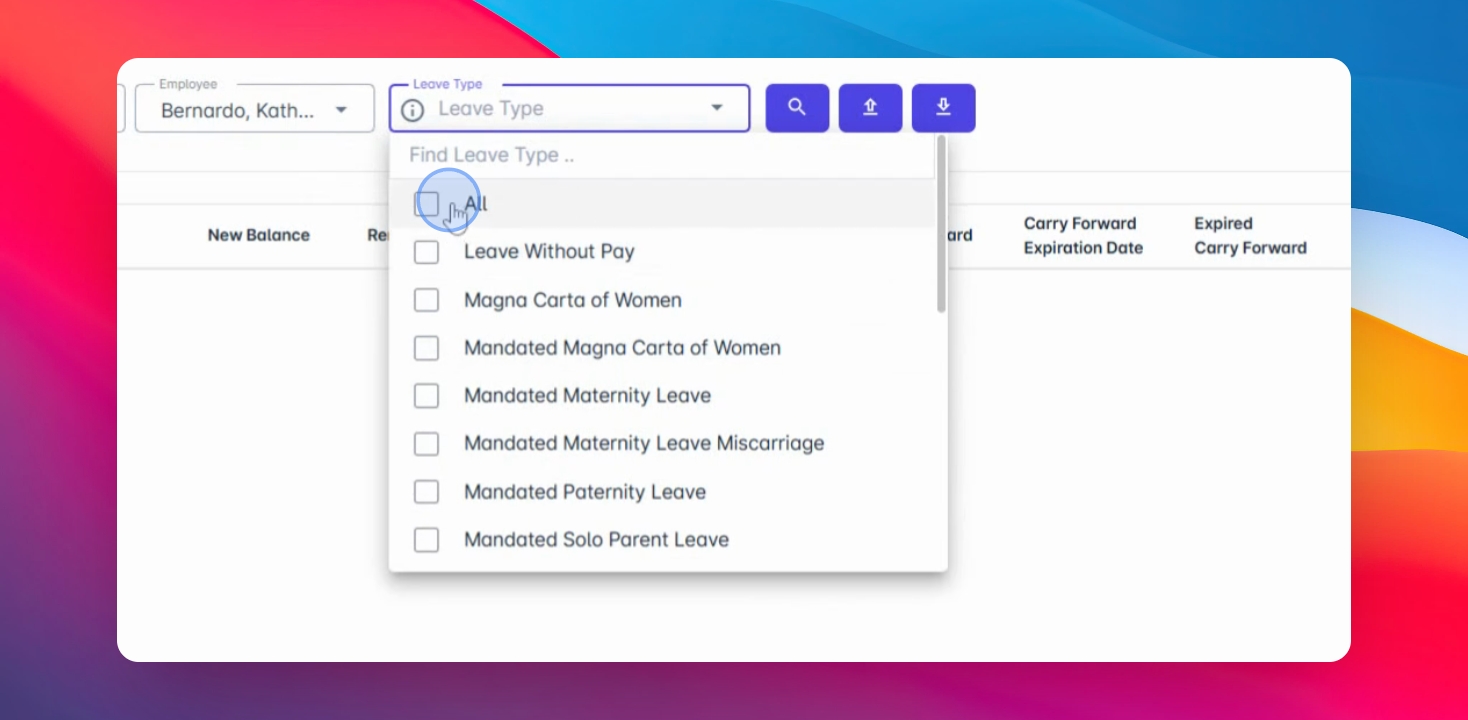
Step 5: Choose Leave Type
Select the preferred leave type for the employee.
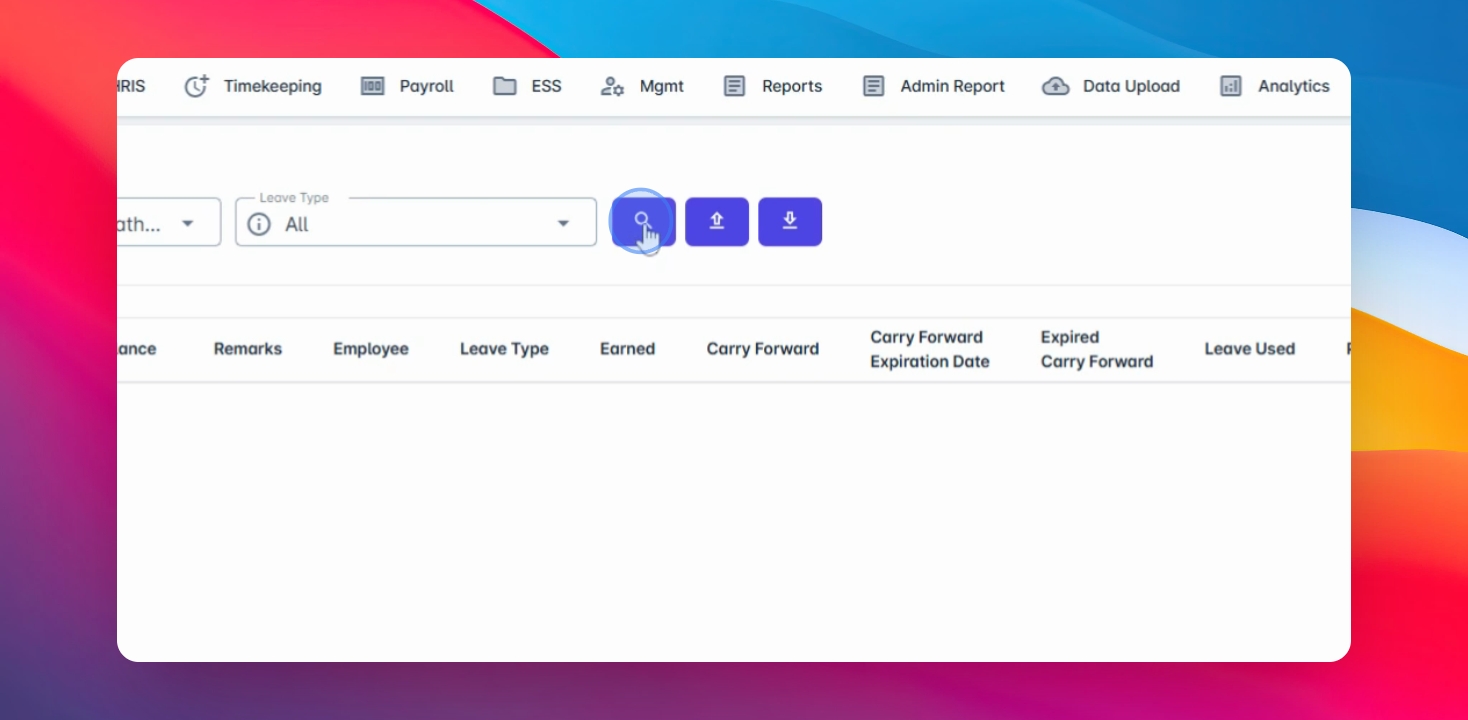
Step 6: Search for Employee
Click on the Search button to display the leave entitlements for the employee.
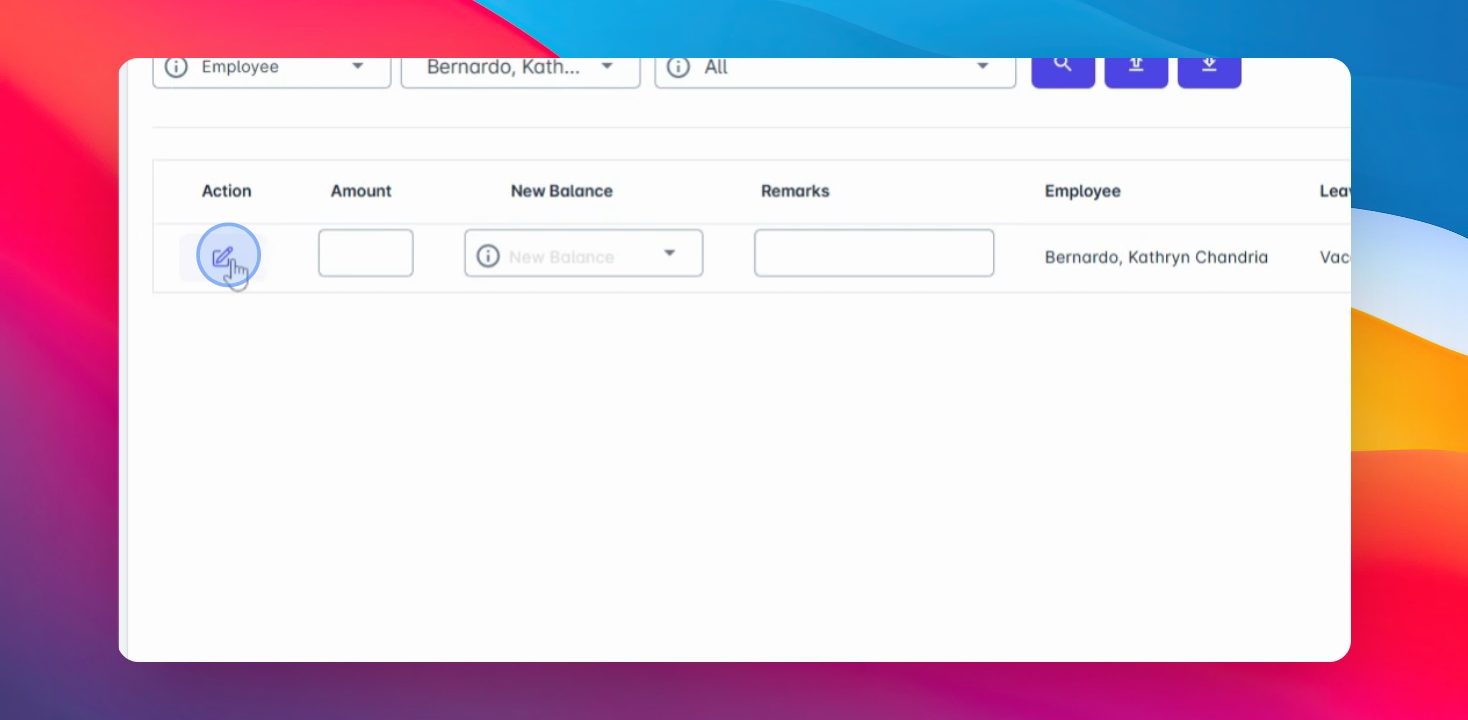
Step 7: Modify Leave Balance
Click the Edit button to modify the employee's leave balance.
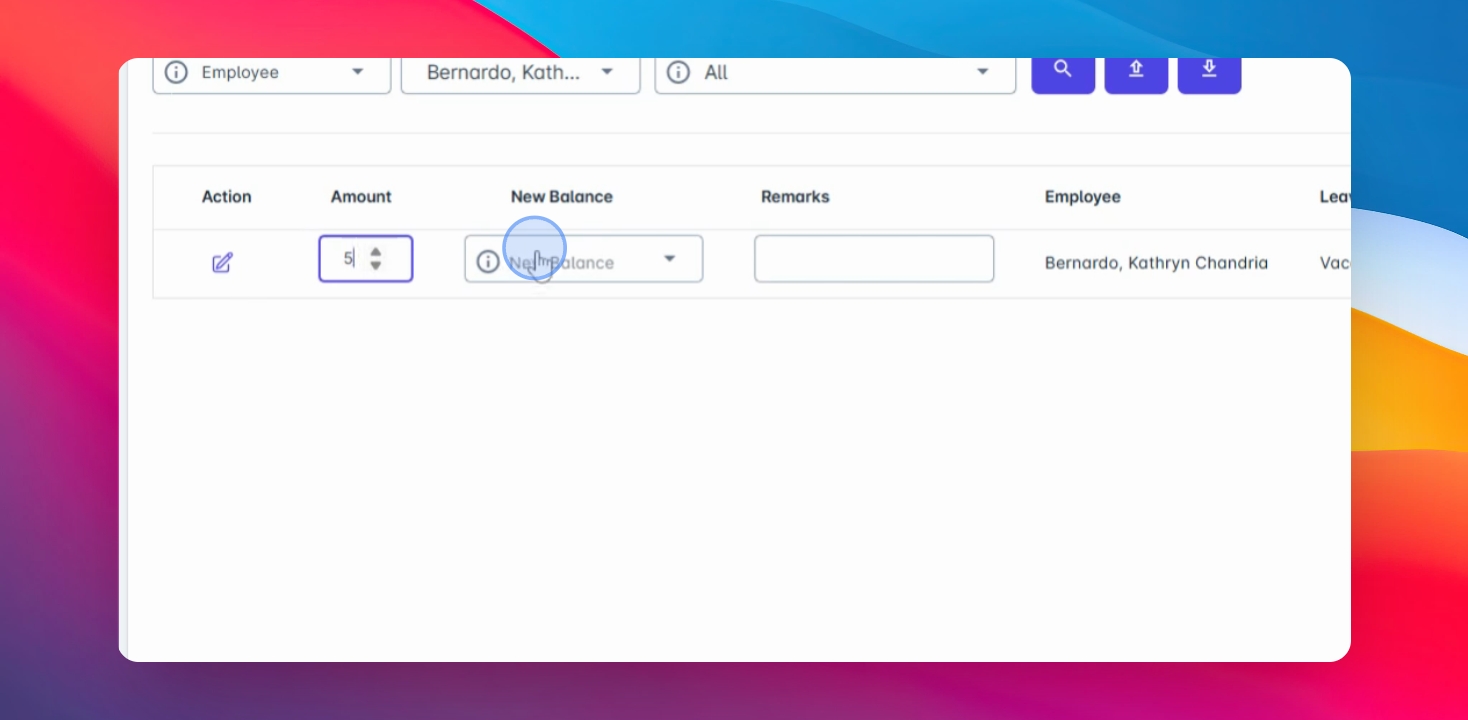
Step 8: Enter New Balance
Under the Action tab, enter the new entitlement for the employee. Choose to add, deduct, or create a new entry.
Step 9: Add Remarks
Optionally, enter remarks regarding the changes made to the leave balance.
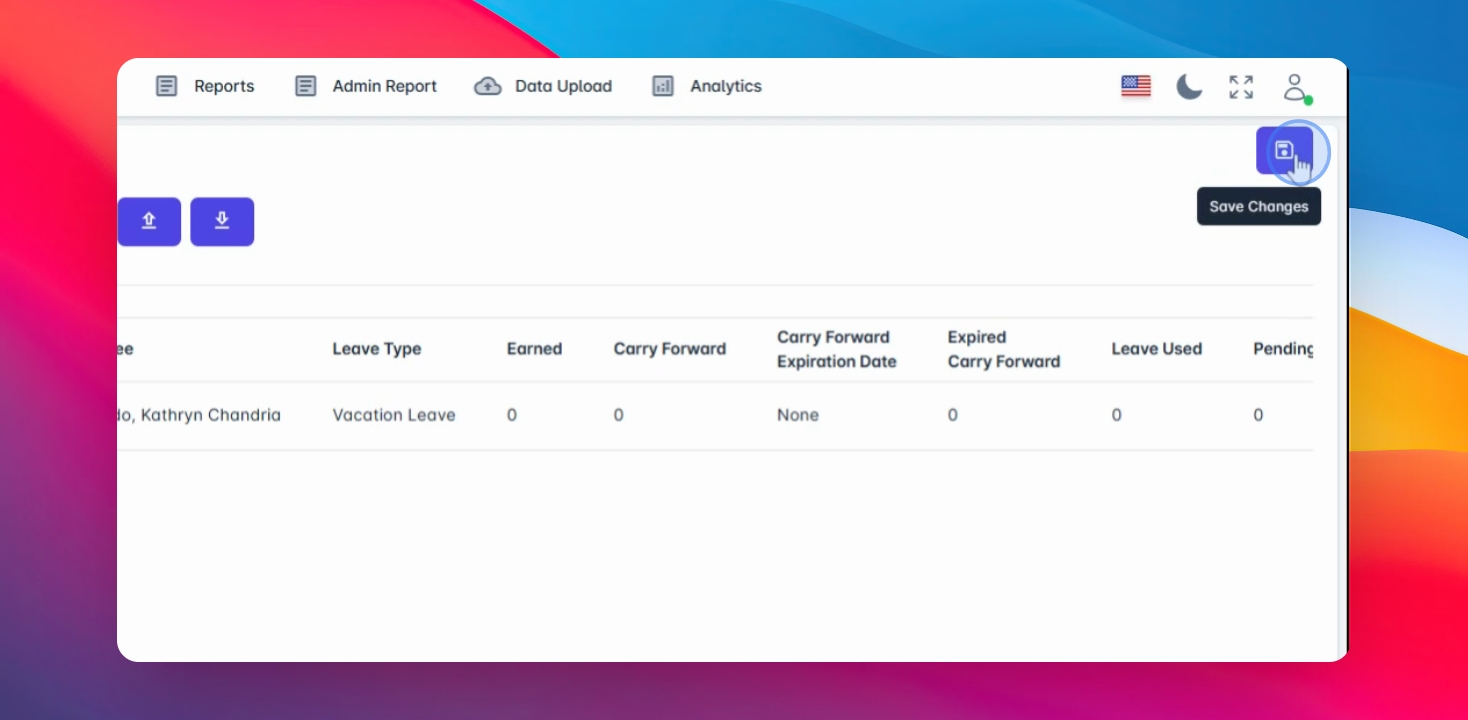
Step 10: Save Changes
Click on Save Changes to apply the modifications to the leave balance.
Step 11: Review Leave Entitlements
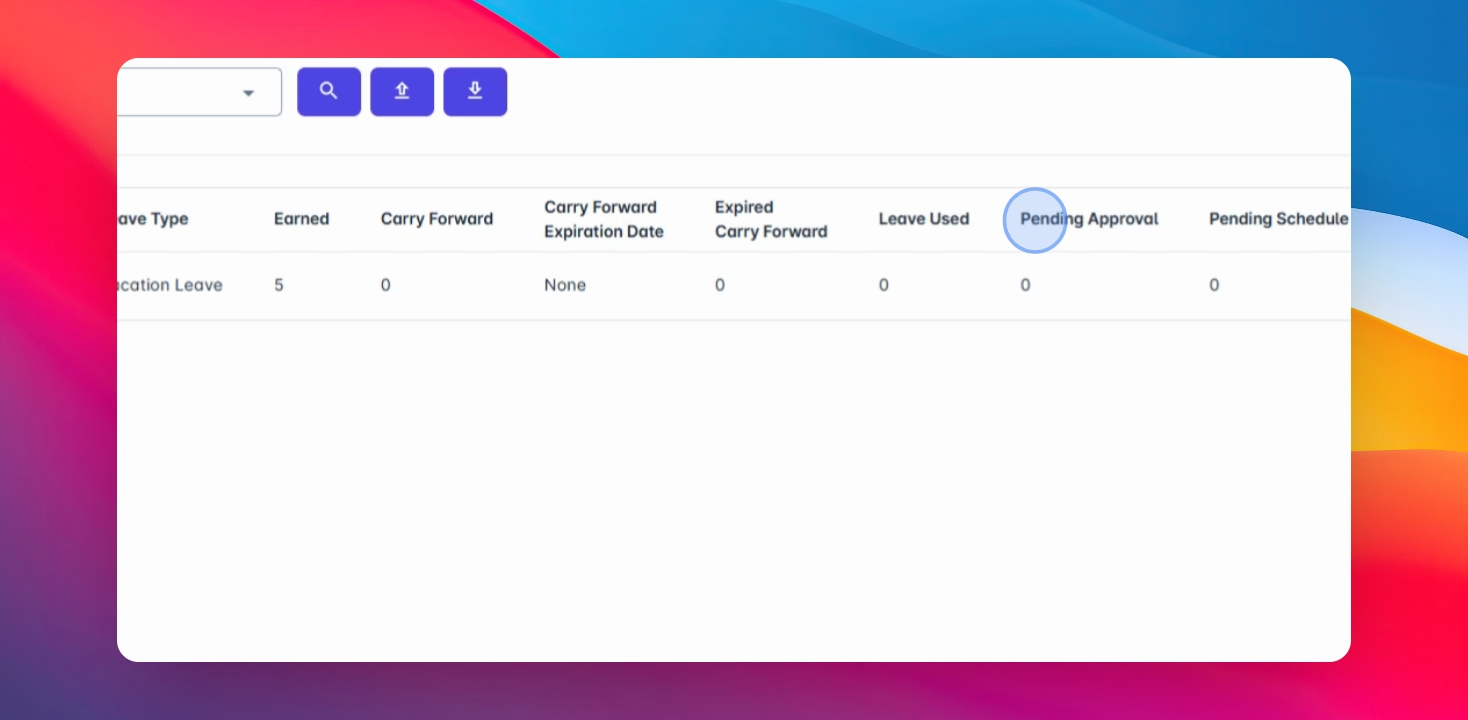
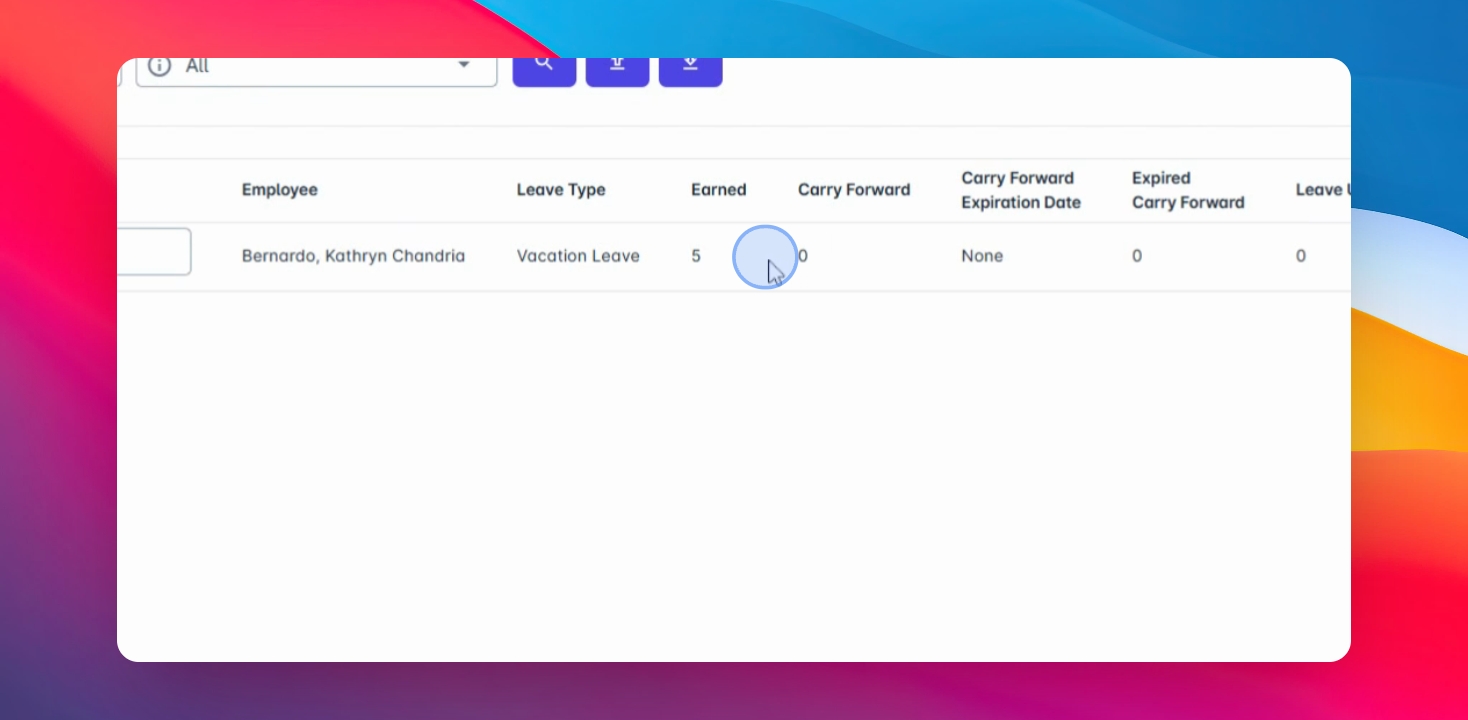
After saving, review the entitled leave earned and carry forward information for the employee.
Step 12: Check Carry Forward Policy
Verify if the employee's carry forward policy and expiration date are correctly reflected.
Step 13: View Leave Status
Check for pending approvals, schedules, and the remaining balance of the employee's leave.