

Introduction
Welcome to this tutorial on clocking in and out using the Anya HR mobile app. In just a few simple steps, you will learn how to use the clock icons for recording your attendance. Whether you're new to the app or need a refresher, this guide will ensure you can clock in and out effortlessly while keeping your attendance accurate.
How to Instructions
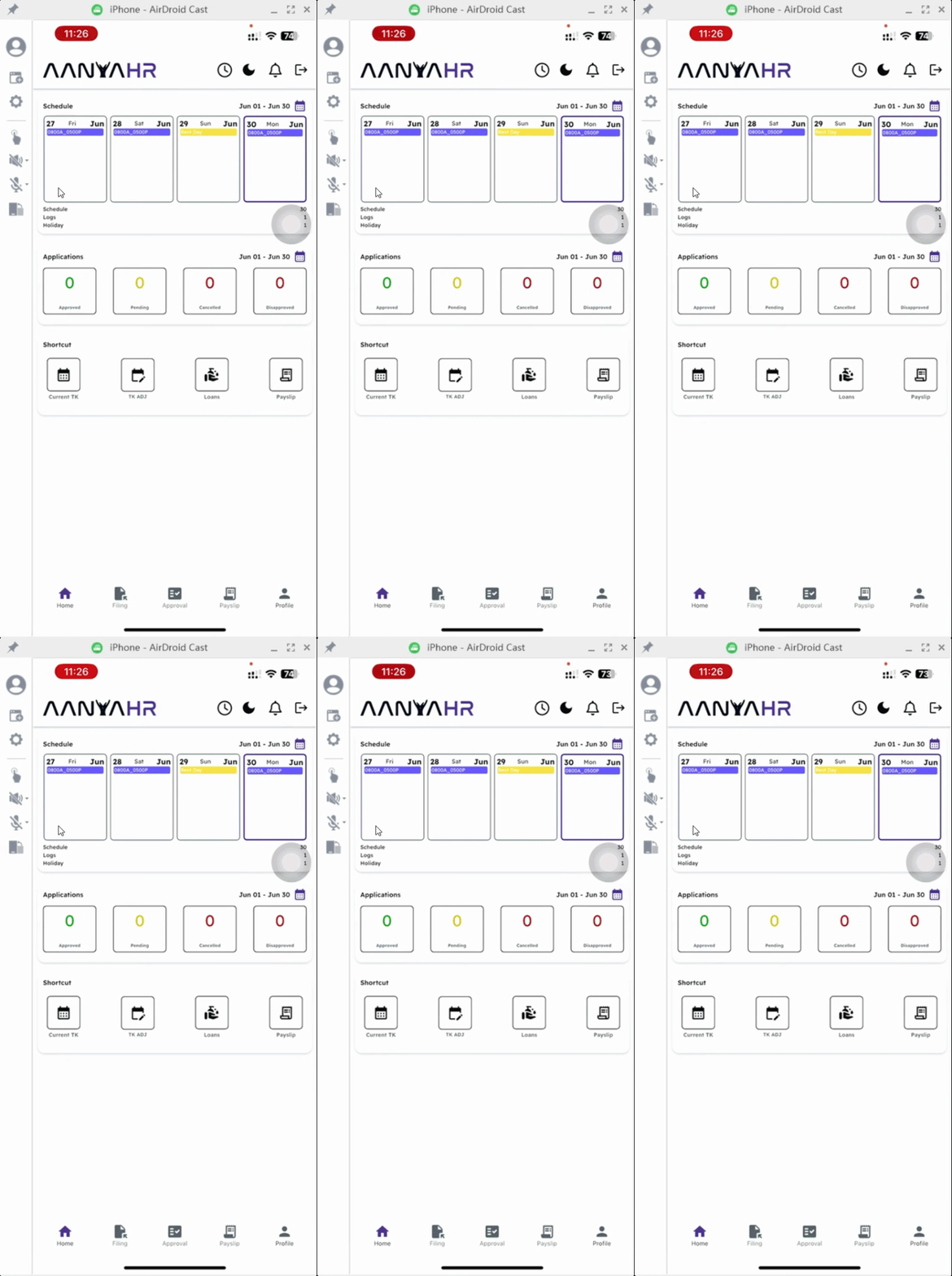
1. Locate the Clock Icons
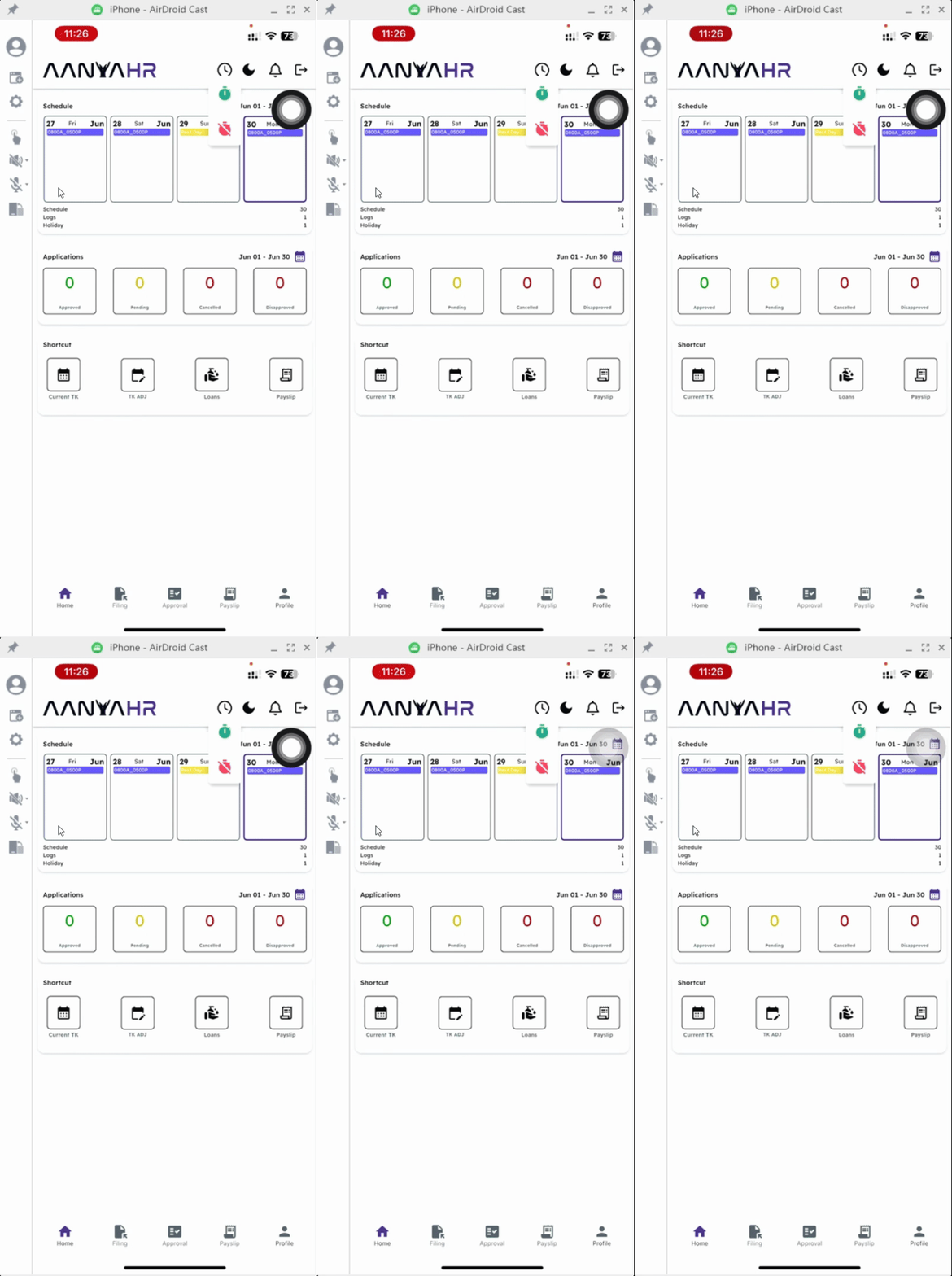
At the top of the dashboard, you will see a clock icon for clocking in and clocking out.
2. Clock In
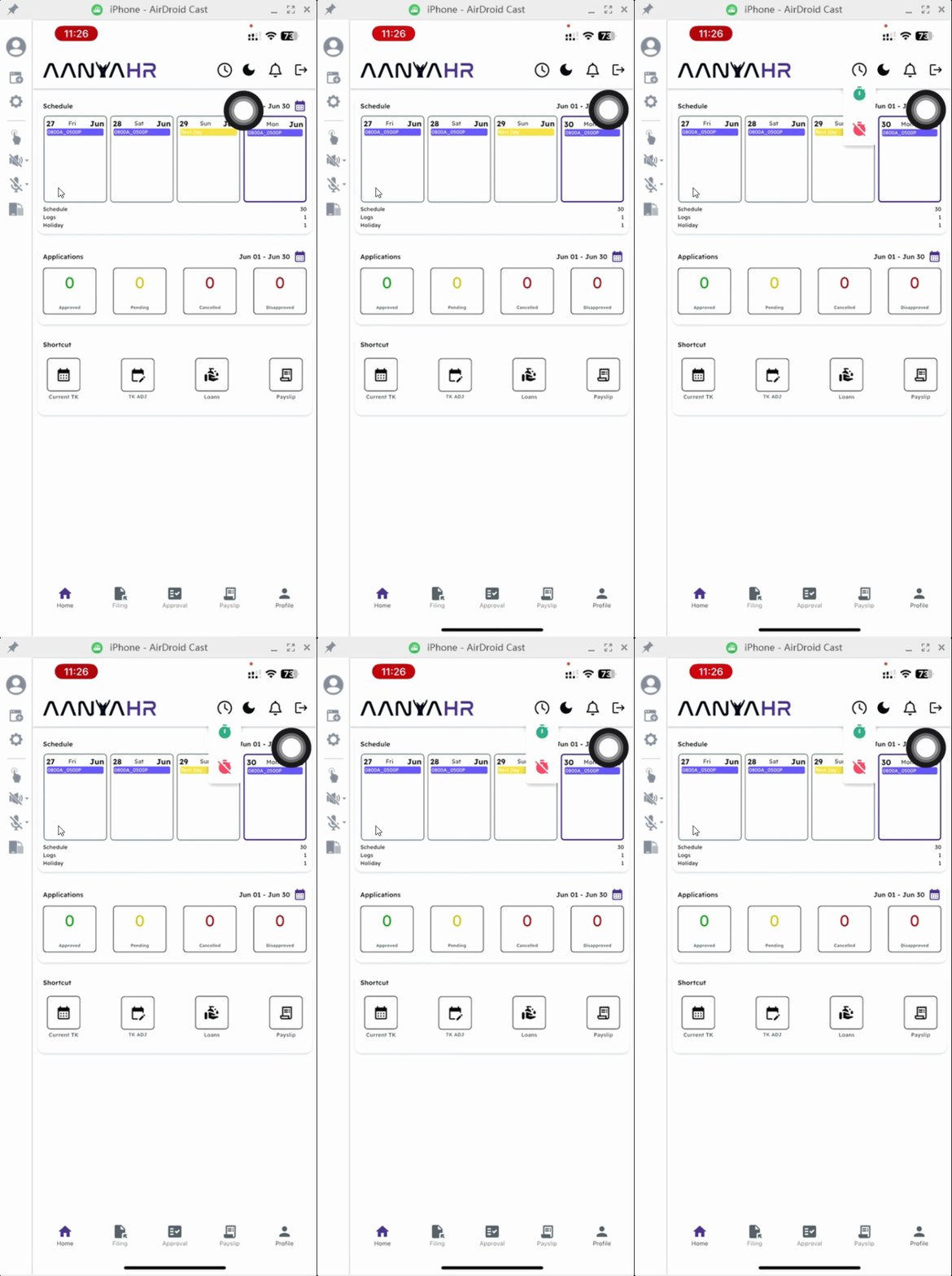
To clock in, tap the green clock icon.
3. Authentication Required
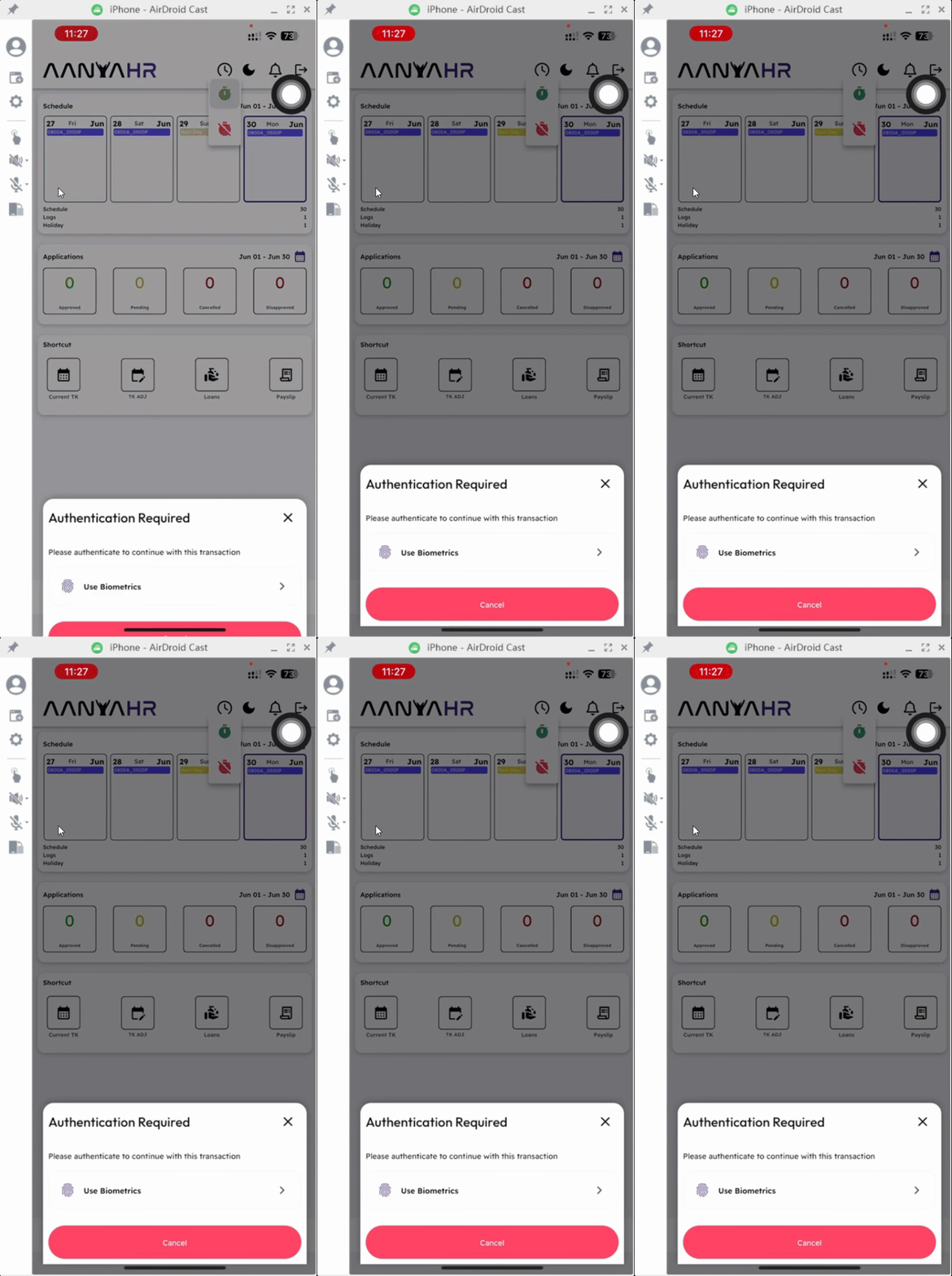
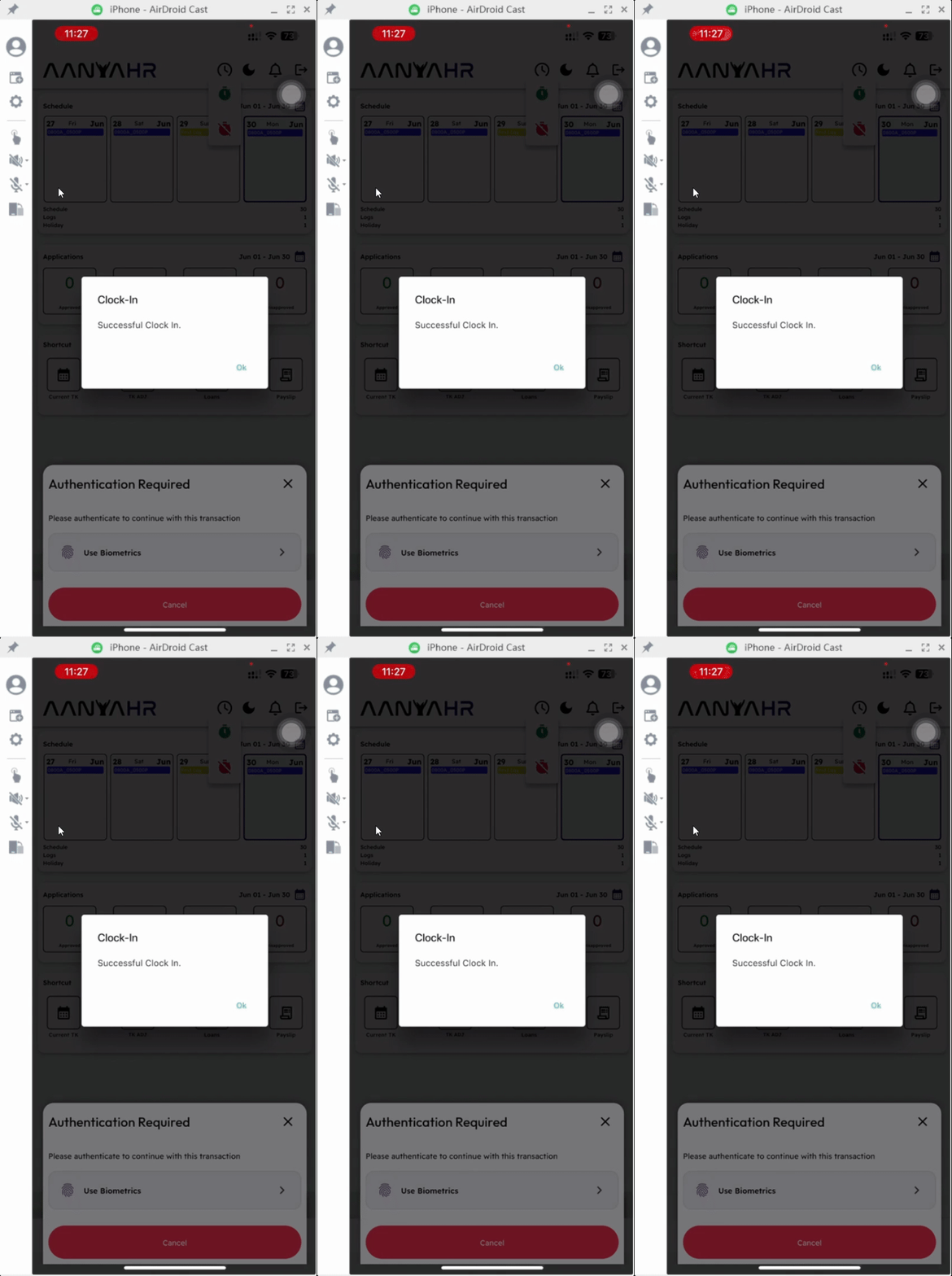
After tapping the clock in icon, an authentication required message will appear. If your device is set up to use face ID for security, you will proceed with that method.
4. Authenticate Your Clock In
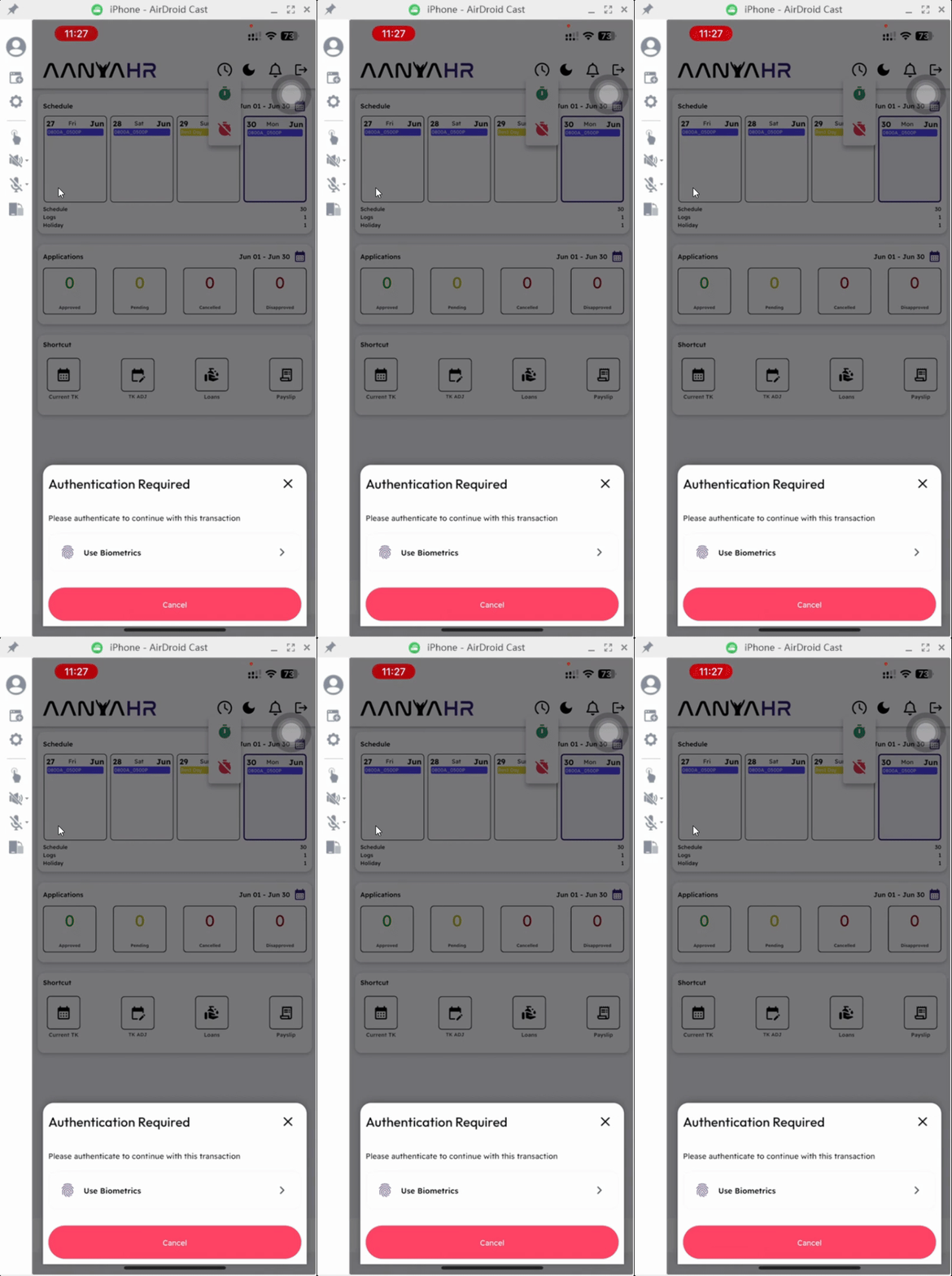
Tap Use biometric to authenticate your clock in. You can use your face ID or fingerprint depending on your device settings.
5. Confirmation of Clock In
Once successful, you will see a clock in confirmation message. Tap ok to proceed.
6. Attendance Log Recorded
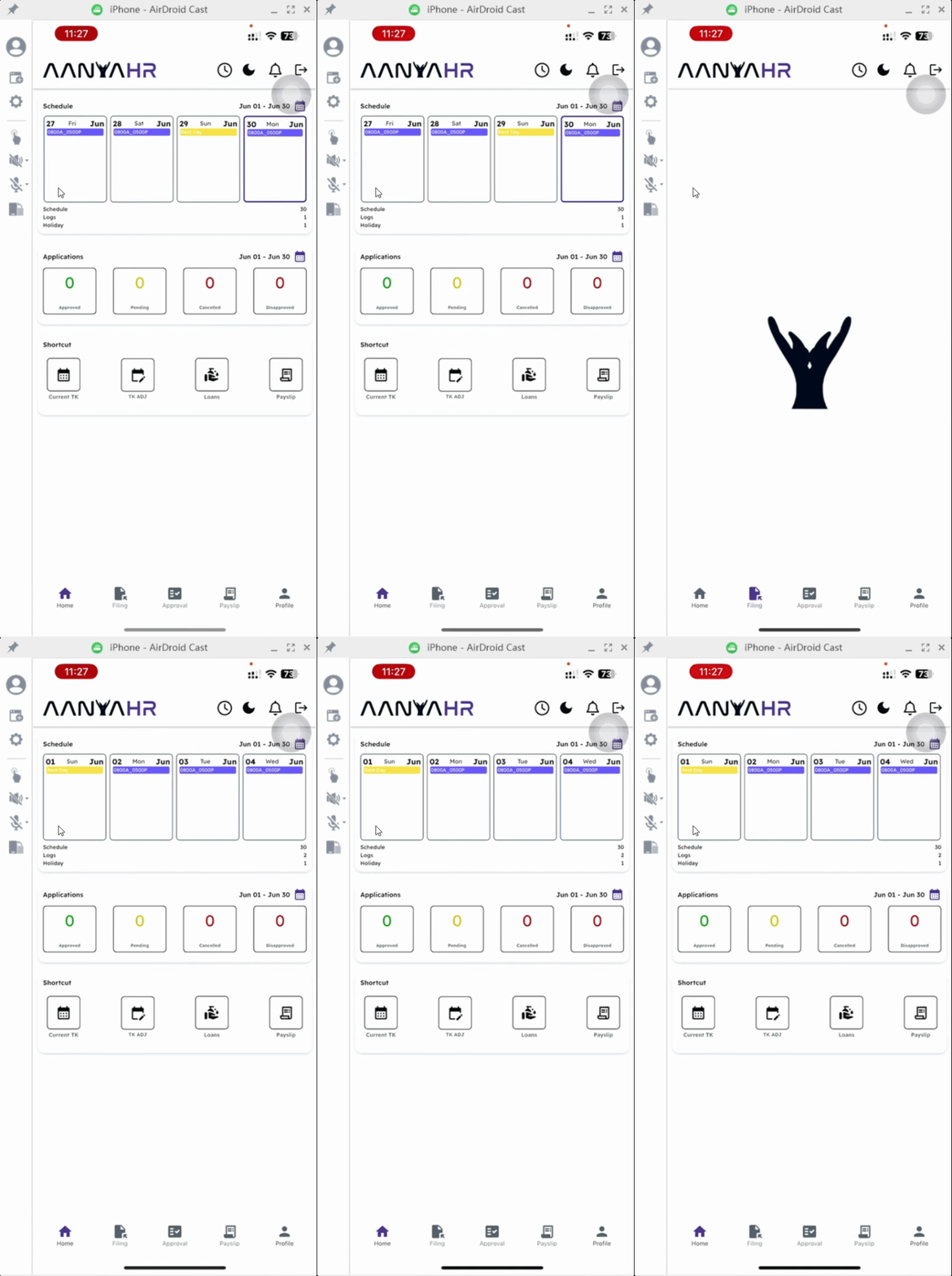
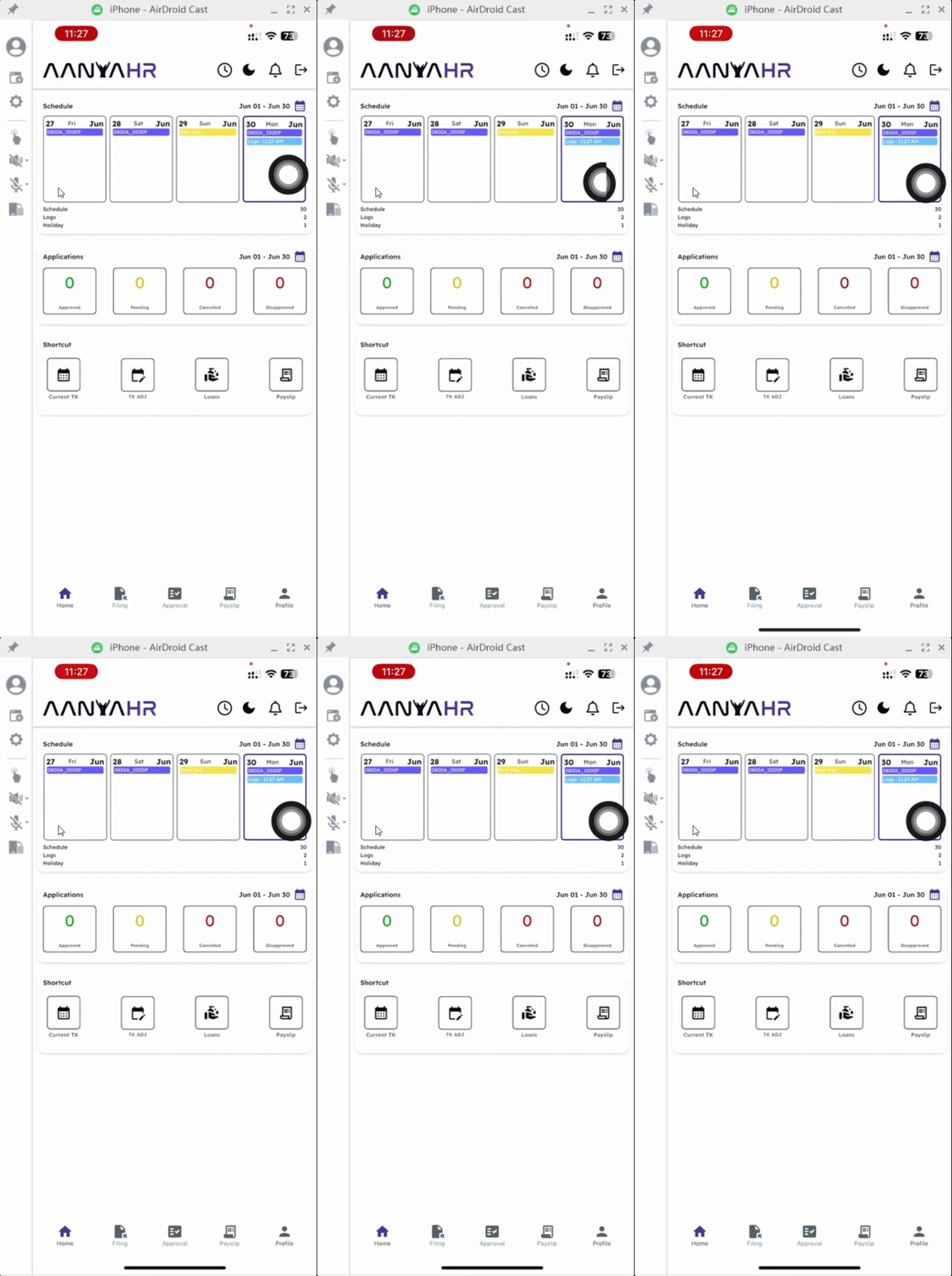
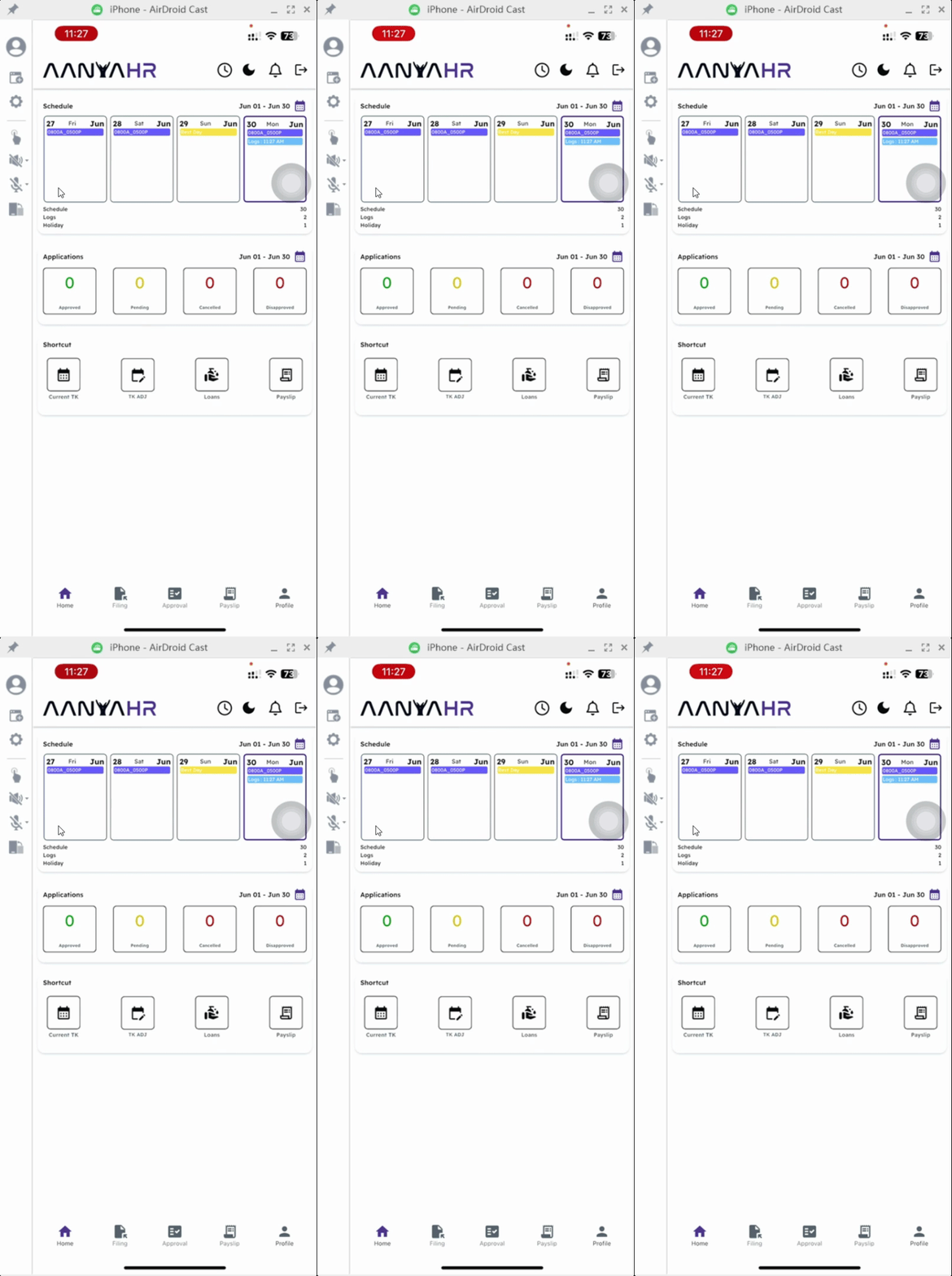
Once completed, your attendance log will be automatically recorded in the system in real time.
7. Clock Out
To clock out, tap the red clock icon.
8. Device Setup Reminder
Please ensure your device setup is enabled; otherwise, your clock in and out will not proceed.
9. Further Guidance
You can check the article on how to enable Bandy authentication to guide you with the setup.
Conclusion
By following these steps, you will be able to efficiently clock in and out using the Anya HR mobile app, keeping your attendance records accurate and up-to-date.