

Viewing of Employee Location on Timekeeping module
Go to AanyaHR and login to your account
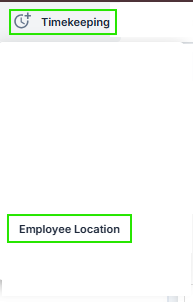
Navigate to Timekeeping > Employee Location
Select the Date & Time From and Date & Time To fields to set your desired time range.

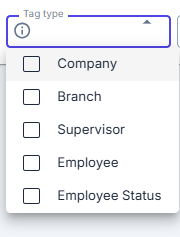
Under Tag Type, you may select multiple tag types.
Important: The “Employee” tag type must always be included. Examples: Branch + Employee Supervisor + Employee
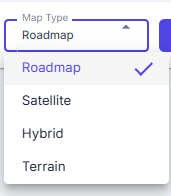
You may define your desire Map type for suitable viewing of locations such as;
Roadmap | Finding addresses, streets, and navigation routes. |
Satellite | Viewing actual aerial imagery and identifying physical locations. |
Hybrid | Locating places using satellite imagery with road names and landmarks. |
Terrain | Viewing elevation and natural geographical features of an area. |
Click the Search button to procced

After clicking Search, you will be able to view and track all employee movements within the selected time range.
You may zoom in and out the maps by holding the ctrl button and roll you mouse wheel forward to zoom in and backward for zoom out
You can modify your viewing on maps by holding the shift button and left button on your mouse
You can also maximize the viewing of the maps by clicking the Max icon
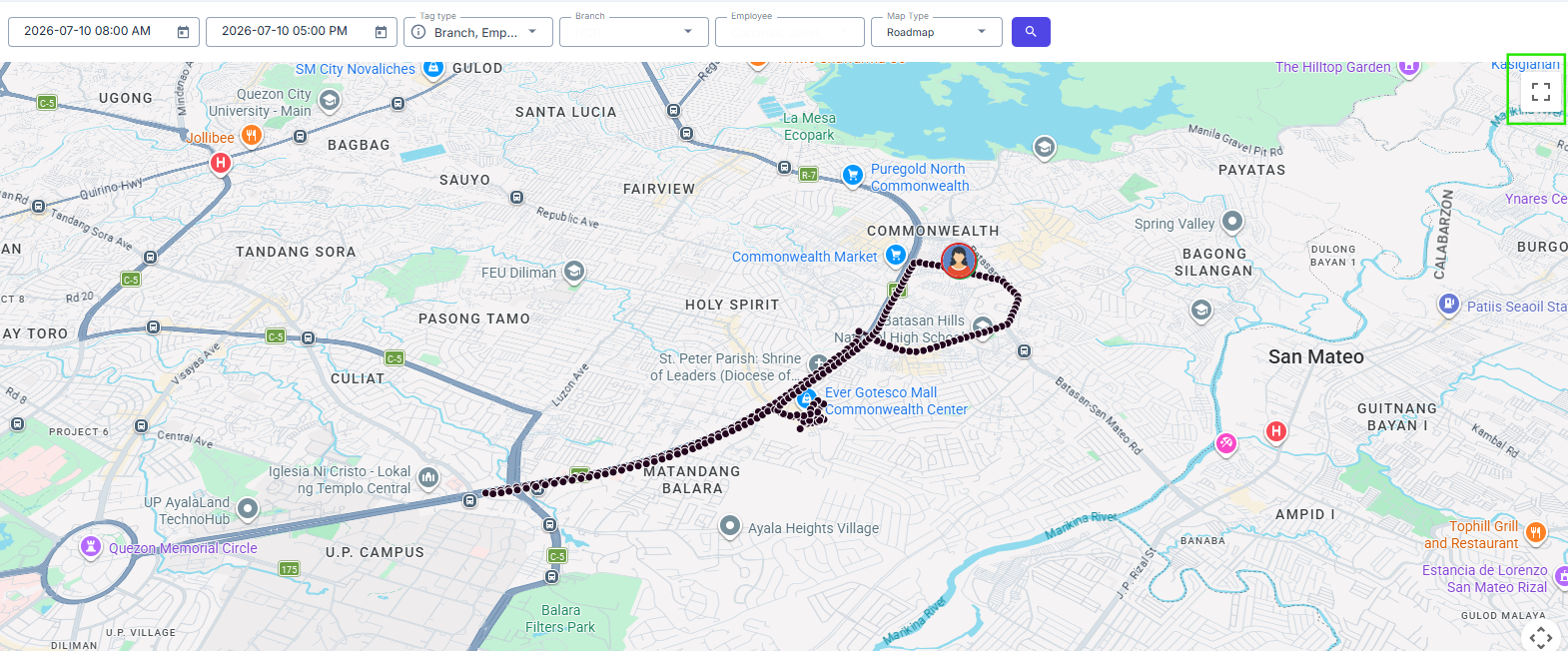
Note: The GPS tracker updates the employee’s location every one minute, but only if movement is detected.
If an employee does not move within a minute, the last recorded location will remain displayed.