

Introduction
Establishing a comprehensive company profile is essential for maintaining accurate records and enhancing security. In this tutorial, we'll provide a step-by-step guide on how to set up your company profile, covering everything from entering basic information to configuring password policies. By the end of this tutorial, you'll be equipped to personalize your profile and ensure effective communication within the system.
How to Instructions
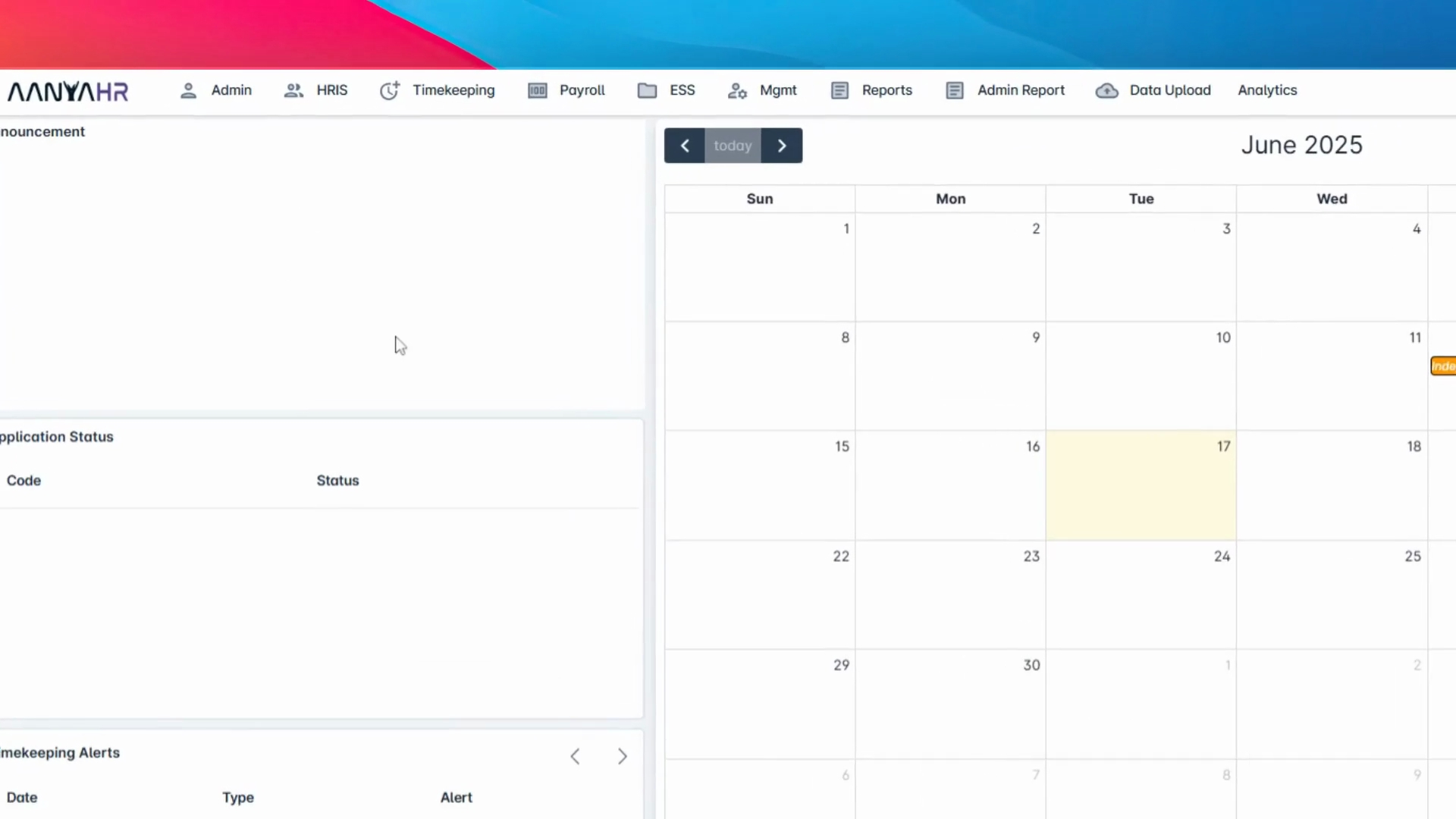
1. Access the Company Profile
Navigate to the admin menu and select Company Profile.
2. Enter Basic Company Information
First, let's look at the basic Company Information section.
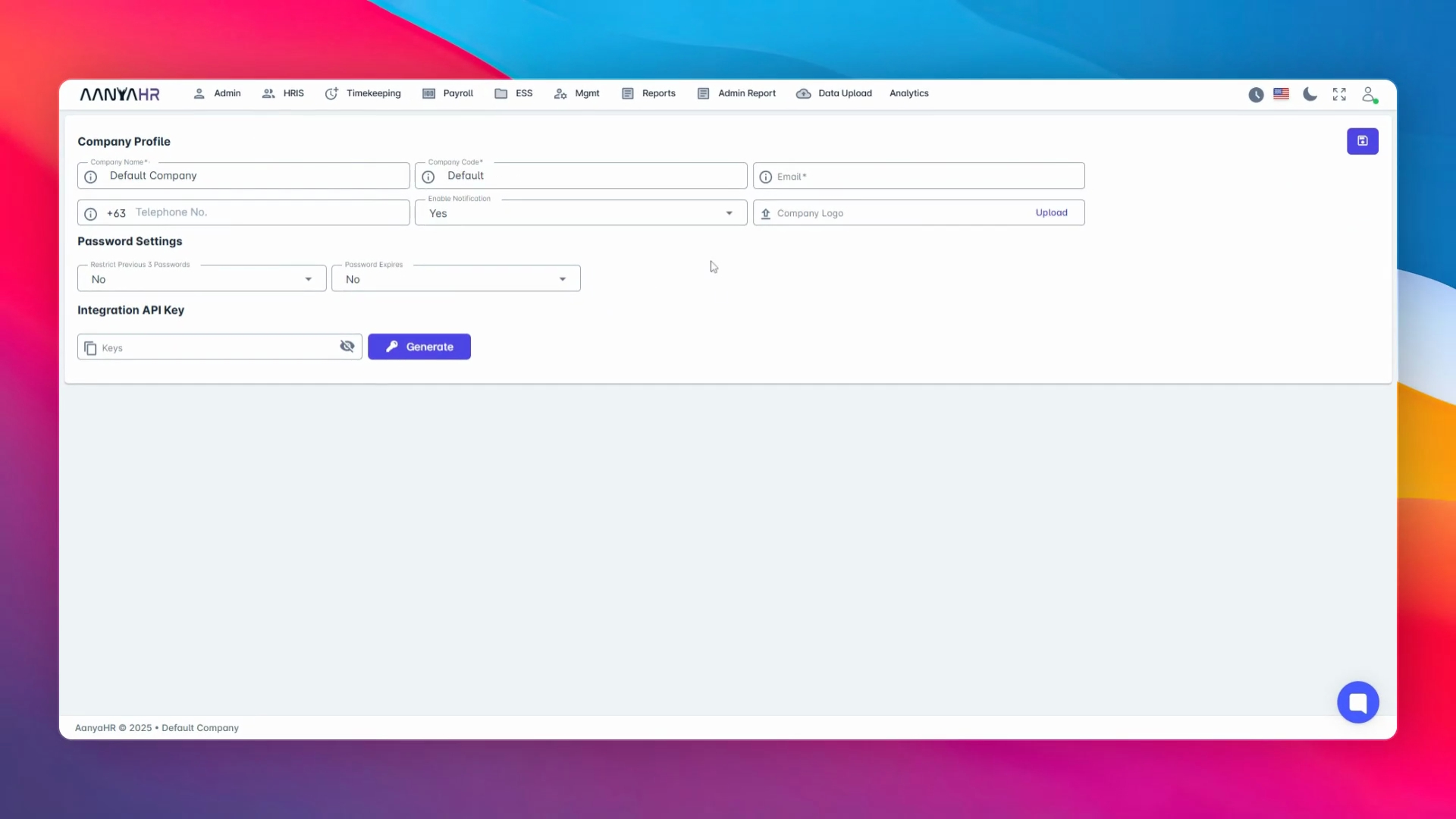
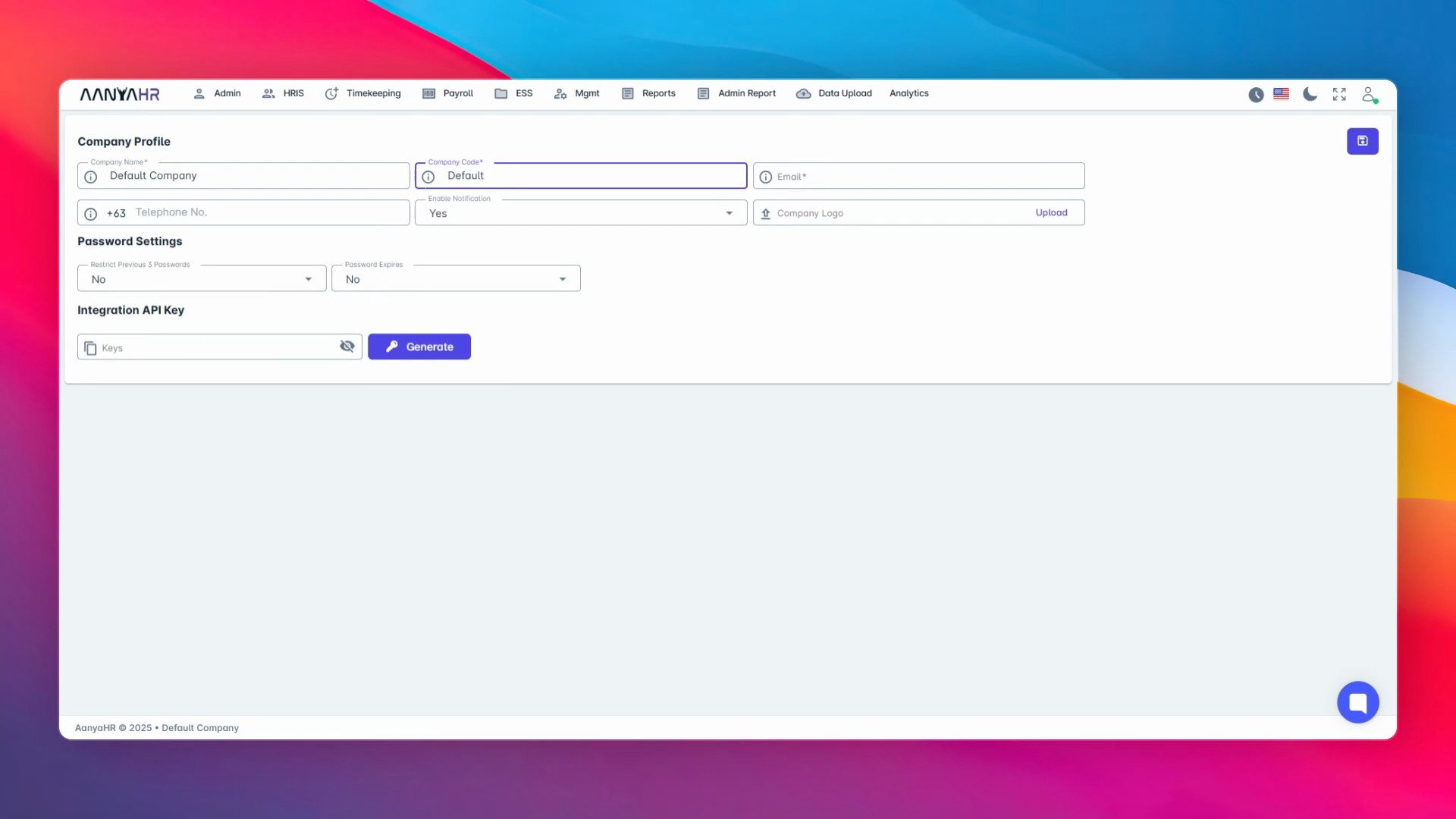
Here you can enter and edit details such as the company name, which is fully customizable. You will also see a field for the company code that is provided by ILM but is also modifiable, allowing flexibility.
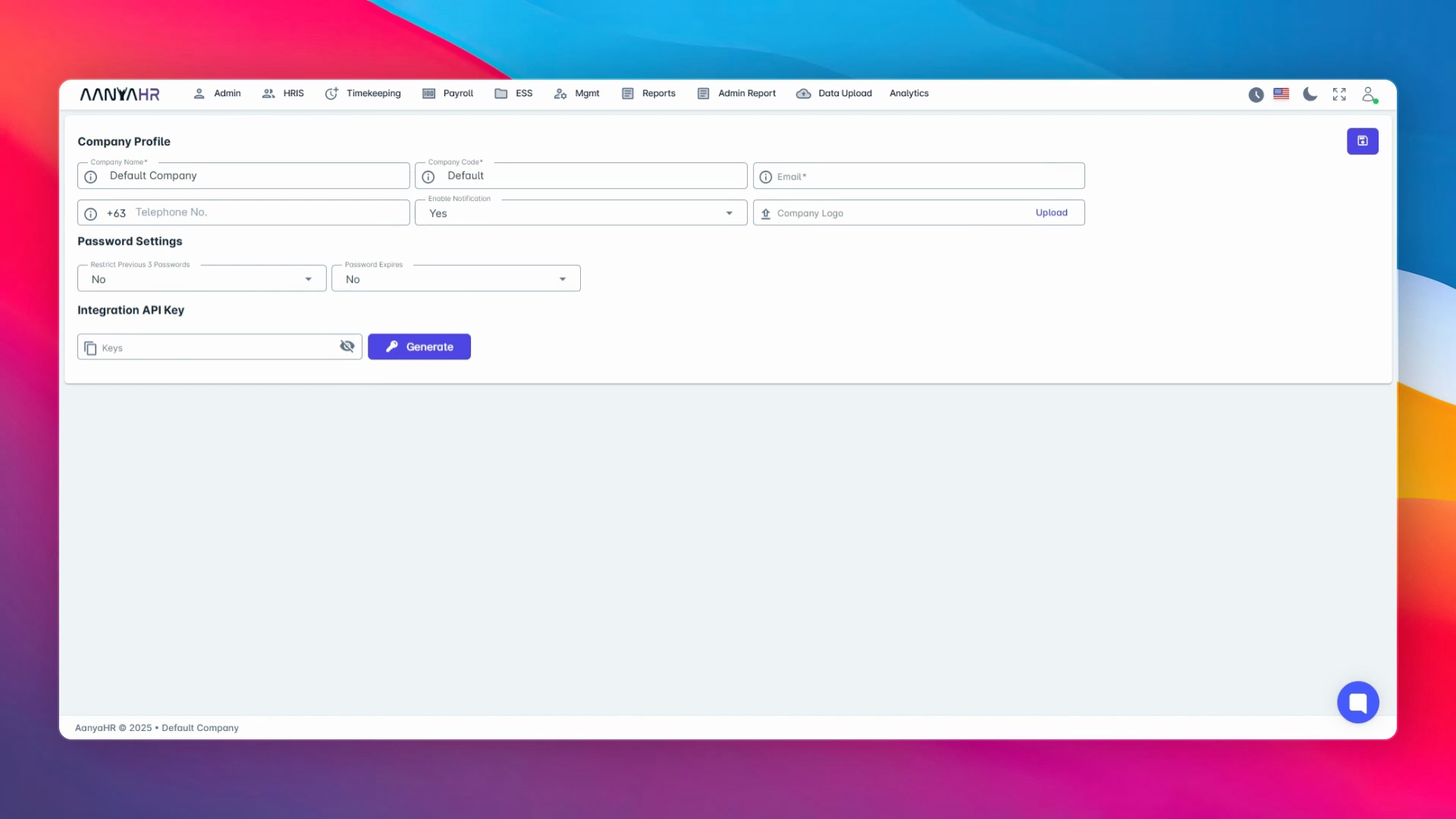
This company code will serve as your login code.
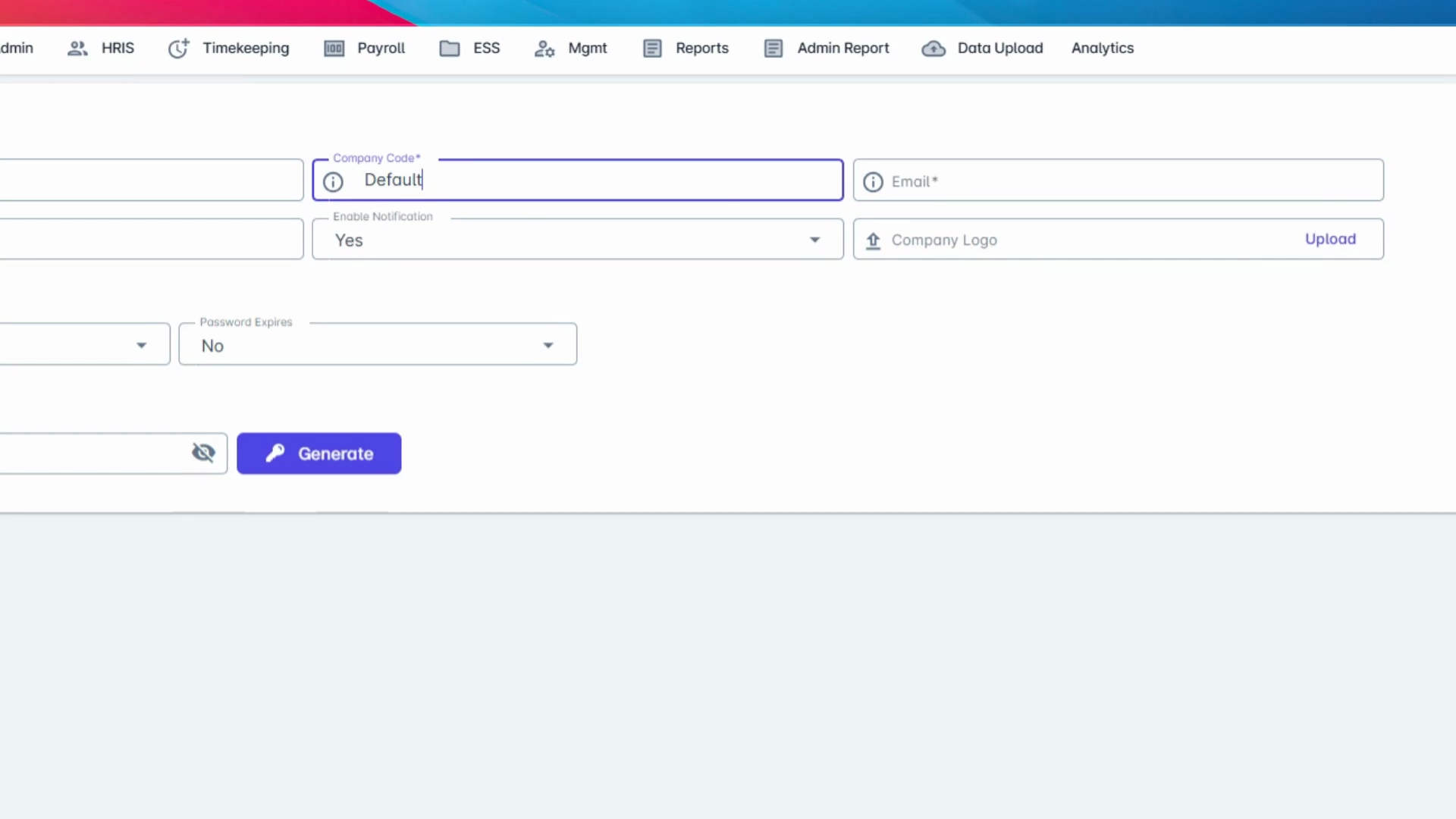
3. Provide Contact Information
Next, fill in the email address and telephone number for your company. This information will be used for system communications and records.
4. Enable Notifications
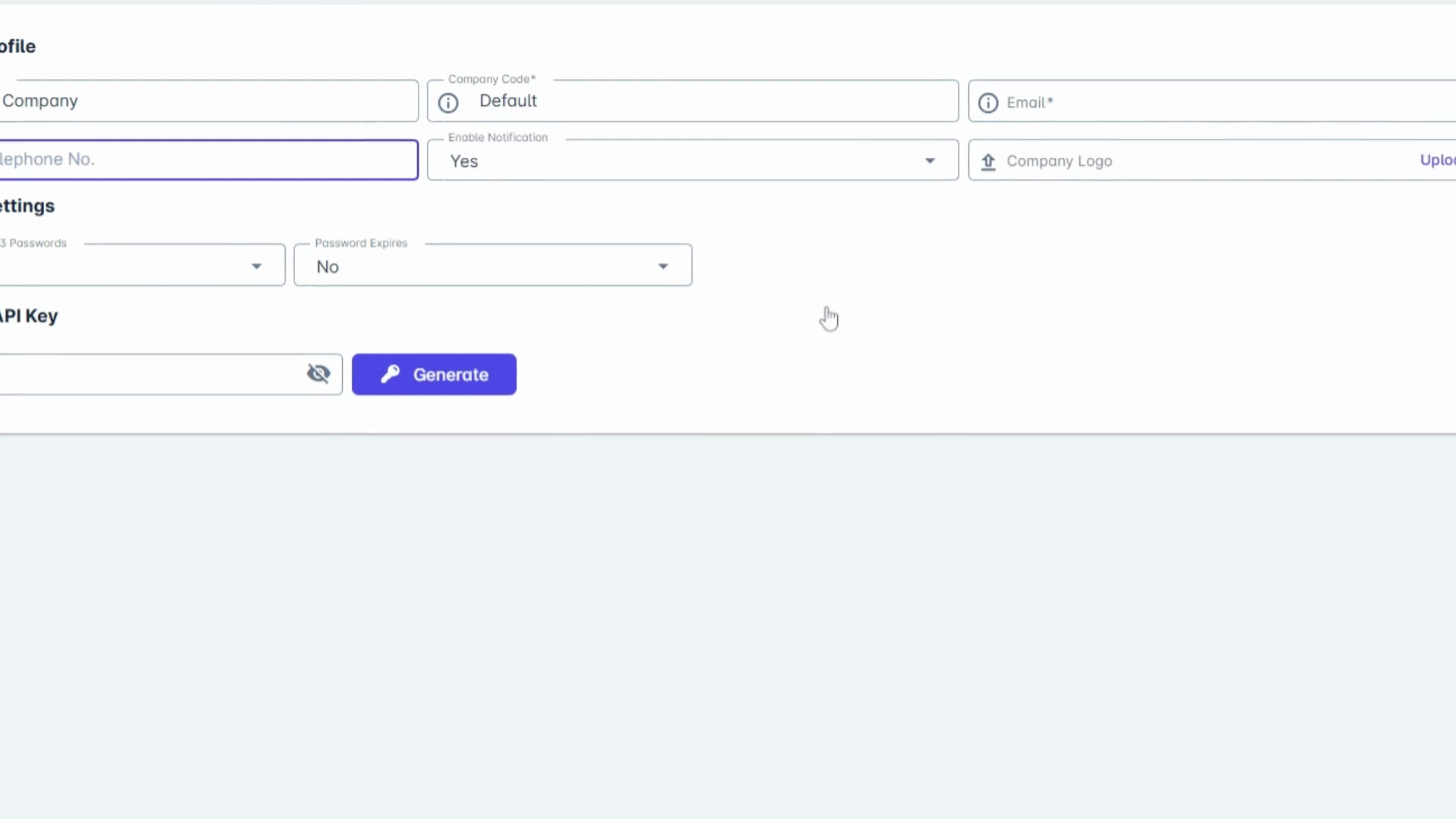
Here's the option to enable notifications by checking this box. By enabling this, your company will receive important notifications regarding document filing and approvals, ensuring you never miss a critical update.
5. Upload Company Logo
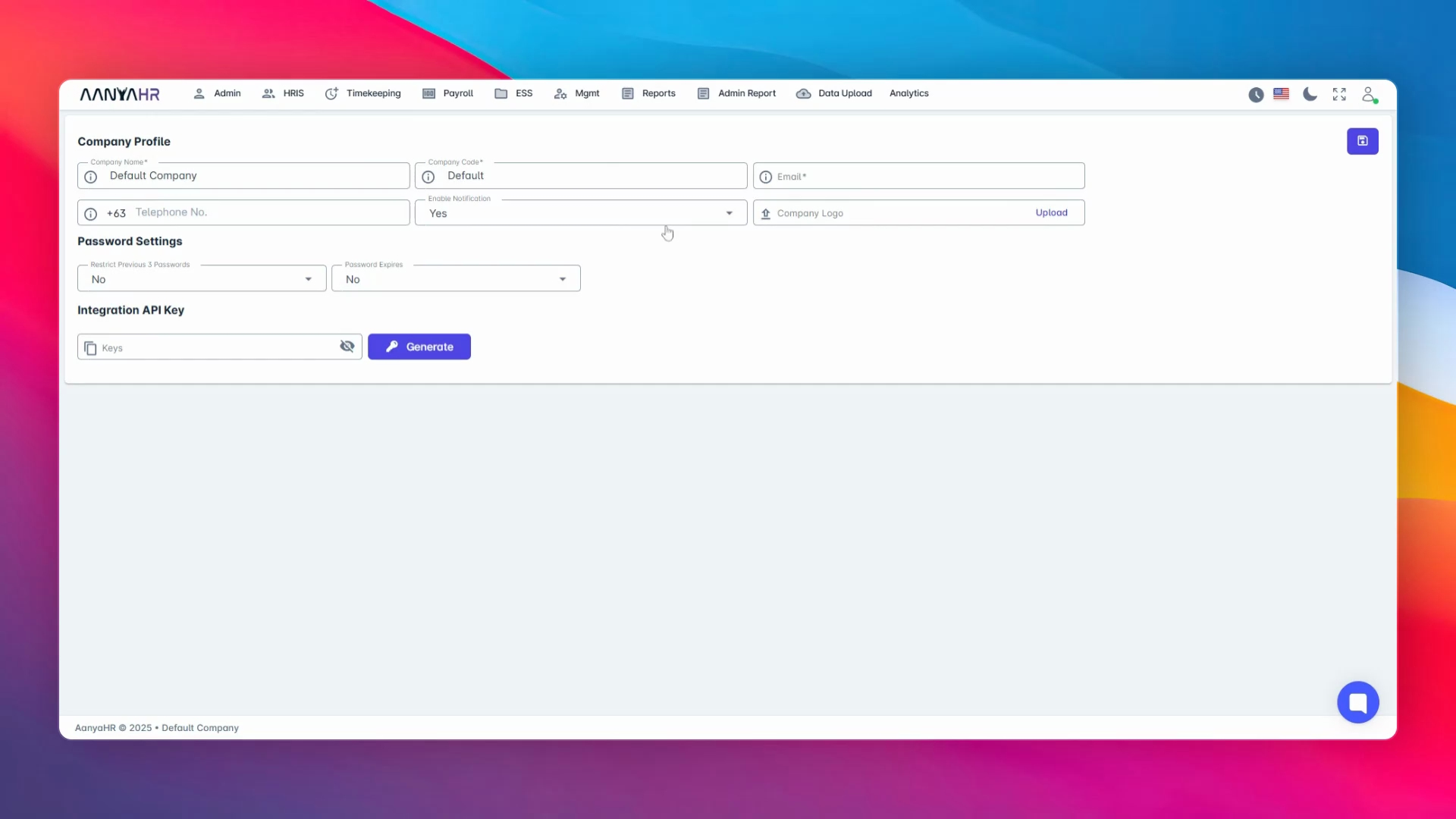
You can also upload your company logo right here. This logo will appear on system-generated documents such as payslips and Certificates of Employment, adding a professional and personalized touch.
6. Configure Password Settings
Moving on to the Password Settings section.
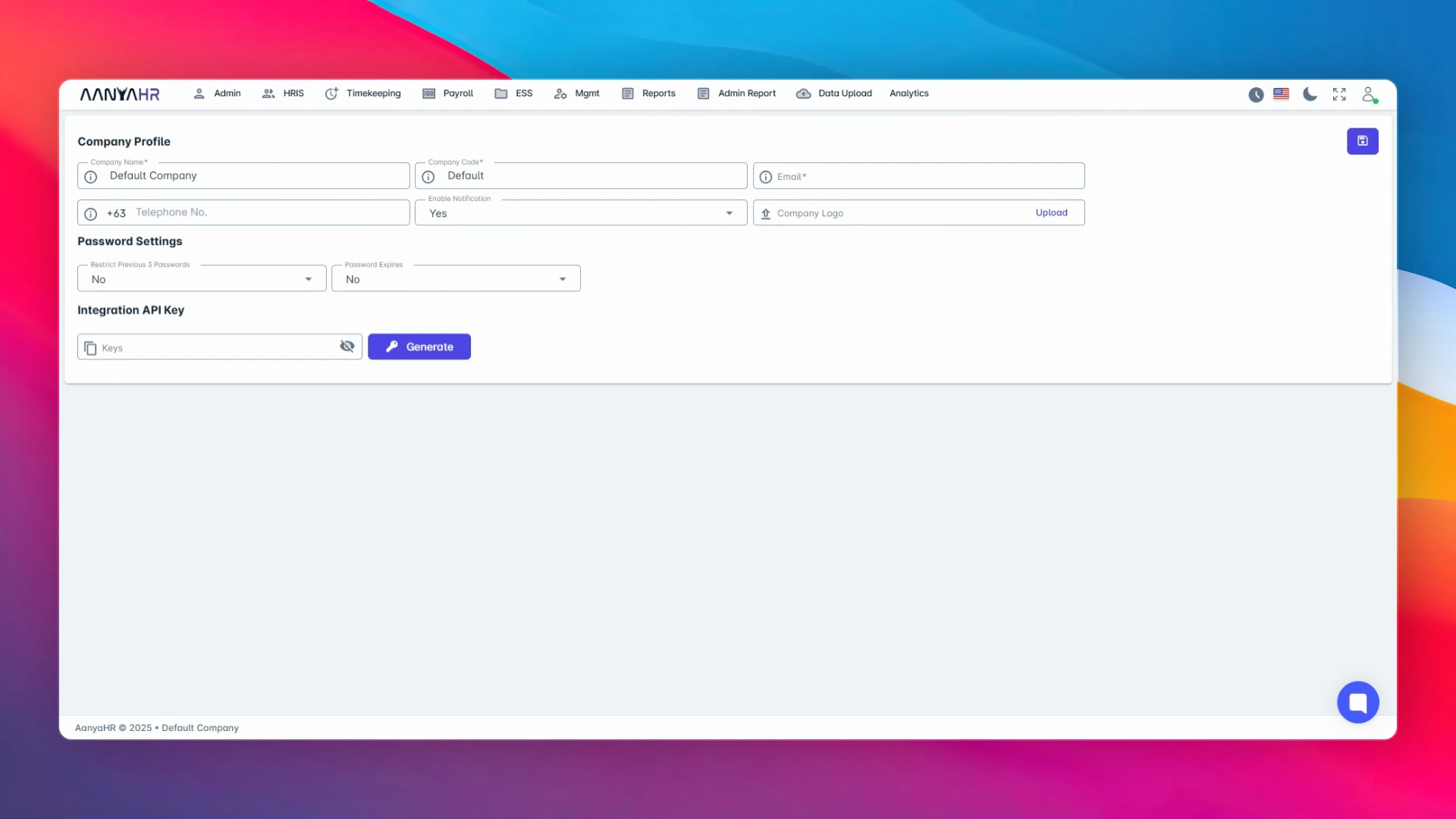
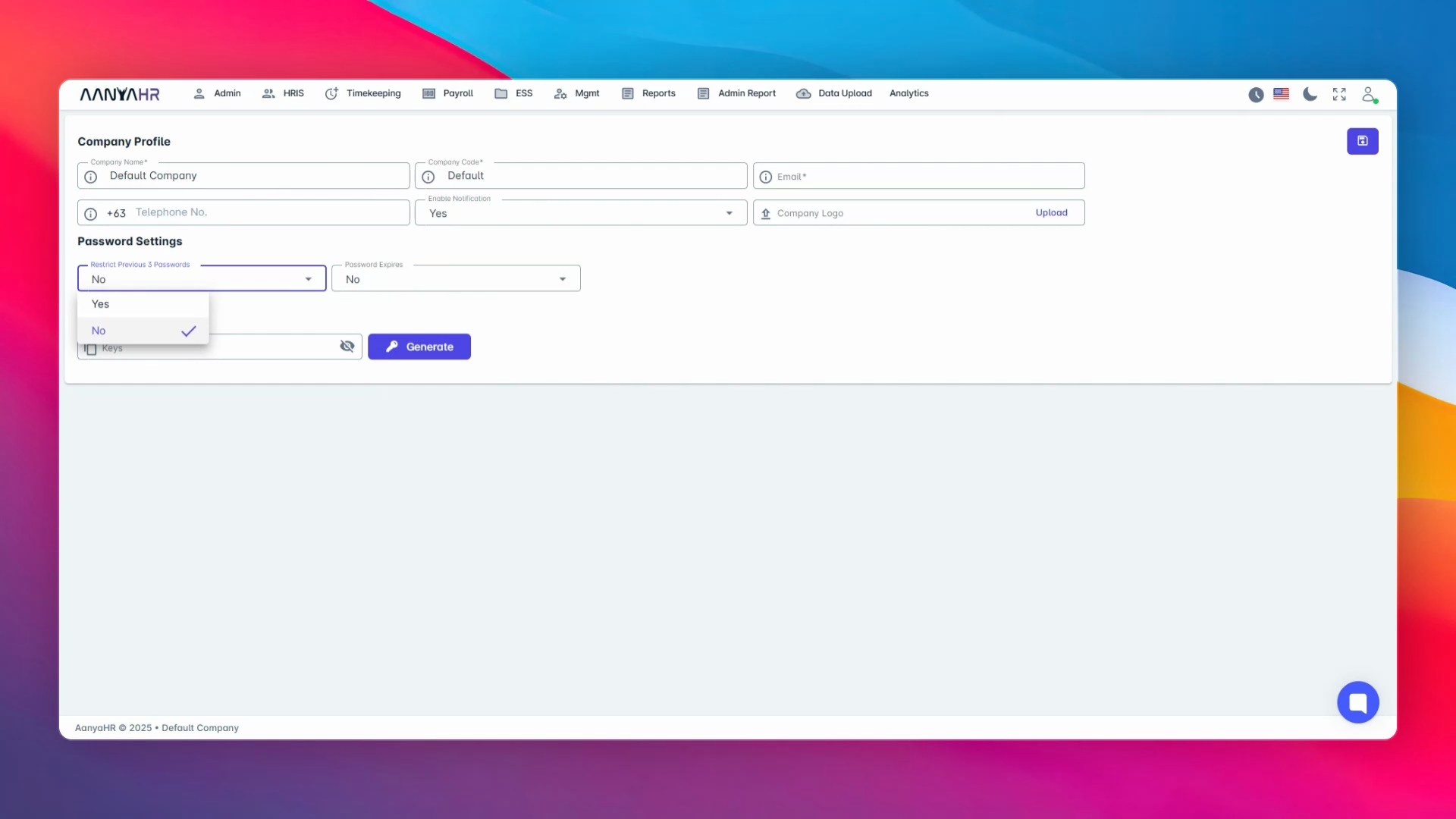
Here you can enable restrictions for the last three used passwords. This prevents users from recycling recent passwords and enhances system security.
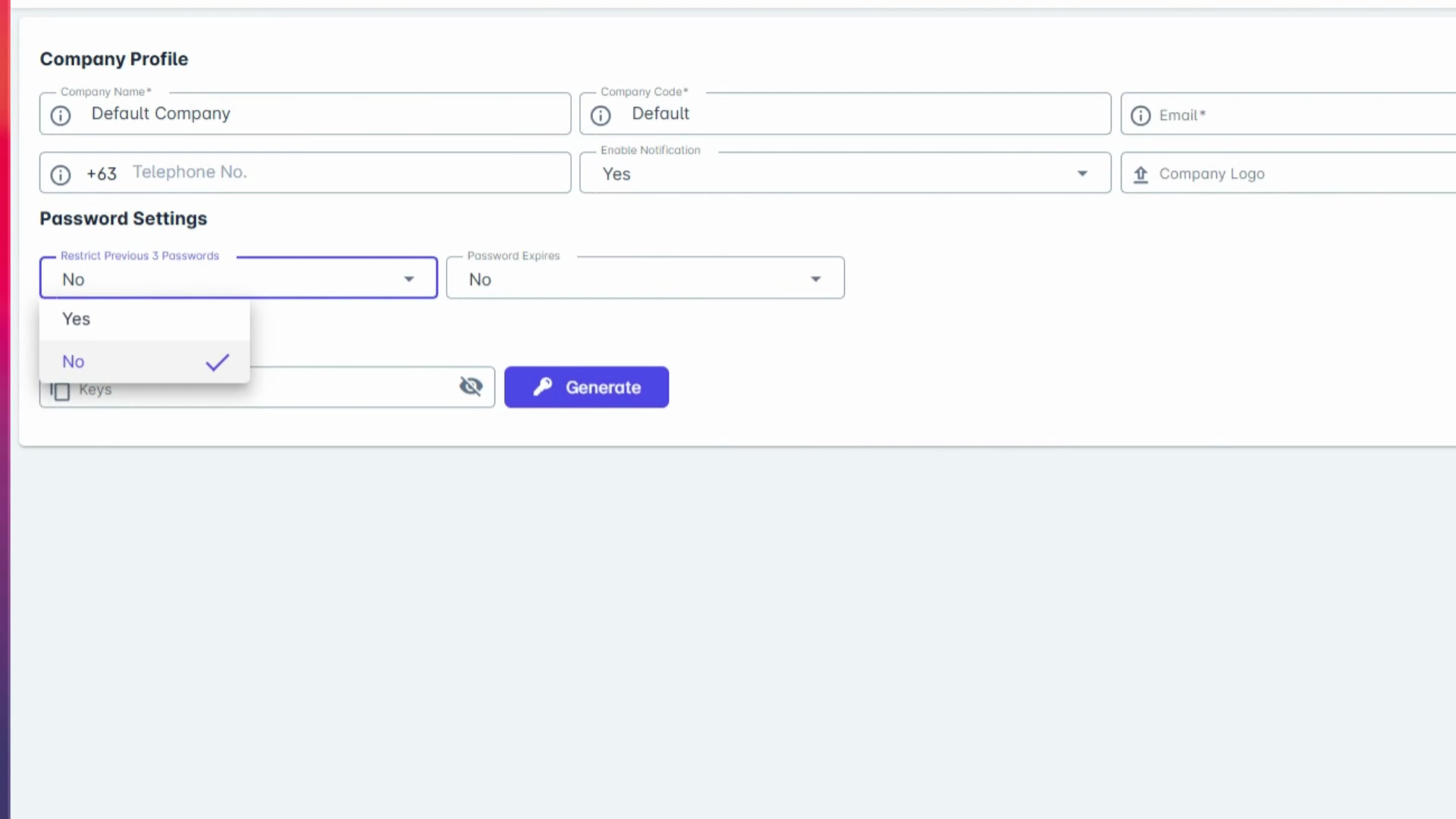
You can also set a password expiration policy to customize how long a password remains valid.
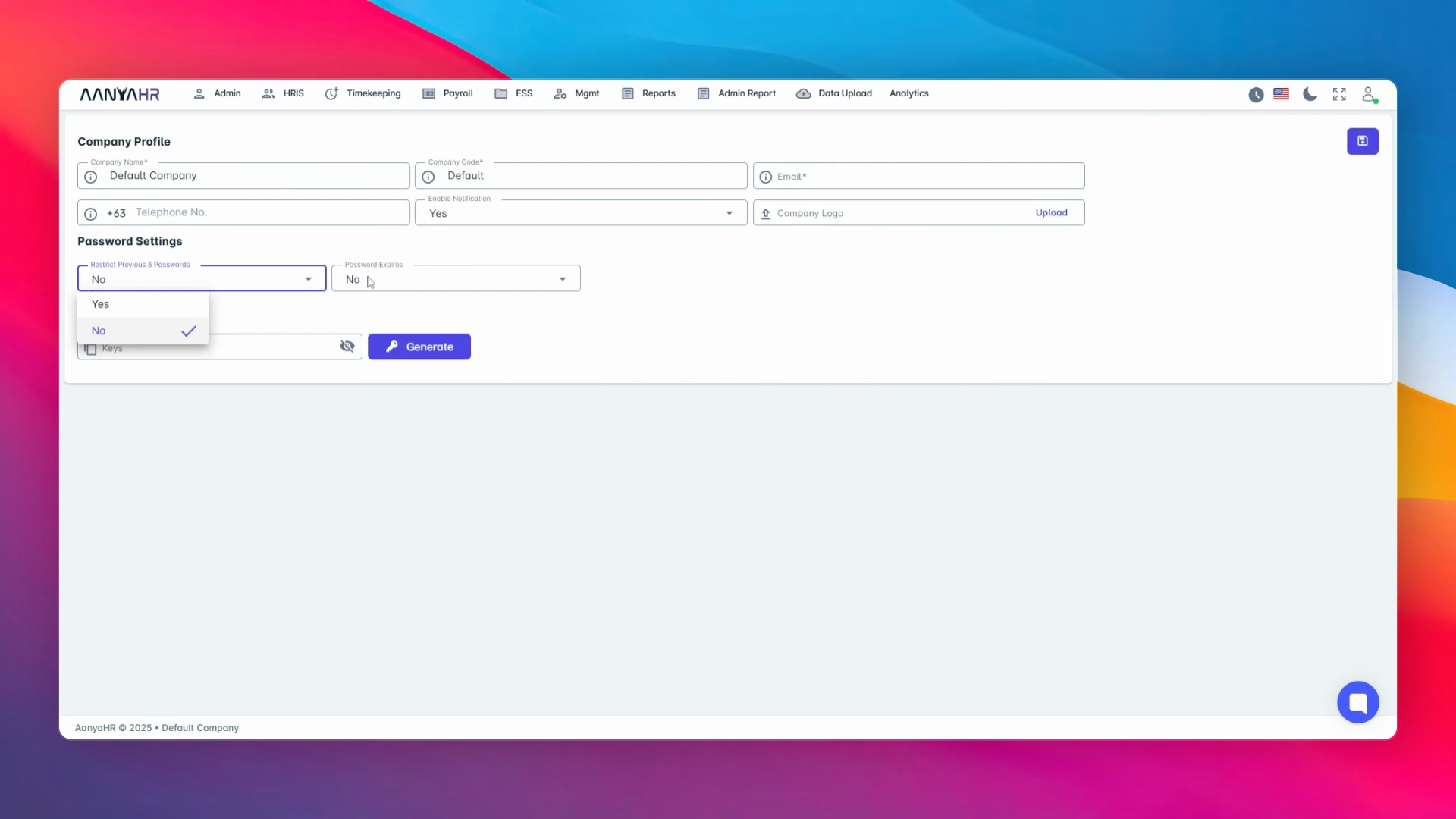
Additionally, configure a reminder. Users will be prompted to update their credentials accordingly upon login.
With these tools, you can maintain accurate company records, reinforce security, and ensure your documents reflect your brand identity.
By following these steps, you can successfully set up your company profile, ensuring it meets your organizational needs and enhances your operational efficiency.