

A Flexi-Window Schedule allows employees to clock in and out within a defined time range. The system will recognize the employee's actual logs within the configured window, while only up to eight hours per day will be counted as regular working hours.
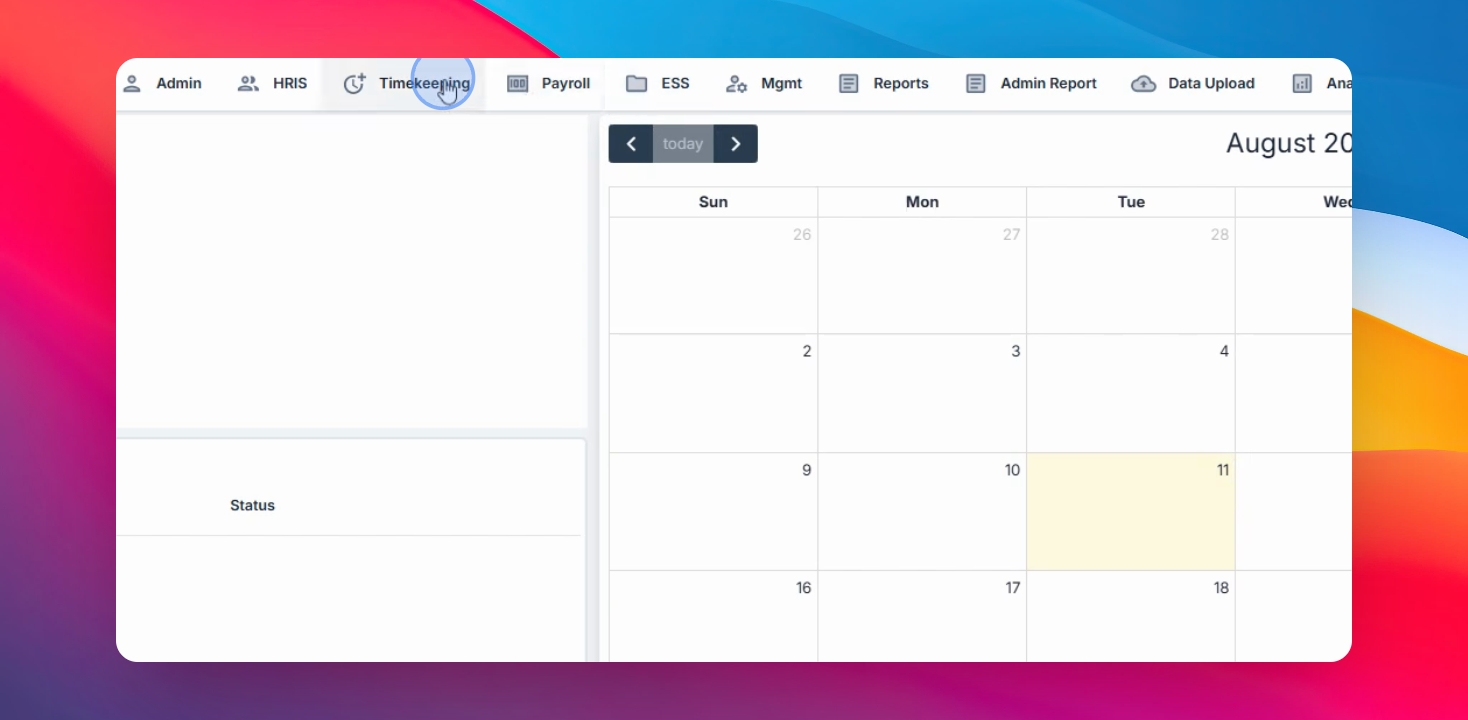
Step 1: Go to Shift Menu
From the timekeeping menu, navigate to Shift.
Step 2: Flexi-Window Shift
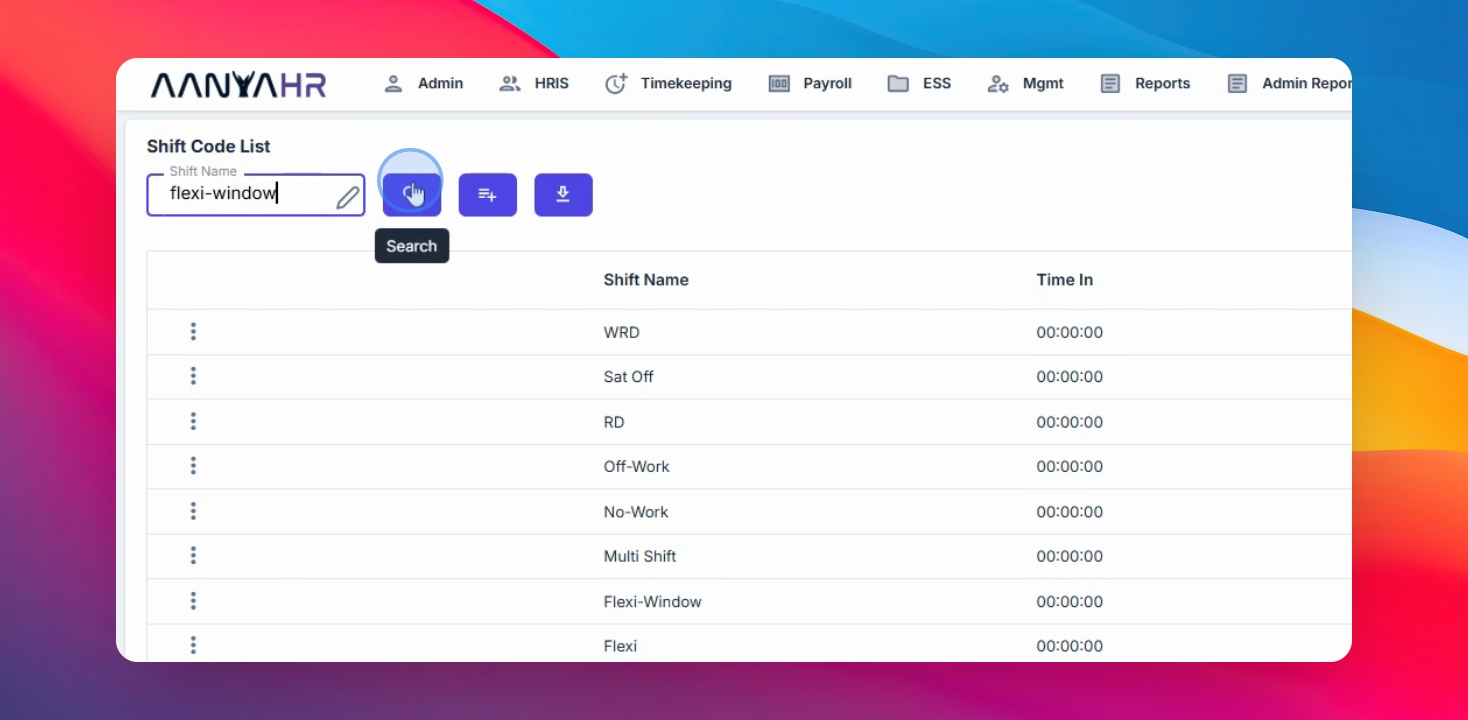
Flexi window shift code already exists. This code will be used when assigning Flexi window schedules to employees.
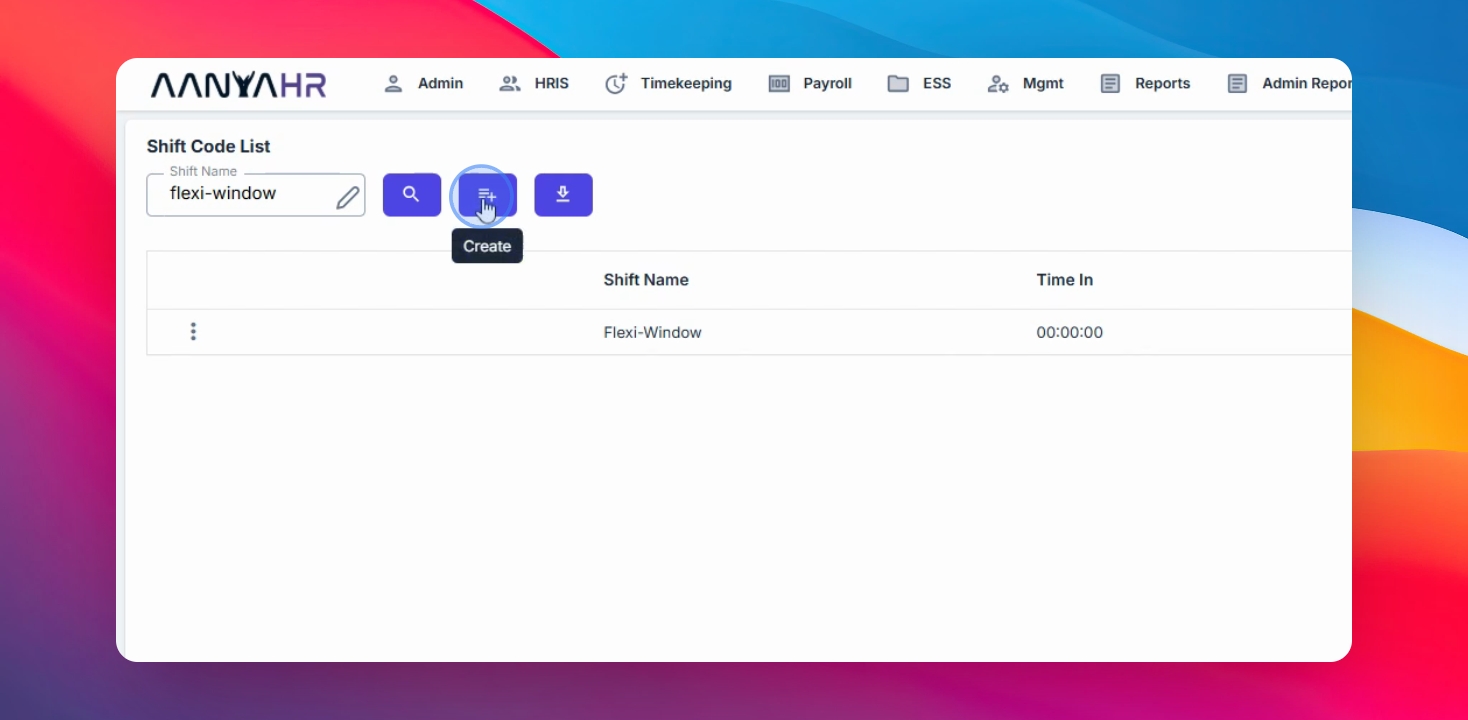
Step 3: Create Sub Shift
Click the Create button to add a sub shift for the Flexi window.
Step 4: Set Allowable Time Window
Define the allowable window for employees to clock in and out. For example, set the window from 7am to 9pm. Employees can clock in and out within this range, and only logs within this window will be recorded for timekeeping.
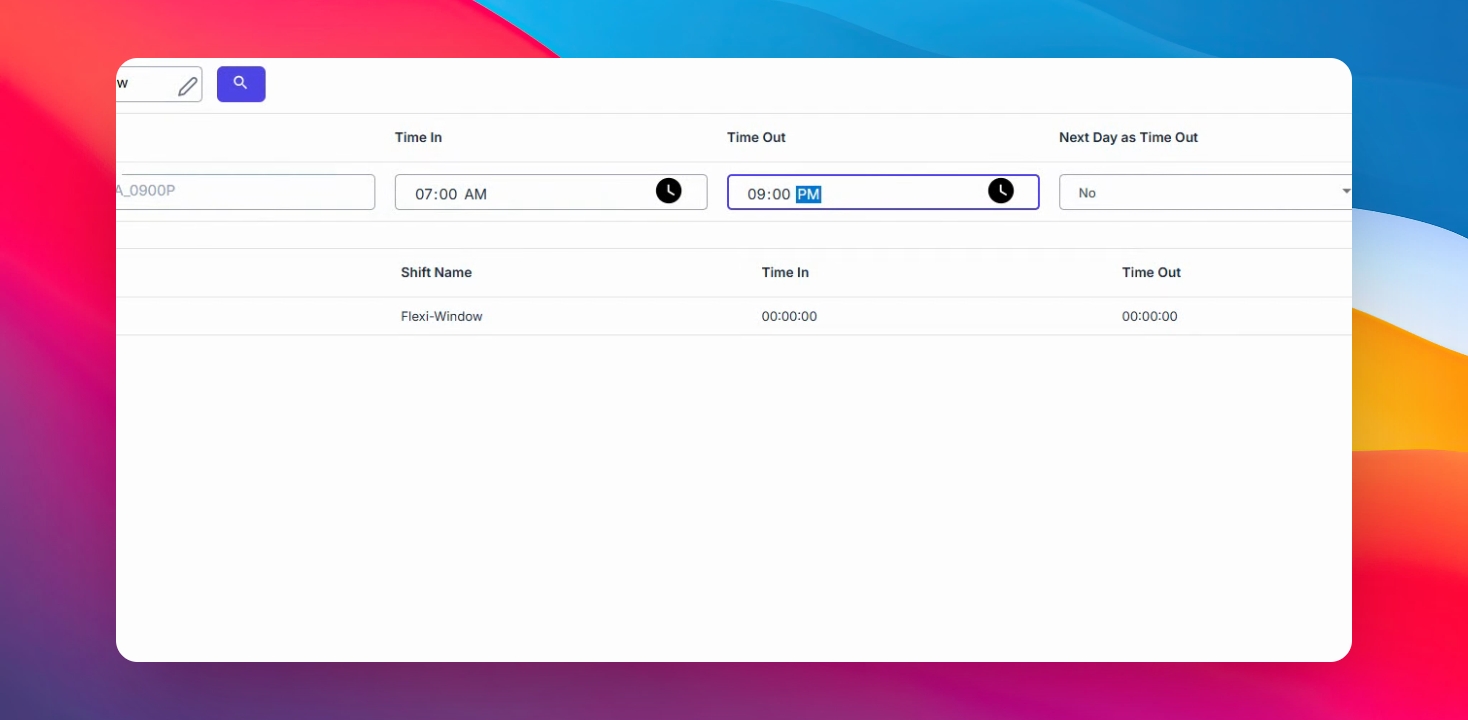
If an employee clocks in at 8am and out at 6pm, the system will only count up to 8 regular hours for the day. Any logs outside the configured window will not be considered in timekeeping calculations.
Step 5: Save Sub Shift
Once all required details are entered, click Save to finish creating the sub shift for the Flexi window.
The sub shift for the Flexi window is now ready to be used when assigning schedules to employees.
Thank you for following this guide. We hope it helped you set up your Flexi window schedule in NHR.