

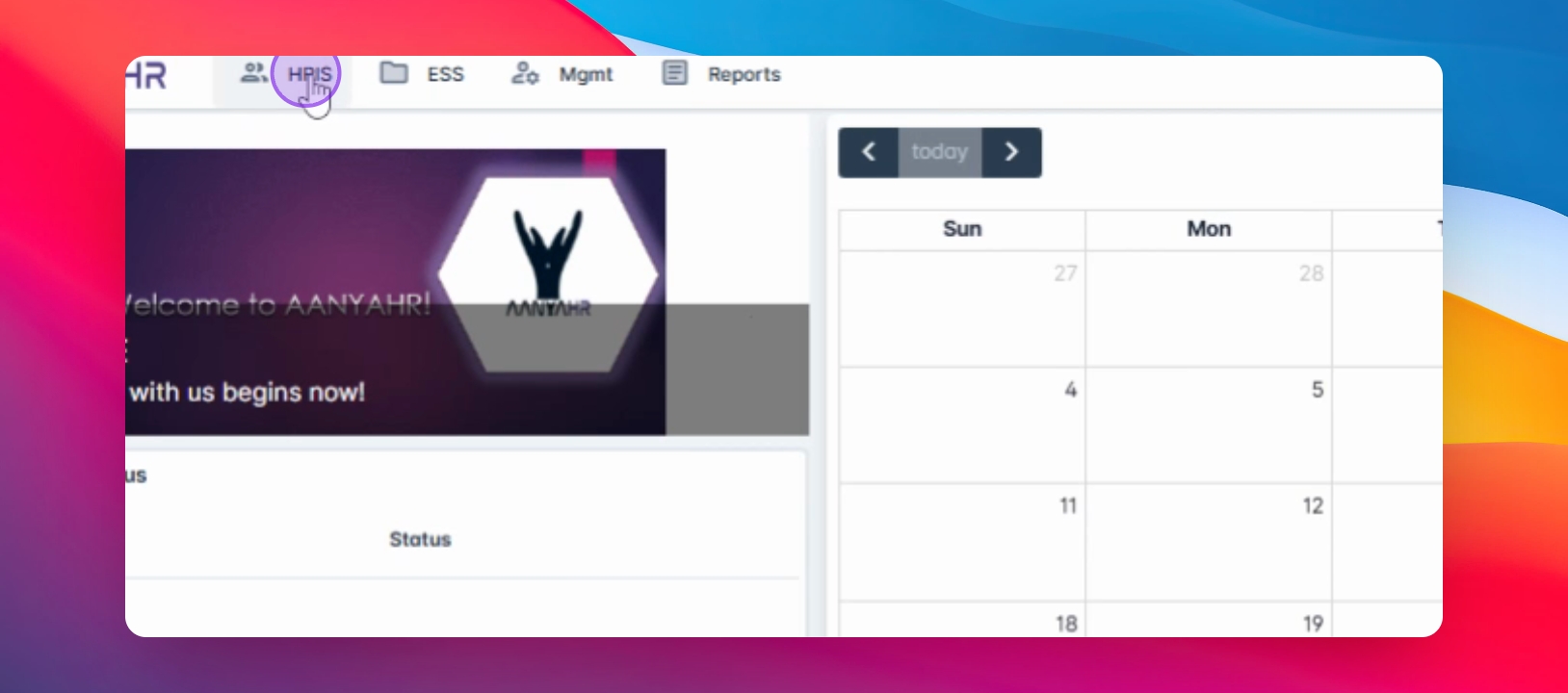
Begin by navigating to the HRIS module and selecting Employee Data Change.
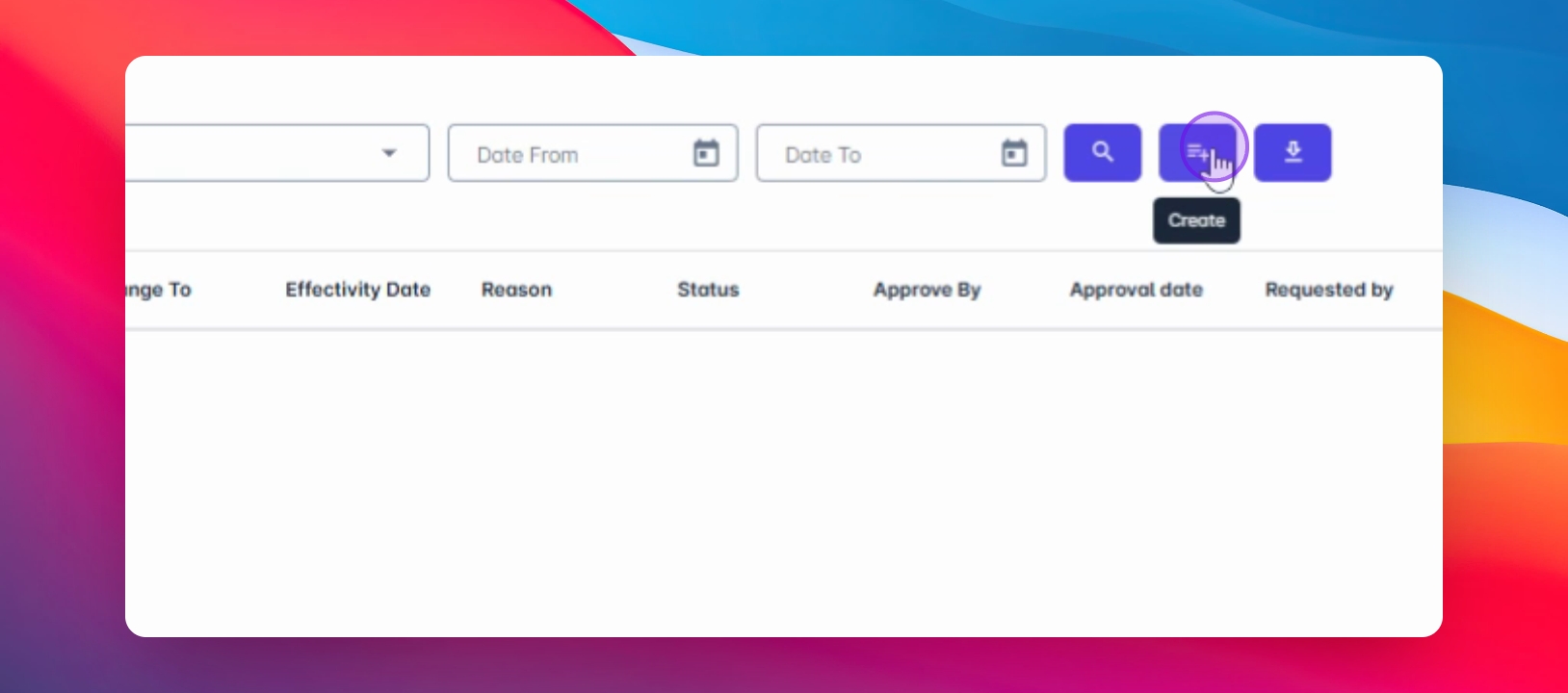
Next, click on Create to initiate a new change request.
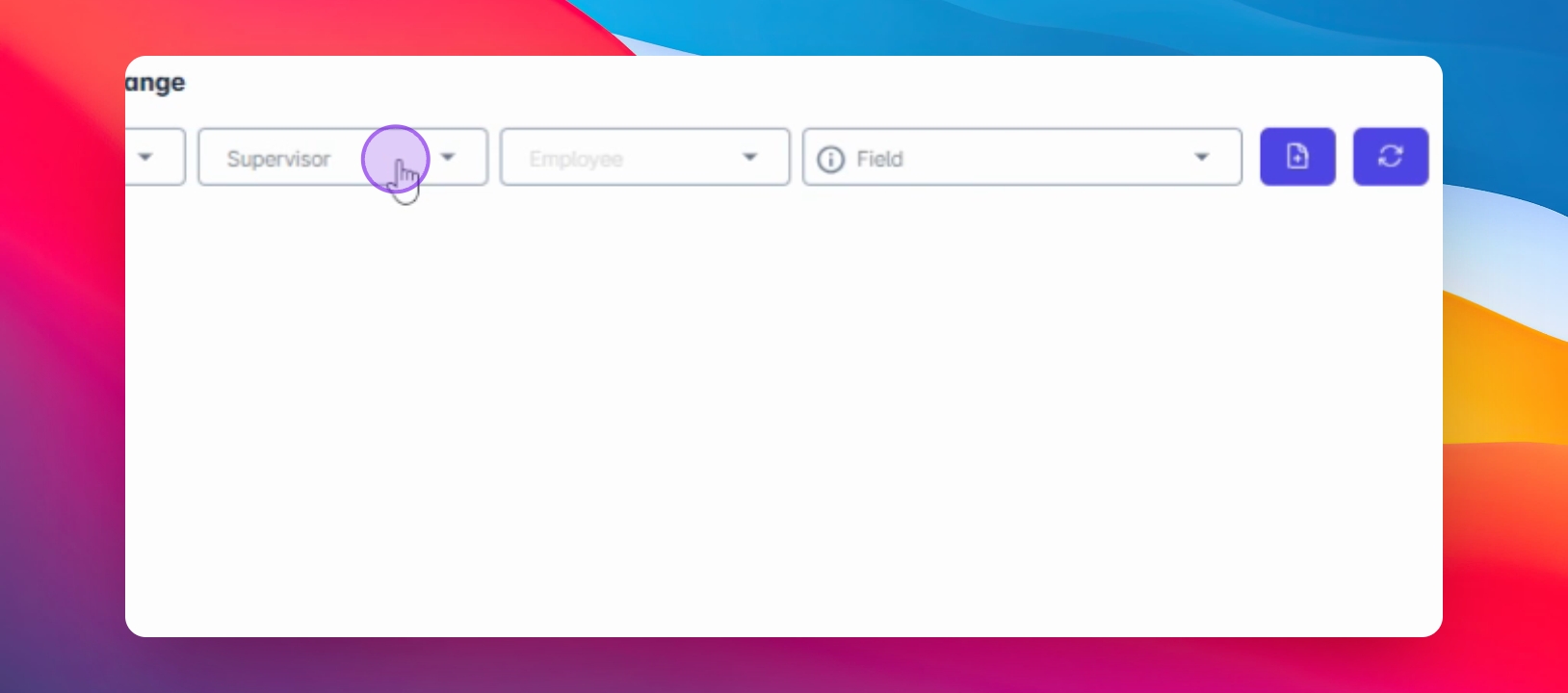
From the Supervisor dropdown, select the appropriate supervisor. Then, in the Employee dropdown, select the employee whose data is being changed.
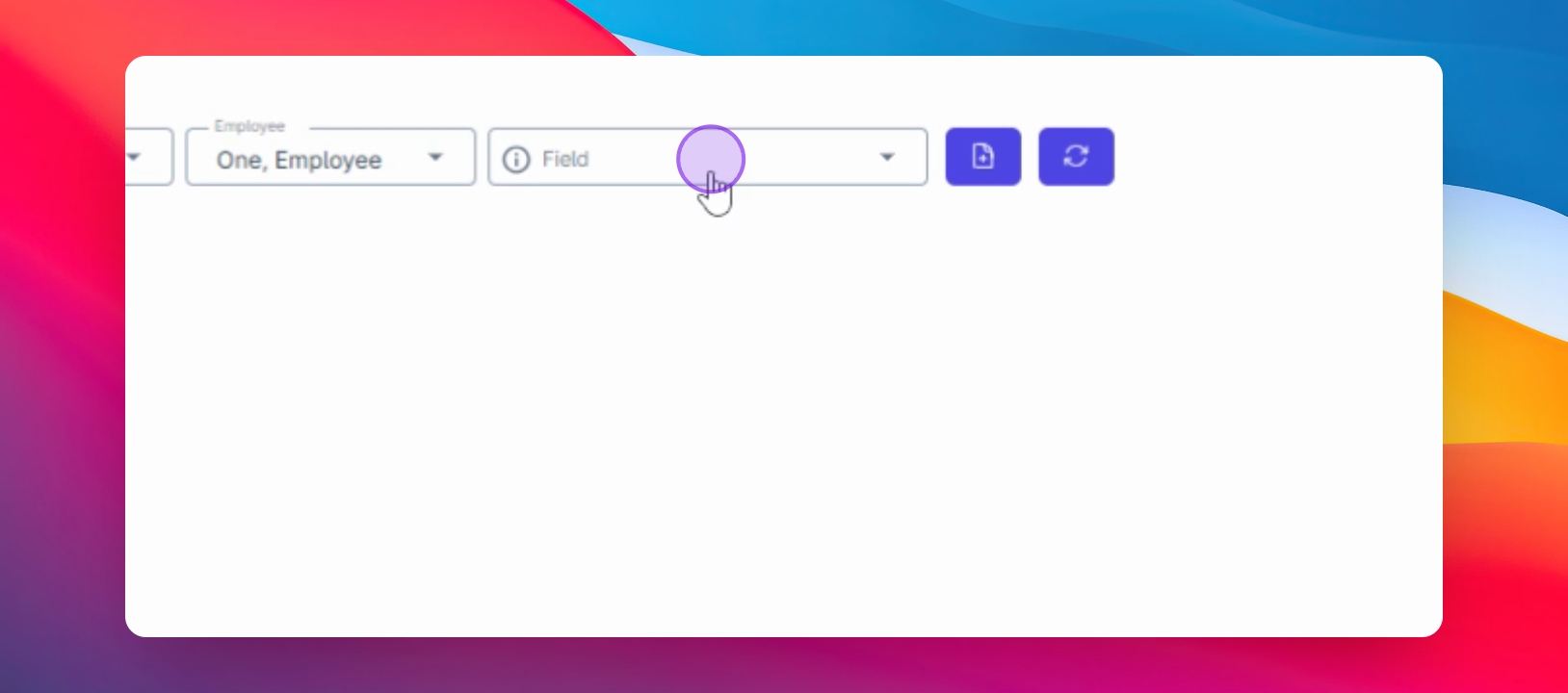
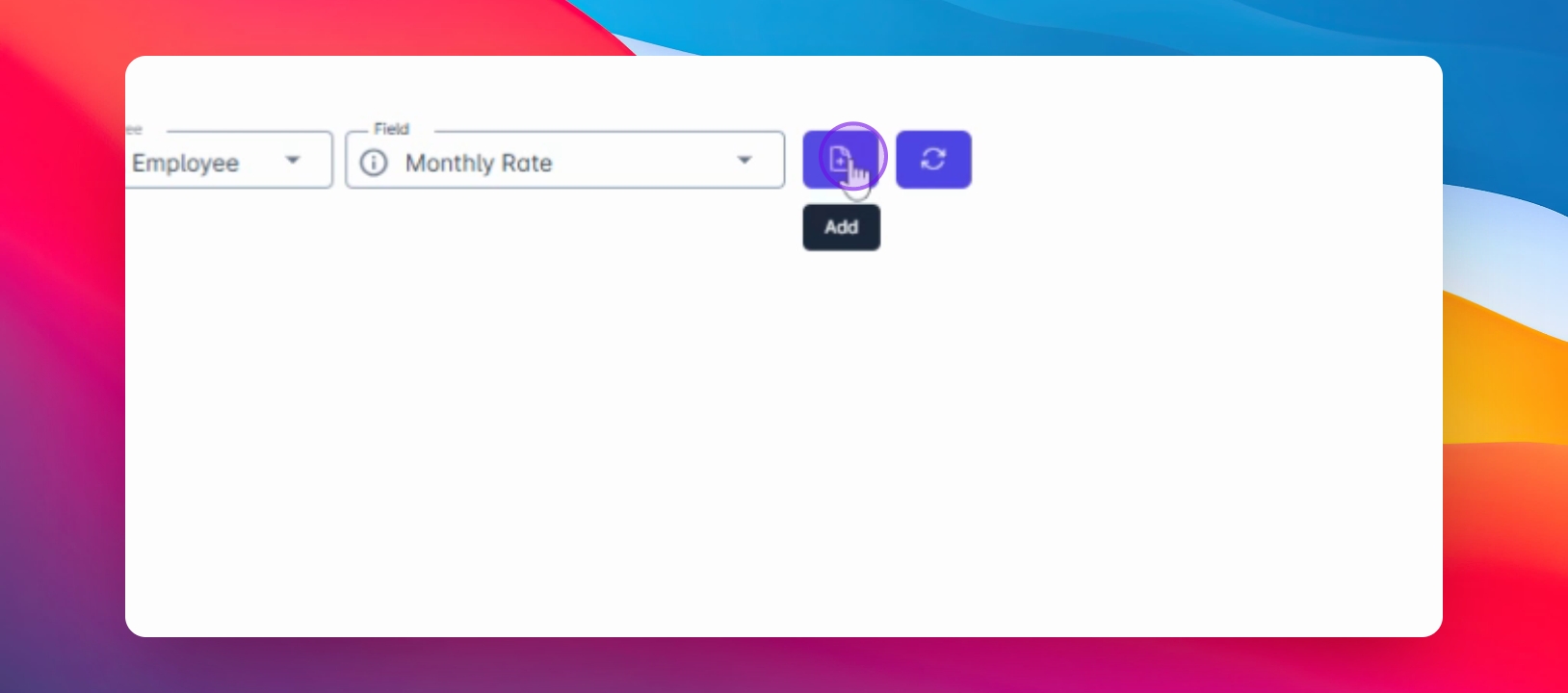
In the Field dropdown, select the type of change you wish to request, such as Monthly Rate.
Click the Add icon and enter the new monthly rate you wish to update.
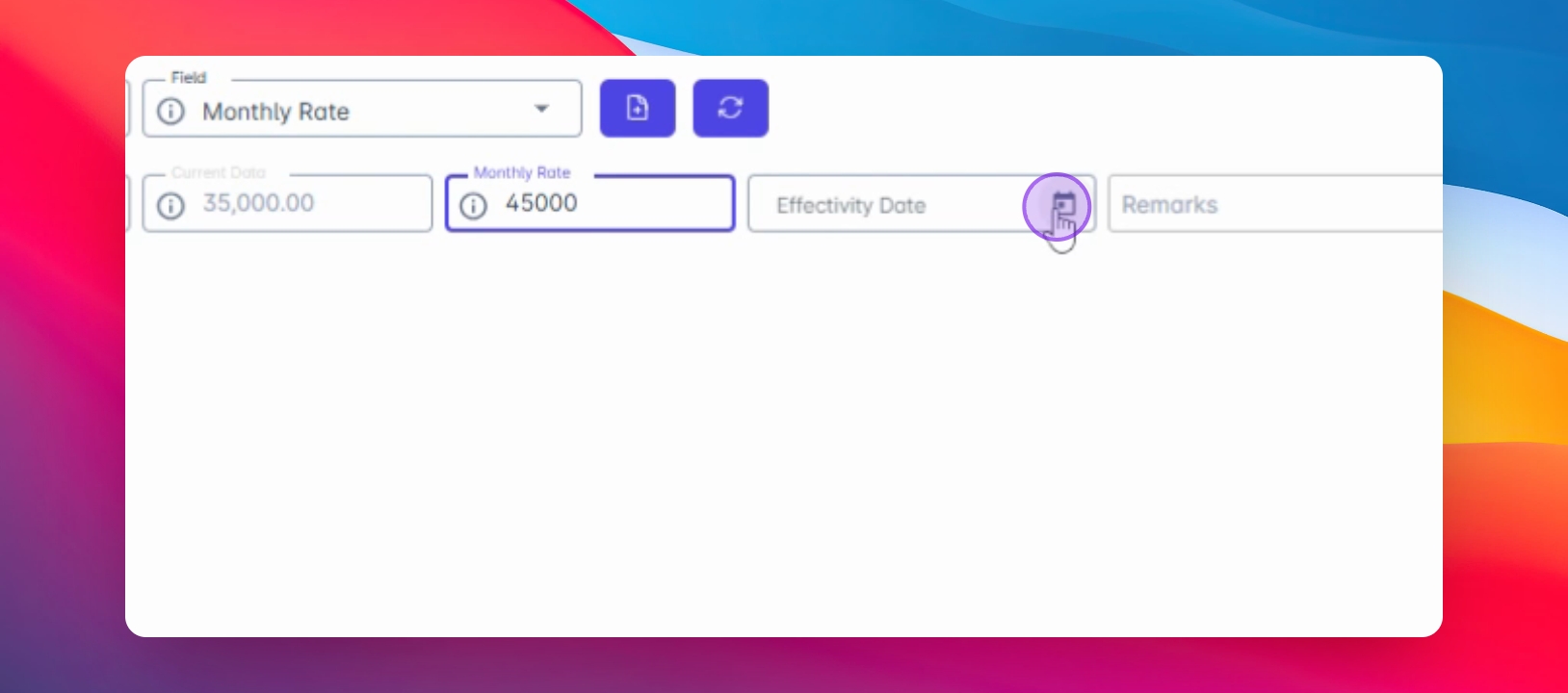
Specify the effective date for the changes, which is the date when your requested change will take effect.
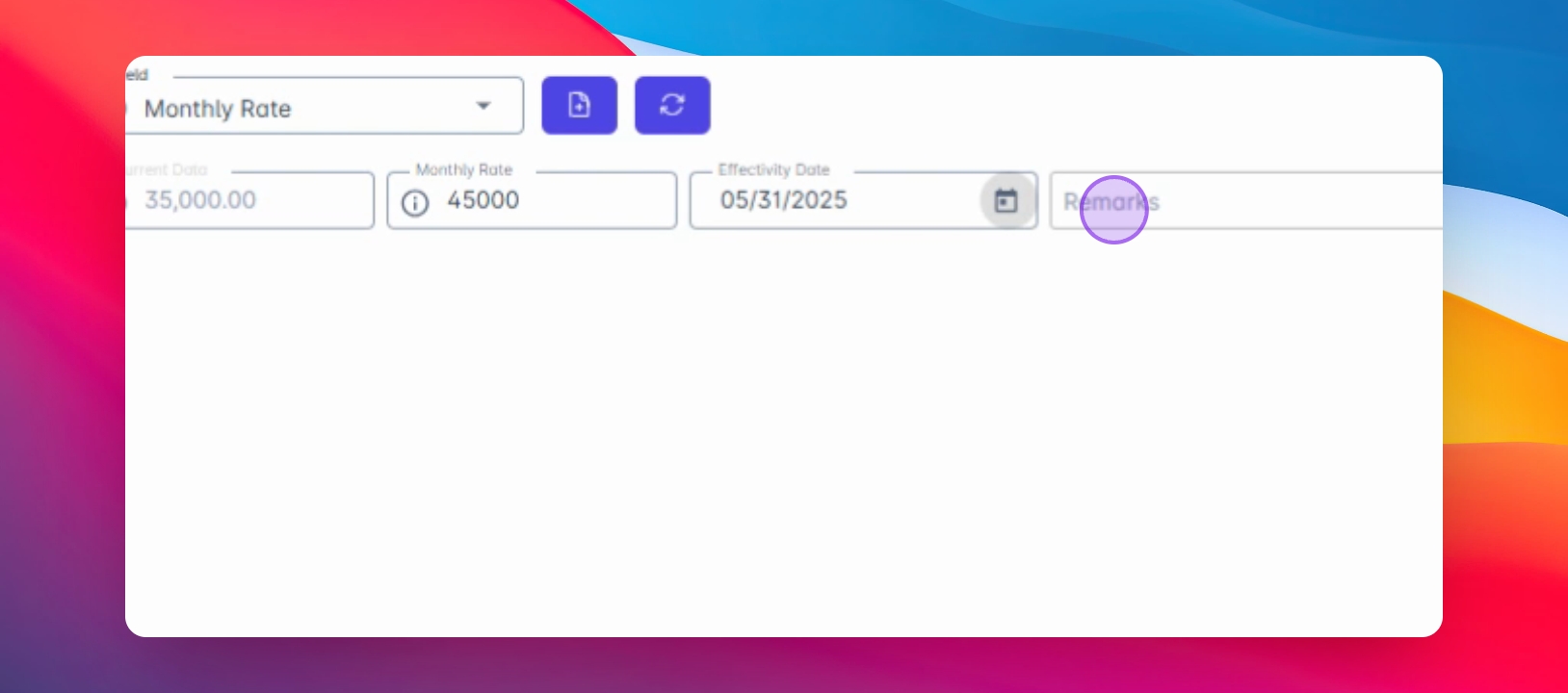
Add any remarks or notes related to the change for clarity.
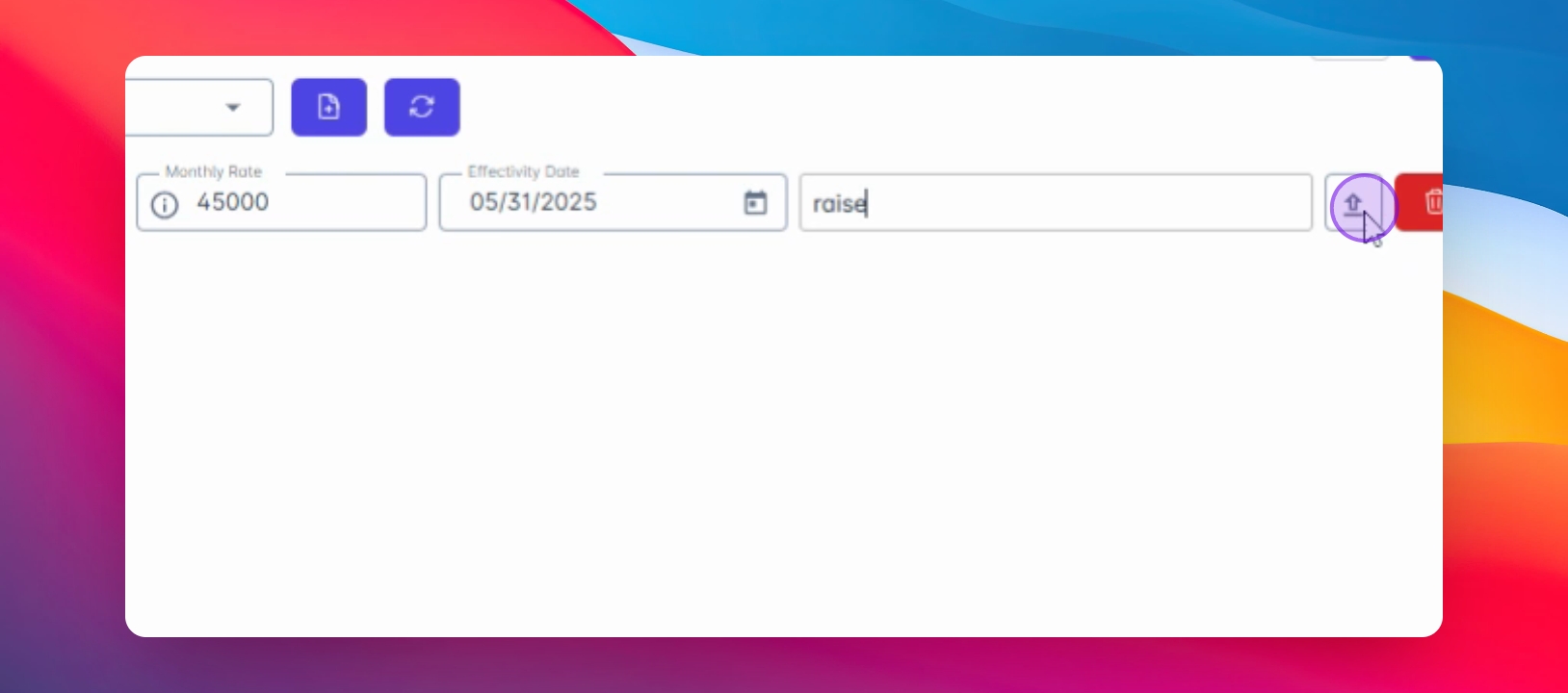
Use the Upload icon to attach any supporting documents, such as the Salary Memo or Approved Request Form.
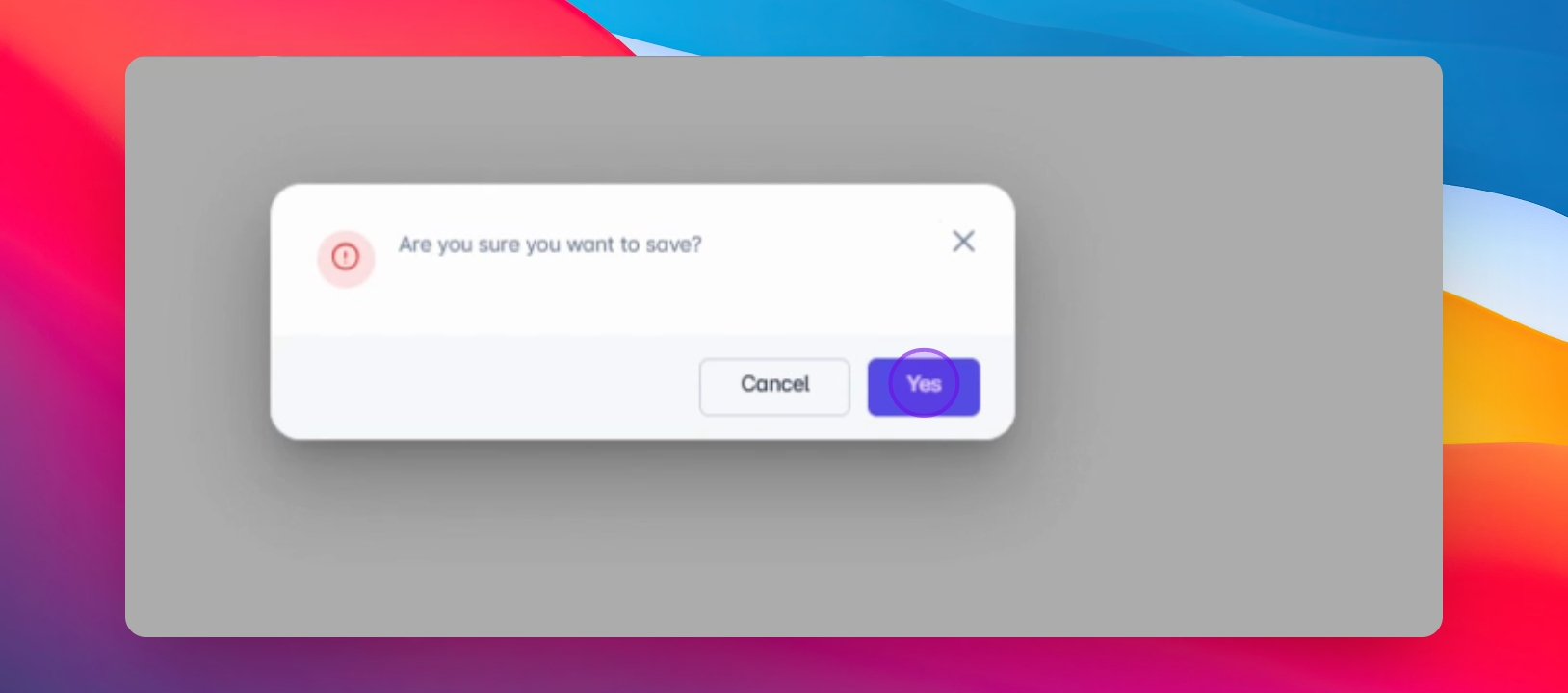
After entering all necessary information, click Save. A prompt message will appear asking for confirmation to save.
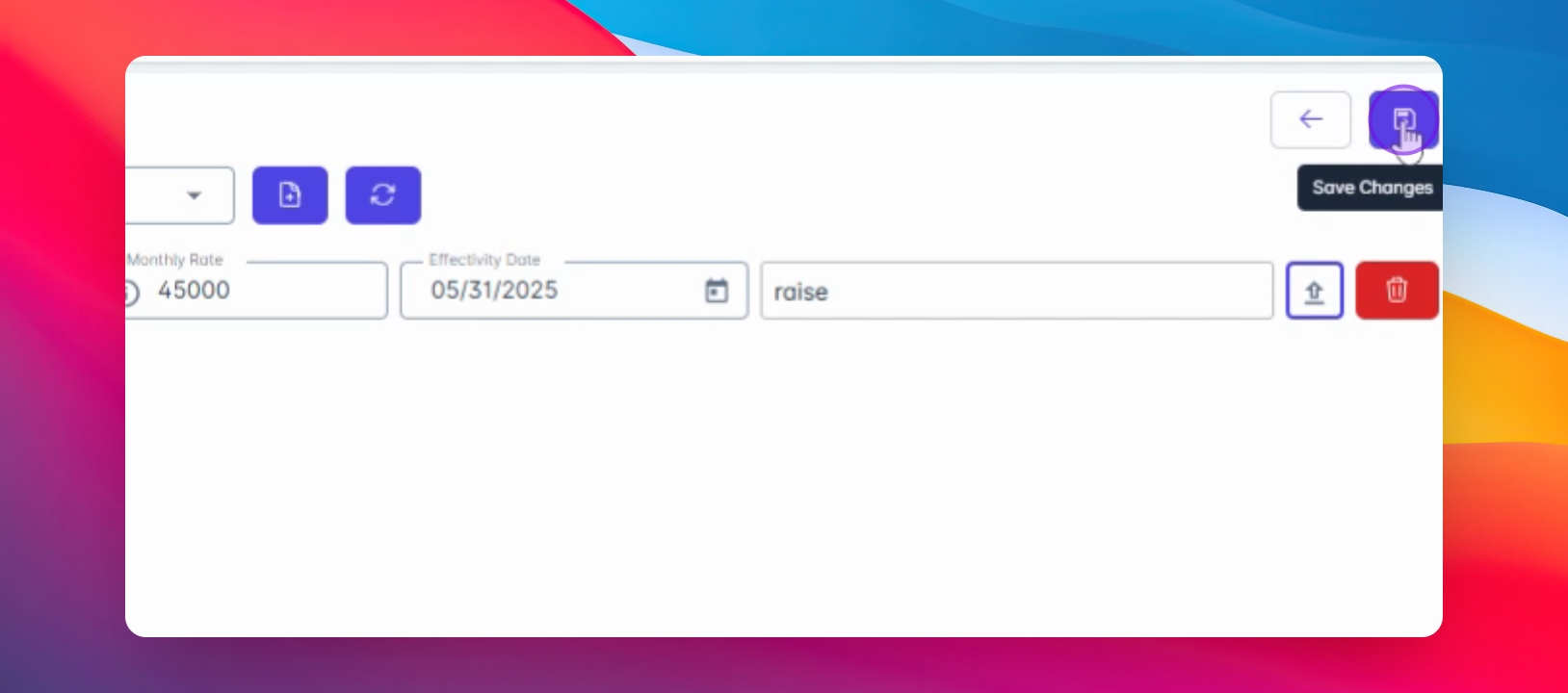
Click Yes to proceed and then Confirm to finalize the submission.
Wait for the supervisor's approval of your request.
The system will notify you once your employee data change request has been reviewed.
By following these steps, you will successfully submit an Employee Data Change request in the HRIS system.