

Welcome to this guide on filing a health day leave in anyhr when your schedule uses partial flexi. Let's look at the steps:
Understand Partial Flexi
Partial flexi means you have an allowable number of hours after your scheduled start time to clock in without being considered late. For example, if your start time is 7am and you have a 3-hour flexi period, you may clock in between 7am and 10am without penalty. Clocking in after the allowed period, such as 10:01am, will be considered late.
Step 1: Check Your Actual Logs
Before filing for a health day leave, check your actual time logs to determine the correct schedule. For example, if you clocked in at 1:20pm and clocked out at 8:13pm on a 10-hour schedule, count back 10 hours from your end time to find your correct start time. In this case, your schedule should start at 10am.
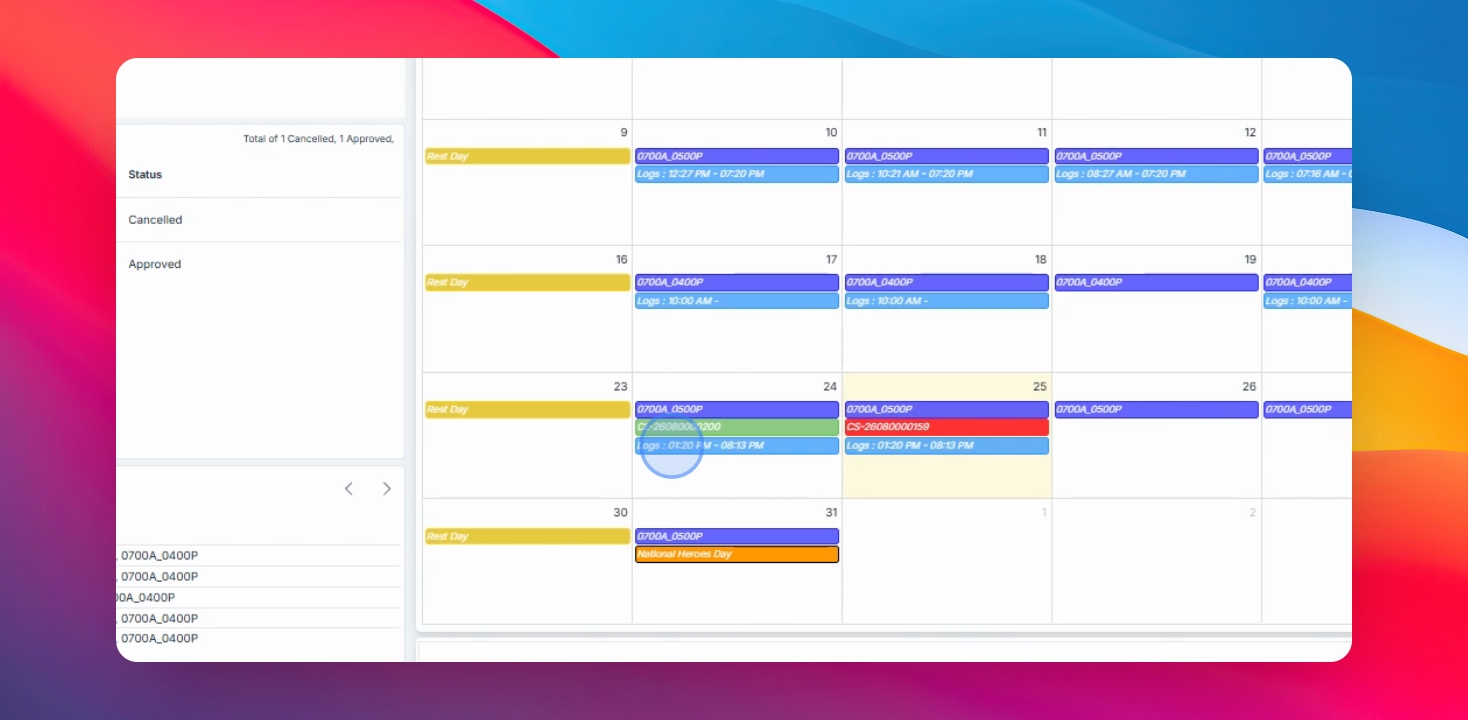
Step 2: File a Change Schedule
Navigate to the ESS menu, select Filings, click Create, and choose Change Schedule as the filing type. Select the desired date, enter your new schedule (e.g., 10am to 8pm), provide your reason and any supporting document, then click Save Changes.
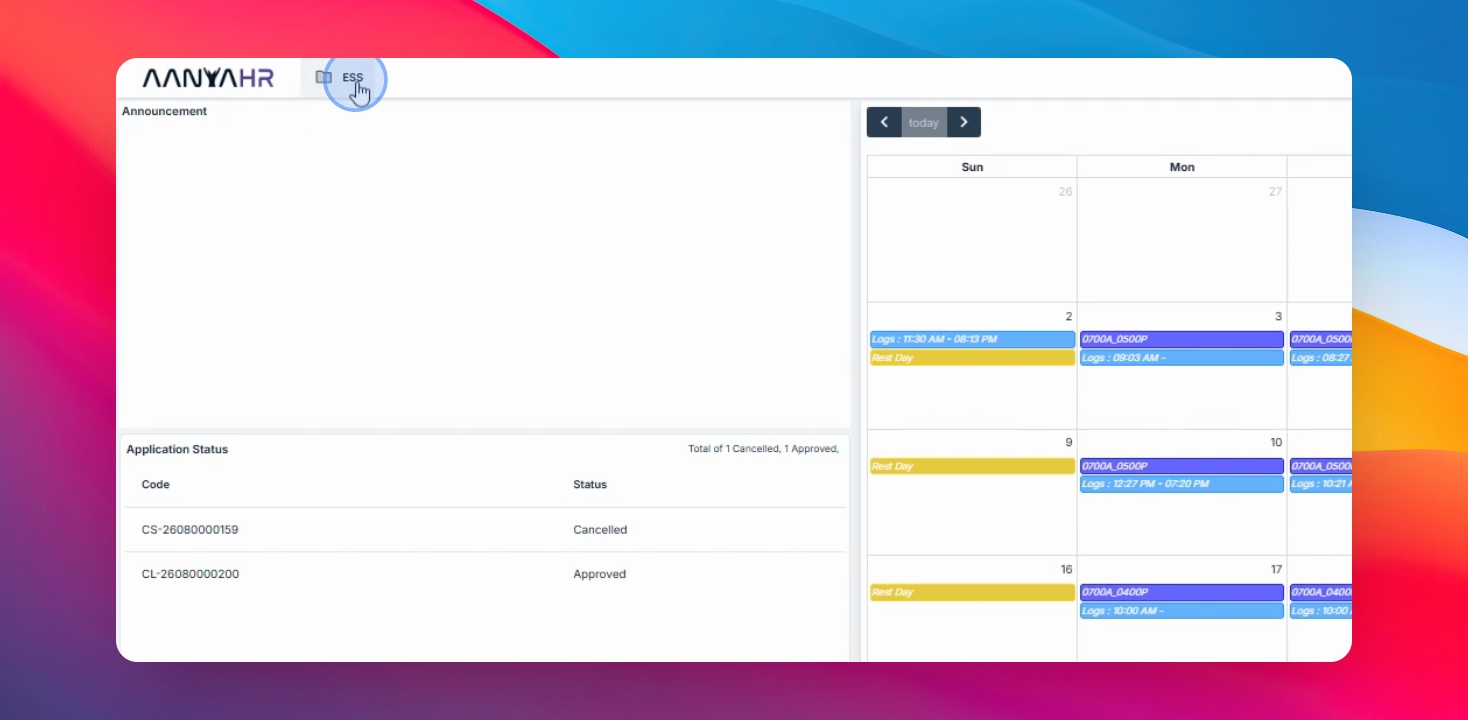
Step 3: Wait for Schedule Approval
Your change schedule request must be approved before you can file for leave.
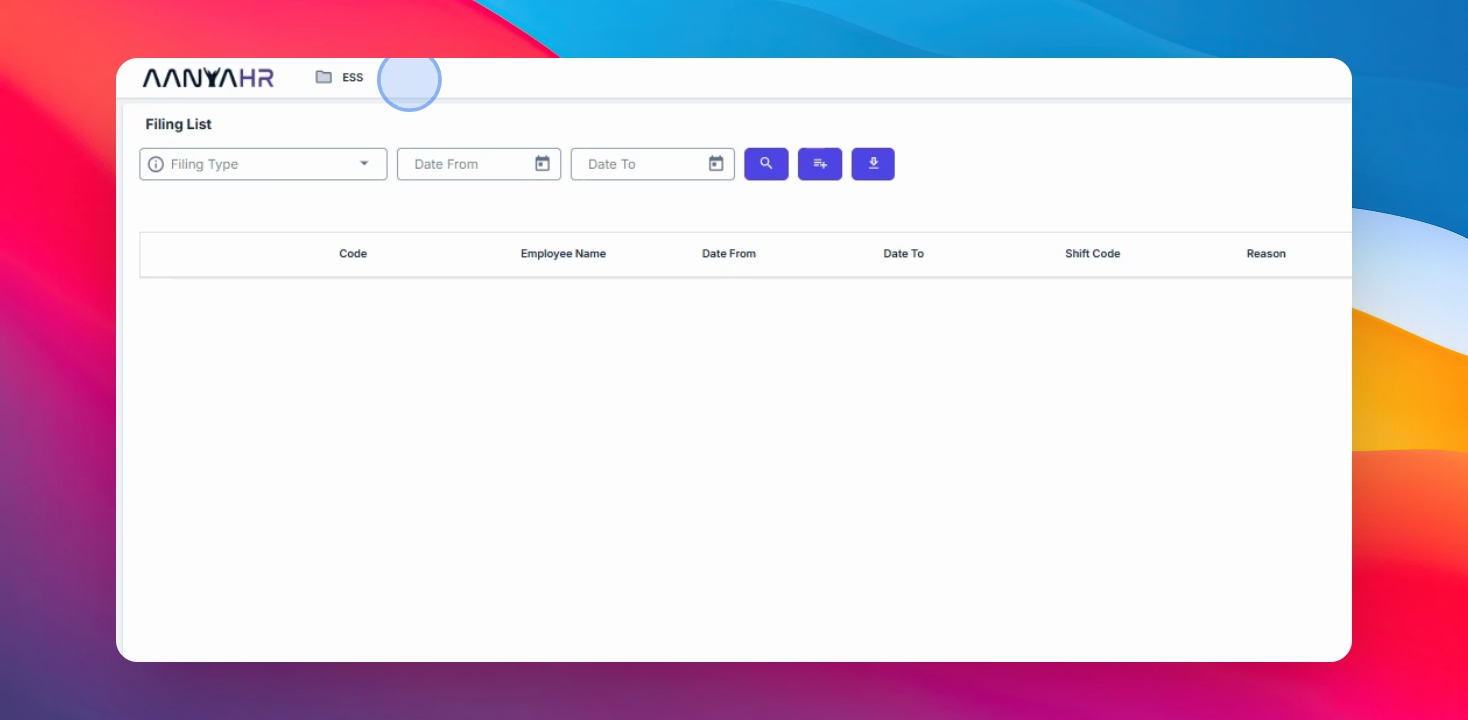
Step 5: File for Leave
Once your schedule is approved, select Leave as the filing type. Enter your desired leave code or your entitled leave, specify the date, choose the leave filing type, and indicate if it is for a half day, first half, or second half. For example, select first half day leave. Enter your reason, attach a supporting document, click Add, and then file. Finally, click Save Changes.
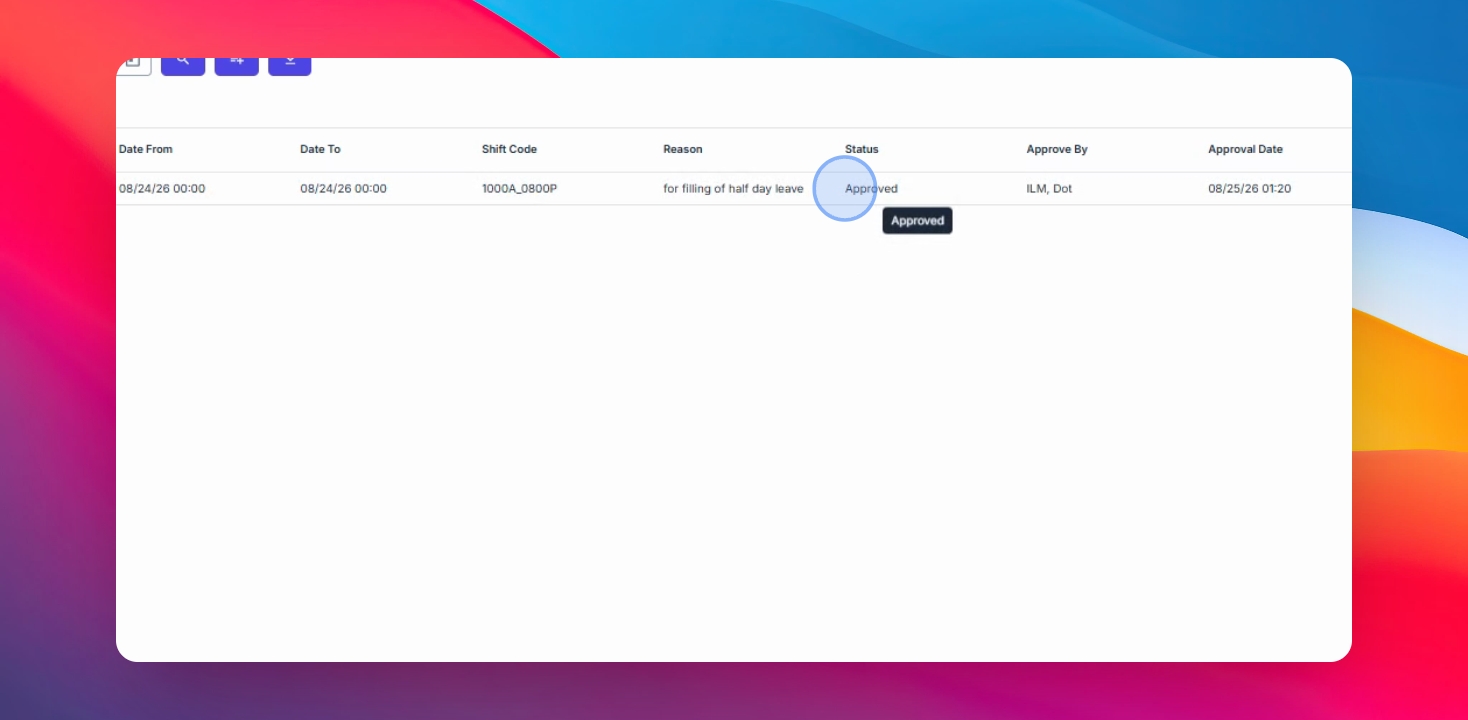
By filing the change schedule first, you ensure your schedule and timekeeping are properly aligned before submitting your half day leave request.