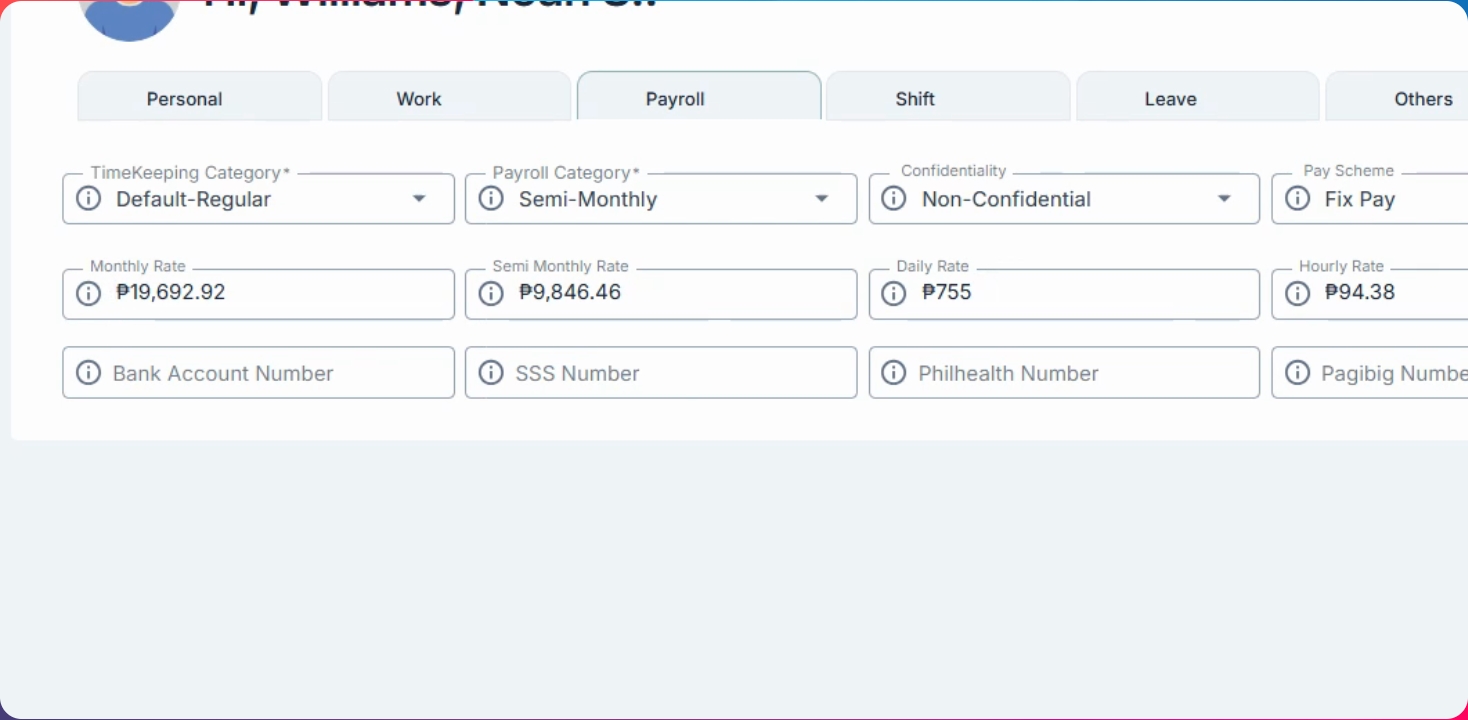
This guide shows how to update the wage sector for a branch and ensure the correct wage sector is set for an MWE employee. Let's look at the steps:
Step 1: Open Branch Settings
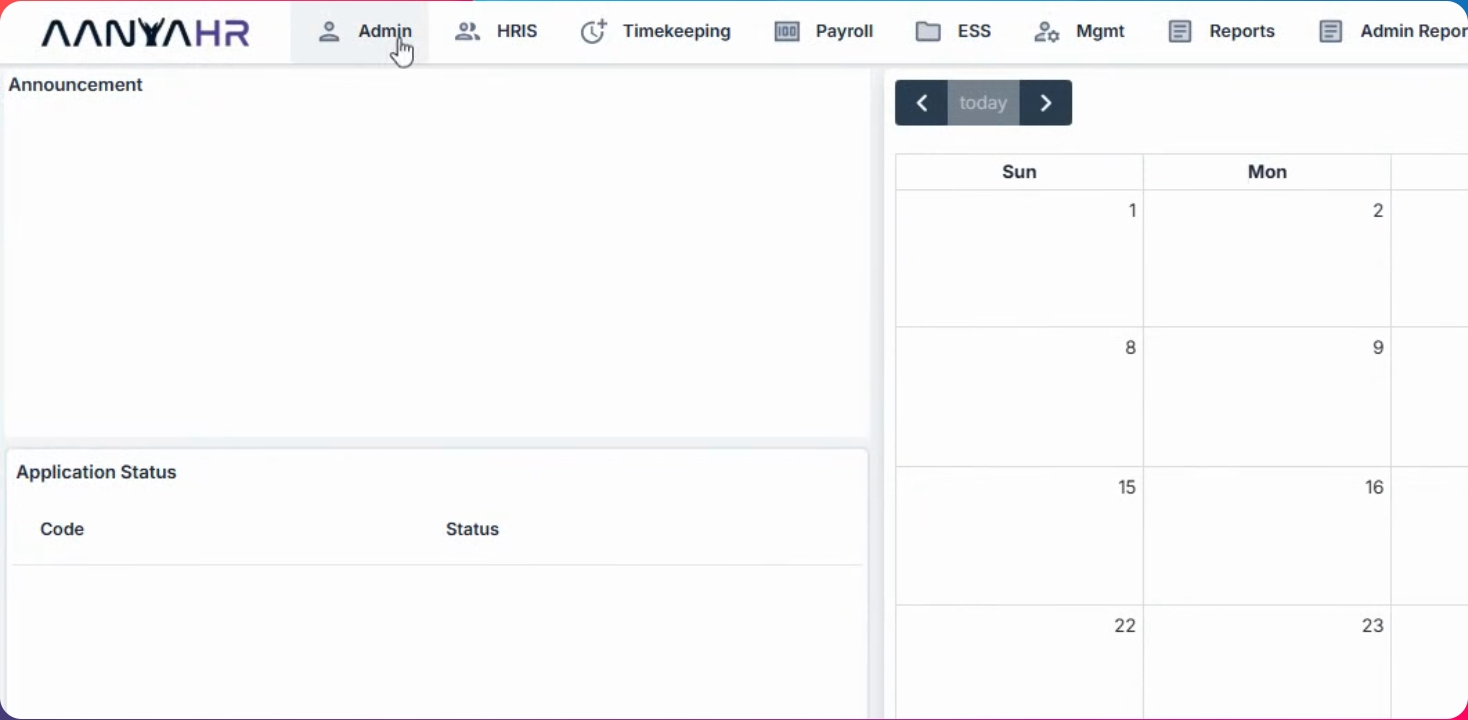
Navigate to the admin menu and select Branch.
Step 2: Edit Wage Sector
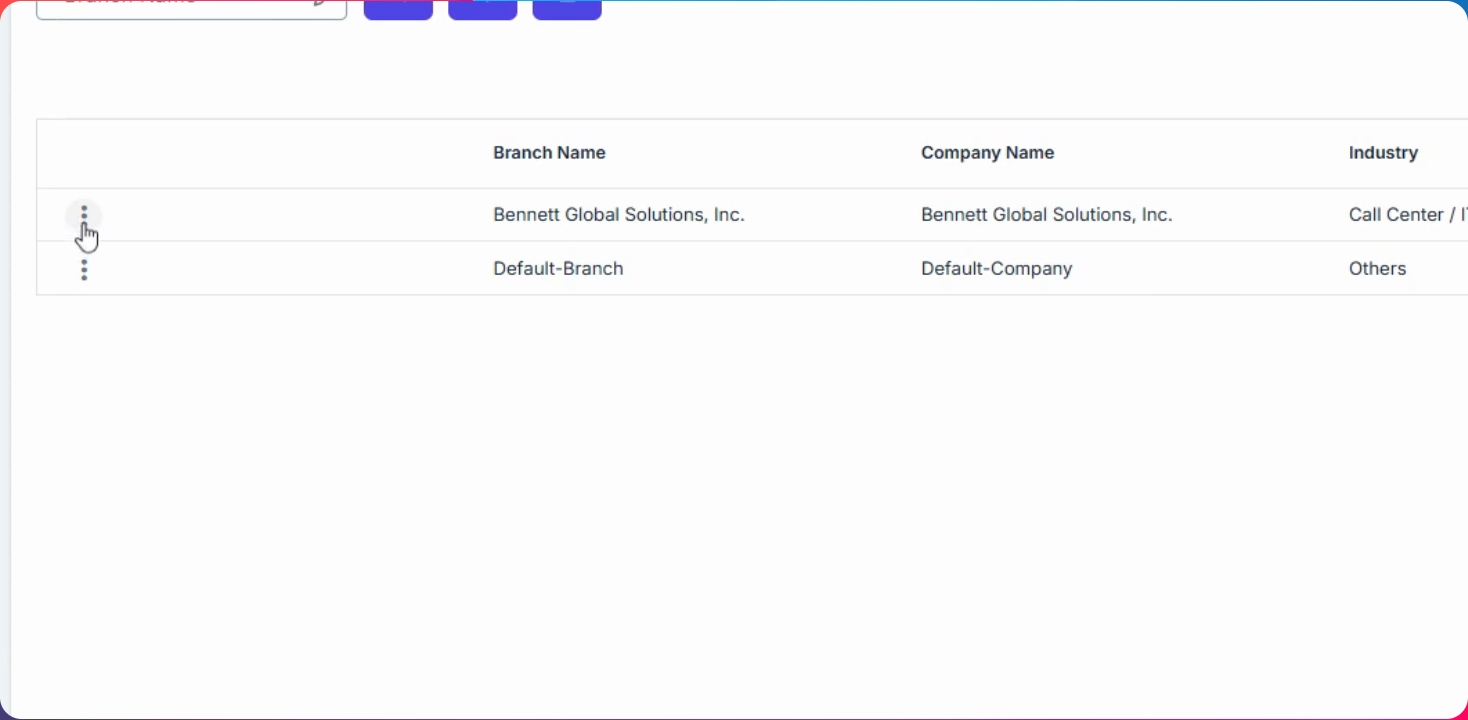
Click the Edit button to update the wage sector. Choose the appropriate wage sector for the branch.
Step 3: Save Branch Changes
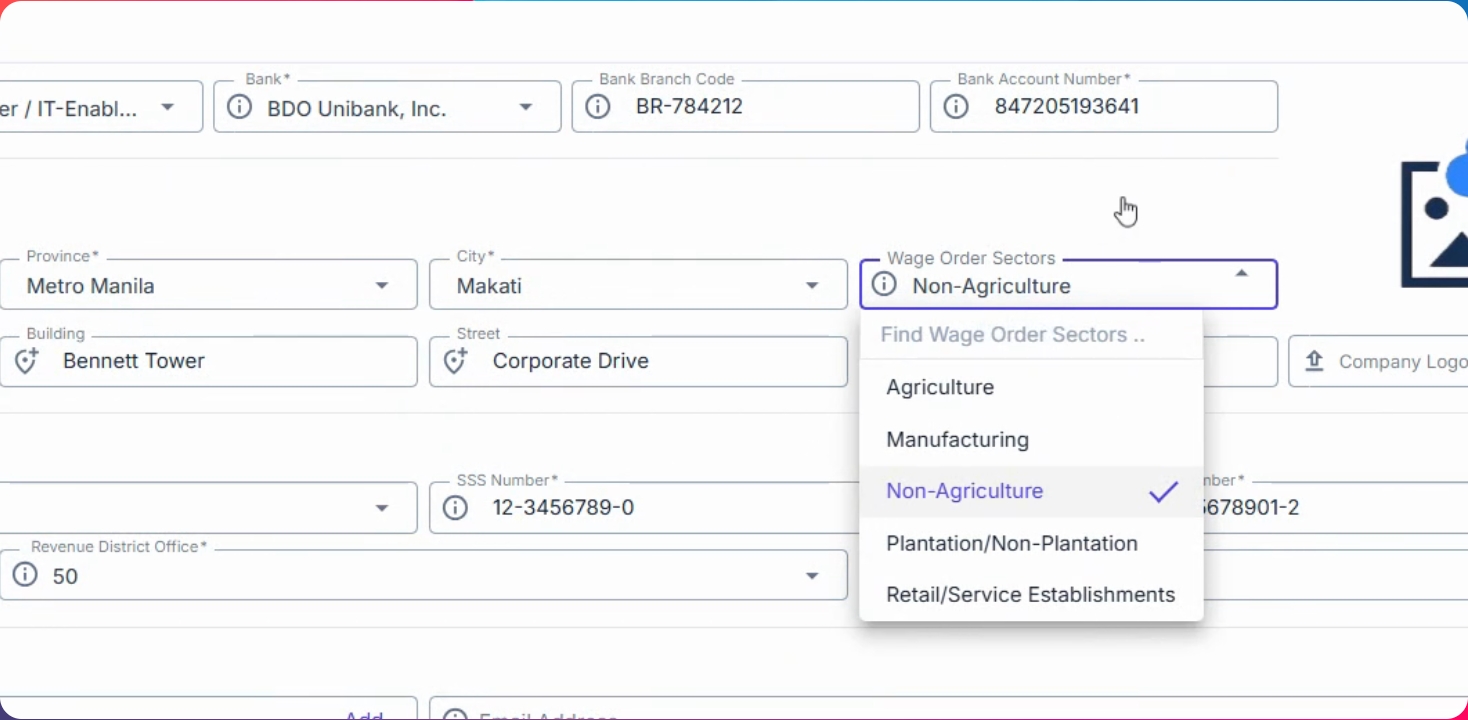
The wage sector options are based on your branch's region address. Click Save Changes to apply the update.
Step 4: Go to Employee Section
Navigate to the employee section.
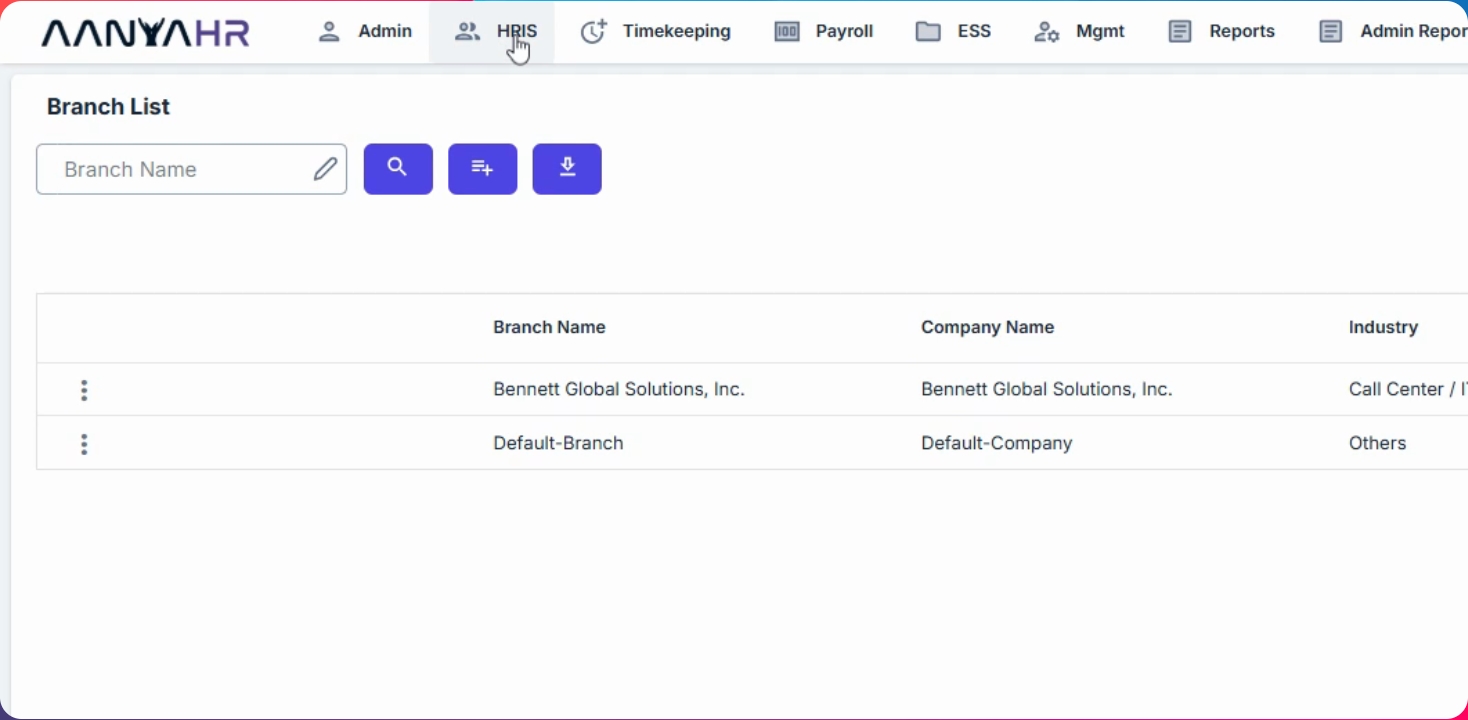
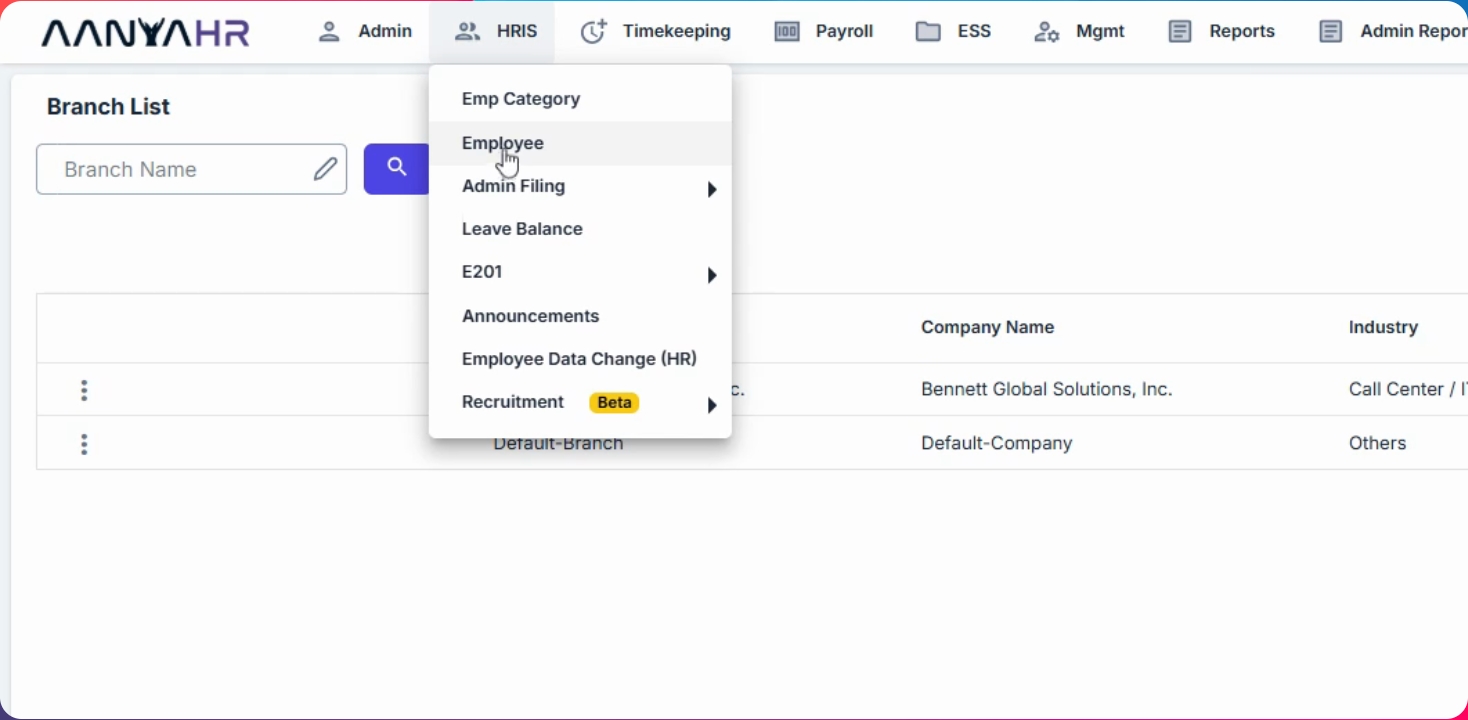
Step 5: Select MWE Employee
From the HRIS menu, select the MWE employee you want to update.
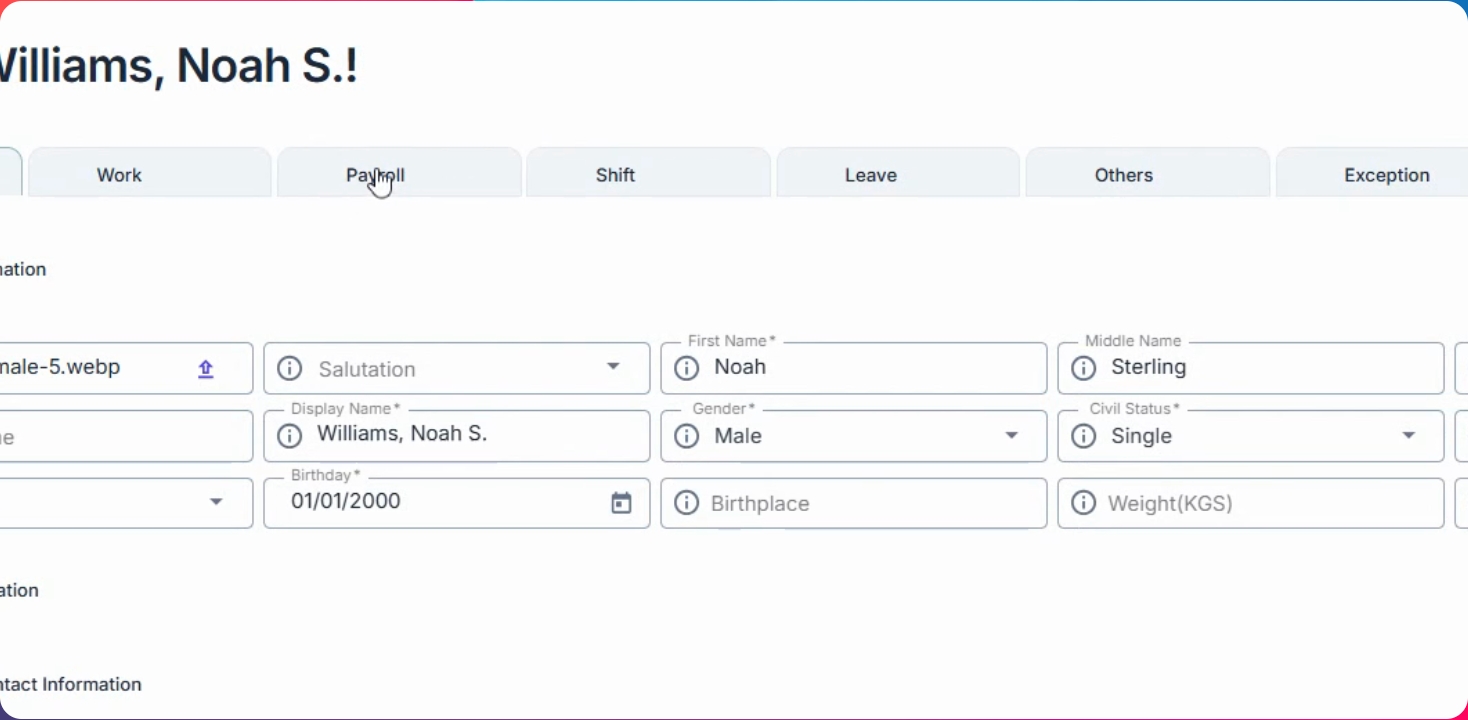
Step 6: Access Payroll Settings
Hover over the Payroll menu and go to the MWe section.
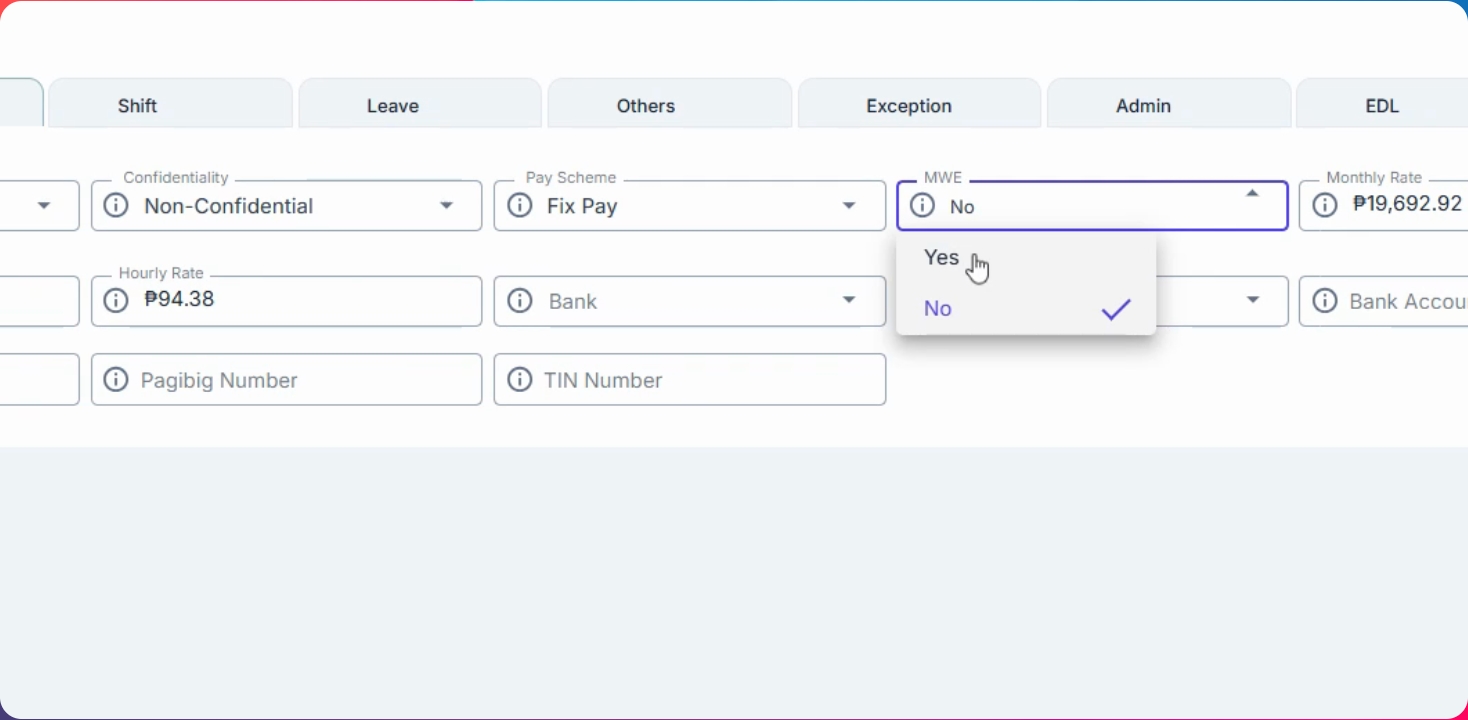
Step 7: Set Wage Sector for Employee
Select Yes for MWE and choose the appropriate Wage sector or Wage Order sector.
Step 8: Save Employee Changes
The rate will be automatically computed based on the MWE setup. Click Save Changes to apply.