

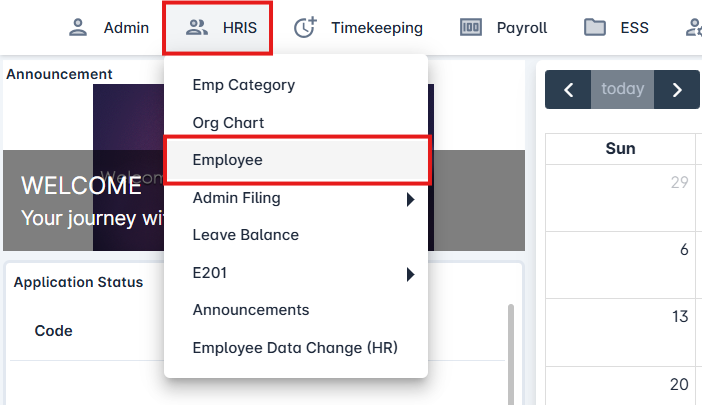
Go to HRIS Module.
Under HRIS, Click Employee.
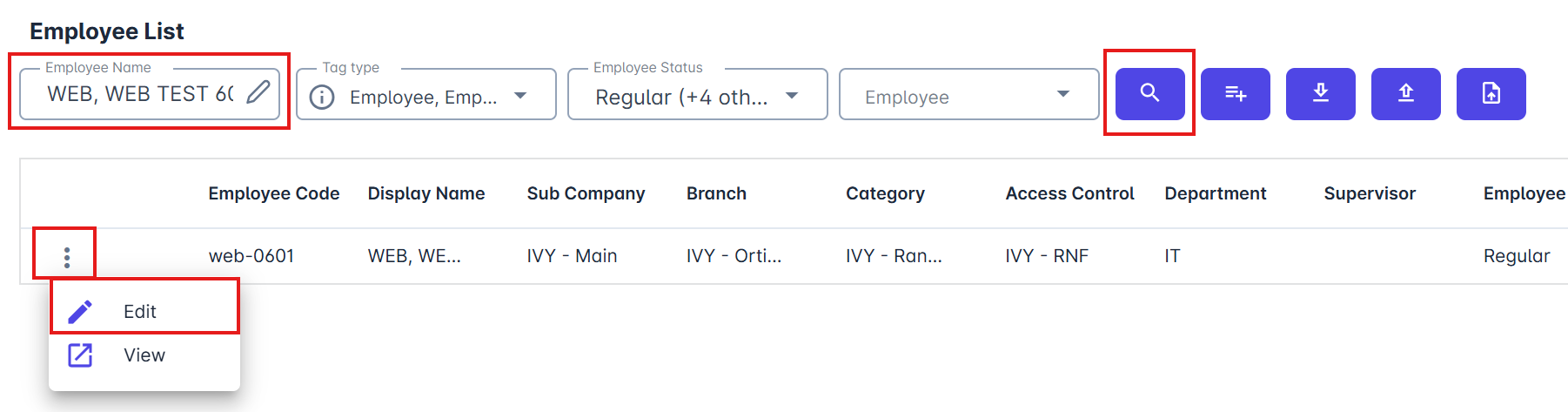
Search for the employee, click the ellipsis (⋮), and then select Edit.
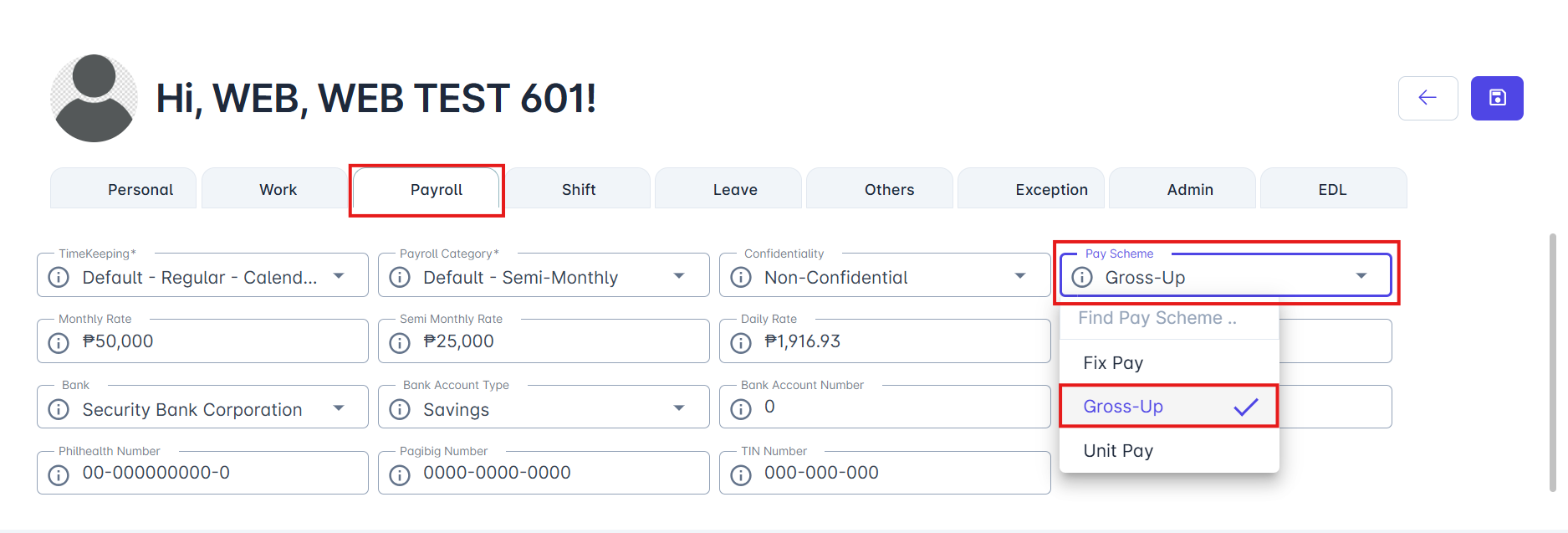
In the Employee Information section, go to the Payroll tab.
On the Payroll tab, click Pay Scheme and select Gross Up.
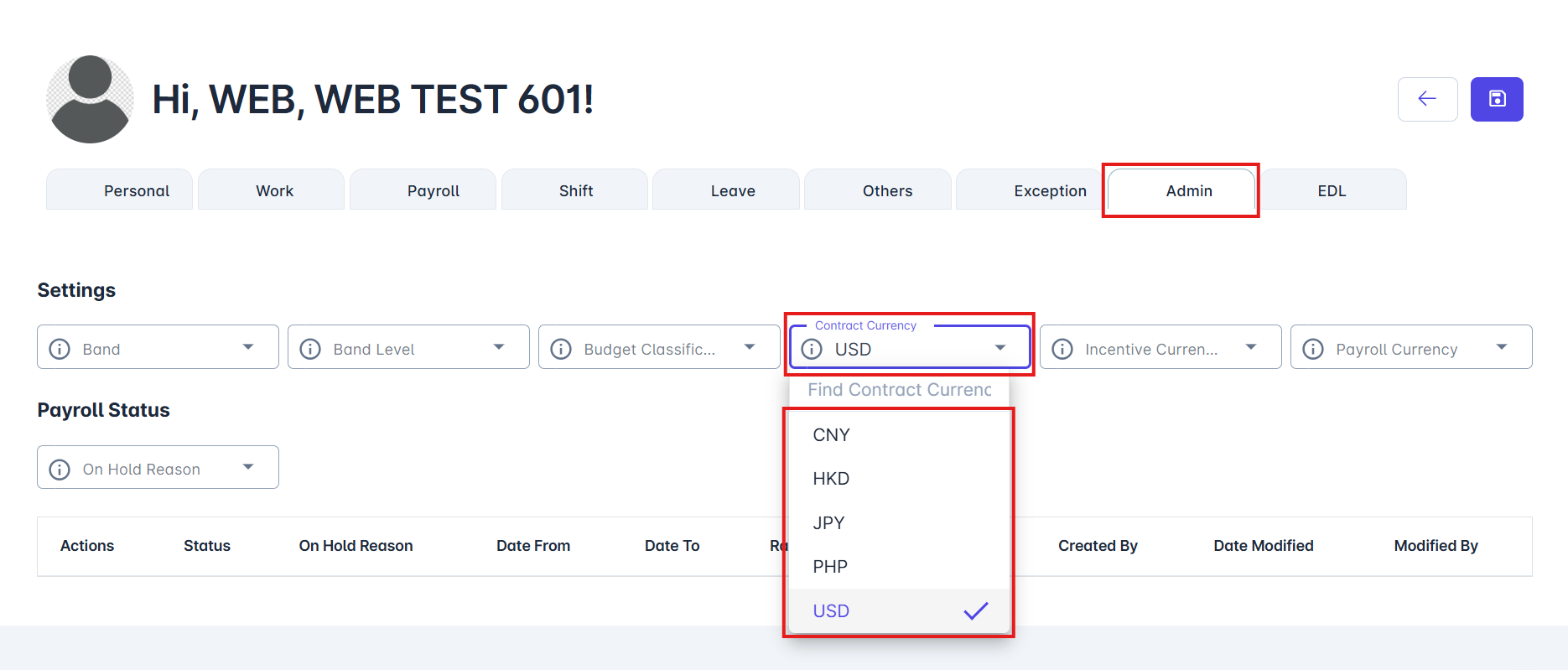
Go to the Admin tab. Under Contract Currency, select a currency.
Go back to the Payroll tab.
Under Monthly Rate, enter the employee's currency rate.
eg: if Contract Currency is USD, then the USD rate should be placed in Monthly Rate.
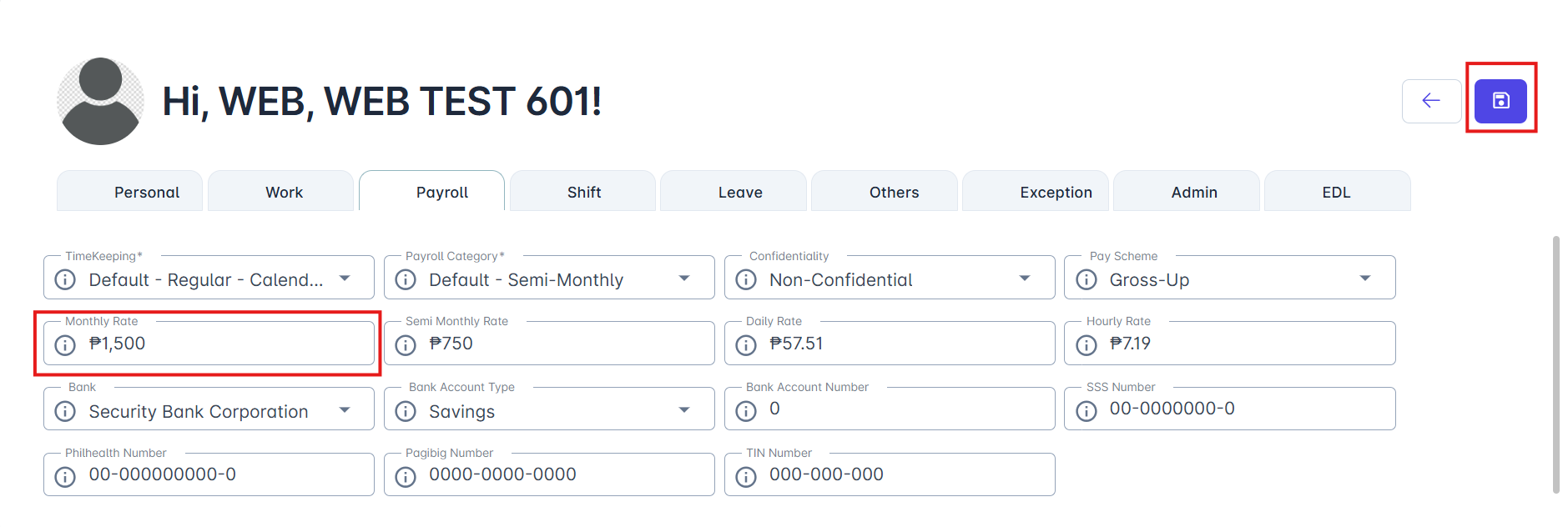
Click Save.
After editing the employee information, proceed to update the Wage Type and Tax Setup under the Payroll Category.
Go to the Payroll module and click Payroll Category.
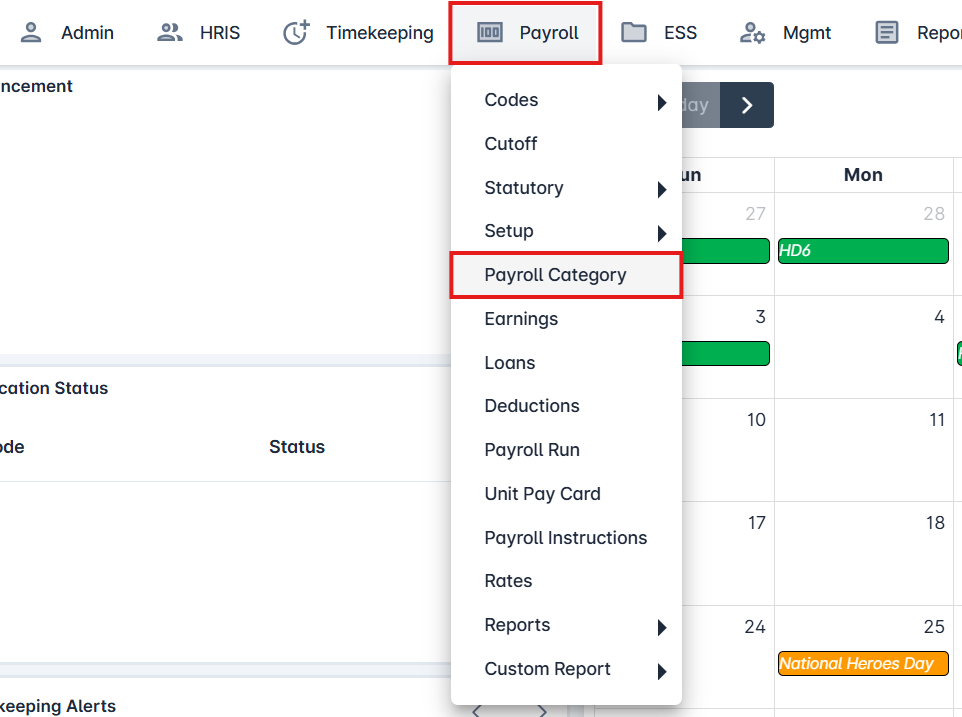
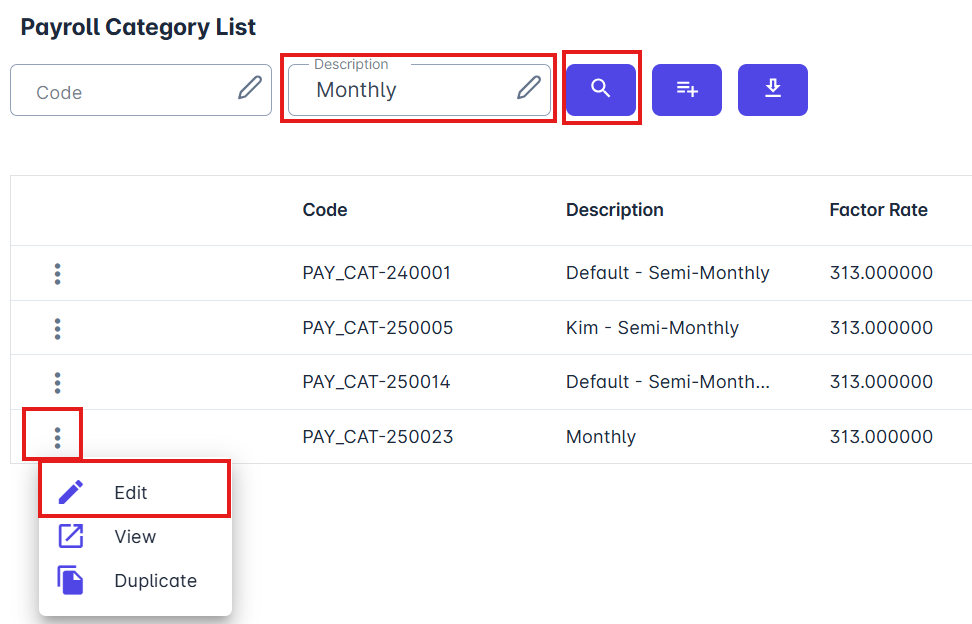
Search for the employee's payroll category, click the ellipsis (⋮), and then select Edit.
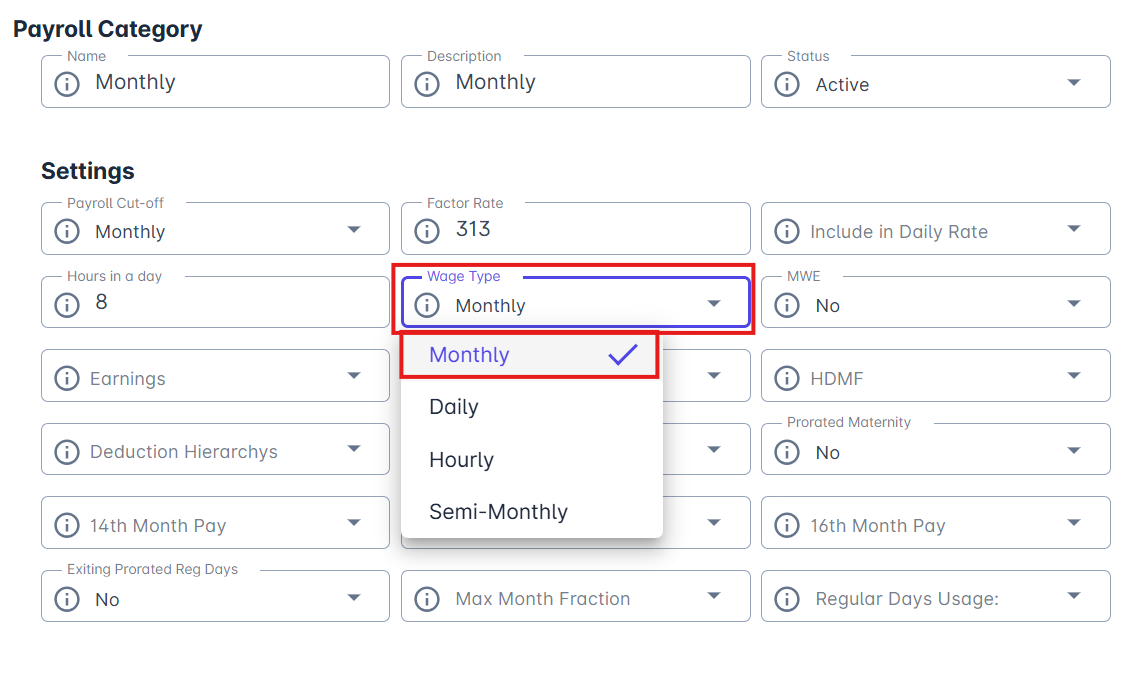
Click Wage Type, select Monthly.
Click the Tax tab, then select "Monthly, Use Monthly Tax Rate".
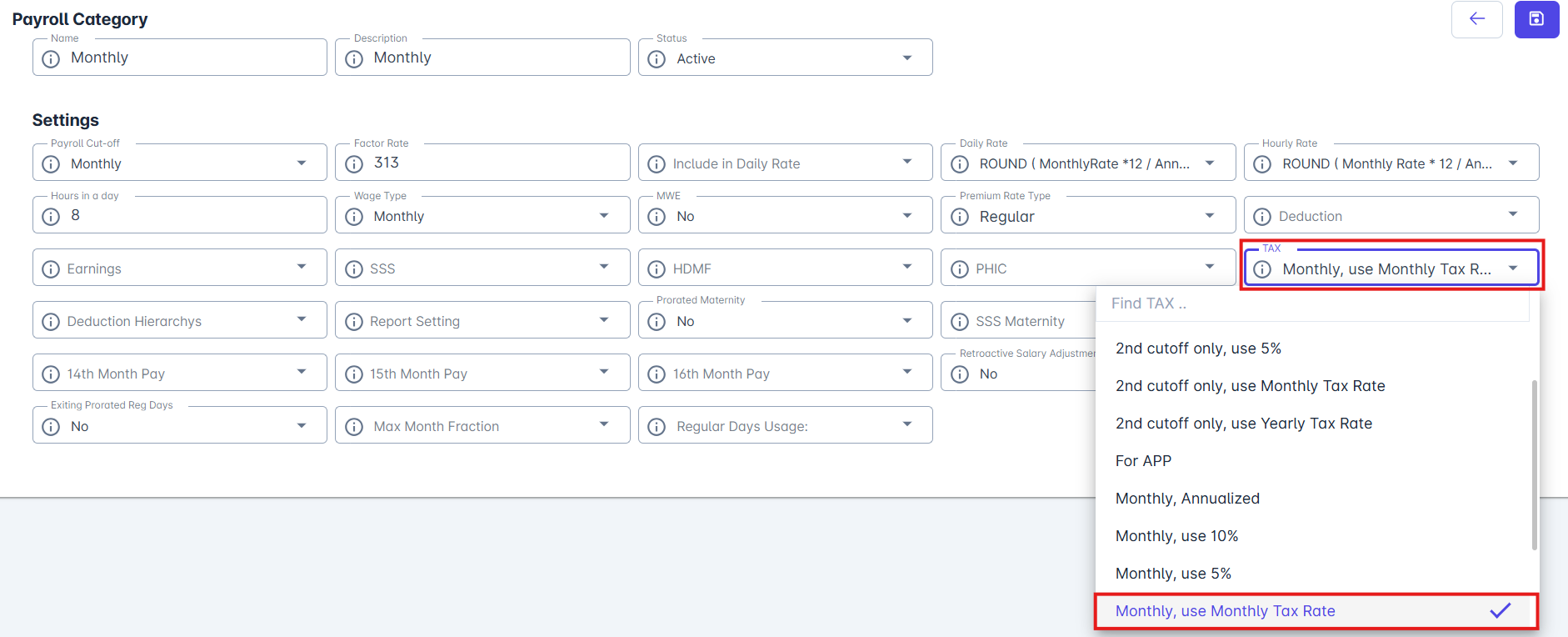
Click Save.
How does it work?
Go to Payroll Tab, select Payroll Run.
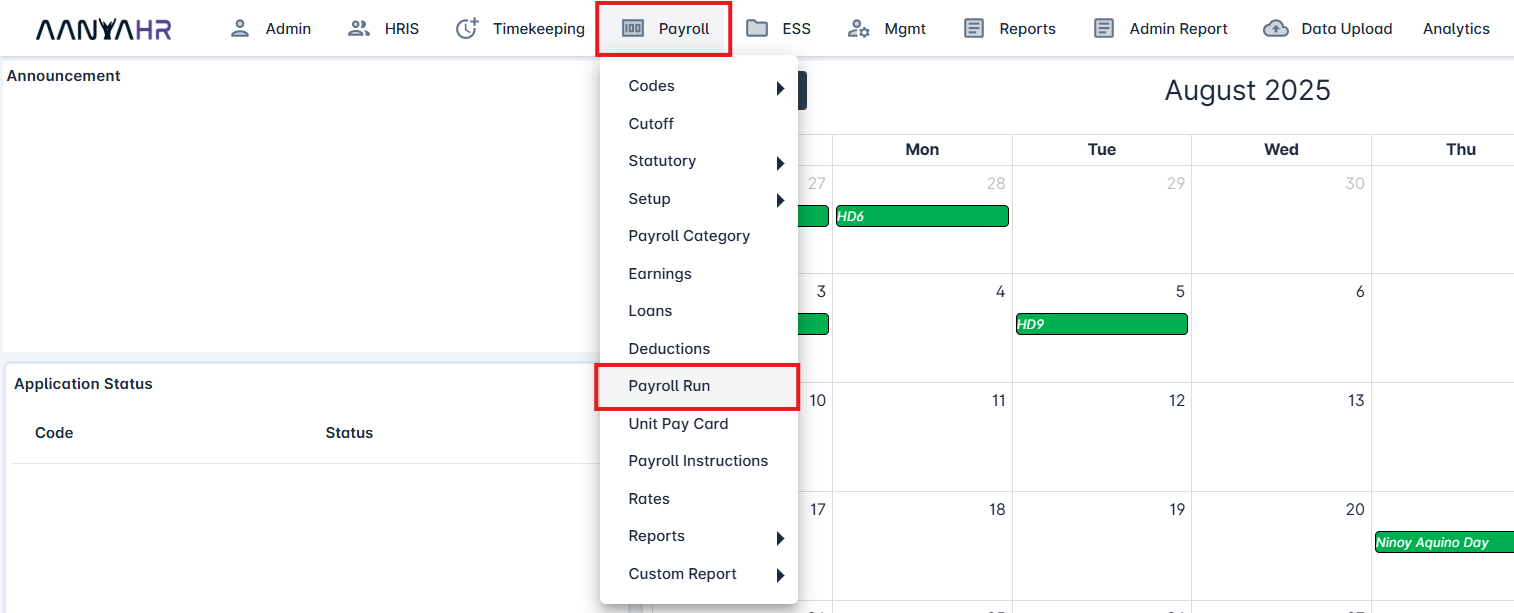
Click Create.

On Payroll Details tab, click Setup Currency.

Under Contract Currency, select the currency. Then, enter the currency rate under Rate, click Add, and then click Save.
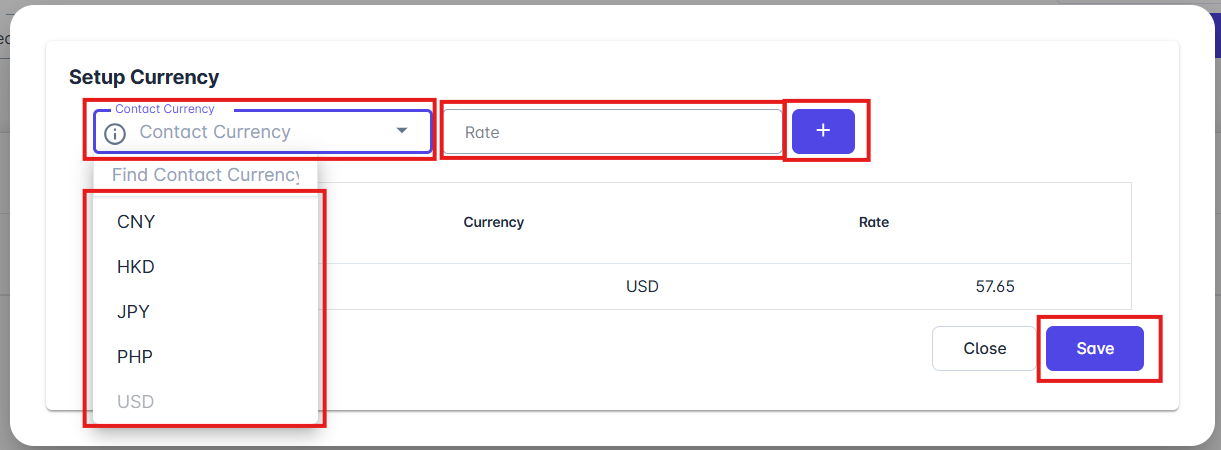
Click Save Payroll.

Go to Generate Payroll tab, click Calculate Payroll.
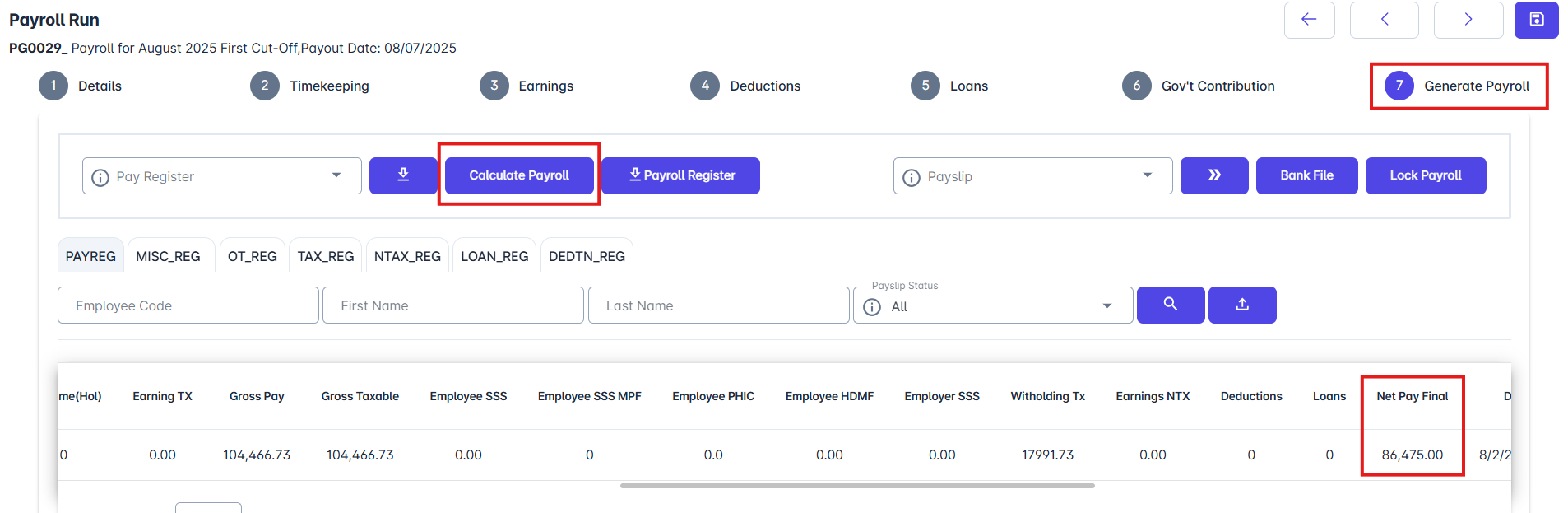
Note: Only the tax is set to Gross Up. Government contributions are not Grossed Up at this time.