

In this guide, you’ll learn how to create loan codes in the Any HR Payroll system. Follow the steps below:
Step-by-Step Procedure
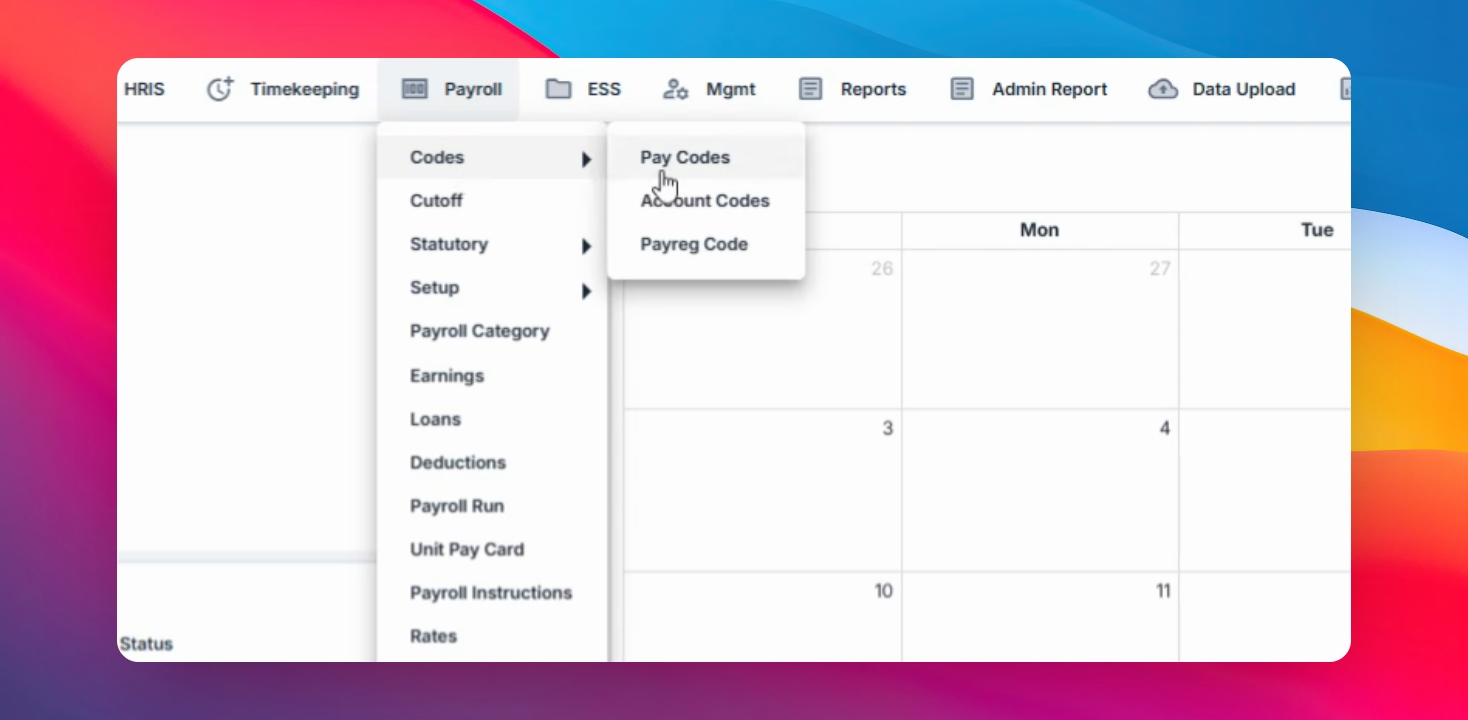
Step 1: Open Pay Codes Creation
Go to the Payroll menu, select Code and Pay codes, then click the Create button.
Step 2: Select Loan Type
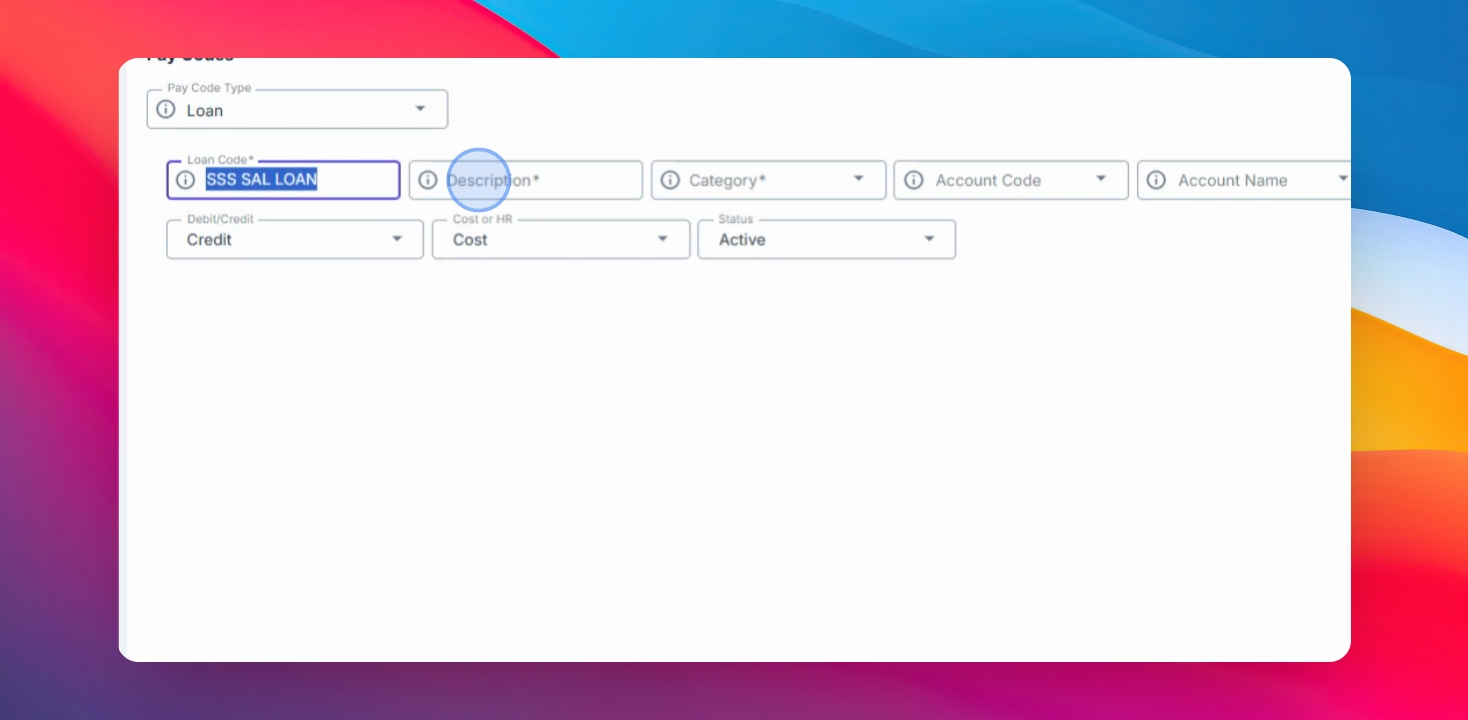
From the Pay Code options, choose Loan as the pay code type.

Step 3: Enter Loan Code
Enter the loan code you want to appear in the Payroll Register, Payslip, and other payroll reports.
You may use the same value as the loan code name for easier reference.
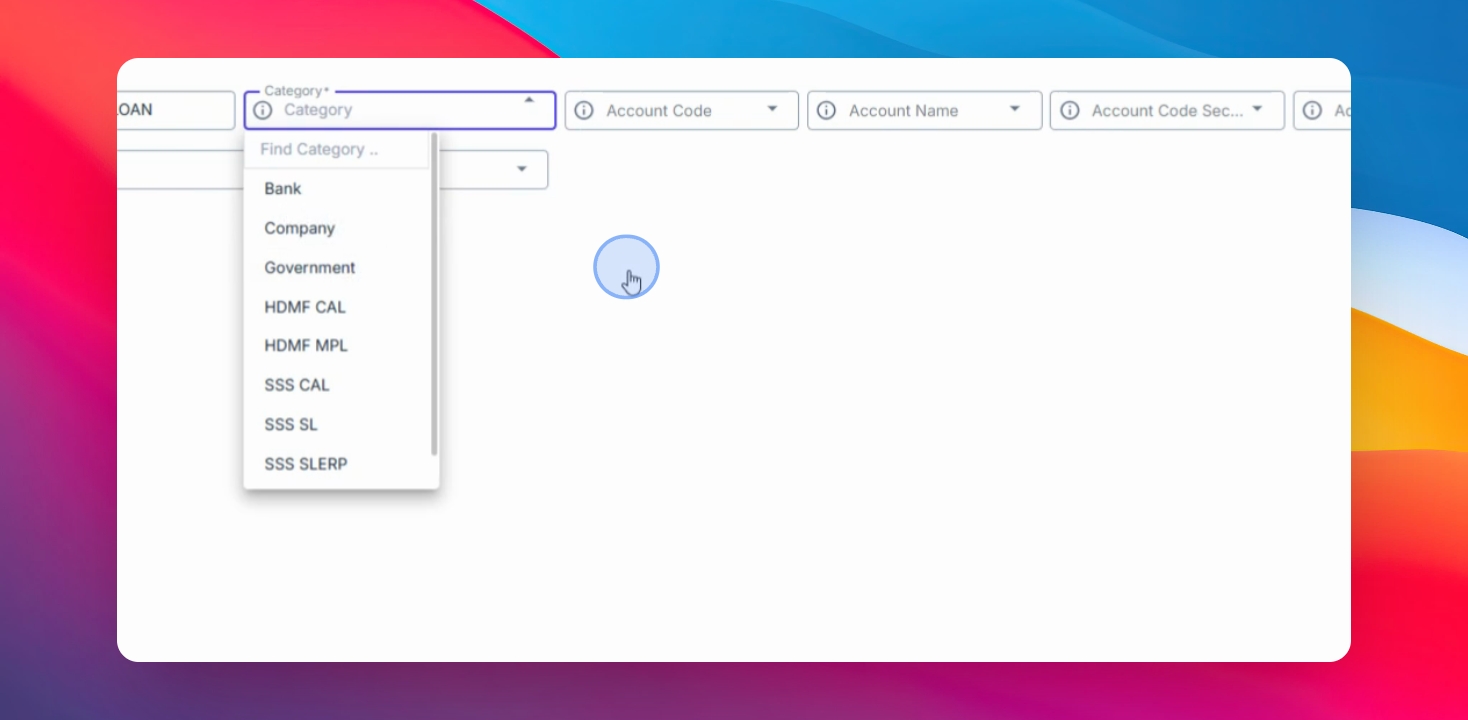
Step 4: Choose Loan Category
Select the category for the loan, such as bank loan, company, or government.
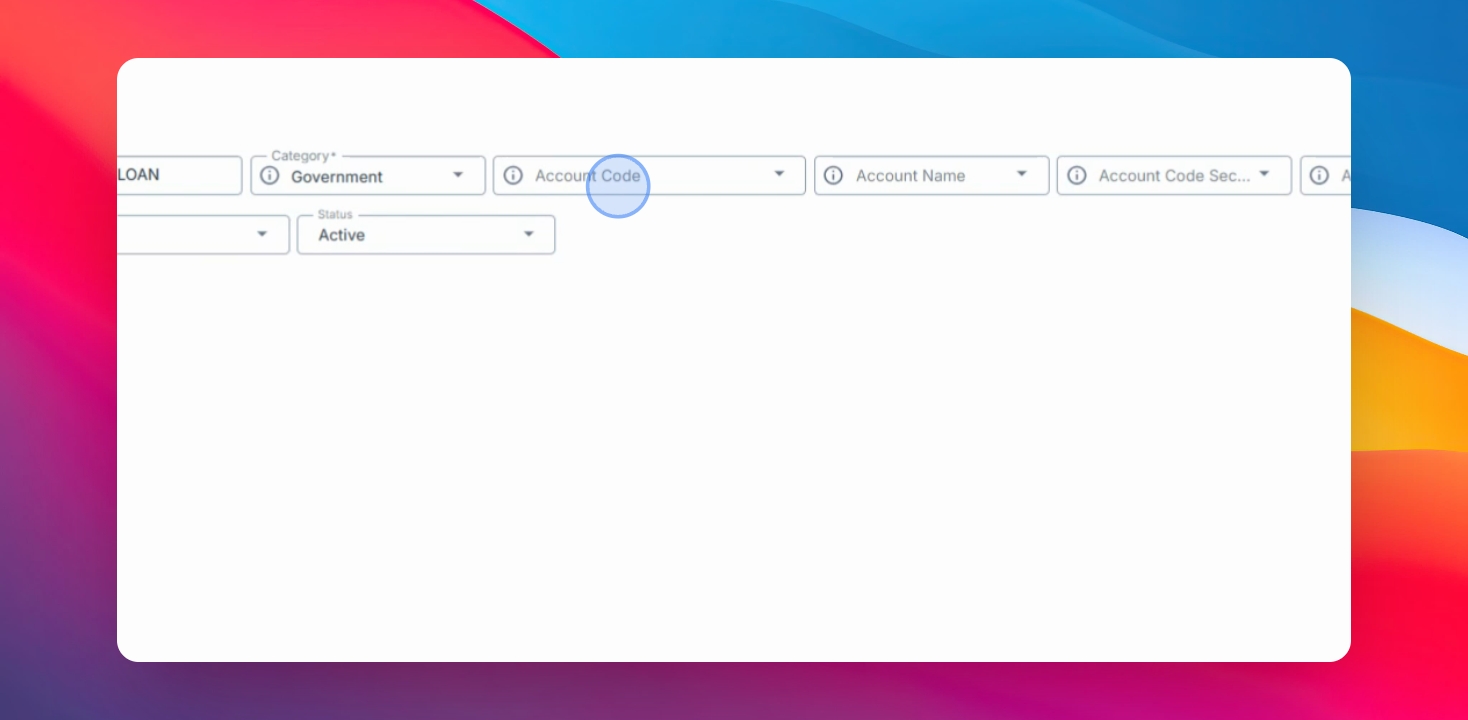
Step 5: Set Account and Status
If you want the loan to be included in journal entries, set up the account code, account name, and secondary account (credit or debit, cost or HR). You can also tag the loan code as Inactive later if needed.
Step 6: Save Loan Code
Once all required details are completed, click Save Changes to create the loan code.
And that’s how you can create and configure a loan code in AanyaHR