

Follow the steps below to ensure the template is filled out correctly before uploading it to the system.
Step 1: Download and Open Template
Download the loans template directly from AanyaHR. Open it in Excel or any compatible spreadsheet application.
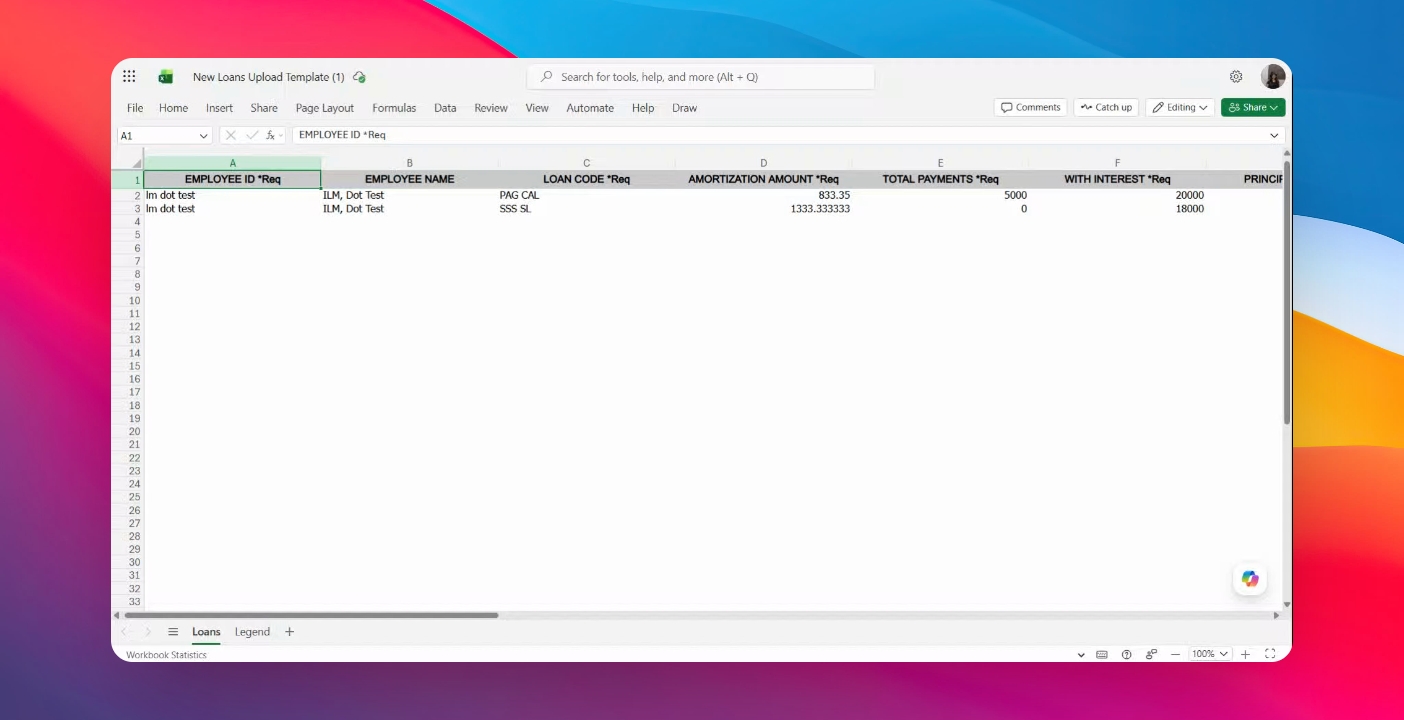
Step 2: Fill in the Required Fields
Complete the required columns in the template, including:
Employee ID
Loan Code
Amortization
Total Payments
Loan with Interest
Frequency
Recurring Date
Start Date
End Date
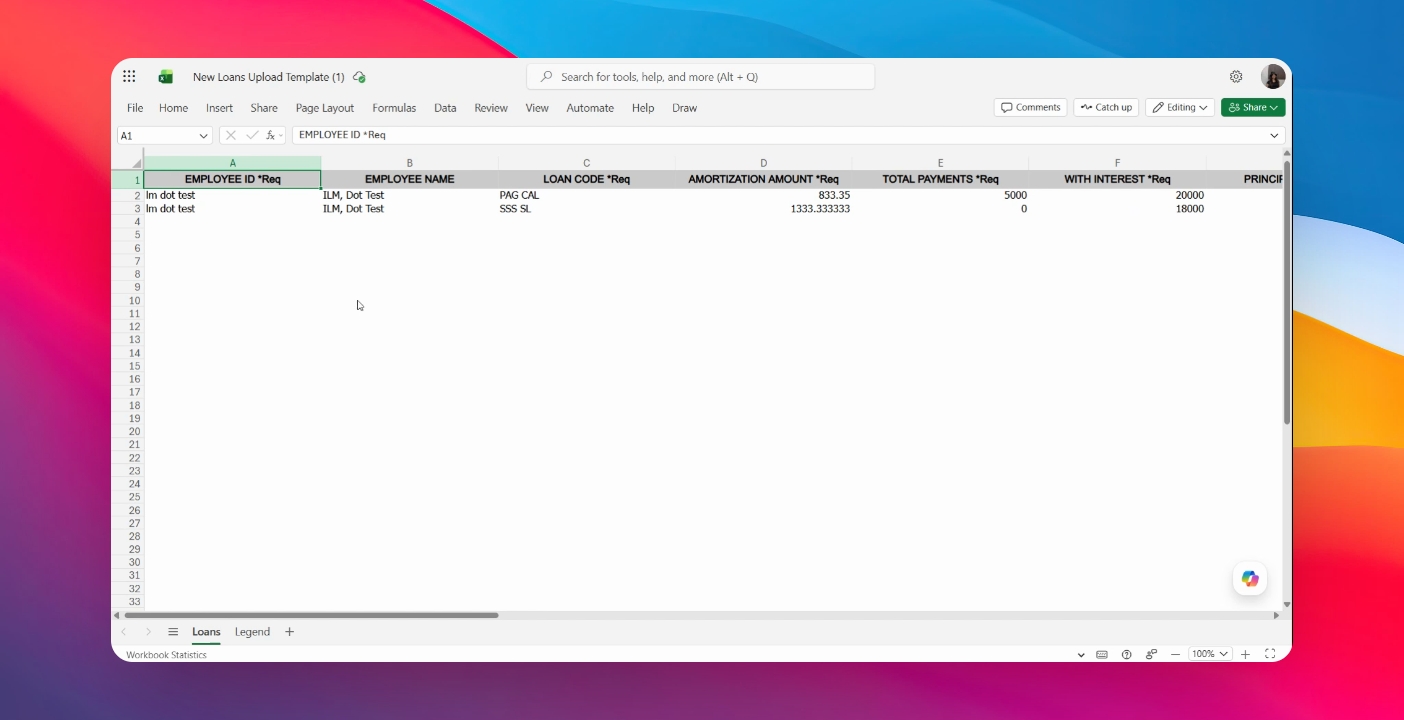
Step 3: Enter the Employee ID
Enter the Employee ID. This serves as the primary system reference for identifying the employee.
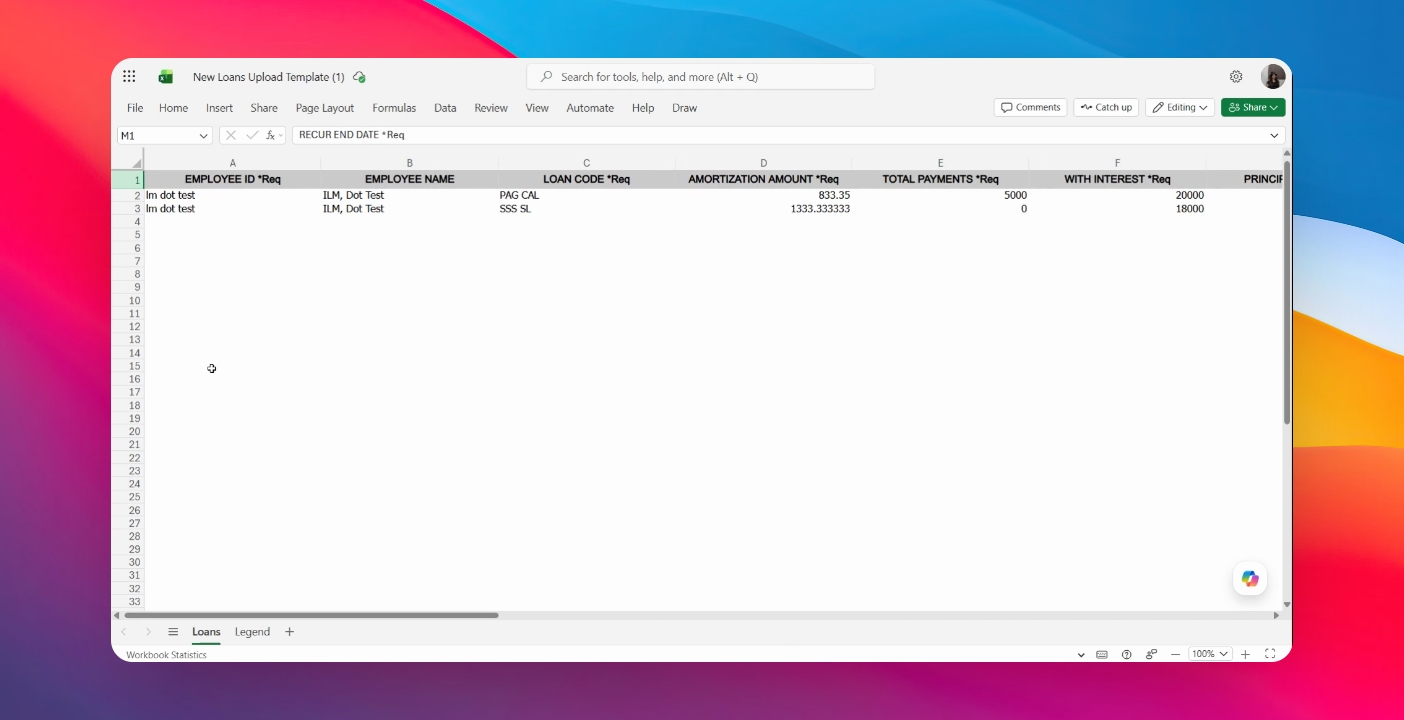
Step 4: Optionally Add the Employee Name
You may also enter the Employee Name for easier monitoring and verification.
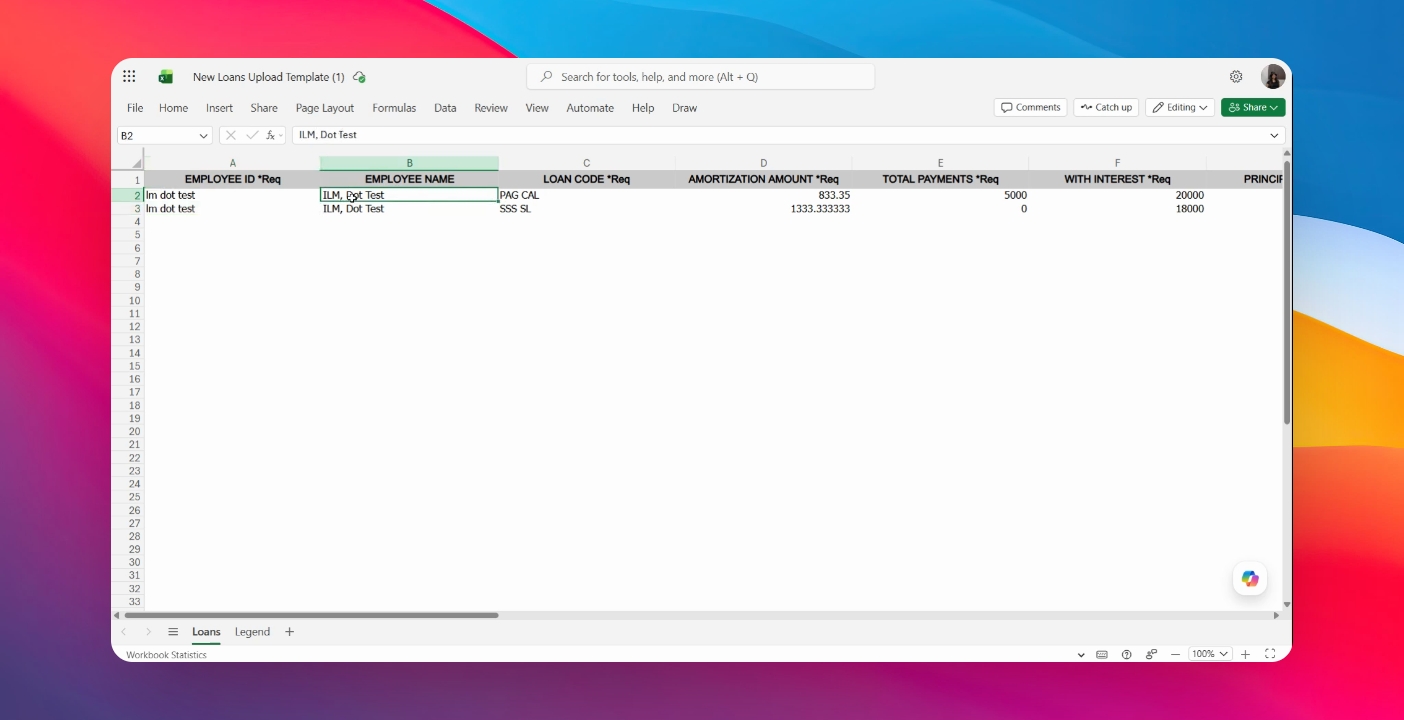
Step 5: Fill out the Loan Code
Check the Legend sheet in the template for loan codes added on AanyaHR and their descriptions.
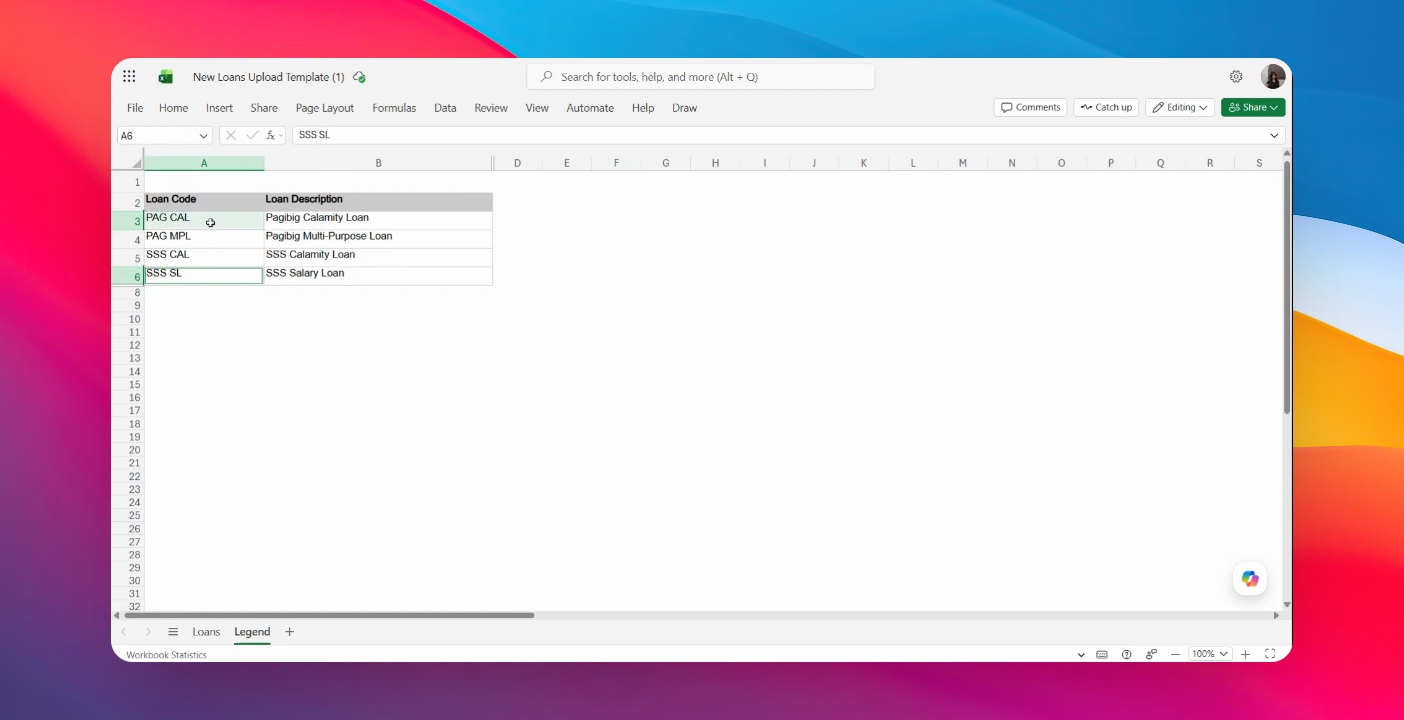
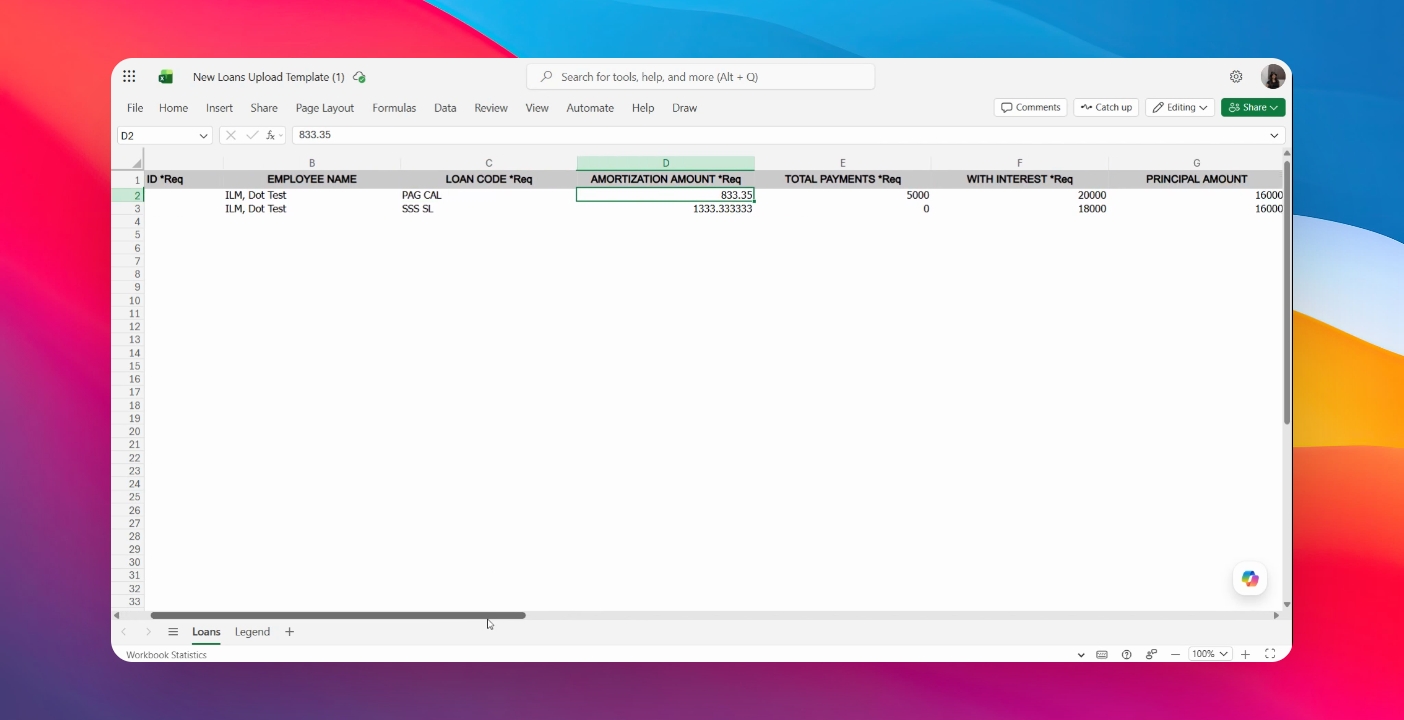
Step 6: Enter Amortization Amount
Input the Amortization Amount to be deducted per payroll period.
If the payroll schedule is semi-monthly, divide the monthly amortization amount into two deductions.
If deductions are monthly, no adjustment is needed.
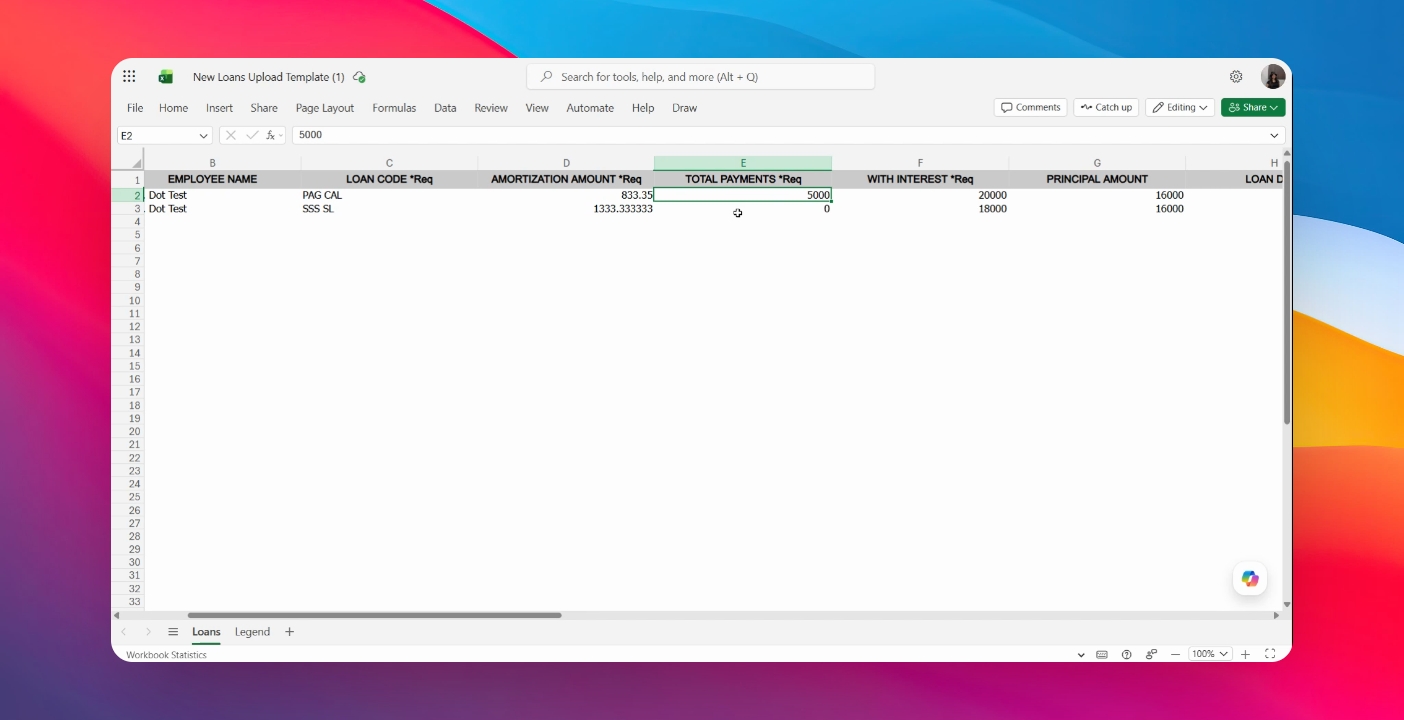
Step 7: Enter Total Payments
Enter the Total Payments if available. If the loan is new, enter 0 for total payments.
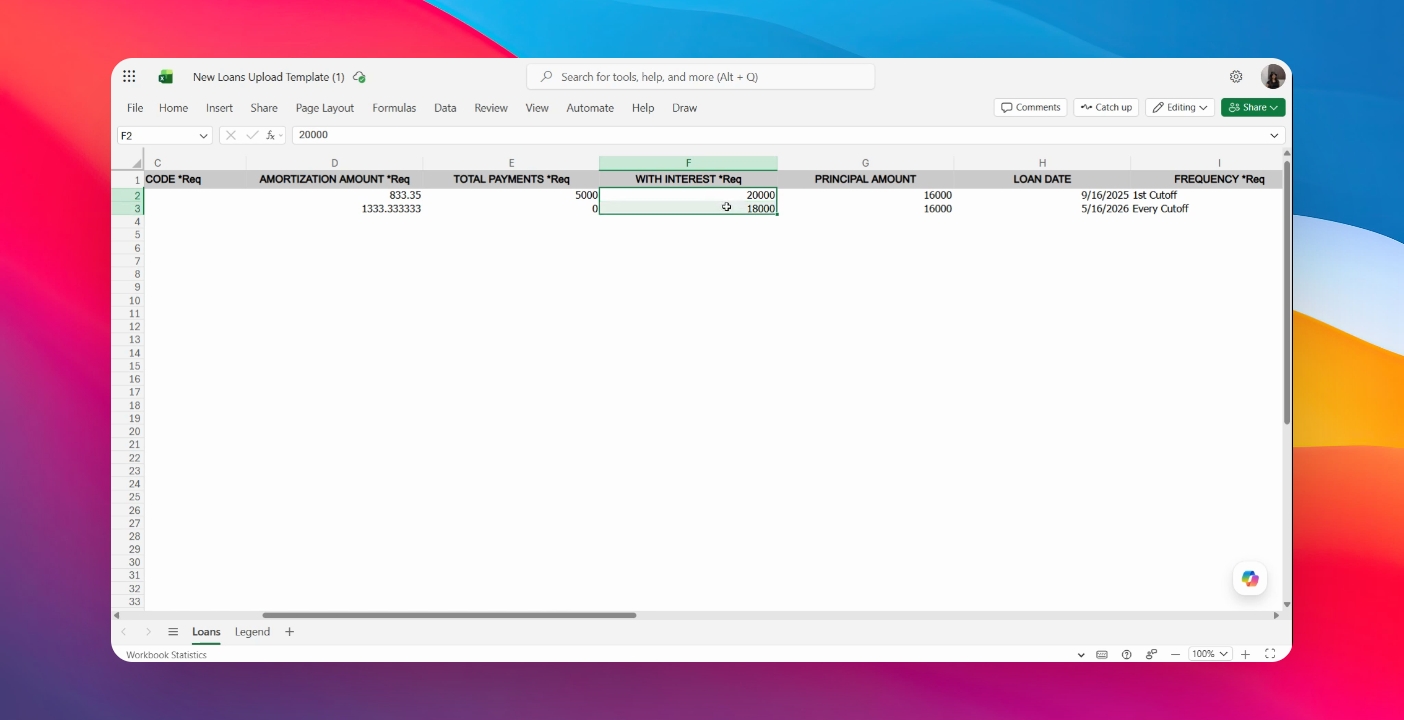
Step 8: Fill Out Interest, Principal, and Frequency
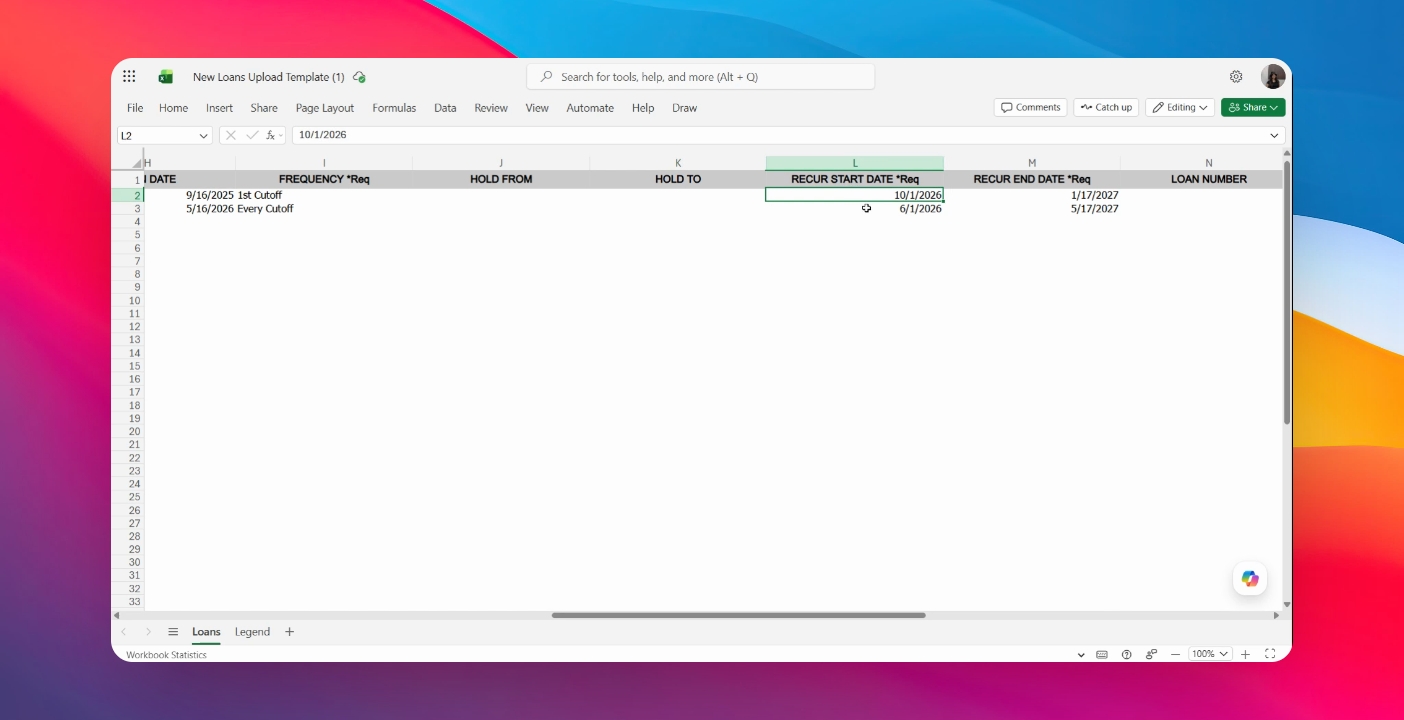
Enter the Loan with Interest, Principal Amount, and specify the deduction frequency (e.g., every cutoff, first or second cutoff). Also, fill in the Hold From and To fields as needed.
Step 9: Enter Effective and Maturity Dates
Input the Effective Date (recurring start date) and Maturity Date (recording end date) for the deduction.
Step 10: Optionally Add Loan Number and Remarks
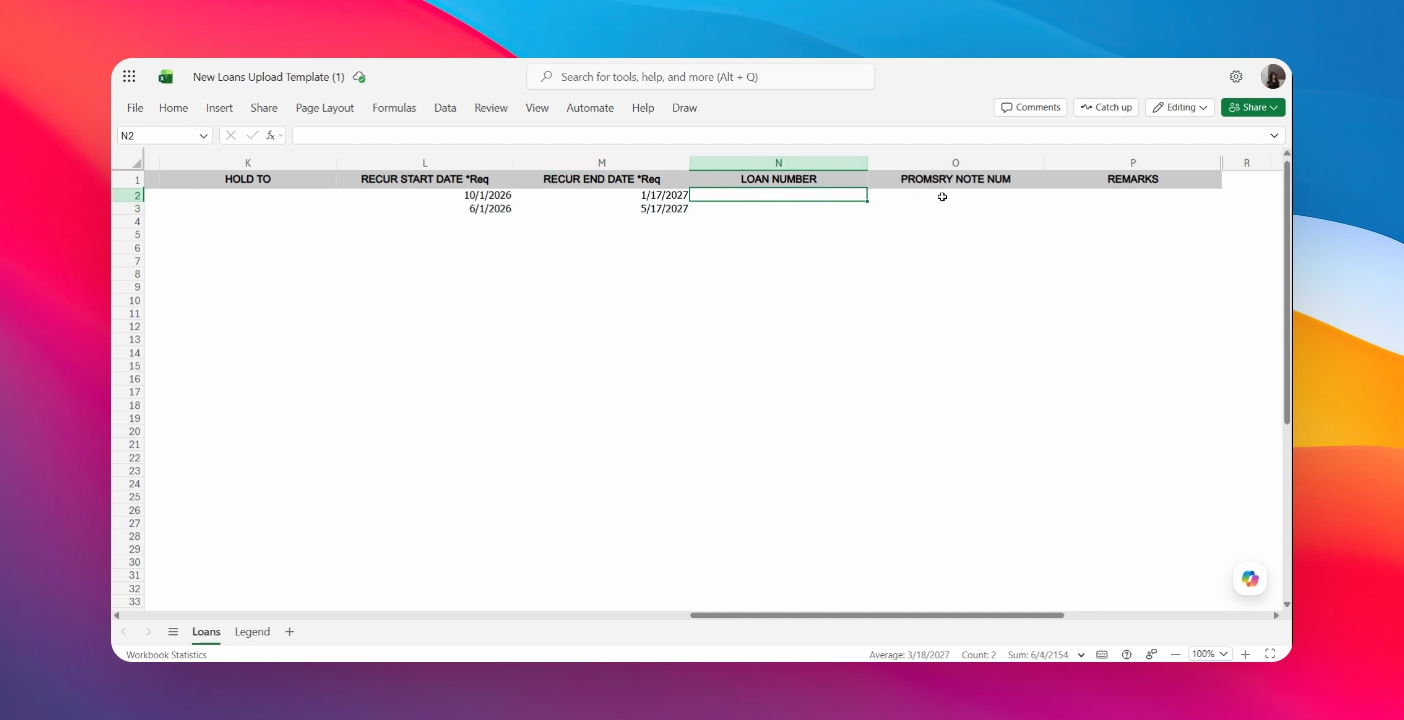
You may enter the Loan Number, Promissory Note, and Remarks for internal monitoring and record-keeping.
Step 14: Save and Upload Template
Once all required and optional fields are filled, save the template and upload it to AanyaHR.
You have now learned how to properly complete the New Loans Template in Anya HR. Accurate completion of the template helps ensure successful loan uploading, deduction processing, and payroll computation.