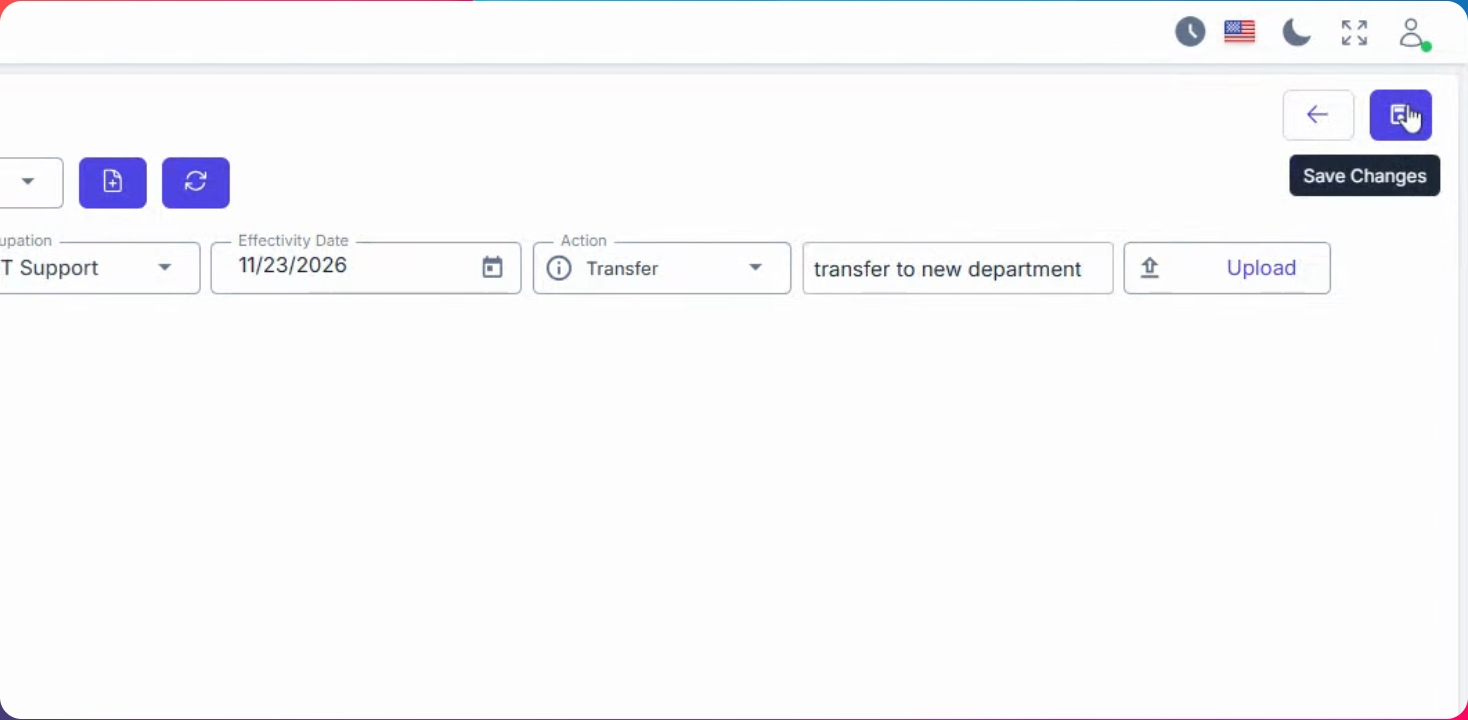
As a supervisor, you can access the new feature for changing employee occupations from the Management Employee Data Change section. Let's look at the steps:
Step 1: Open Create Form
Click on the Create button in the Management Employee Data Change section.
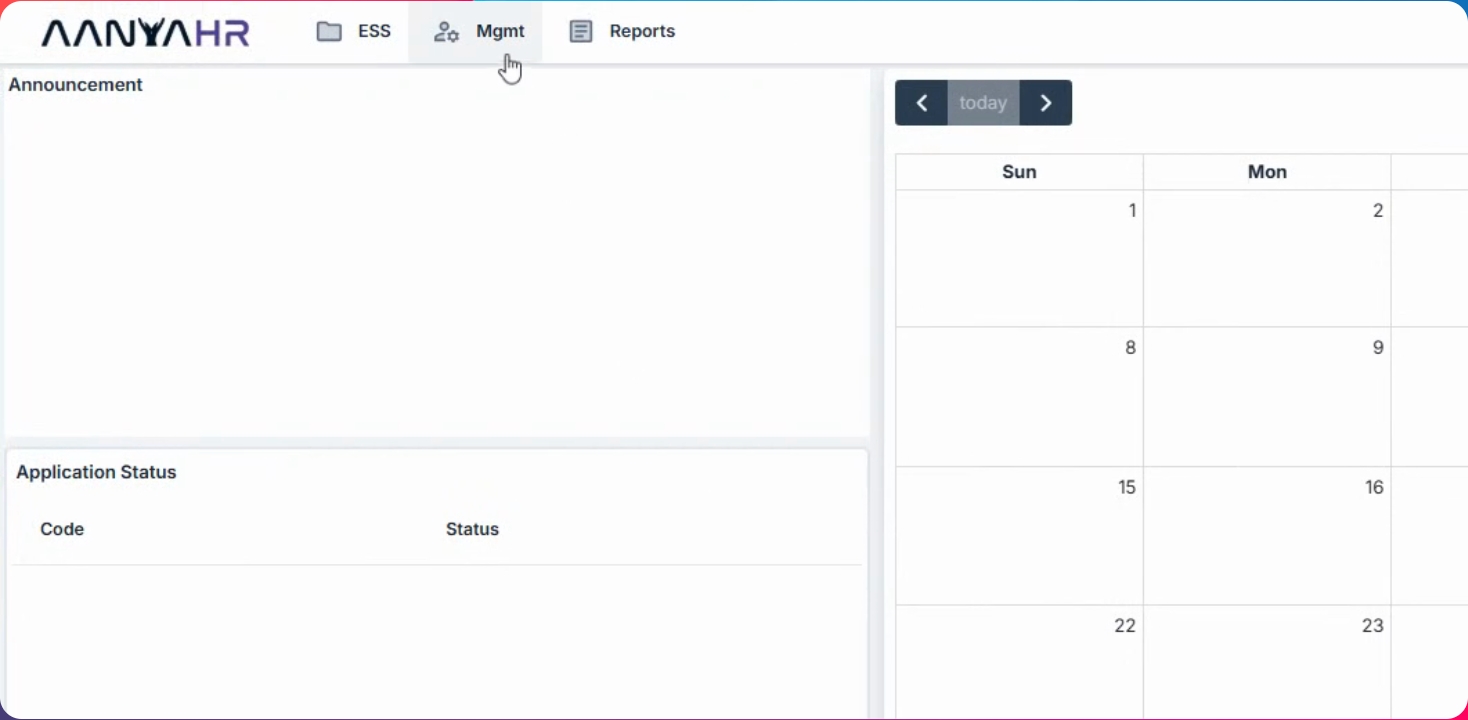
Step 2: Select Employee and Branch
Select Branch Supervisor and choose the employee whose occupation you want to change.
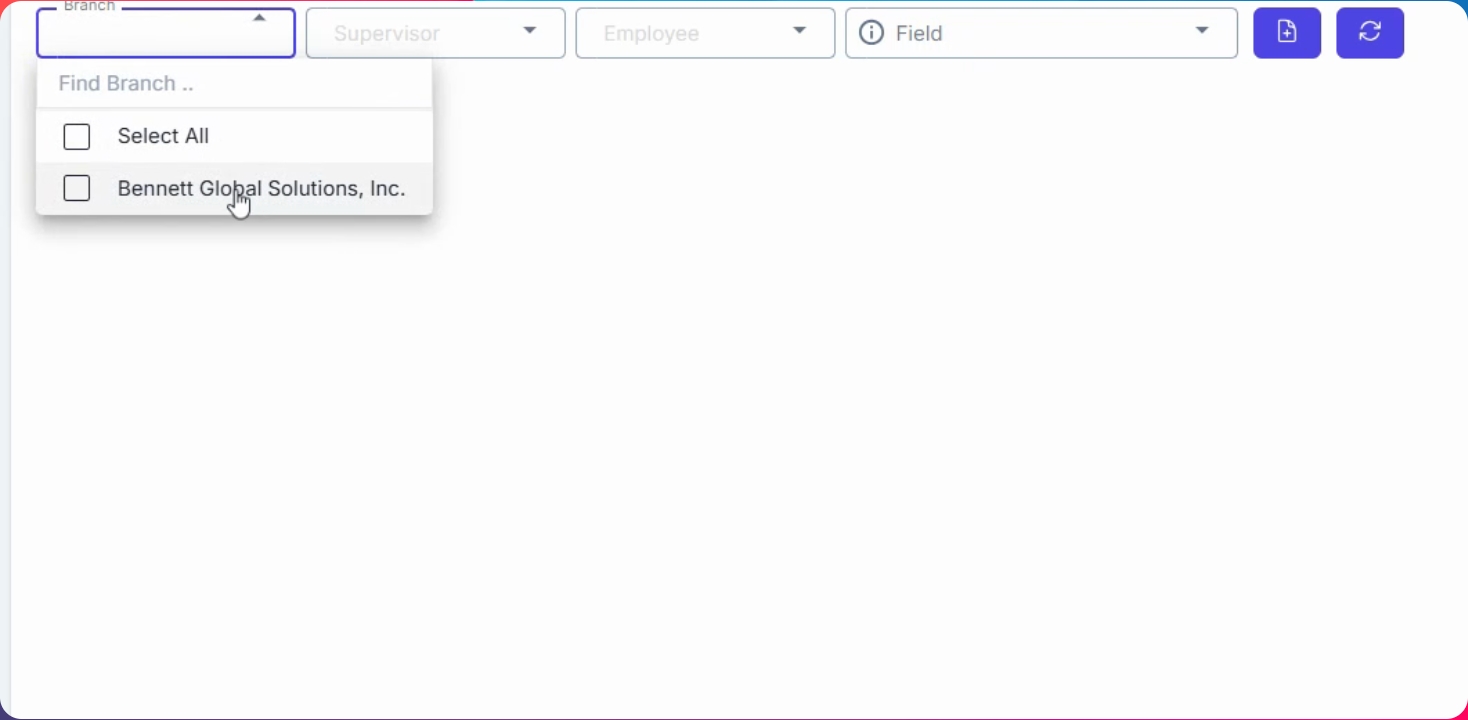
Step 3: Choose Occupation Field
Select the Occupation as field and click Add.
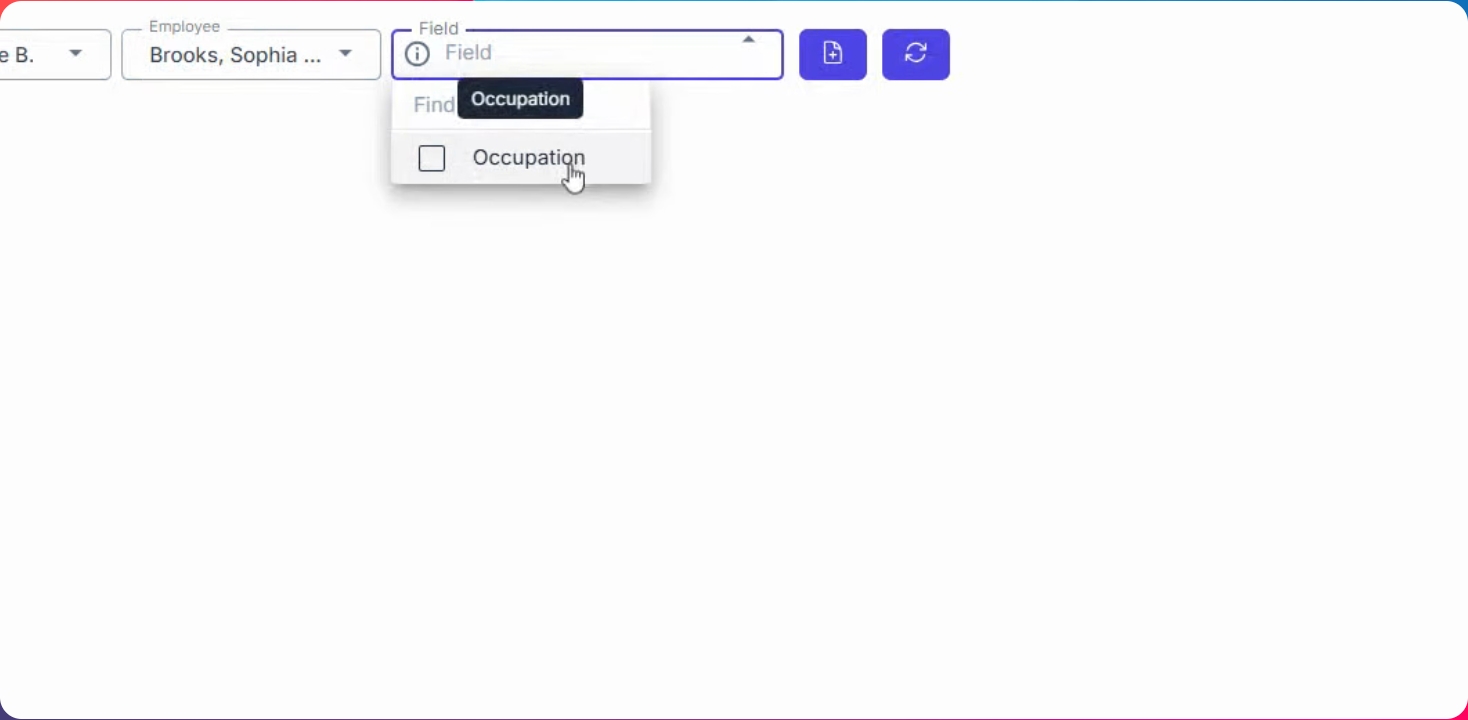
Step 4: Select New Occupation
Choose the occupation to which you want to transfer the employee.
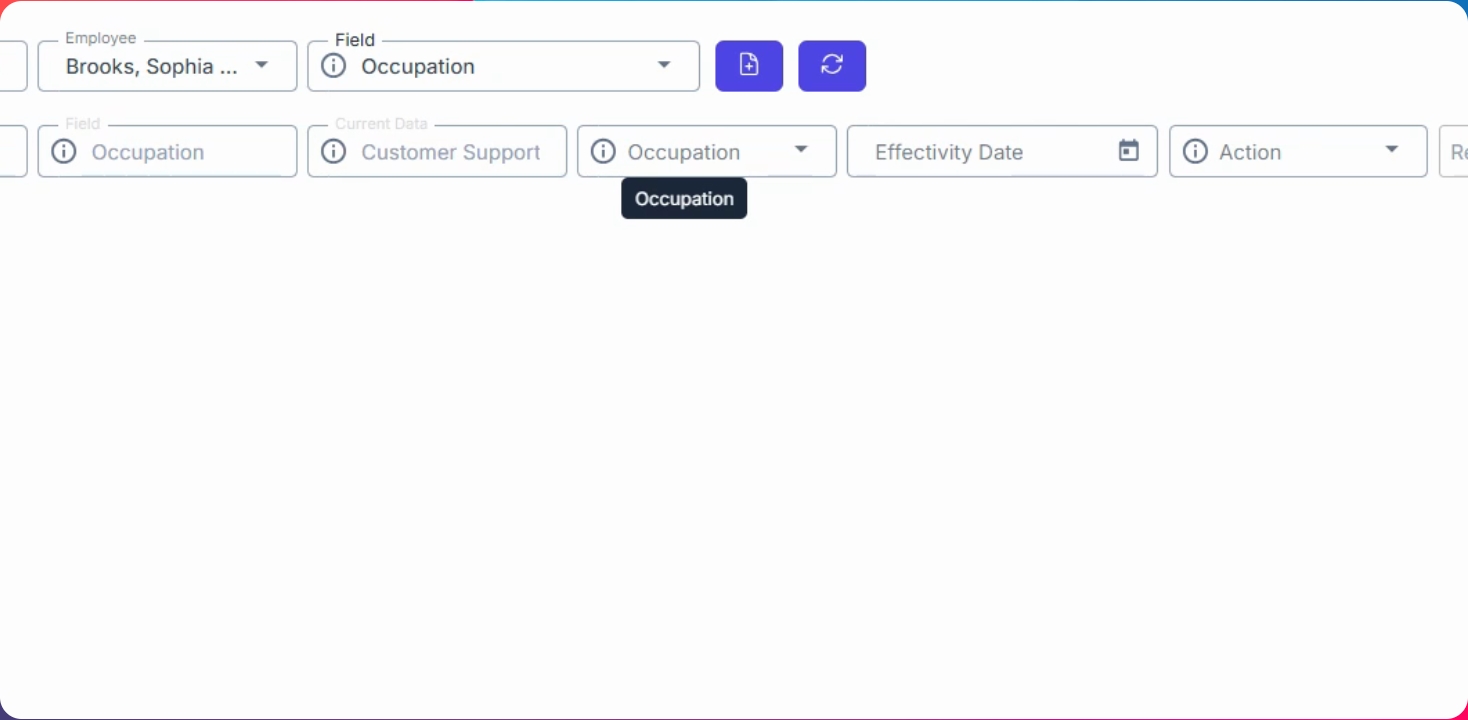
Step 5: Set Effective Date and Action
Select the effective date and specify the action, such as transfer, promotion, or demotion.

Step 6: Upload Supporting File and Save
Upload any required supporting file, then click Save changes. The request will go under the approval process.