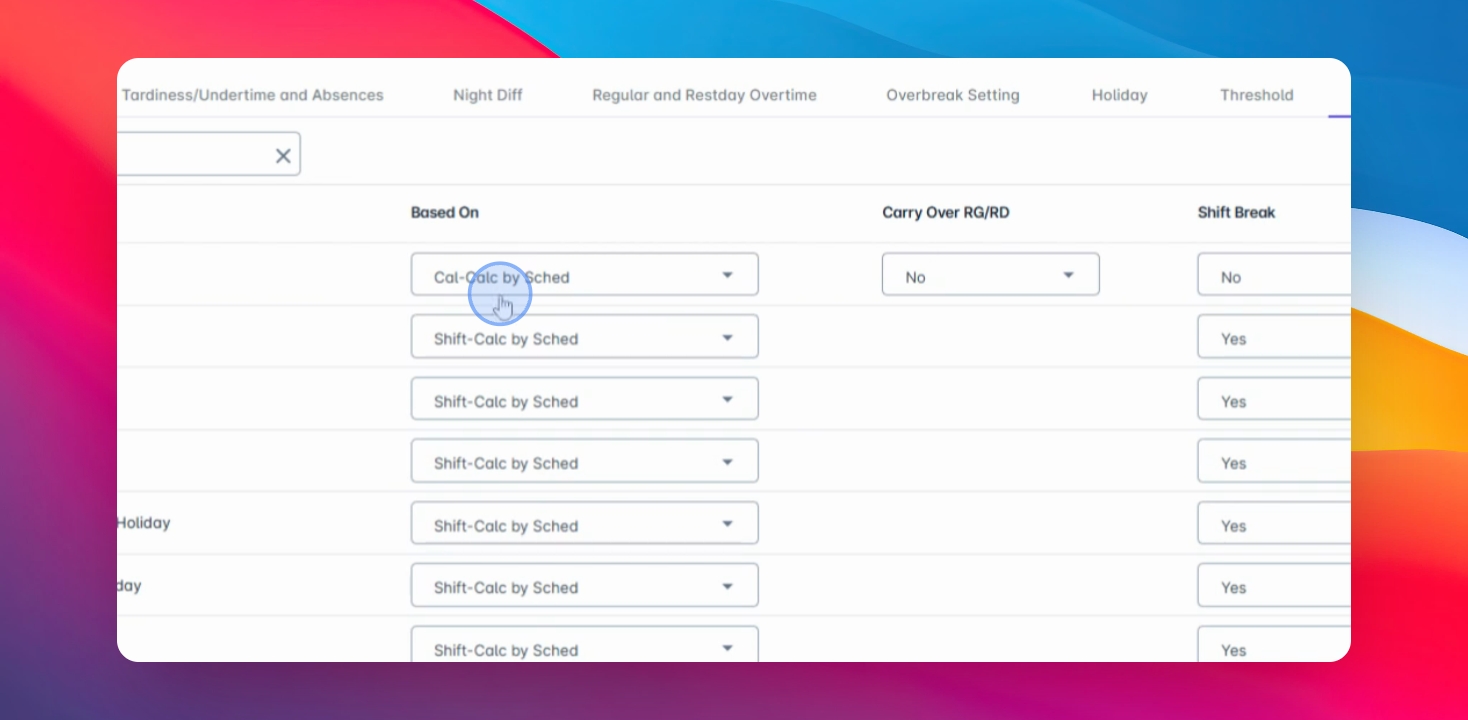
Let's do it together!
Step 1: Access Timekeeping
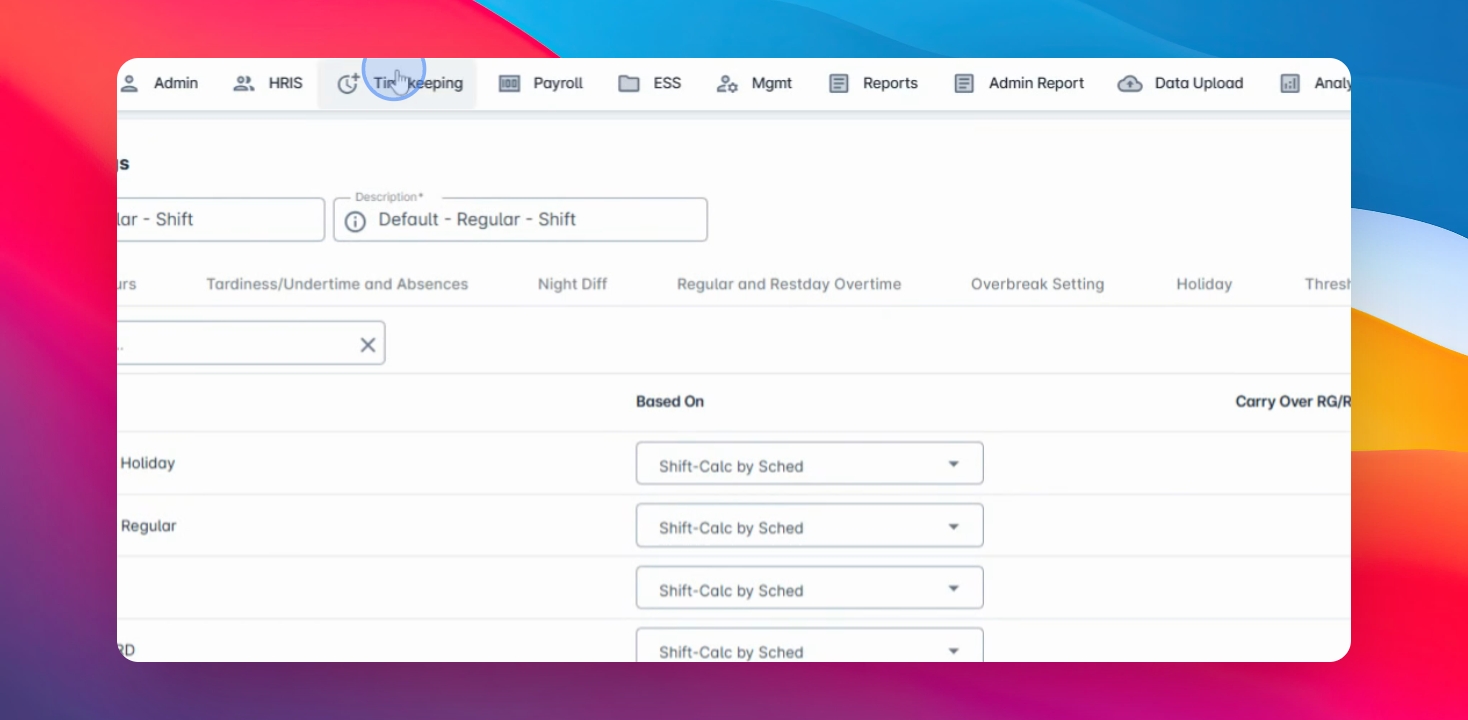
Navigate to the **Timekeeping** module in the HR system.
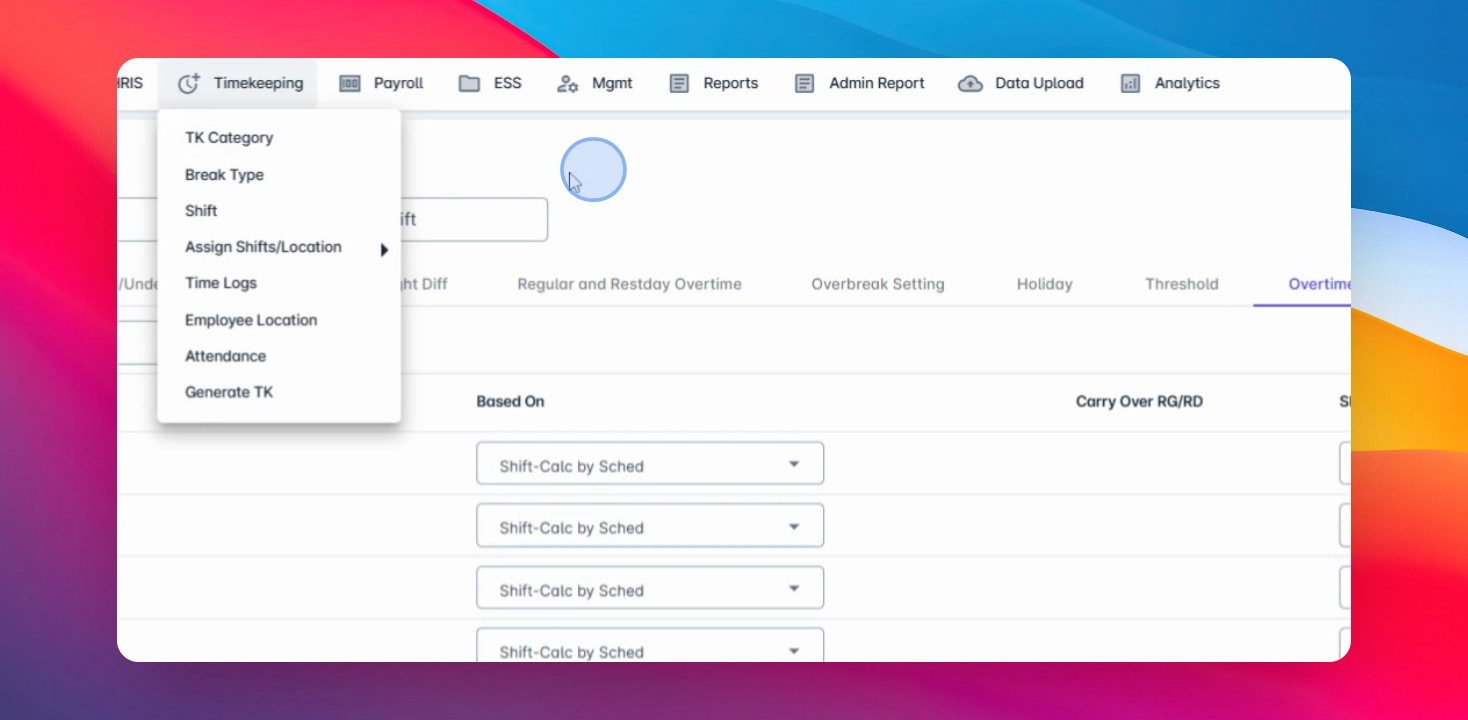
Step 2: Create or Modify Category
Create a new category or select an existing one, then go to the last tab.
Step 3: Use Search Field
Utilize the search field at the top to find the specific calculation type to modify.
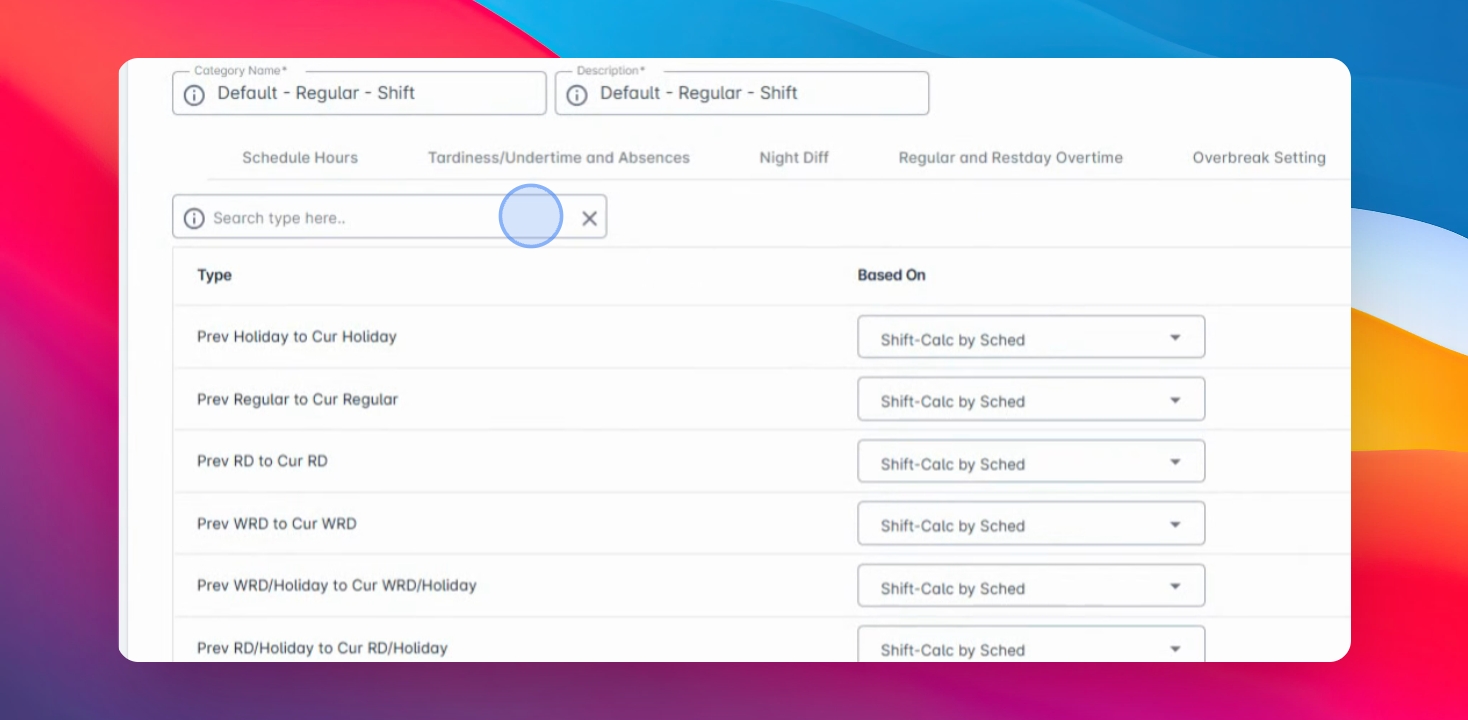
Step 4: Understand Date Type
Familiarize yourself with date types: **prev** for previous day, **cur** for current day, and **next** for next day.
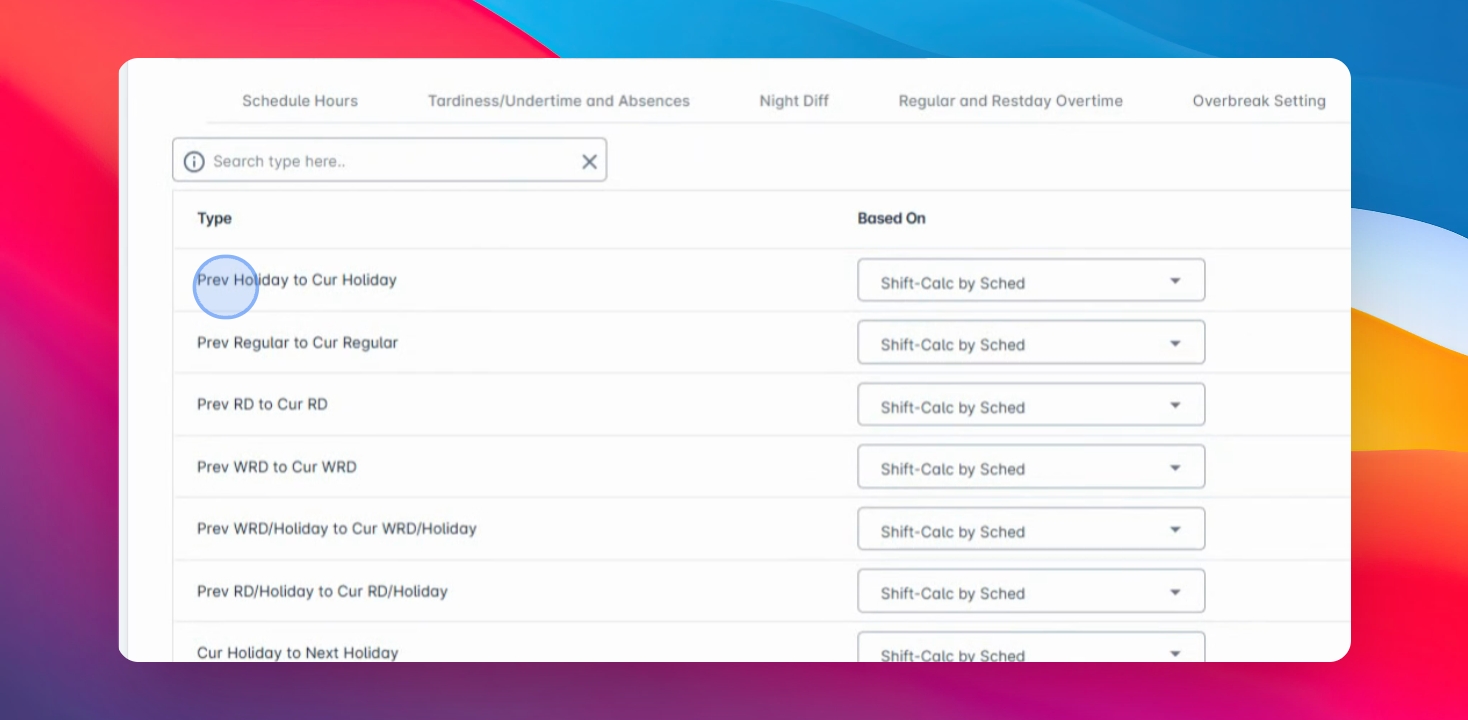
Step 5: Choose ALTI Calculations
Select between options like **Calc by sched** and **Calc by sum** for calculating overtime.
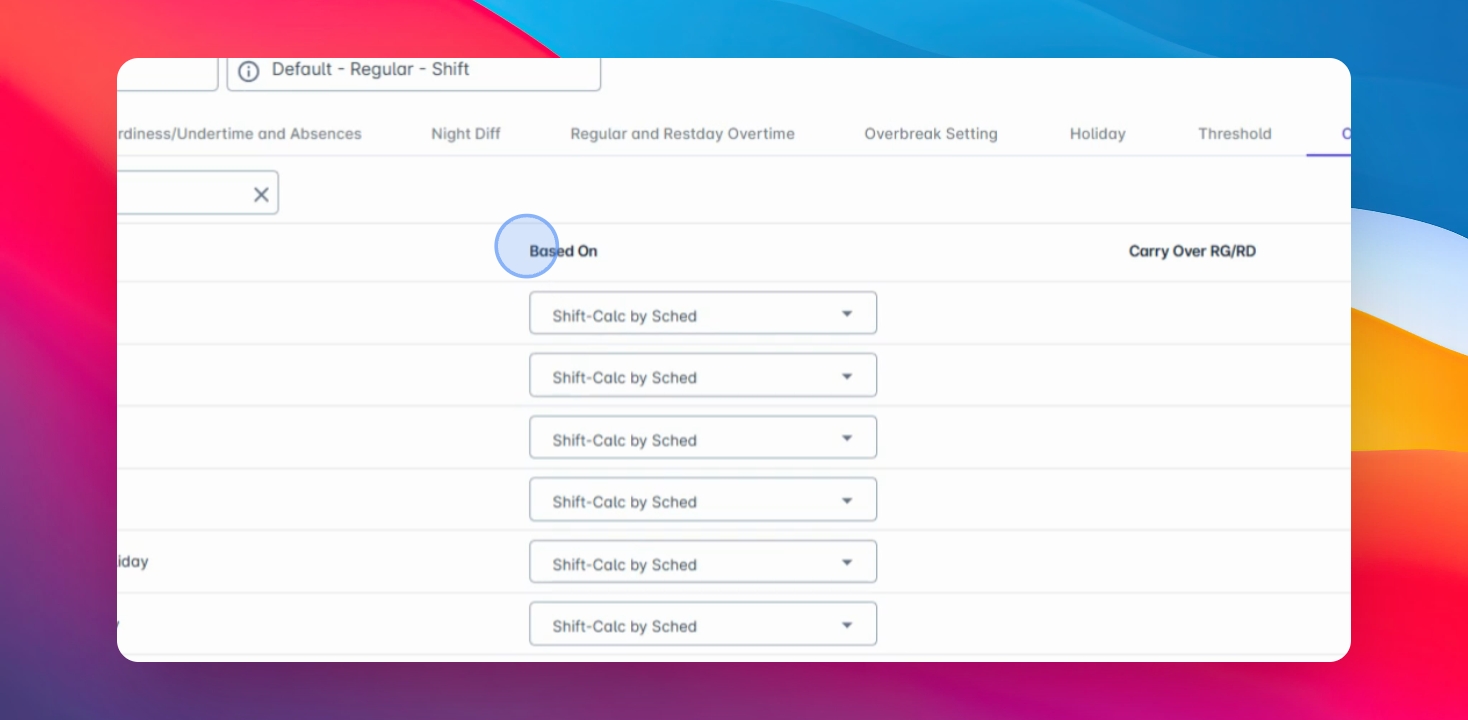
Step 6: Set Calendar Calculation
Configure **Calc by sched** to check calendar dips and split hours at midnight.
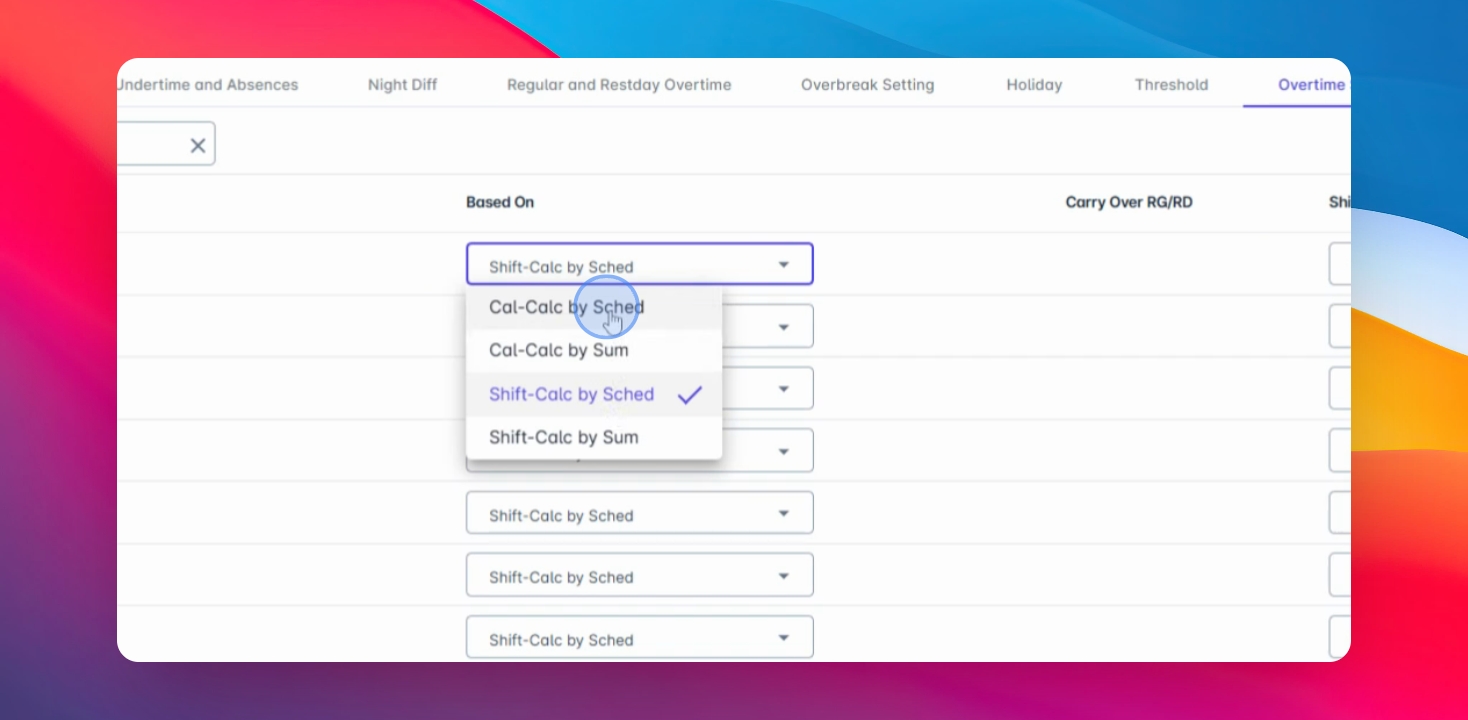
Step 7: Manage Legal Holiday Rates
Understand how hours before midnight follow holiday rules and after switch to regular rates.
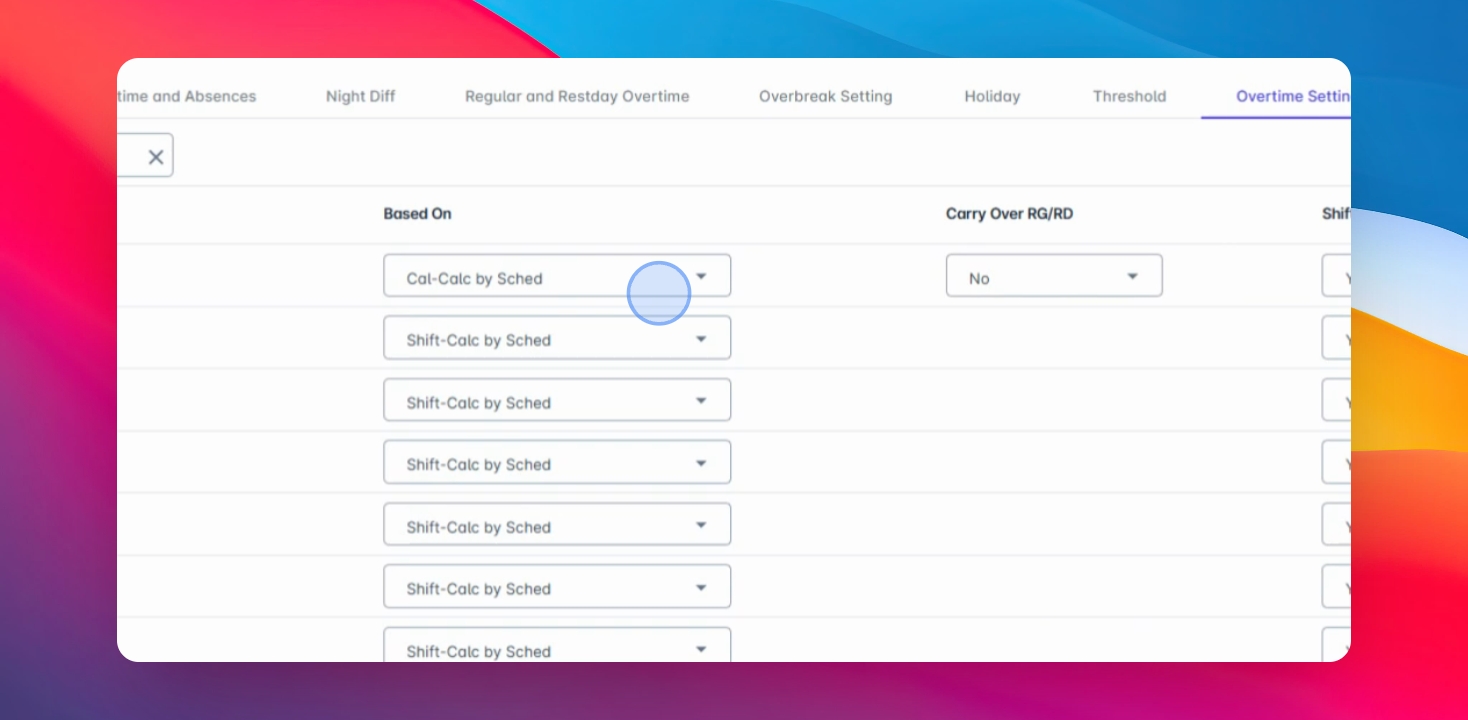
Step 8: Configure Calendar Calculation by Sum
Set **Calc by sum** to check calendar dates and sum hours before splitting.
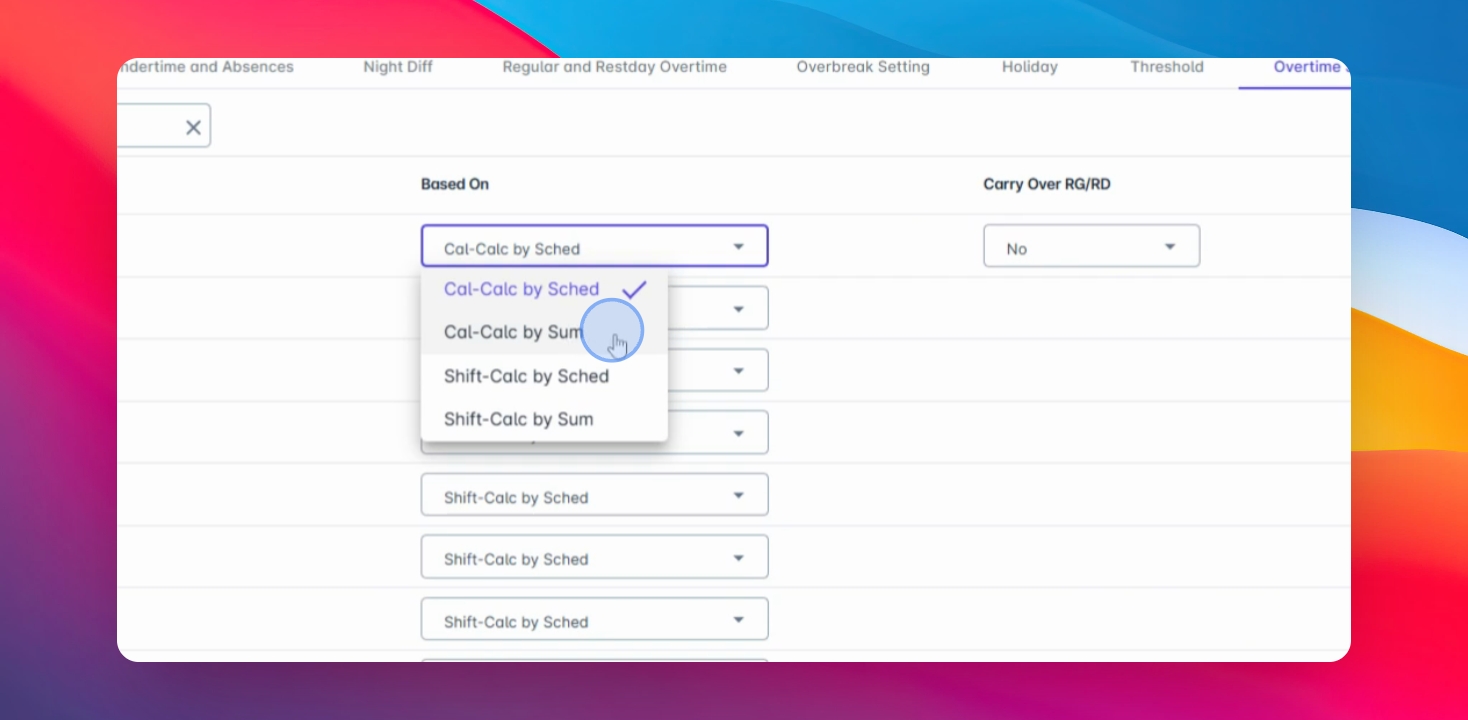
Step 9: Select Shift Calculation Method
Choose **Shift calc by sched** to ignore calendar dates and follow original date types.
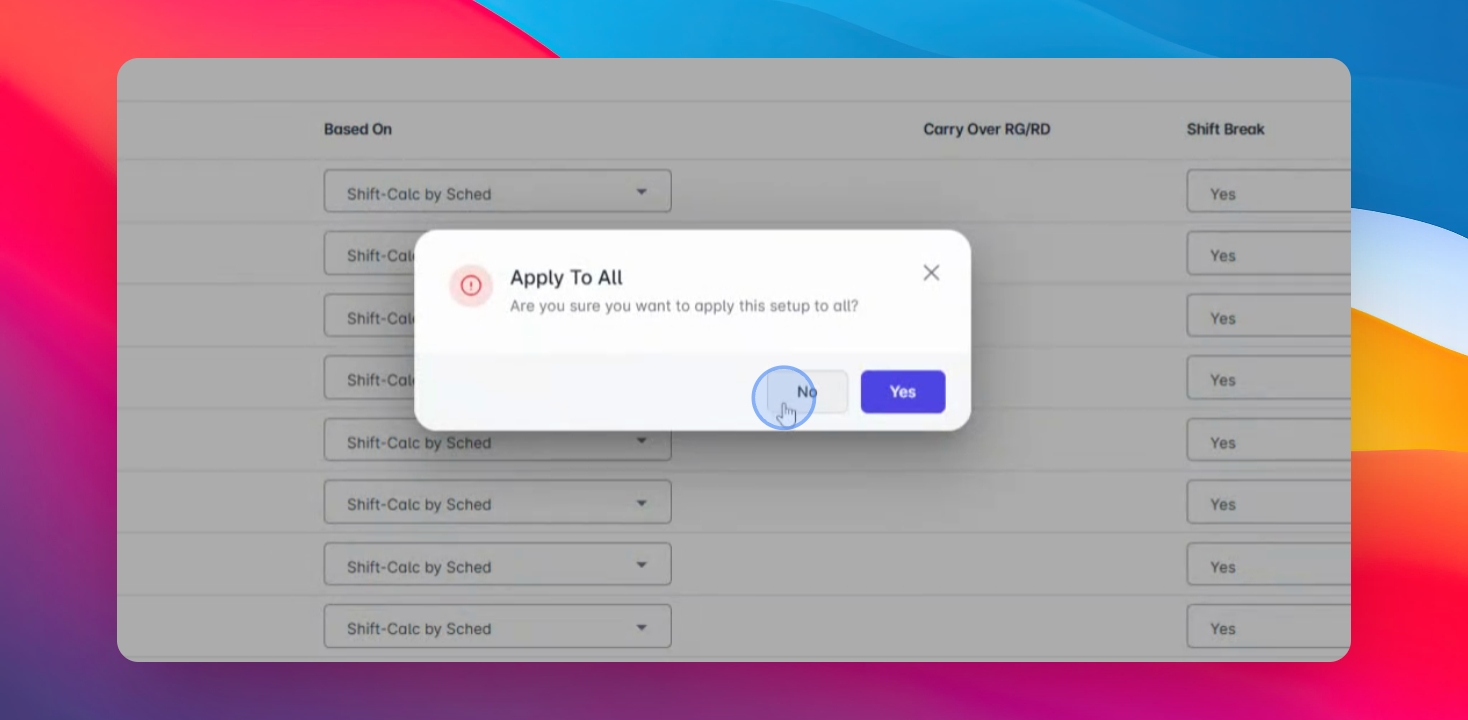
Step 10: Implement Shift Calculation by Sum
Use **Shift calc by sum** to compute overtime in a total sum format while maintaining shift date types.
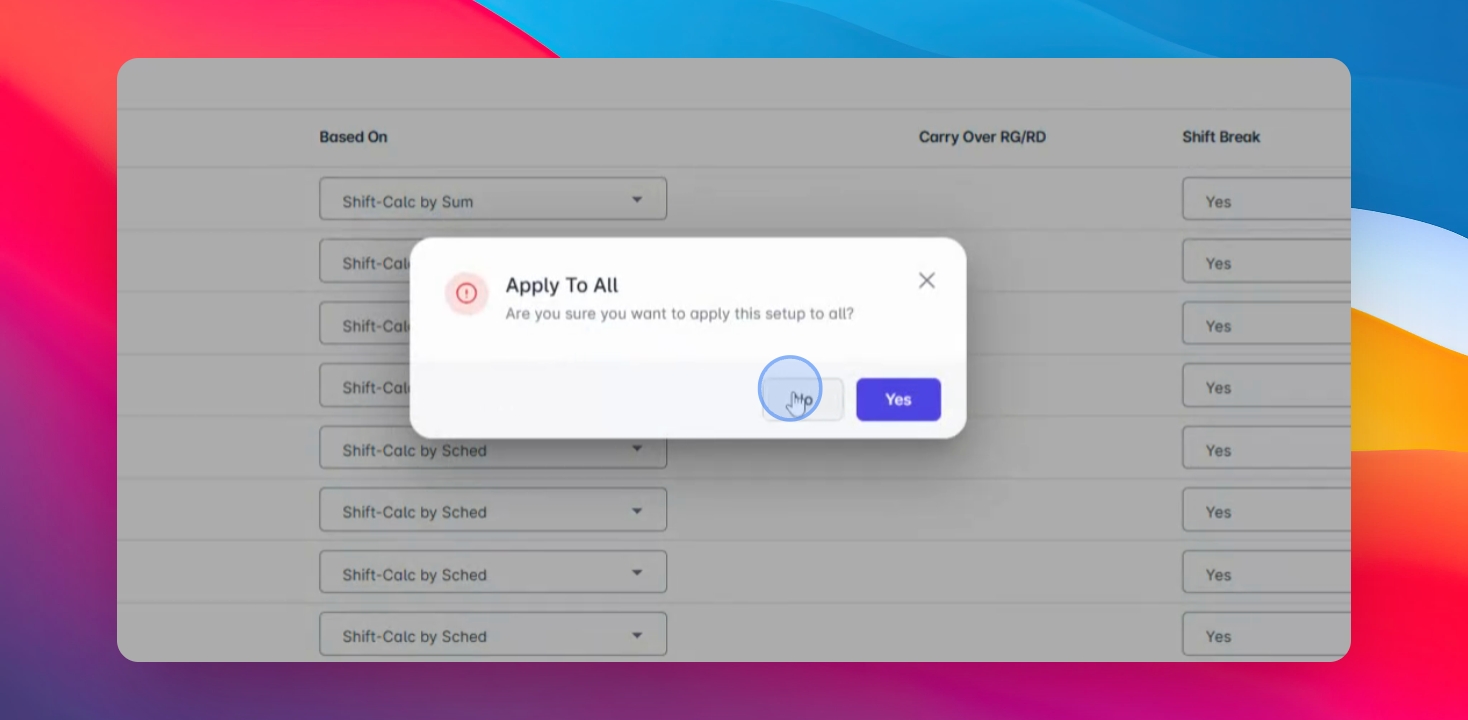
Step 11: Set Carryover Options
Determine if the system should automatically carry over date types after midnight based on calendar settings.
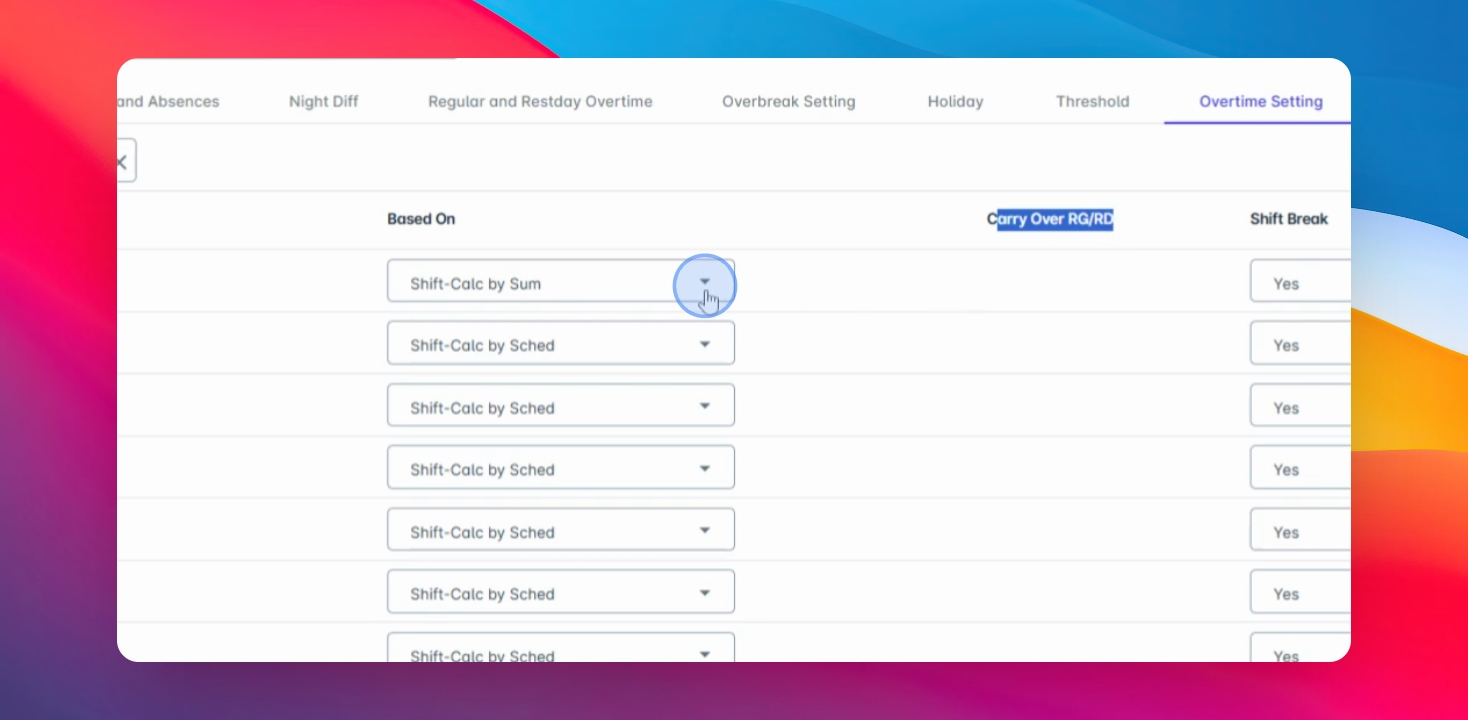
Step 12: Configure Shift Breaks
Decide if the system should use breaks from the schedule or manually define them in the next option.
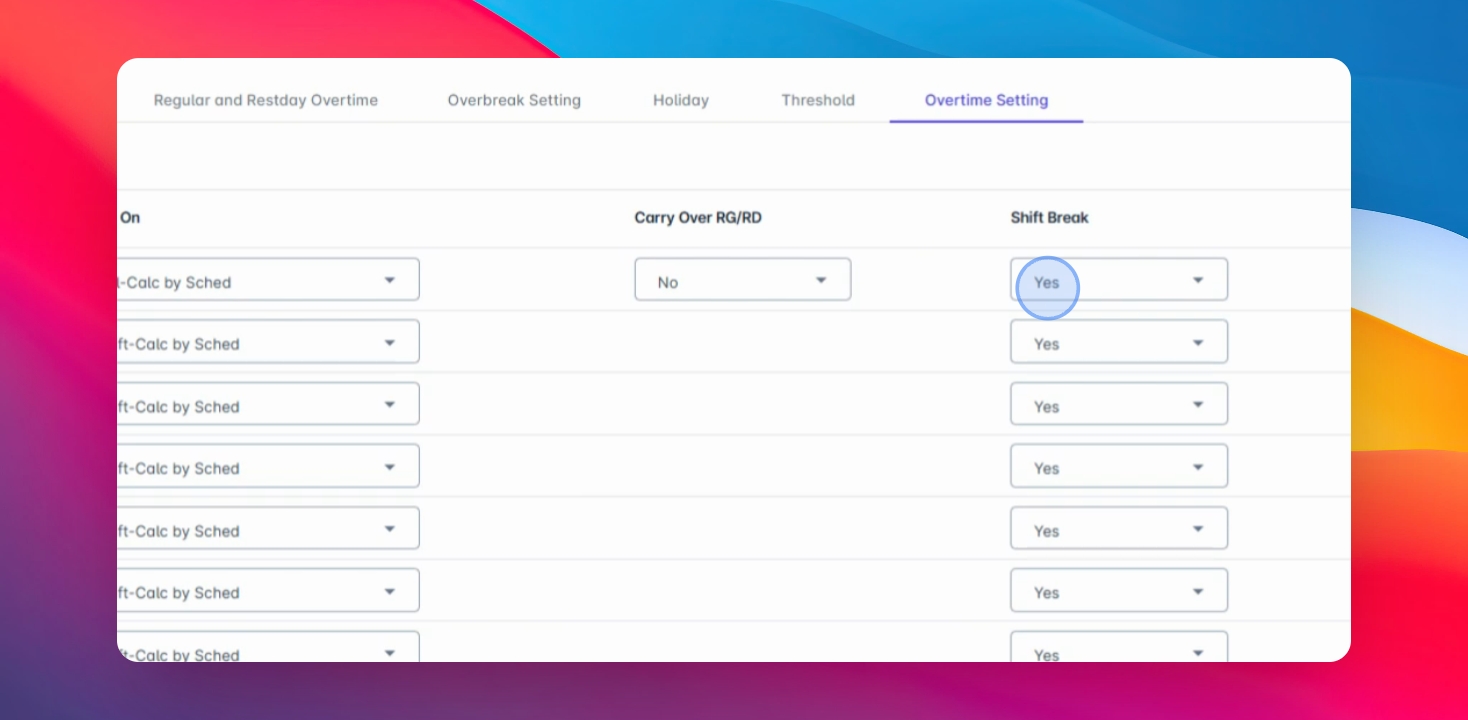
Step 13: Summarize Overtime Settings
Review the settings: use calendar settings for rate changes at midnight or shift calculations for hourly splits.