

Go to the Payroll module.
Under the Payroll menu, click Setup.
From the Setup option, select DED Hierarchy.
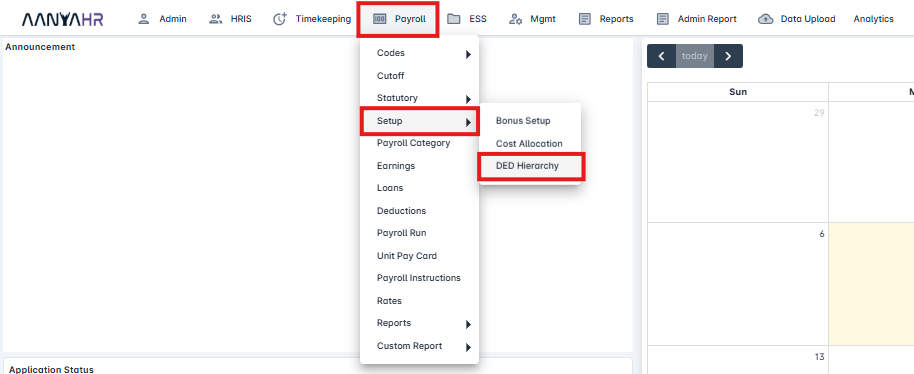
On Ded Hierarchy List, Click Add.

Enter the Name and Description of the setup.

Select Min Net Pay.
Yes setup:
It allows you to apply a specific amount based on your setup, preventing the salary from becoming negative.
NOTE: If Allow Company Adv is set to Yes, the contributions will be deducted from the payroll, and adjustments will be made in the next cutoff.

Select Min Net Pay Type.

Fixed Amount - If the net pay becomes negative or is less than the specified fixed amount, and the Fixed Amount option is selected, the system will automatically remove items from the defined hierarchy until the fixed amount is met.
% of Basic - If your net pay falls below the % of your Basic Salary, the system will automatically remove items from the defined hierarchy until the equivalent amount is met.
Sample:
Employee 001
Basic Salary: 10,000.00
% of Basic: 10
Amt of Basic: 1,000.00
% of Gross- If your net pay falls below the % of your Gross Taxable, the system will automatically remove items from the defined hierarchy until the equivalent amount is met.
Sample:
Employee 001
Basic Salary: 10,000.00
Absent: 900.00
% of Gross: 10
Amt of Gross: 910.00
No setup:
It allows you to apply a specific amount based on your setup, preventing the salary from becoming negative.

Allow Company Adv
No - To prevent negative net pay and ensure the employee still receives a salary, the system will reflect the amount as "Company Adv" in the payroll register.
NOTE: If Allow Company Adv is set to No, no contributions will be deducted from the payroll, and no adjustments will be made in the next cutoff.

Under Allow Company Adv, Select Company Adv Type.

Max Amount - If the net pay becomes negative or is less than the specified fixed amount, and the Max Amount option is selected, the system will automatically remove items from the defined hierarchy until the Max amount is met.
% of Basic - If your net pay falls below the % of your Basic Salary, the system will automatically remove items from the defined hierarchy until the equivalent amount is met.
Sample:
Employee 001
Basic Salary: 10,000.00
% of Basic: 10
Amt of Basic: 1,000.00
% of Gross- If your net pay falls below the % of your Gross Taxable, the system will automatically remove items from the defined hierarchy until the equivalent amount is met.
Sample:
Employee 001
Basic Salary: 10,000.00
Absent: 900.00
% of Gross: 10
Amt of Gross: 910.00
Hierarchy level deduction
Set the priority (e.g., 1, 2, 3, 4, ...) to determine which deduction items will be removed or excluded first when the net salary falls below the set amount.
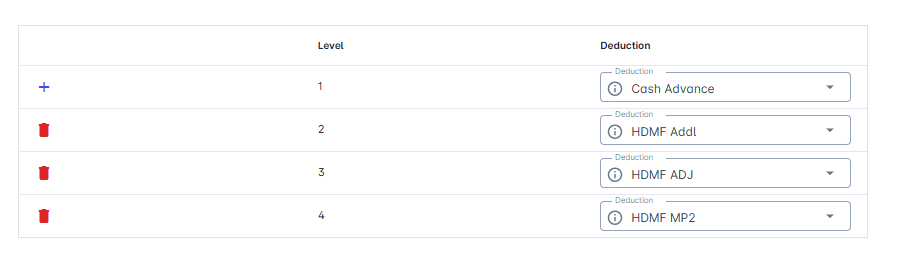
How does it work?
Sample:
Employee 001
Current Netpay: -1,000.00
Minimun Net Pay: 200.00
# | Description | Amount | Hierarchy Balance | Is Enough? |
1 | Cash Advance | 200 | 200 | No |
2 | HDMF Addl | 300 | 500 | No |
3 | HDMF ADJ | 800 | 1300 | Yes - Stop |
4 | HDMF MP2 | 500 | 1800 | Still deducted |
New Netpay: 300.00
After creating the DED Hierarchy, the next step is to apply it to the Payroll Category.
To do this:
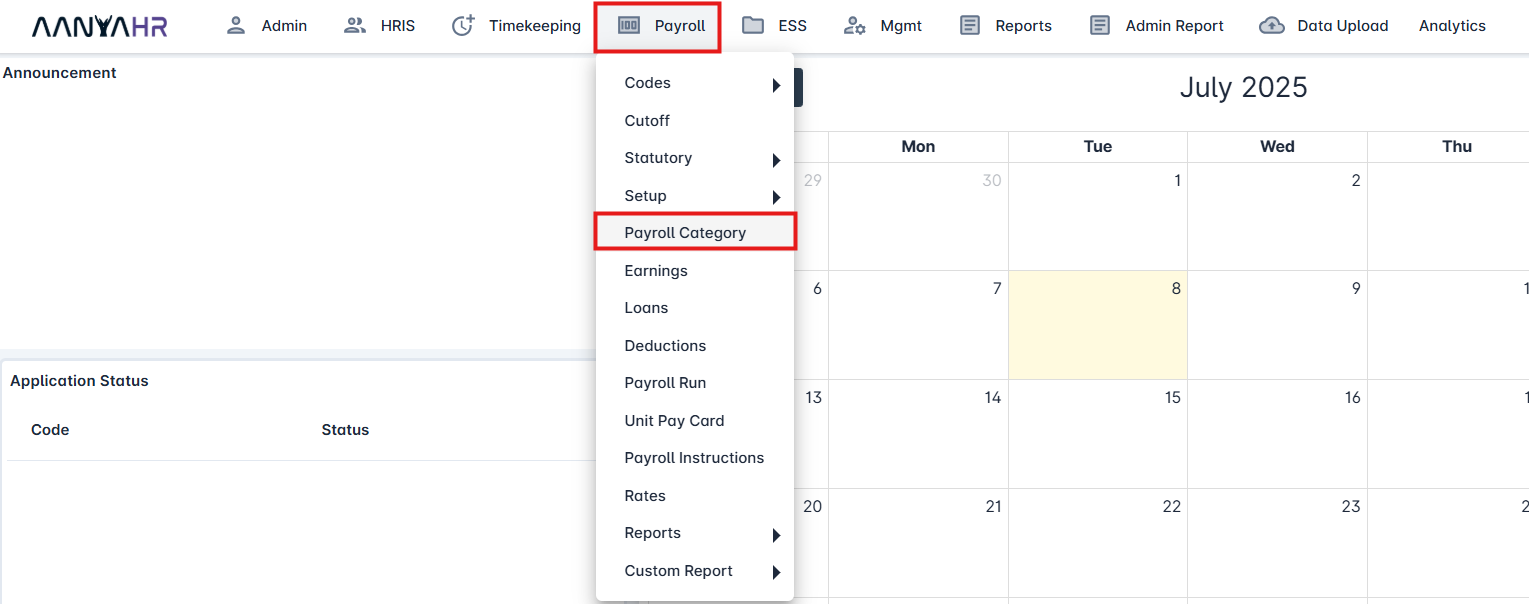
Go to Payroll Module.
Click Payroll Category.
Click the ellipsis icon (⋮) and choose Edit.
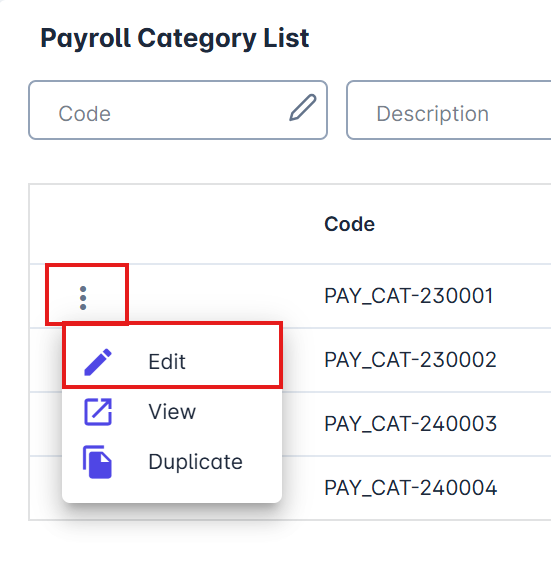
In the Payroll Category setup, go to the Deduction Hierarchy dropdown and select the hierarchy you created.
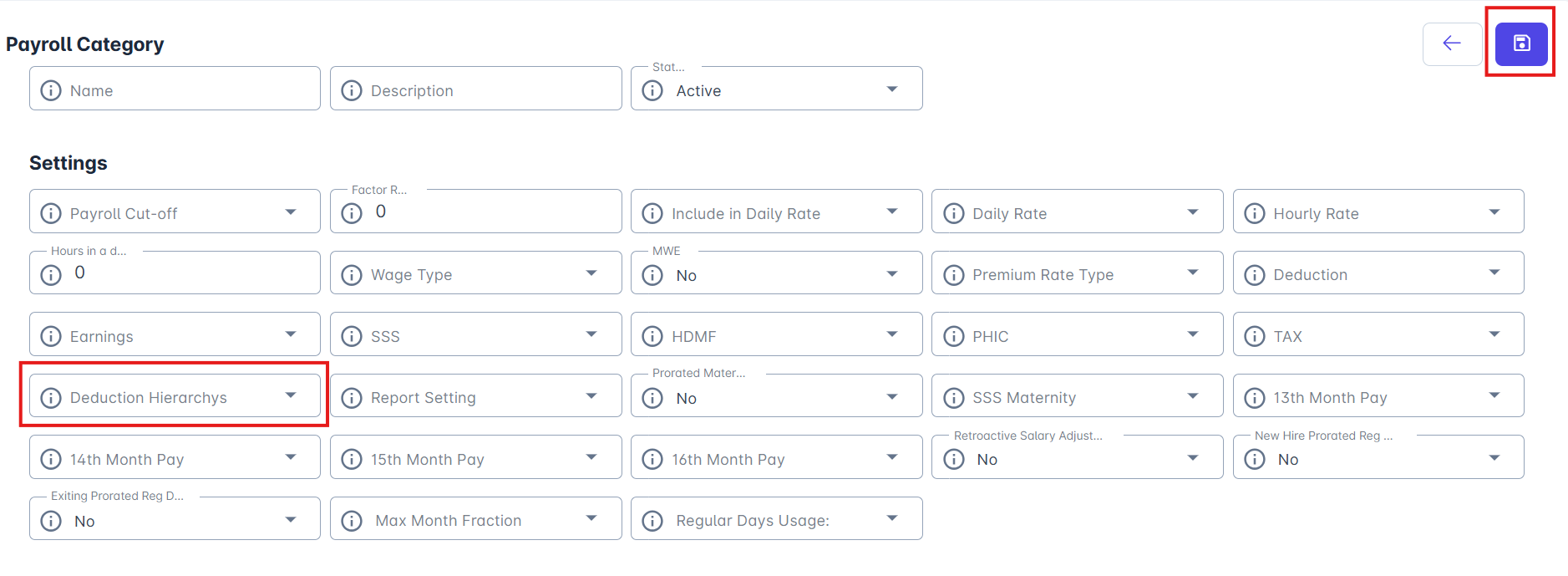
Click Save.