

Follow the steps below to create and manage employee earnings properly.
Step 1: Open the Earnings Module
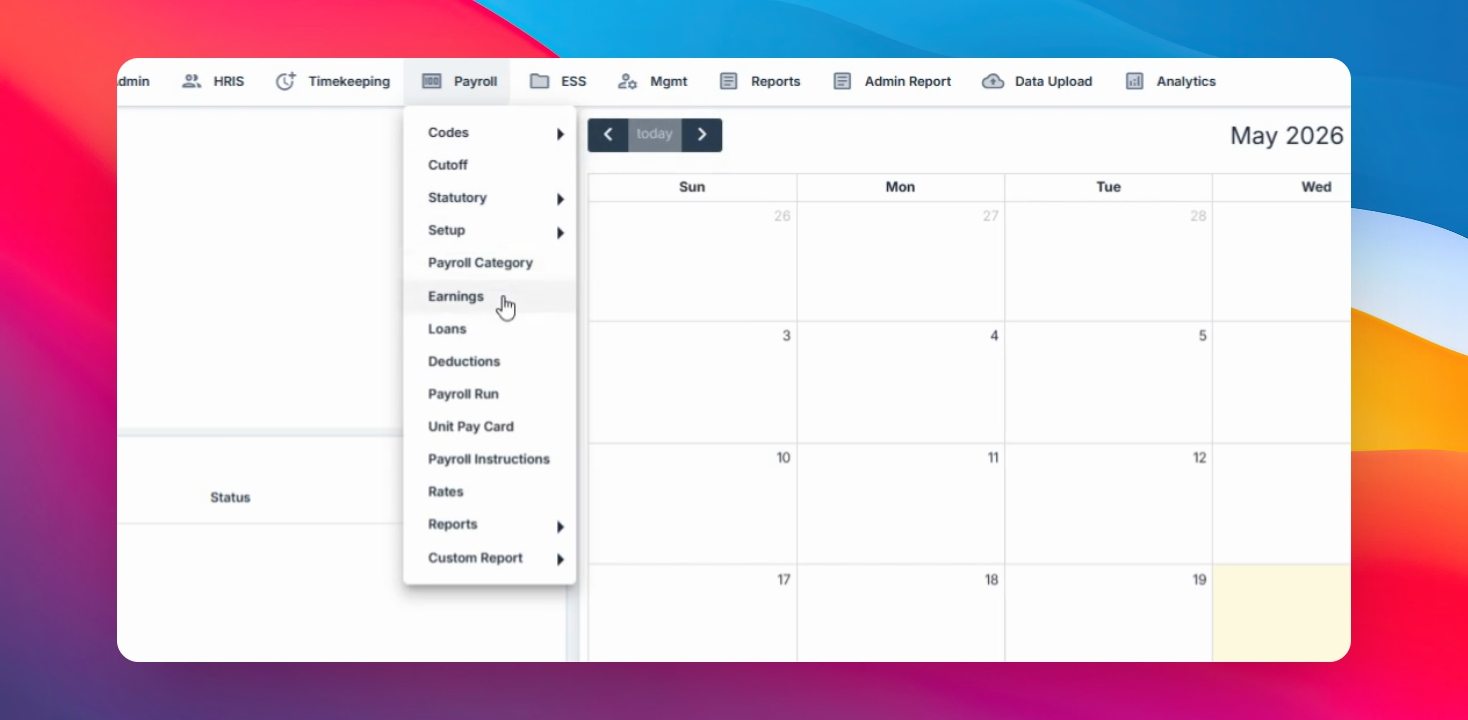
Navigate to the Payroll menu, select Earnings, then click the Create button.
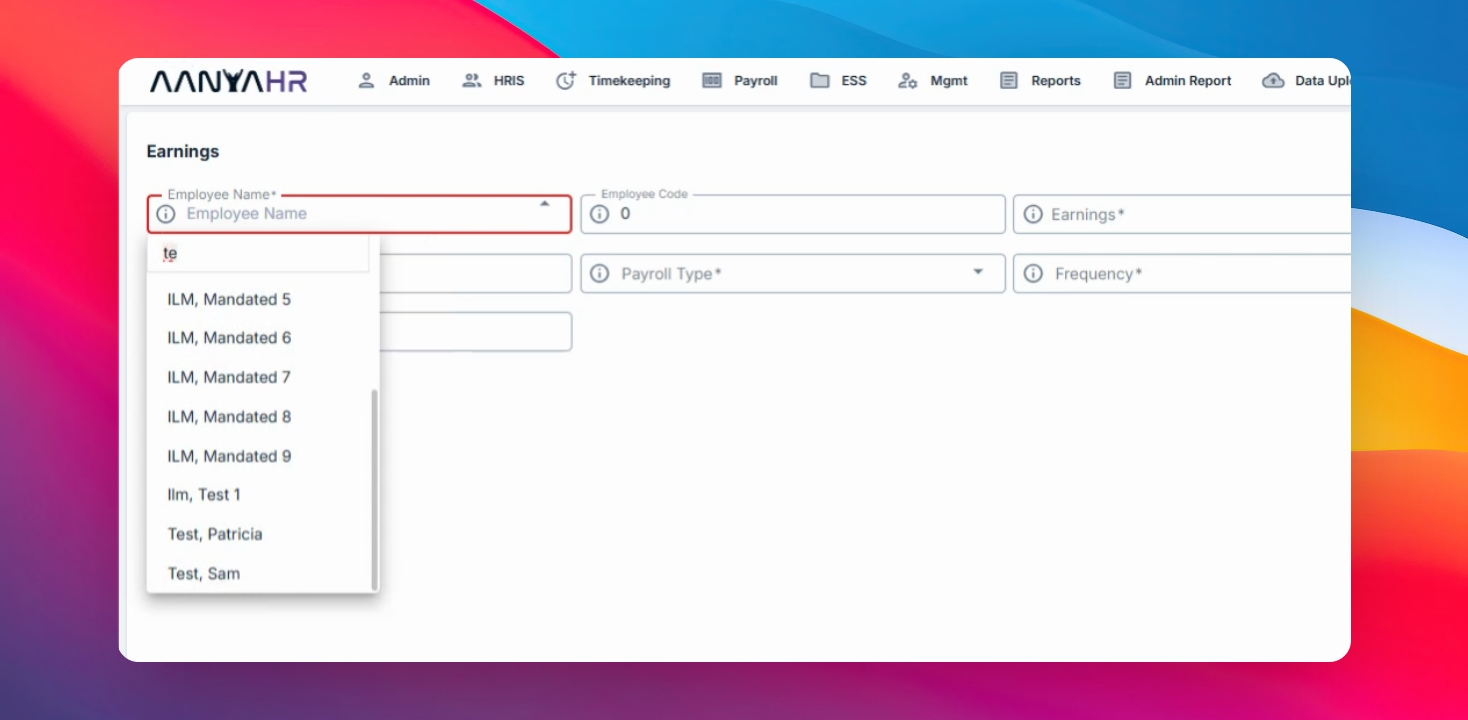
Step 2: Select the employee
Choose the employee name you want to add earnings for.
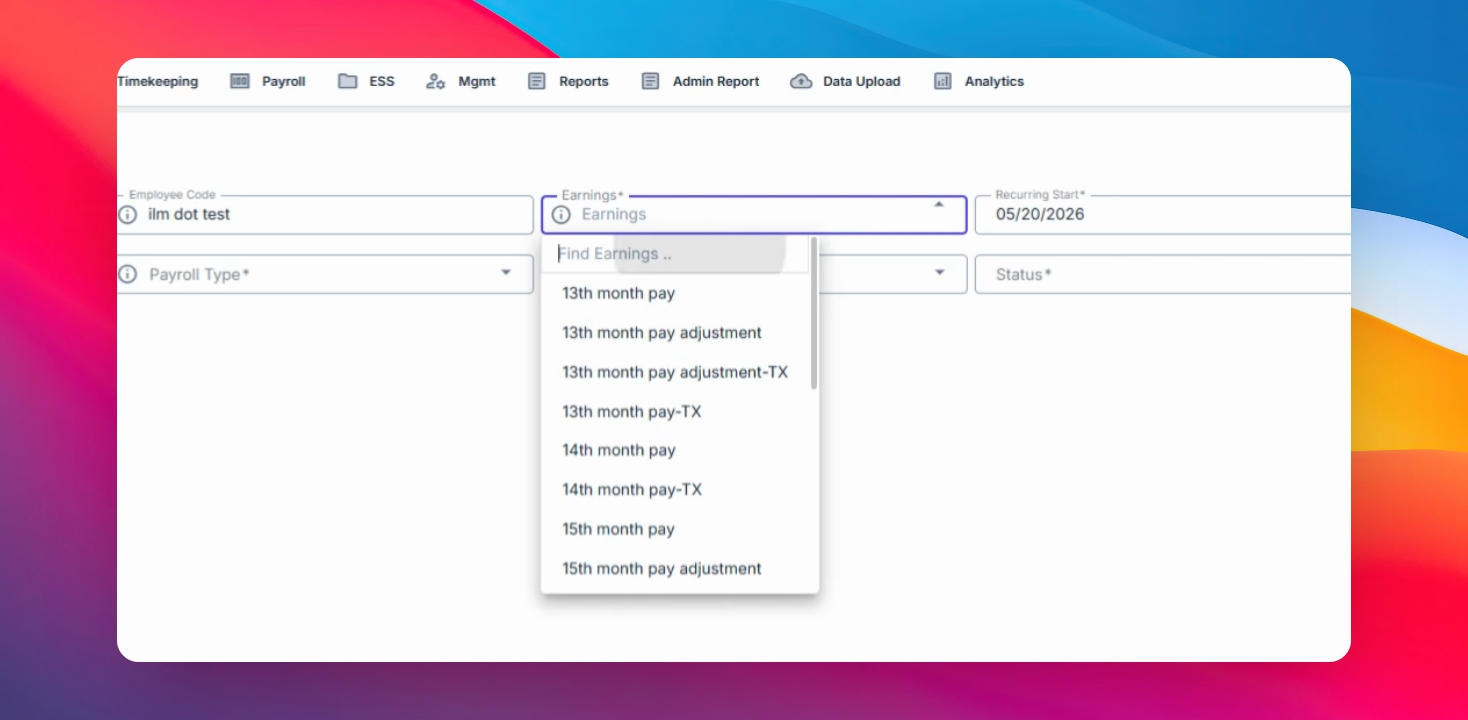
Step 3: Select Earnings Type
Choose the appropriate Earnings Type you want to assign to the employee.
Step 4: Set the Recurring Start Date
Select the recurring start date. Typically, this should be the first day of your cutoff period.
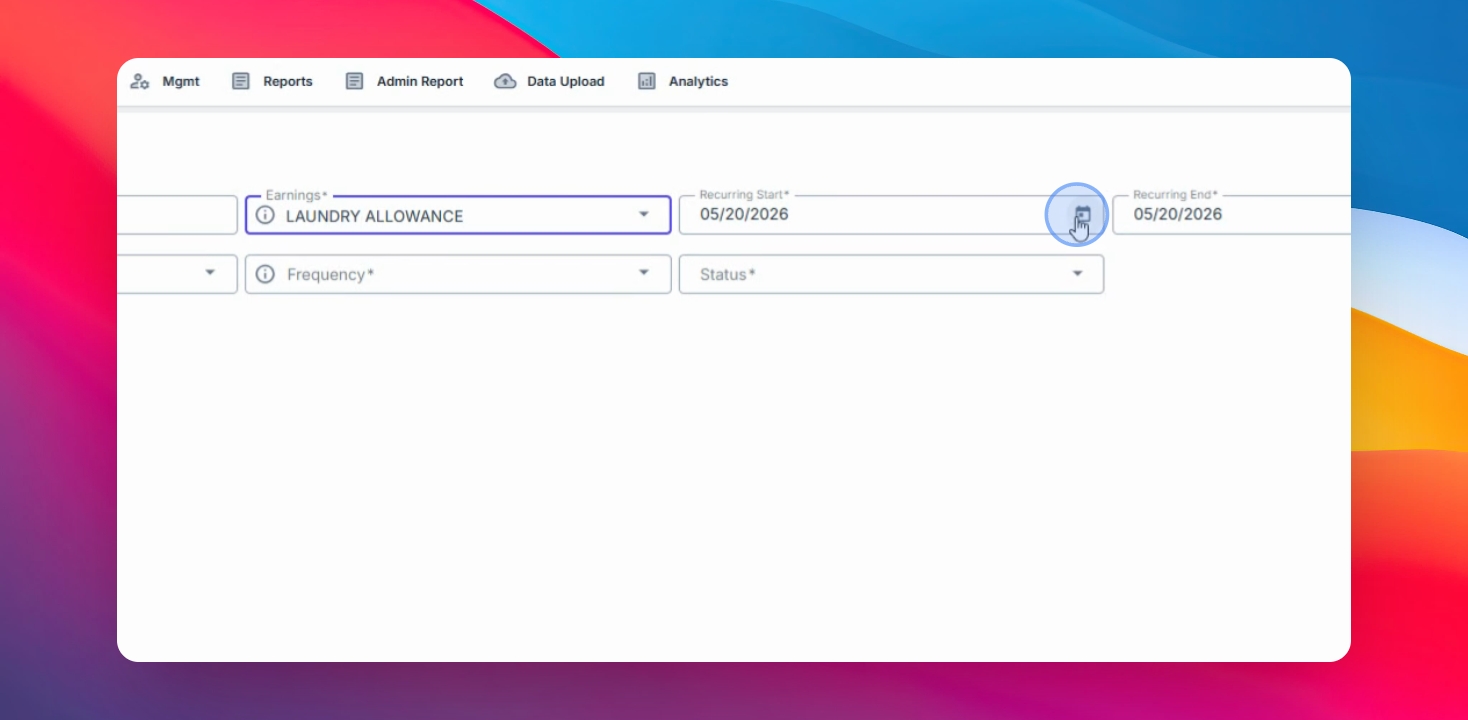
For example, if your cutoff period is from the 11th to the 25th of the month, set the recurring start date to the 11th.
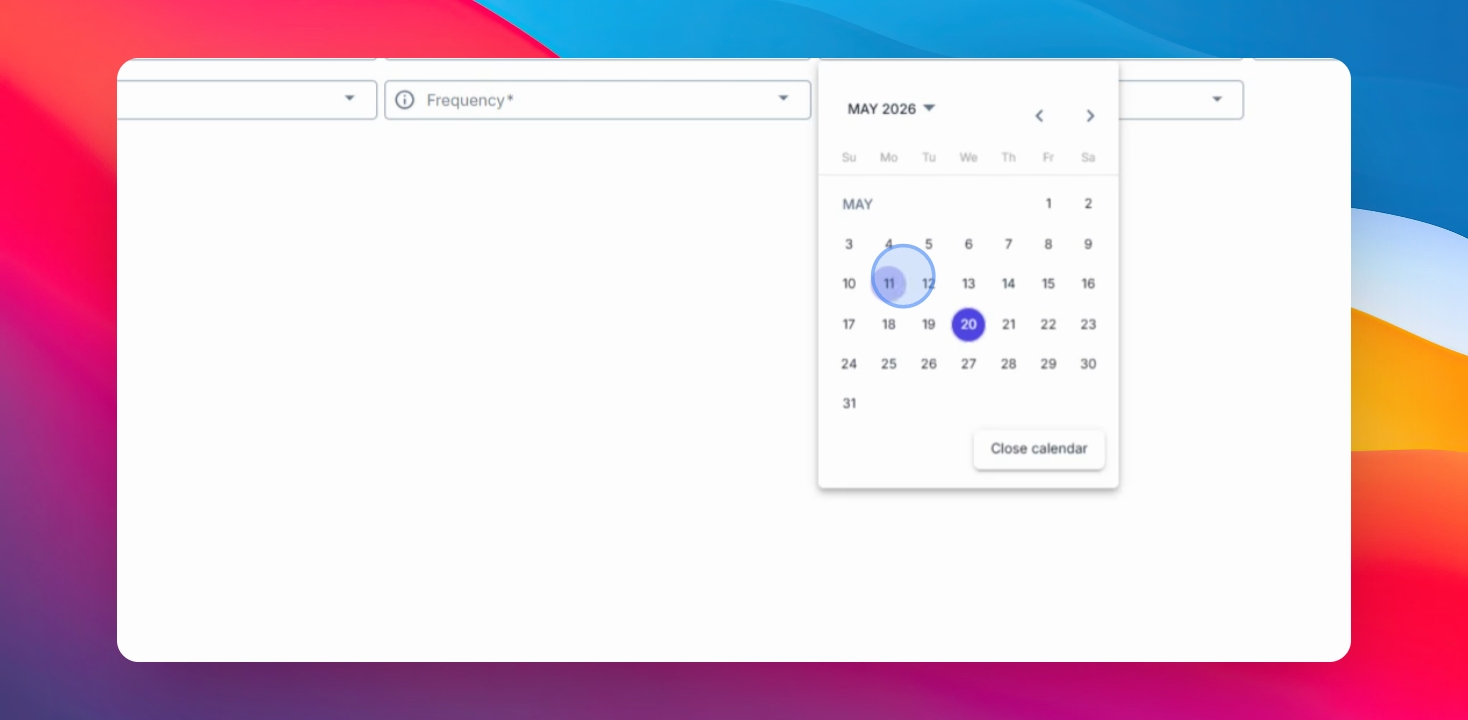
Step 5: Set the Recurring End Date
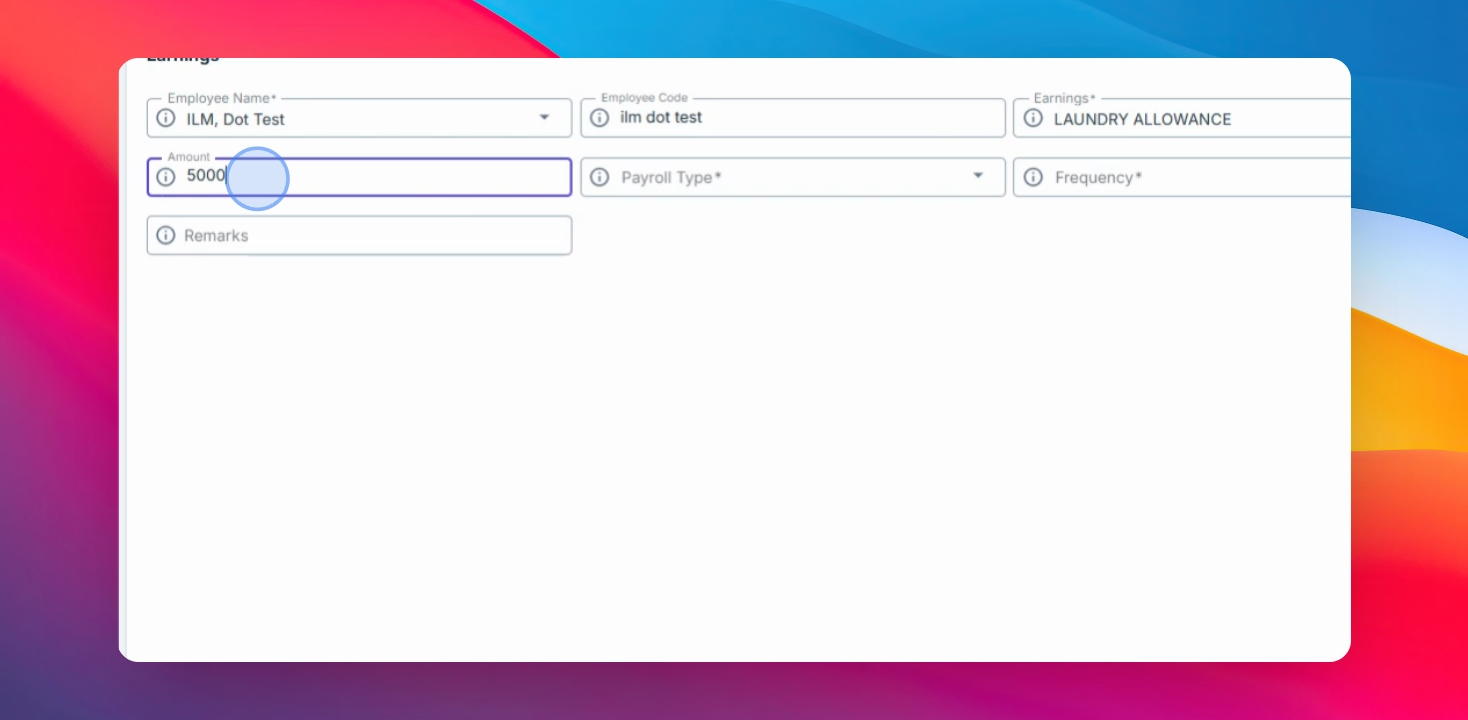
If the earning is one-time, set the recurring end date to the end of the cutoff period. For recurring earnings, set the end date to your preferred year, such as December 31st or even up to 2039 if the amount is fixed indefinitely. Then, enter the amount for the earnings.
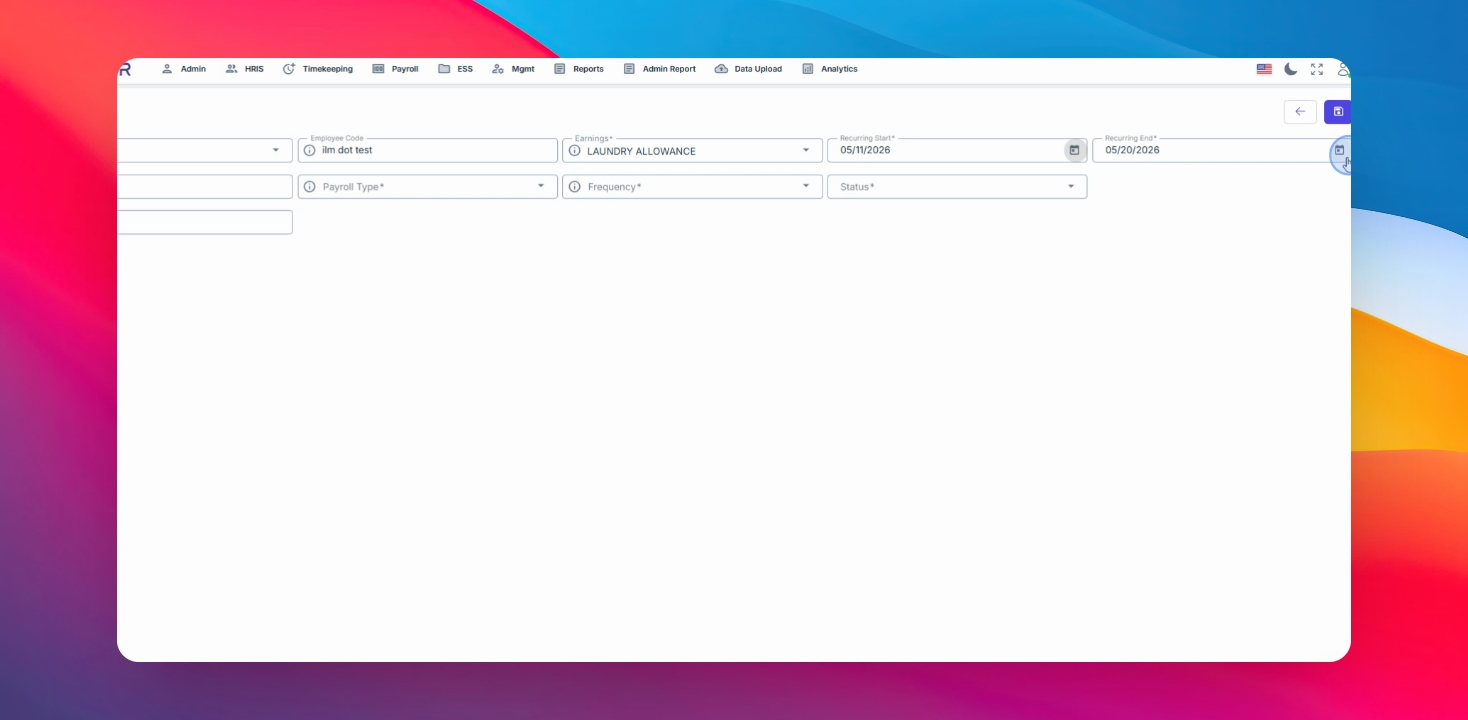
Additional Example
If the earning is paid once a month, enter the full monthly amount.
If the earning is paid every cutoff period (semi-monthly), divide the monthly amount by two.
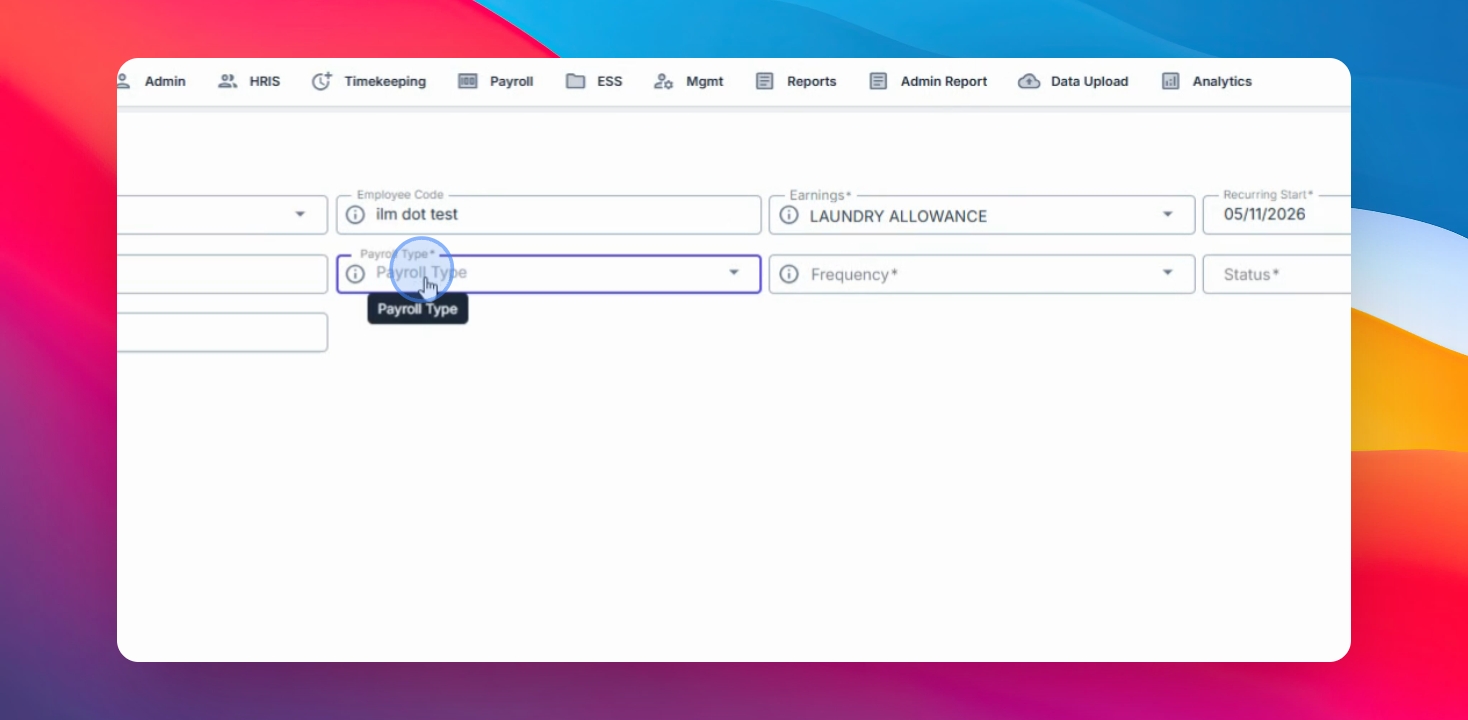
Step 6: Set Type and Frequency
Select Regular as the payroll type. Choose the frequency for calculation: every cutoff, every first or second cutoff, or for weekly payrolls. You can also set the status (paused or closed) and add remarks for internal or monetary purposes.
Step 7: Save the Earnings Entry
Click Save Changes to create and apply the earning to the employee.
You have now learned how to manually add and configure employee earnings in the AnyaHR Payroll system. Proper earnings setup helps ensure accurate payroll calculations and recurring payment management.