

Follow the steps below to properly set up an earning code in the system.
Step 1: Go to Pay Codes
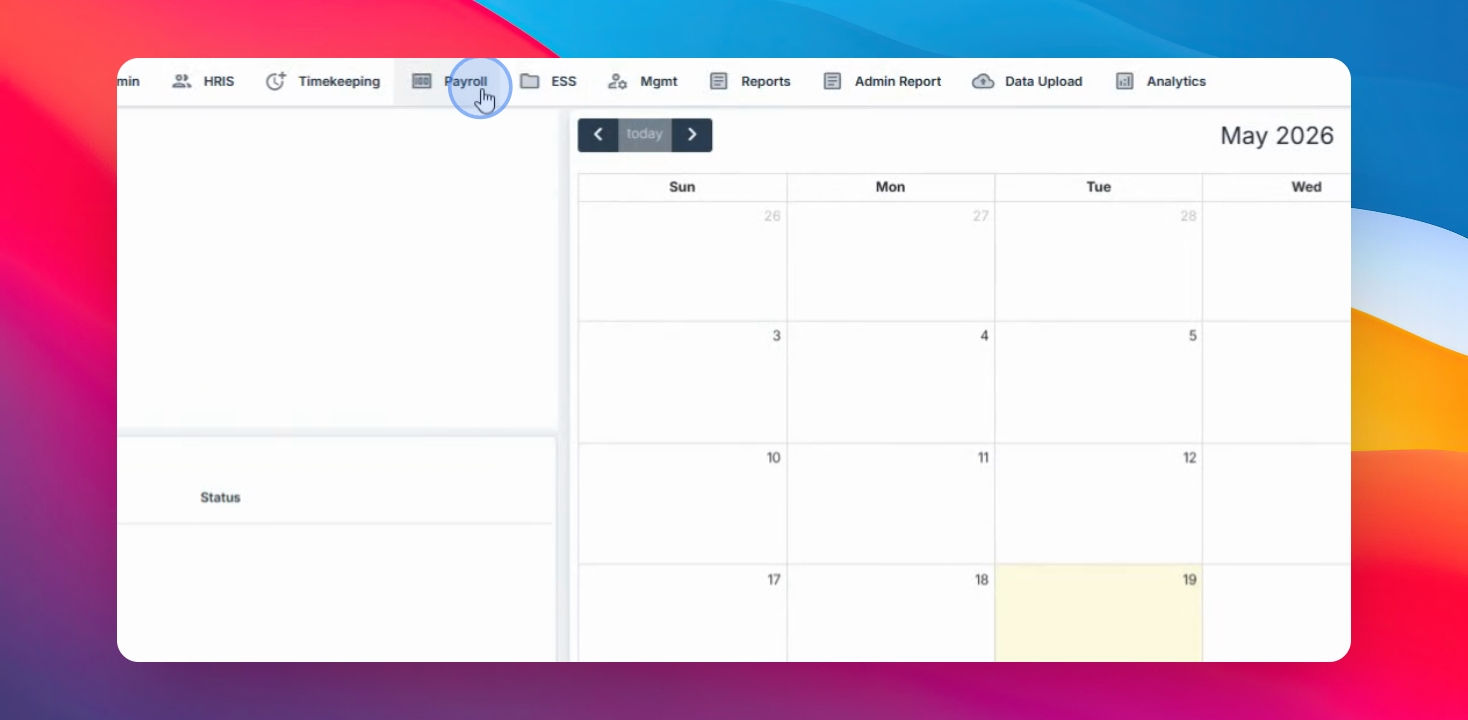
Navigate to the Payroll menu, select Codes, and go to Pay codes.
Step 2: Start Creating a New Code
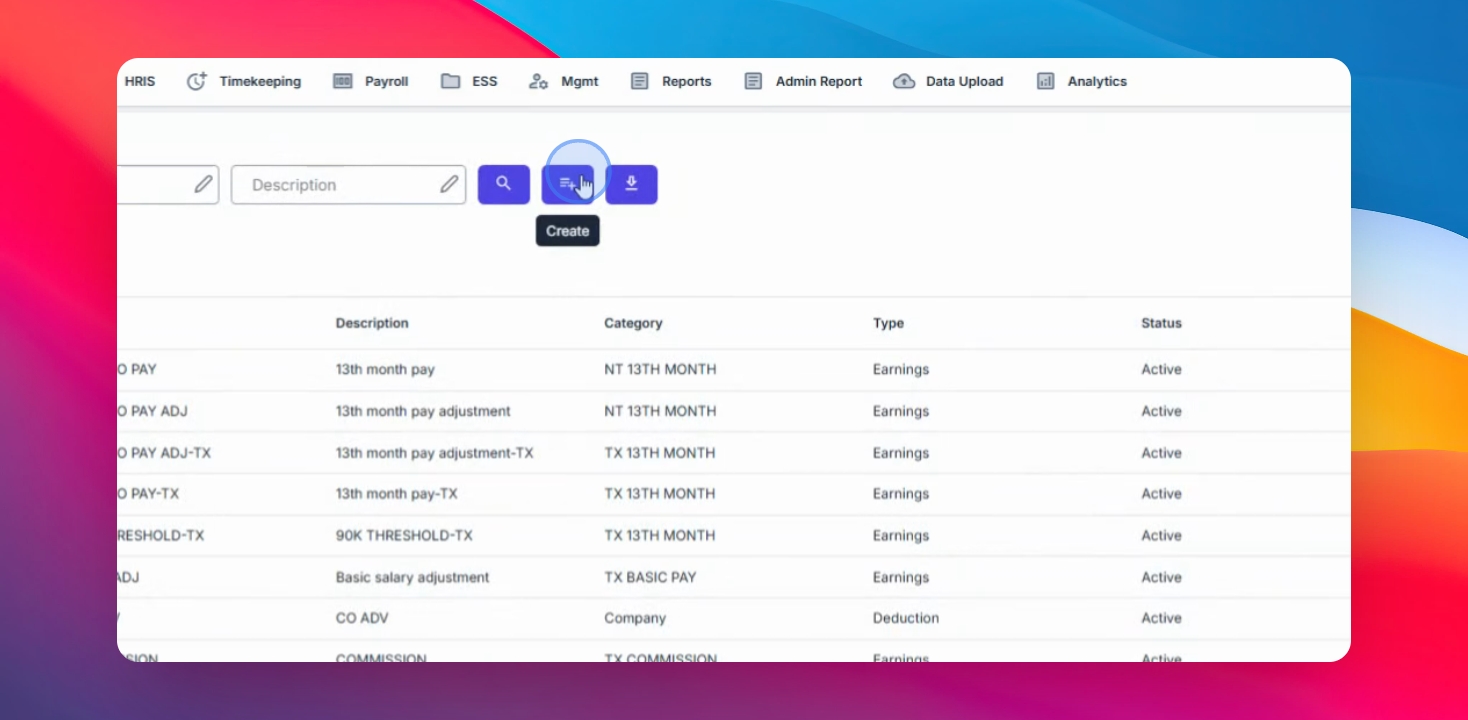
Click the Create button and select Earnings as the Pay code type.
Step 3: Enter Earning Code
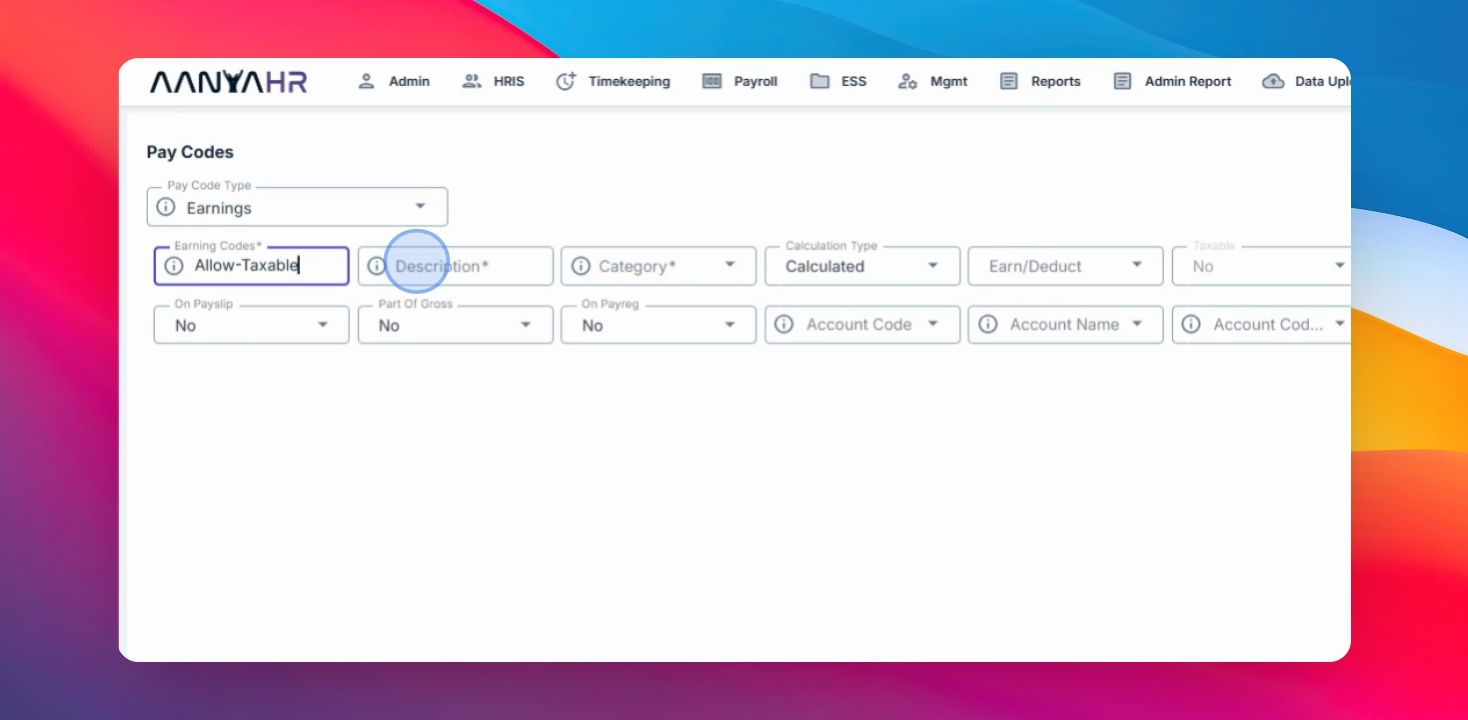
Enter the earning code you want to appear on payroll, register, payslip, and other reports.
Step 4: Add Description
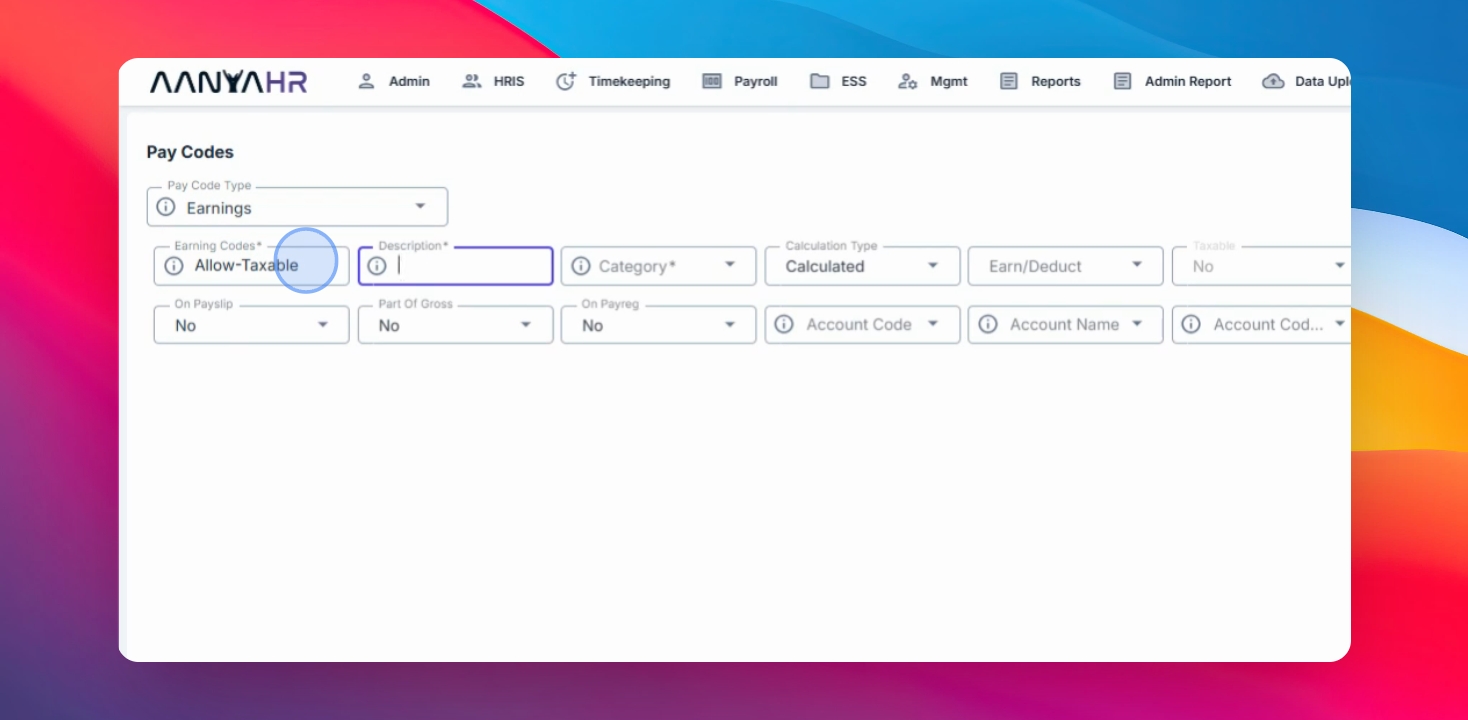
Enter a description for the earning code. This can be the same as the earning code itself.
Step 5: Select Category
Select the appropriate category that will be reflected on the 2316 and other BIR reports.
You can choose between non-taxable and taxable options. For this example, tag the earnings as taxable.
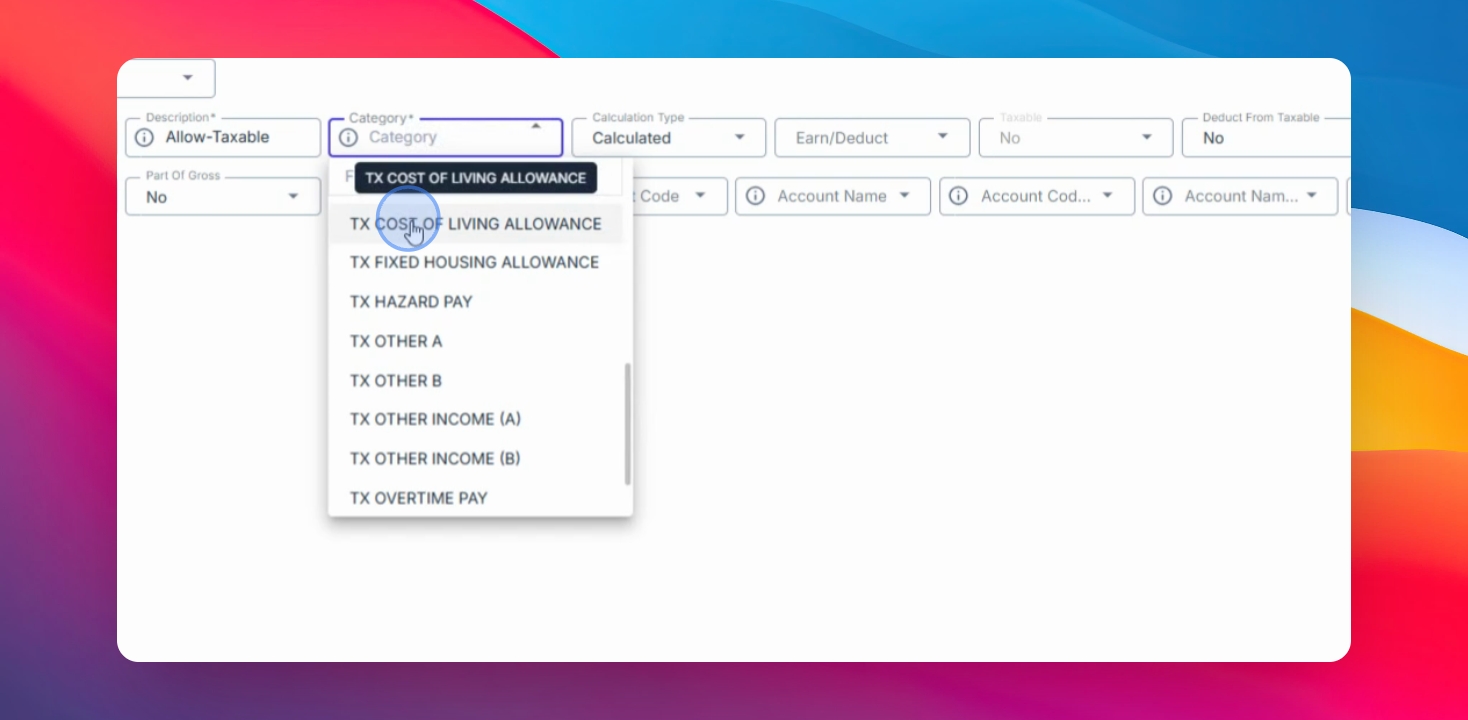
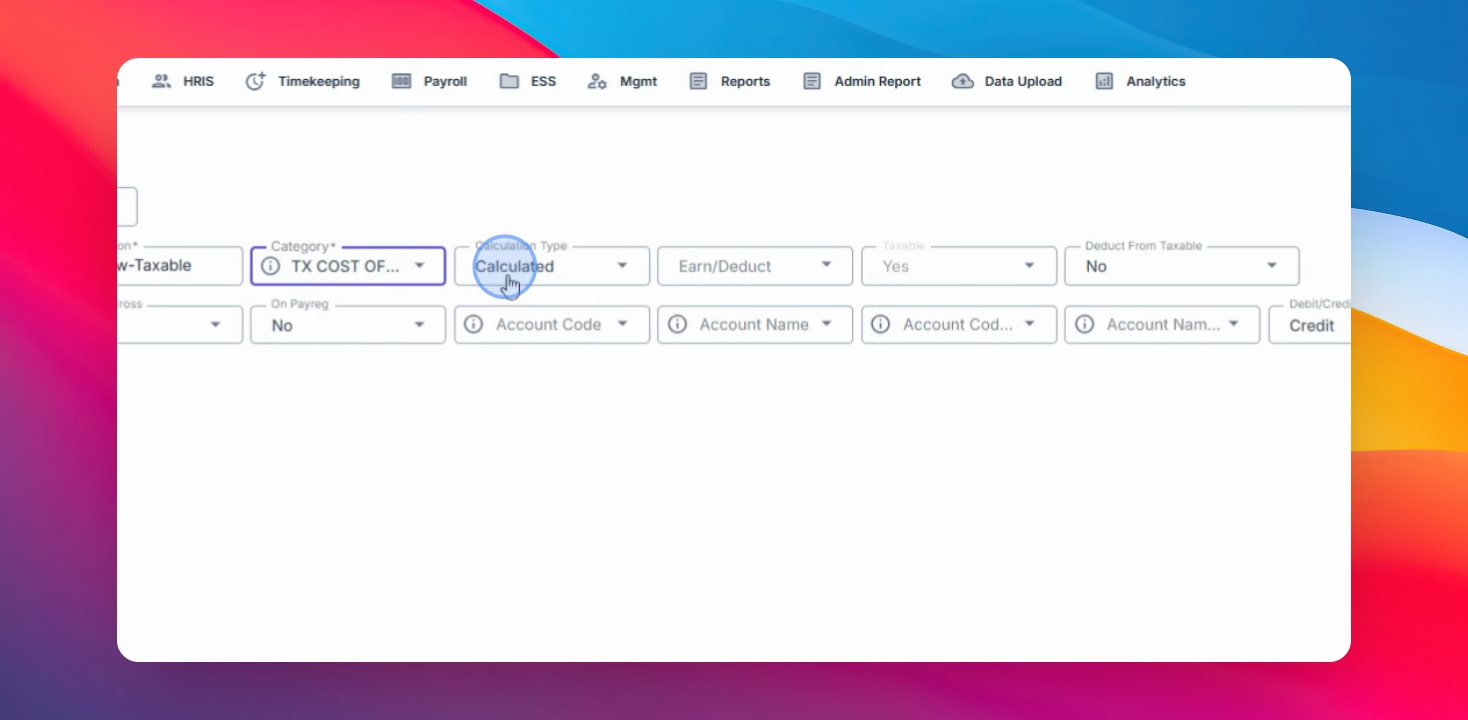
Step 6: Choose Calculation Type
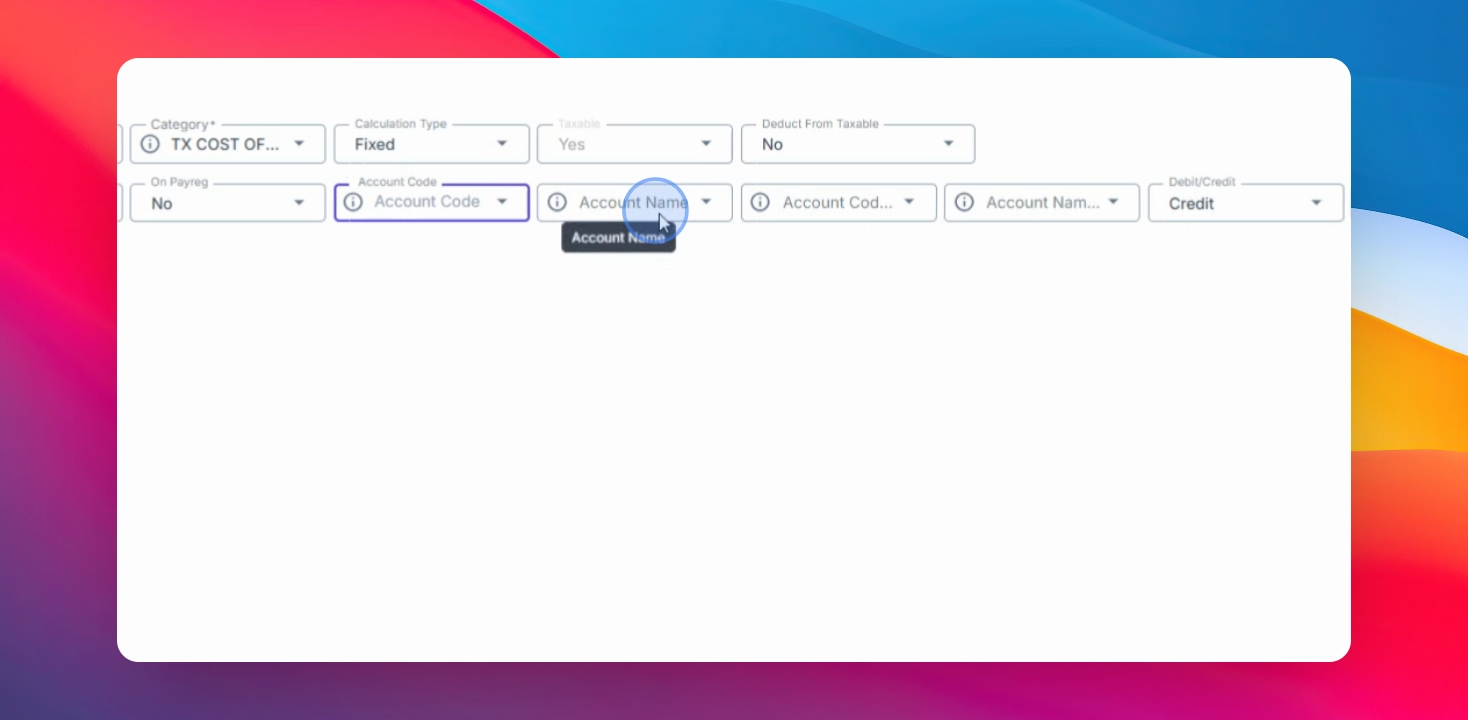
Select the calculation type. You can choose Fixed if you want the amount to be based on your entered value or Calculated for calculation settings.
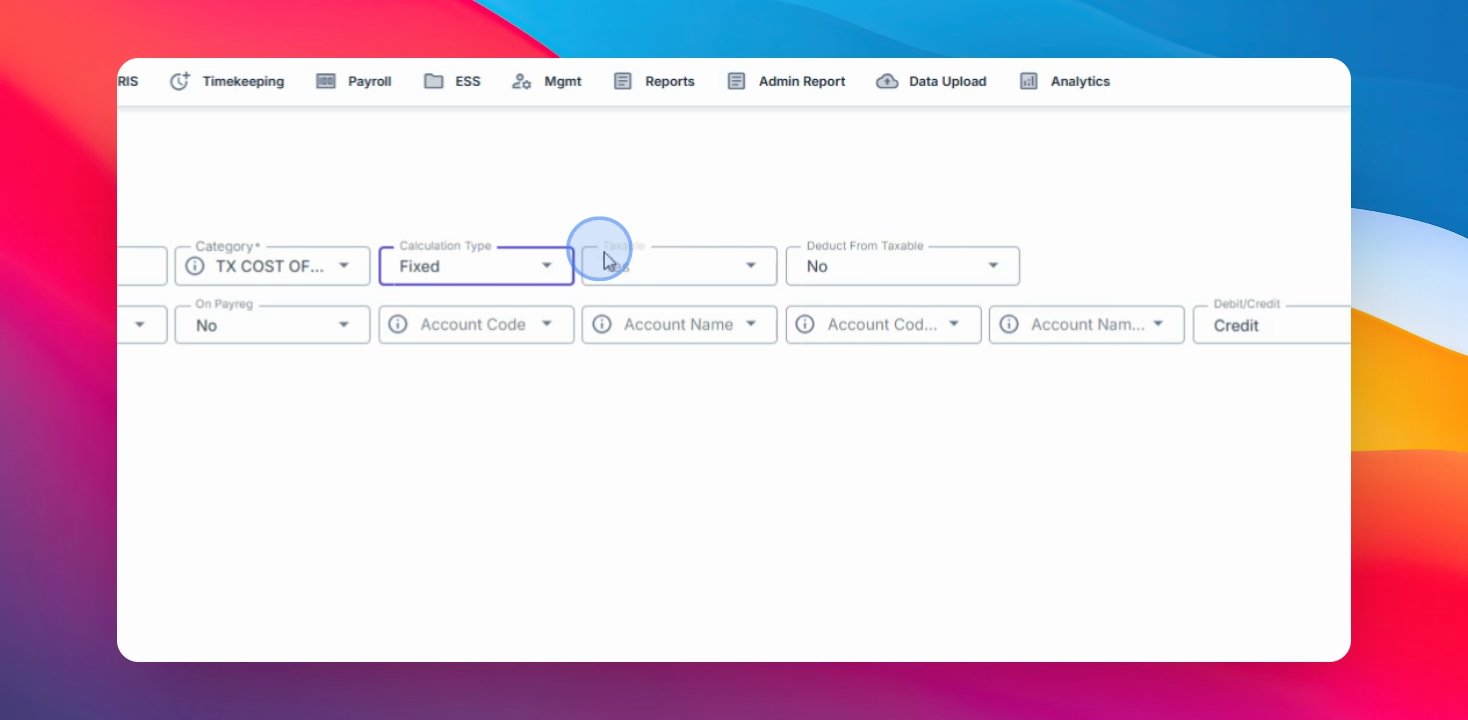
Step 7: Set Tax Deductible Option
Configure whether the earning is subject to tax:
Set to Yes if tax-deductible
Set to No if non-taxable
If the earning is non-taxable, this field may default accordingly.
Step 8: Configure Display Options
Choose whether to display this earning code on the payslip, include it as part of gross, or display it on the pay register account code.
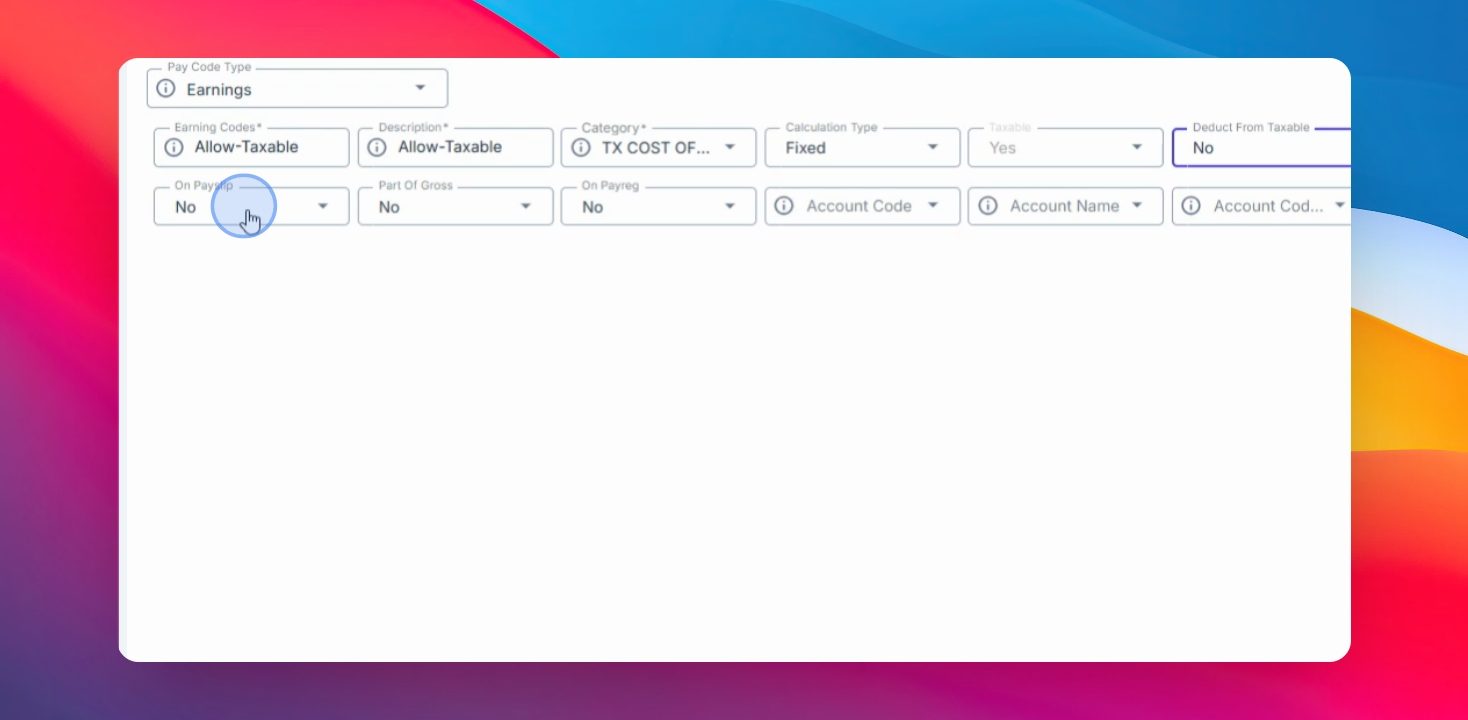
For accounting integration, configure the account codes
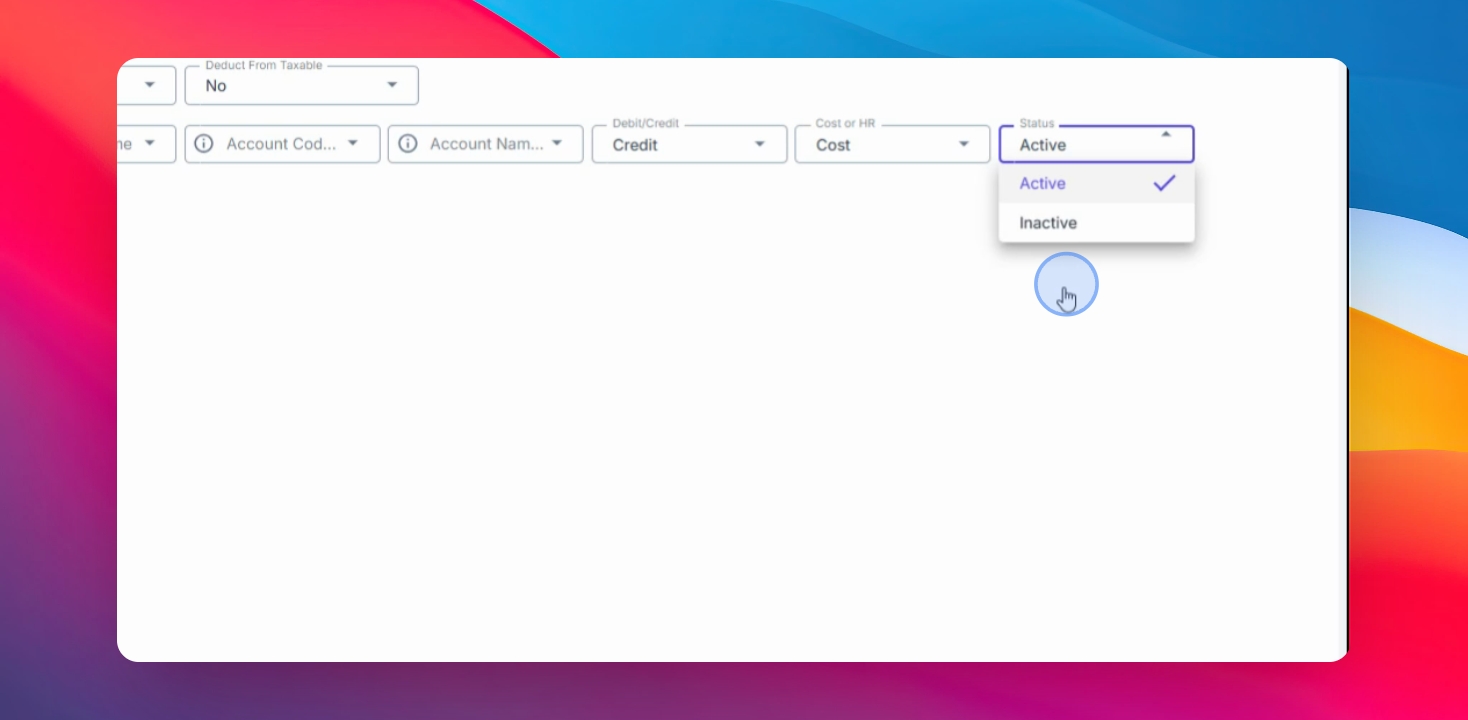
You can also set up the account name, secondary hot number, debit or credit status, cost, and overall status from the admin panel.
If needed, you have the option to tag this earning code as inactive later.
Step 9: Save Changes
Click Save Changes to complete the setup.
You have now successfully created an Earning Code in AnyaHR. Proper configuration ensures accurate payroll computation, reporting, and integration with accounting records.