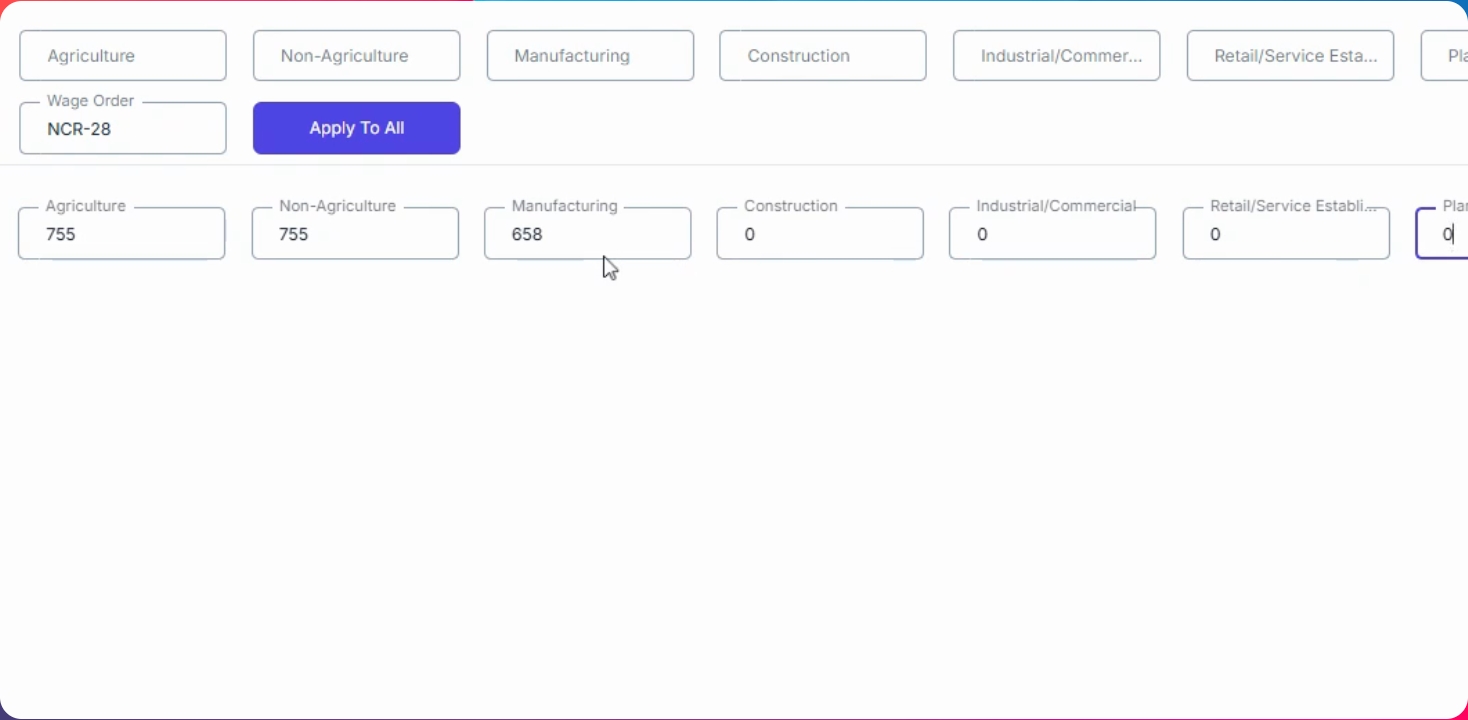
Step 1: Open Your Local Region
Navigate to the Pay Tool menu, hover over MWE, and click on your local region.
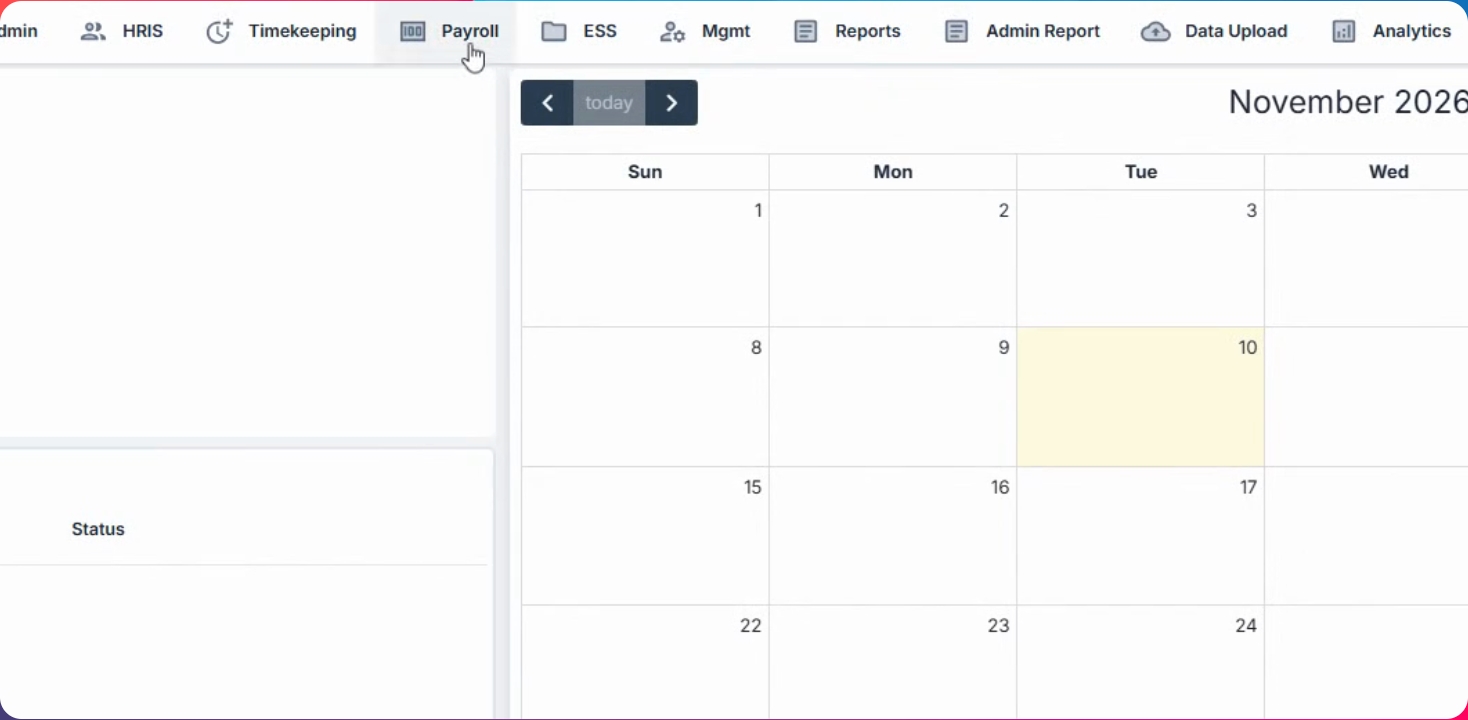
Step 2: Enter MWE Updates
For your selected region (e.g., ncr), enter the latest update for the MWE. You can input values per wage sector. If a sector is not applicable, leave it blank.
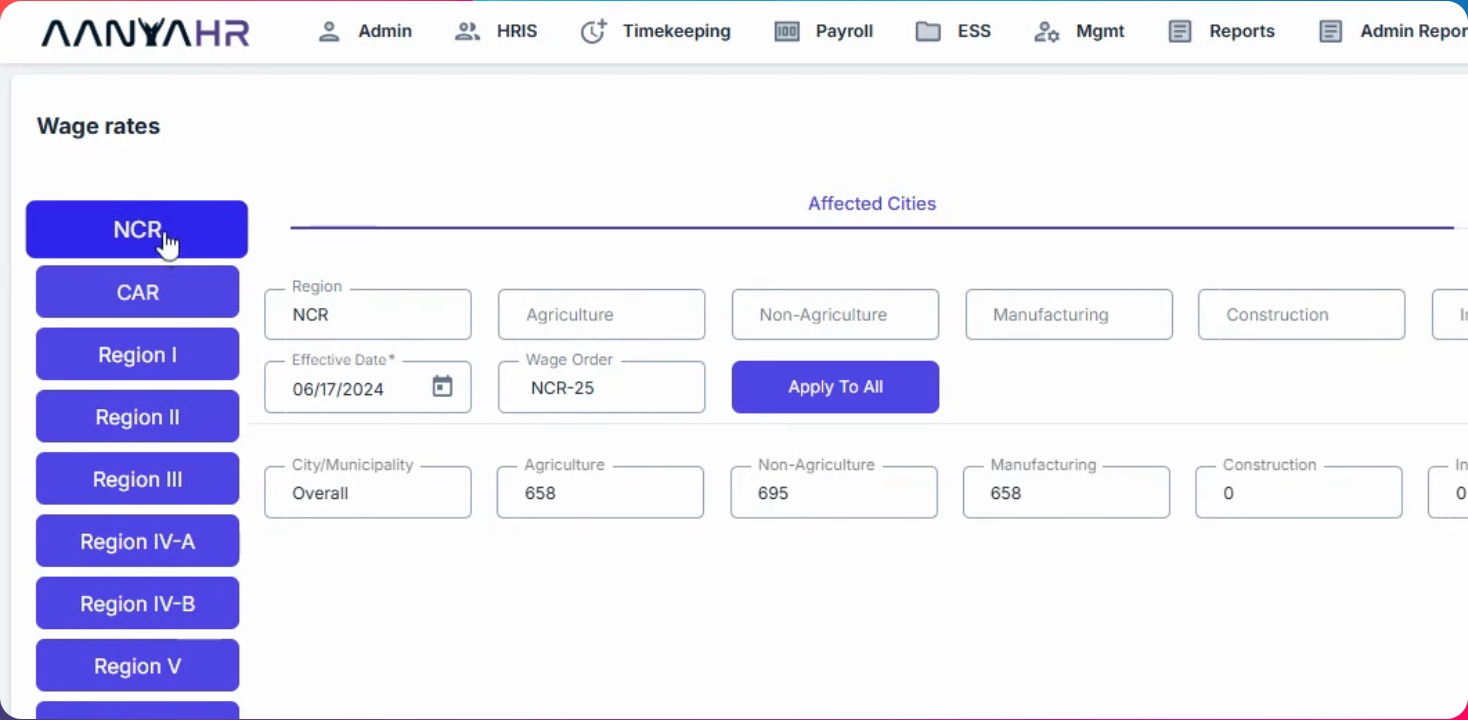
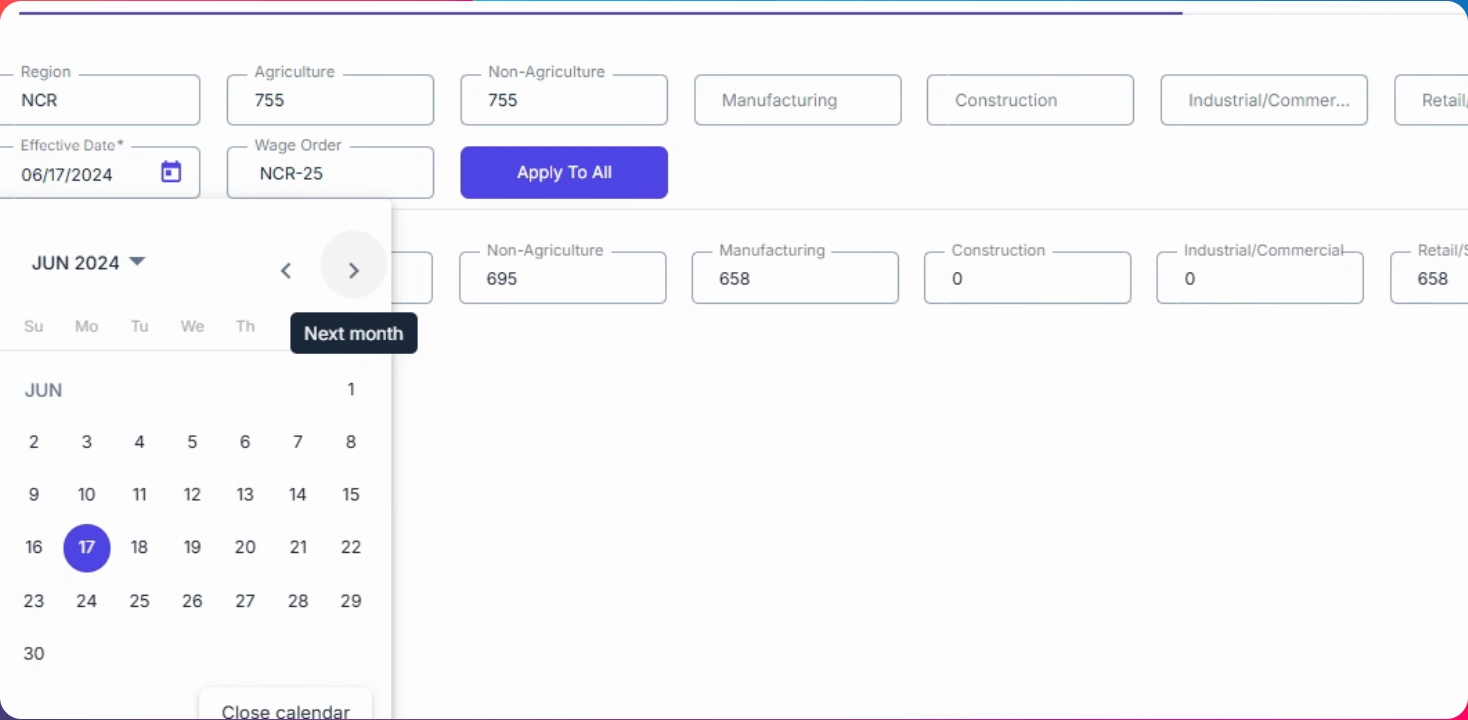
Step 3: Set Effective Date
Enter the effective date. If the date falls in the middle of a cutoff period, payroll processing will automatically split it.
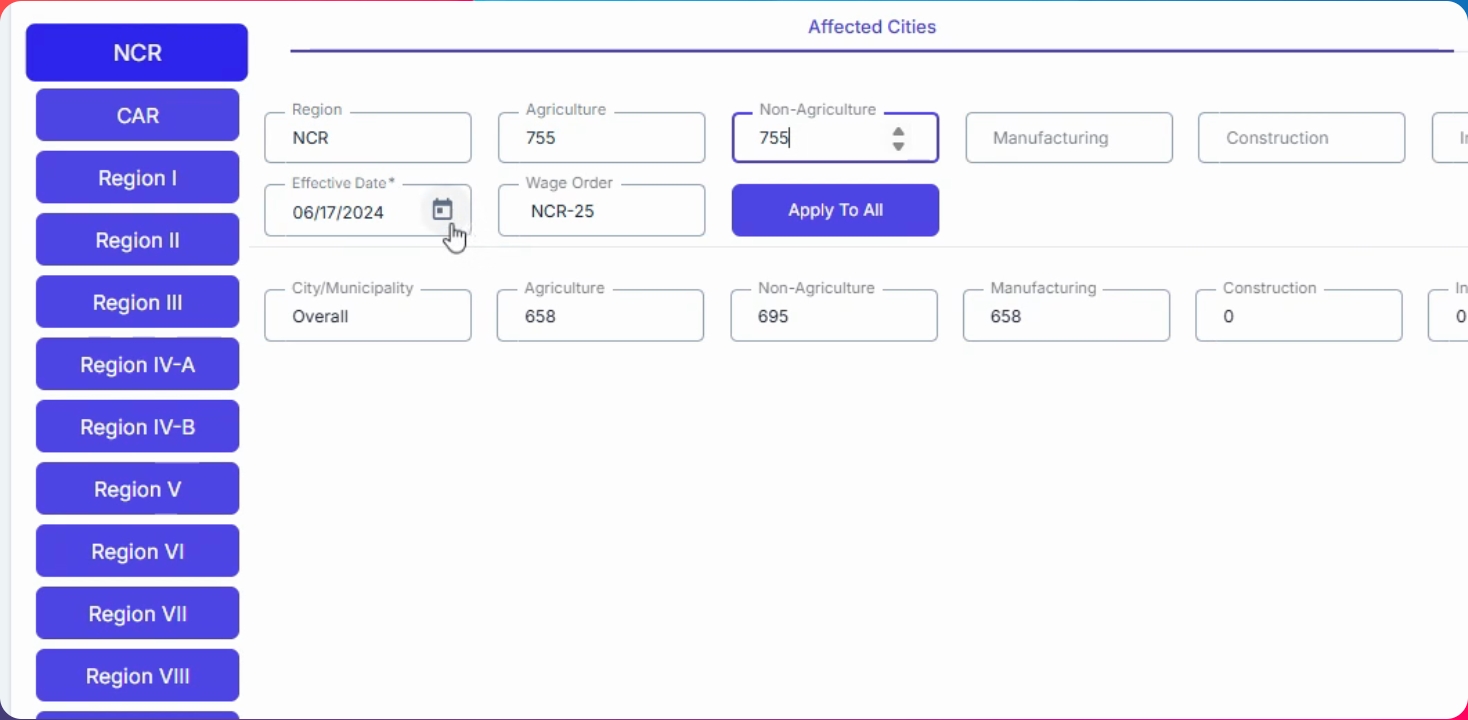
Step 4: Select Future Date (Optional)
You may select a future date if you want to update the MWE earlier. The update will only take effect once the effective date arrives.
Step 5: Enter Wage Order and Apply
Enter the wage order for reference and click Apply to all.
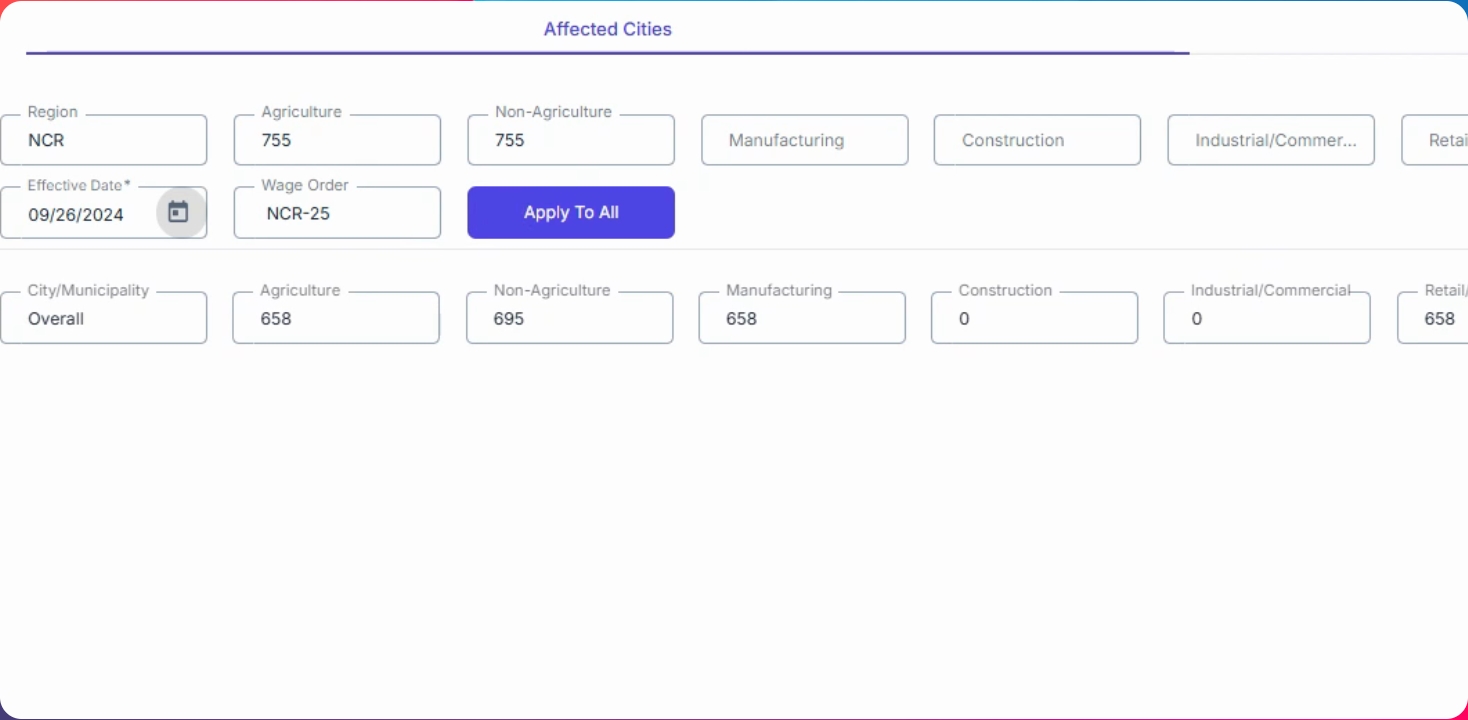
Step 6: Modify Details if Needed
You can still modify the details on this page before saving.
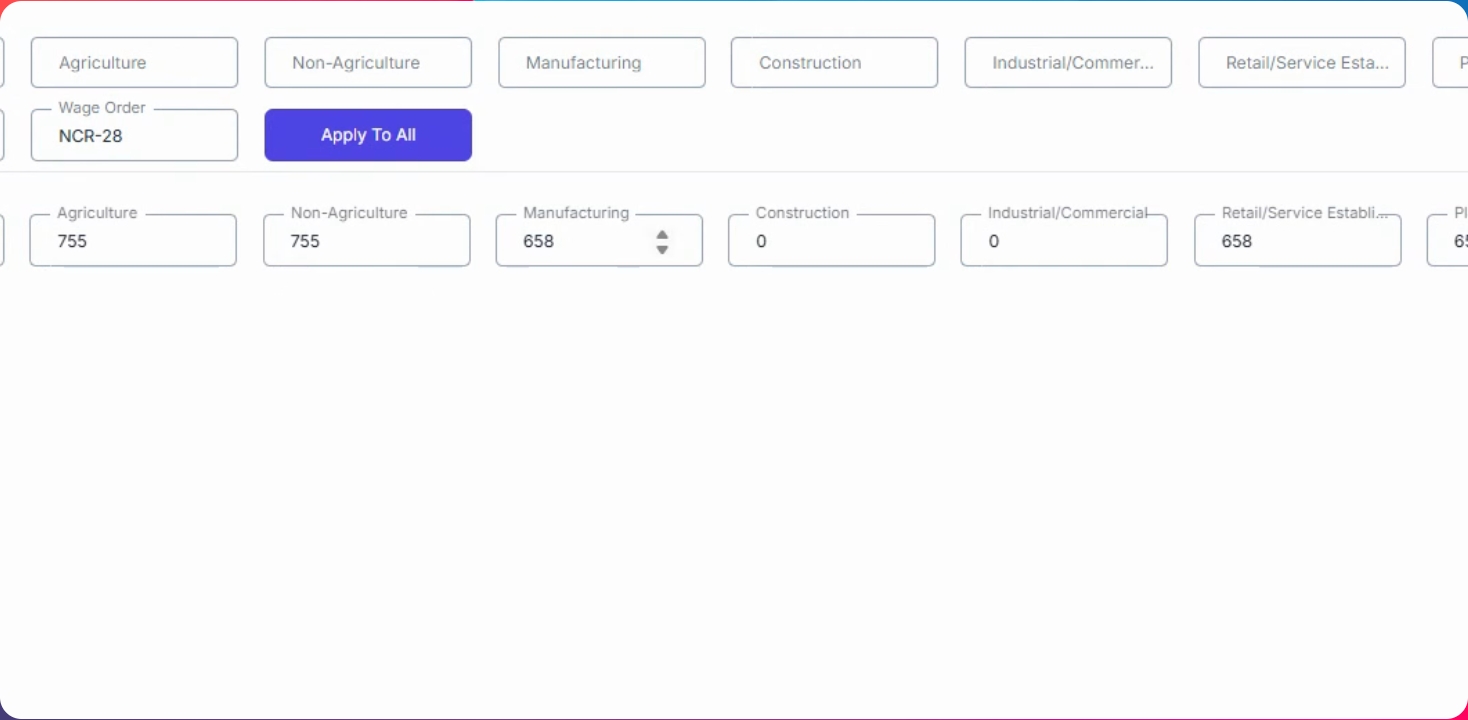
Step 7: Save Changes
If not applicable, leave fields blank and click Save Changes.