

Welcome to this video where we will guide you on how to set up overtime and restday calculation. Let's look at the steps:
Step 1: Navigate to Timekeeping
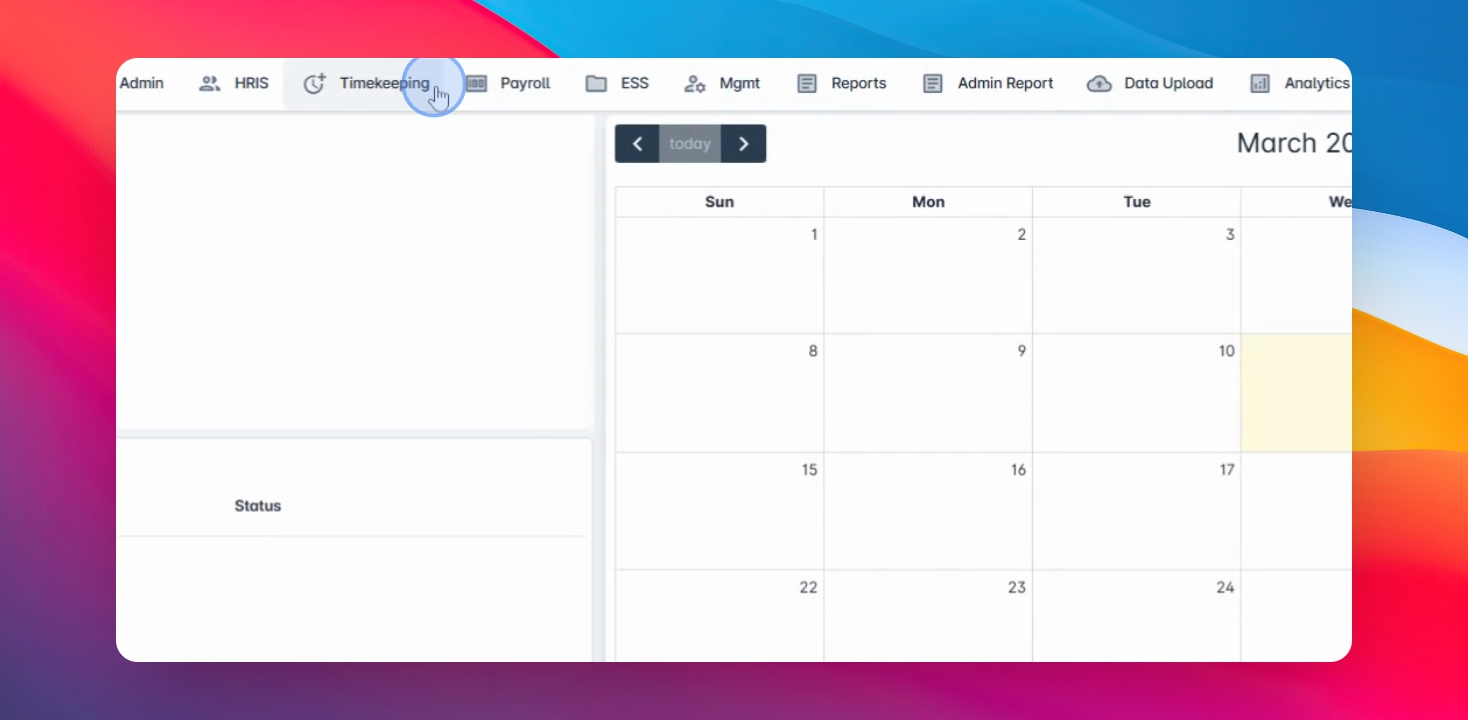
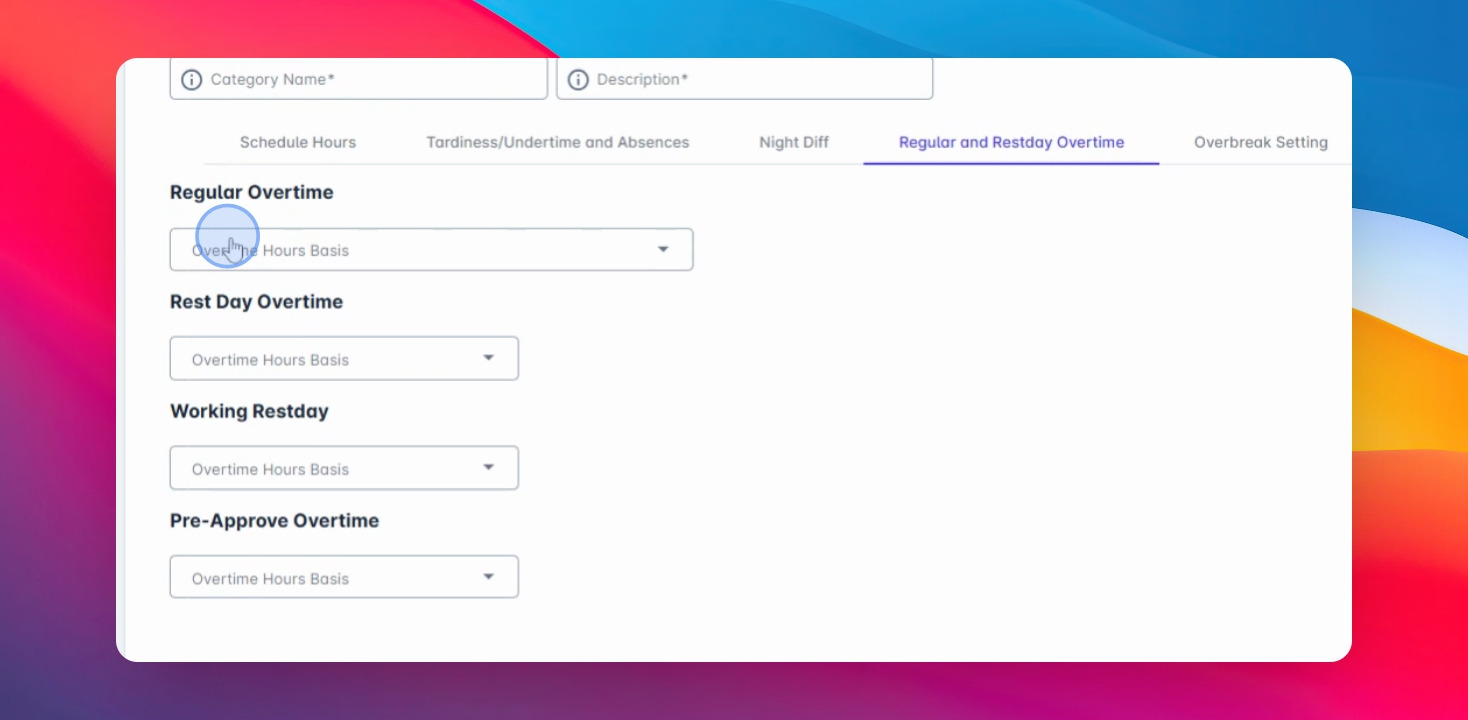
First, navigate to the timekeeping menu, select the TK category. You can edit, modify, or create a new TK category and navigate to Rest Day in the overtime tab.
Step 2: Understand Overtime Bases
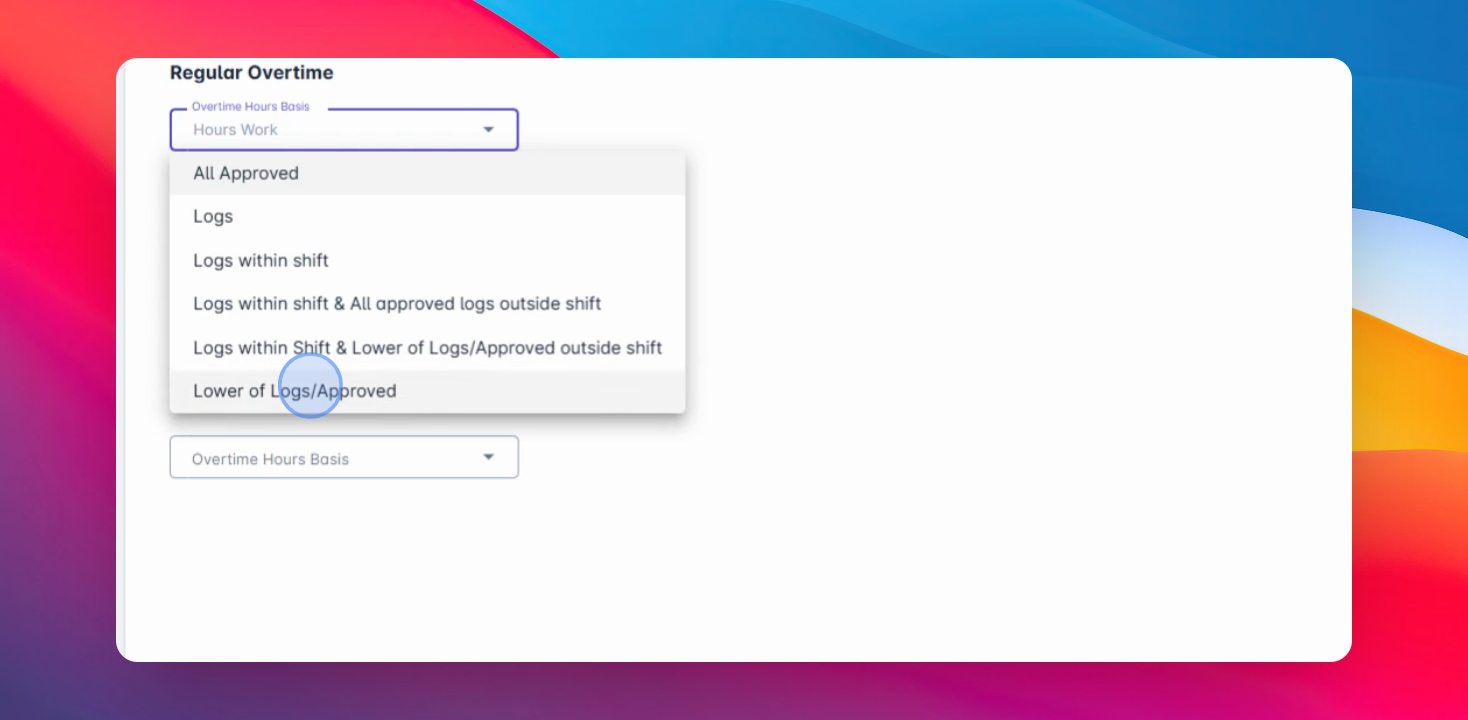
For regular overtime, we have four overtime bases:
All approved logs
Logs within shift
Logs within shift and all approved outside shift
Lower of logs approved outside shift
Step 3: Calculate Approved Overtime
For all approved overtimes, calculations are based solely on the approved overtime filing regardless of the actual logs.
Step 4: Handle Logs Overlap
For overlapping logs, the calculation is entirely based on actual time. Logs approved filings are not considered in the computation.
Step 5: Calculate Shift Logs
For logs within shift, only logs that fall within the employee schedule shift are considered for overtime calculation. Any logs outside the schedule are excluded.
Step 6: Calculate Overtime Within Shift
Overtime within the scheduled shift is calculated based on actual logs. Overtime outside scheduled hours will be calculated based on the approved overtime filings only for logs within shift and number of logs approved outside shift.
Step 7: Calculate Lower Value
For any overtime outside the schedule, the system will compute using the lower value between the actual logs and the approved filing.
Step 8: Rest Day Overtime Settings
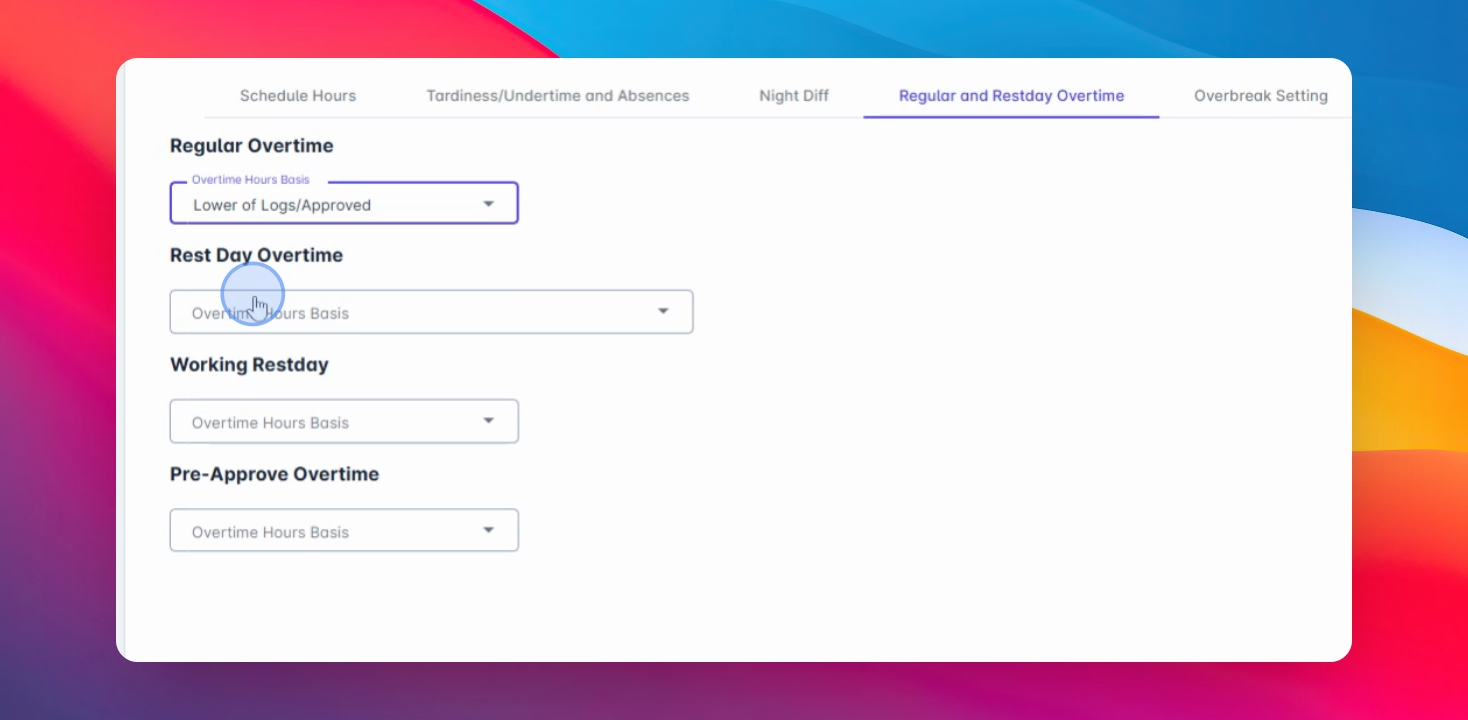
For rest day overtime, we have the same settings on working rest day and pre-approved overtime logs within pre-approved overtime duration. Only logs within the pre-approved overtime will be calculated.
Step 9: Exclude Excess Logs
Any excess logs outside the pre-approved overtime will not be included in the calculation.