

Welcome to this video where we can guide you on how to define and create shifts or schedules in Anyhr. Let's look at the steps:
Step 1: Navigate to Shift
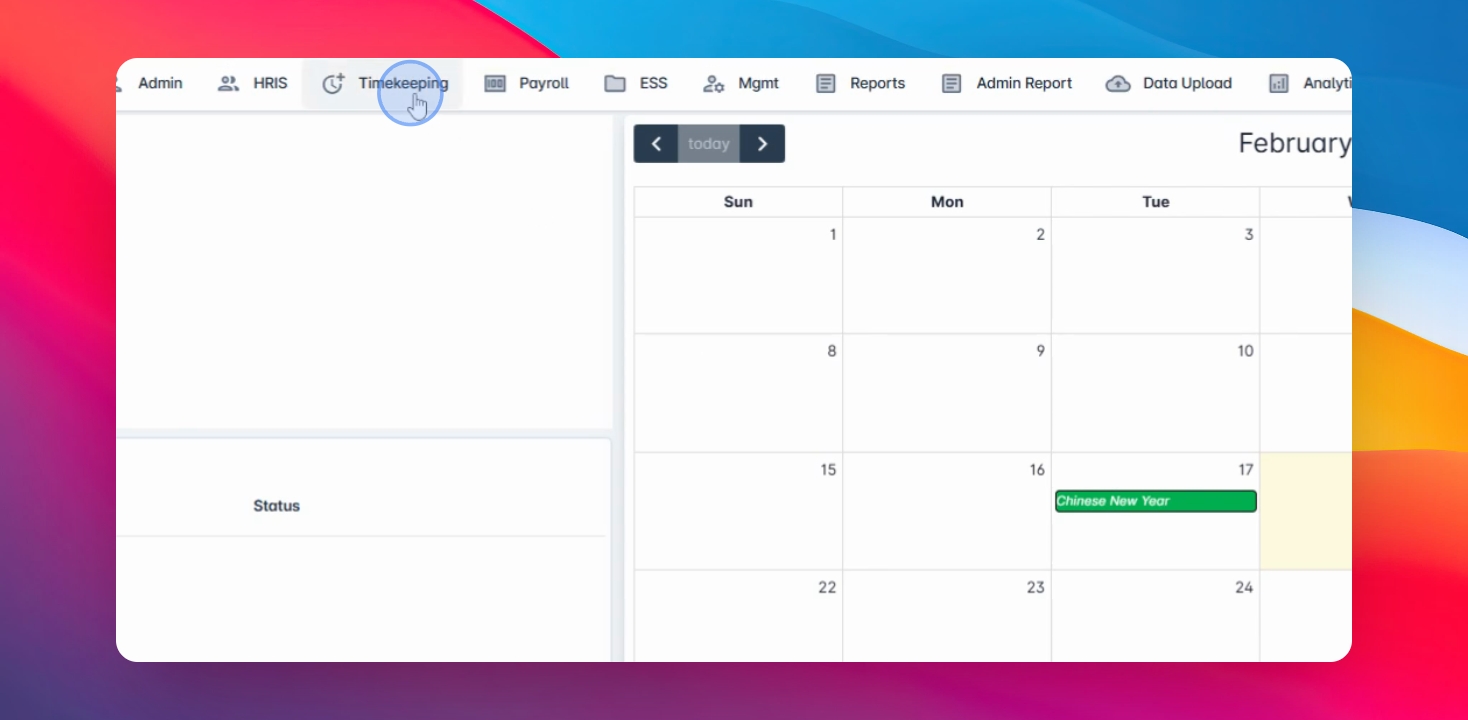
To begin, navigate to Timekeeping menu and go to Shift.
Step 2: Create New Shift
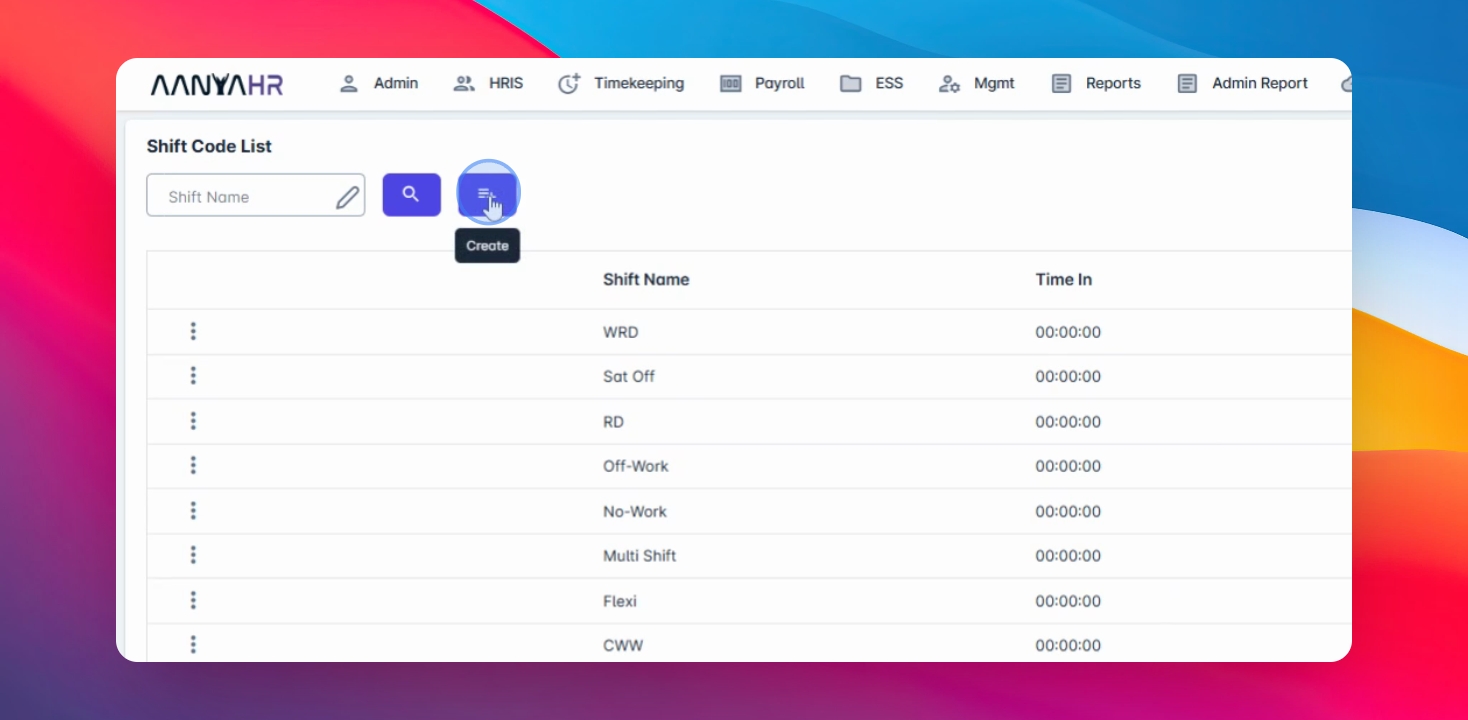
To create a new shift code, just click on Create button.
Step 3: Enter Time In
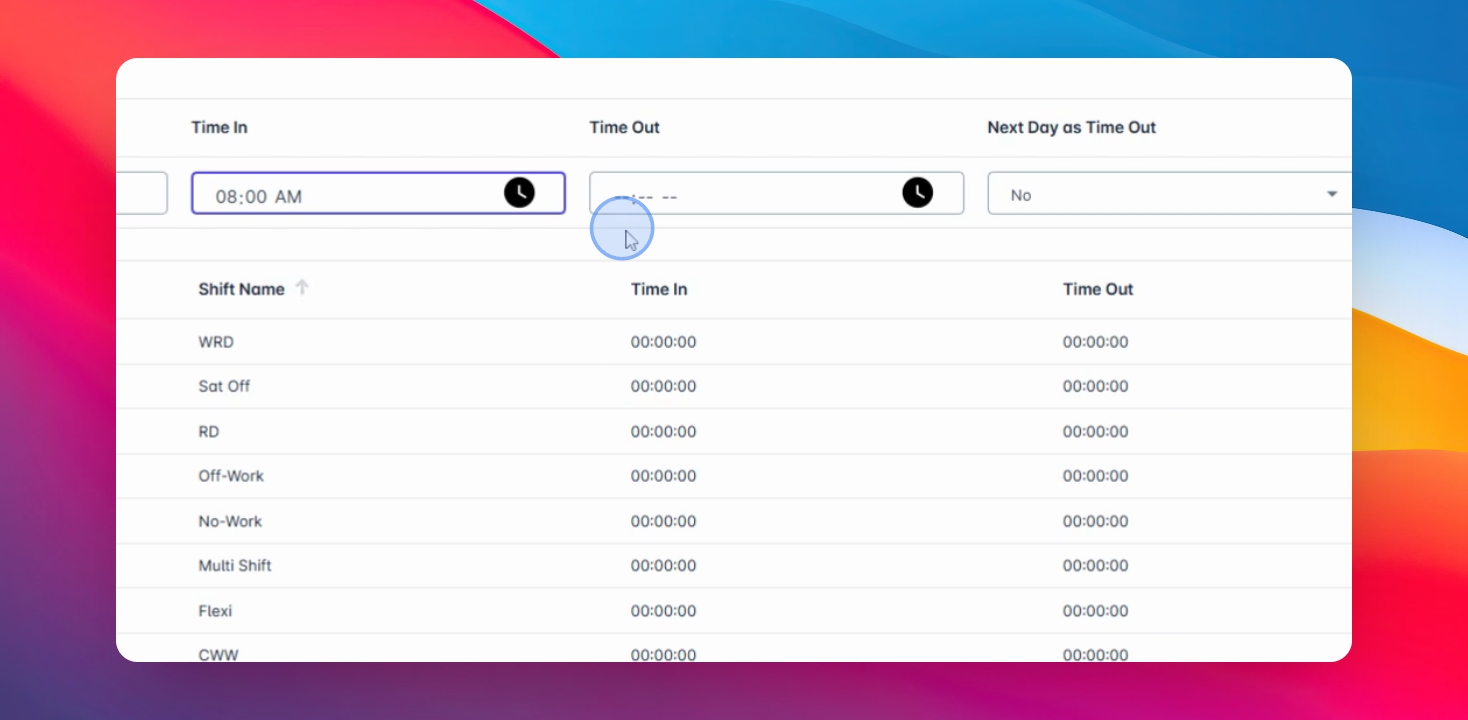
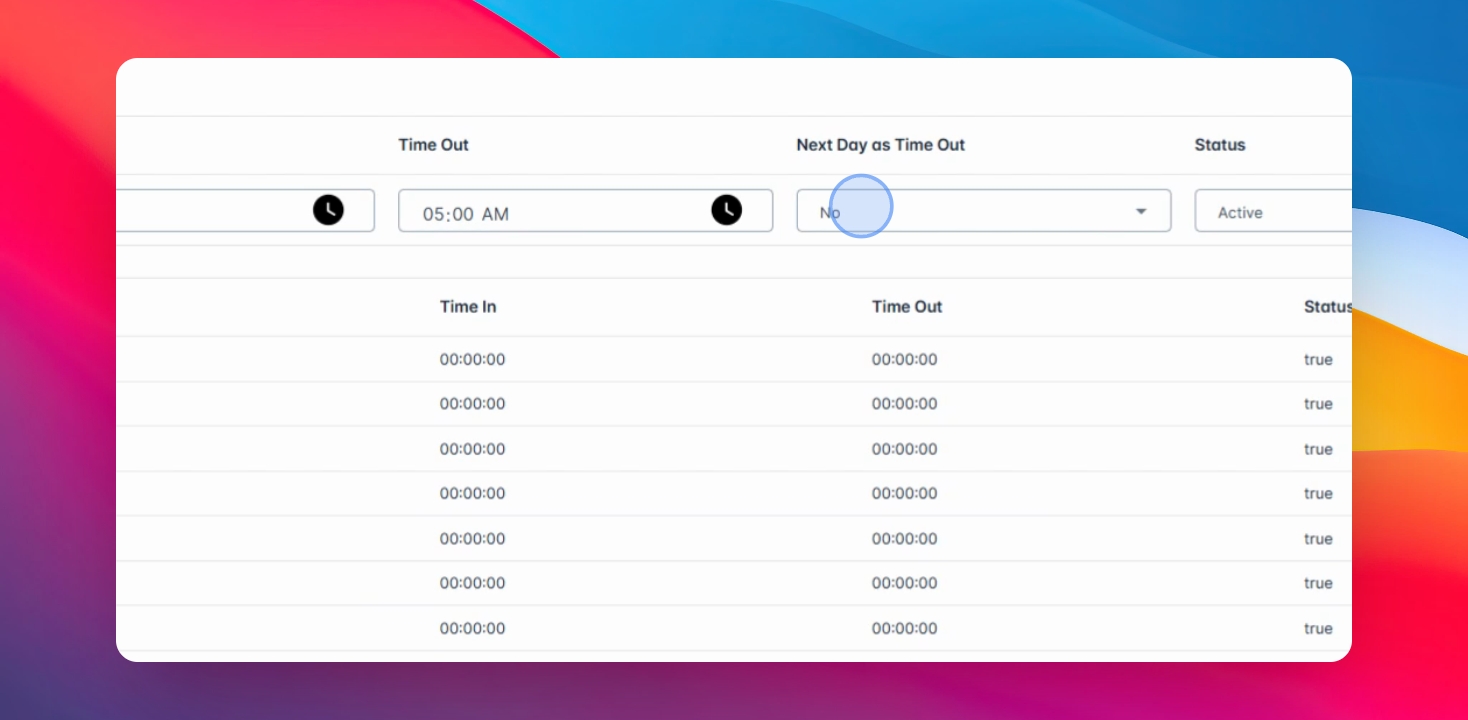
Enter the time in you wish to add.
Step 4: Enter Time Out
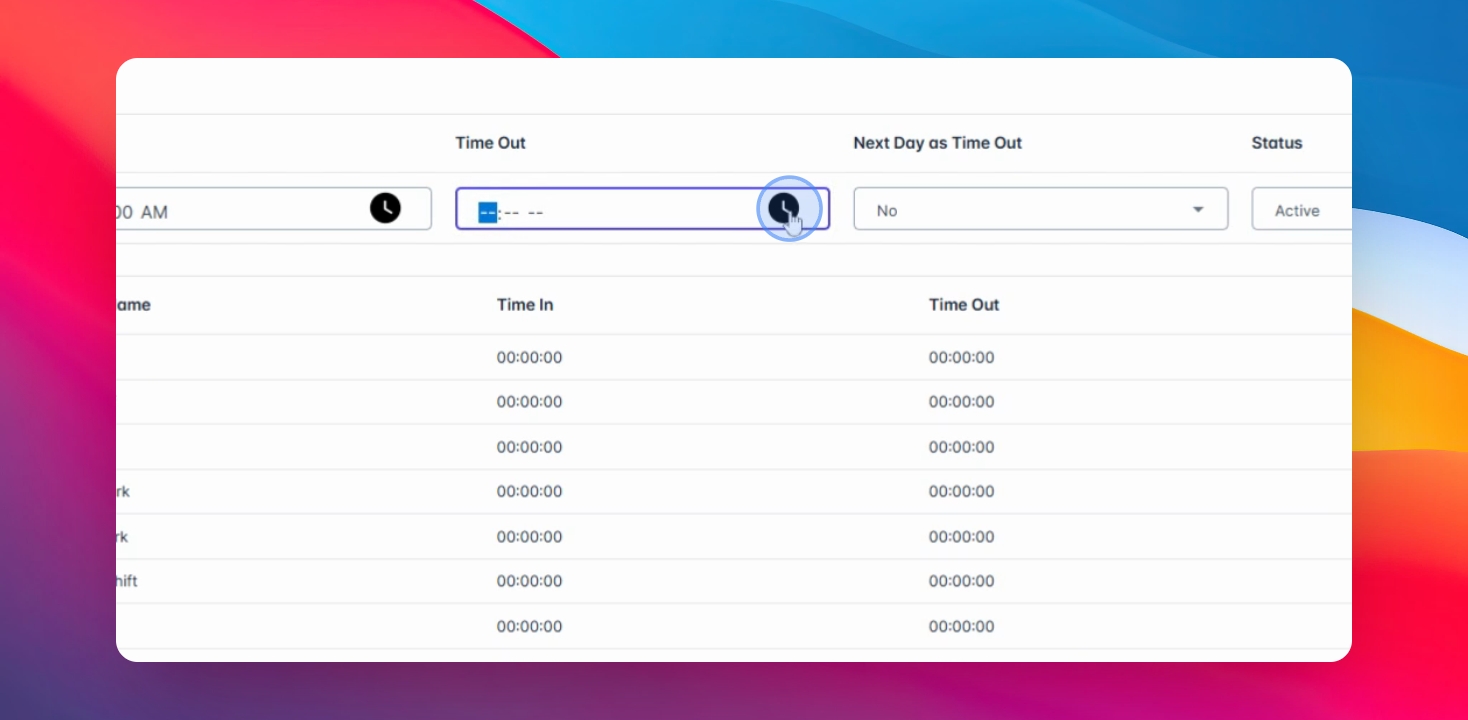
Same on the time out.
Step 5: Clock Out Next Day
If the clock out falls on the next day, you have the option to click Yes.
Step 6: Add Another Shift
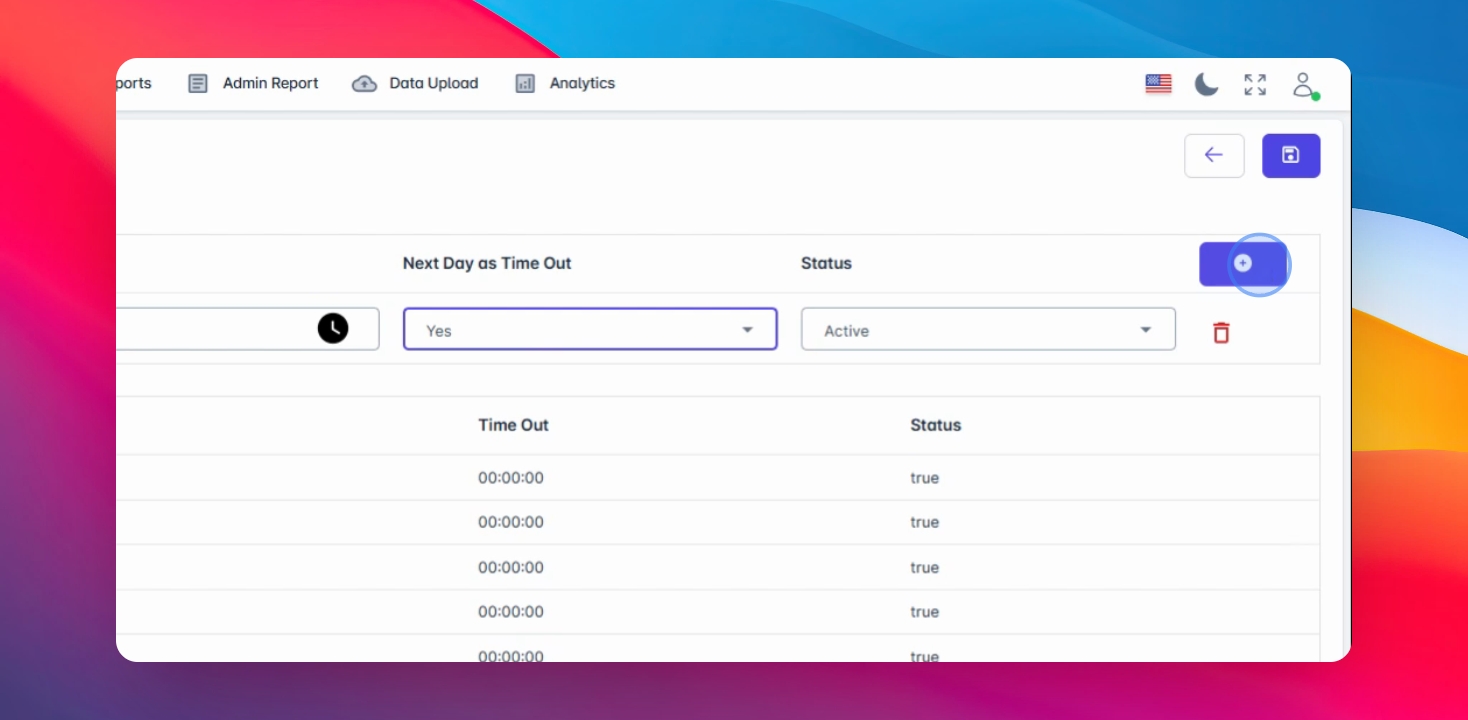
If you want to add another shift, you can do so by just clicking the Add or Plus button.
Step 7: Save Changes
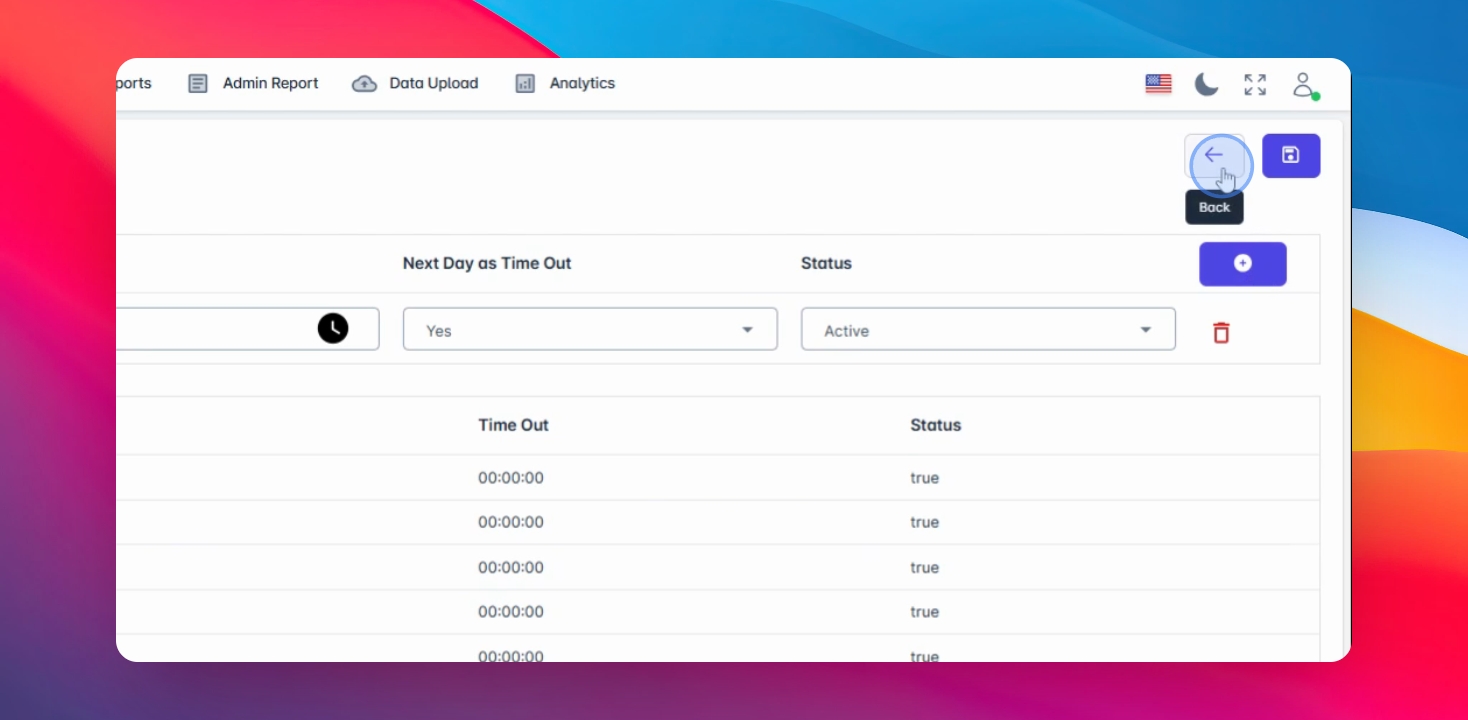
Click Save Changes to create.
Step 8: Edit Existing Shift
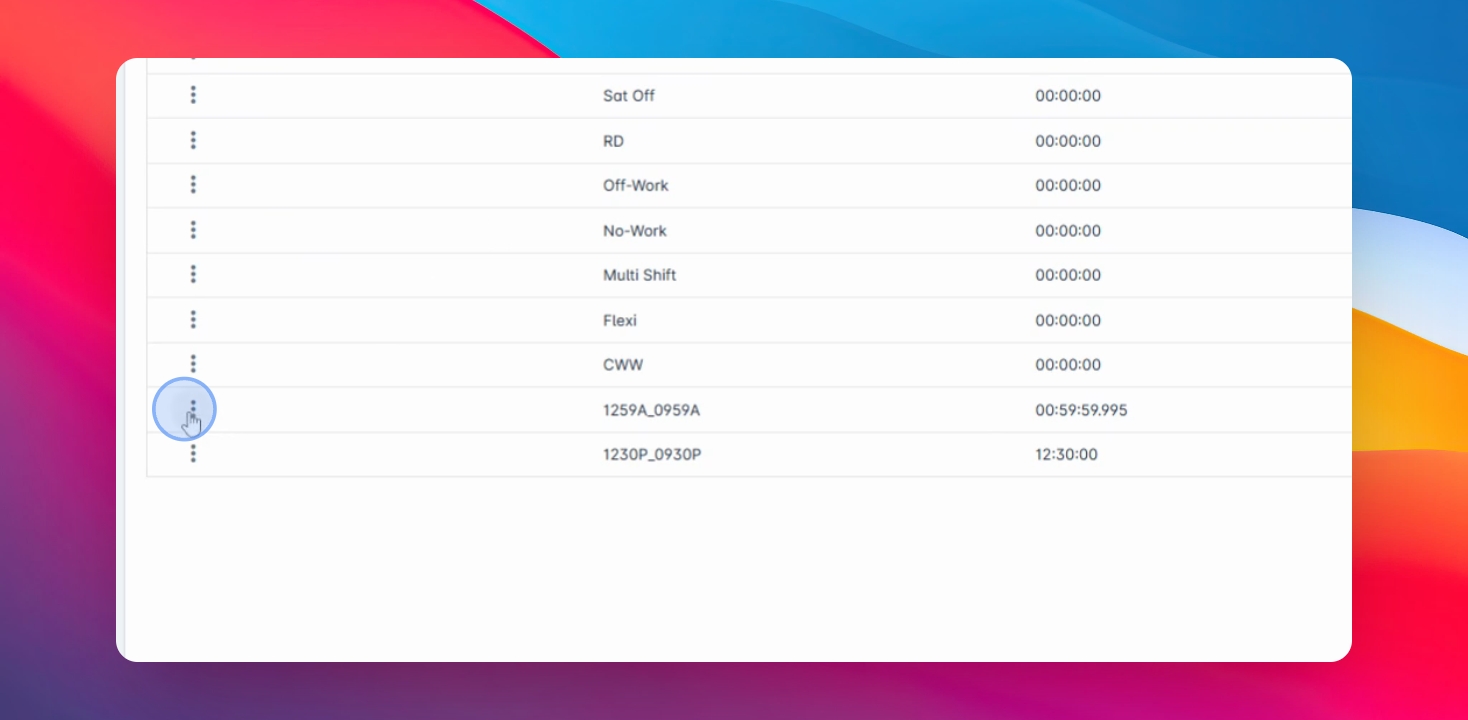
To edit an existing shift, just click on the three dots beside the shift name and edit the necessary changes.
Understanding Default Schedules
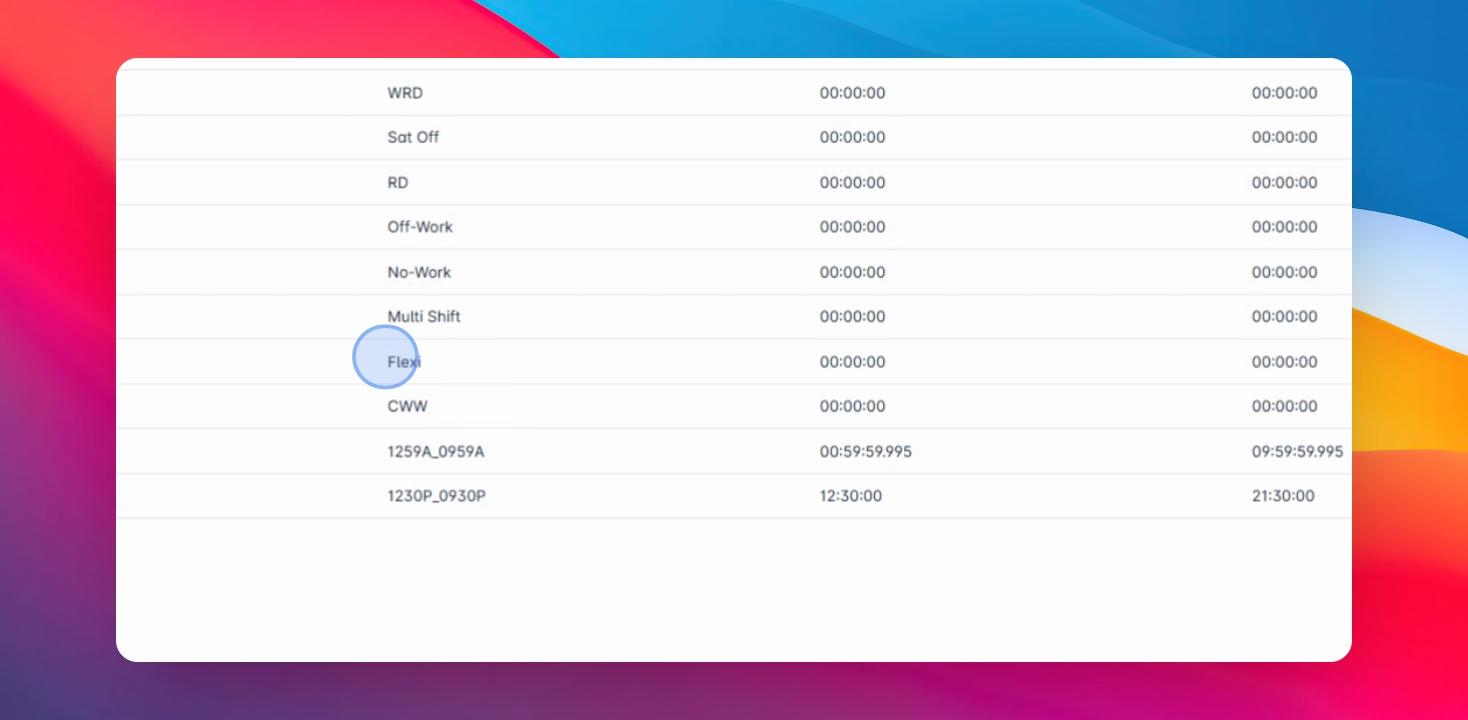
Now let's discuss the default schedules: WRD, RD, No Work, and Flexi.
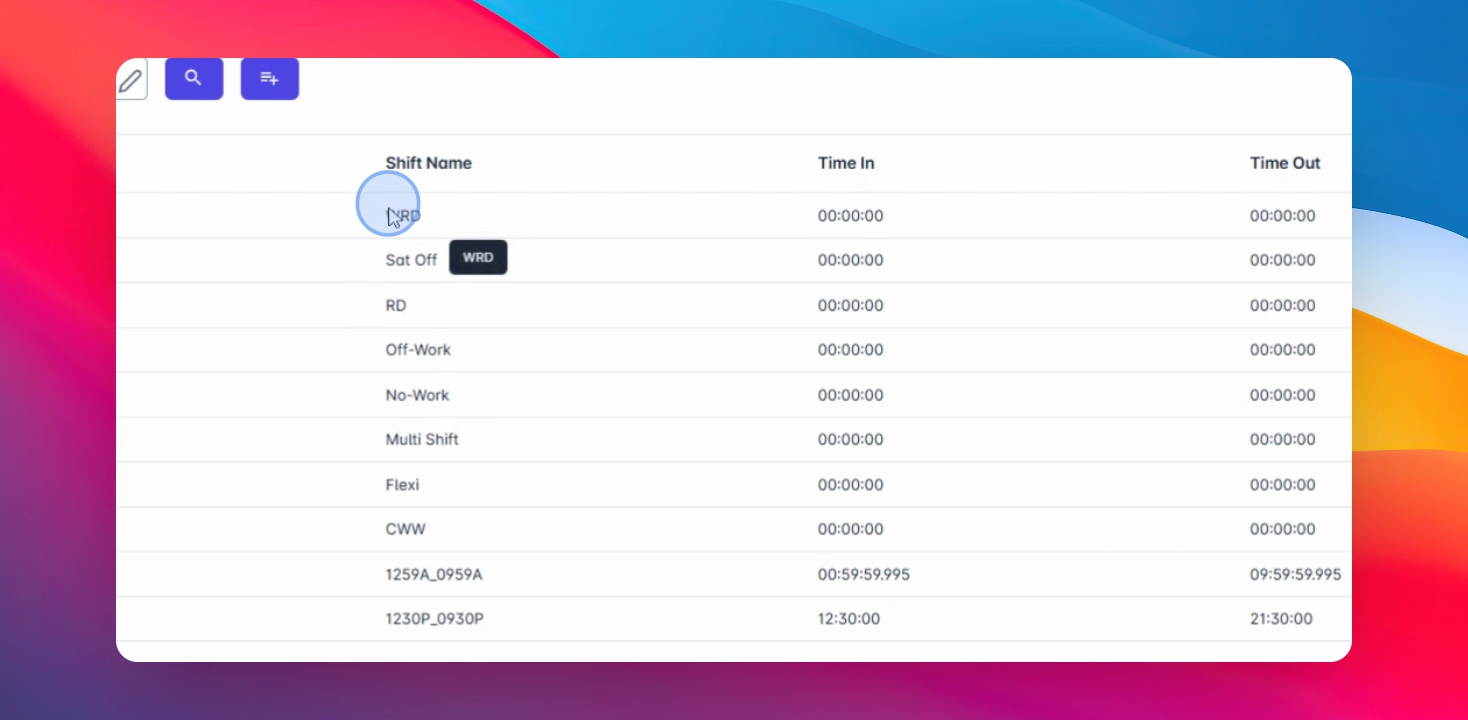
WRD Schedule
WRD is used if the employee works on a rest day.
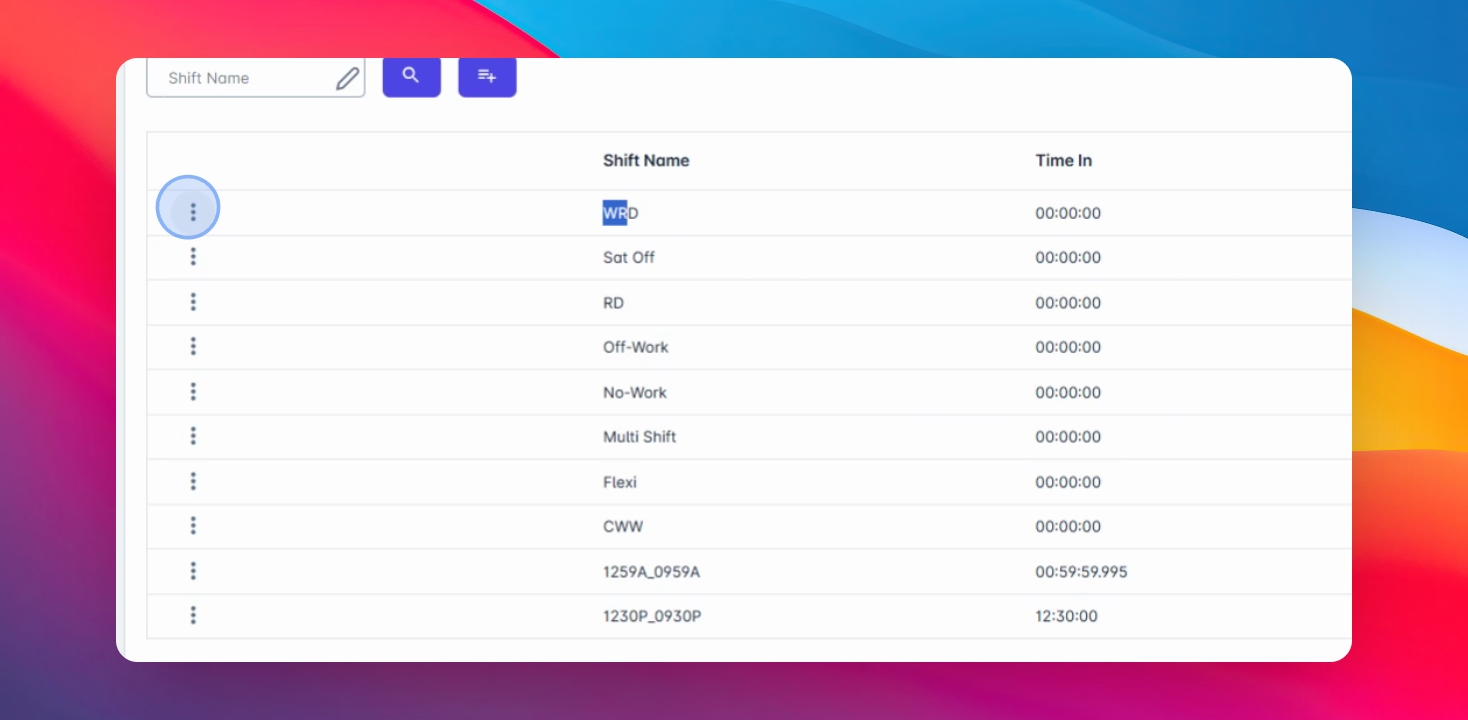
RD Schedule
RD is for employees who did not work on their rest day.
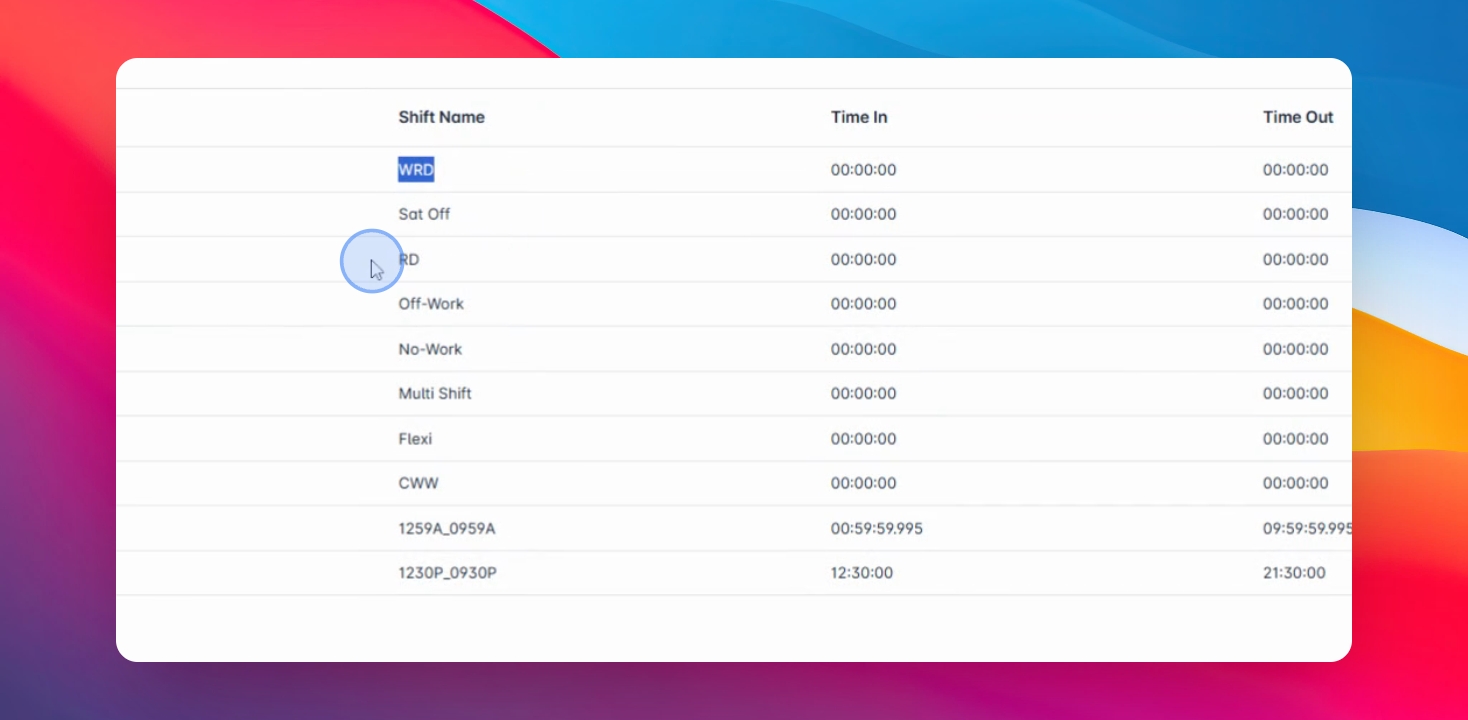
No Work Schedule
No Work is when the employee reported to work but it will not be calculated as part of their basic salary.
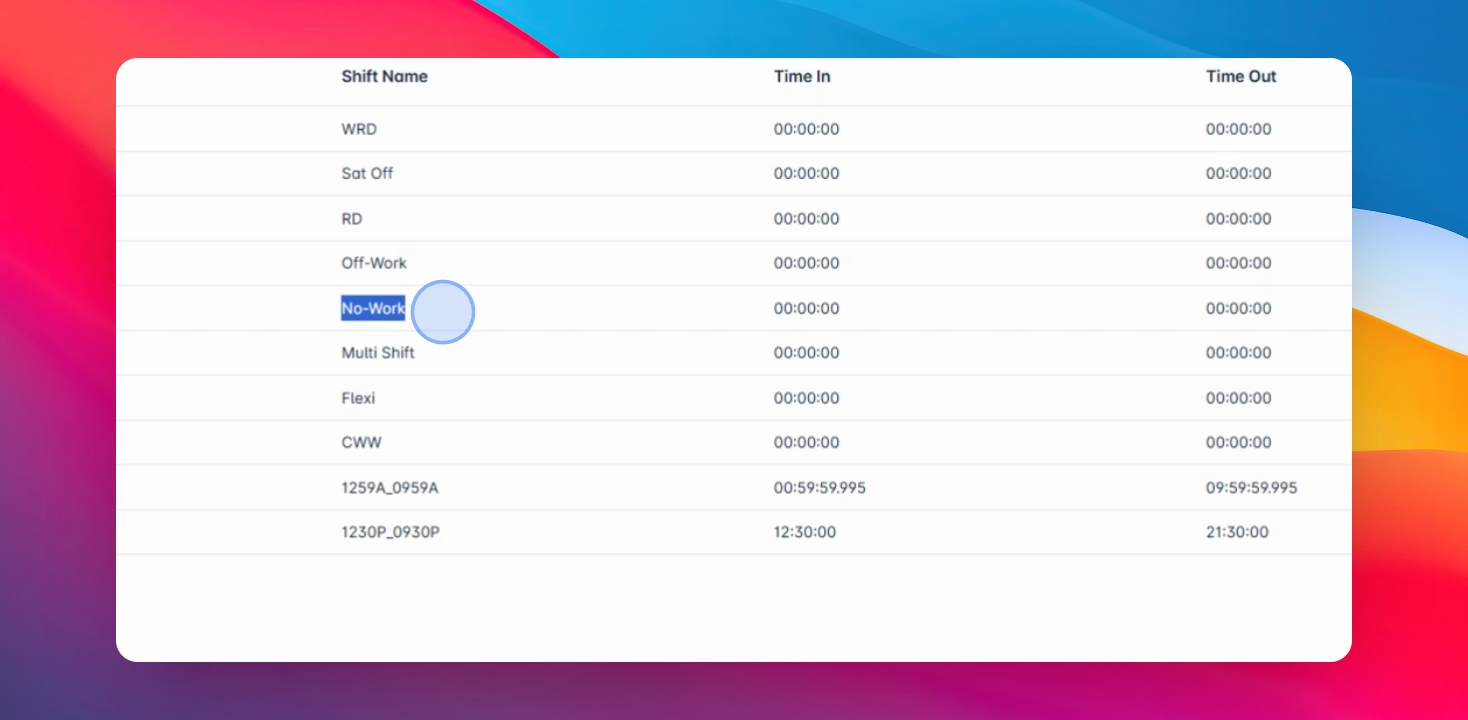
Flexi Schedule
Flexi is for employees without a fixed schedule, allowing them to clock in and out flexibly.
Schedule Pattern
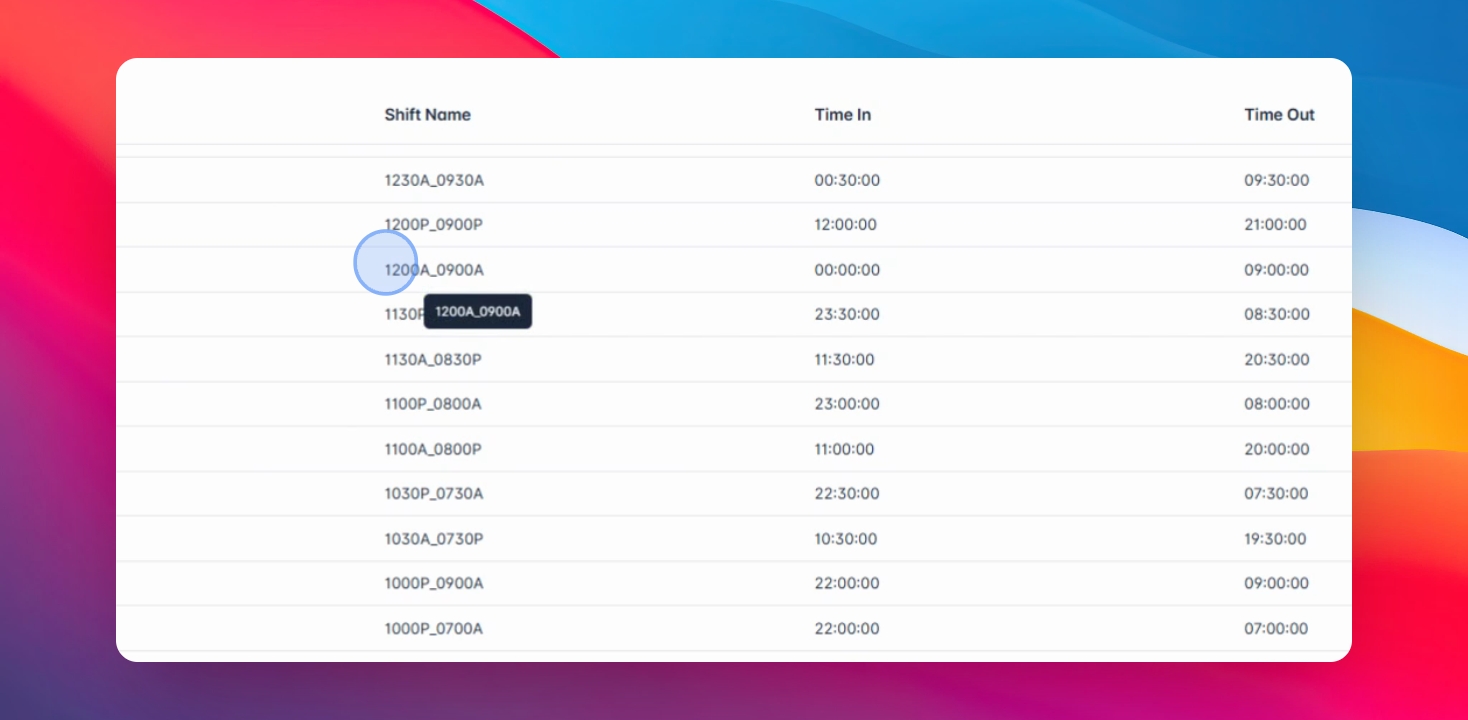
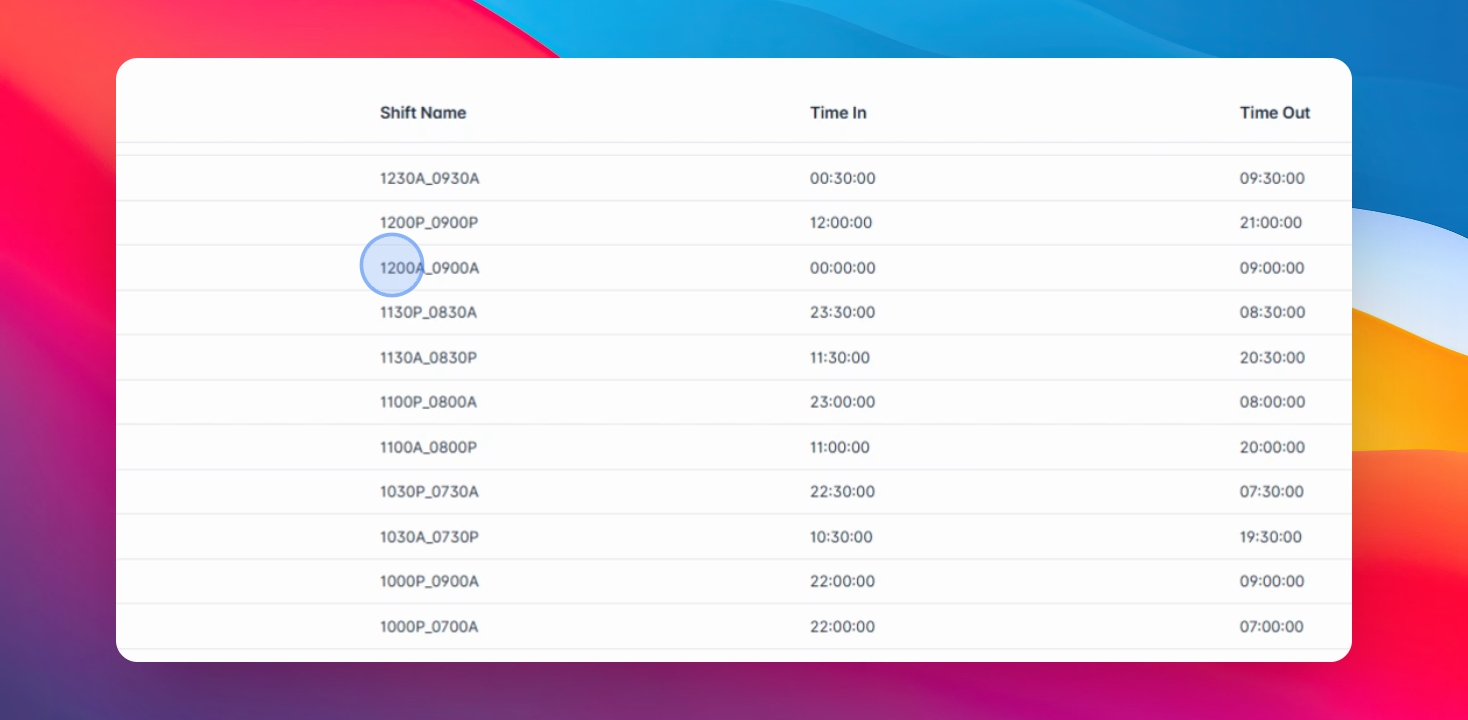
The pattern consists of four digits, one letter underscore, four digits, and another letter. The first two digits define the hour followed by the minute.
AM and PM Designation
A stands for AM and P stands for PM, for example, 12 AM to 9 AM and 11:30 PM to 8:30 AM.
I hope you understand how to create and define shifts in Anyhr.