

In this video, I will guide you on how to generate timekeeping on anyhr. Let's look at the steps:
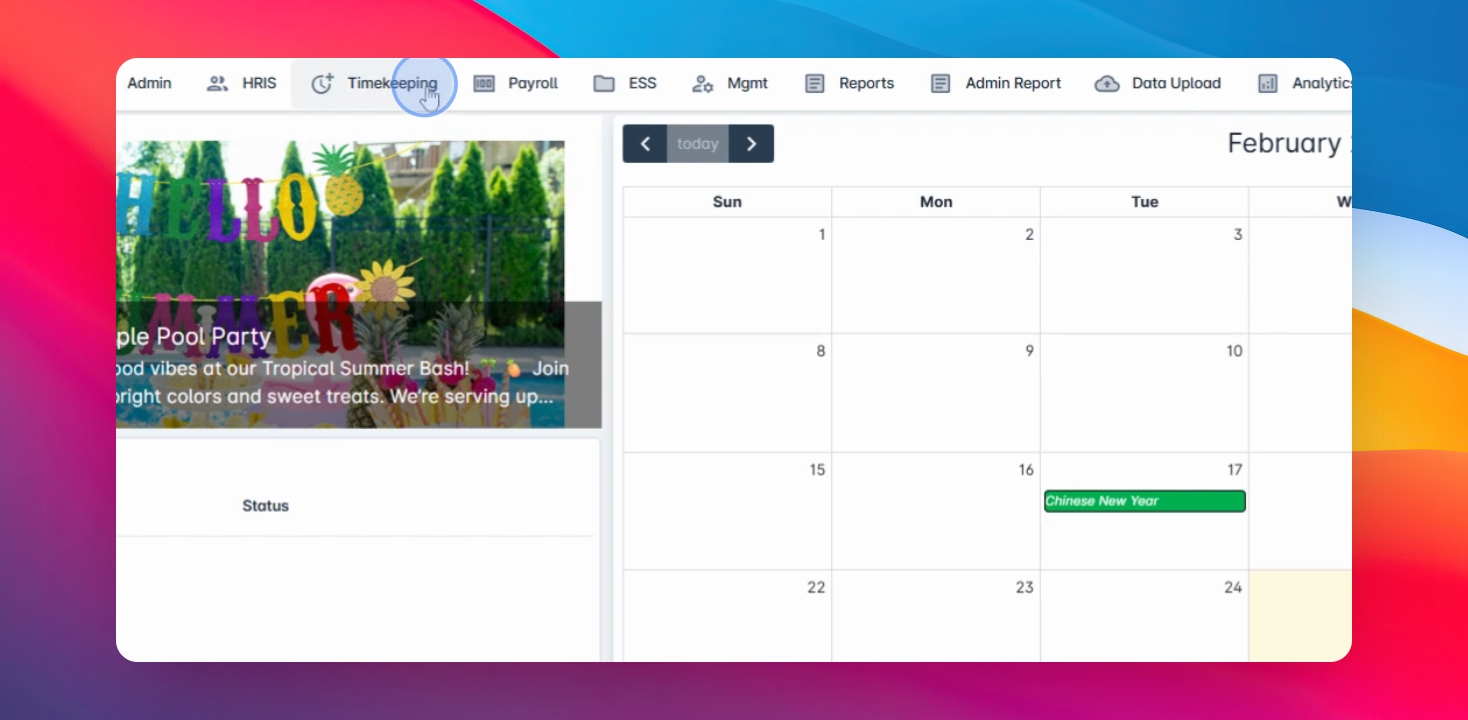
Step 1: Navigate to Timekeeping Menu
Select Generate tk from the menu.
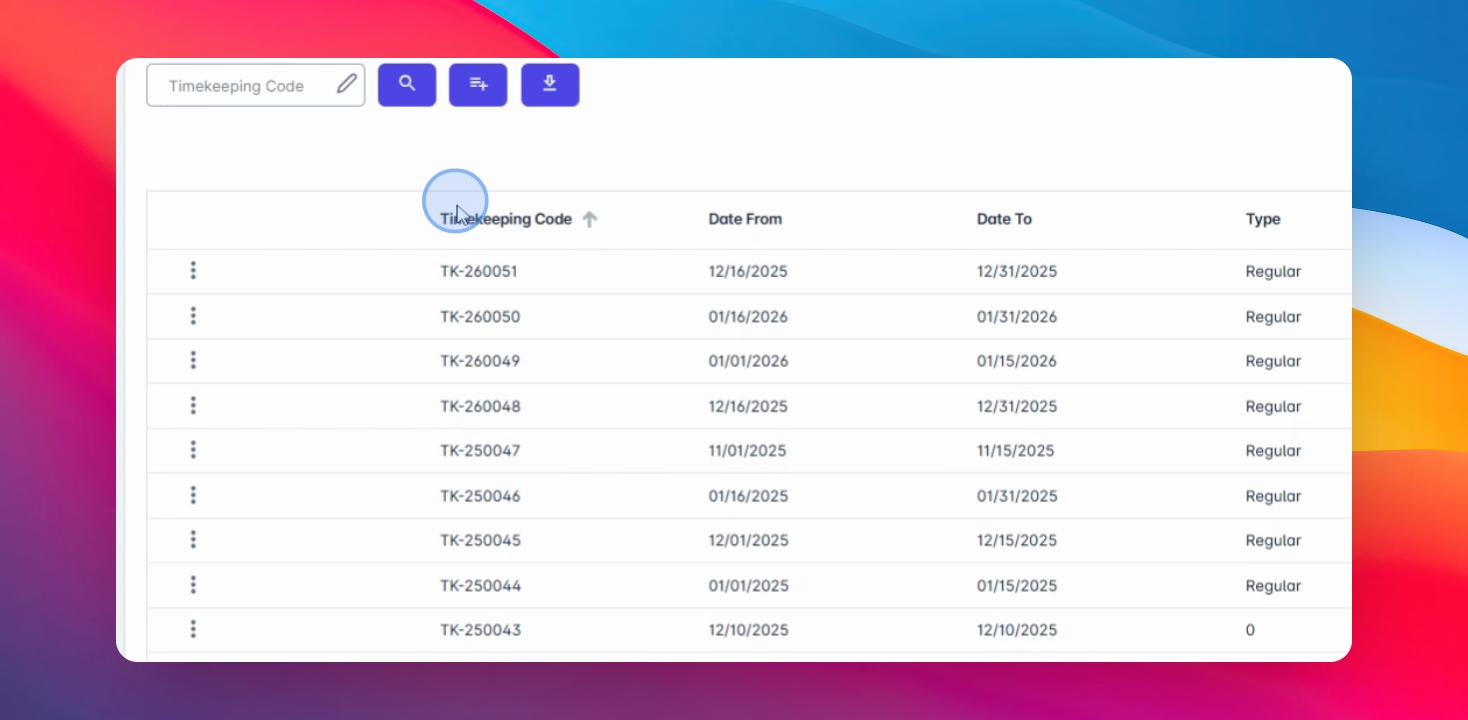
You will see the existing generated timekeeping on this list, which includes the timekeeping code, date range, and creation details.
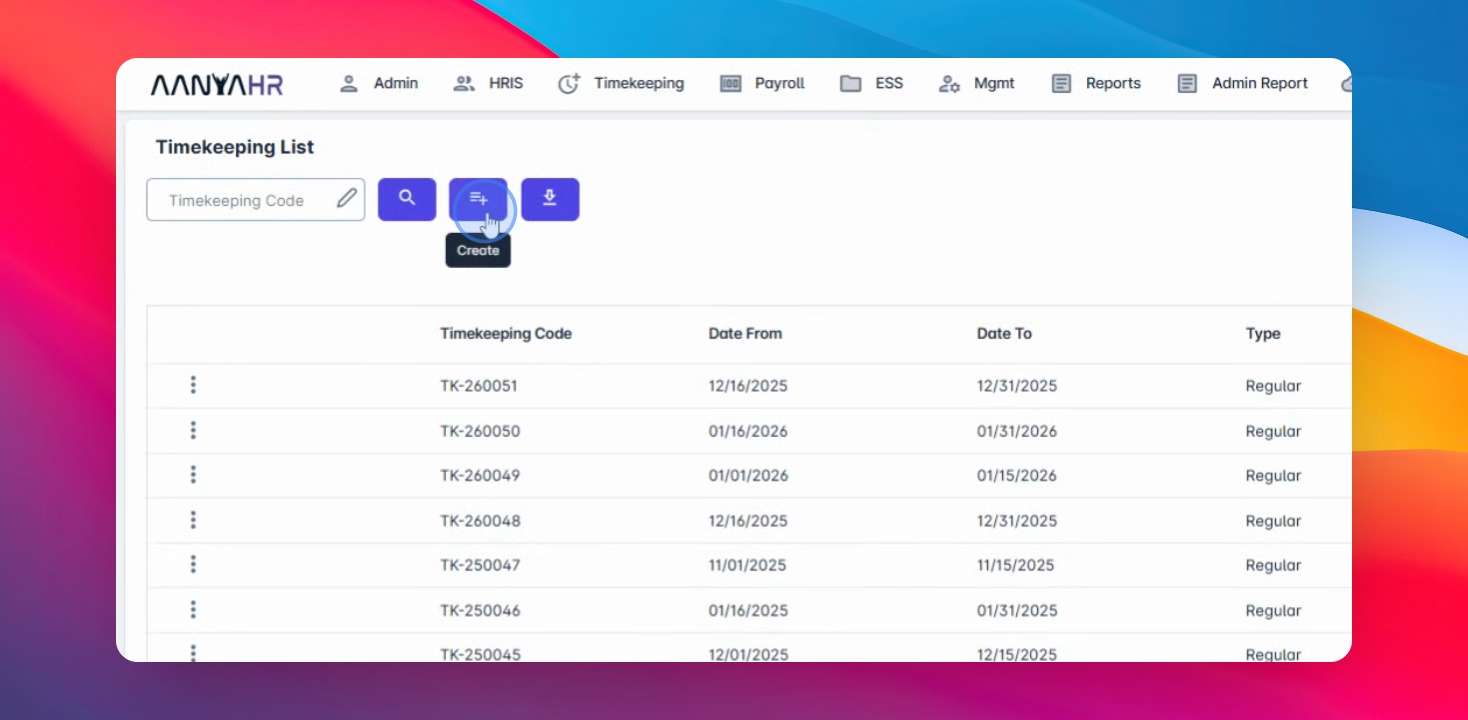
Step 2: Create New Timekeeping
Click on Create, select Regular for the generation type, choose your cutoff period, and the year month cutoff.
You can generate timekeeping for multiple companies or one by one.
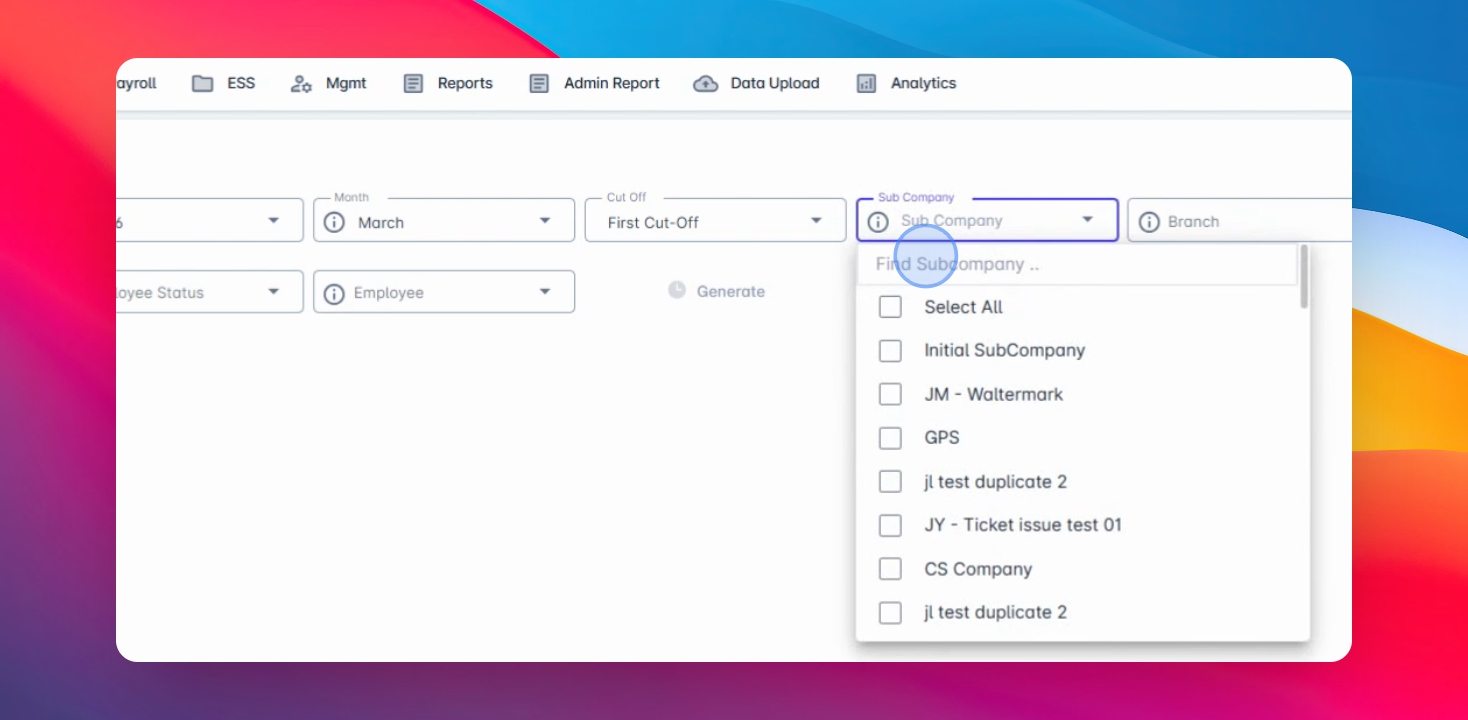
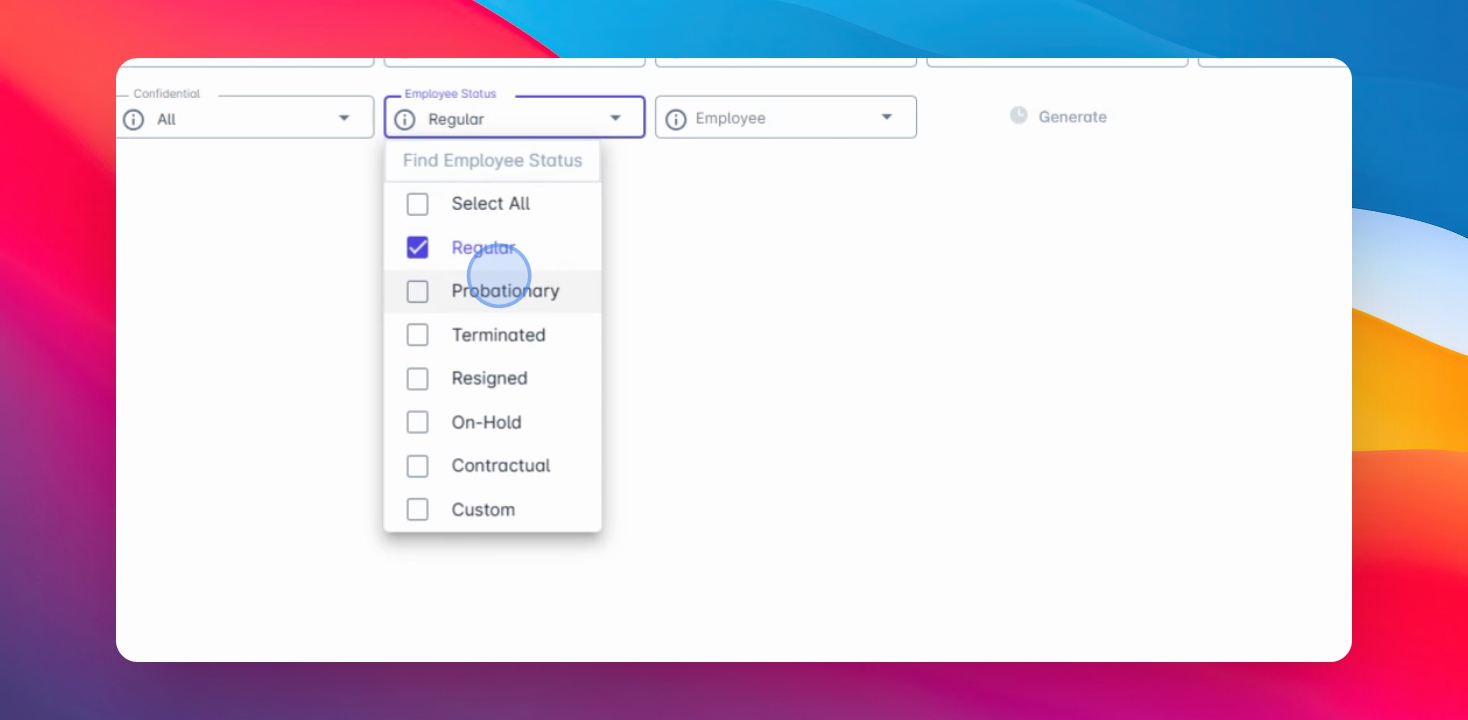
Select your branch category, department, confidentiality, and employee status as needed.
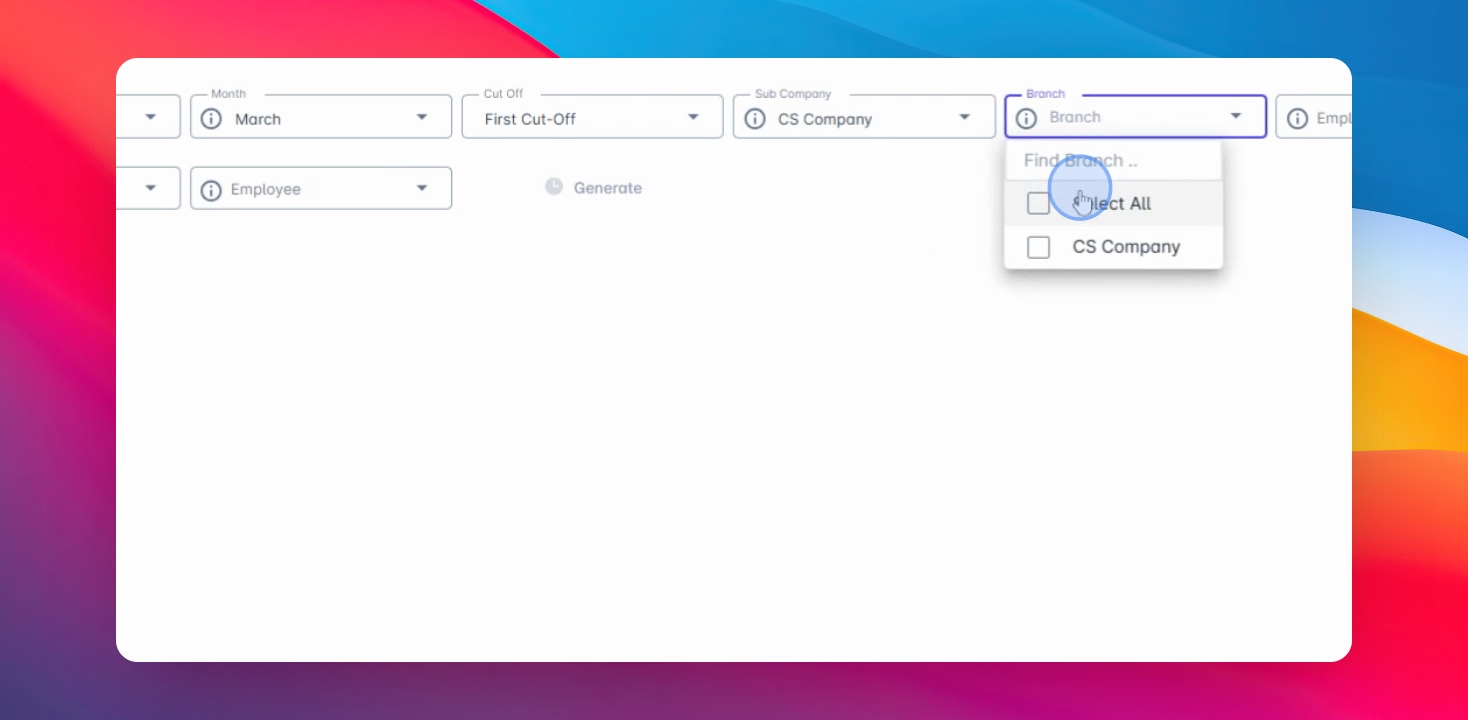
Create separate timekeeping for regular, resign, and contractual employees if desired.
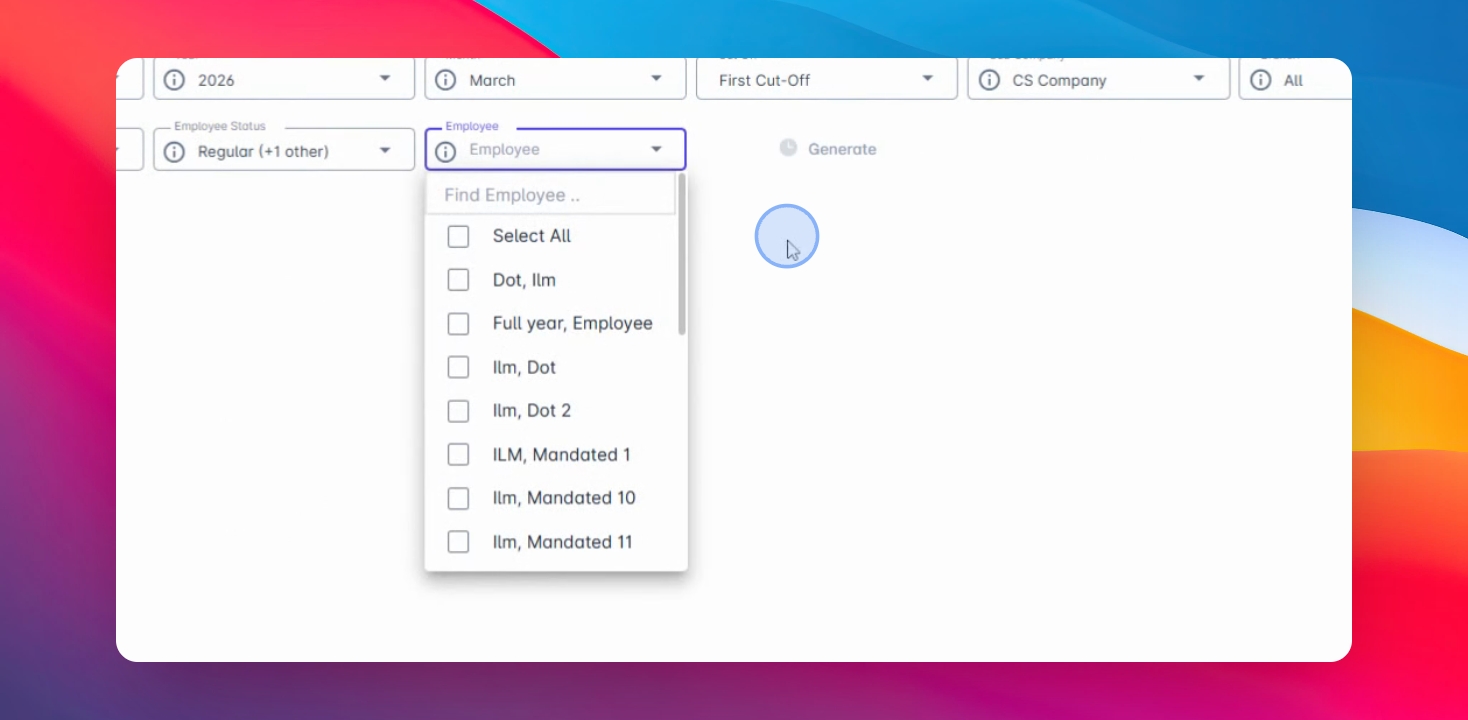
You can generate timekeeping for all employees under the selected filter or choose specific employees and click Generate.
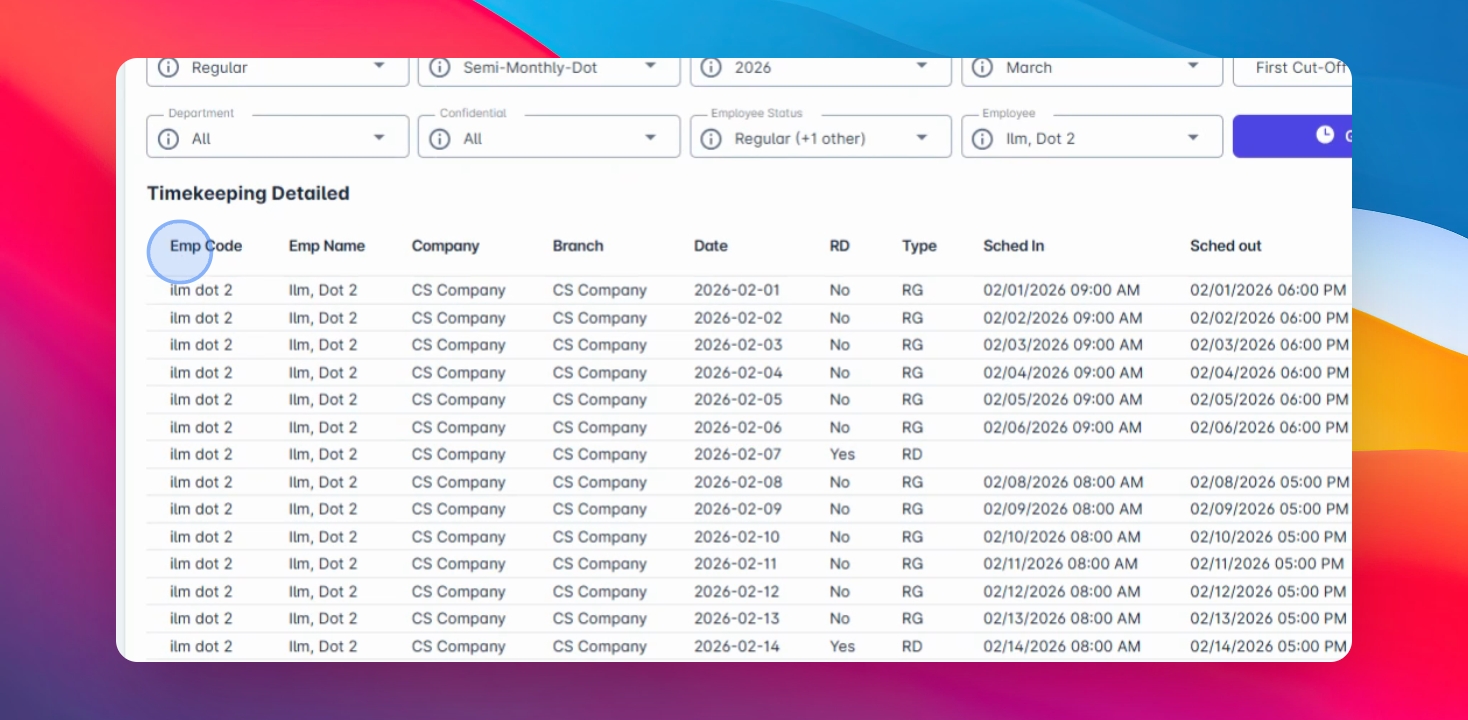
Review employee details including code, name, branch, day type, schedule, and various timekeeping metrics.
Step 3: Export Timekeeping
Use the Export button for detailed reports or Export Summary for total cutoffs.
Step 4: Save Timekeeping Code
Click Save to create a TK code for your payroll process.