In this video, you will learn how to view the time logs of employees on AnyHR. Let's look at the steps:
Step 1: Navigate to Timekeeping
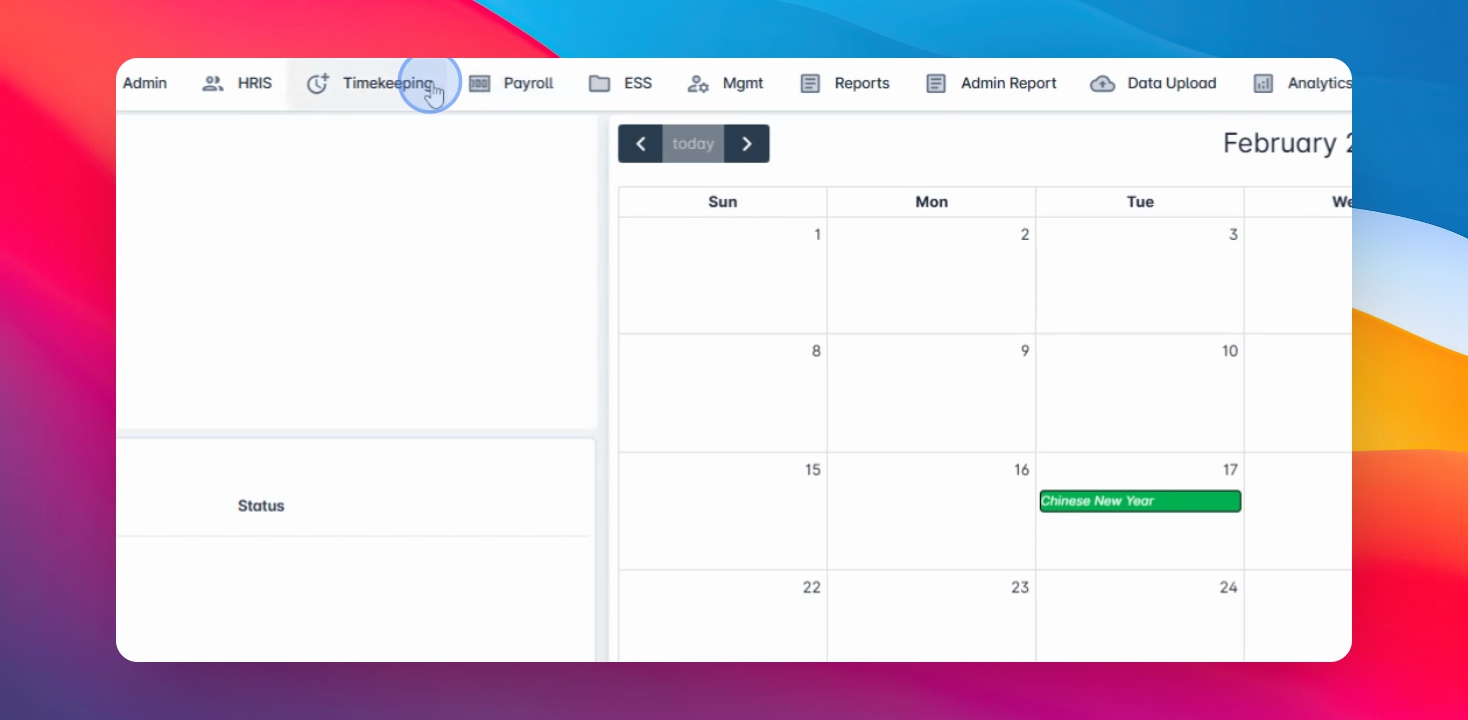
Go to the timekeeping menu and select time logs.
Step 2: Select Date Range
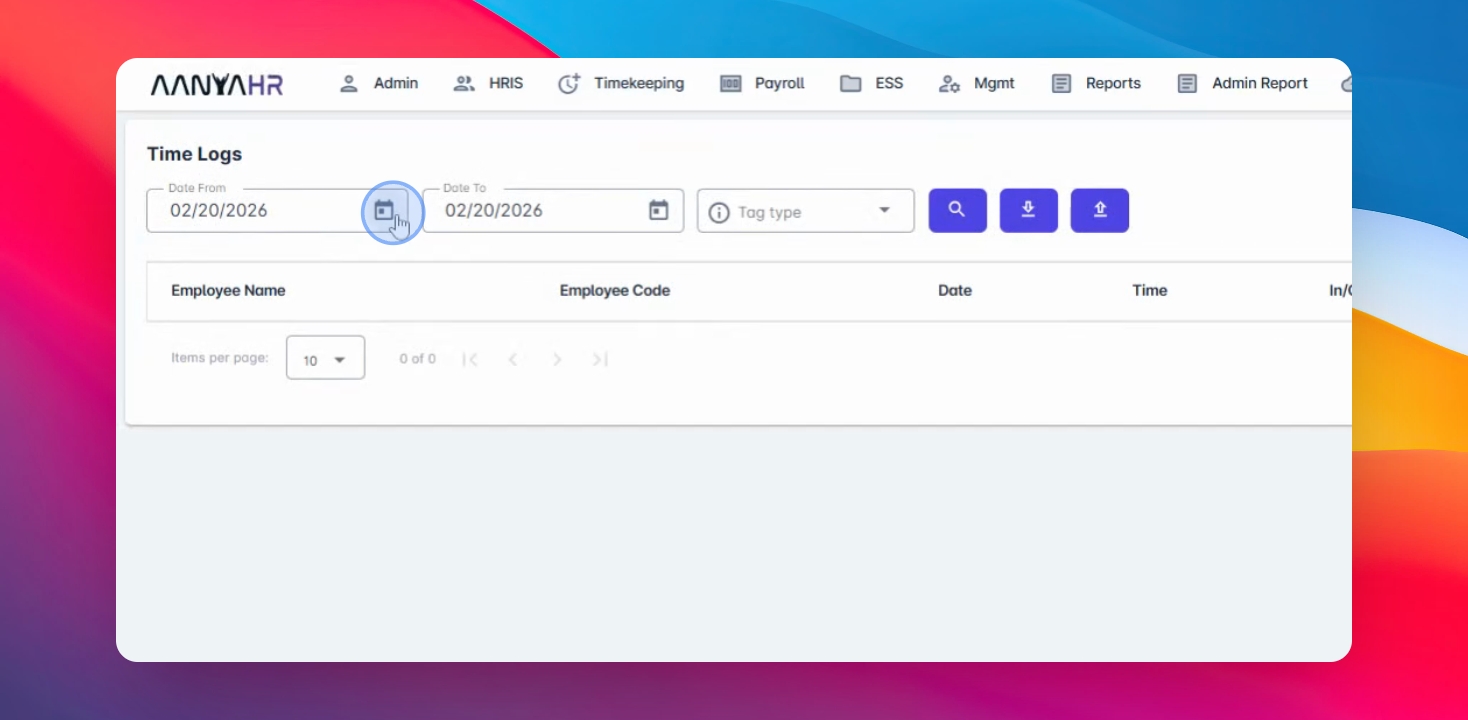
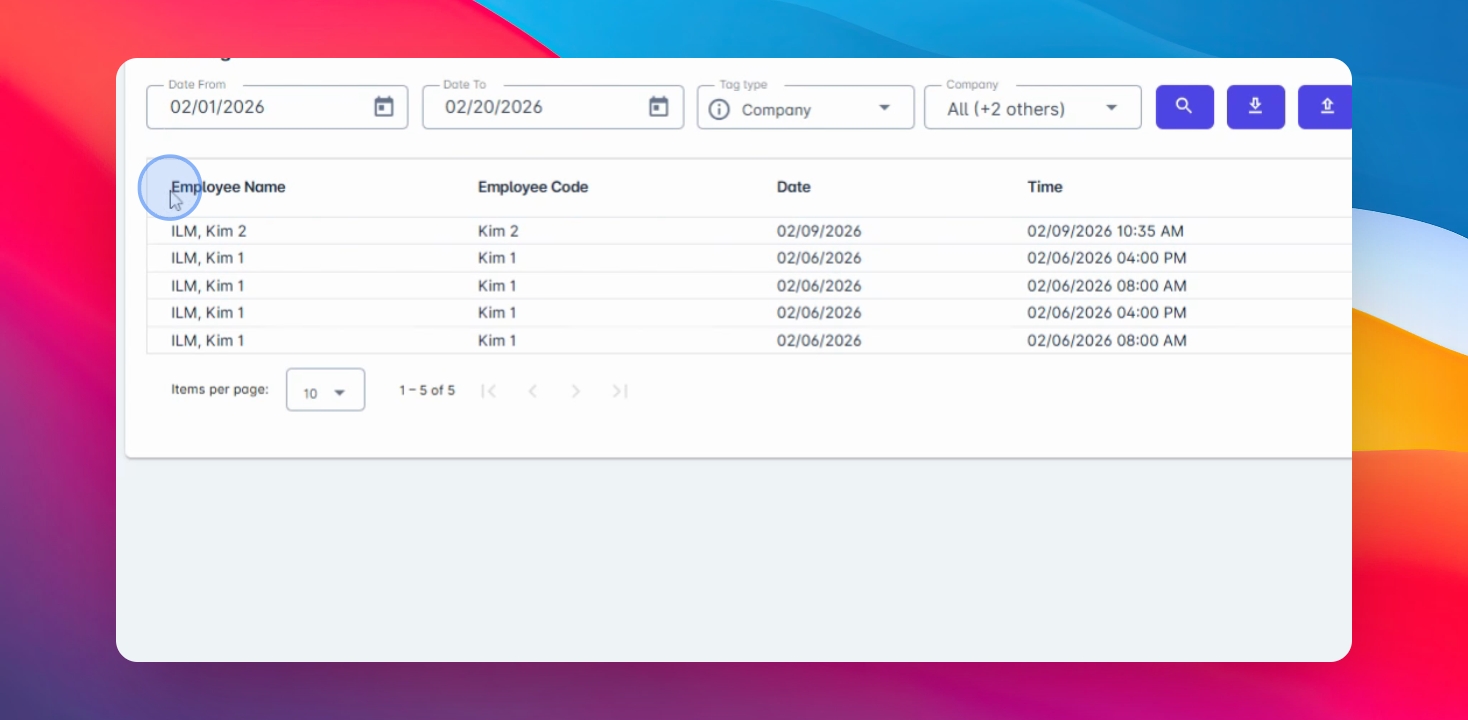
Select the date range you wish to view the rollouts or the time logs.
Step 3: Use Filter Tags
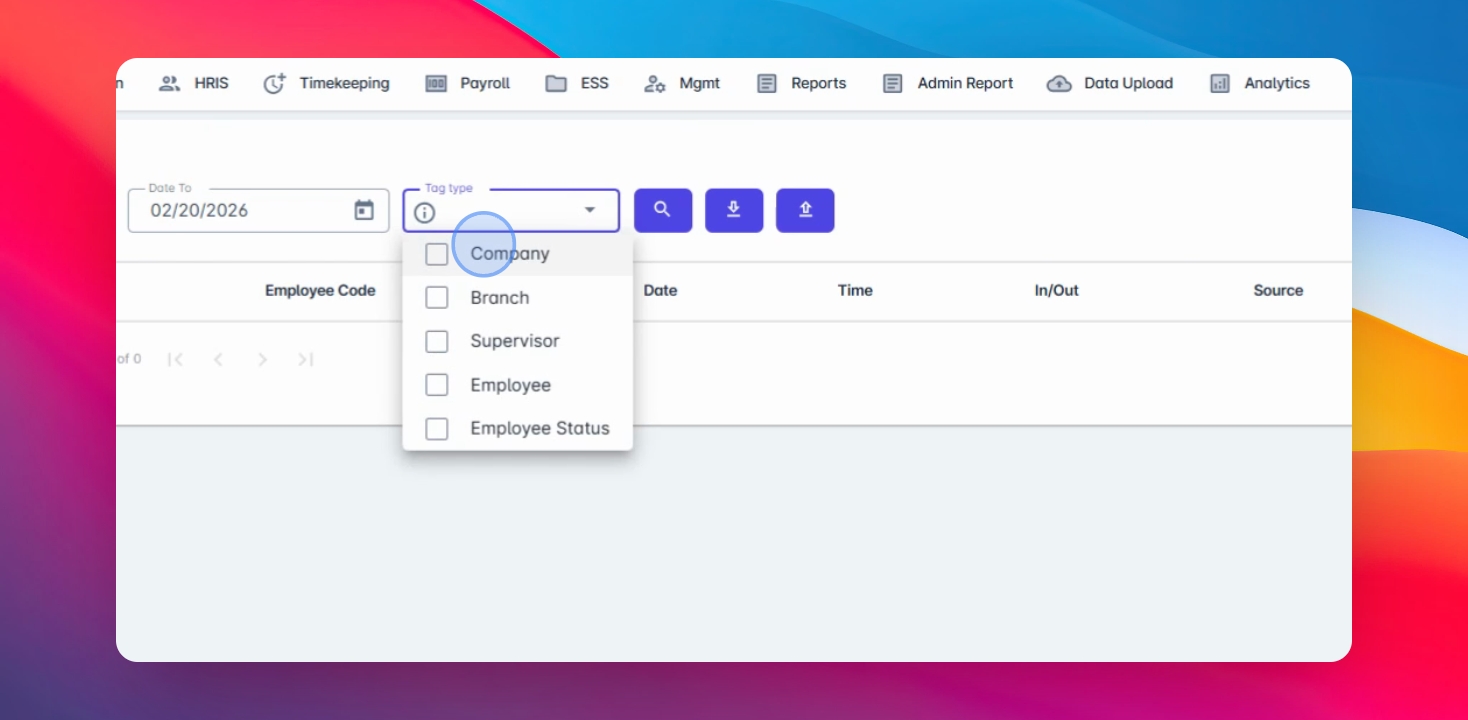
Use the filter tag type based on your preference to easily search or sort by the employee.
Step 4: Search for Logs
For now, I will be using the company and click on the search button.
Step 5: Export or Upload Logs
You have an option to export or download the time logs based on your selected date range and filters. If you wish to upload logs from your biometrics, you could also use the upload bot function.
Step 6: View Log Details
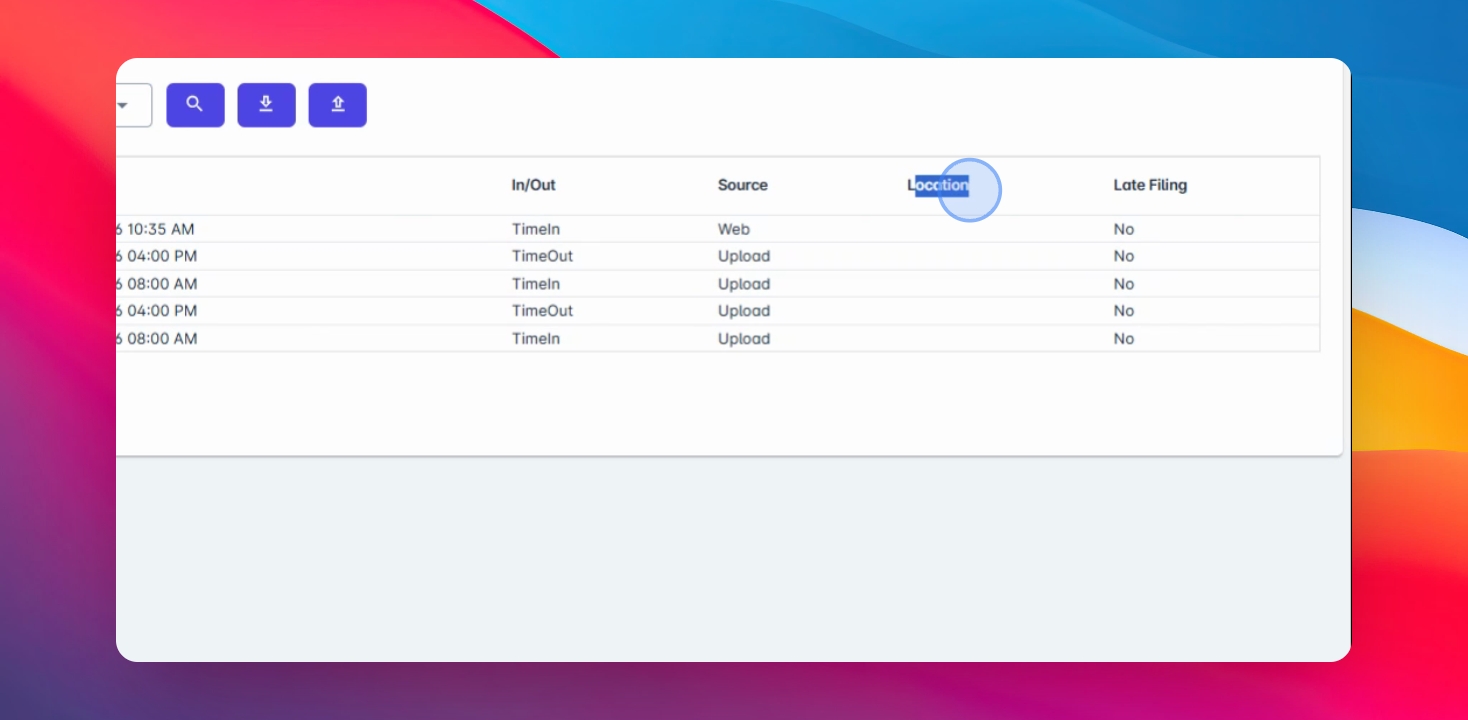
The logs will display the employee name, code, date range, actual time in or out indicator, the source (web, mobile applications, or biometric), and the location.
Step 7: Biometric Location
If you have biometric setup, it will also indicate the location of the biometrics and date tiling for the change log tiling.