In this video, we're going to take a look on how to set up coordinates, undertime and Absentest settings in your timekeeping. This is where you configure how timekeeping calculation work for your team. Let's look at the steps:
Step 1: Navigate to TK Category
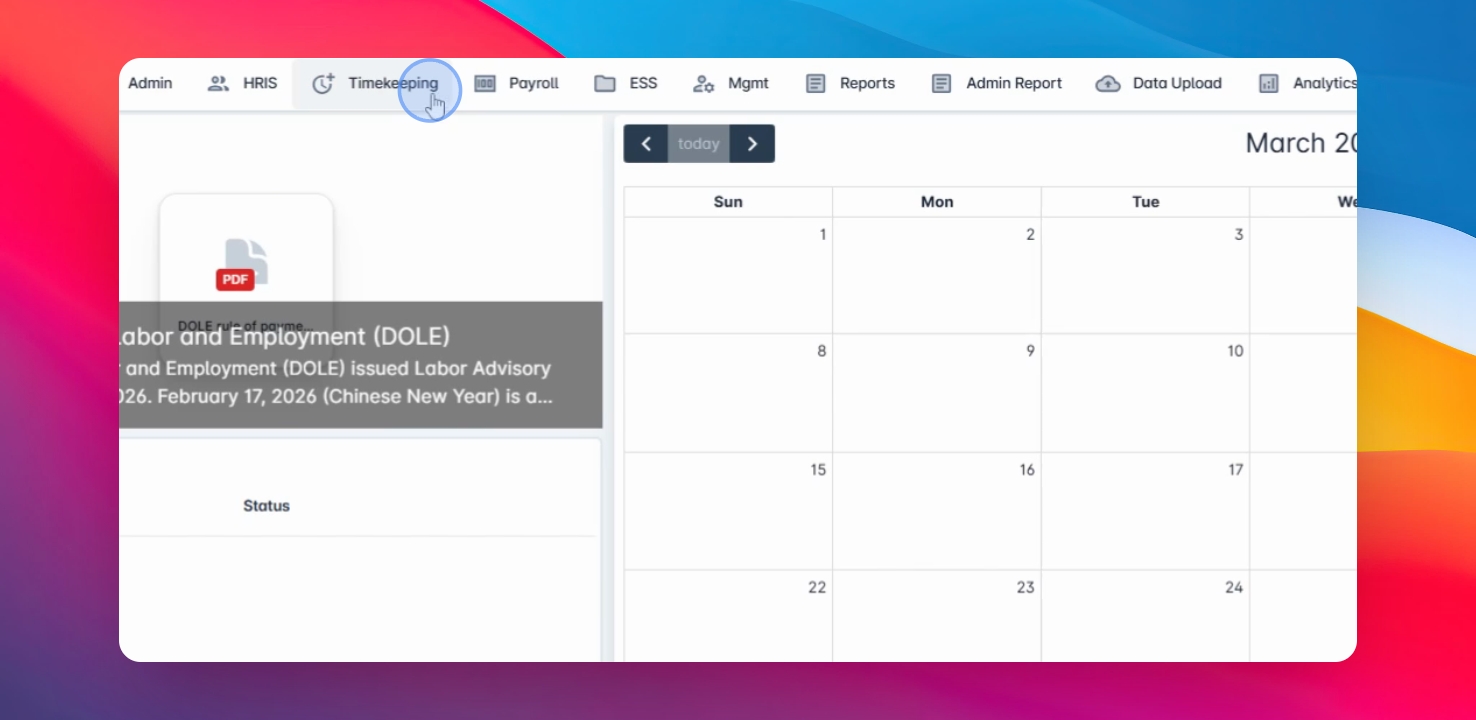
To begin, navigate the timekeeping menu, select TK Category.
Step 2: Select Timekeeping Category
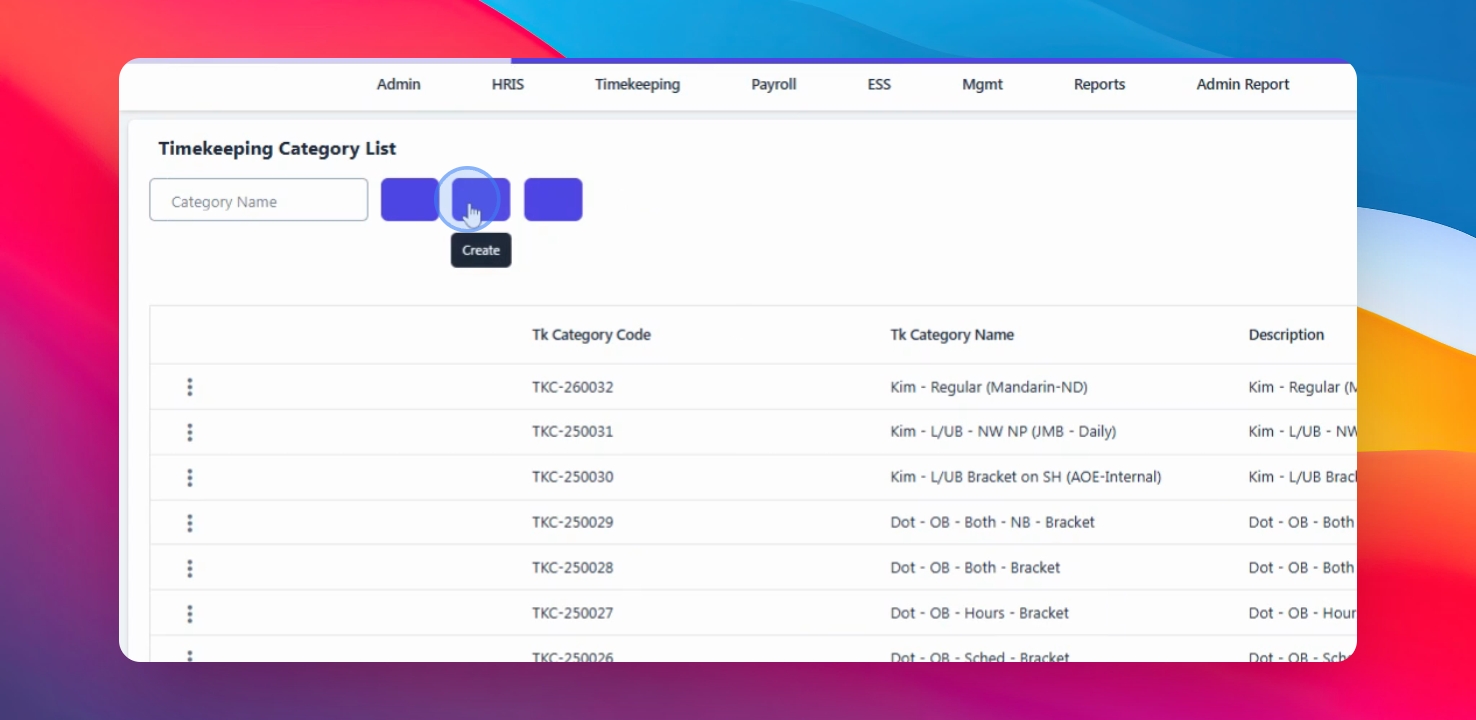
From there you can select an existing timekeeping category, or you can edit it or create a new category.
Step 3: Access Tardiness and Absences
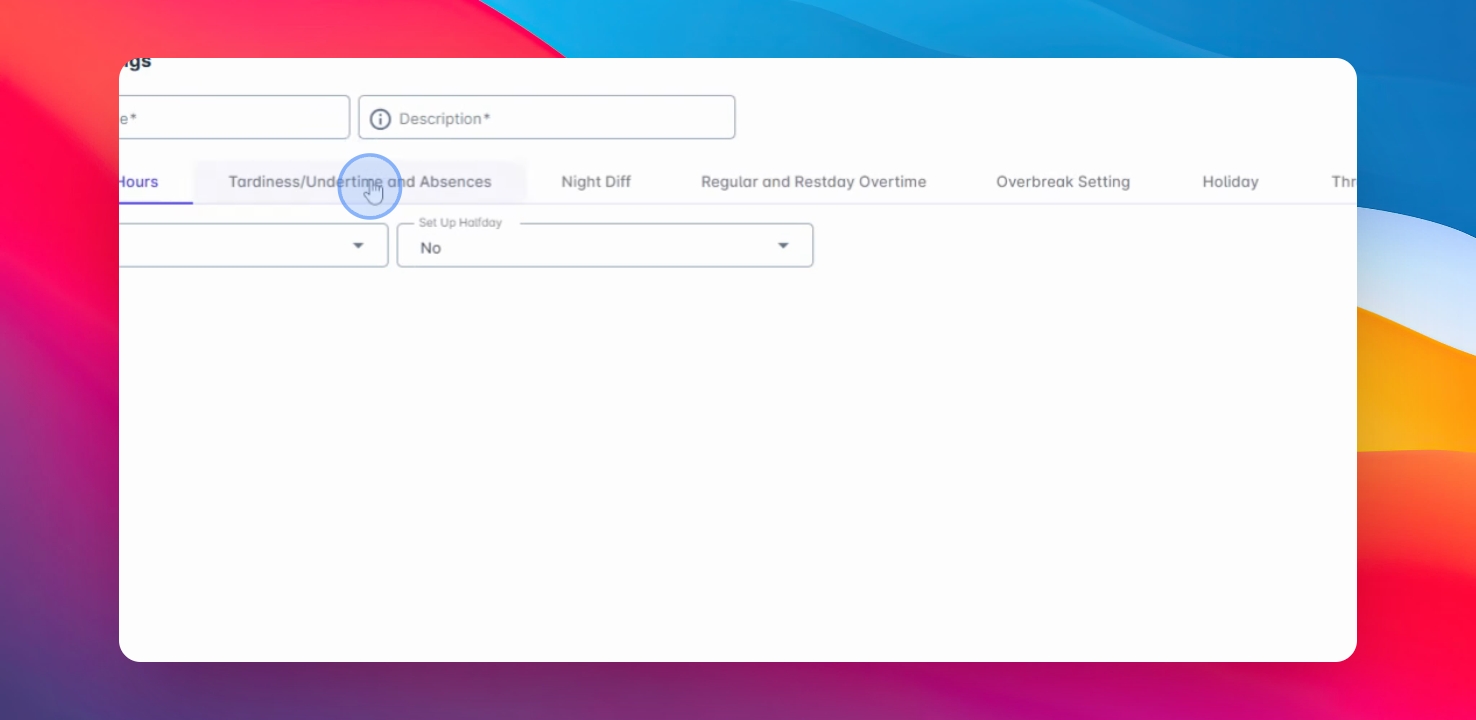
Click on the tardiness and absences tab.
Step 4: Set Up Absent
Here you will see the option called Set up Absent. If enabled, it will automatically calculate absences for this TP category.
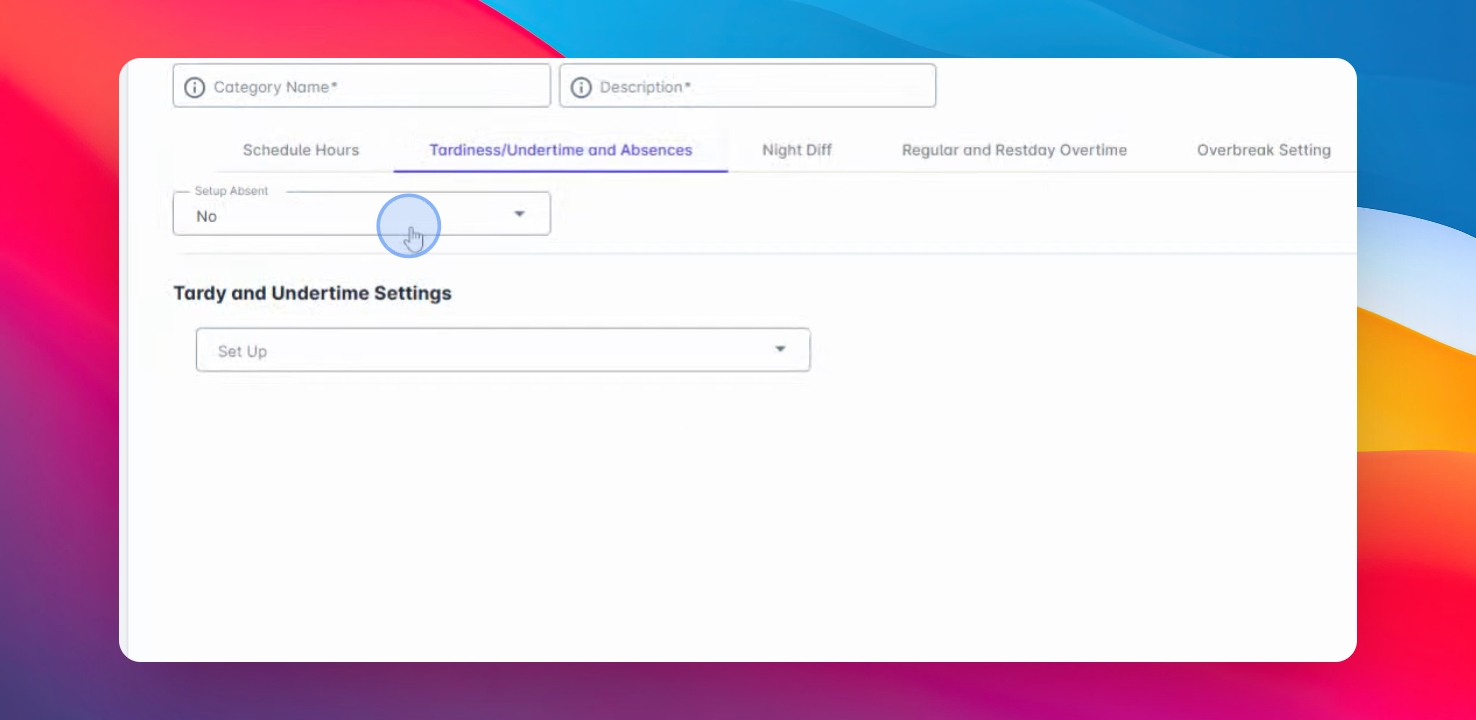
Step 5: Define Absent Threshold
You can also decide how many hours an employee needs to work before it is marked as absent. For example, if anyone works less than two hours, you can set that threshold so those hours are recorded as an absent.
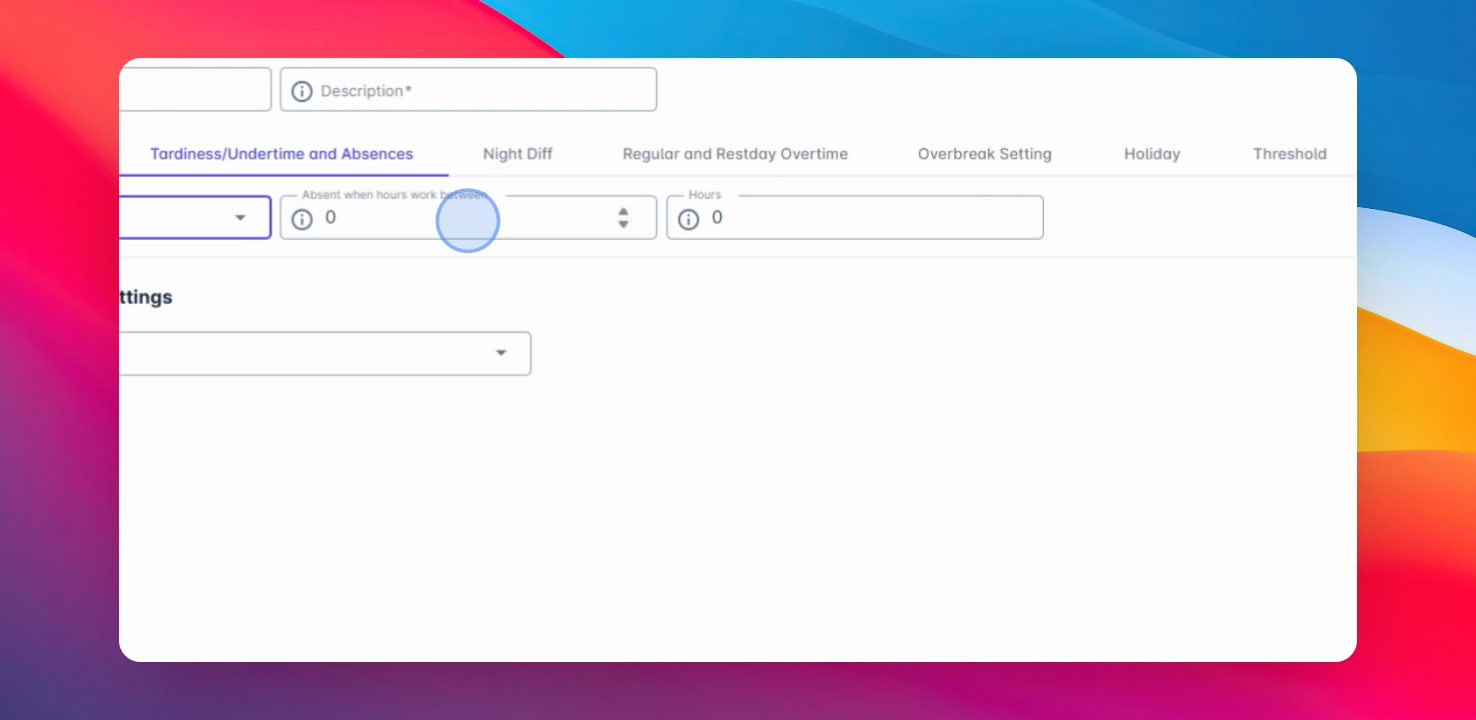
Step 6: Configure Tardiness and Undertime
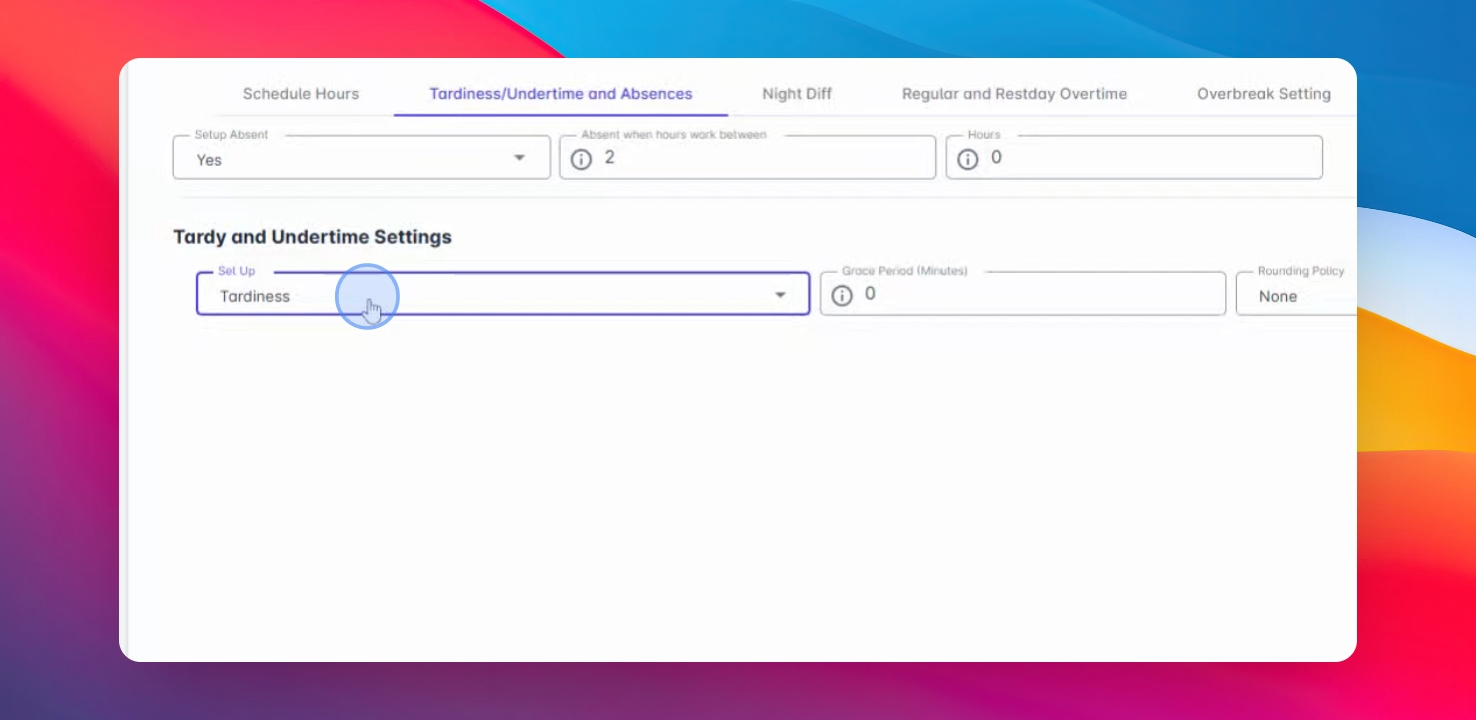
Now let's talk about tardiness and undertime calculation. You have a few ways to set this up.
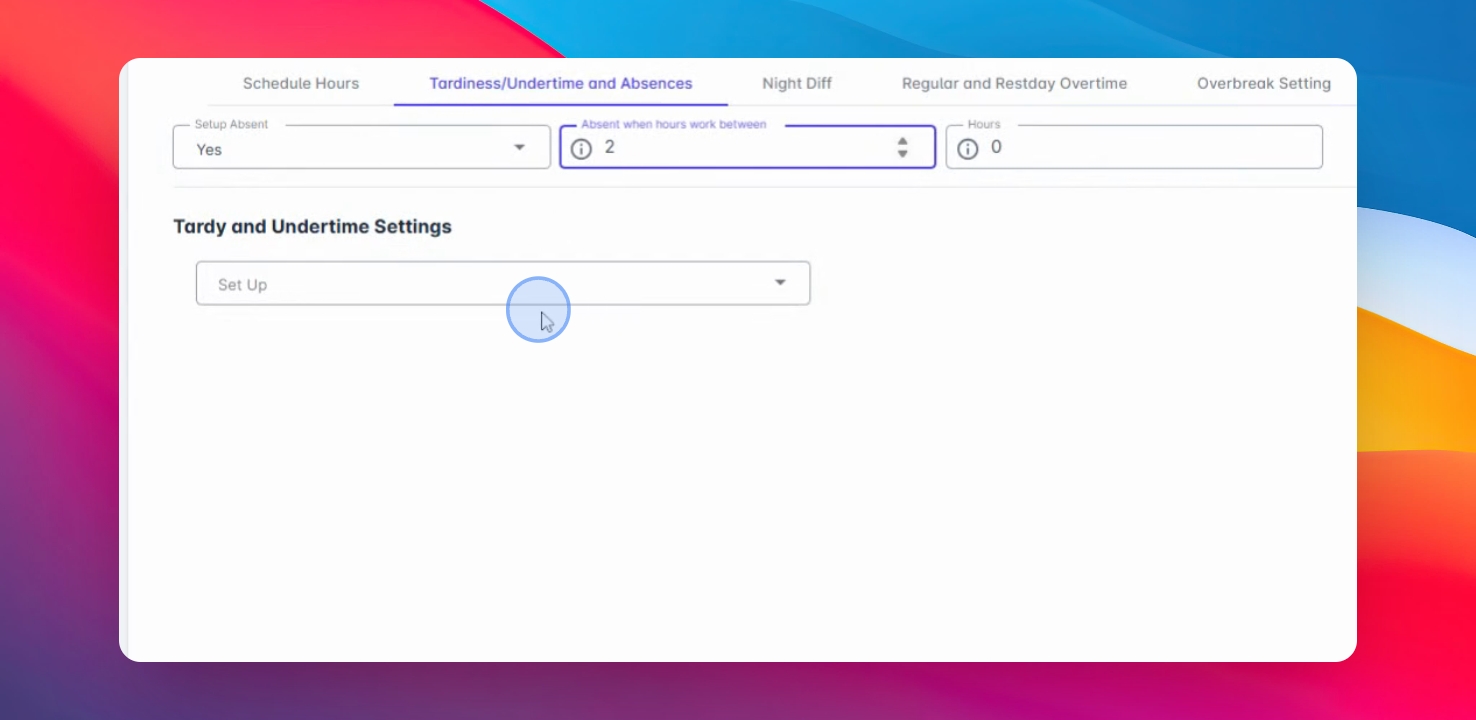
Step 7: Set Tardiness Calculation
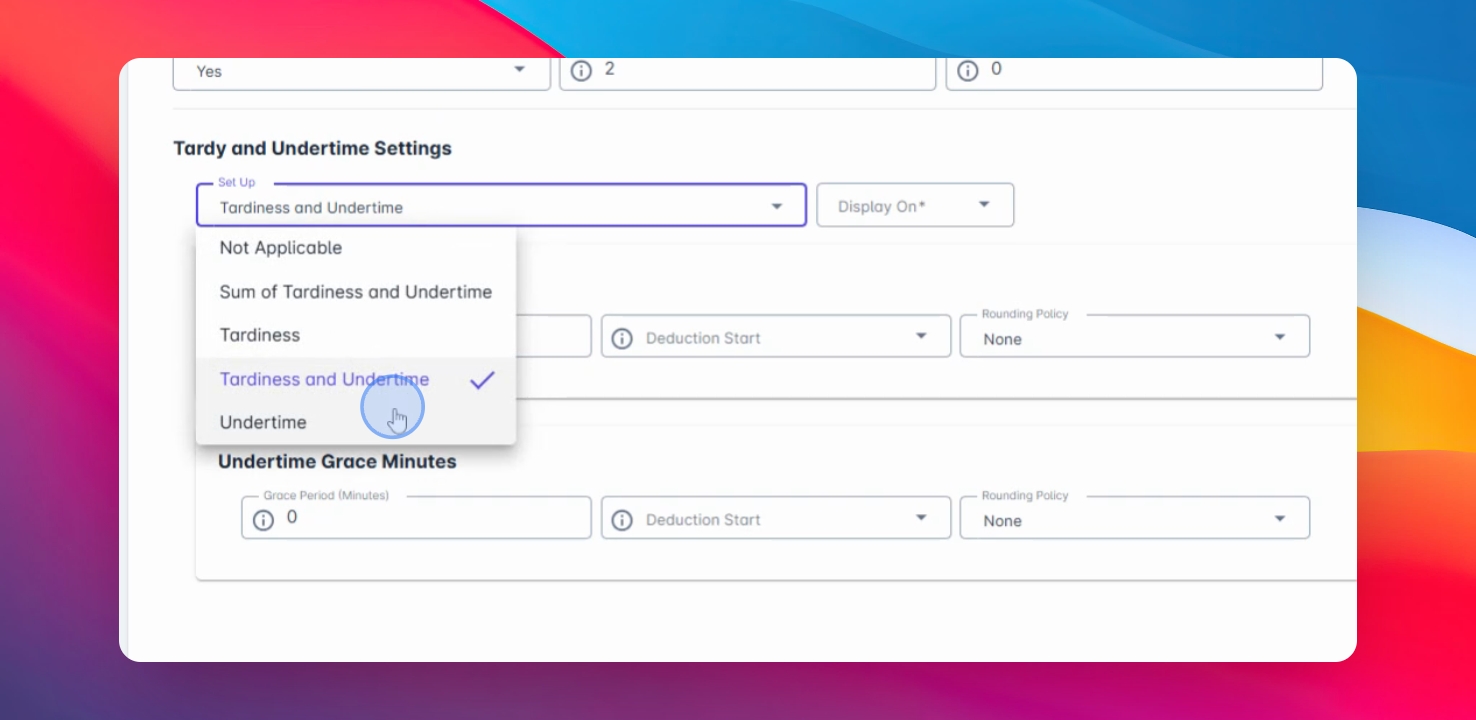
First is not applicable. The next option is sum of tardiness and undertime where it adds up late and undertime hours together.
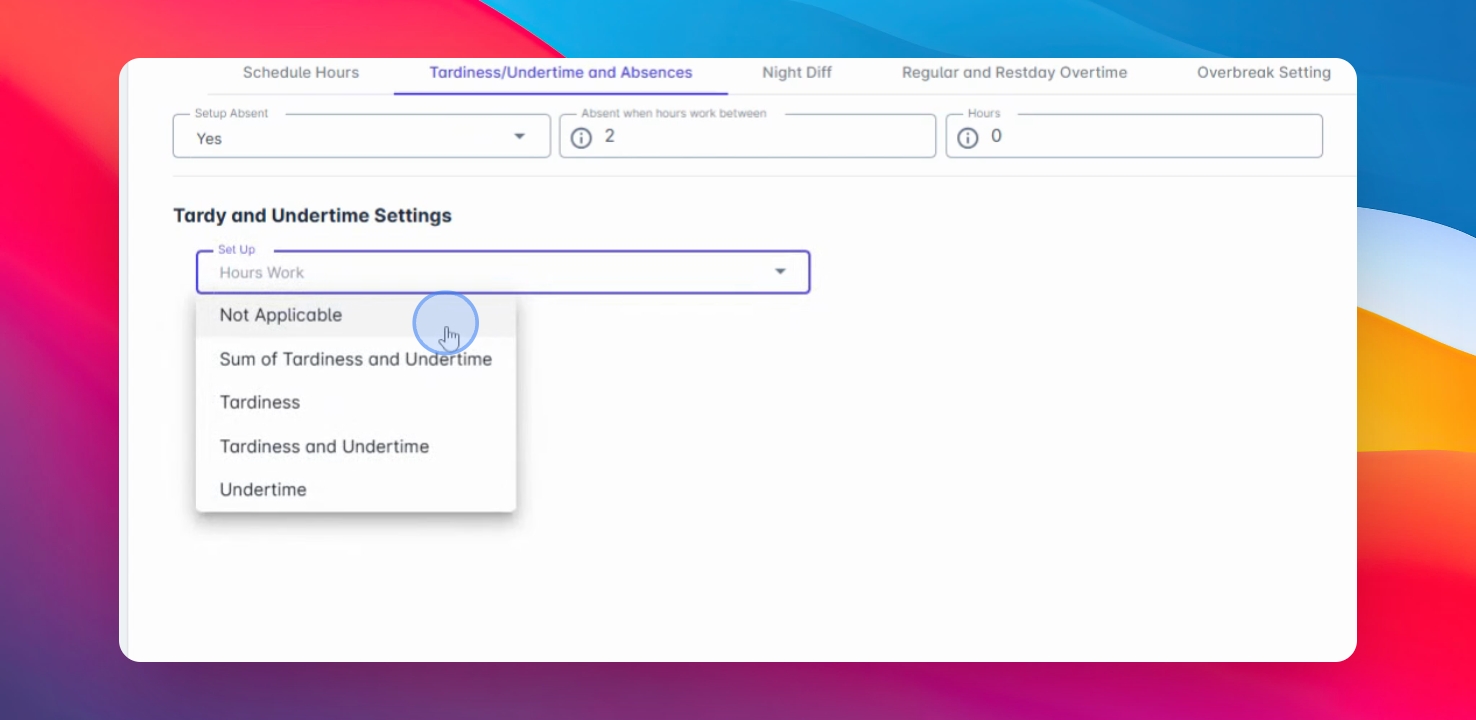
Step 8: Choose Tardiness Type
Choose if this timekeeping category will only calculate for late or tardiness, or both tardiness and undertime, which is commonly used in timekeeping calculations.
Step 9: Configure Undertime Calculation
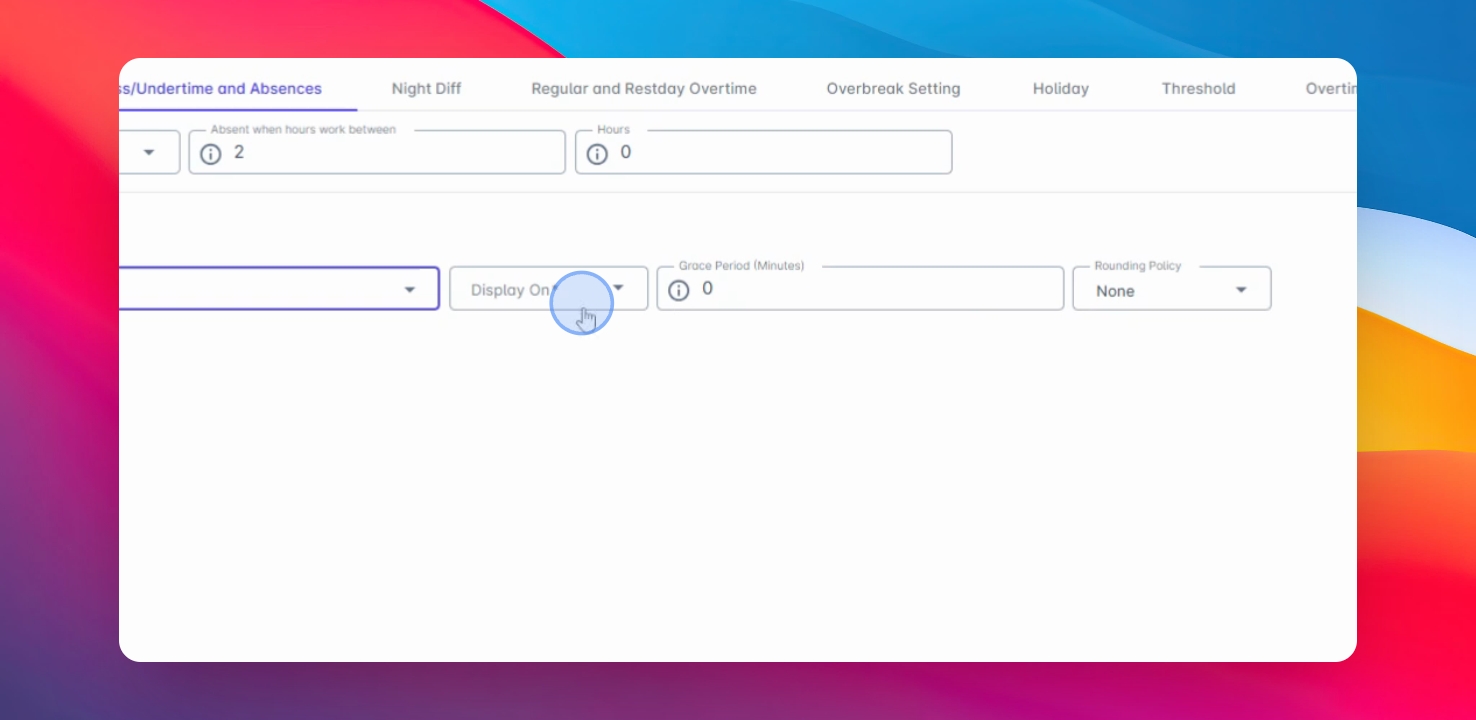
If you choose sum of tardiness and undertime, you will also get to decide how it shows up on the timekeeping.
Step 10: Set Grace Period
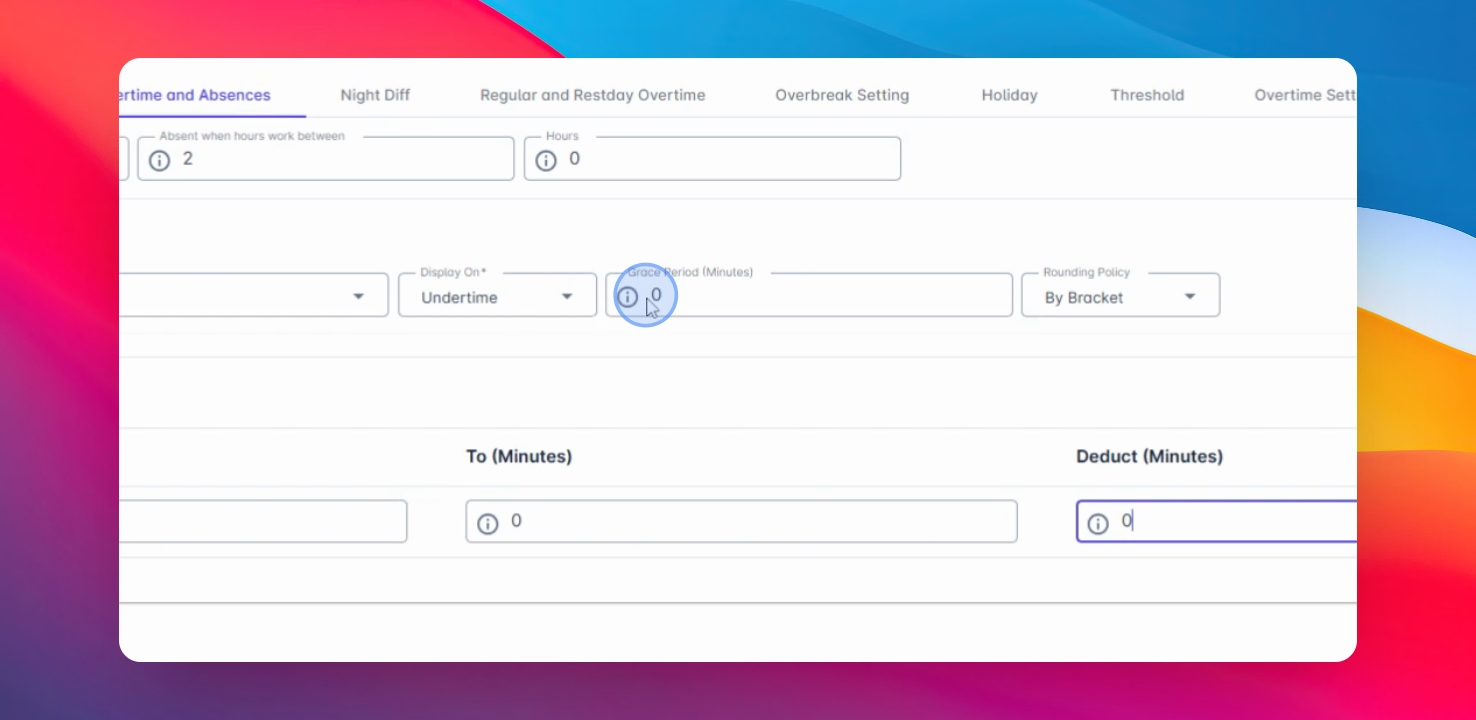
You will also see a grace period wherein you can set a window of time before the deductions will be calculated.
Step 11: Define Rounding Policy
In the Rounding policy, you have an option by bracket wherein it defines for brackets for leads or undertime and their equivalent calculation.
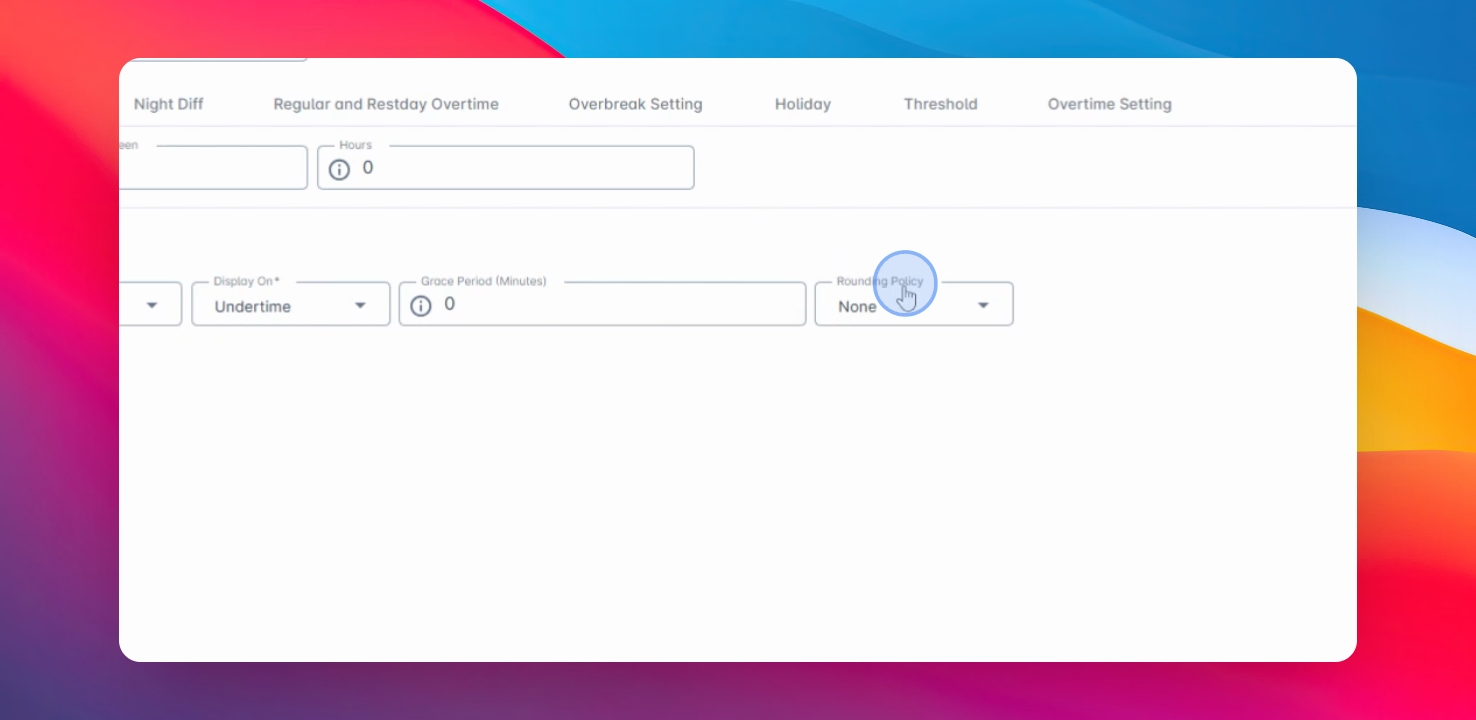
These same settings, grace period and rounding policy are available even if it shows just tardiness, tardiness and undertime and undertime individually allowing you to set separate lists and policies for each.