

In this video, you will learn how to assign schedules to the economies. Let's look at the steps:
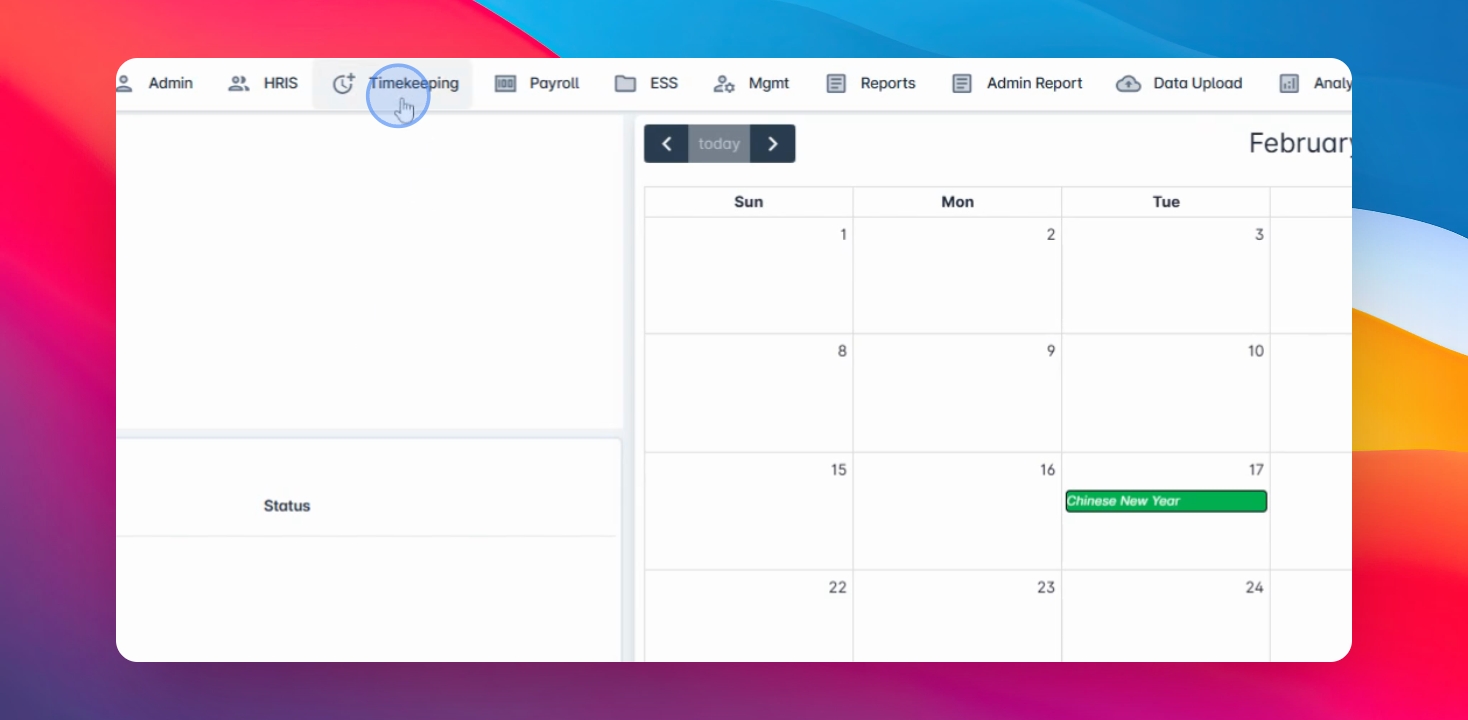
Step 1: Navigate to Timekeeping
Go to Assign Shift in the timekeeping module and click on it.
Step 2: Create Schedule
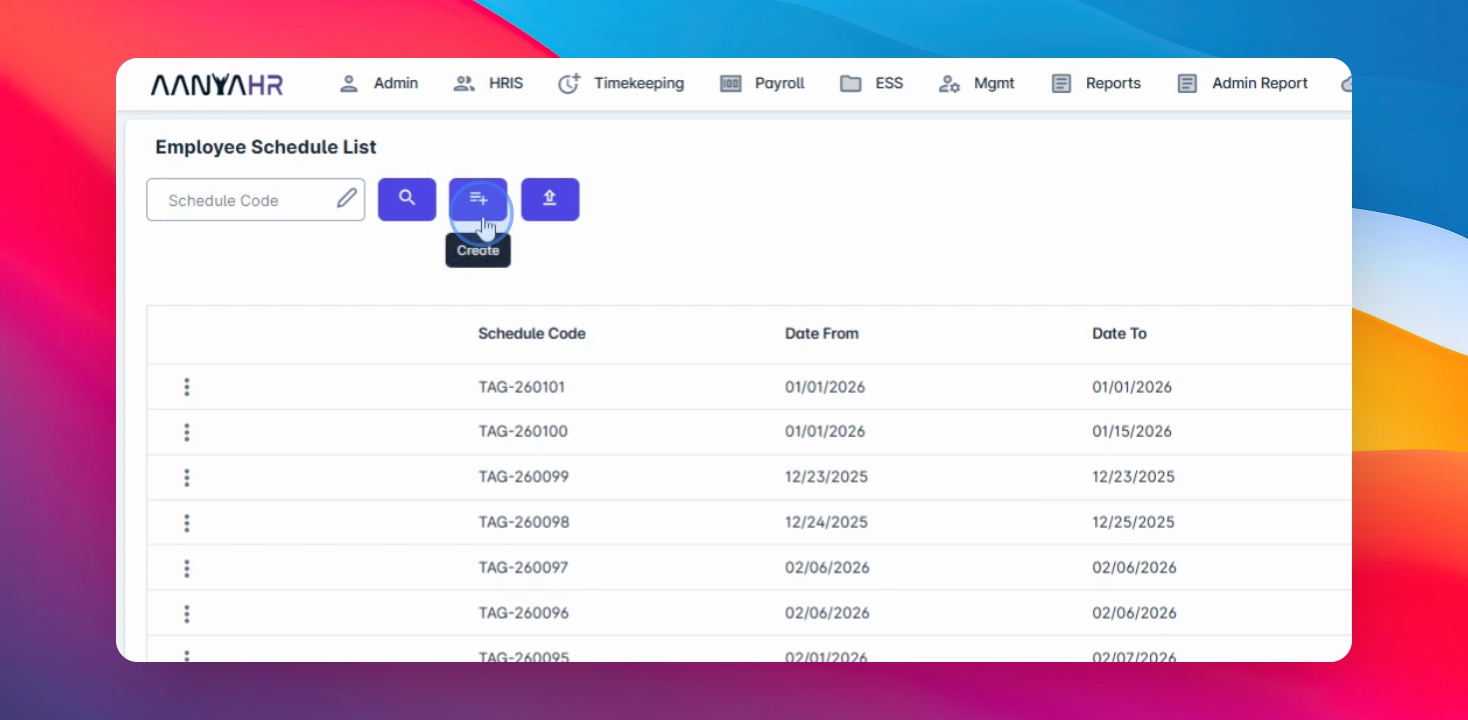
Click the Create button, then select the date range you wish to assign.
Step 3: Select Schedule Options
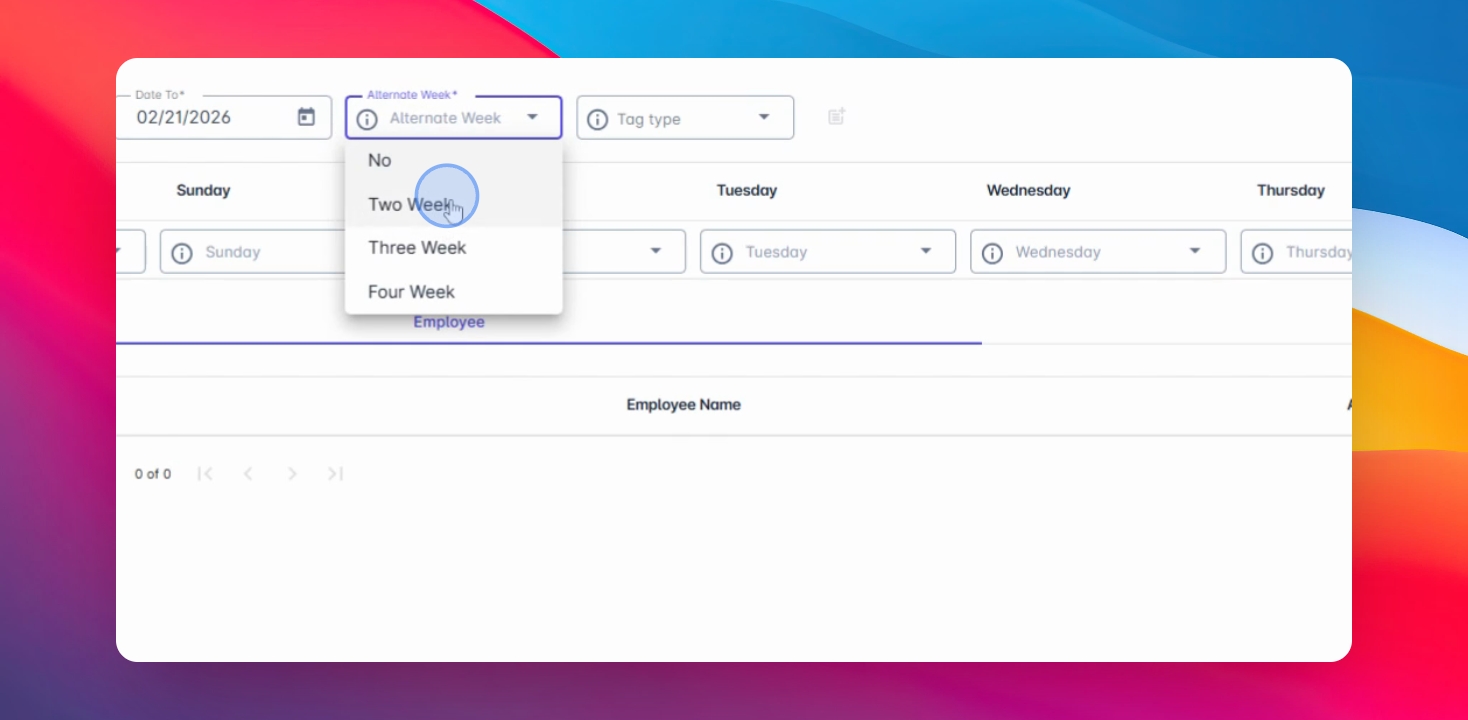
You can choose the alternative week option if the schedule runs for two, three, or four weeks, and select No if not applicable.
Step 4: Filter Employees
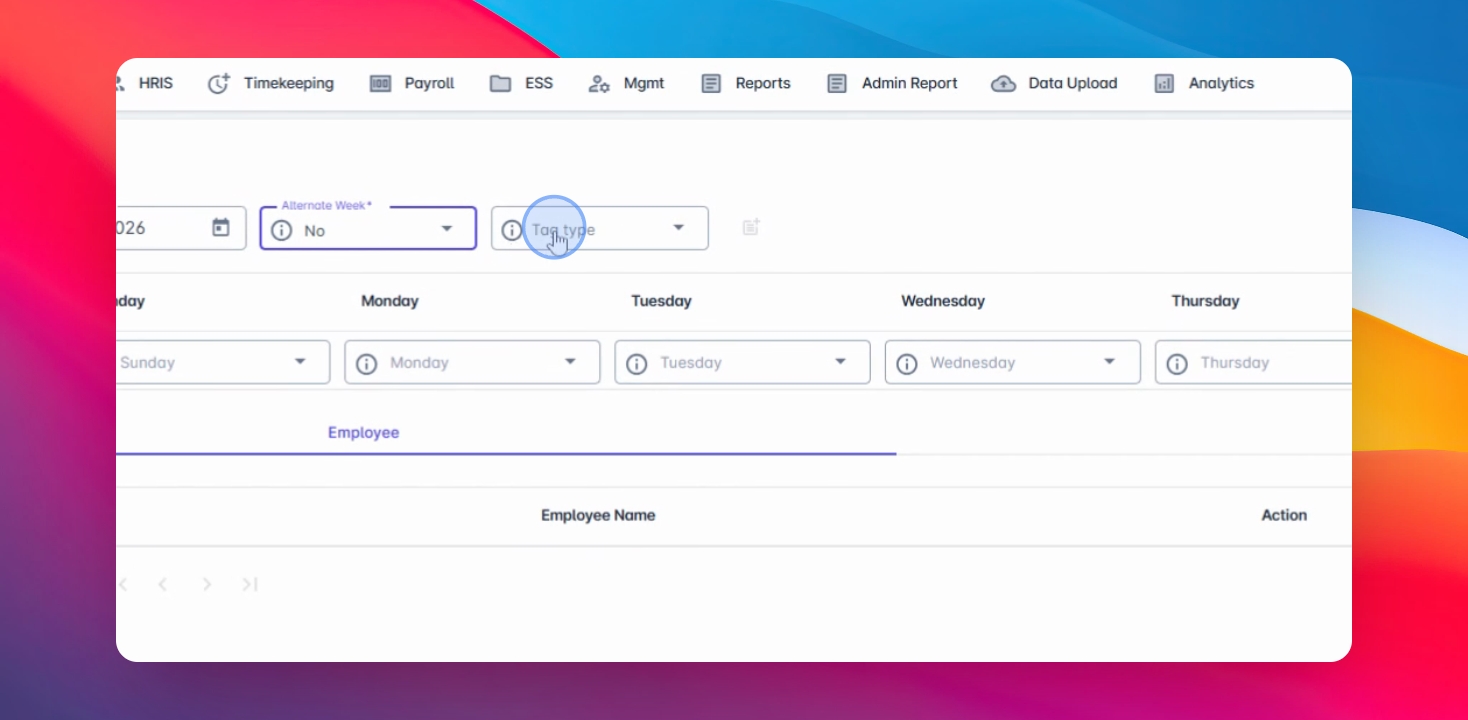
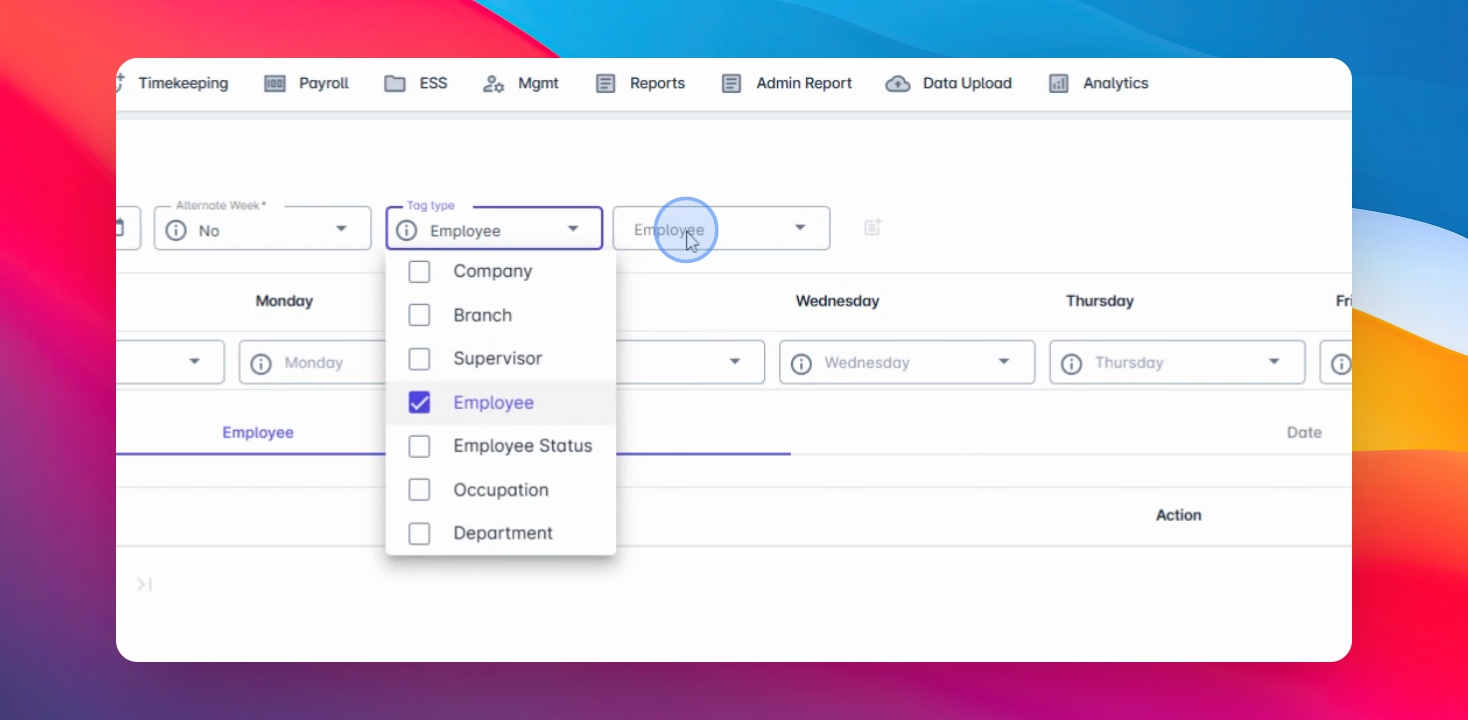
Choose a Tag type to filter out the employees you want to assign.
Step 5: Select Employees
Select multiple employees or one at a time.
Step 6: Apply All Schedules
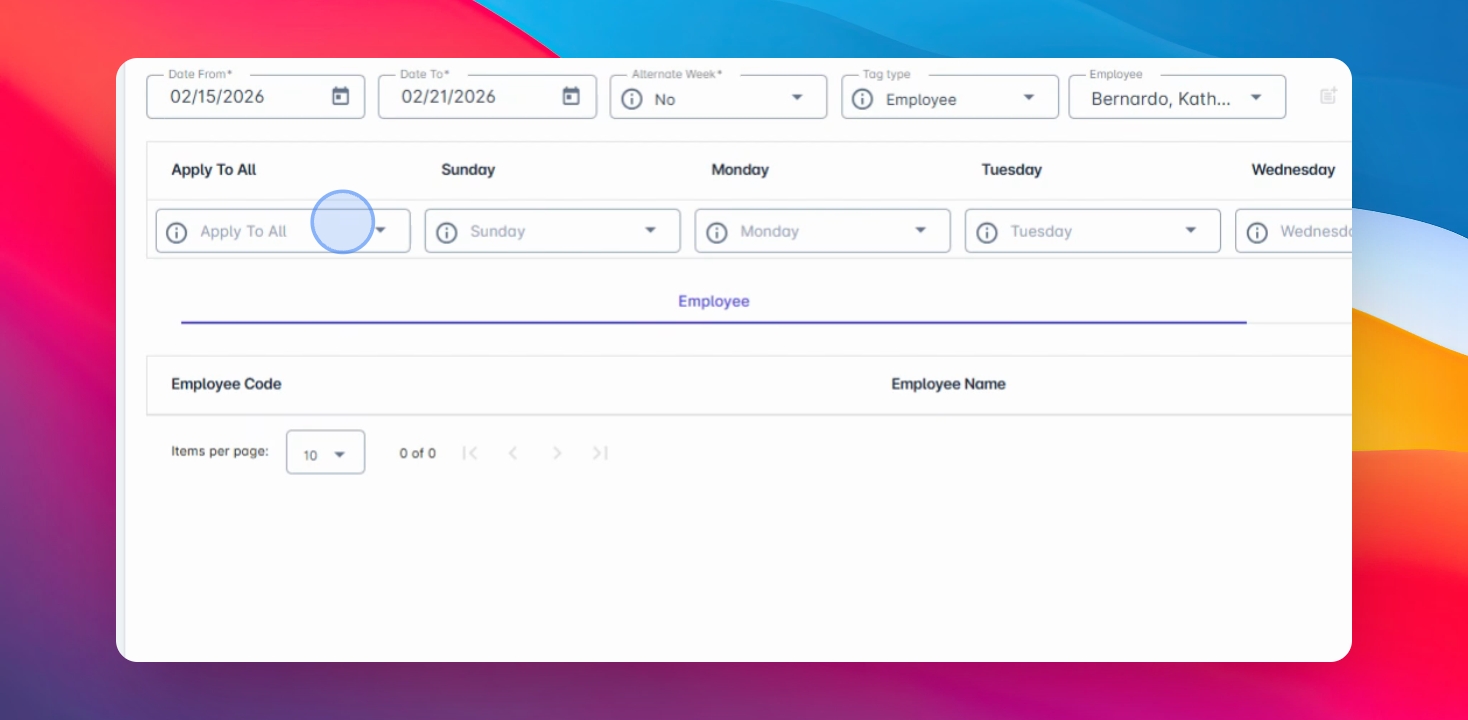
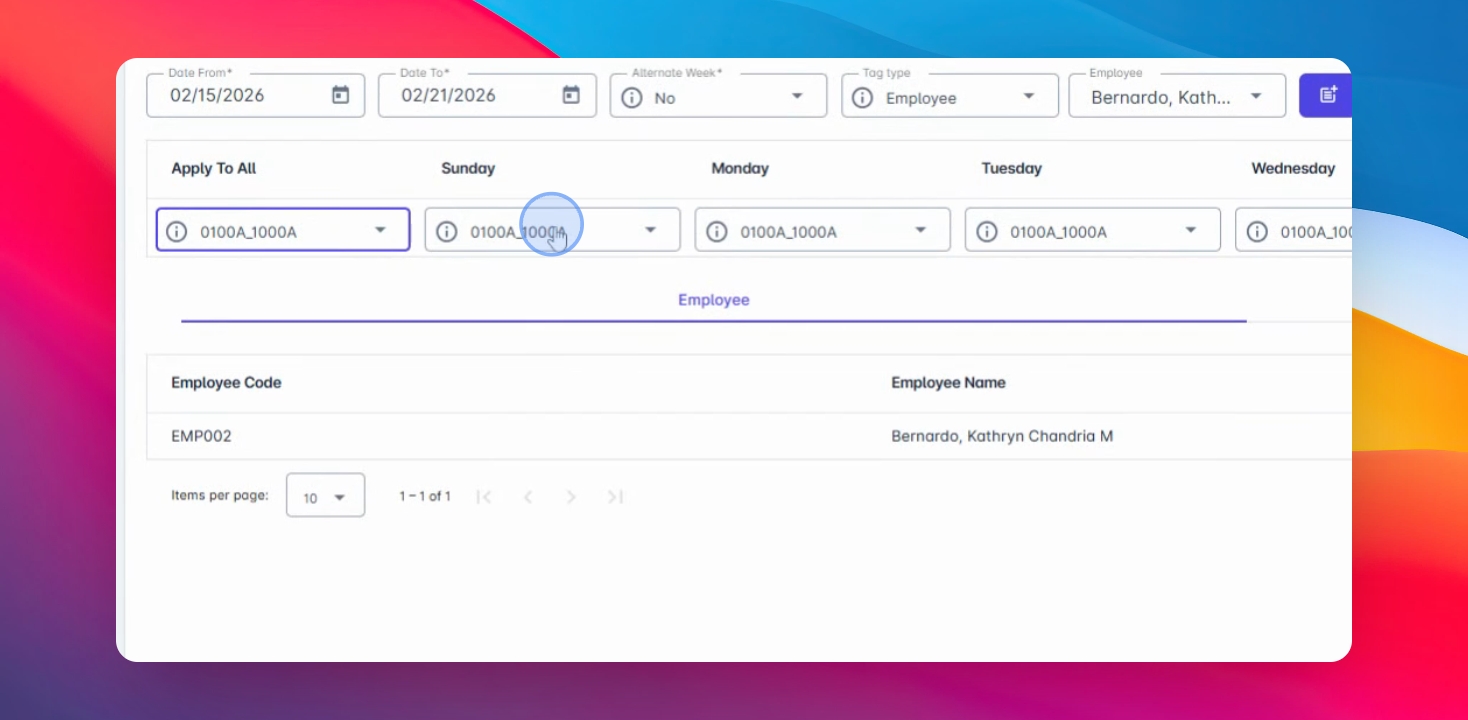
Use the apply all option to automatically fill the schedule from Sunday to Saturday.
Step 7: Modify Schedules
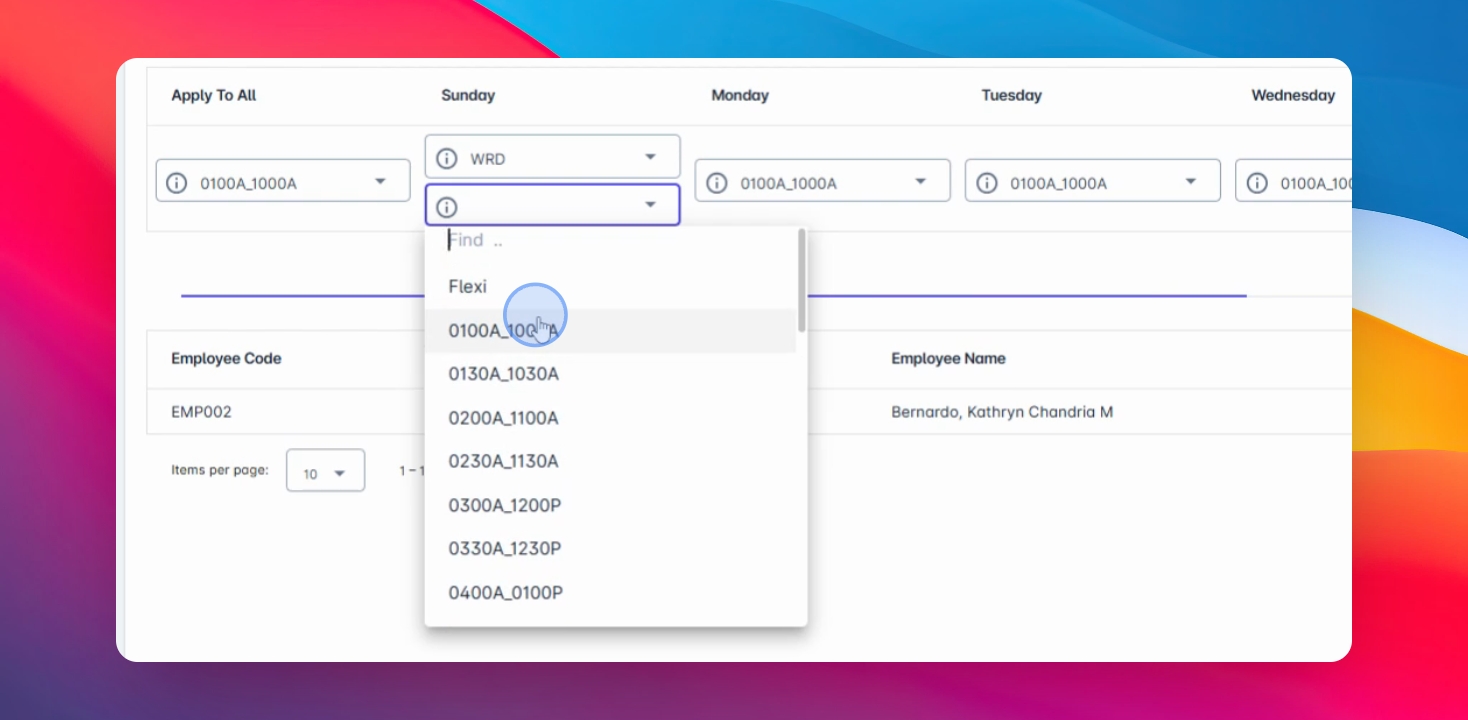
You can modify the schedule by day.
Step 8: Select Shift
Select the sub Shift or Res Day schedule and click on the Add button below.
Step 9: Review Assigned Schedules
Your selected employees will be shown with their assigned schedules, displayed by specific dates.
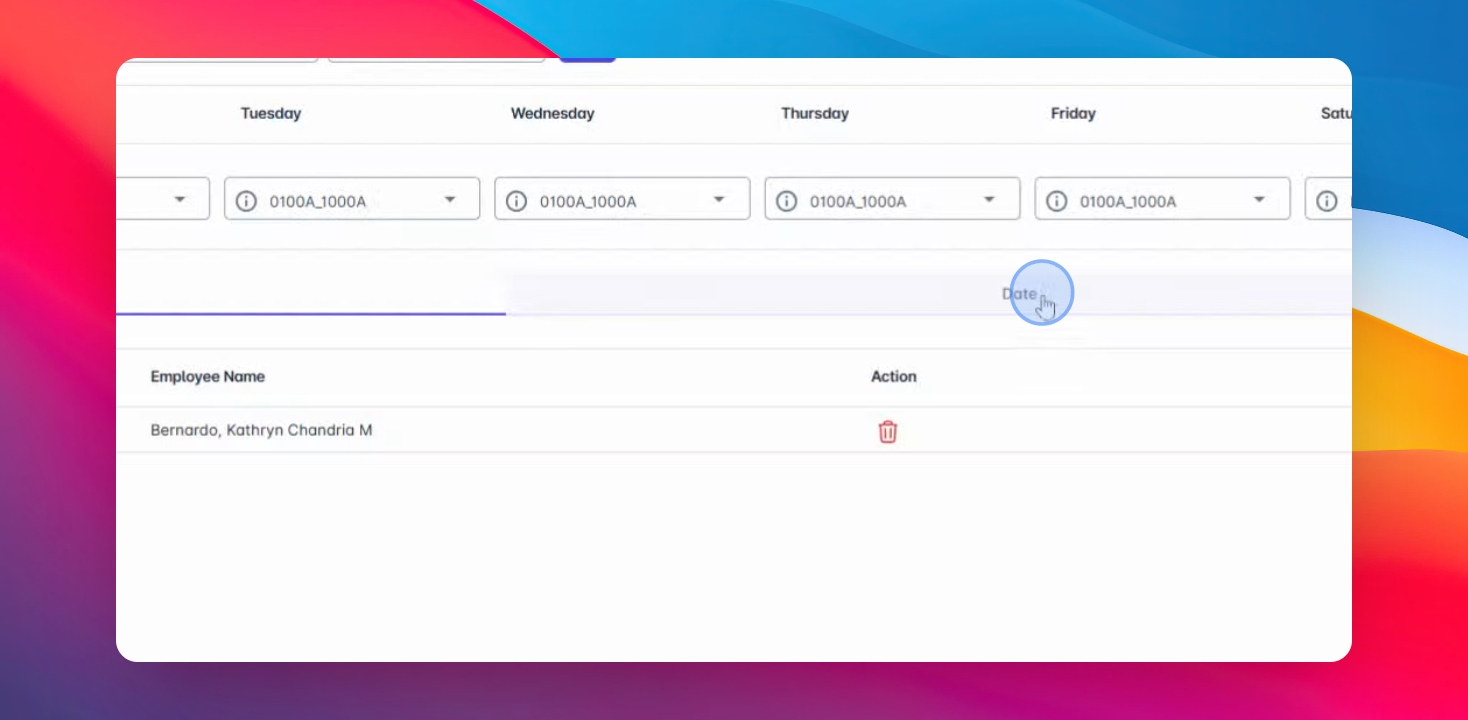
Step 10: Modify or Delete Records
You can modify schedules daily or delete records to exclude them from the assignment.
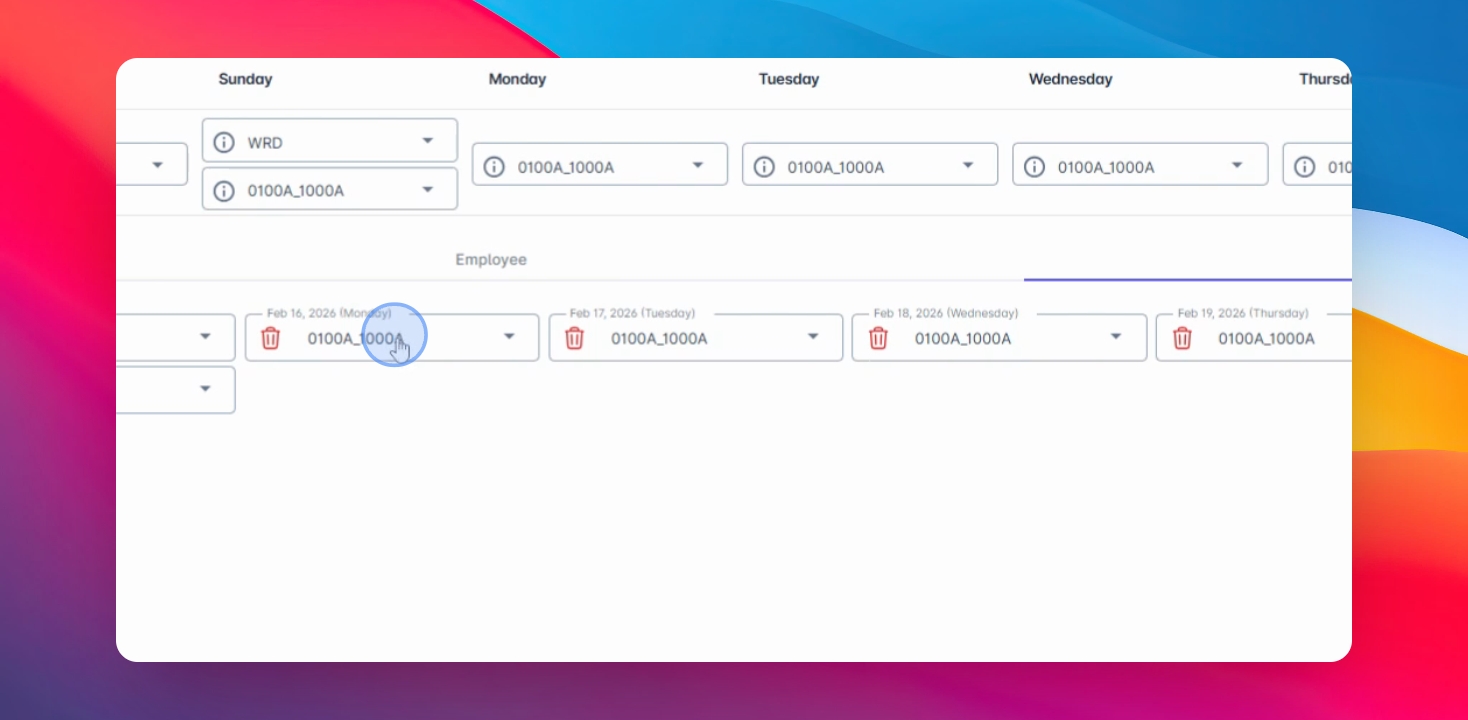
Step 11: Save Changes
Click Save Changes to apply the schedule assignments.