Welcome to this video. In this tutorial, we will guide you on how to set up a threshold in the timekeeping category. Let's look at the steps:
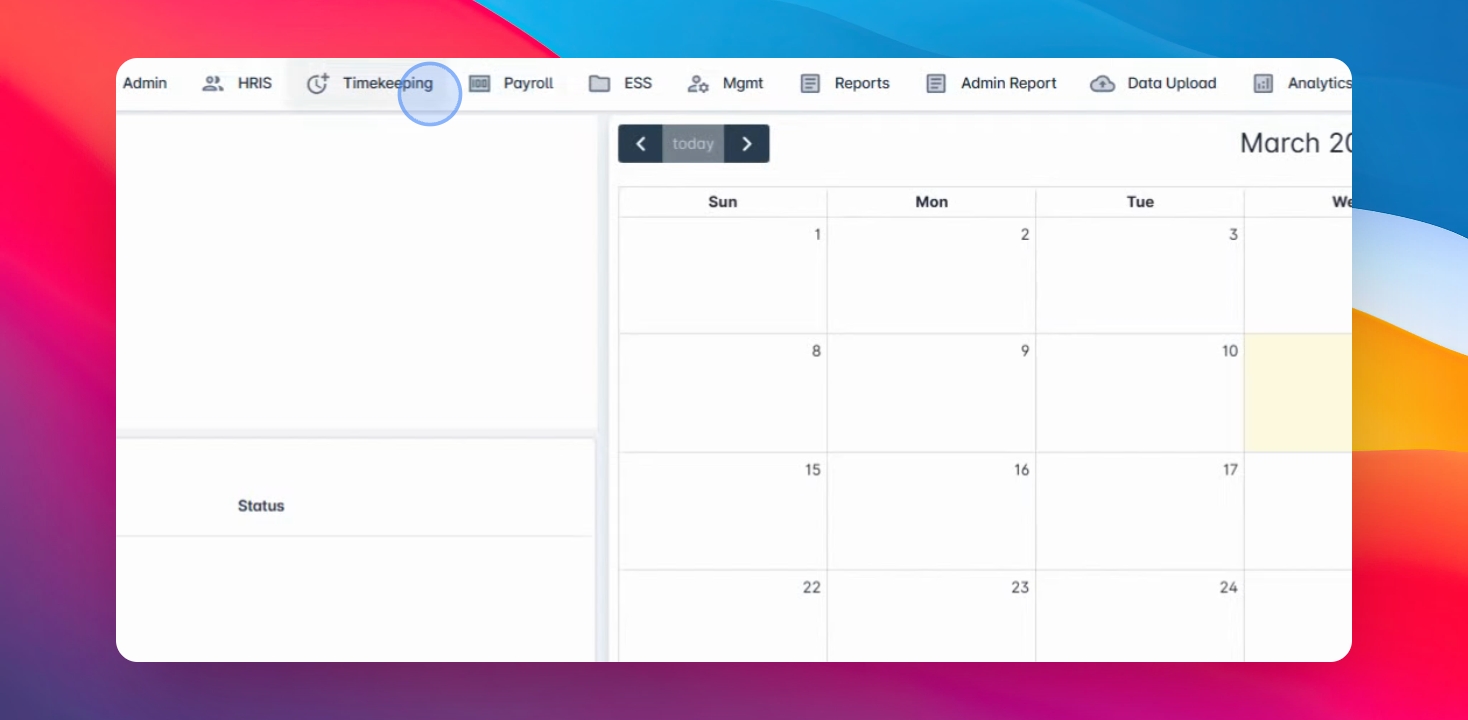
Step 1: Navigate to Timekeeping
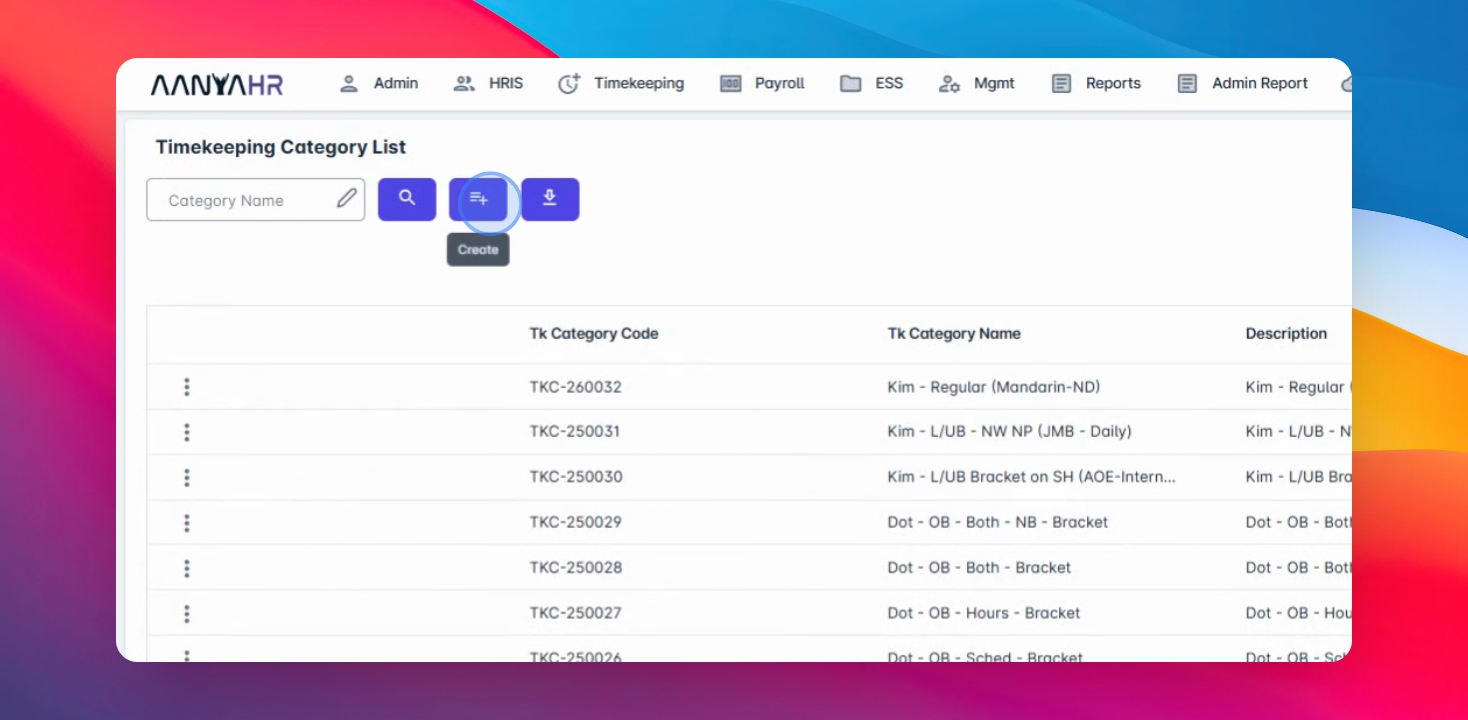
First, navigate to Timekeeping and go to the Timekeeping Category.
Step 2: Define Threshold
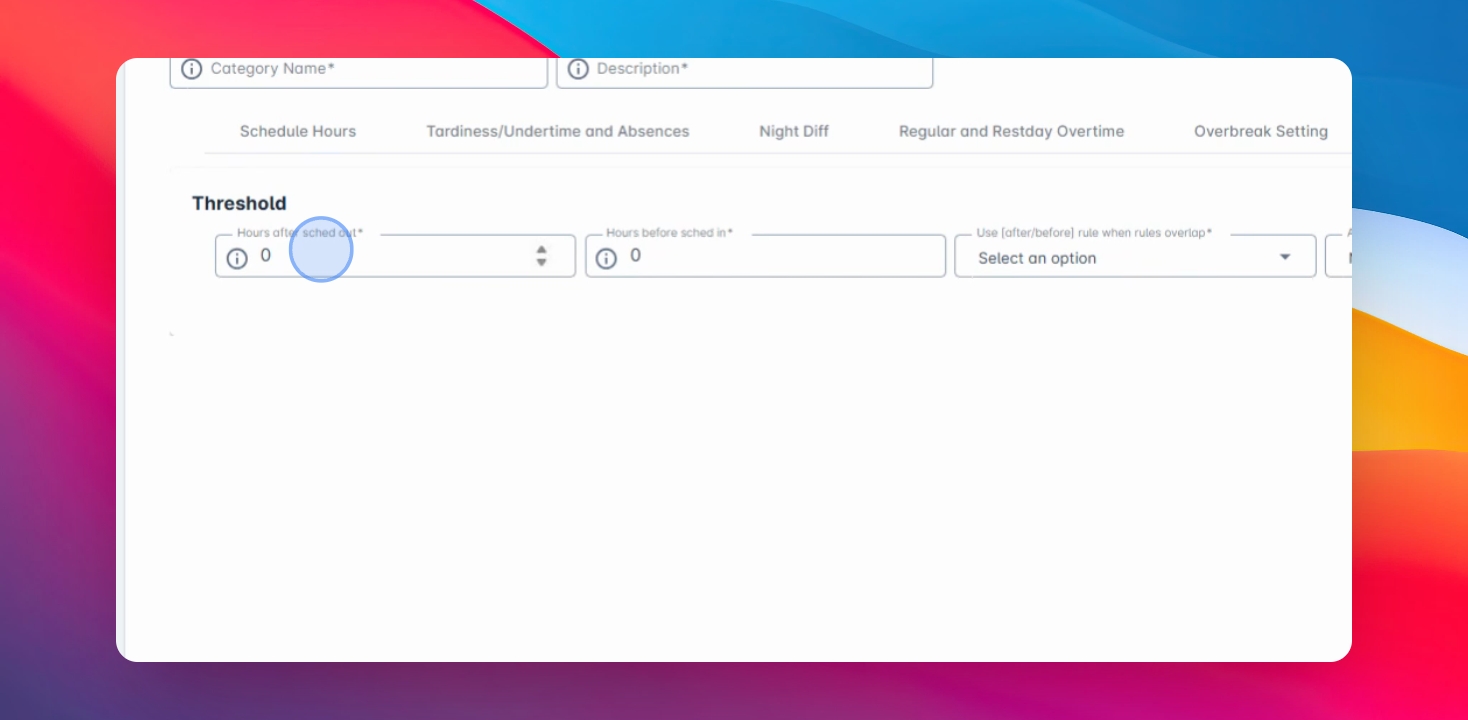
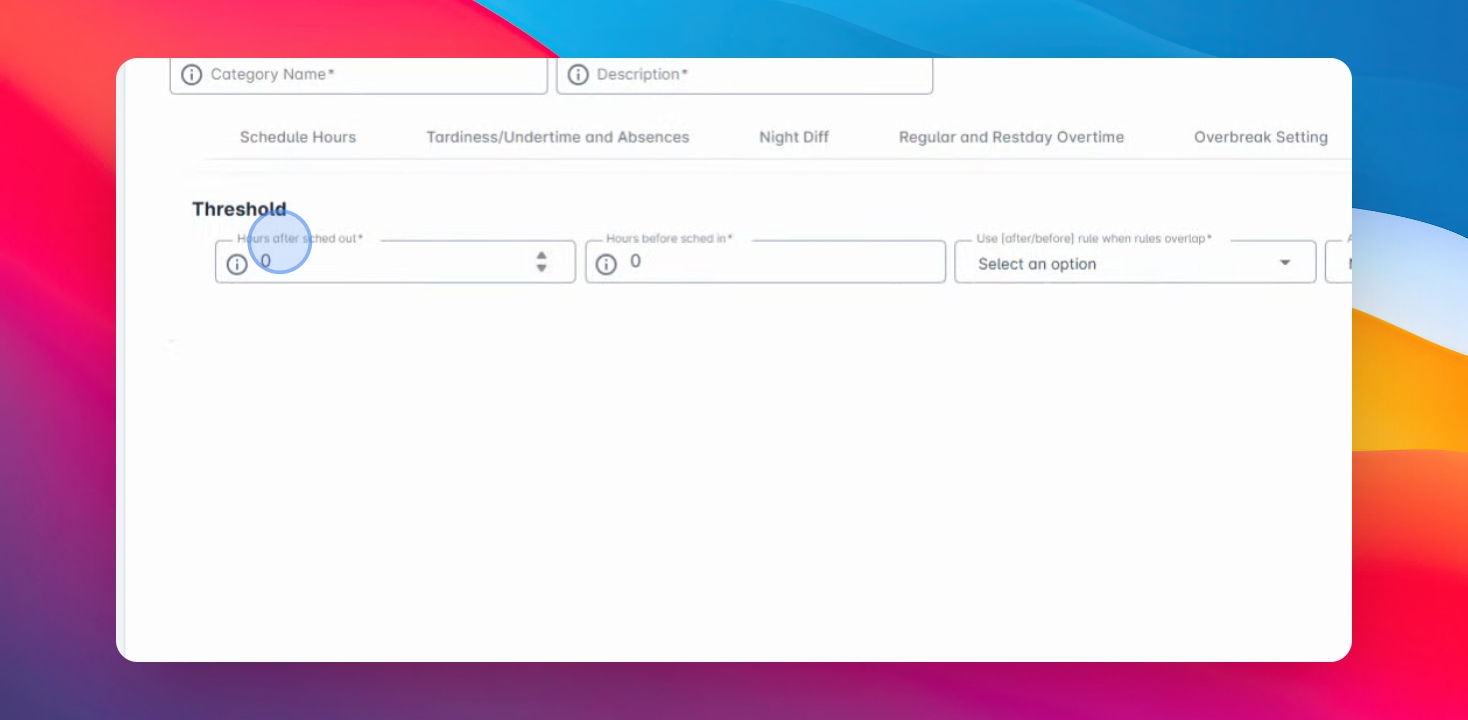
You can define the number of hours by going to the Threshold tab or panel.
Step 3: Set Acceptable Hours
Define the number of hours after schedule out and before schedule in, or you may define this as an acceptable date.
Step 4: Example Configuration
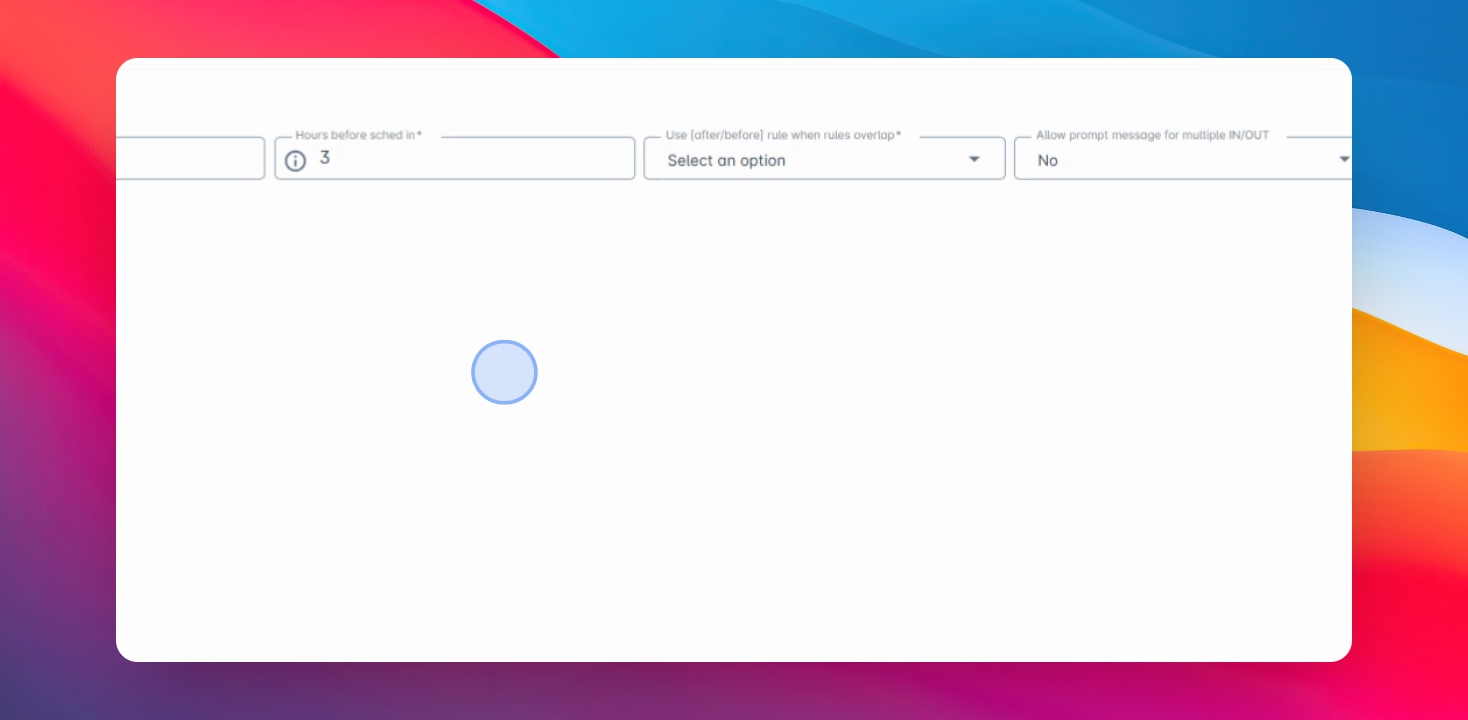
For example, for setup for both columns is 3 hours. If the schedule of the employee is from 8:00am to 5:00pm, the acceptable early clock in will be 5:00am and the acceptable late clock out will be 8:00pm.
Step 5: Understand Clock In/Out
If the employee clocks in at 4:55am, the system will not consider it as clock in due to being out of threshold.
Step 6: Select Options
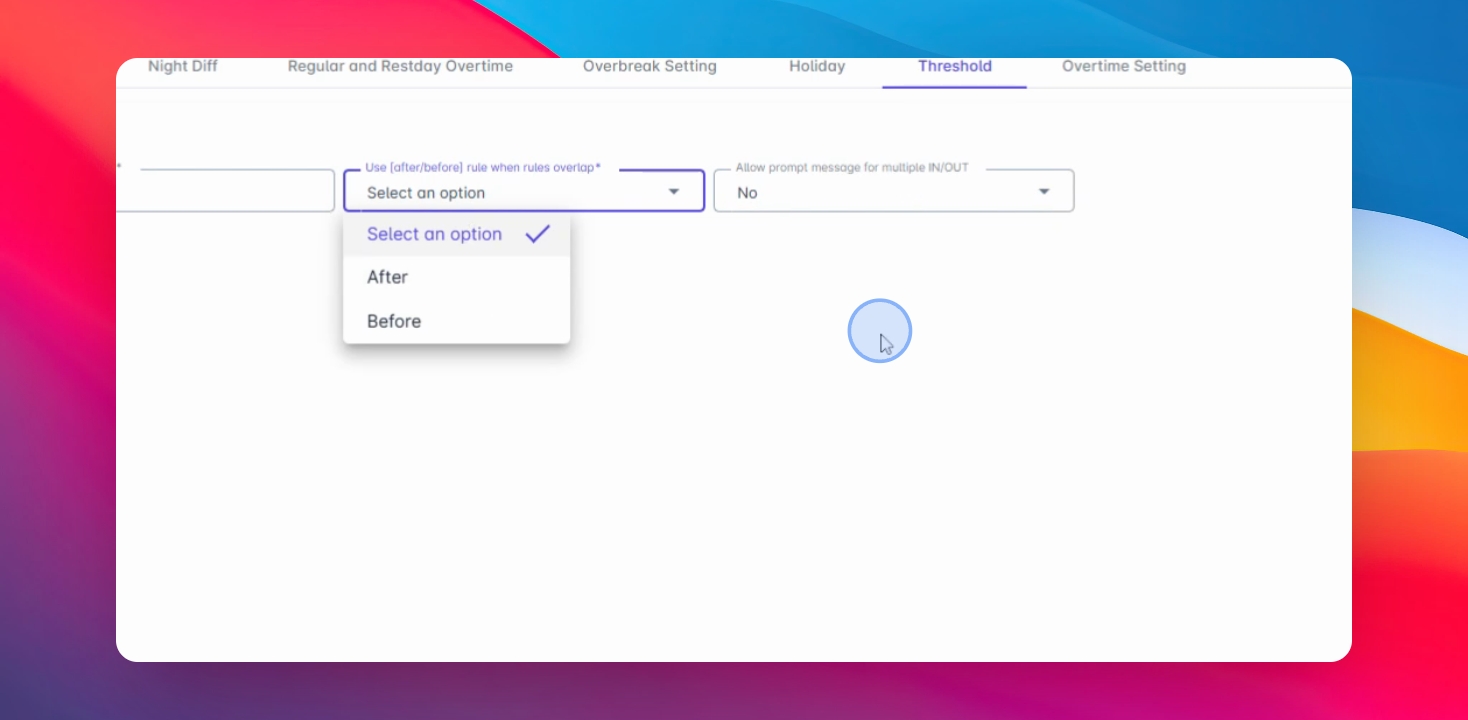
Select an option if you wish. Determine which ruling will follow if there's an overlap, and if you wish to allow a prompt message for multiple in and out, touch Yes or No.