

In this video, we will guide you on how to view the employee attendance on the timekeeping module. Let's look at the steps:
Step 1: Navigate to Timekeeping
First, navigate to the timekeeping menu and go to attendance.
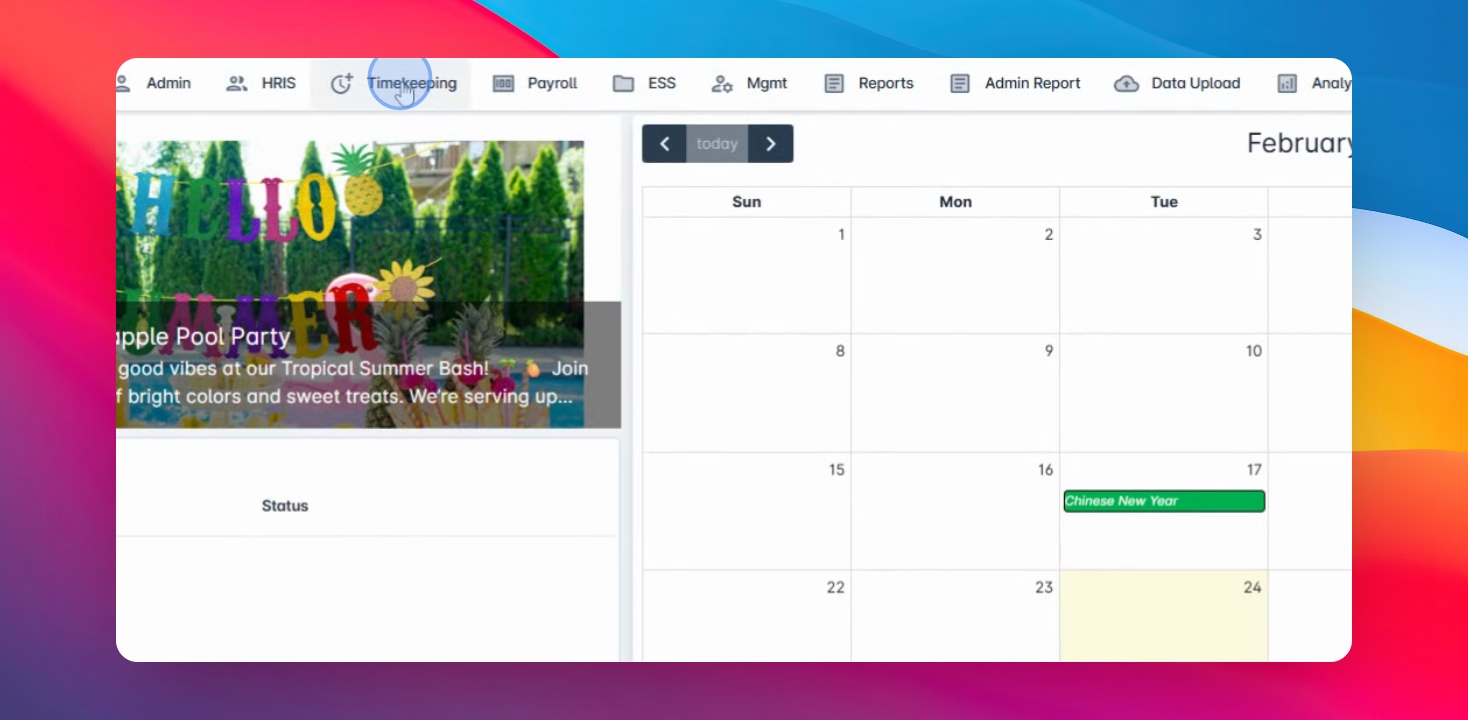
Step 2: Filter Date Range
Filter the date range you wish to review and sort the employees by tag type.
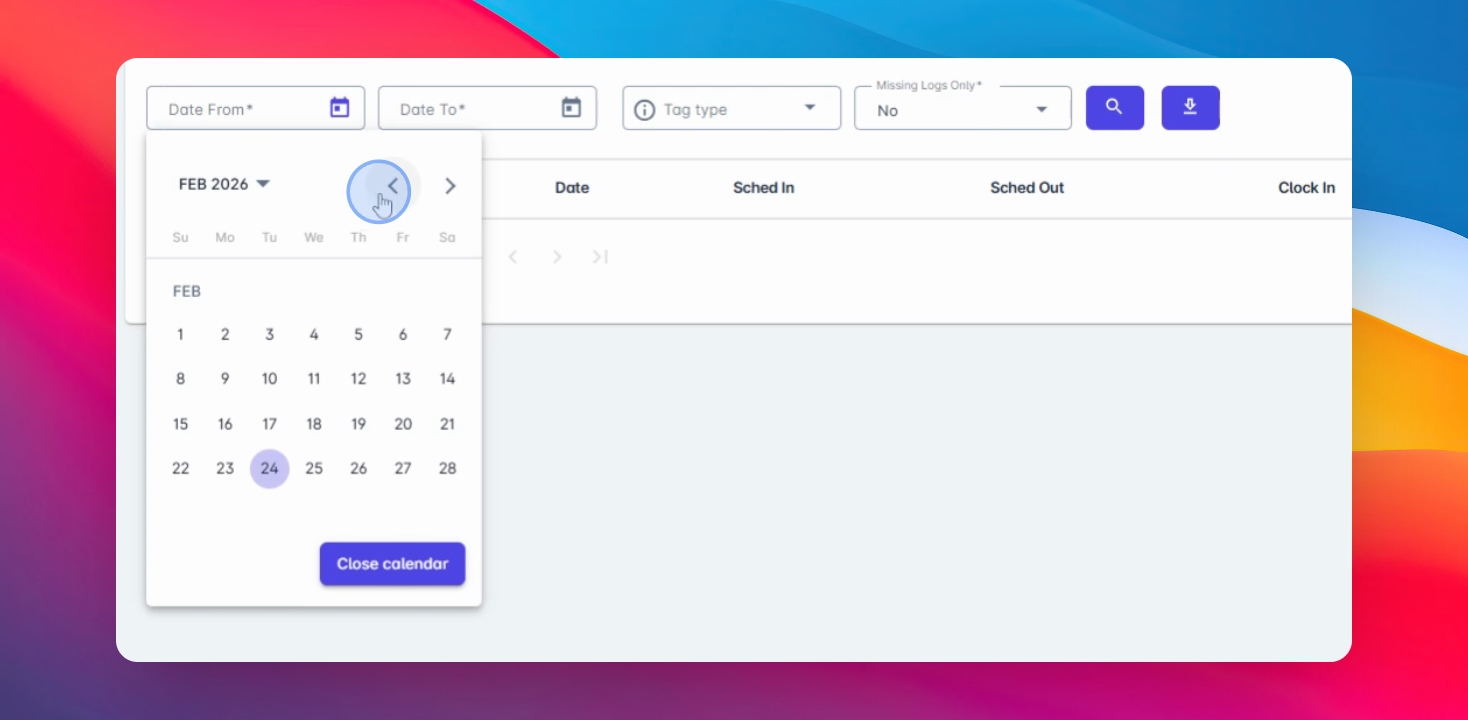
Step 3: Select Employee
You can sort by company, branch supervisor, employee, employee status, occupation, or department. For now, I will be using the employee.
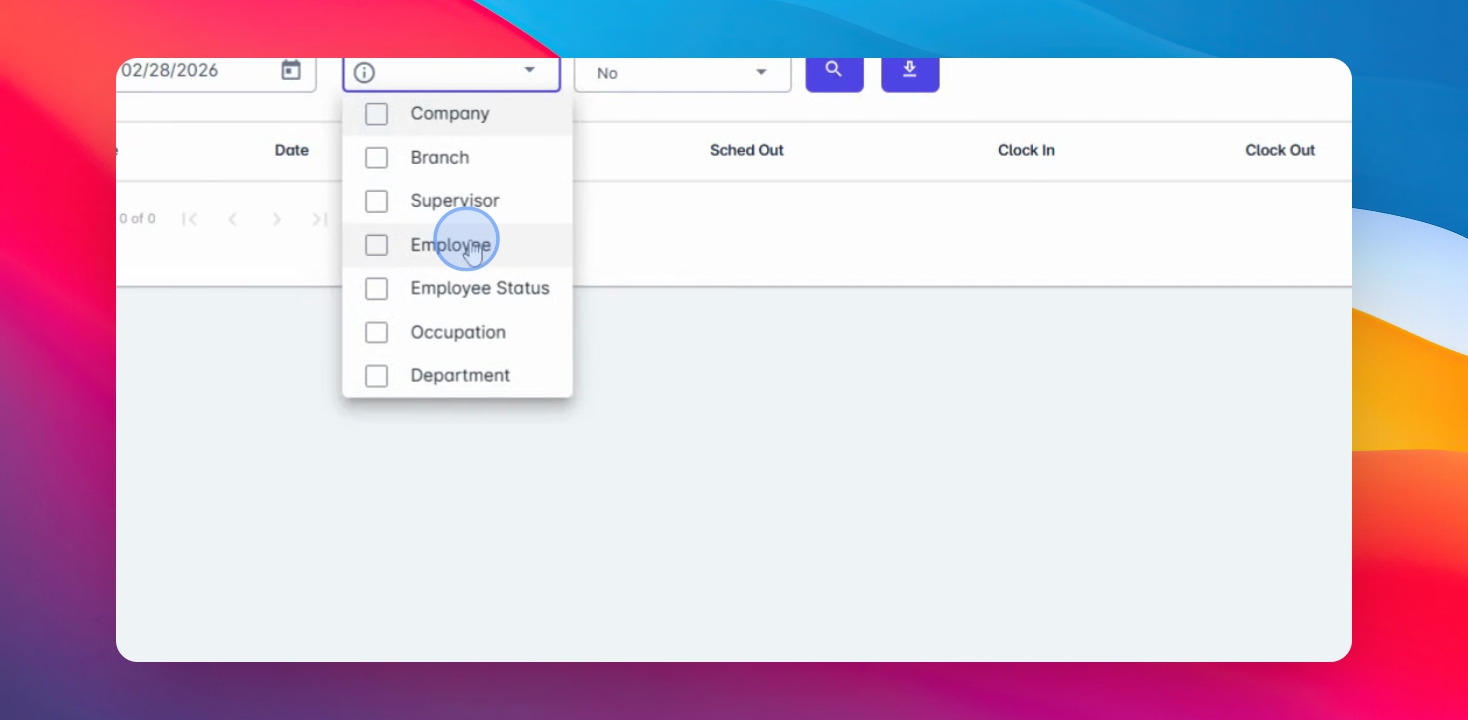
Step 4: Choose Employees
Select the employee(s) either multiple or one by one.
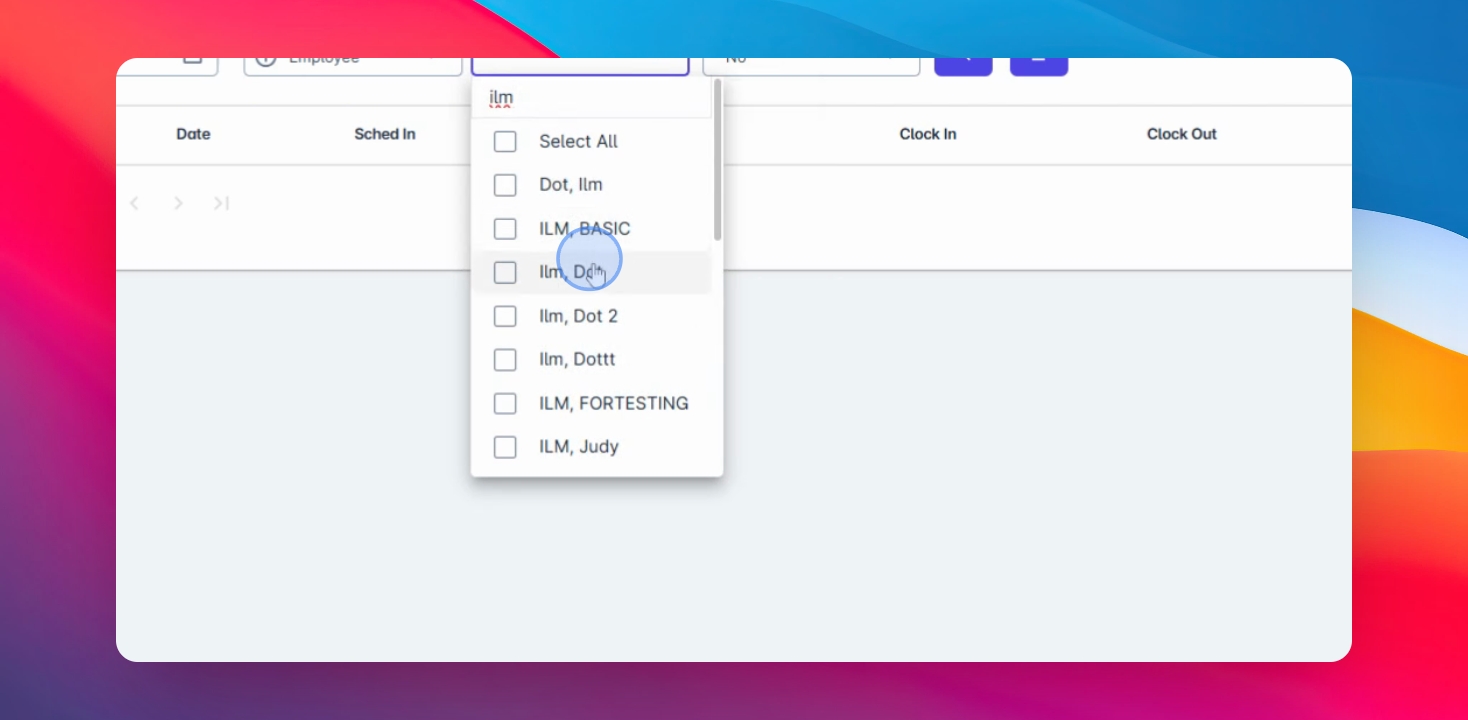
Step 5: View Logs
You have the option to view incomplete logs only or all logs.
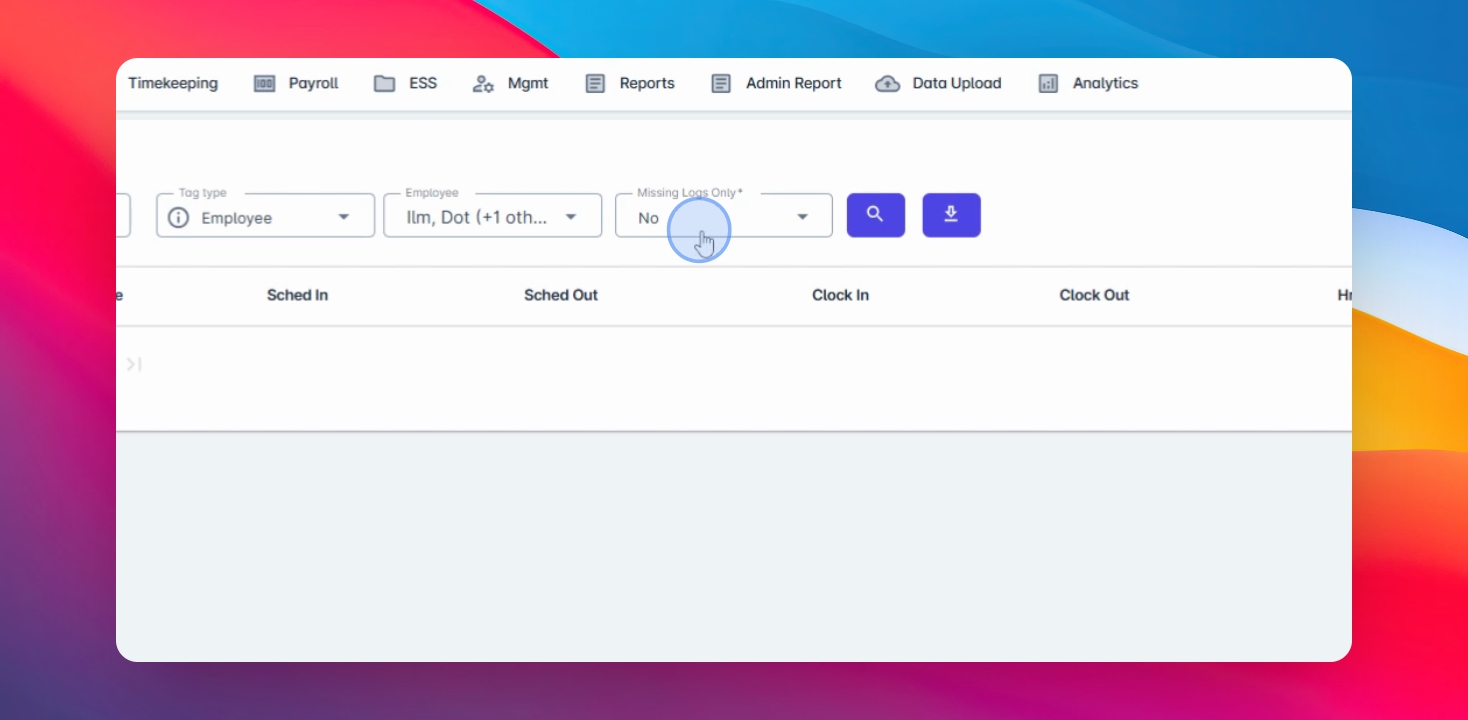
Step 6: Search and Download
Click the search button to proceed. You also have an option to download the attendance that you have filtered.
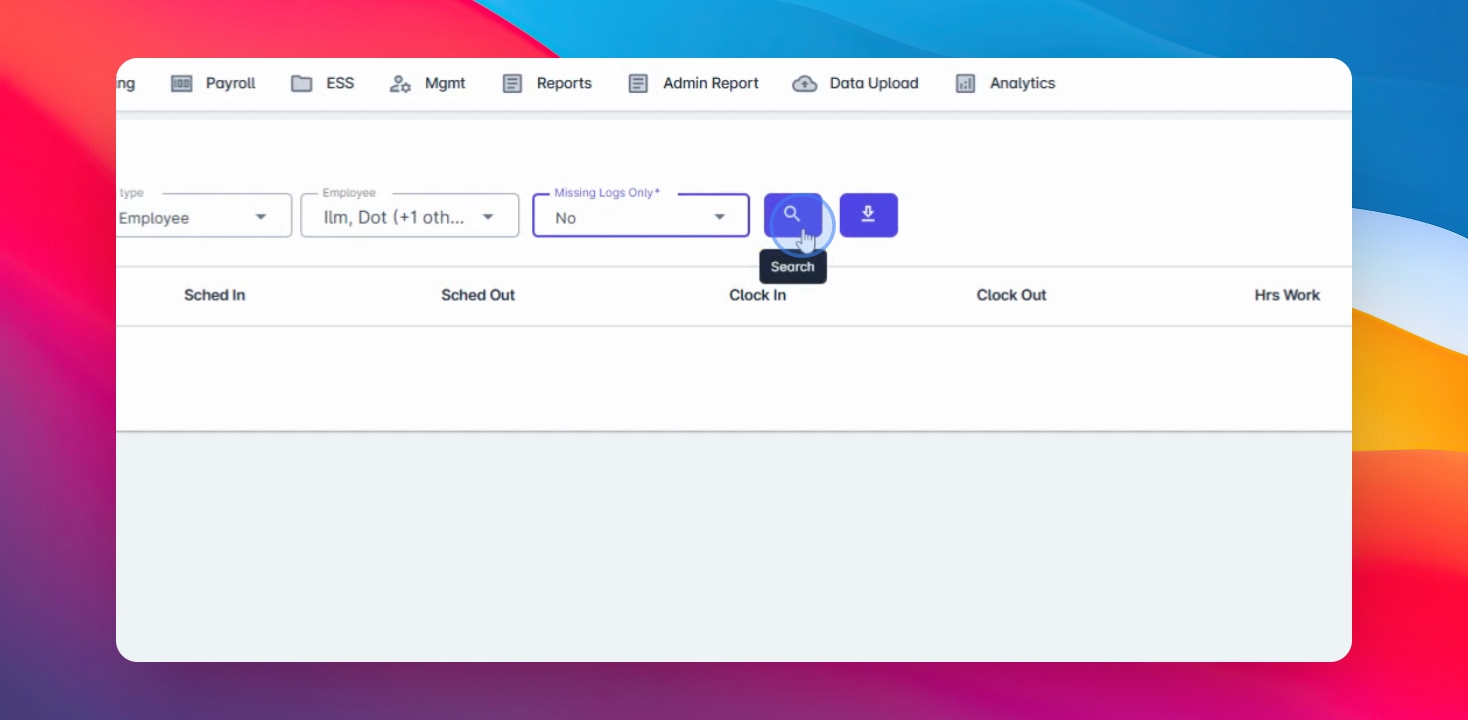
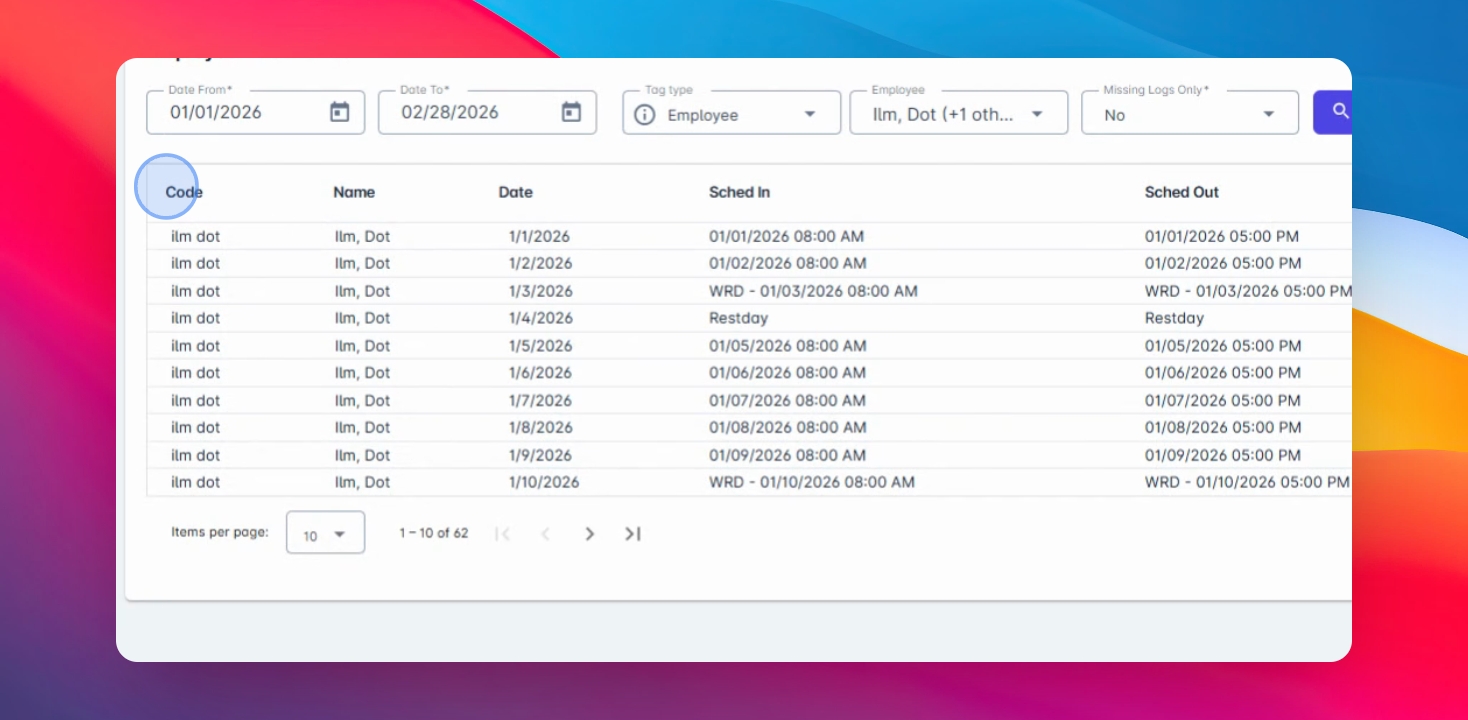
Step 7: Review Attendance Data
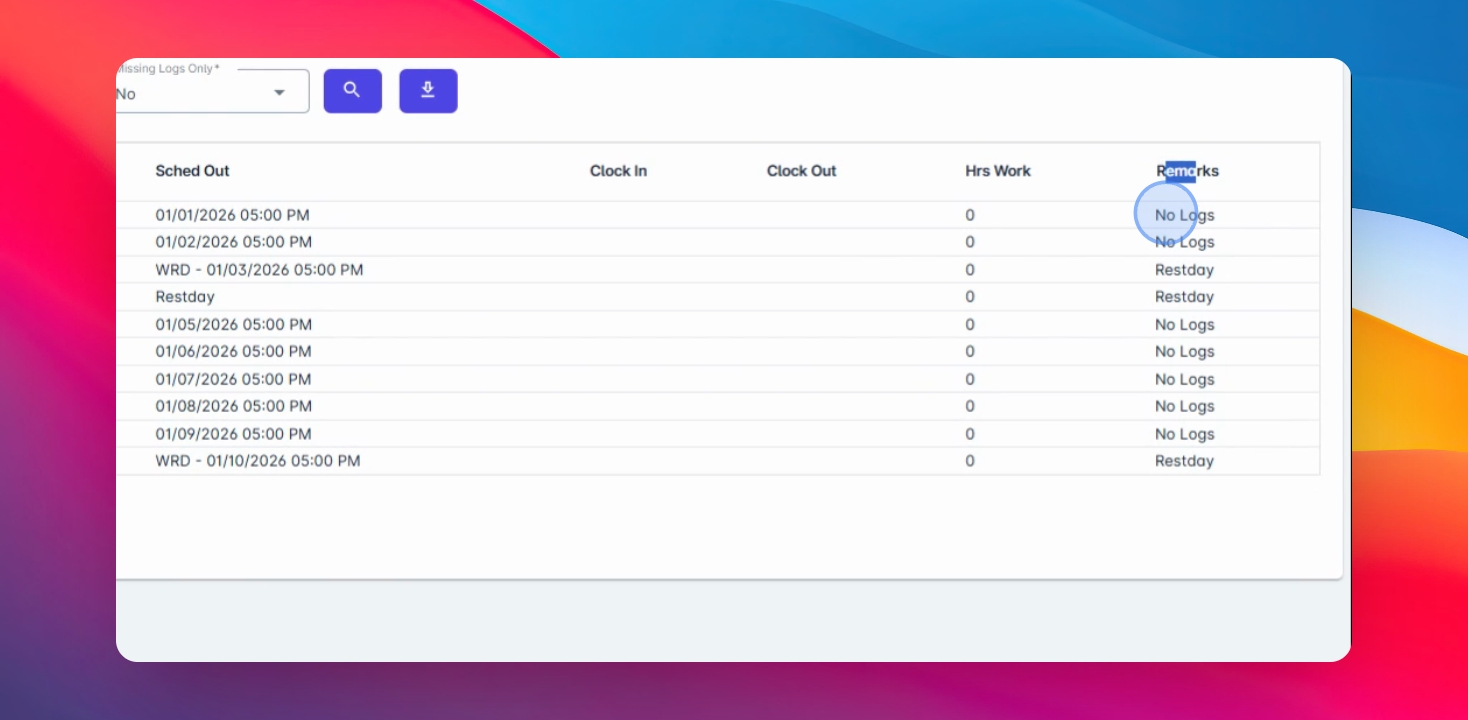
From here, you can see the employee code, employee name, date, your schedule, in and out times, hours worked, and remarks.
Step 8: Filter Per Page
If there are no logs, it's a rest day, or you have filed leave, you can also filter out the items per page below.
And that's it.