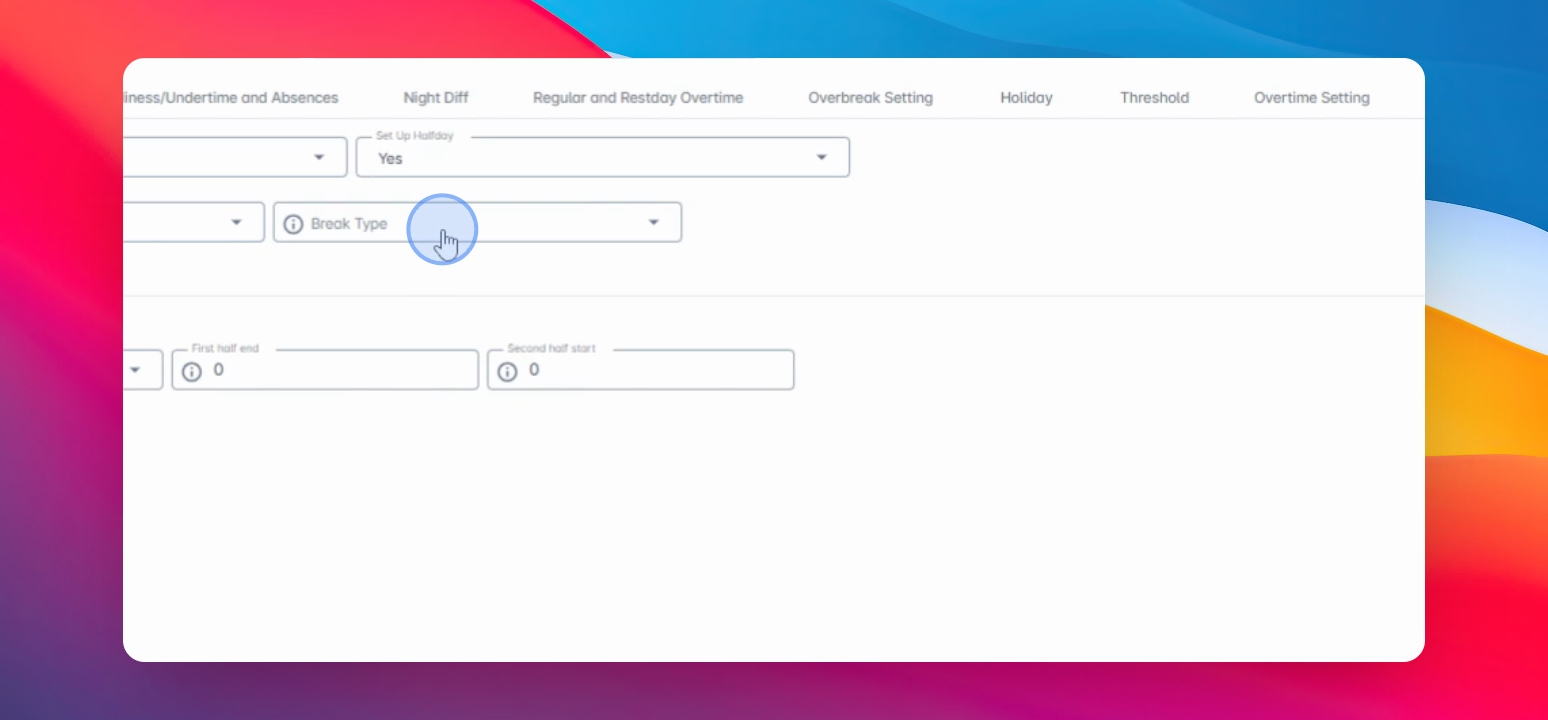
Schedule Hours
Let's Do It Together!
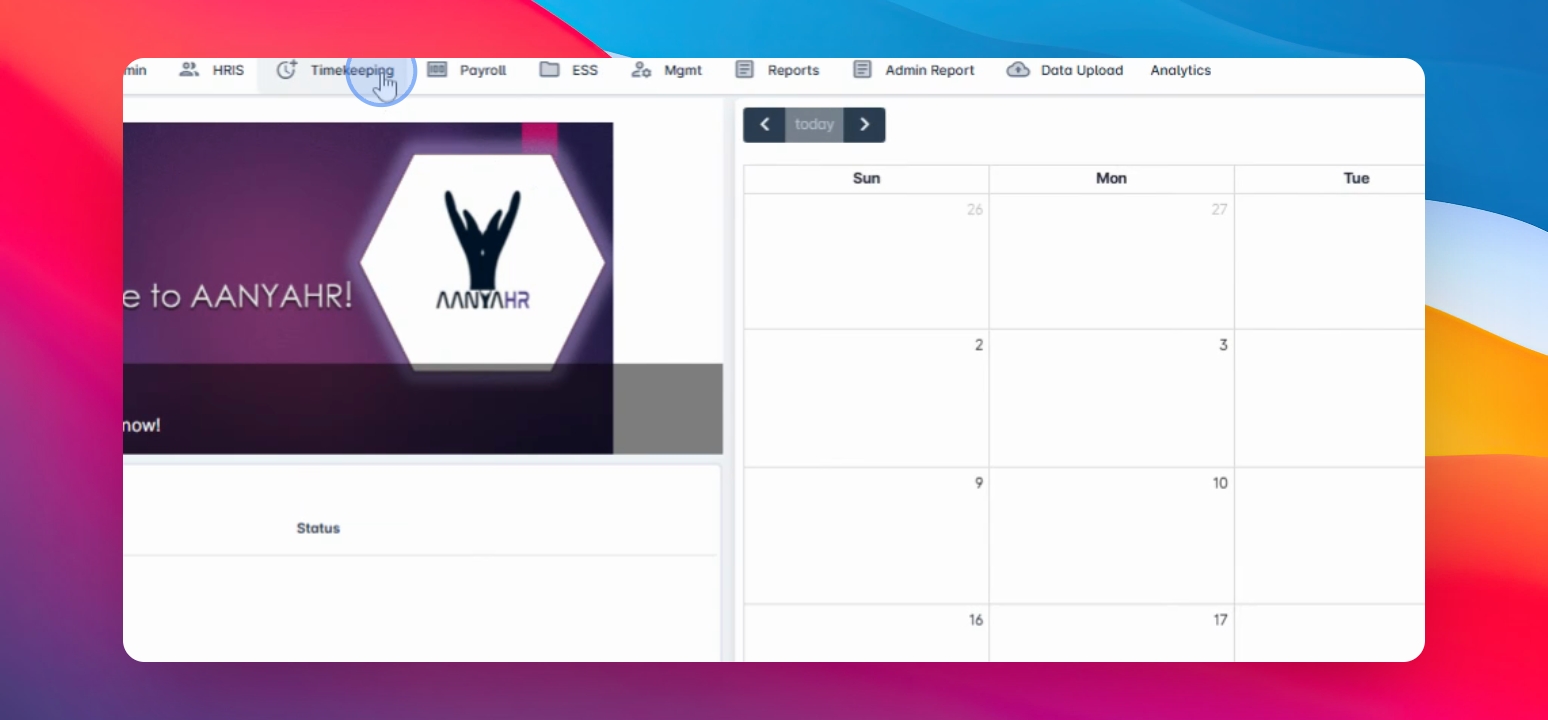
Step 1: Access Timekeeping Module
Go to the Timekeeping module.
Select the TK category.
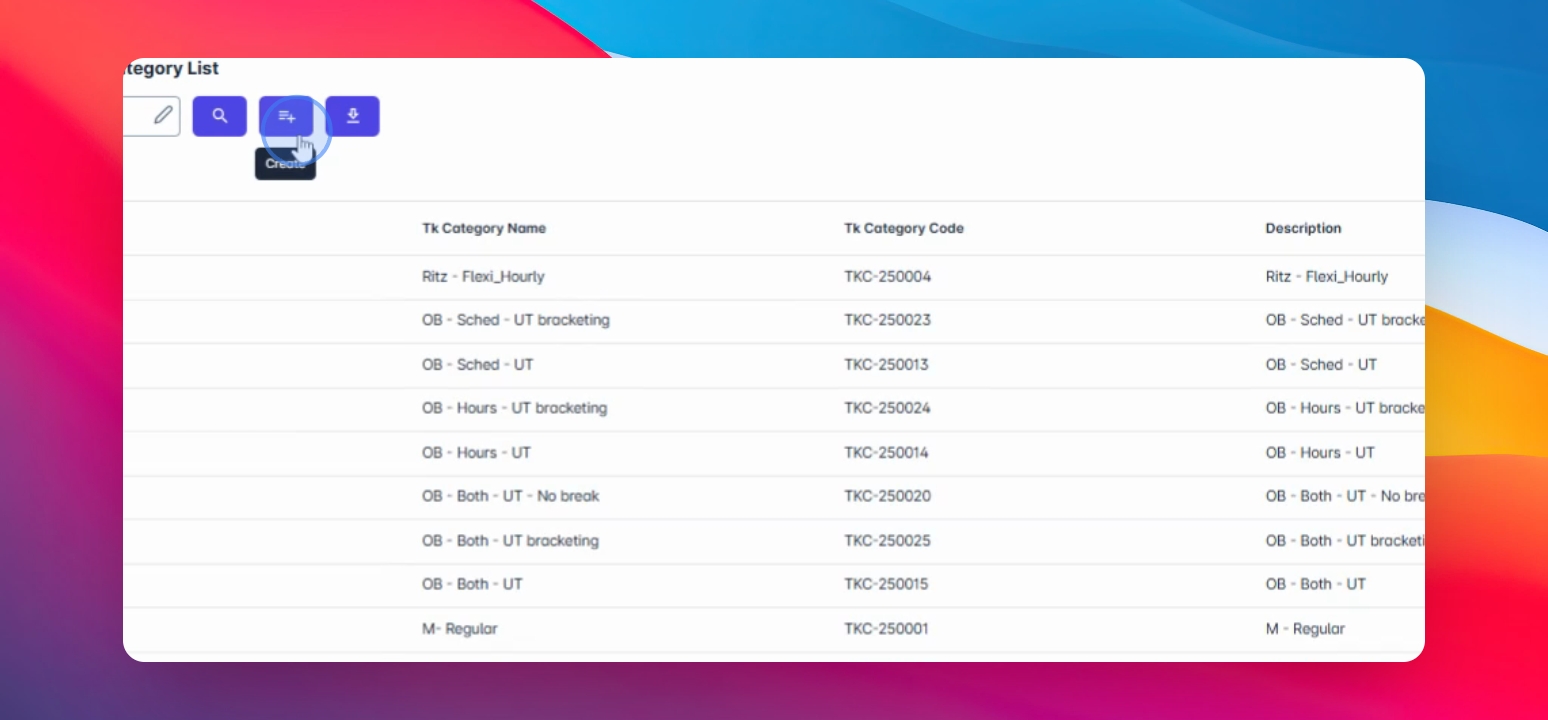
Step 2: Create Category
Click the Create button.
Input the category name and description.
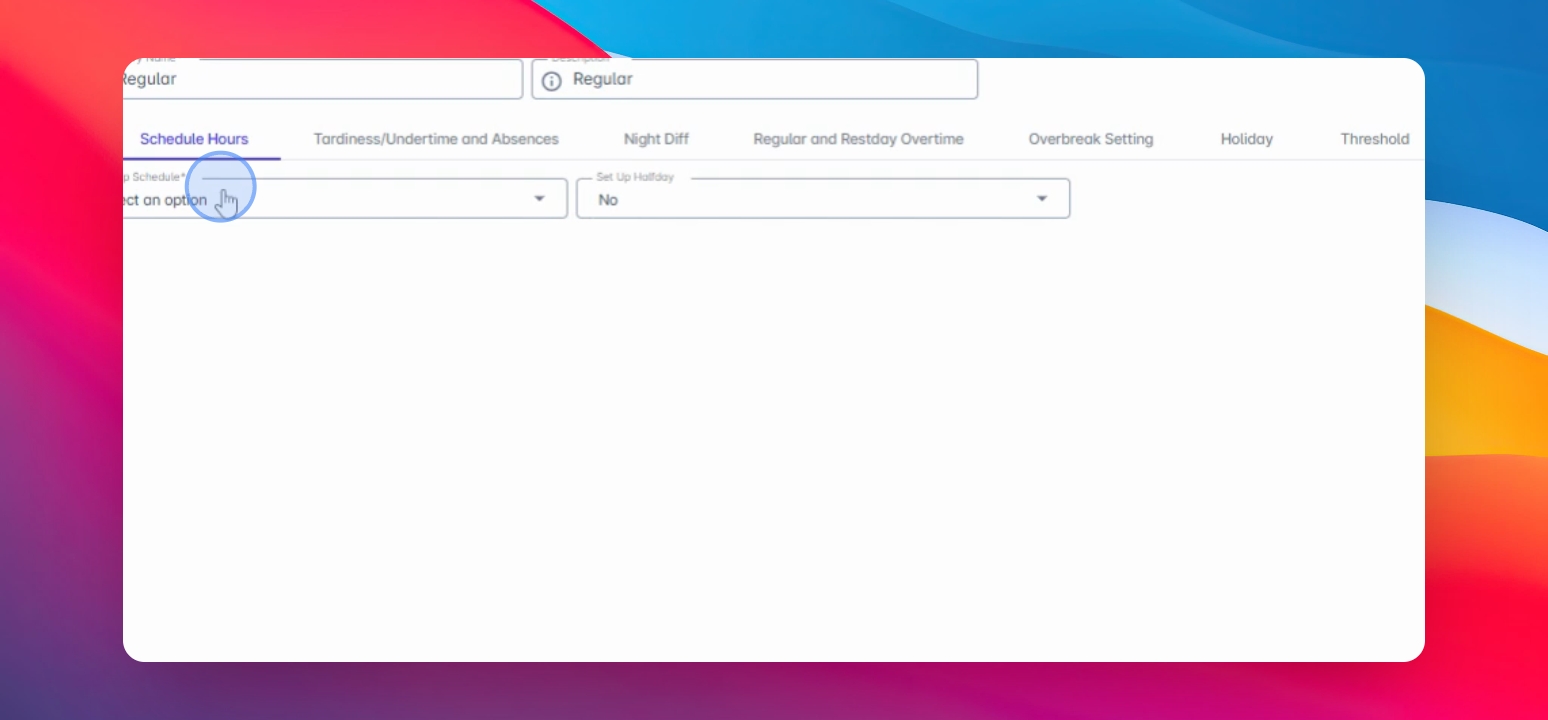
Step 3: Set Scheduled Hours
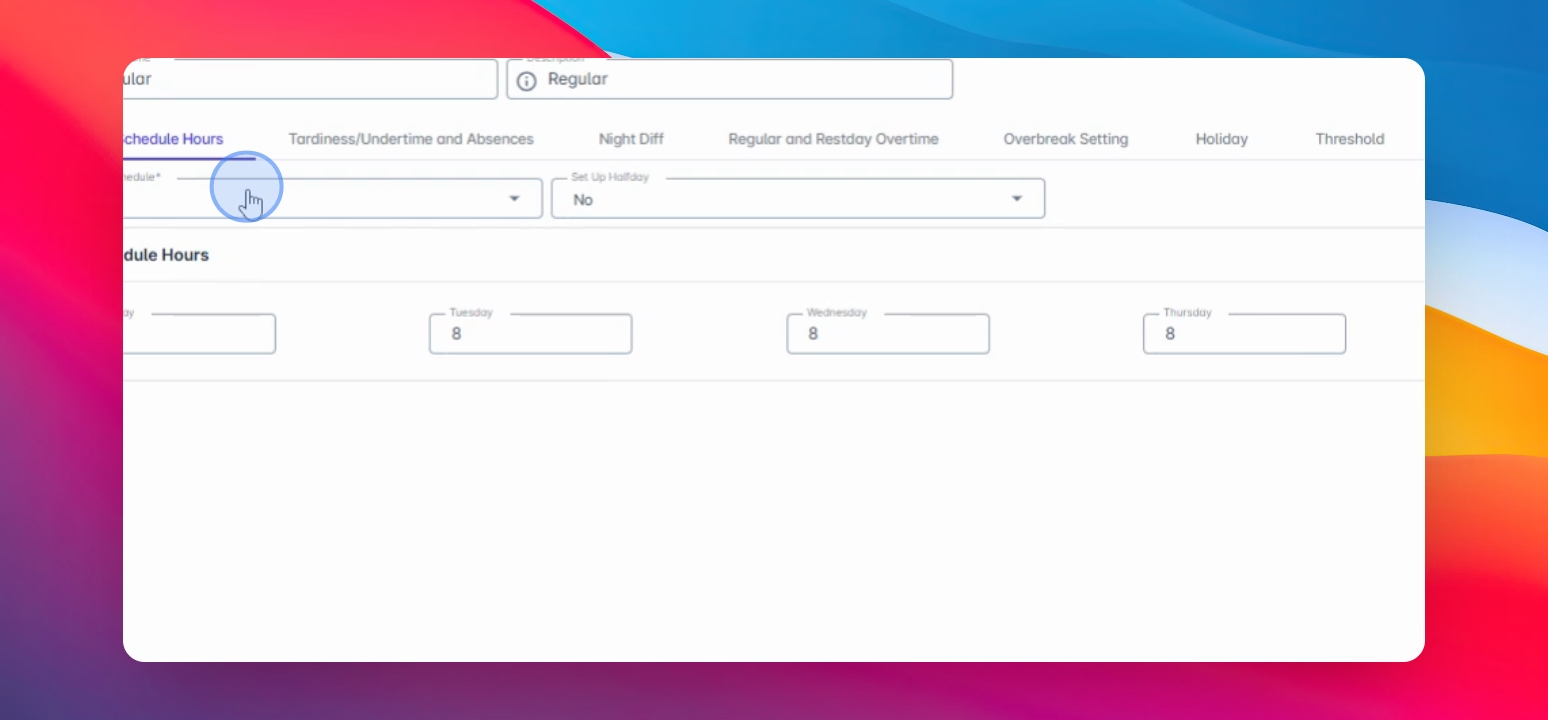
In the scheduled hours section, choose the scheduled type:
C Suite: Used for executive level employees without clocking in/out.
Input regular working hours for Monday to Friday (e.g., 8 hours).
Consider Saturday and Sunday as rest days or retain them as zero.
This setup will assist in timekeeping calculations.
Step 4: Configure Full Flexi Hours
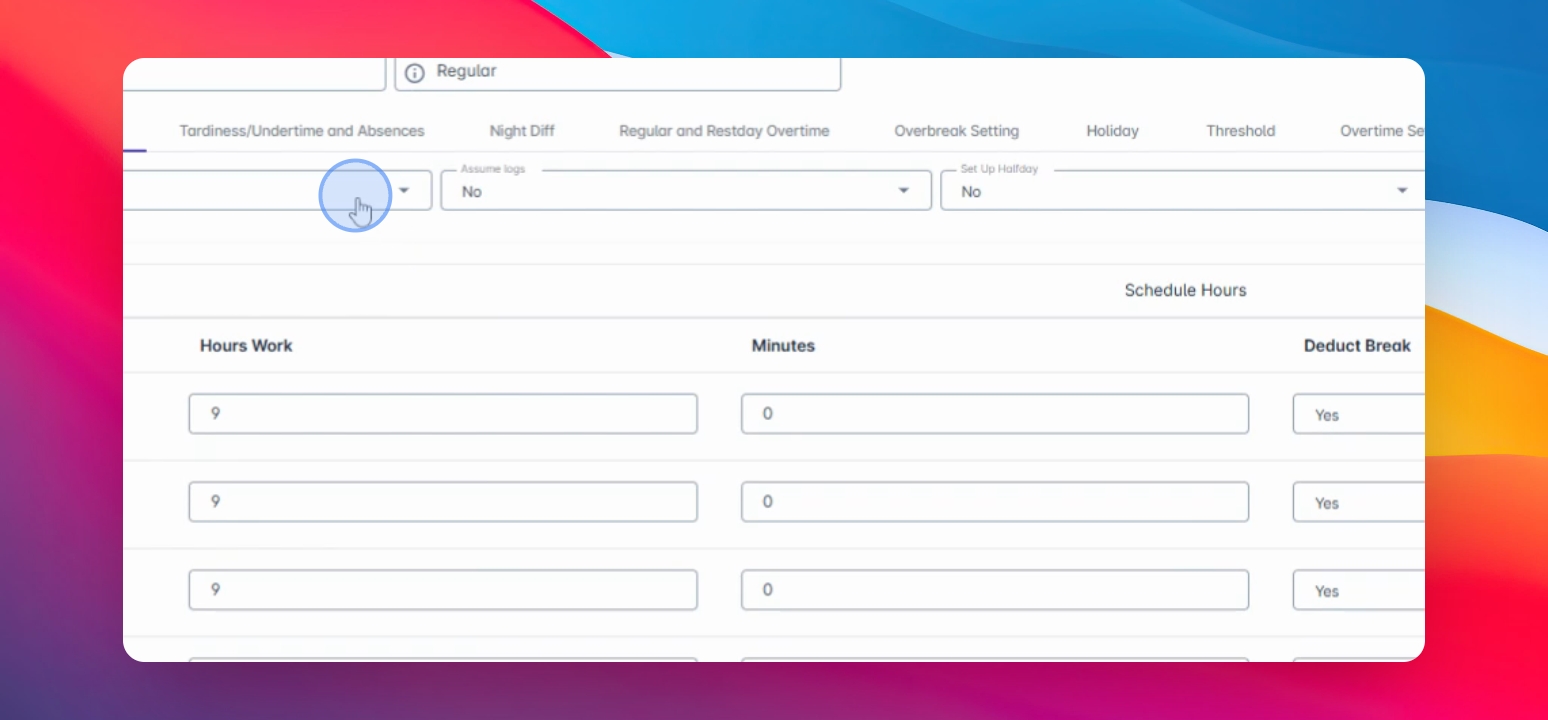
Select Full Flexi for employees with no fixed hours.
Input required scheduled hours (e.g., 9 hours from Monday to Friday).
If applicable, select break type and deduct from total hours.
Step 5: Set Partial Flexi Schedule
Choose Partial Flexi for a hybrid clock setup.
Input acceptable early clock in window (e.g., 2 hours).
Input acceptable late clock in window (e.g., 1 hour).
Specify break type for this schedule.
Step 6: Define Regular Shift
Choose Regular Shift for fixed schedules.
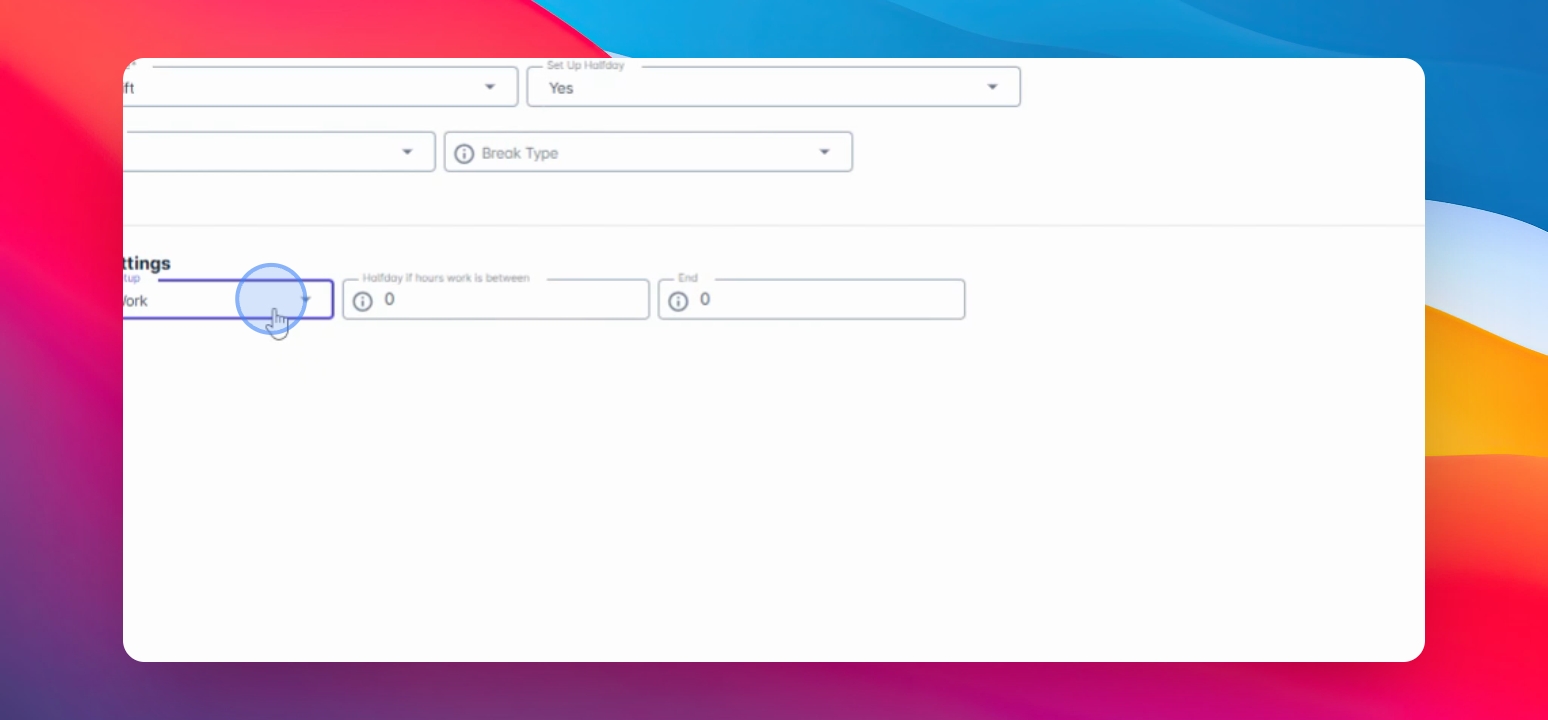
Define start and end times for half day schedules.
Choose whether to base on actual hours worked or scheduled hours.
Step 7: Configure Auto-Logging
Specify auto logging for employee clock in/out.
Auto assume both time in and out based on schedule.
Step 8: Select Break Type
Choose the break type for this category.
Options include 1 hour break, 30 minutes break, or No break.