

Introduction
Filing a Certificate of Employment (COE) request has never been easier with the Anya HR mobile application. In this tutorial, we will take you step-by-step through the process, ensuring you understand each action required to successfully submit your request. Whether you are familiar with the app or a first-time user, this guide will help you navigate through the filing process smoothly.
How to Instructions
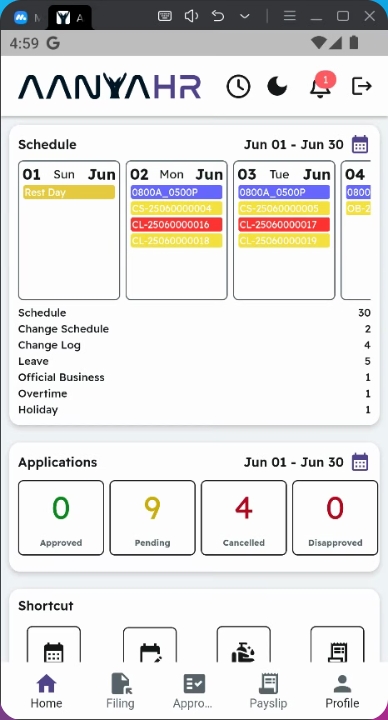
1. Open the Filing Module
First, open the filing module within the Anya HR mobile application.
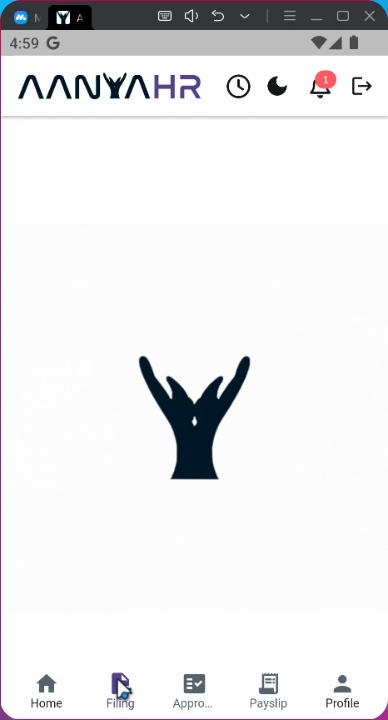
2. Create a New Filing
Then, tap on the Create panel to initiate the filing process.
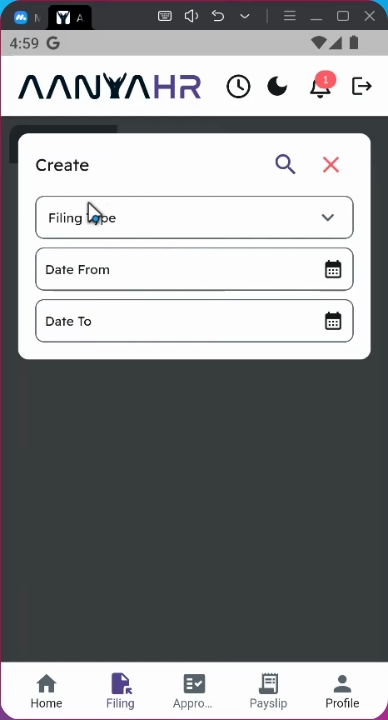
3. Select Filing Type
Ensure that the filing type is set to COE.
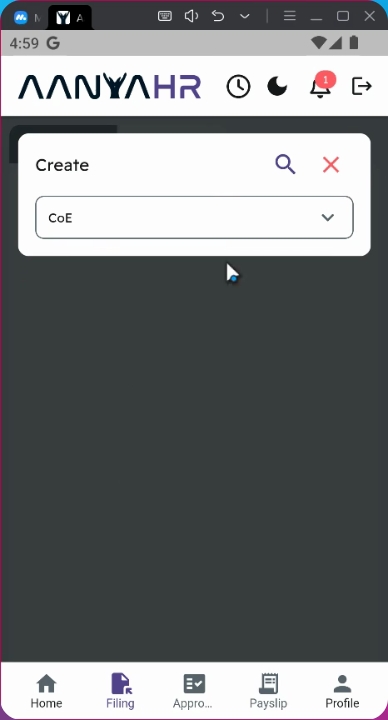
4. Proceed with File
Next, click the search icon to proceed with the filing.
5. Choose the Filing Option
In the drop-down option, select Create to continue.
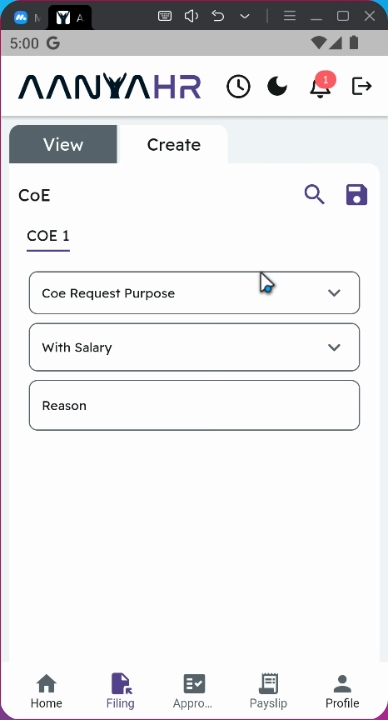
6. Specify Purpose
Indicate the purpose of your request, for example, what you are filing for.
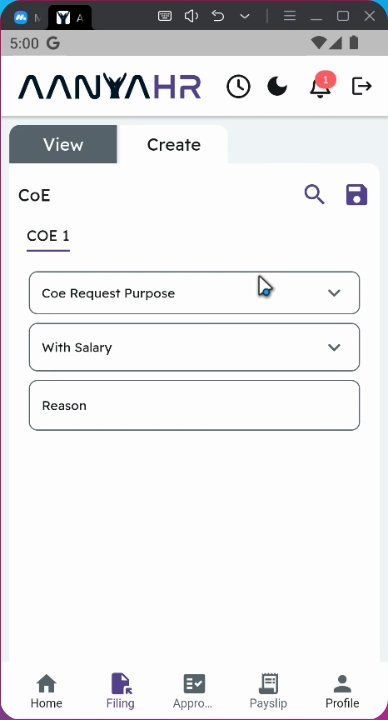
7. Indicate Salary Status
You have an option to indicate whether the request is with salary.
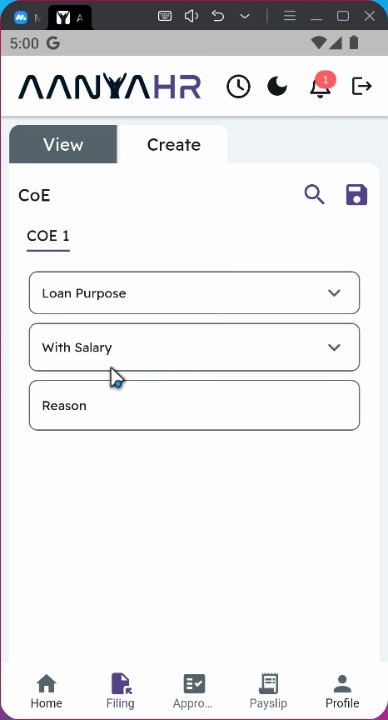
8. Confirm Salary Status - Yes
If it is with salary, click yes.
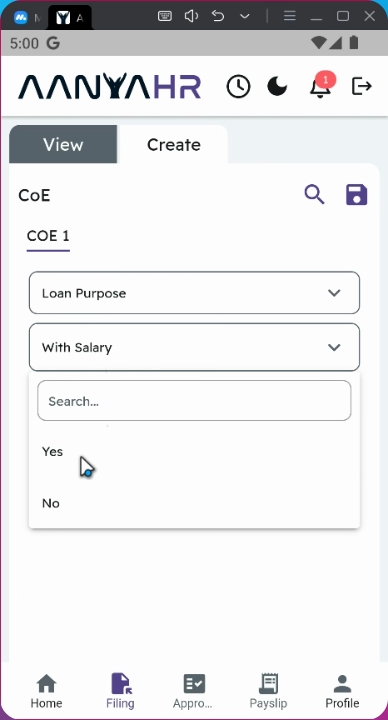
9. Confirm Salary Status - No
If it is without salary, click no.
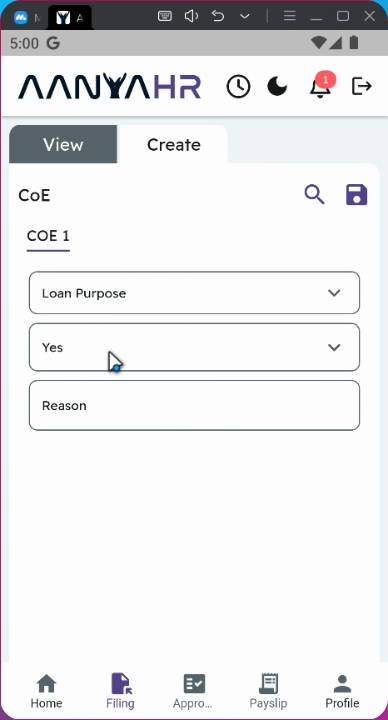
10. Input Request Reason
Then, input the reason for your request to help the approver understand its purpose.
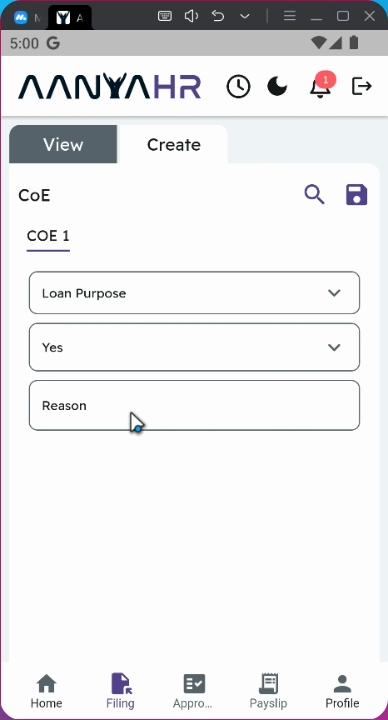
11. Save the Filing
Once everything is finalized, tap the save button to proceed with the filing.
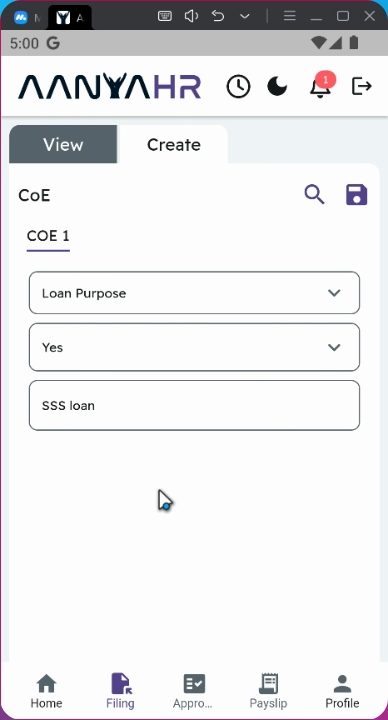
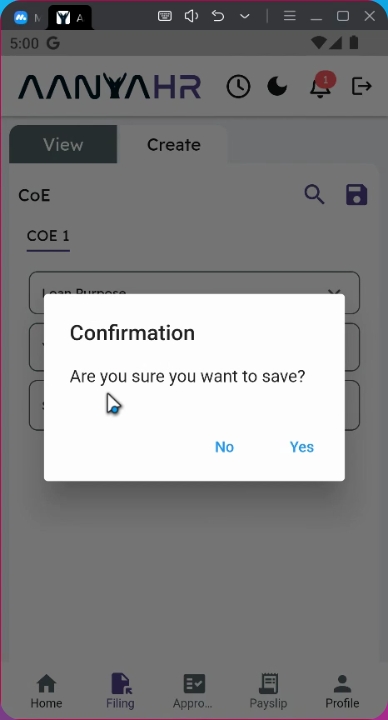
12. Confirmation Prompt
A confirmation prompt will appear to verify your submission.
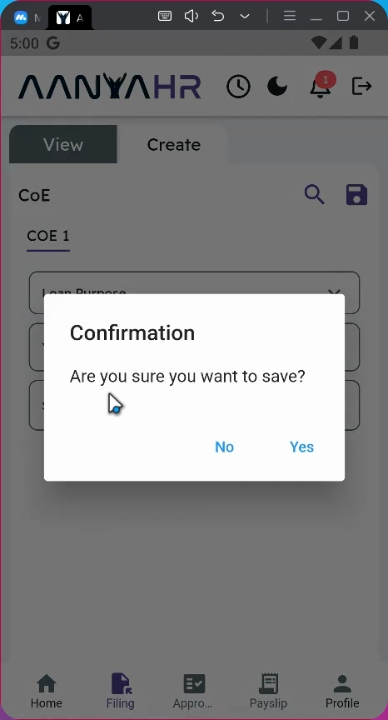
13. Confirm Filing
Tap yes to proceed with the filing.
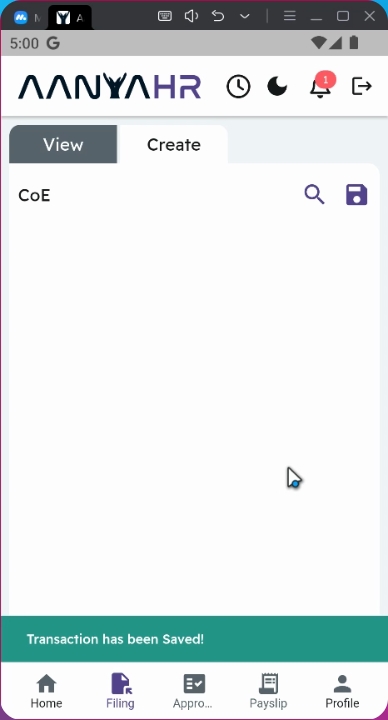
14. Await Supervisor Approval
The request will be rerouted to your supervisor for approval.
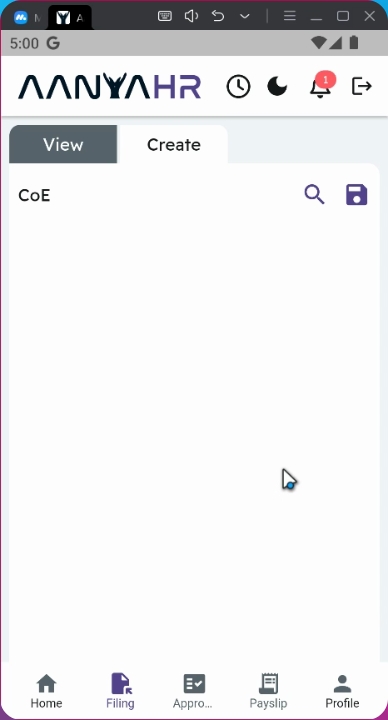
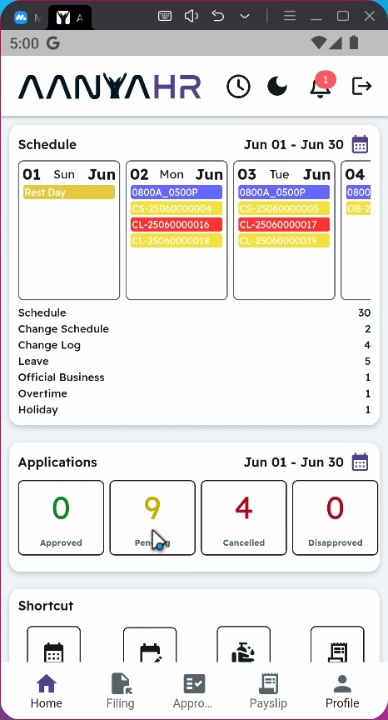
15. Track Your Request
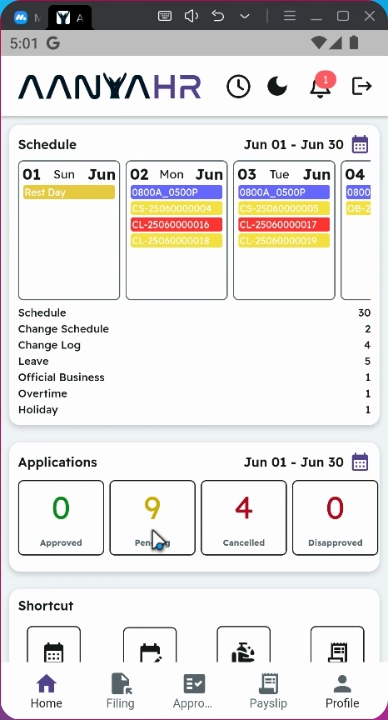
You can track its status in the Applications module, where it will be tagged as Pending Filing.
16. Download Approved COE
Once the COE is approved, you can download it at any time and from anywhere directly through the mobile application.
17. File Format
The file must be available in PDF format.
Conclusion
By following these steps, you can successfully file a COE request using the Anya HR mobile application, ensuring a smooth and efficient process. Don't hesitate to reach out for assistance if needed.