

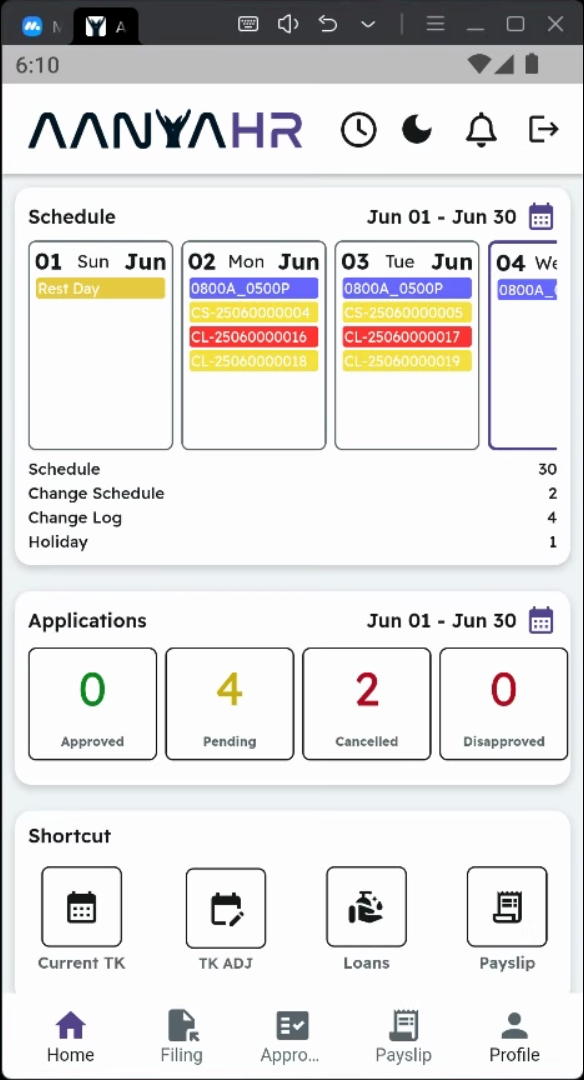
Open the Filing module on your mobile application.
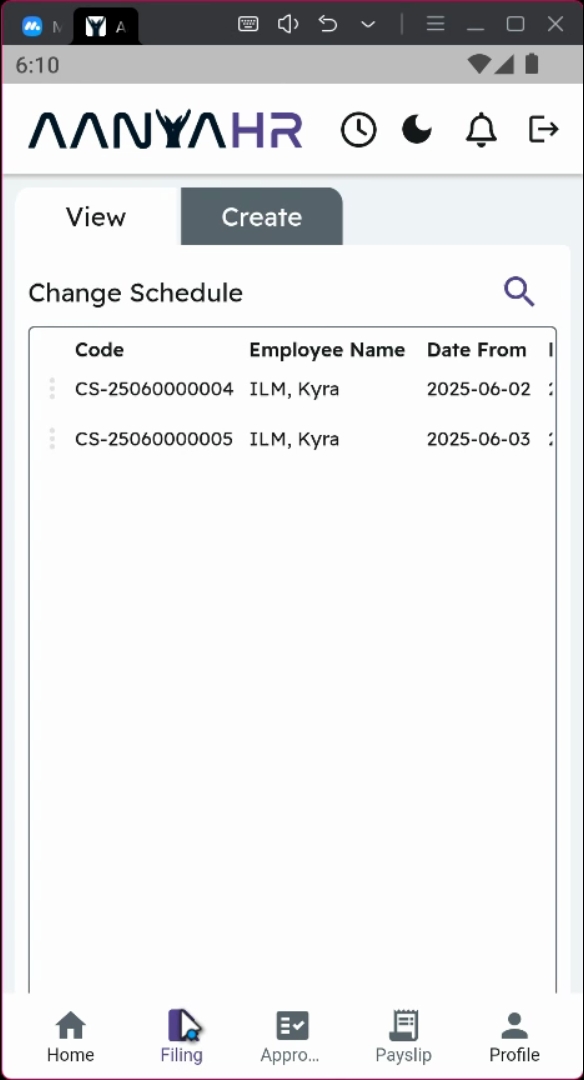
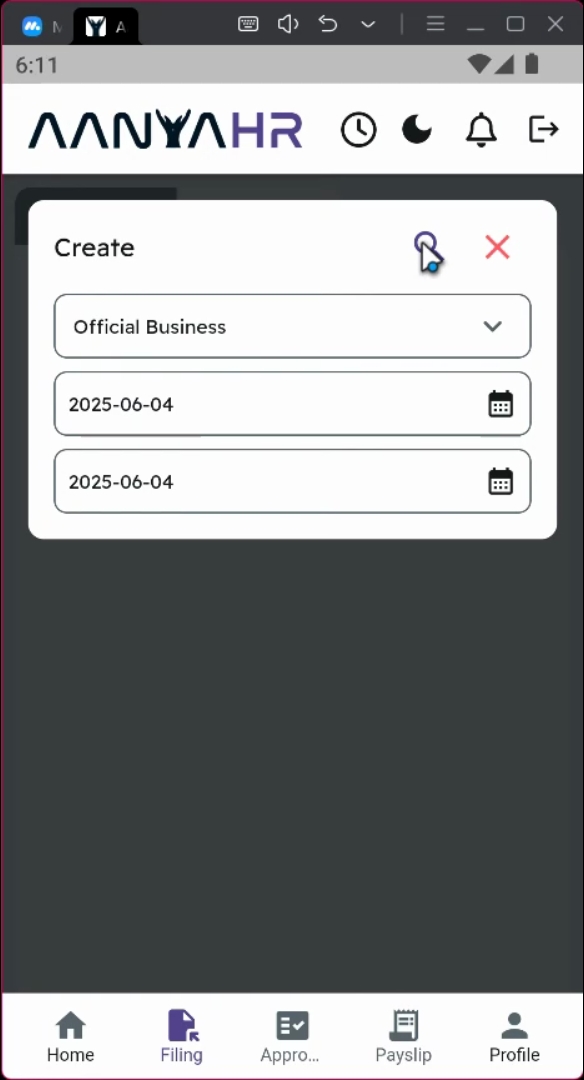
Tap the Create Panel filing type, ensuring that you select Official Business.
Choose the desired date range for your request.
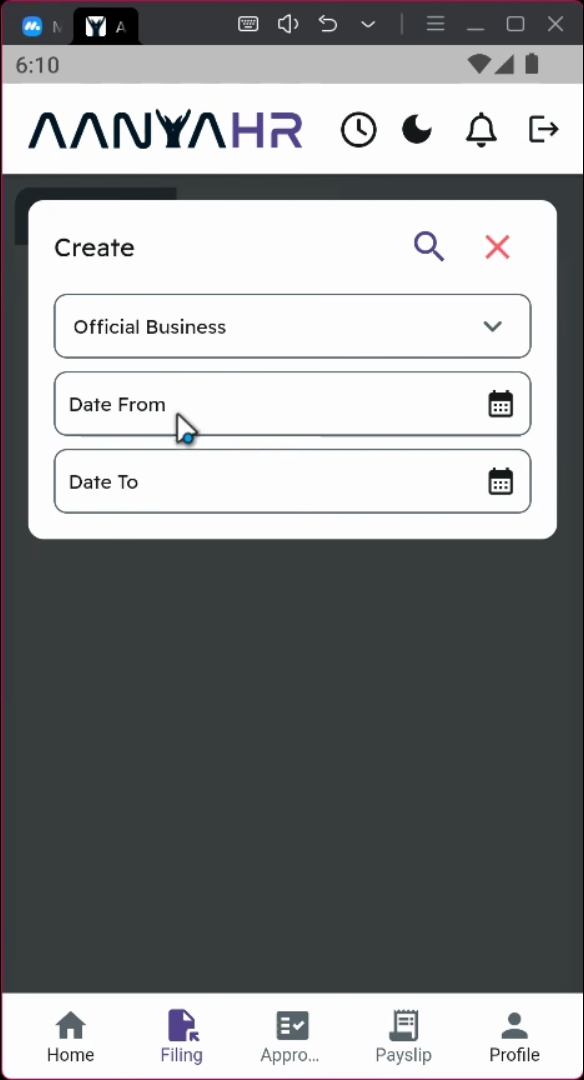
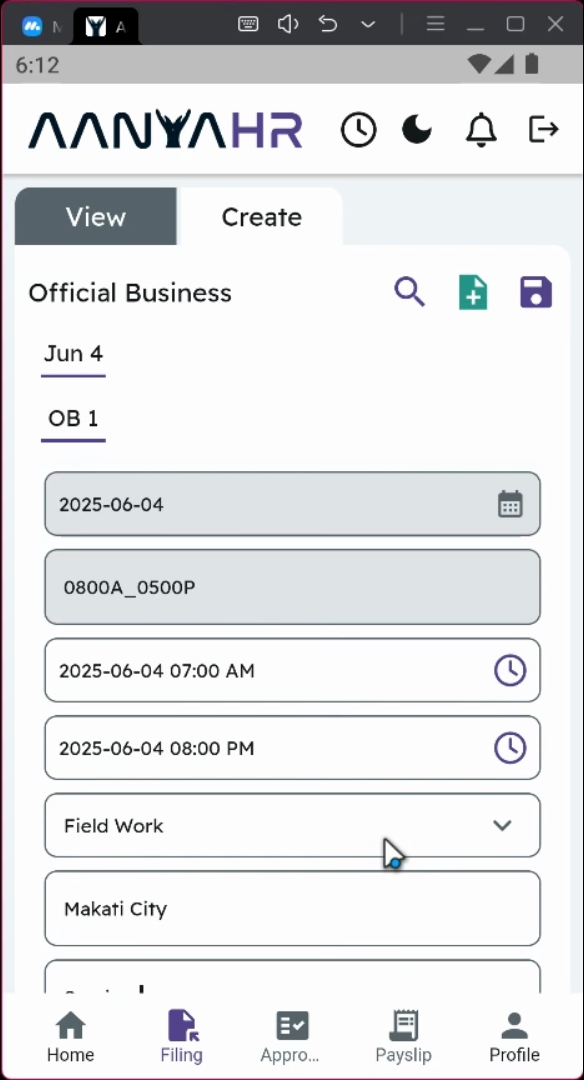
You can opt for a single day or multiple days by adjusting the start and end dates. For instance, if you need to file for June 4th only, set the date from and date to to June 4th.
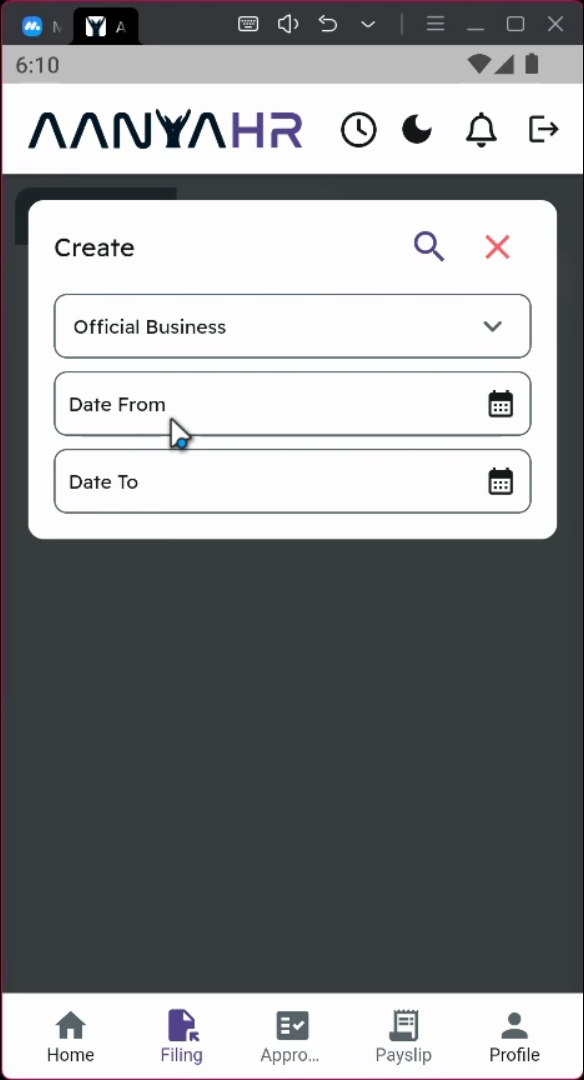
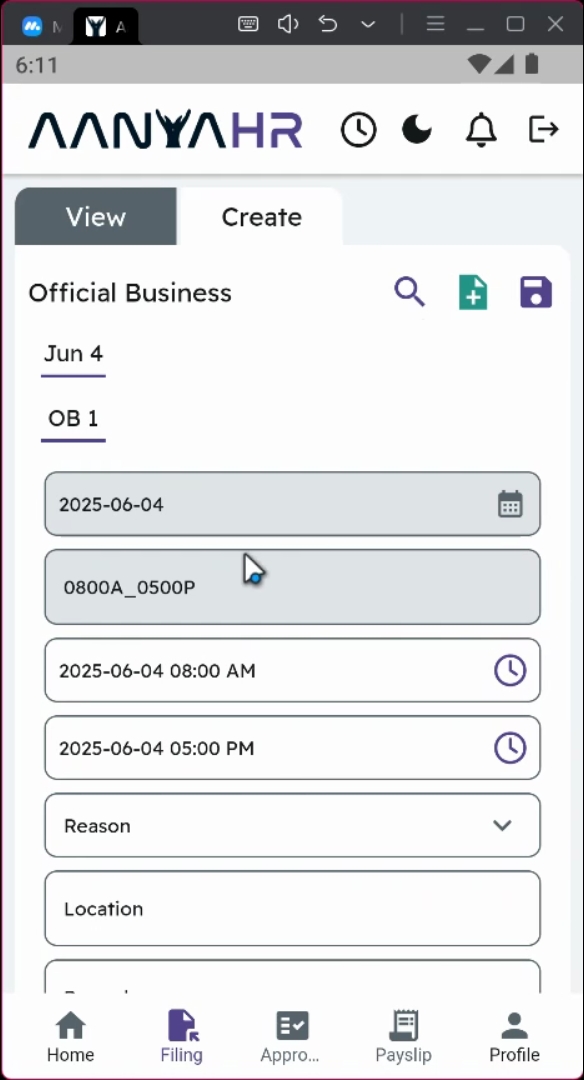
Click the search icon at the upper part of the application to proceed with the filing.
Your current schedule will be displayed under the Time in section.
Tick the clock in icon.
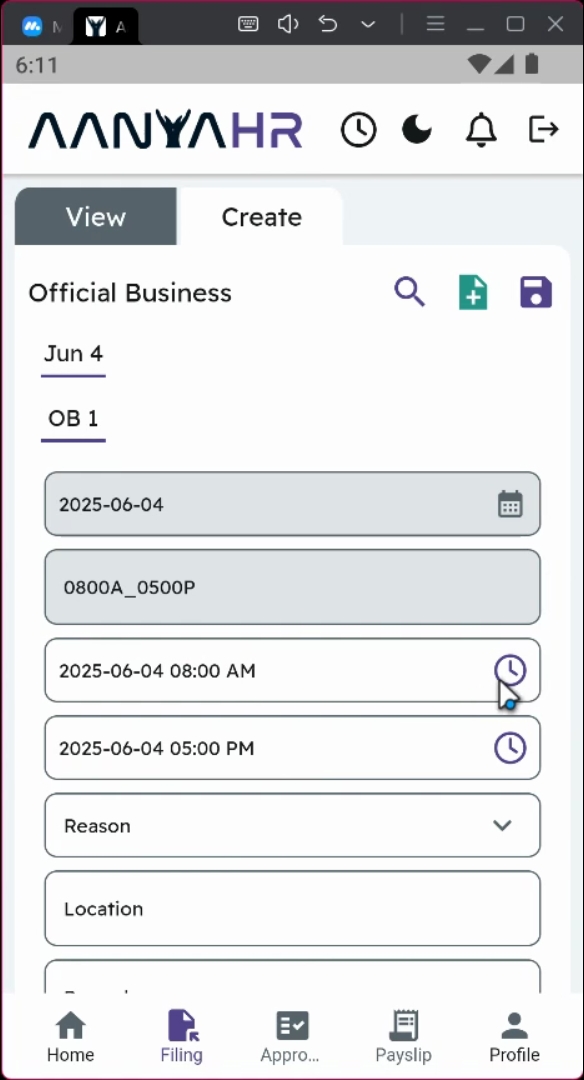
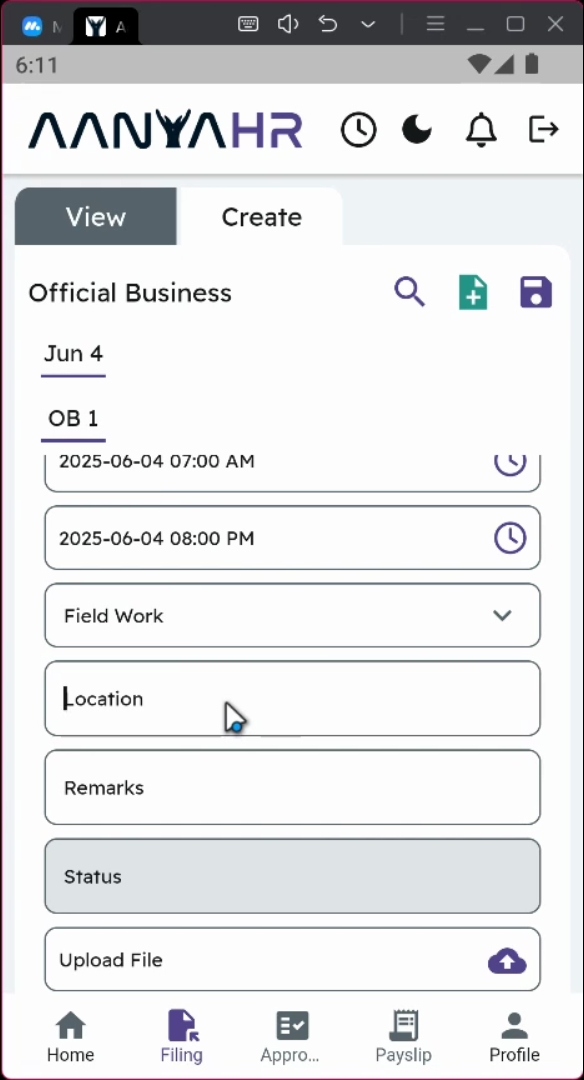
Input your clock in details, which should be June 4th at 7 am.
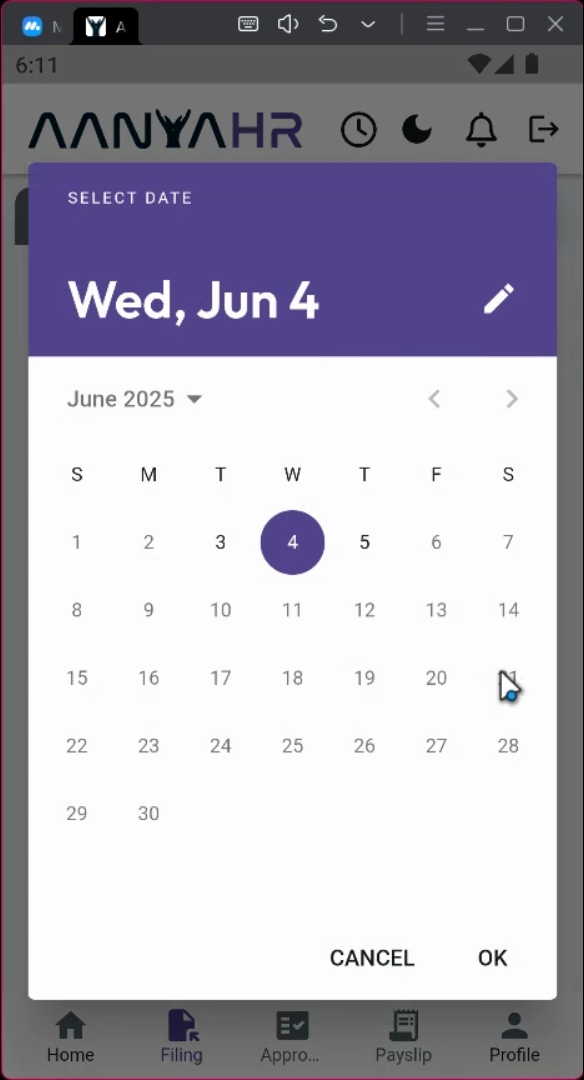
Similarly, set the timeout for 8 pm.
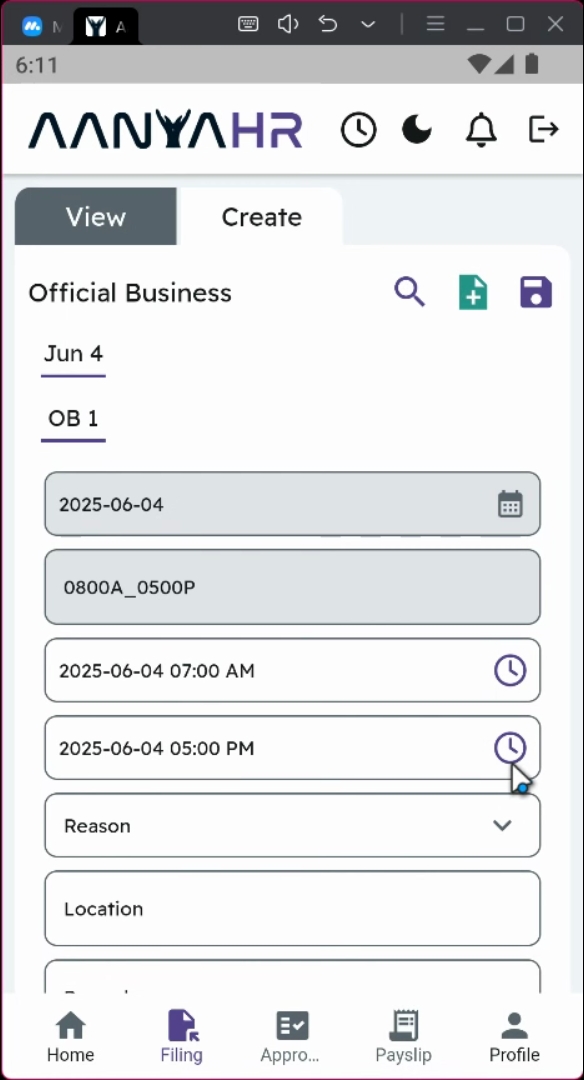
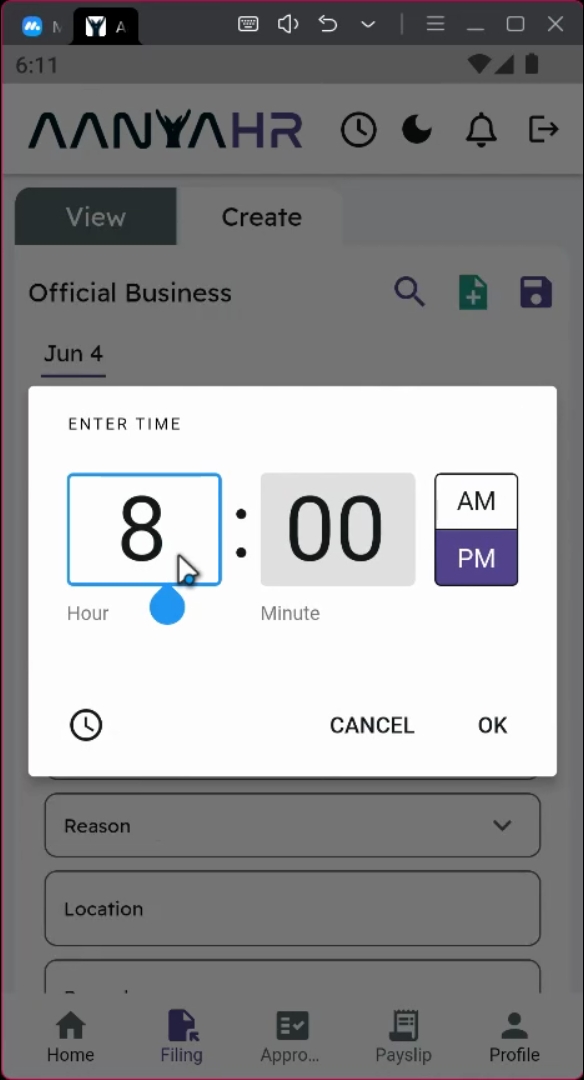
You have the option to input or manually enter your time by clicking the appropriate icon.
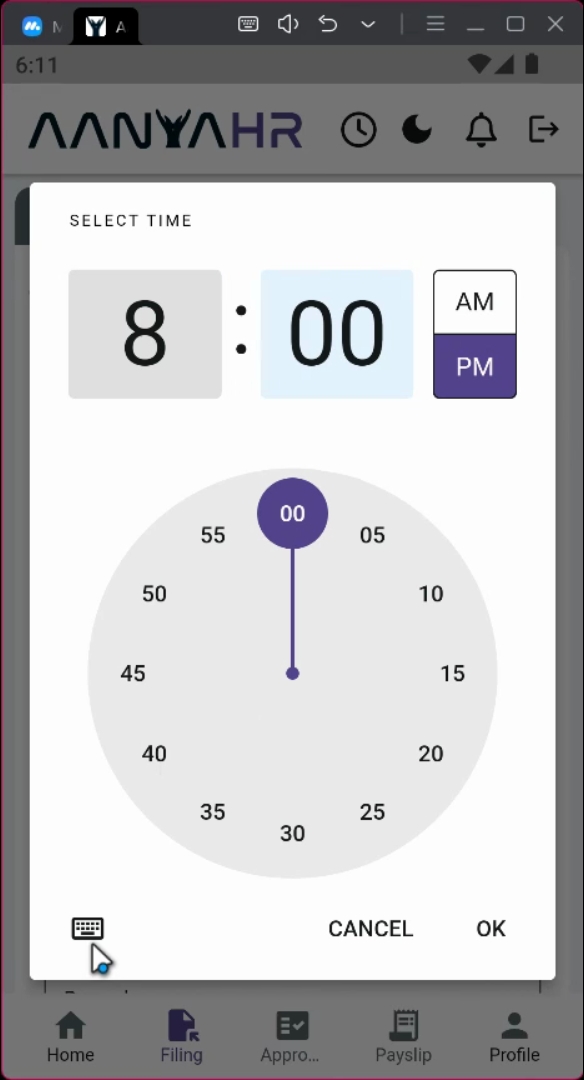
Input your desired time accordingly.
On the Reason module, select an appropriate reason for your filing, such as Field work.
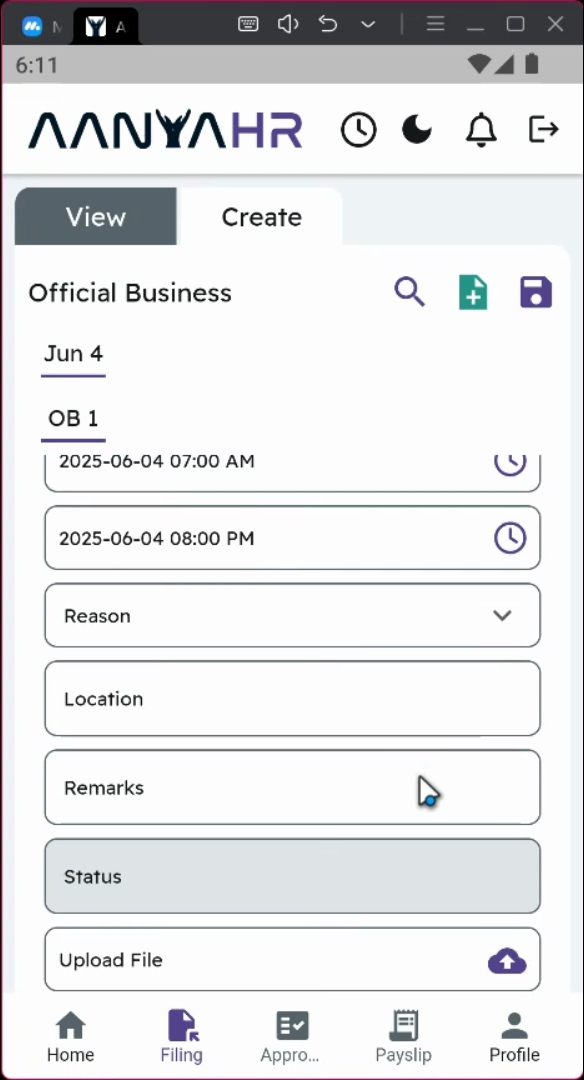
Indicate the location of your Official Business.
Provide the reports pertaining to your Official Business filing.
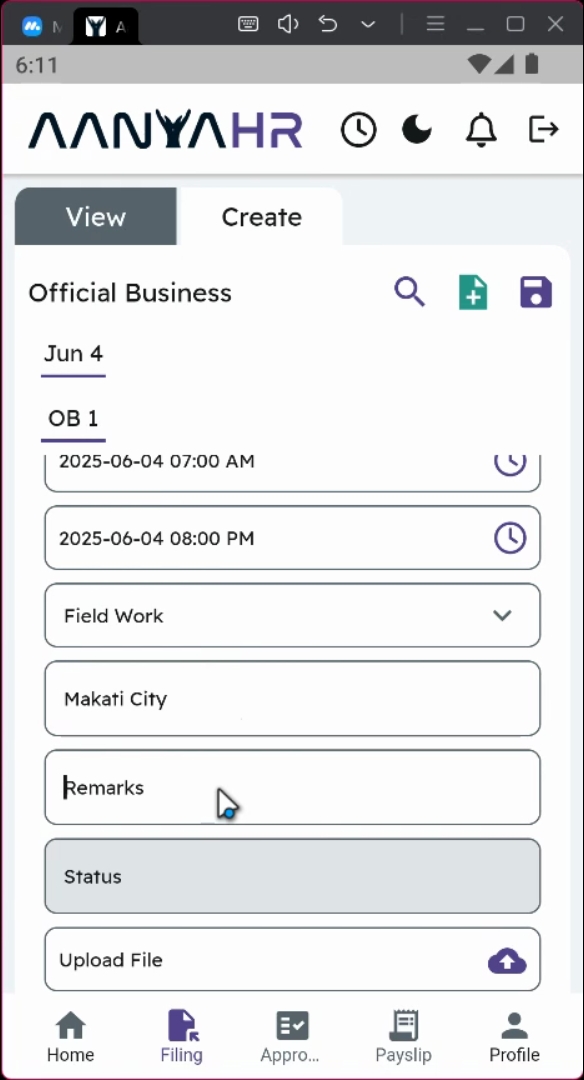
Optionally, you may upload a PDF, JPEG, or Word format document to support your filing.
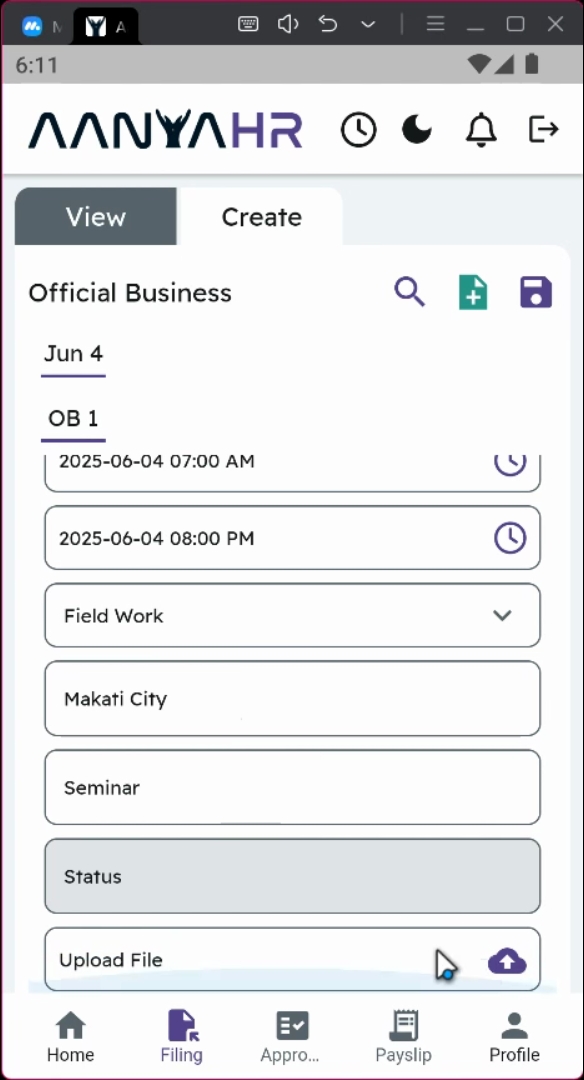
Once everything is finalized, click the Save icon to proceed with the filing.
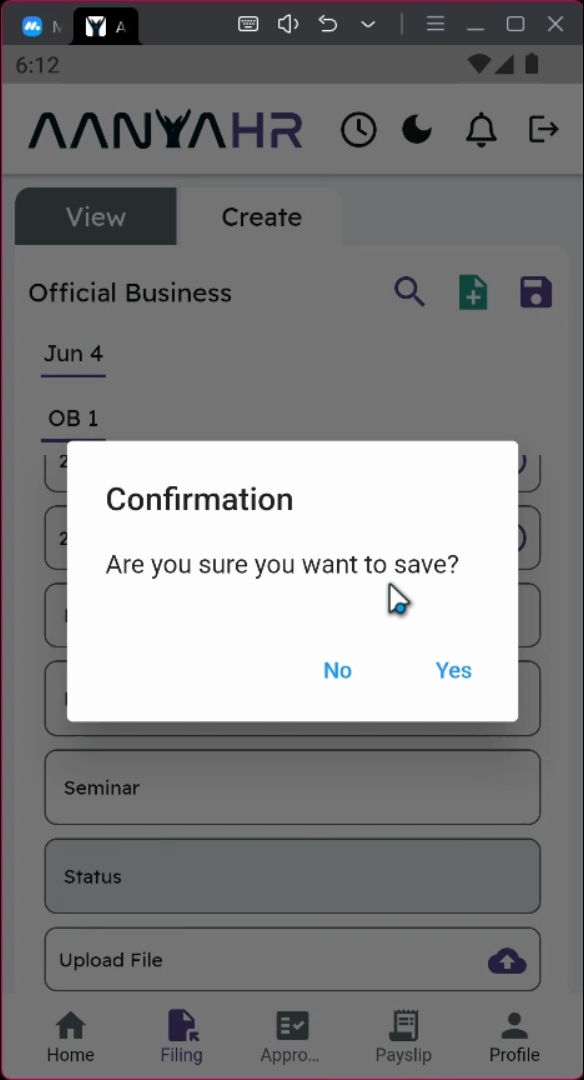
A confirmation message will be displayed to confirm your action.
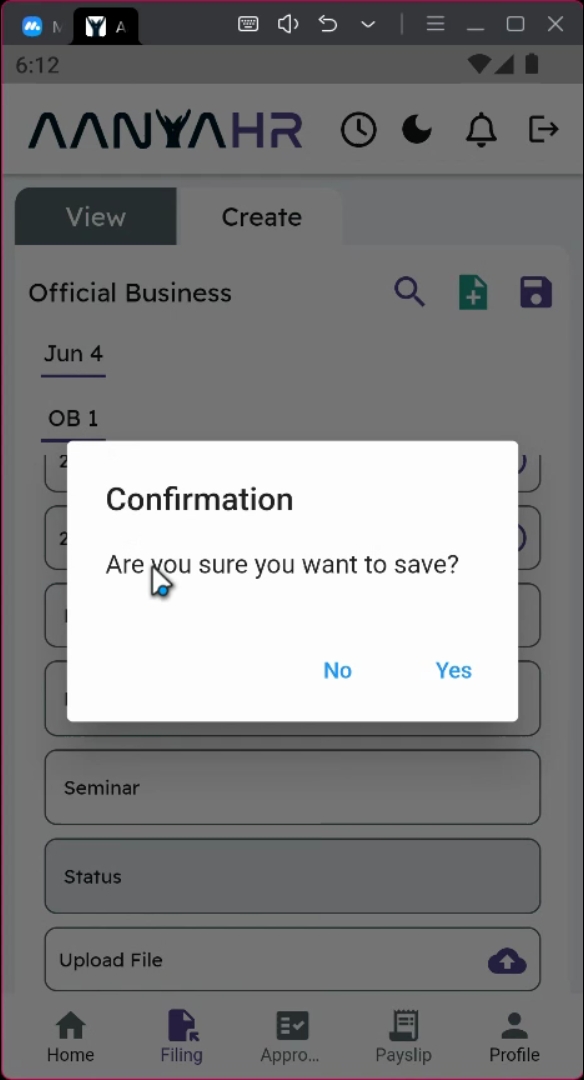
Click yes to proceed with the filing transaction.
After submission, your Official Business request will be rerouted to your supervisor.
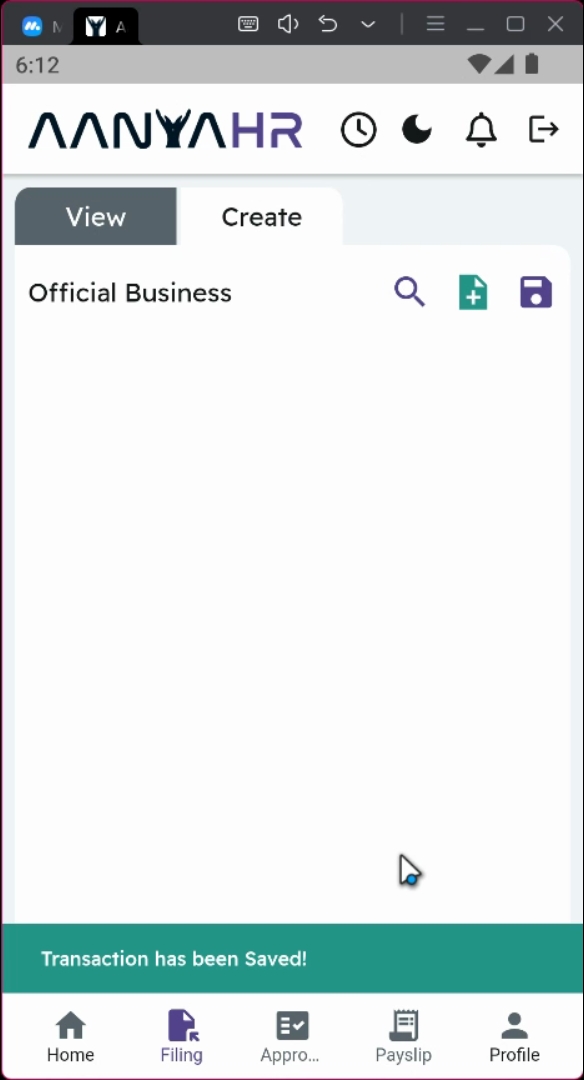
You can track the status of your filing within the application, which will be tagged as Pending.
By following these steps, you will successfully file your Official Business requests through the mobile application.