

Introduction
Filing for leave can be a straightforward process when utilizing an HR mobile application. In this tutorial, we will guide you through the steps needed to successfully file your leave request, including selecting the type of leave, date range, and providing supporting documentation. By the end, you'll be equipped to navigate the application with confidence and complete your leave filing with ease.
How to Instructions
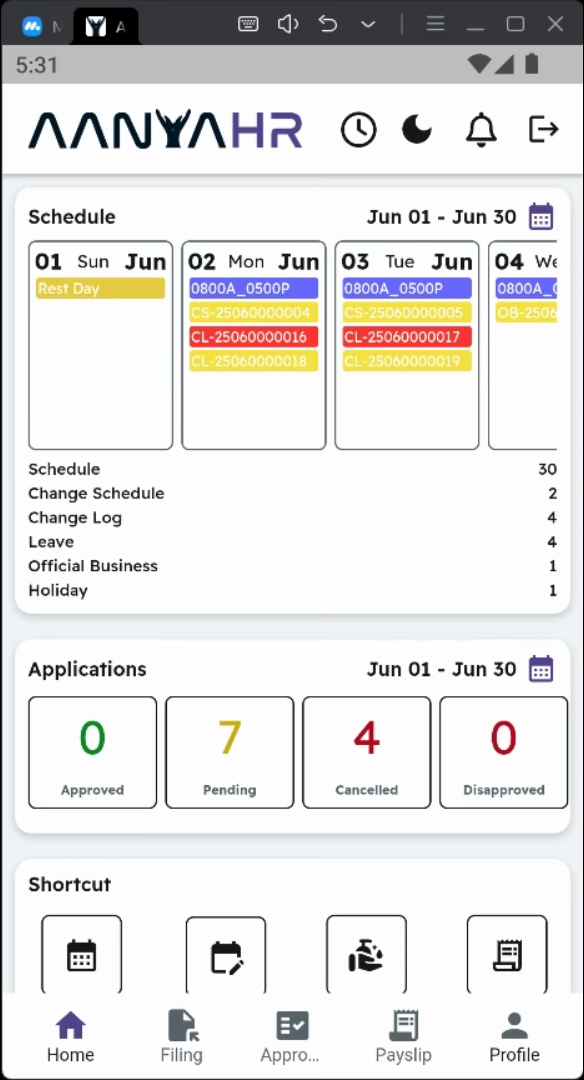
1. Open the Filing Module
First, open the filing module within your HR mobile application.
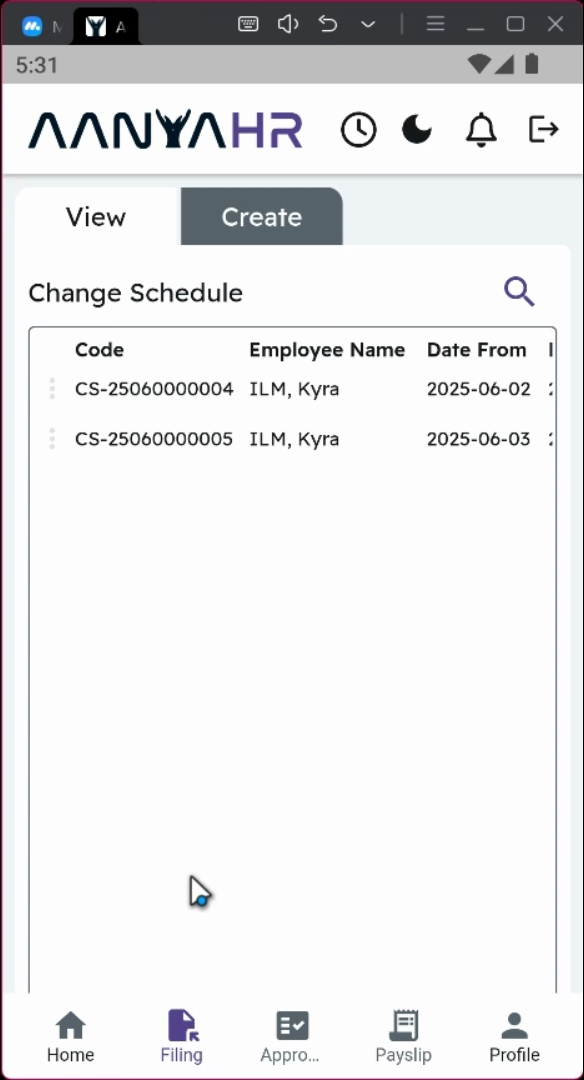
2. Tap on Create Panel
Next, tap the Create Panel to begin the filing process.
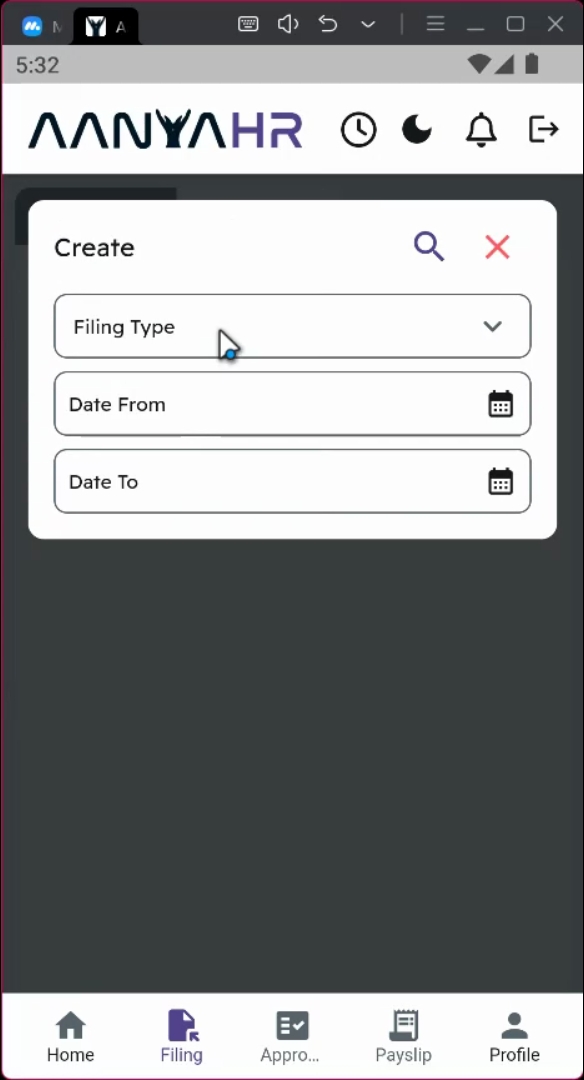
3. Select Filing and Shift Types
Ensure that the filing type is set to Leave and the shift type is designated as regular.
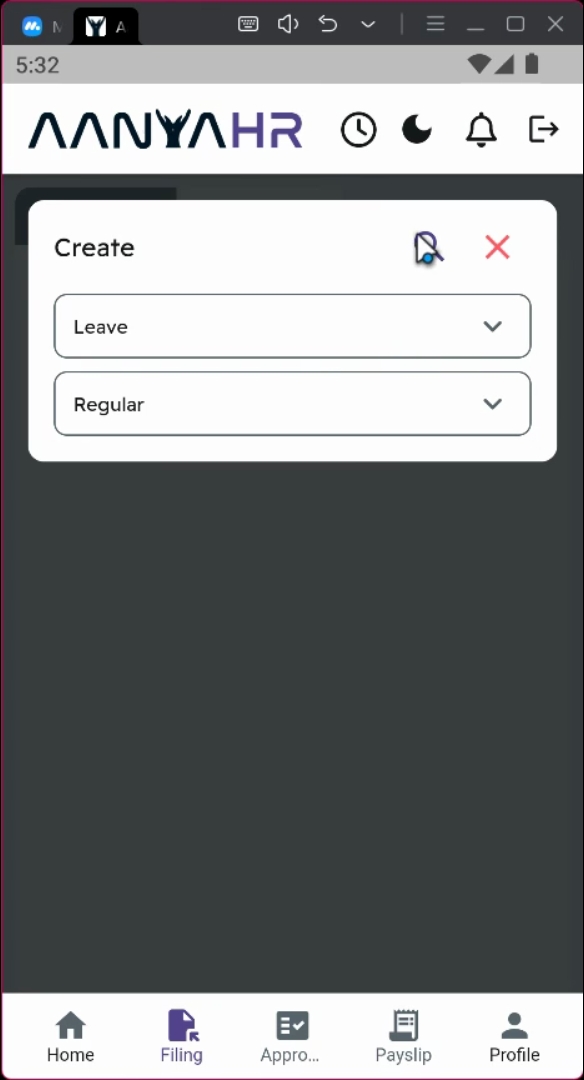
4. Proceed with Filing
Click the search icon to proceed with the filing.
5. Review Leave Information
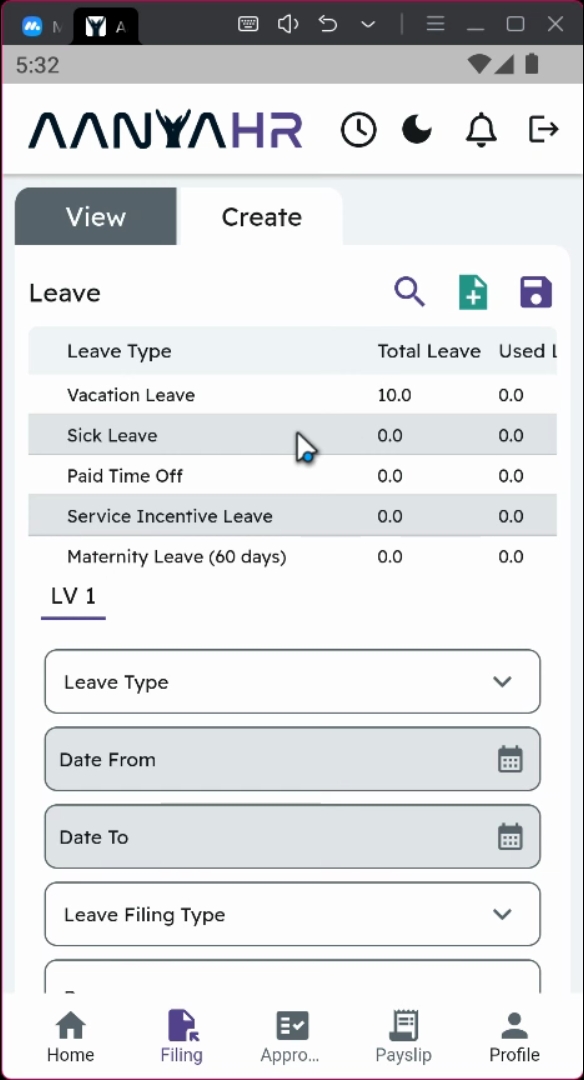
On the upper part of the screen, you will see details of your leave information, including leave type, total leave, used leave, pending approval, pending schedule, and available leave.
6. Choose Leave Type
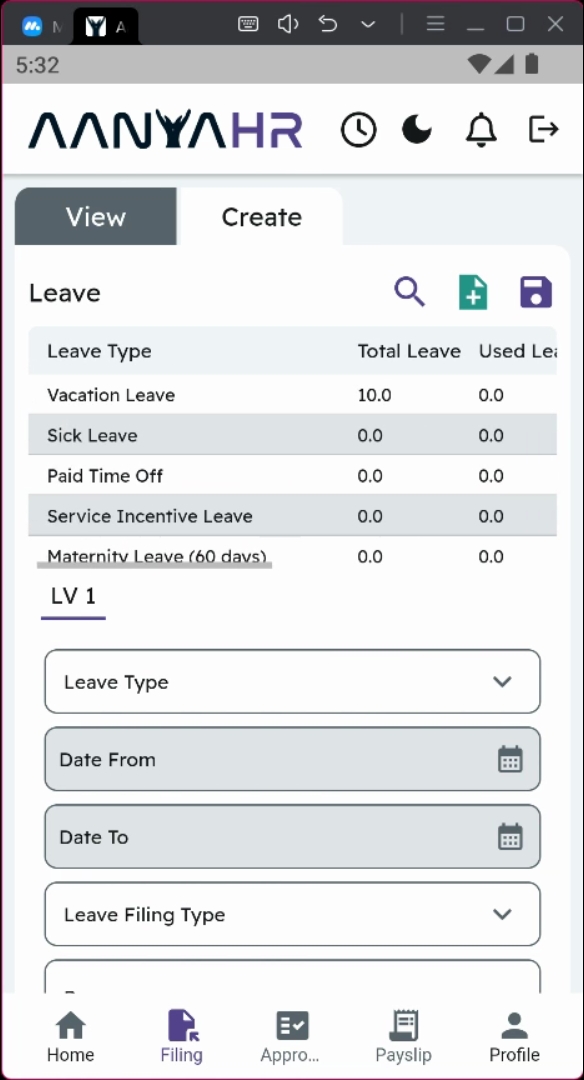
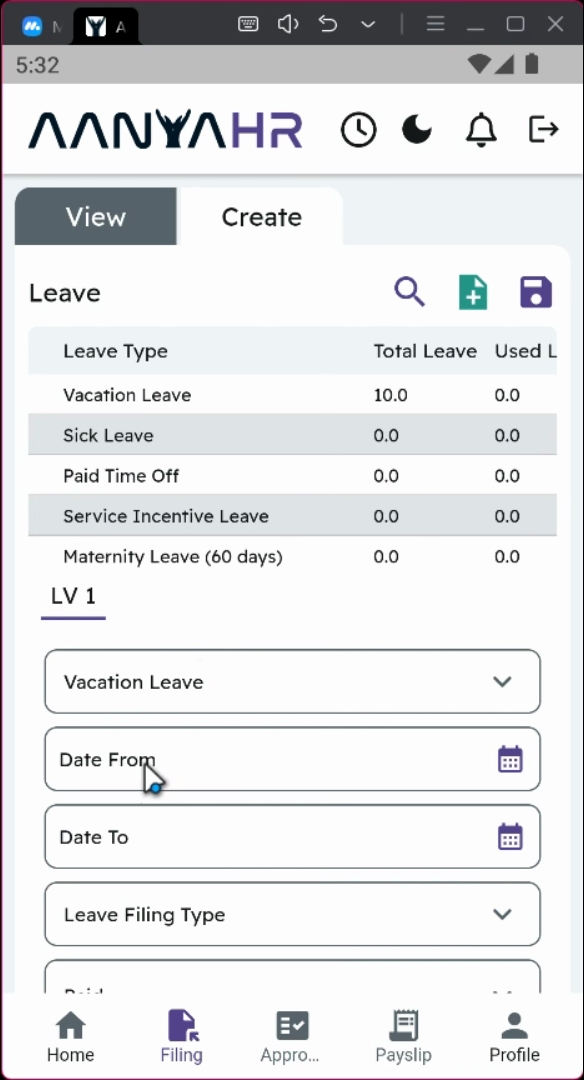
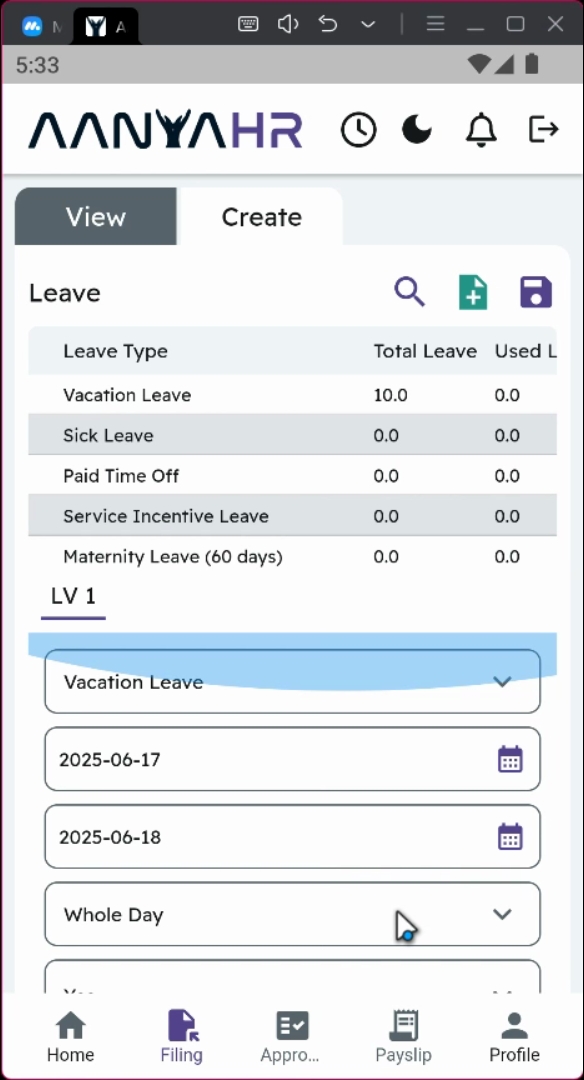
In the lower part of the screen, click on the leave type you wish to file, such as vacation leave.
7. Select Date Range
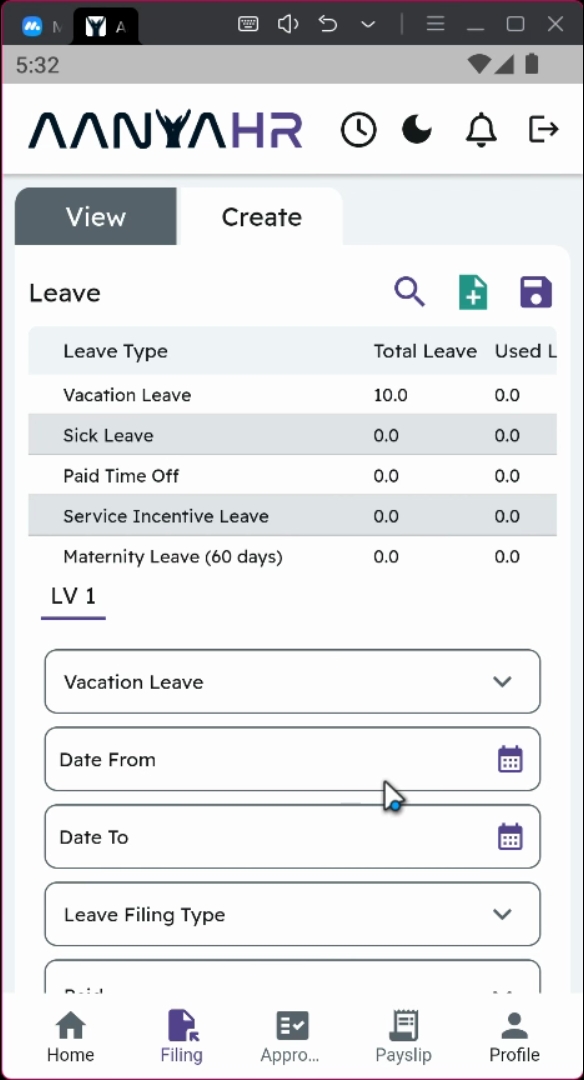
Then, select a date range for your leave, indicating the date from and date to. You can choose either a single day or multiple days for your leave.
8. Specify Filing Duration
For example, if you wish to file for June 17 to June 18, make sure to set the correct dates.
9. Select Filing Type
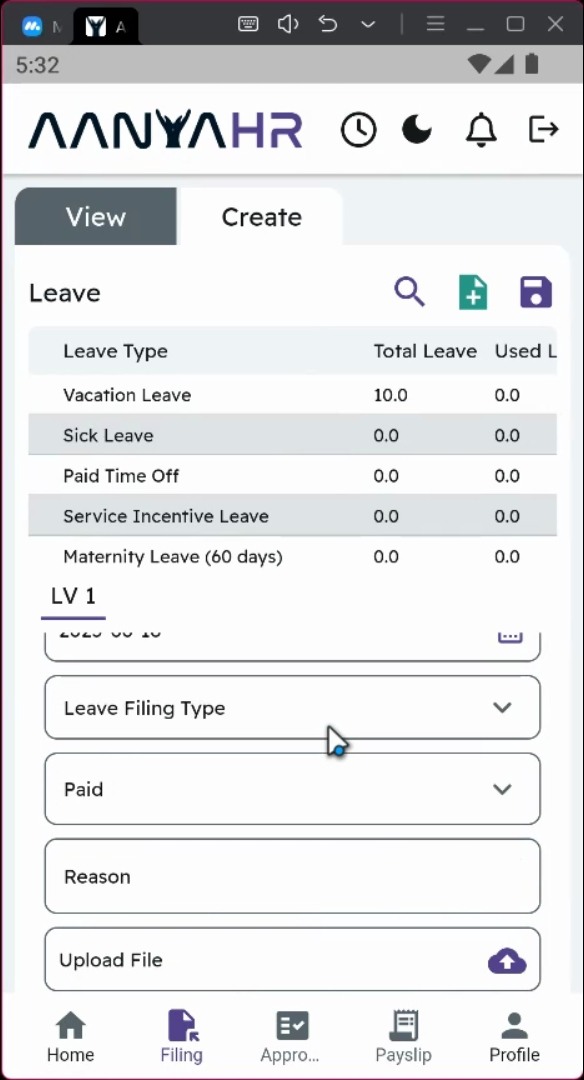
Select the filing type, choosing from options such as half day, hourly, or whole day. If you opt for half day, specify whether it is the first half or second half.
10. Indicate Payment Status
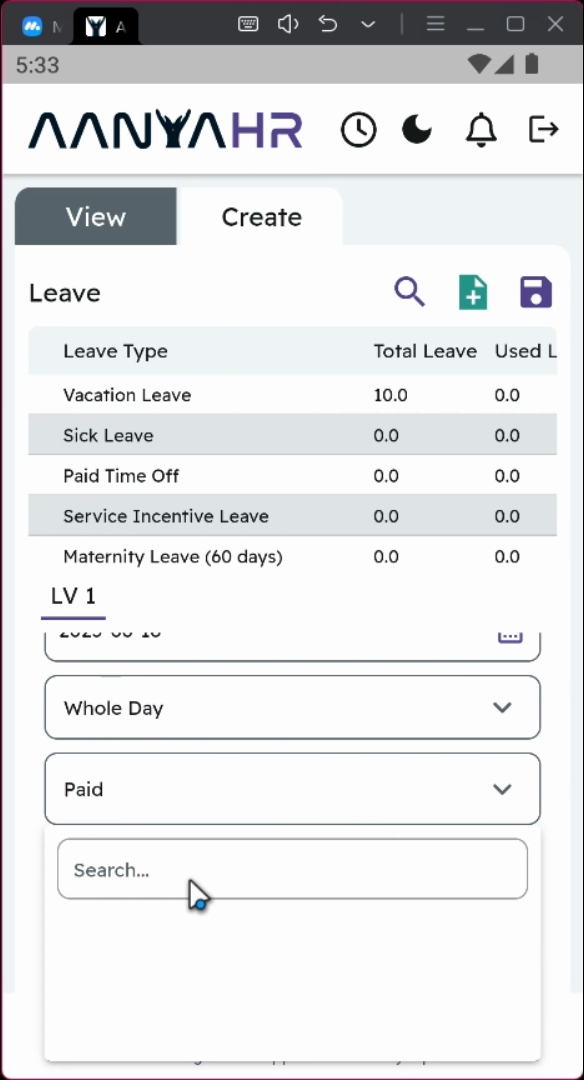
You have the option to indicate whether the leave is paid or not.
11. Input Reason for Leave
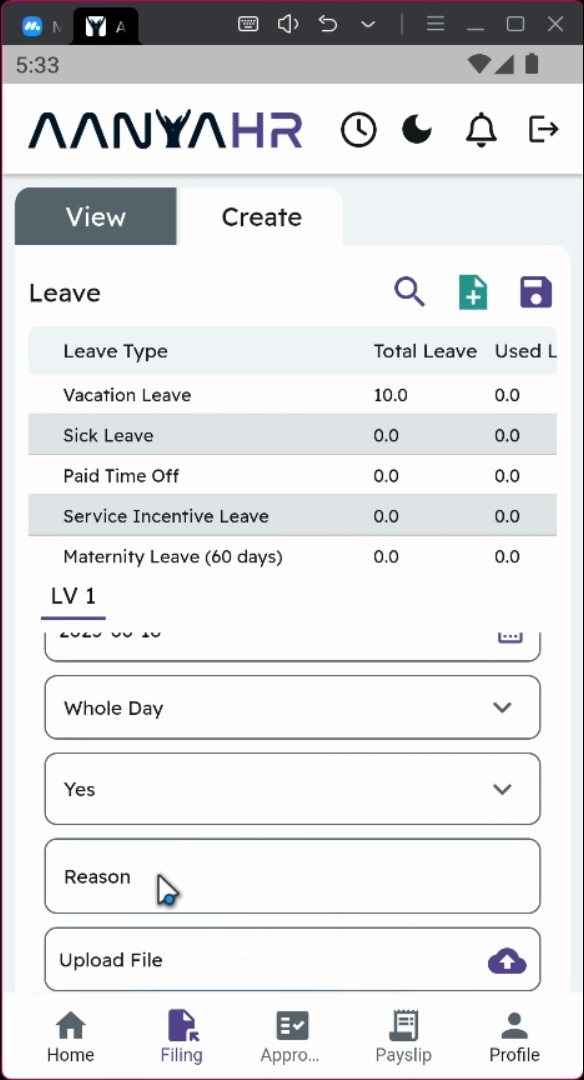
Input the reason for your leave request, such as Vacation due.
12. Upload Supporting Documents
You have the option to upload a supporting document, which could be in formats such as PDF, Word, or JPEG, to provide additional information.

13. Save Your Filing
Once you have finalized your entries, click the Save icon to proceed with the filing.
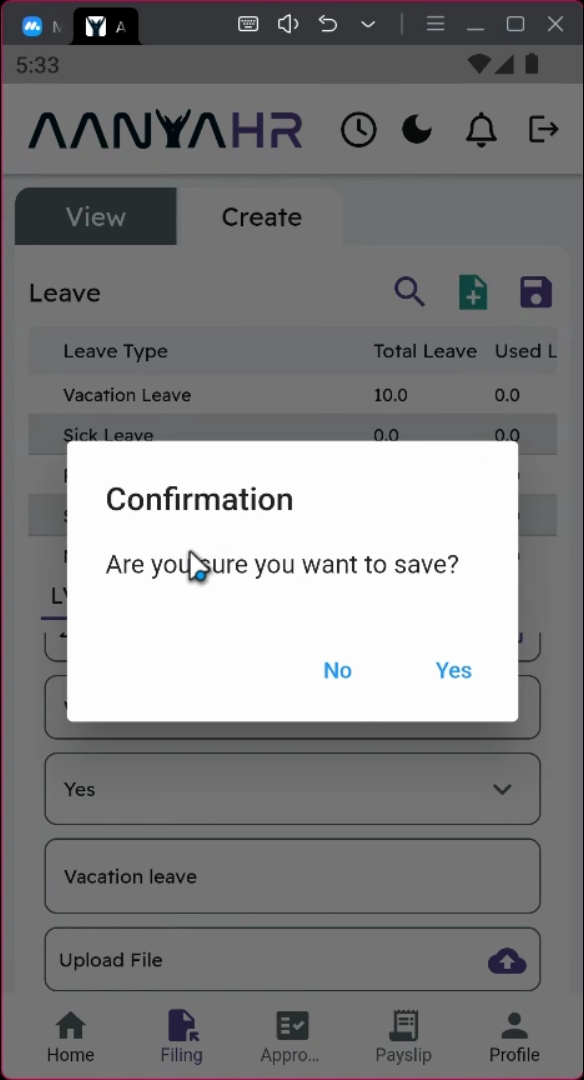
14. Confirm Filing
A confirmation prompt message will display. Click yes to proceed with the filing.
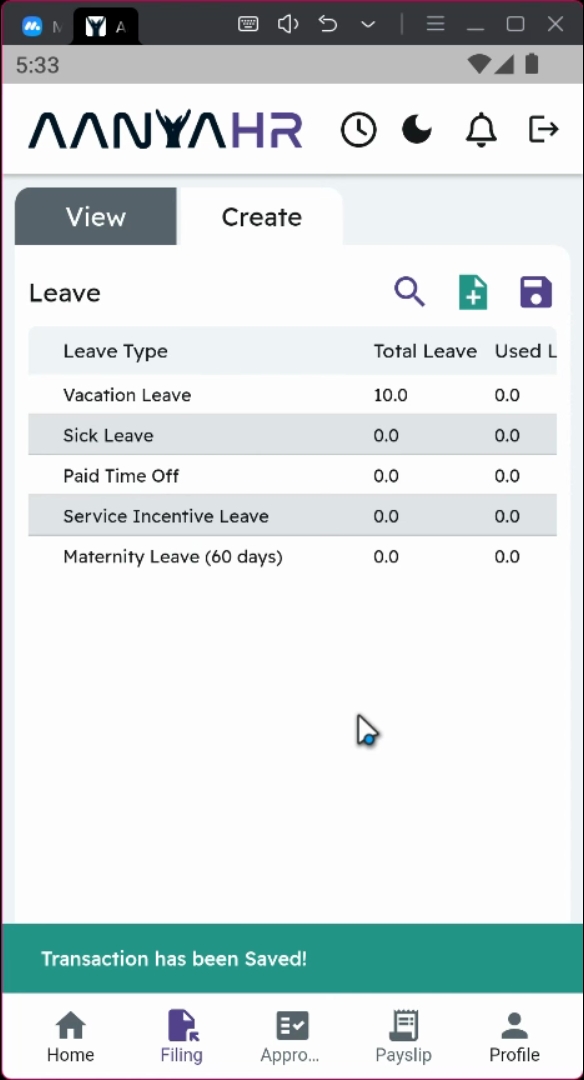
15. Track Your Filing Status
All filings will be rerouted to your supervisor, and you can track the status within the application module.
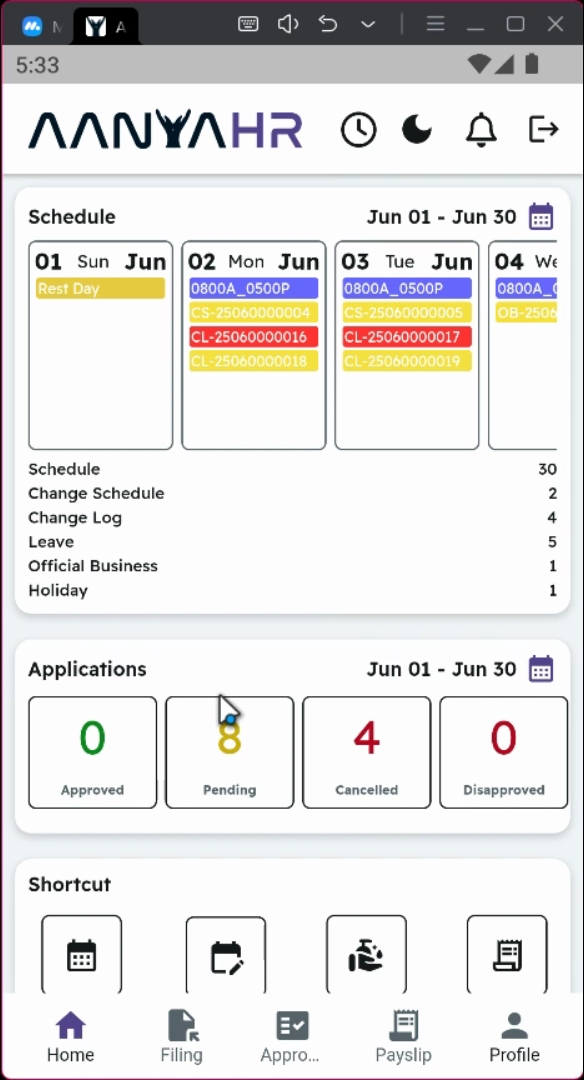
16. Check Pending Status
Your leave request will be under pending status until it is processed.
Conclusion
By following these detailed steps, you will successfully file your leave request through the HR mobile application, ensuring a smooth and efficient process.