

Introduction
Welcome to our comprehensive tutorial on filing offset using the Anya HR Mobile Application. In this guide, we will walk you through the necessary steps to effectively file an offset for your absences, lateness, and undertime. This process is essential for managerial positions that have accrued excess hours, ensuring that you can utilize your time efficiently and within company guidelines.
How to Instructions
1. Access the Filing Module
Start by navigating to the filing module.
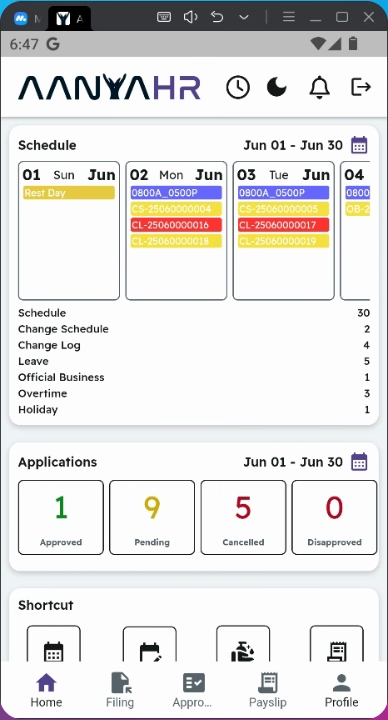
2. Create New Filing
Next, tap on the Create panel to initiate the filing process.
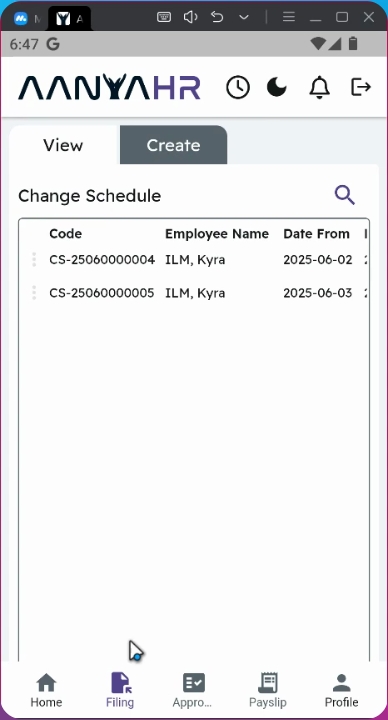
3. Select Filing Type
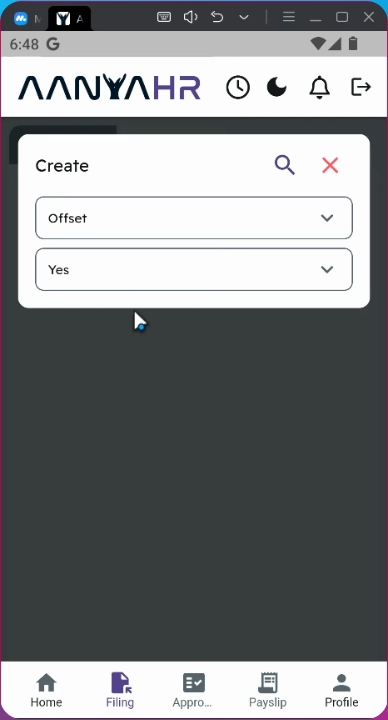
Ensure that the filing type is set to Offset.
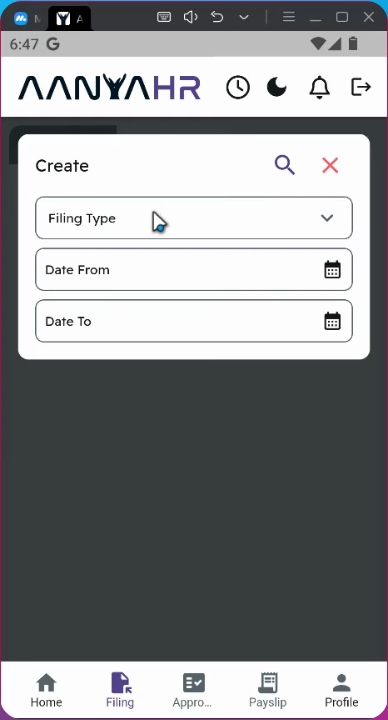
4. Include Expired Module
If you wish to view the expired offset balance, select yes on the Include Expired module.
Alternatively, if you only want to see the remaining balance, select no.
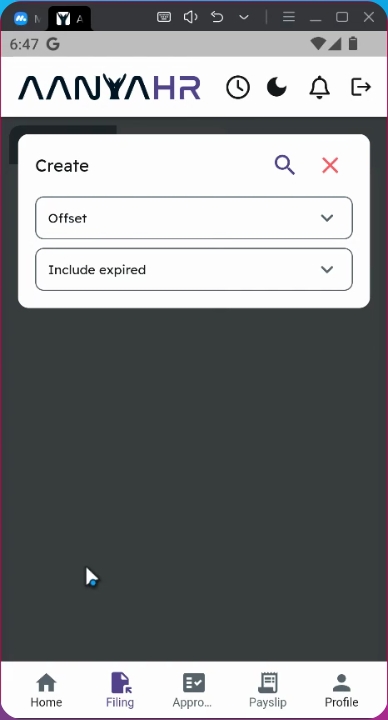
5. Proceed with Filing
To continue, click on the search icon.
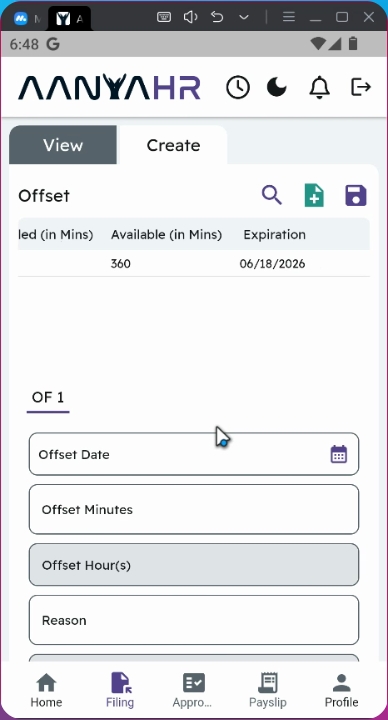
6. Set Offset Date
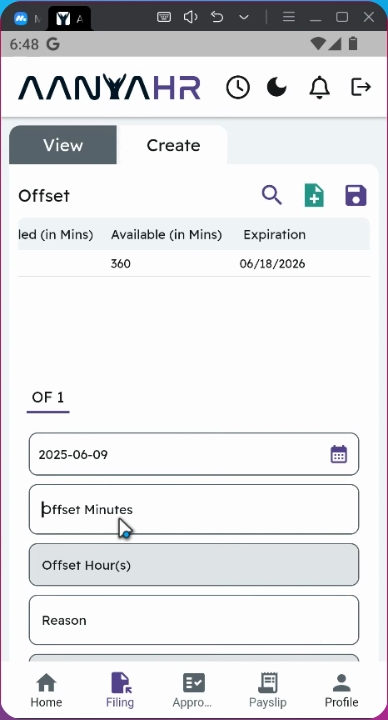
On the lower part of the screen, you will need to set your offset date.
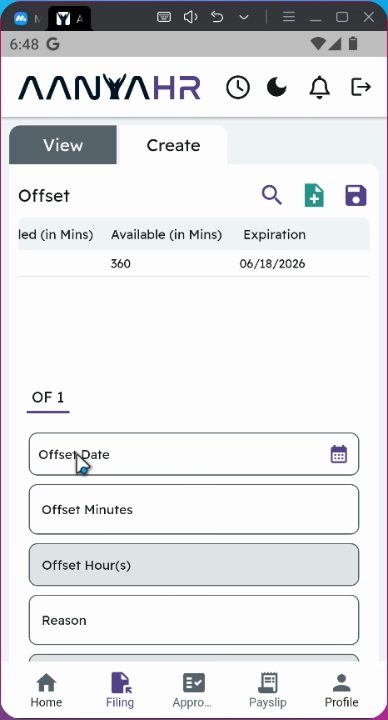
7. Input Offset Date
For example, if you want to file an offset for your absences on June 9, select this date accordingly.
8. Input Offset Minutes
Next, input the offset minutes you wish to file.
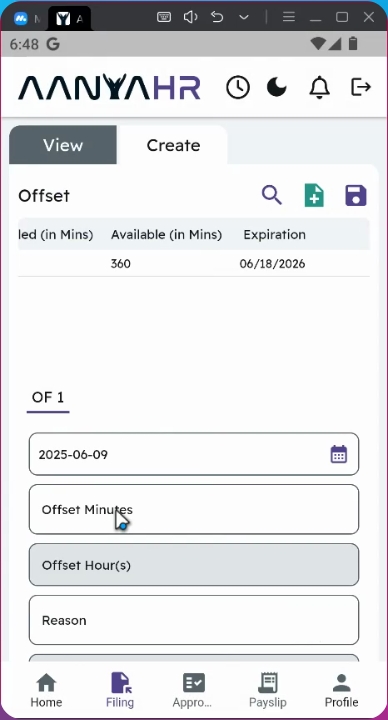
9. Utilize All Offset Balances
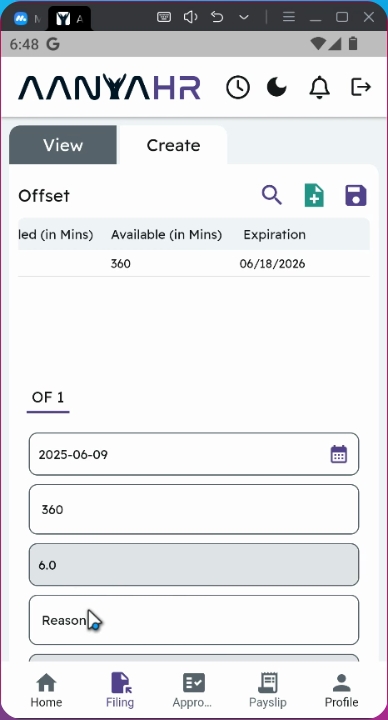
If you wish to utilize all available offset balances, you can input 360 minutes, which will automatically convert into hours.
10. Provide Remarks
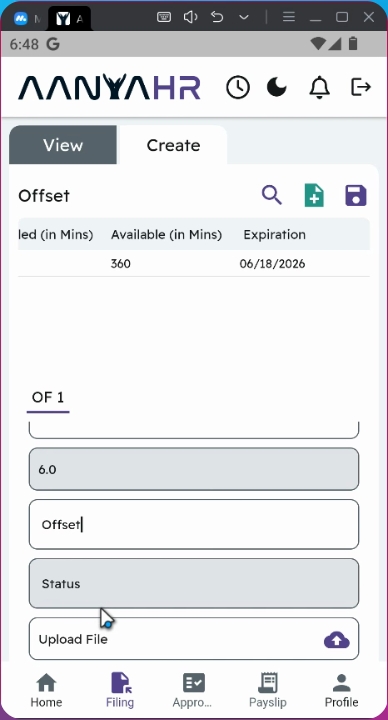
Make sure to provide any necessary remarks related to your offset file.
11. Upload Supporting Documents
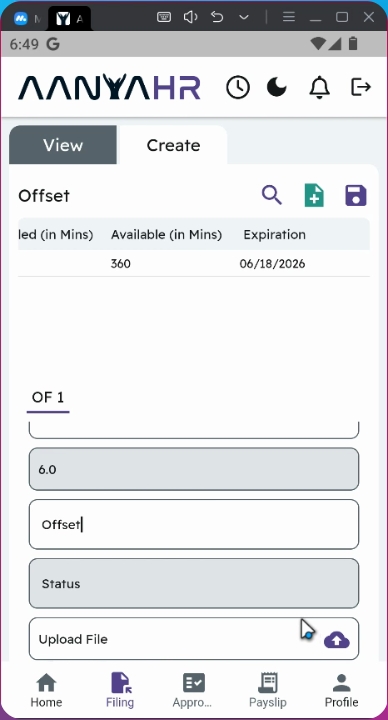
Optionally, you may upload any supporting documents in PDF, jpeg, or Word format by tapping the corresponding icon.
12. Save Filing
Once you have completed all fields, tap the save button to proceed with the filing.
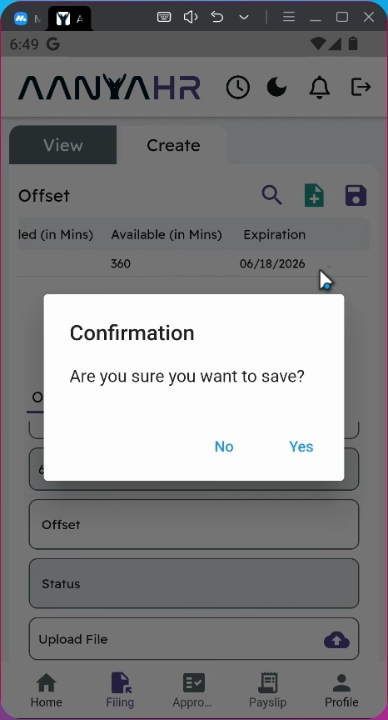
13. Confirm Submission
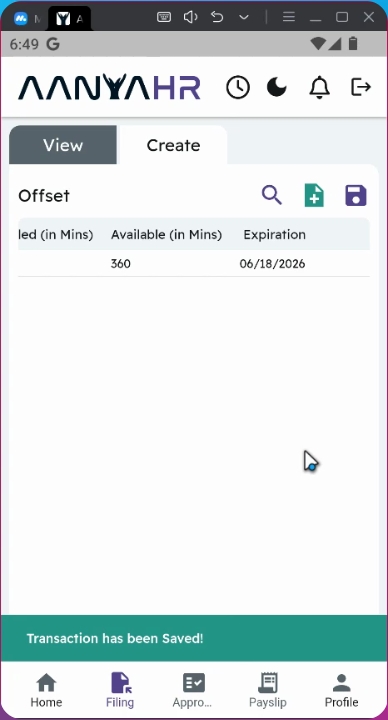
A confirmation prompt will appear; tap yes to finalize your request.
14. Await Approval
Once submitted, your offset request will be rerouted to your supervisor for approval.
15. Track Status
You can track the status of your request in the application module on the homepage. The current status will be tagged as Pending.
Conclusion
By following these steps, you will successfully file an offset using the Anya HR Mobile Application, allowing you to manage your time effectively and ensure compliance with company policies.