

Introduction
Editing your time logs is crucial for maintaining accurate records. In this tutorial, we will guide you through the process of editing the initial file change time log within the Anya HR Mobile Application. We will cover everything from navigating to the filing module to submitting your changes for approval. Follow these steps carefully to ensure a smooth editing experience.
How to Instructions
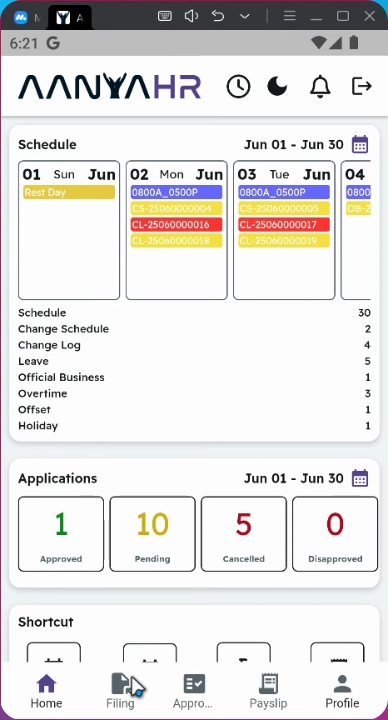
1. Access the Filing Module
First, navigate to the filing module.
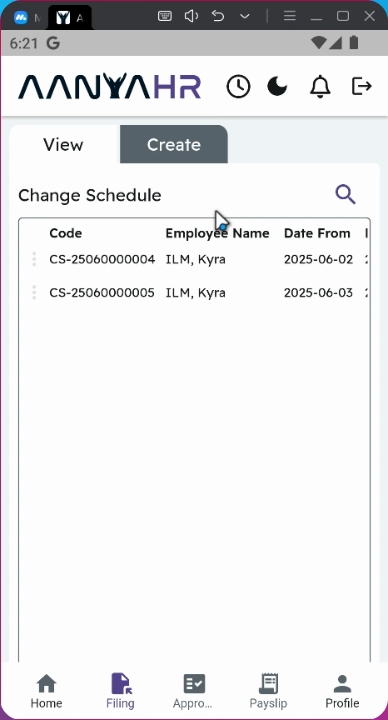
2. Create a New Panel
Next, tap on the Create Panel.
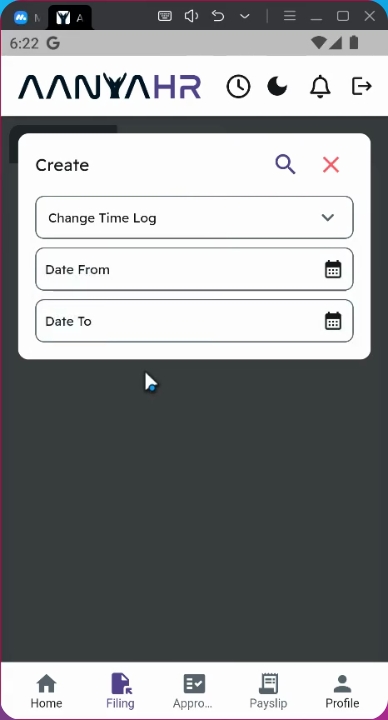
3. Select Filing Type
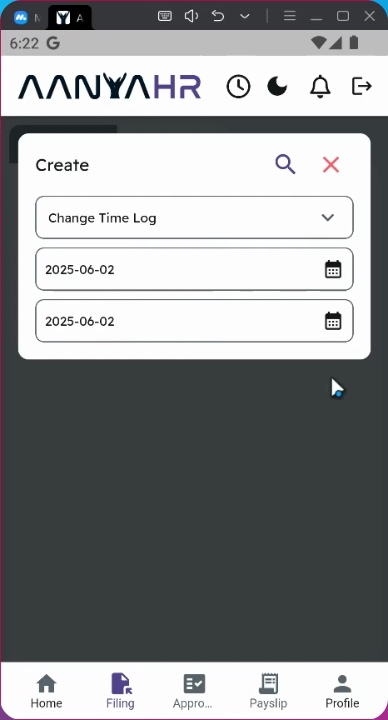
Ensure that the filing type is set to Change time logs.
4. Choose Date Range
Select the date range that you wish to edit. You may choose a single day or multiple days by adjusting the start and end dates.
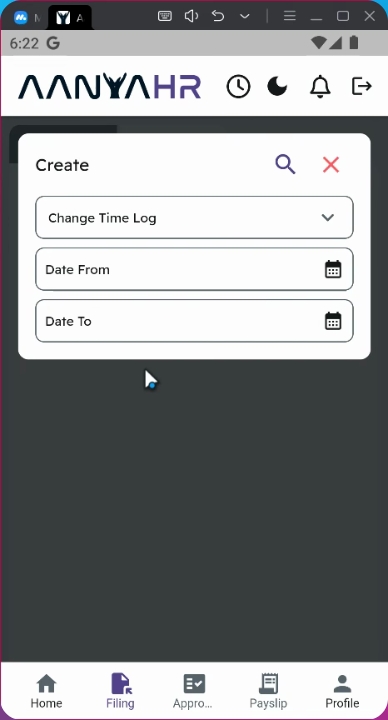
5. Specify the Date
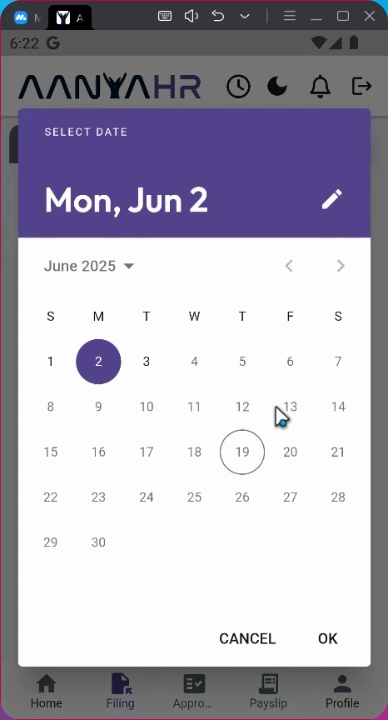
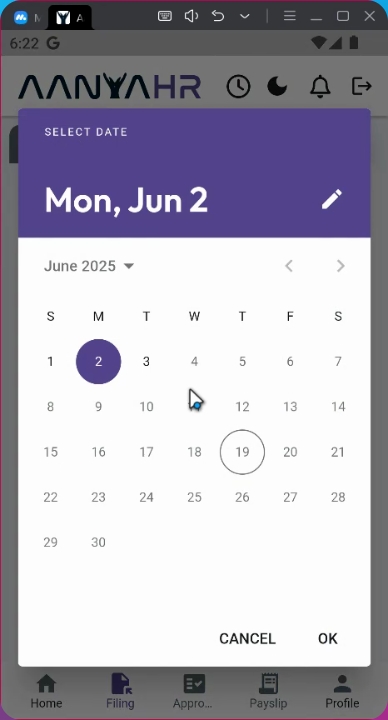
For example, if you want to edit your initial file CL or change time logs on June 2nd, select June 2nd as both the start and end date.
6. Proceed with Search
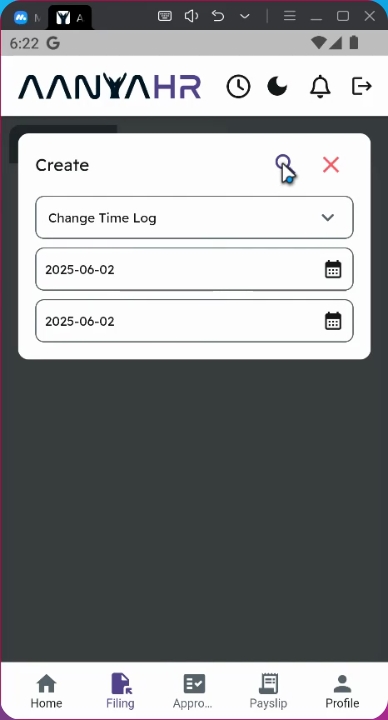
Click on the search icon to proceed with locating the file.
7. Review Your Schedule
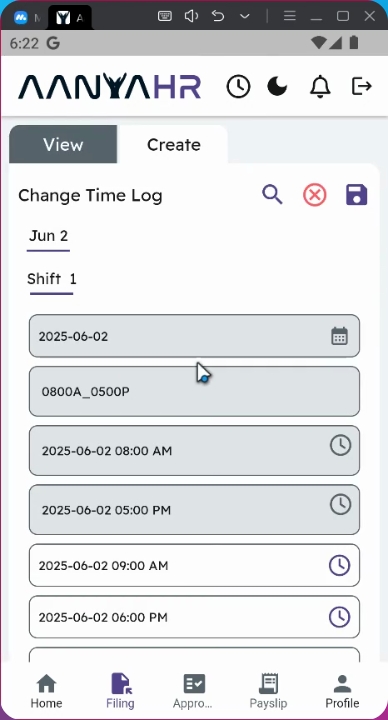
At the top part of the screen, you will see your actual schedule, including your clock-in and clock-out times based on your schedule, as well as your initial filing.
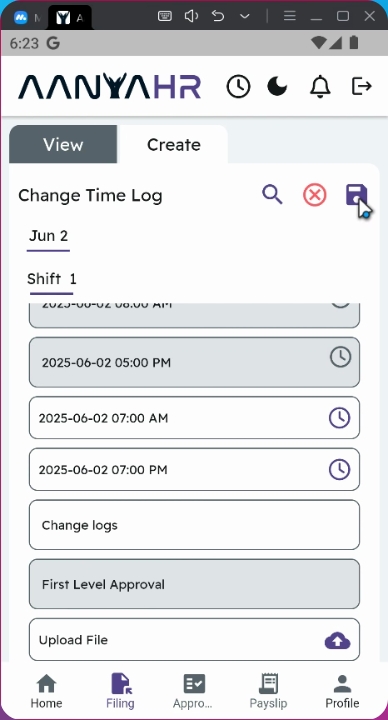
8. Edit the Clock Times
To edit your clock times, click on the clock icon.
9. Select the Filing Date and Time
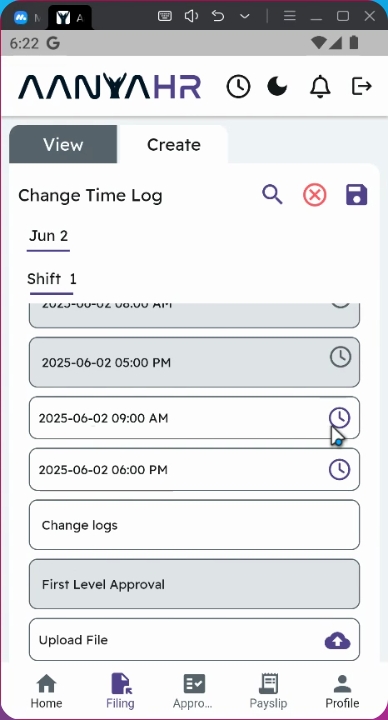
Select the date and time of your filing.
10. Update Clock In and Out Times
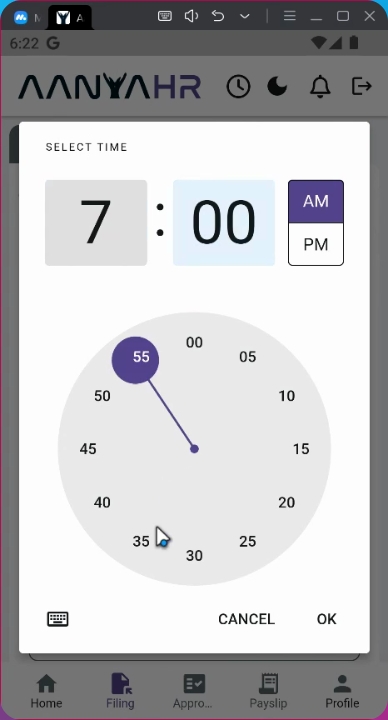
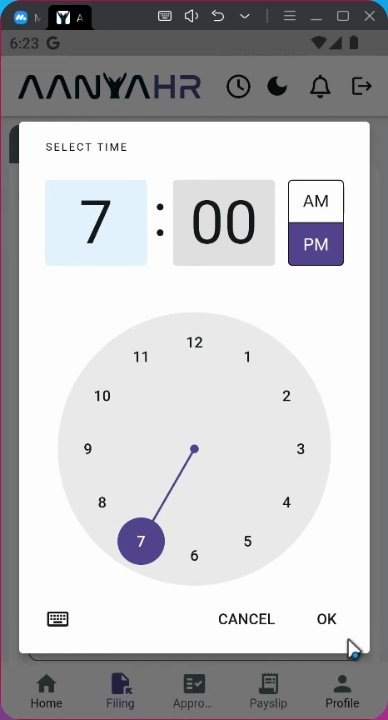
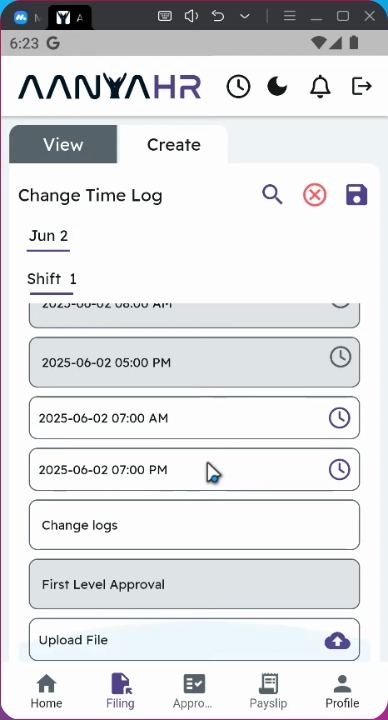
For instance, instead of 9 AM to 9 PM, you will need to edit it to 7 AM to 7 PM.
11. Choose New Clock In Time
Select 7 AM as your new clock-in time.
12. Choose New Clock Out Time
Similarly, select the new clock-out time.
13. Retain Initial Remarks
You may choose to retain your initial remarks and any uploaded files.
14. Approval Level Notice
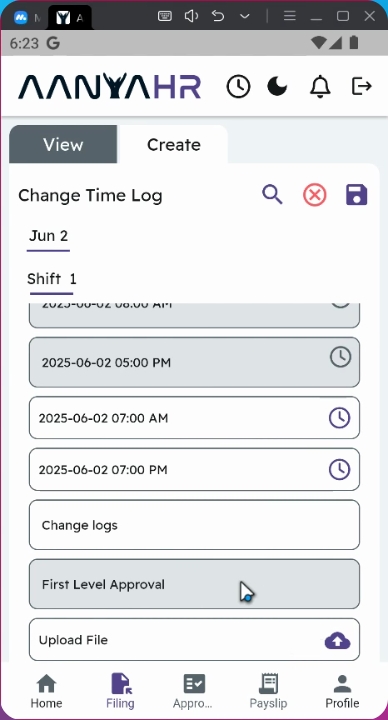
Note that it was tagged as first Level of Approval.
15. Editing Policy
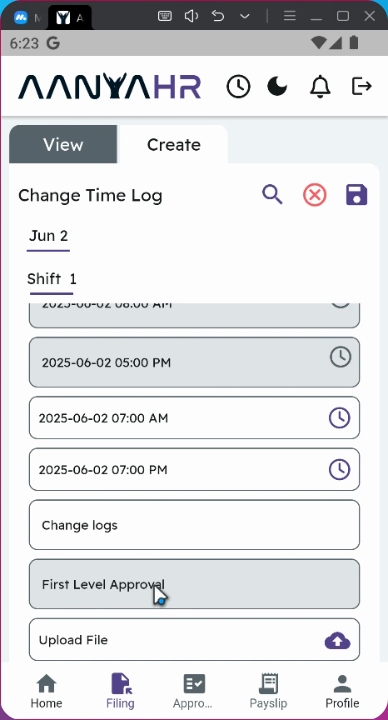
Take note that all filings still in the first level of approval can be edited.
16. Approval Stage Limitations
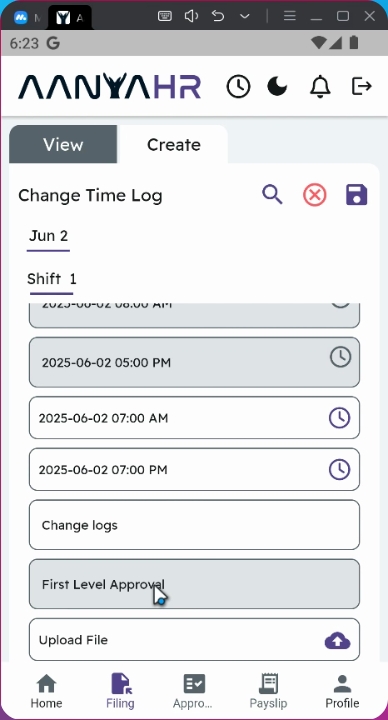
However, once the filing reaches the second level and has been approved, editing will no longer be allowed. The only available option at this stage will be cancellation.
17. Save Your Changes
Once you are final with the edits, click the save button to proceed with the filing.
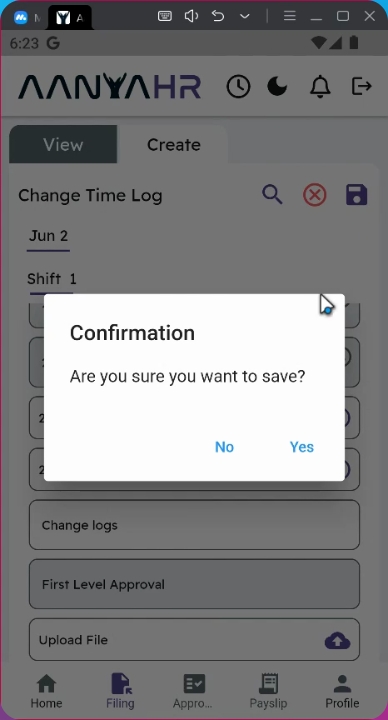
18. Confirm Your Edits
A confirmation prompt will appear. Click yes to proceed.
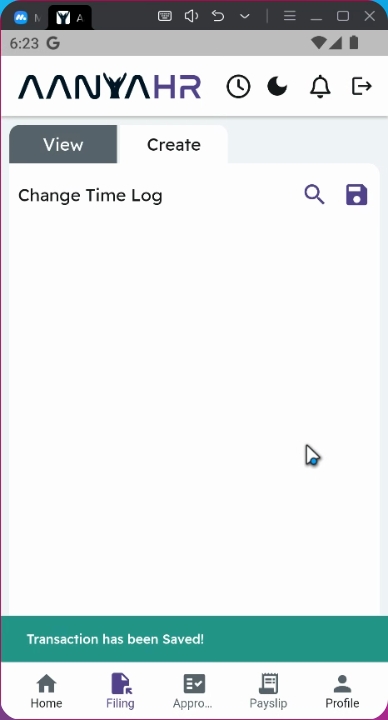
19. Approval Process
All edited filings will be automatically rerouted to your supervisor for approval.
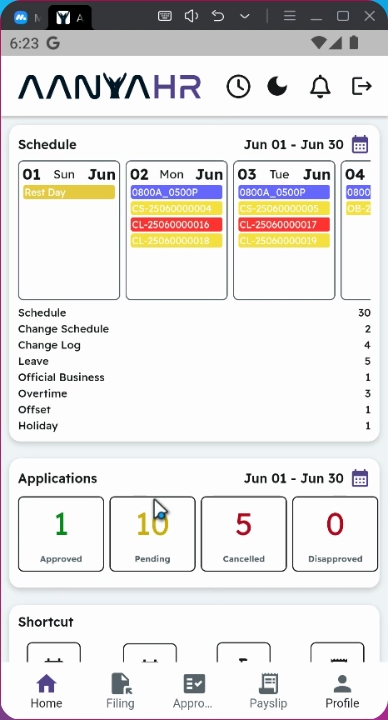
20. Track Your Request Status
You can track the status of your request under the Application Status section on the homepage. It will be tagged as pending.
Conclusion
By following these steps, you will be able to successfully edit your initial file change time log in the Anya HR Mobile Application, ensuring accurate and up-to-date records.