

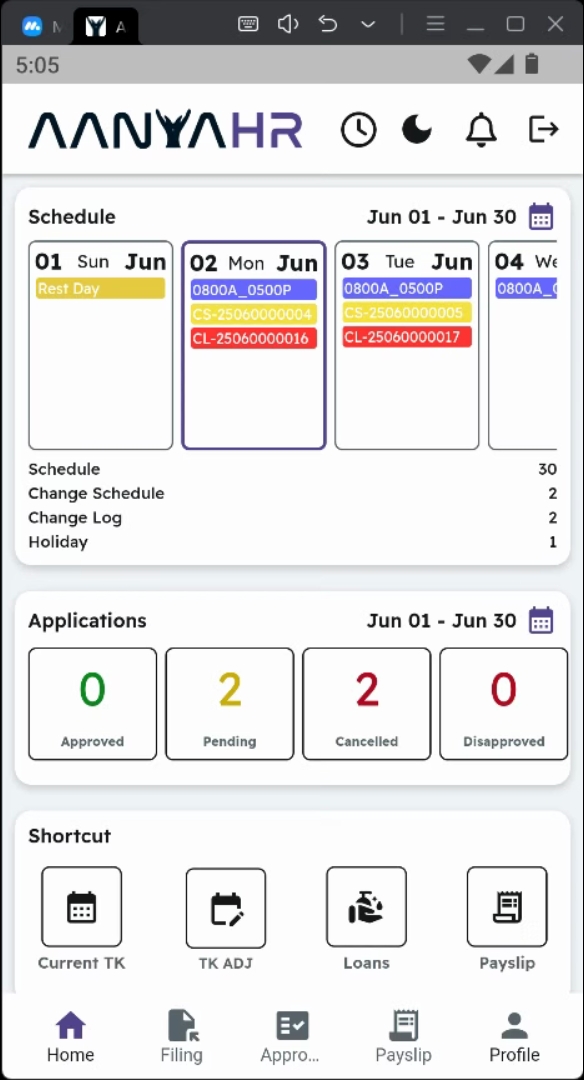
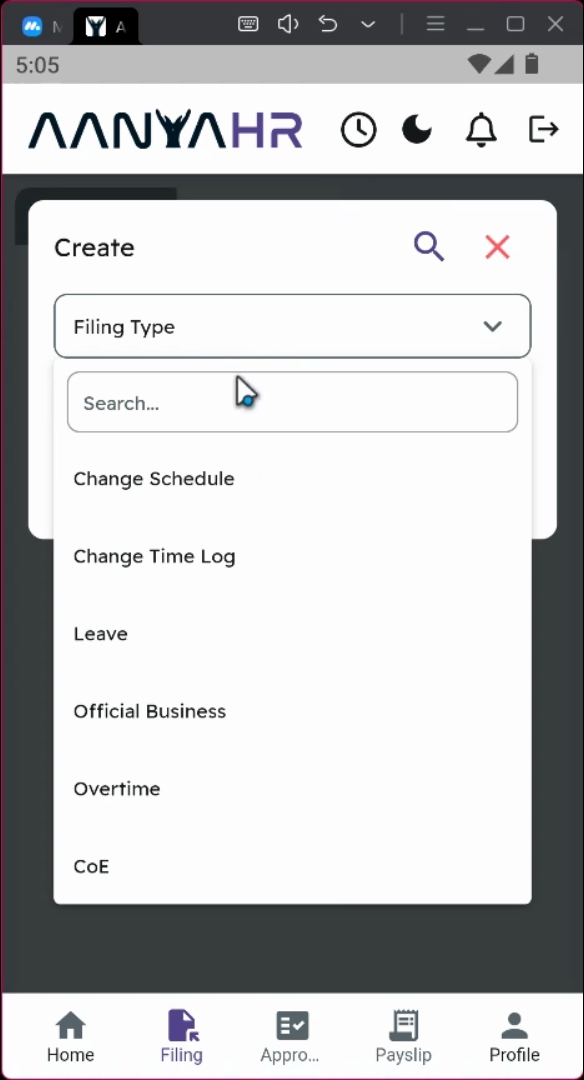
First, open the filing type. Then, tap on the Create Panel Filing type.
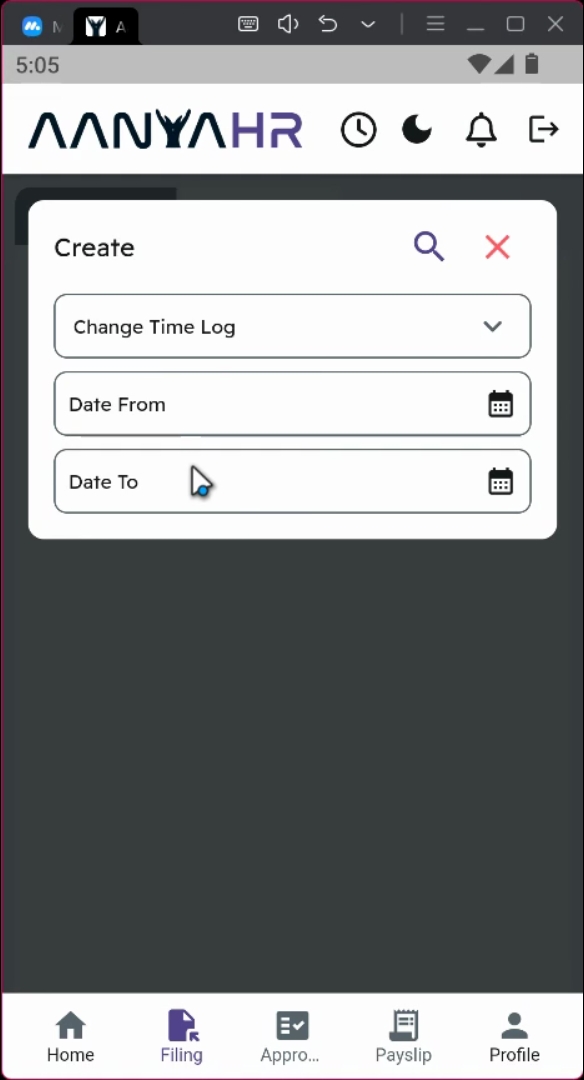
You must provide the Change time logs, Date from, and Date to. You may select a specific date range or multiple days by adjusting the start and end dates.
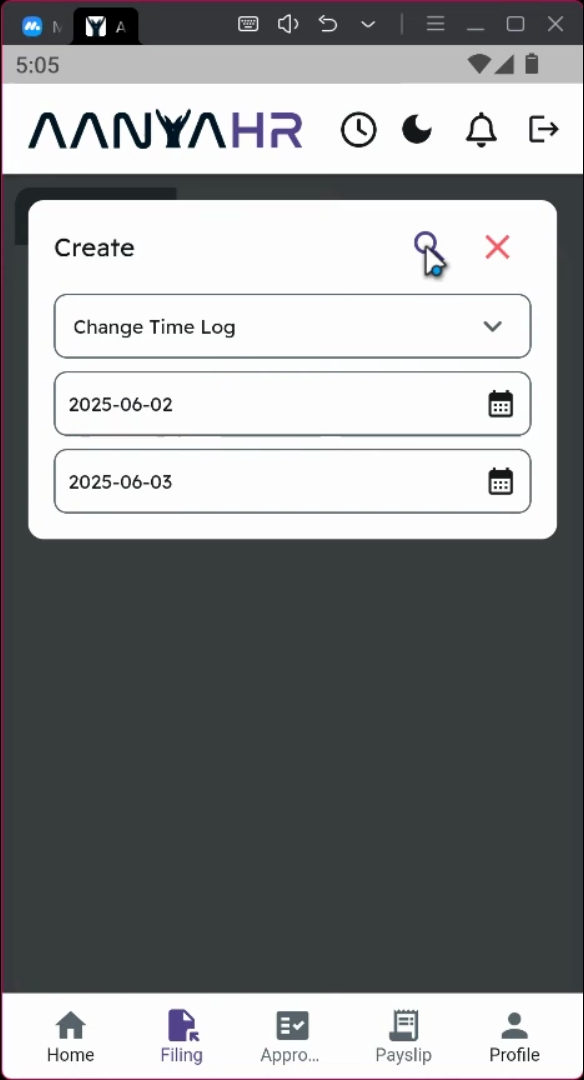
For example, to file a changelog for June 2 to June 3, your Date from must be June 2, and your Date to must be June 3.
Next, tap the search icon to proceed with the filing.
At the top of your screen, you will be able to see your schedule along with your scheduled time in and time out.
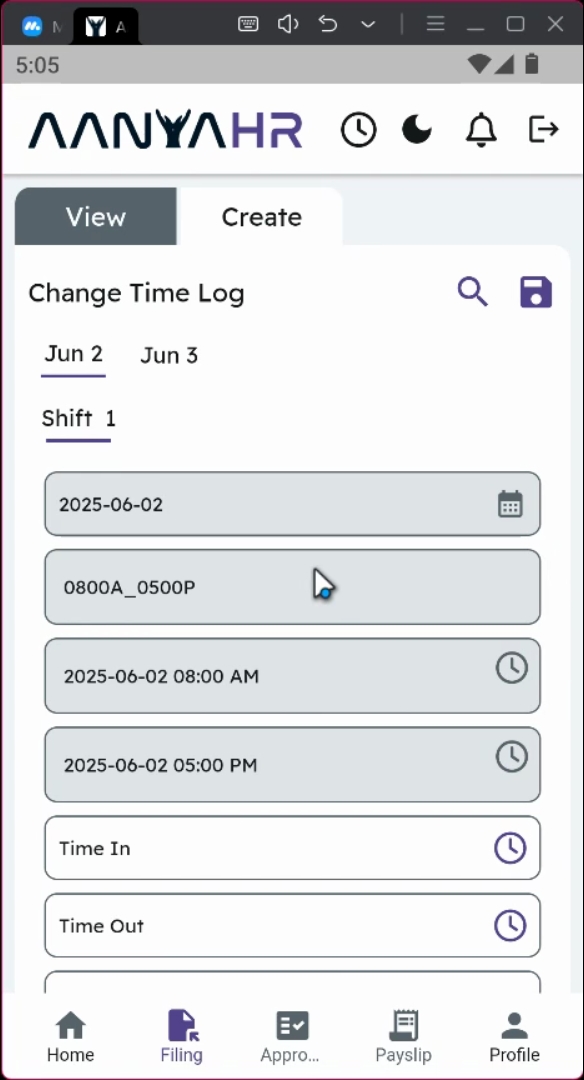
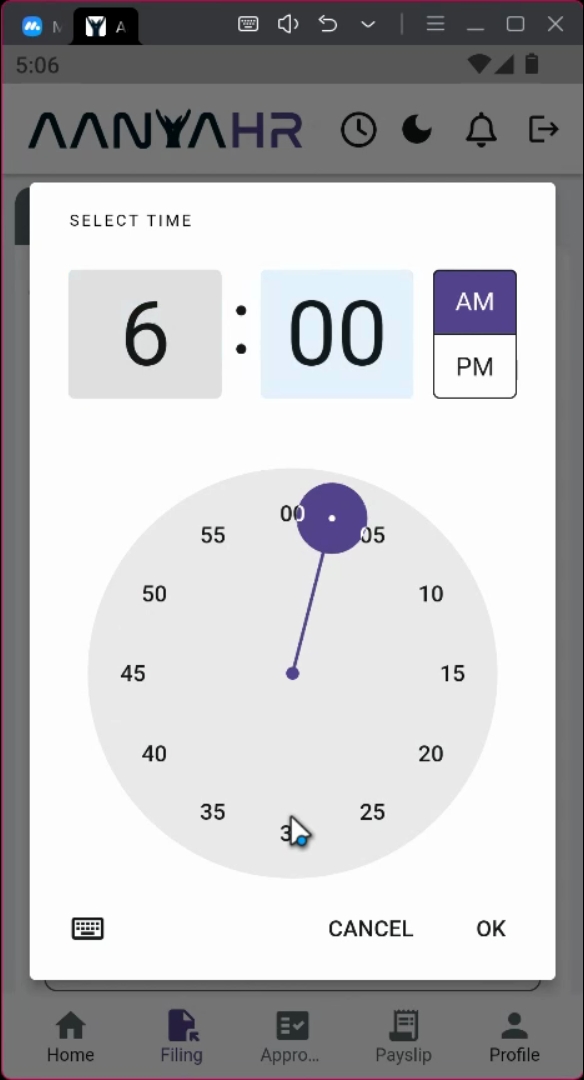
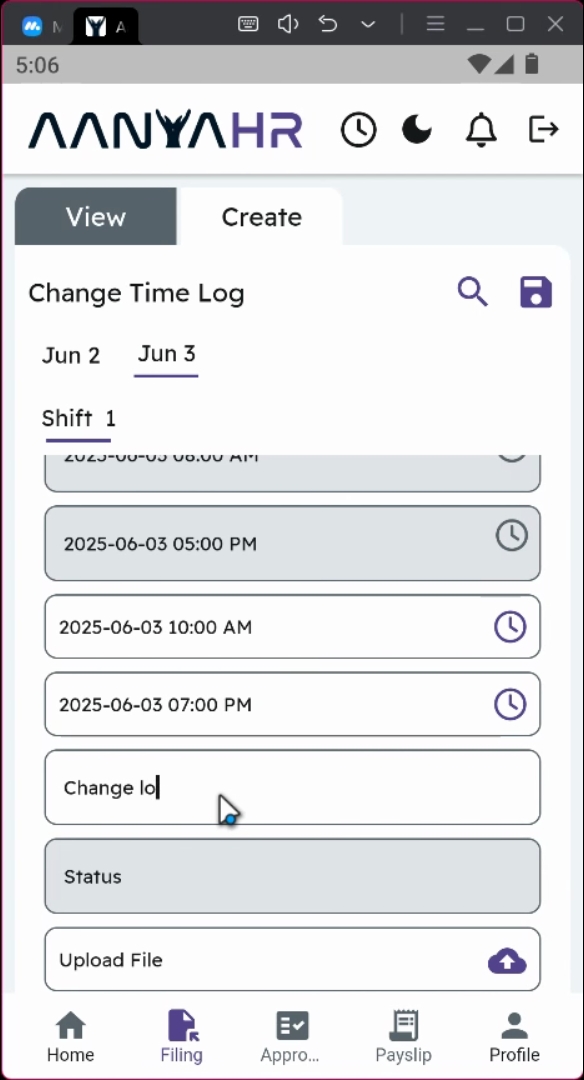
Under the Time in module, click the clock icon to input the details of your filing.
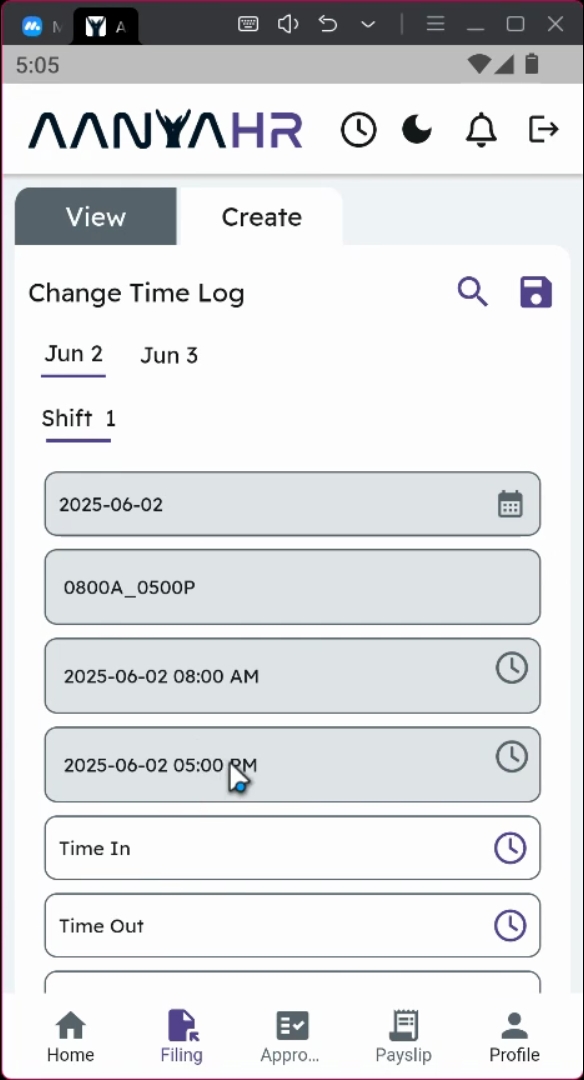
This filing will be for June 2nd at 9 AM.
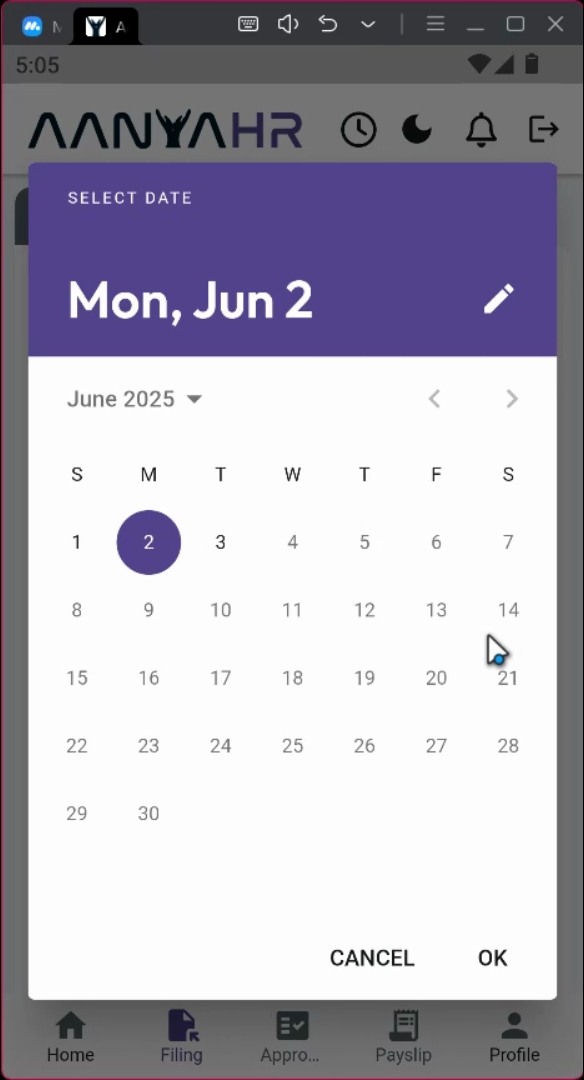
The same goes for the timeout, which will be June 2nd at 6 PM.
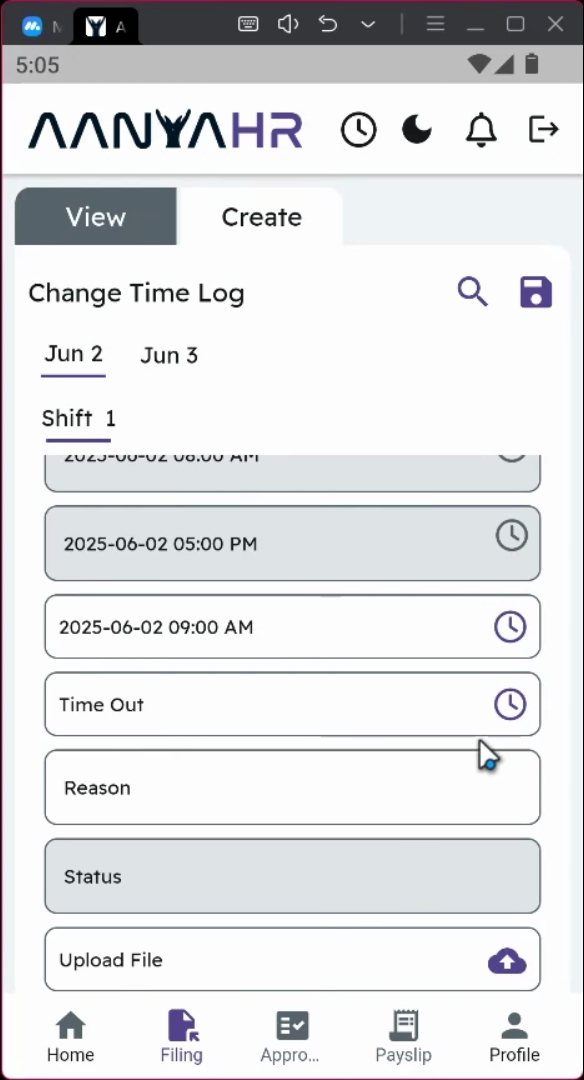
You have the option to input your actual timing and can use your keyboard for this.
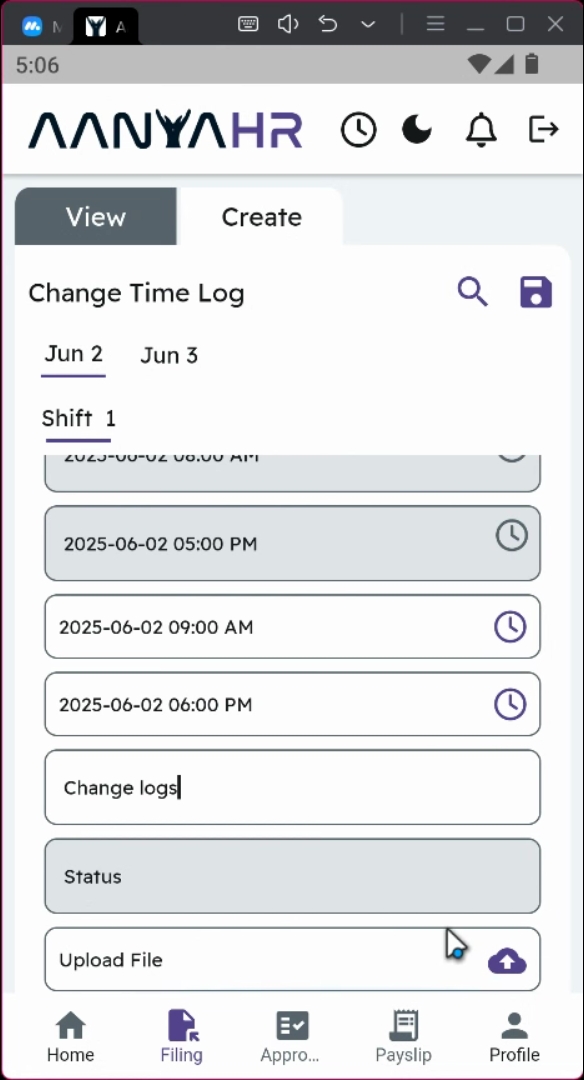
Ensure to input the reason for your filing, as this will be visible to your supervisor during the approval process.
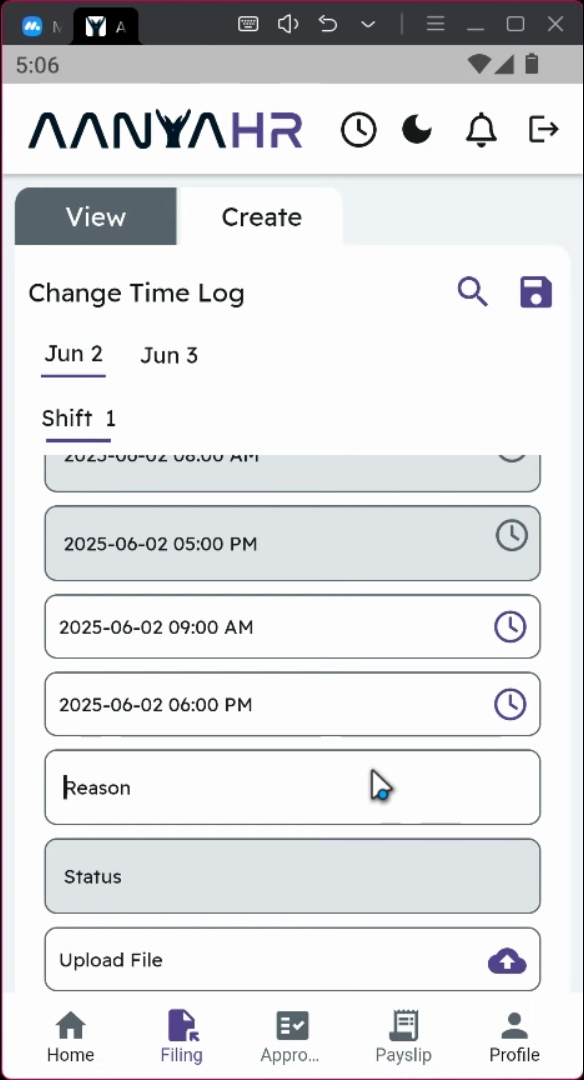
You also have the choice to upload a PDF, JPEG, or Word file to support your filings.
Similarly, for the June 2 filing, input the actual time in and time out for this day.
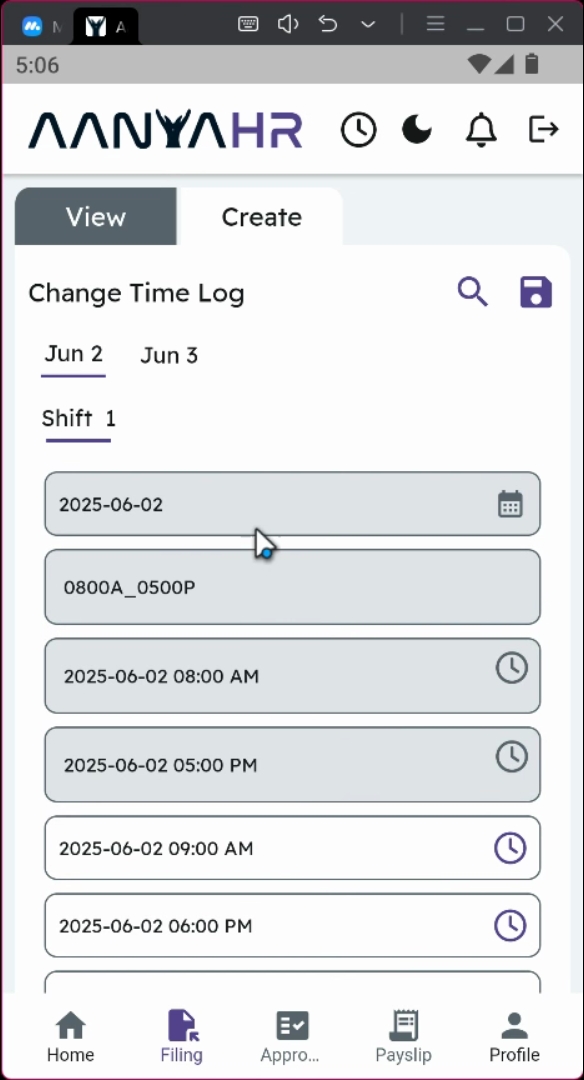
Once you are final with the input, click on Save changes.
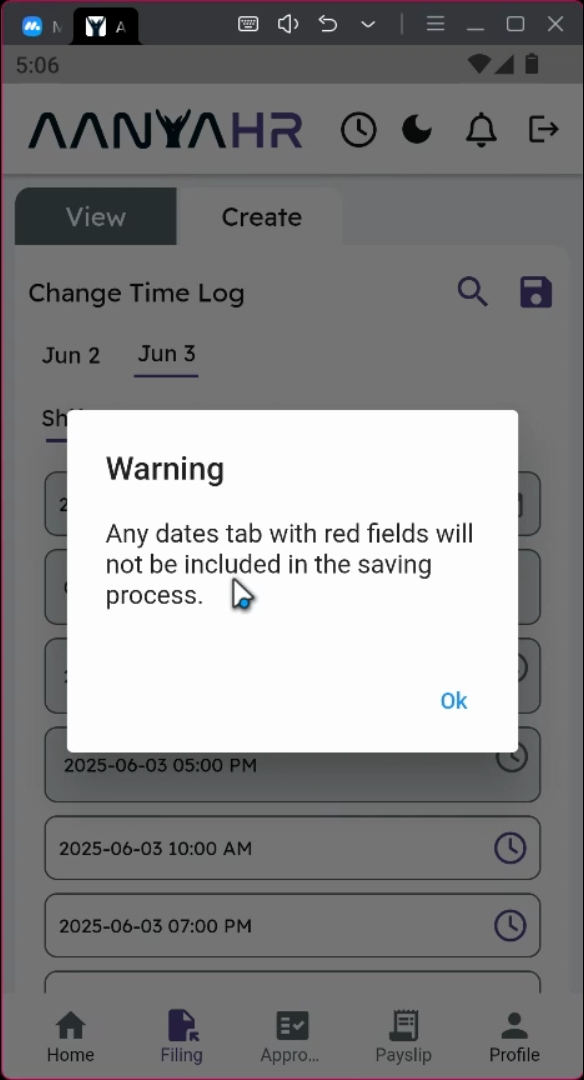
A prompt message will display, informing you that all tabs with red fields will not be included in the saving process.
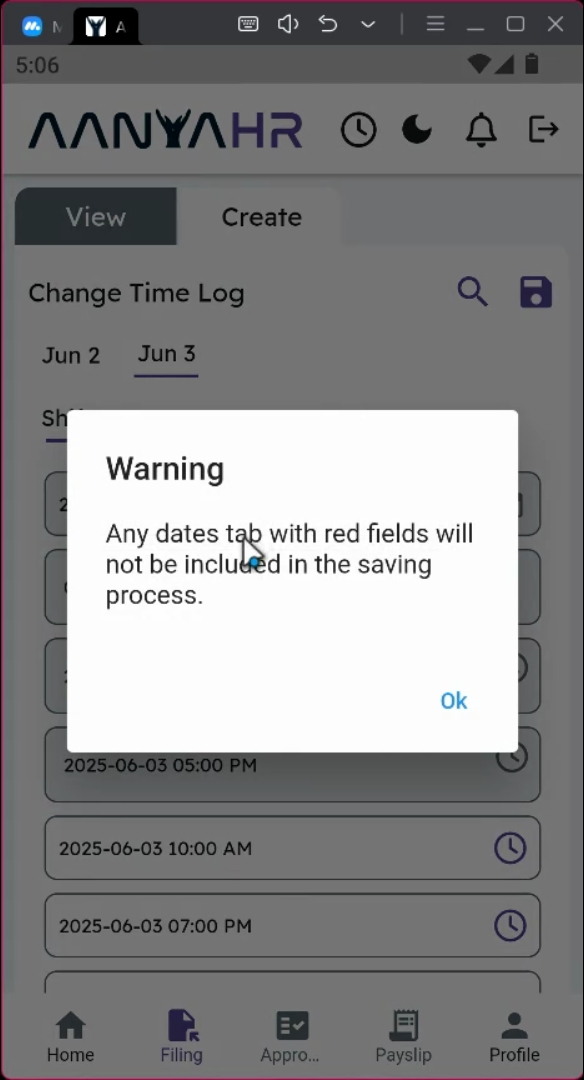
Just click OK when the confirmation will be prompted, and then click yes to proceed.
Once the transaction is saved, the request will be rerouted to your supervisor for approval.
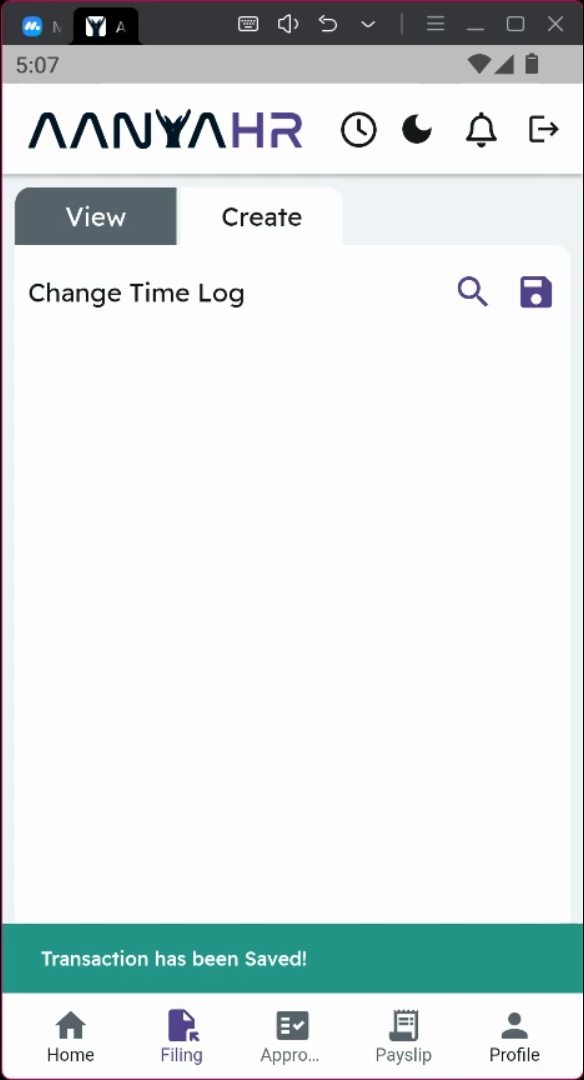
You can track the status of your filing using the NP application module and depending module.
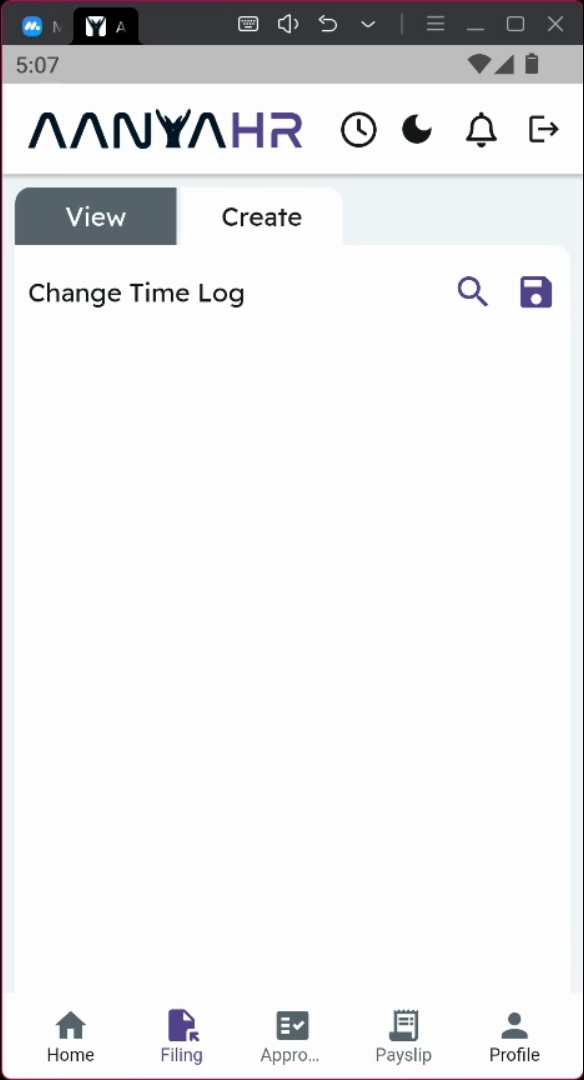
By following these thorough steps, you can successfully file a changelog using the Anya HR Mobile application while ensuring all necessary details are captured for your supervisor's review.