

Introduction
Welcome to this tutorial on editing your initial filing using the AanyaHR Mobile application. In this step-by-step guide, you will learn how to navigate the filing module, select your desired dates, and make necessary edits to your overtime entries. By the end of this tutorial, you will be equipped to manage your filings effectively, ensuring that your details are always current.
How to Instructions
1. Access the Filing Module
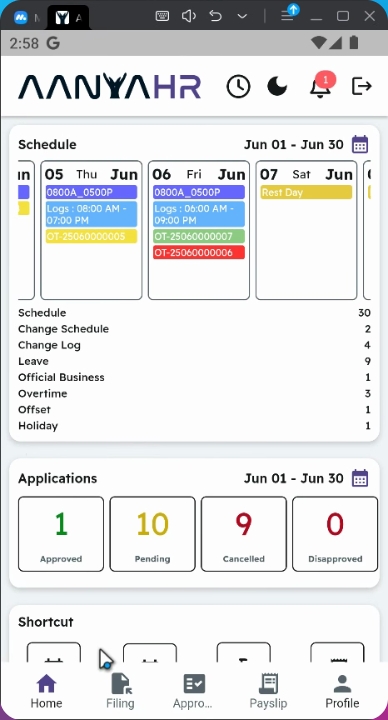
Begin by navigating to the Filing Module within the AanyaHR Mobile application.
2. Create a New Panel
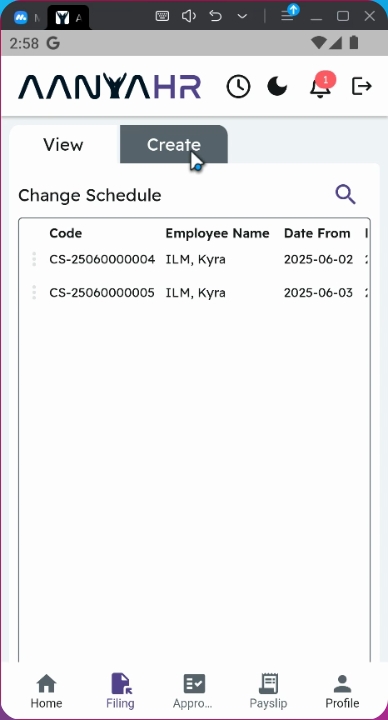
Next, tap on the Create Panel to initiate the editing process.
3. Set Filing Type
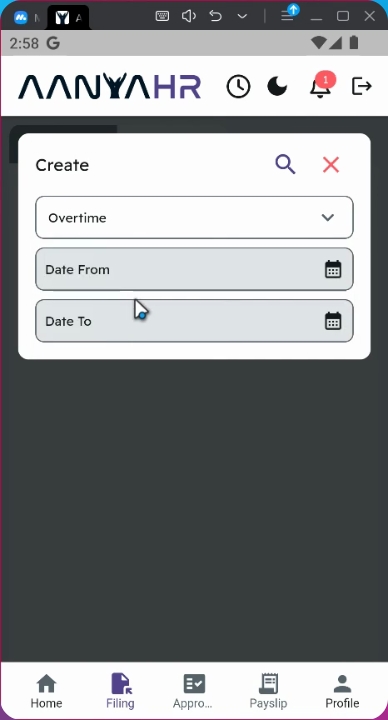
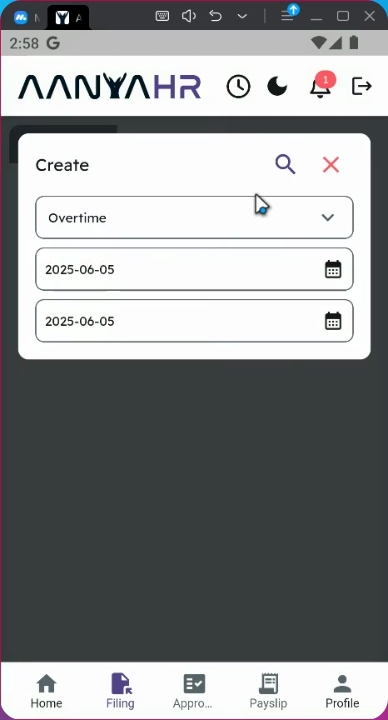
Ensure that the filing type is set to Overtime.
4. Select the Date
Choose the date you wish to edit. You can opt for a single day or multiple days by adjusting the start and end dates accordingly.
5. Example Date Selection
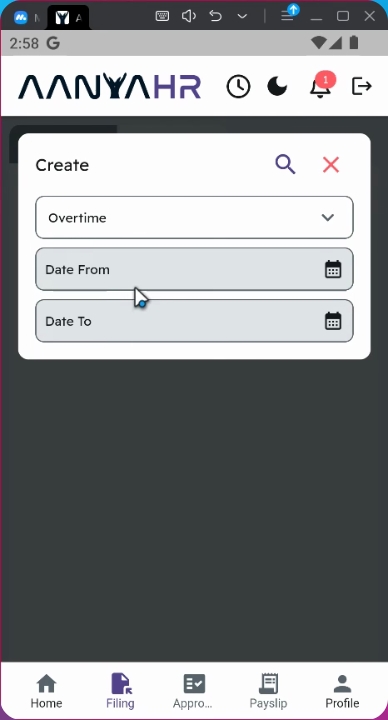
For instance, if you want to edit your overtime for June 5th, ensure the end date is also set to June 5th.
6. Proceed to Editing
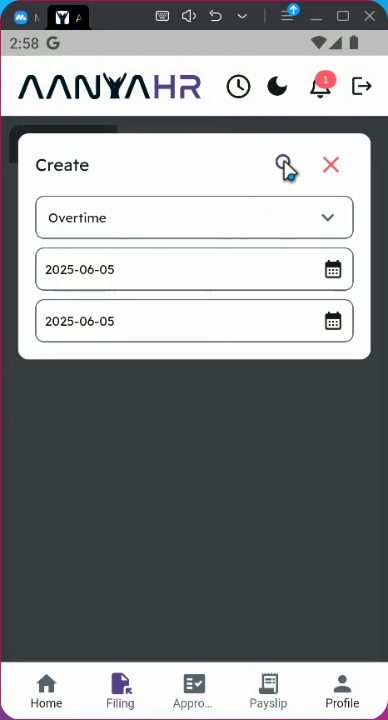
Click the Search Button to continue with the editing process.
7. View Initial Filing Details
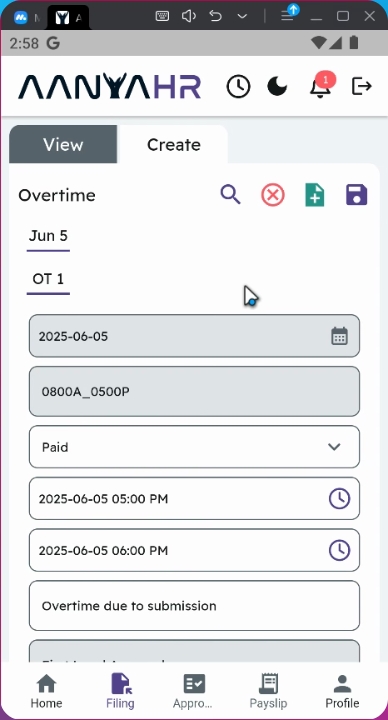
At the lower part of the screen, you will see your initial filing details, which will serve as a reference for your edits.
8. Edit Start Time
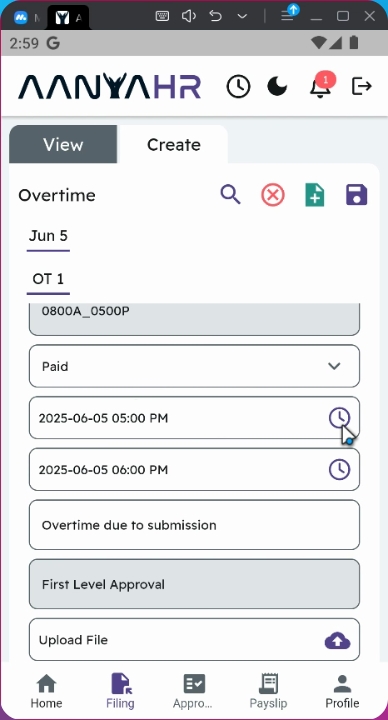
To modify your start time and time to hours, click the Clock Icon.
9. Choose New Date and Time
Select the new date and time for your overtime. For example, you might change the time from 5 PM to 6 PM to 5 PM to 7 PM.
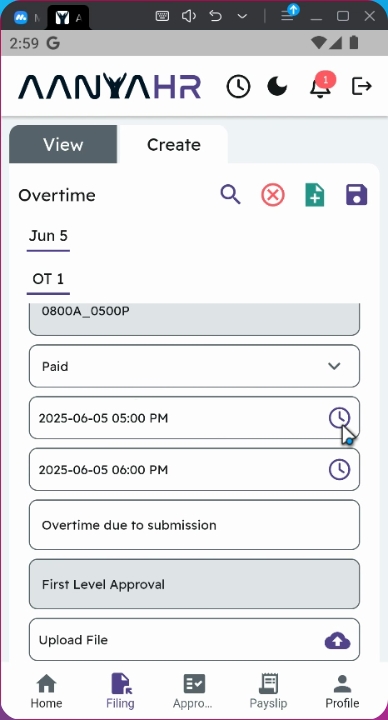
10. Retain Start Time
You can choose to keep the original start time while only modifying the time-to column.
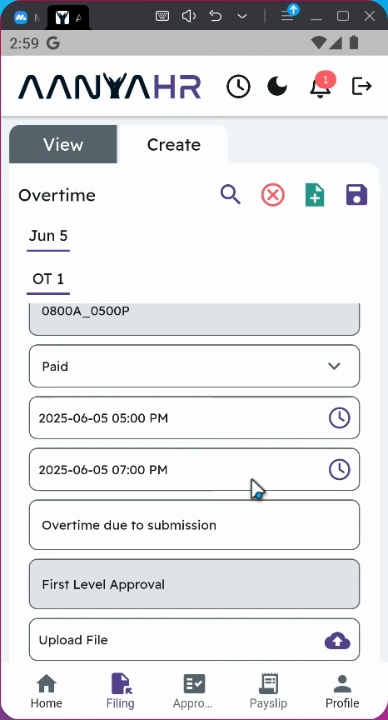
11. Retain Remarks and Files
You also have the option to retain the details of your remarks and any uploaded files from your initial filing.
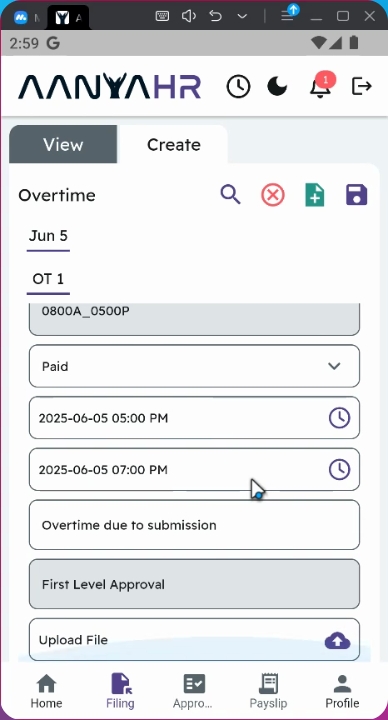
12. Review Filing Status
Take note that the status of your filing will be marked as First Level of Approval, indicating that changes can still be made.
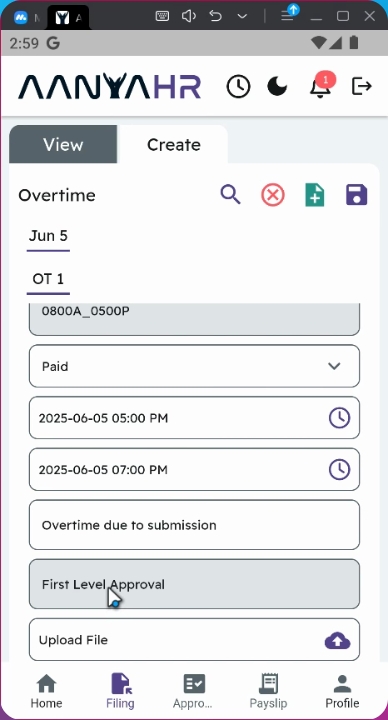
13. Understand Editing Limitations
Once the filing reaches the Second Level of Approval and is approved, you will no longer be able to edit it. Editing will only be available for cancellation.
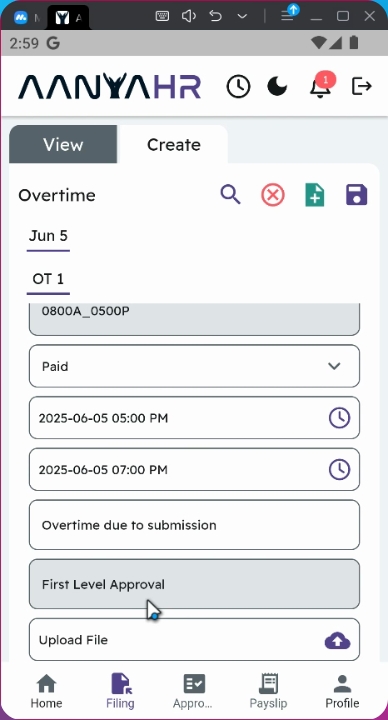
14. Save Your Changes
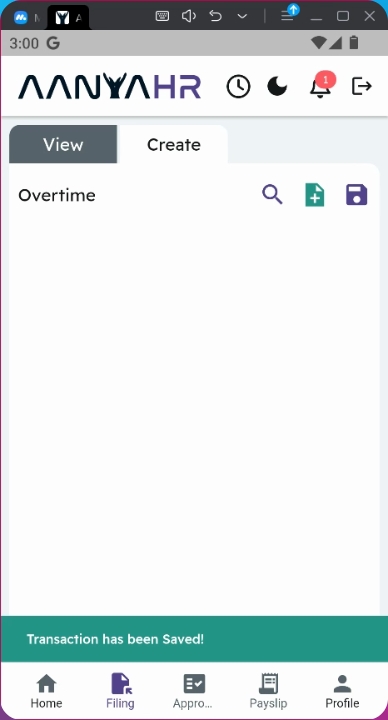
Once all modifications are complete, tap the Save Button to store your changes.
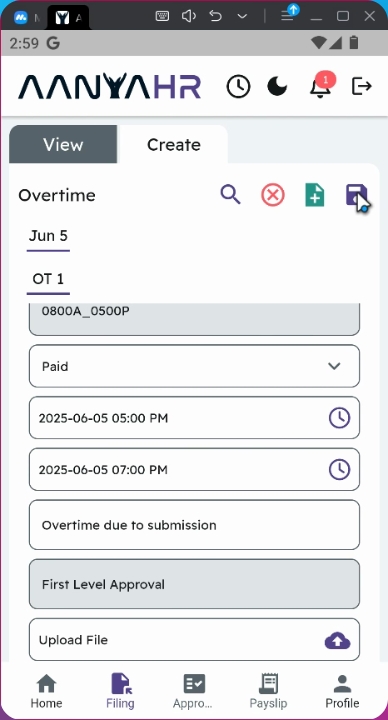
15. Confirmation Prompt
A confirmation prompt will appear to verify your changes.
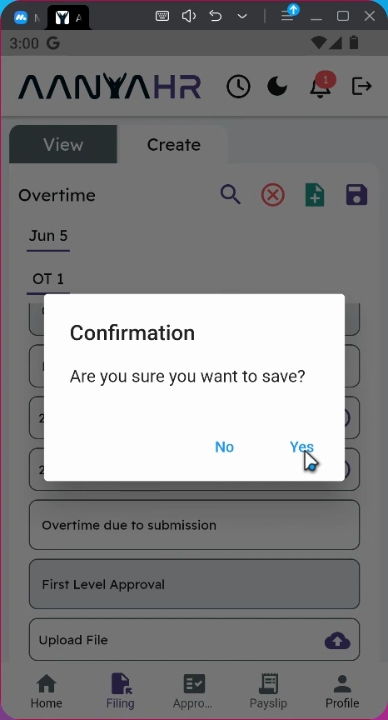
16. Confirm Changes
Click Yes to proceed with saving your edited filing.
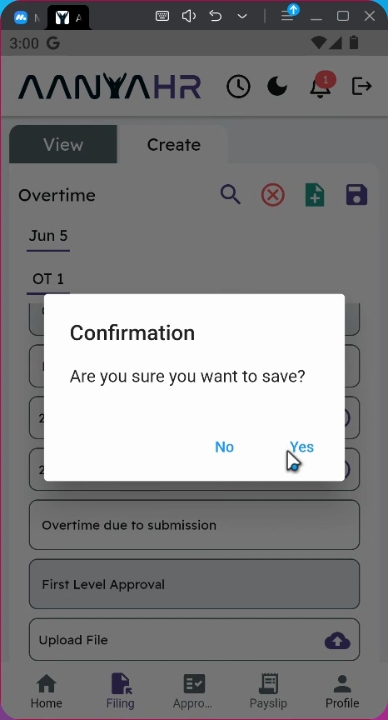
17. Submission for Approval
All edited filings will be automatically rerouted to your supervisor for approval.
18. Track Your Filing Status
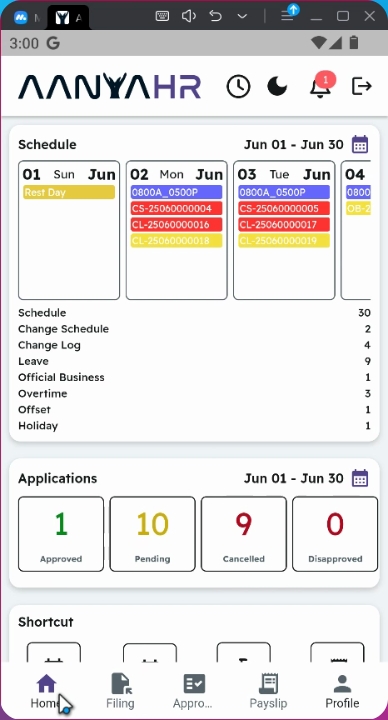
You can monitor the status of your filings in the Application Status section on the home page, where it will be marked as Pending.
Conclusion
By following these steps, you can efficiently edit your initial filings in the Anya HR Mobile application, ensuring your overtime records are accurate and up-to-date.