

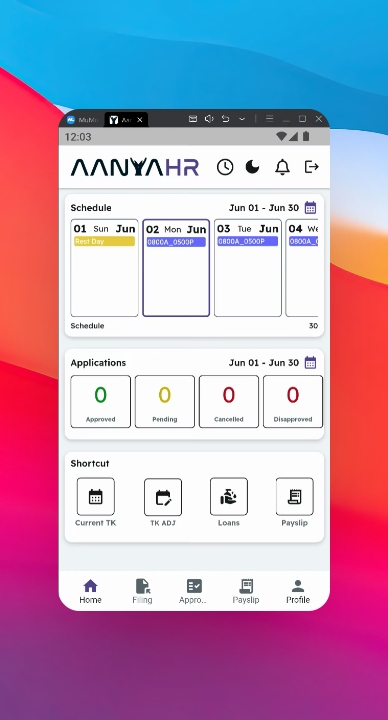
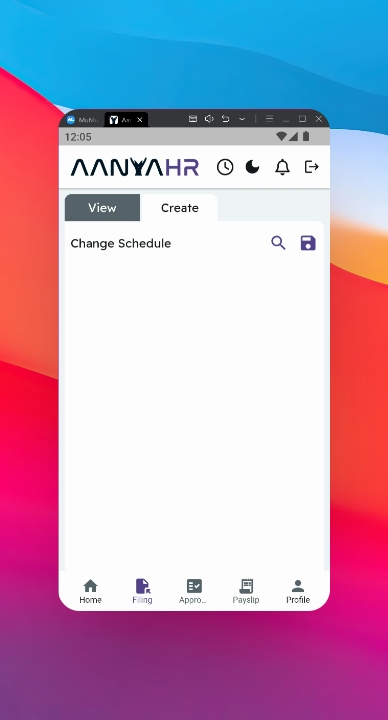
First, open the Filing module.
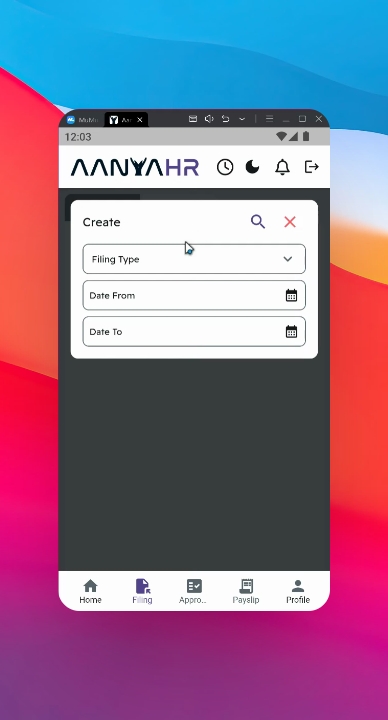
Then, tap the Create panel to initiate the filing process.
Ensure that the filing type is set to Changes Schedule.
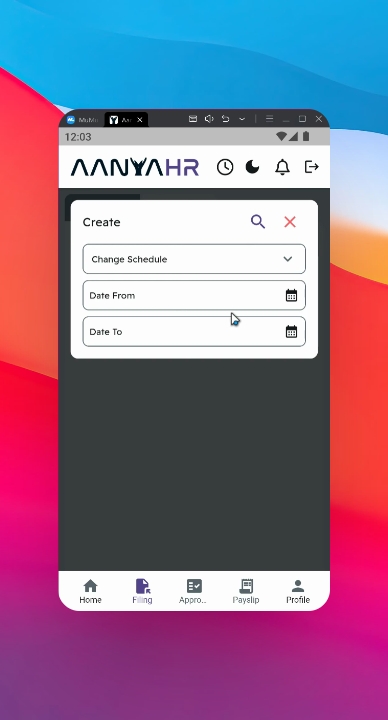
Choose your desired Date range for the filing.
You can opt for a single day or multiple days by adjusting the date range accordingly.
For instance, if you want to file for a changes schedule from June 2 to June 3, set Date from to June 2 and Date to to June 3.
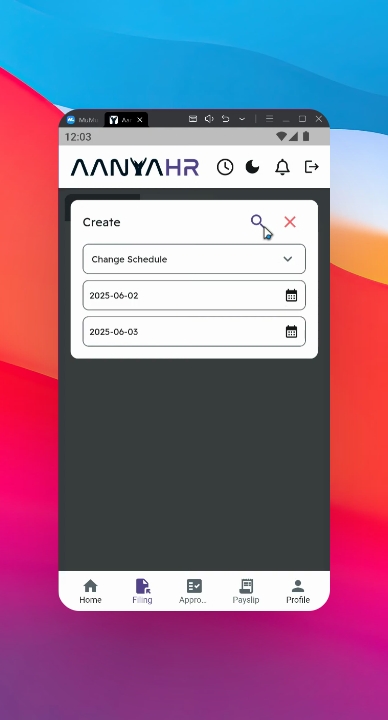
Click the search icon to proceed with the filing.
You will be able to see your current schedule on the upper part of the screen.
If no schedule is set, this will appear as blank on the new shift module.
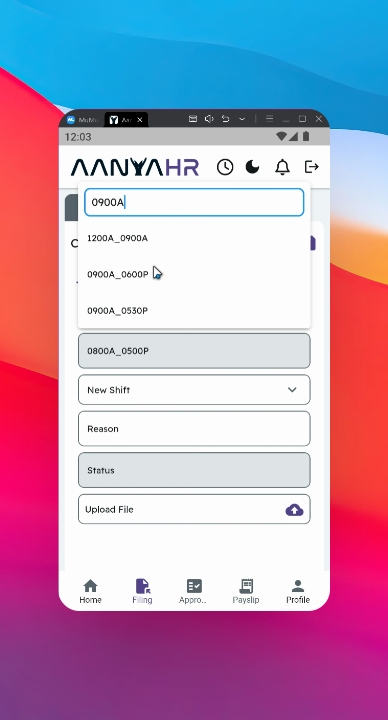
Tap or click the desired schedule to proceed.
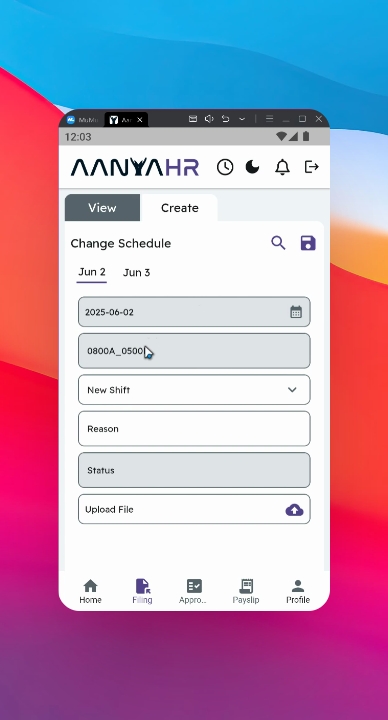
For example, if you are filing for June 2, you might want to select a schedule from 9:00 AM to 6:00 PM.
Input the reason for your supporting request, which will be visible to your supervisor during the approval process.
Optionally, you can upload supporting documents in PDF, JPEG, or Word format.
To do this, simply click the relevant icon.
Uploading will commence after this action.
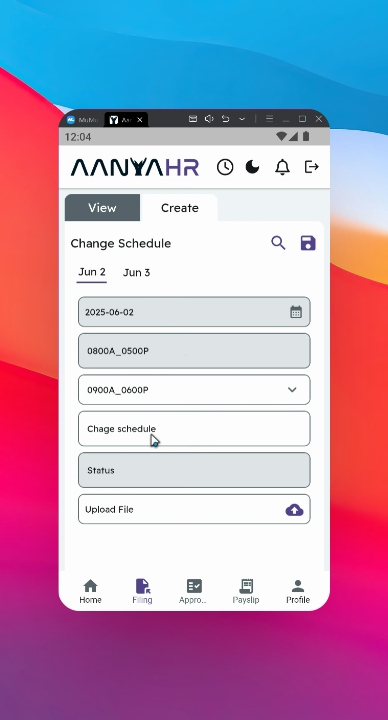
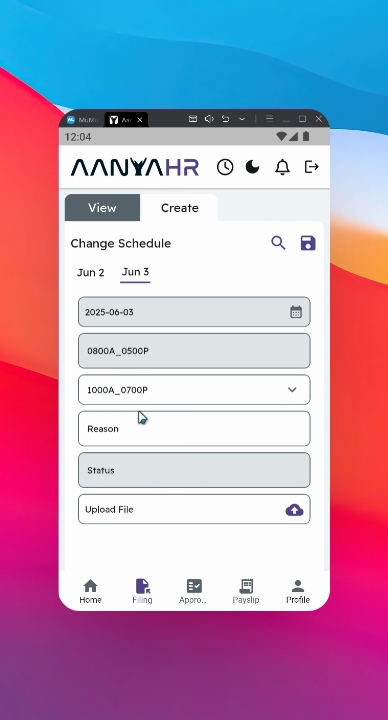
Utilize the same process for June 3rd, where you select your schedule, e.g., 9:00 AM to 7:00 PM.
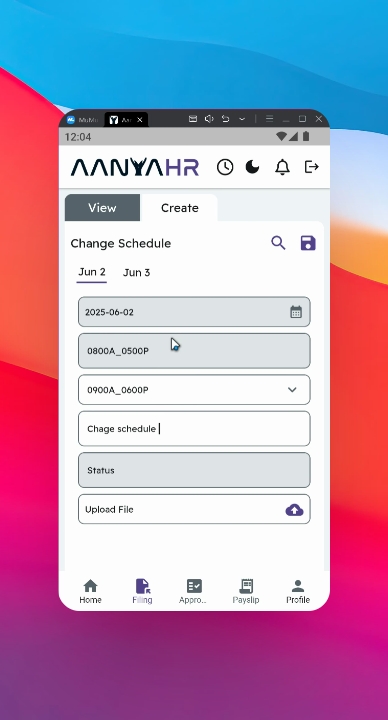
Afterward, input the reason for your filing.
Once finalized, click the save icon to proceed with the filing.
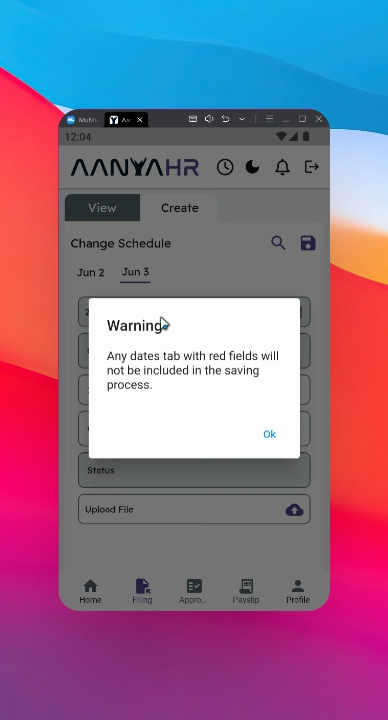
A prompt message will be displayed if there are fields marked in red, indicating they were not included in the saving process.
Click OK to proceed.
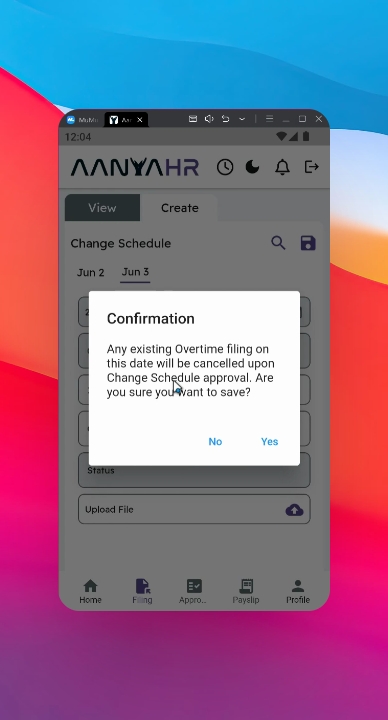
Please note that any filing of overtime will be automatically cancelled.
Upon changing your schedule, click yes to continue with the filing.
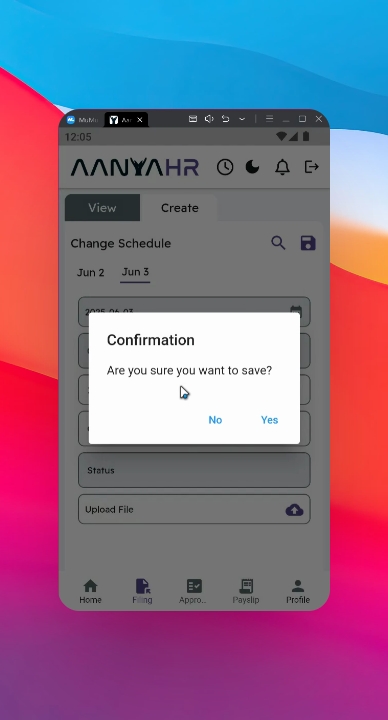
A confirmation will prompt; click yes again to proceed.
Once saved, the request will be rerouted to your supervisor for approval.
You can track the status of your filing in the application module.
The status will be marked as Pending for filing.
By following these steps, you will successfully file a changes schedule using the Anya HR Mobile application.