

Introduction
Editing your initial file changes schedule in the Anya HR Mobile application is a straightforward process. In this tutorial, we will guide you through each step to ensure that your filing is updated correctly. You’ll learn how to navigate to the Filing module, select the appropriate date range, and finalize your changes safely. Let's get started!
How to Instructions
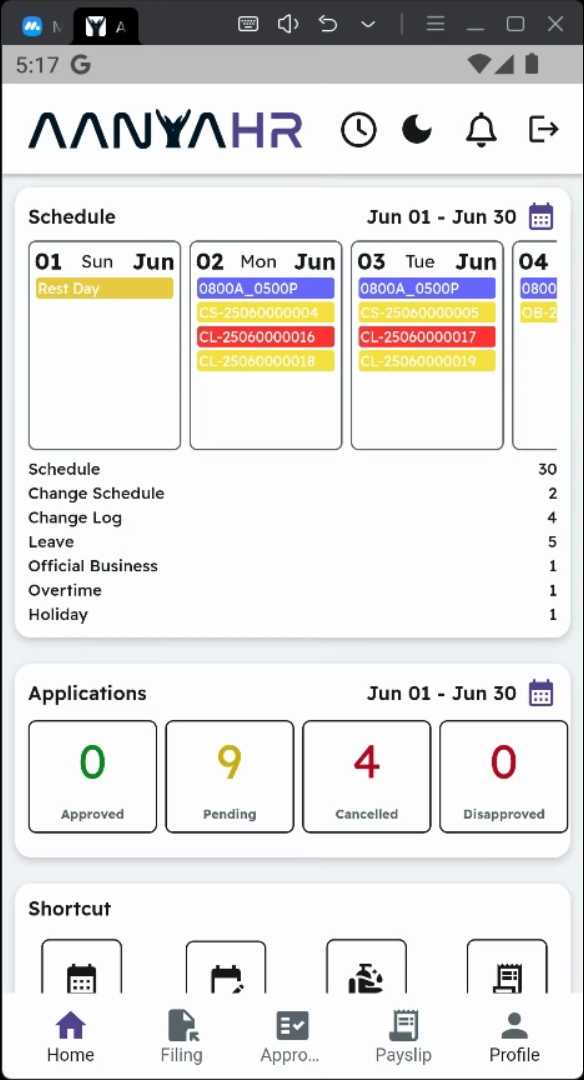
1. Access the Filing Module
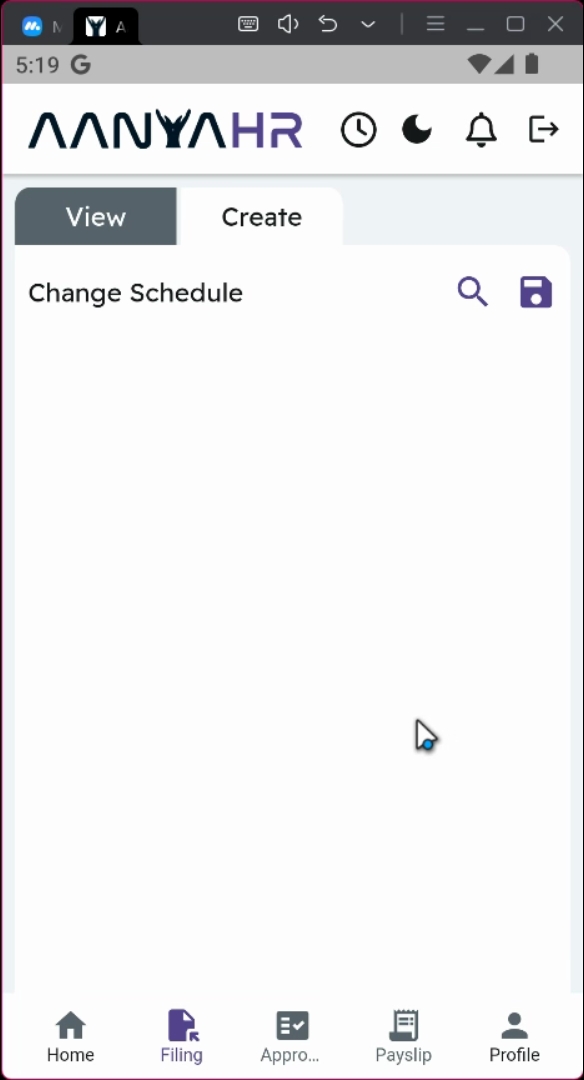
To begin the editing process, navigate to the Filing module.
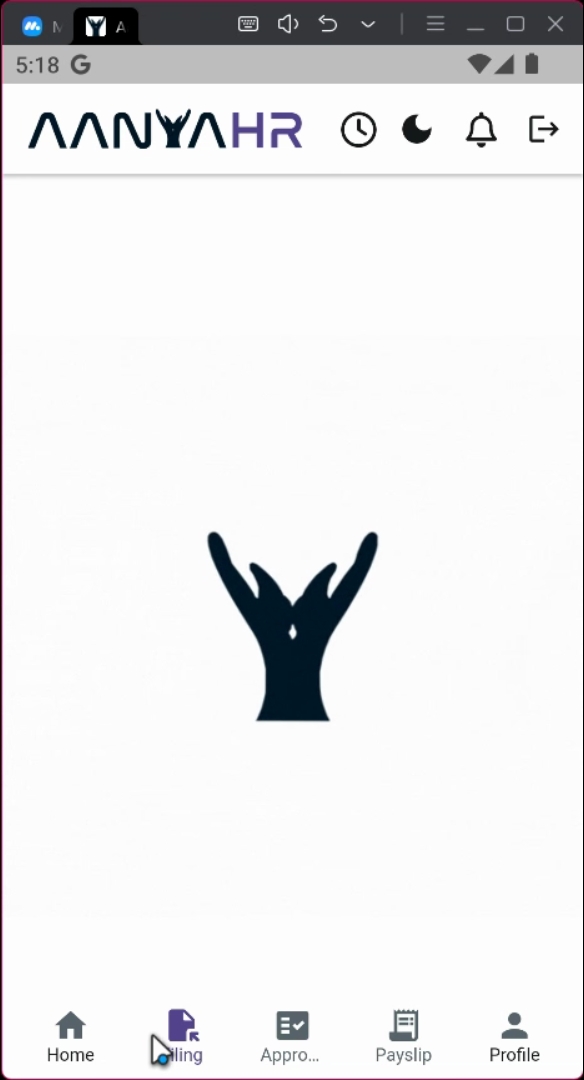
2. Create a New Panel
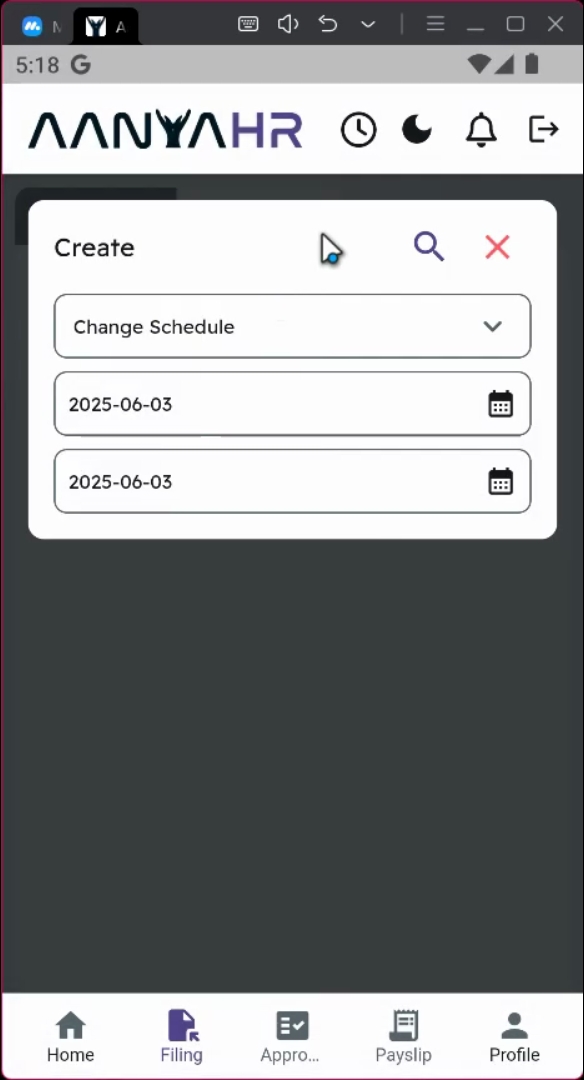
Next, tap the Create Panel option.
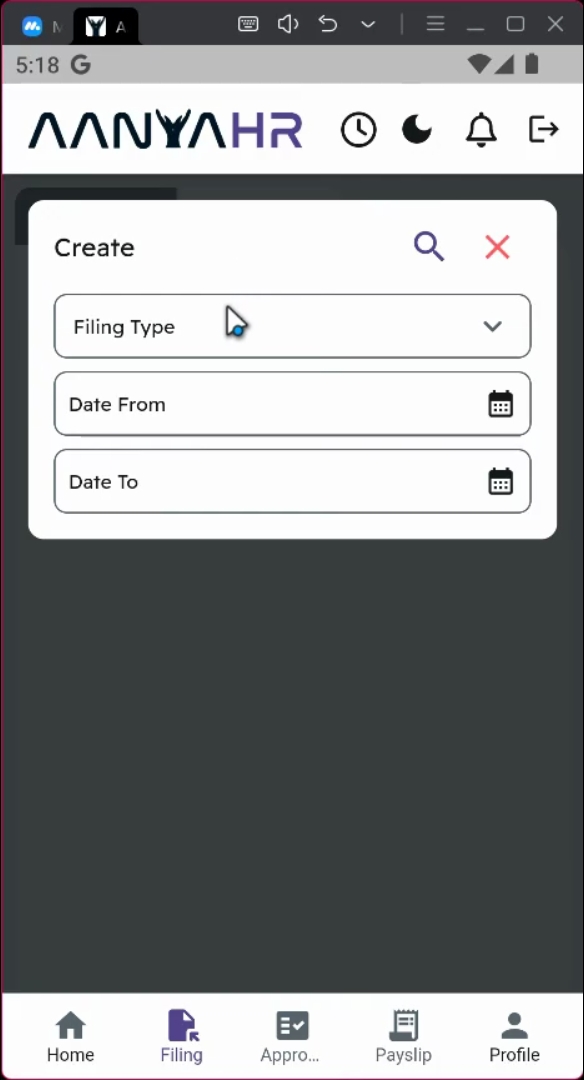
3. Select Filing Type
Ensure that the filing type is set to Change Schedule.
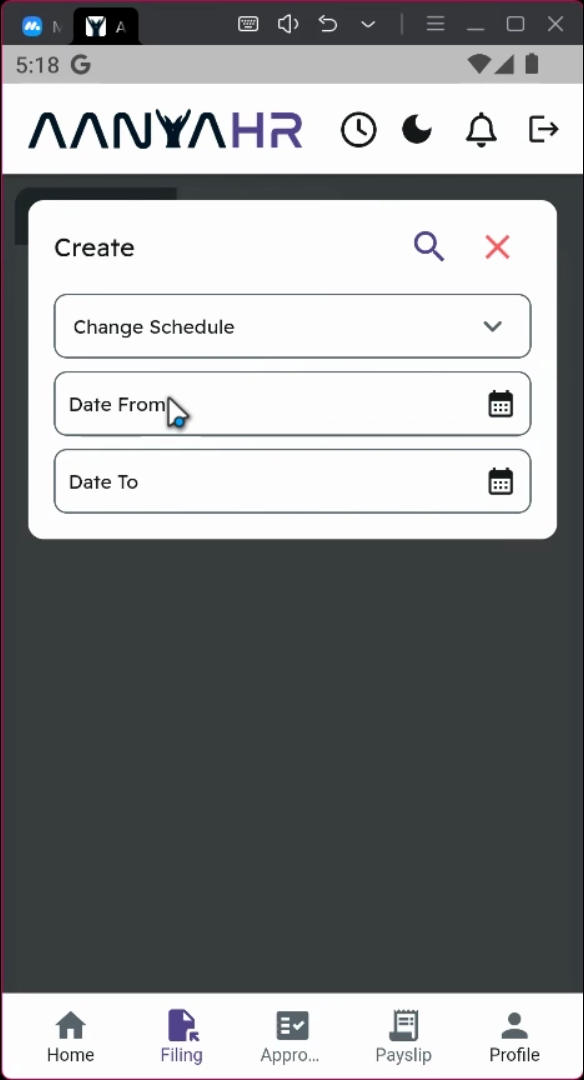
4. Choose Date Range
Select a date range that you wish to edit. You can either choose a single day or multiple days by adjusting the start and end dates. For instance, if you want to edit your initial filing for June 3rd, set both the start and end date to June 3rd.
5. Proceed with Editing
To continue with the editing, click the Search button.
6. Select Desired Schedule
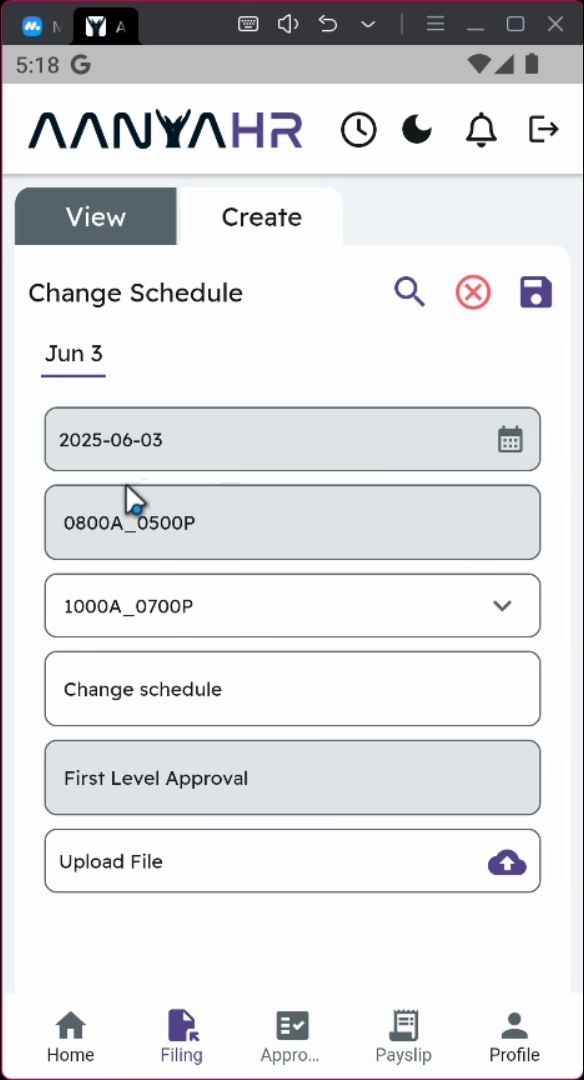
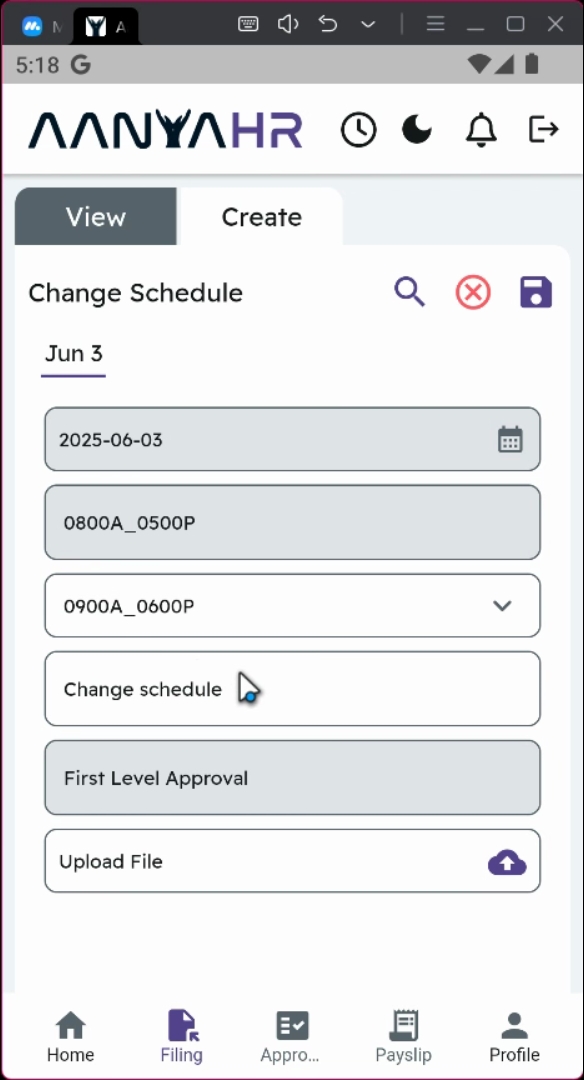
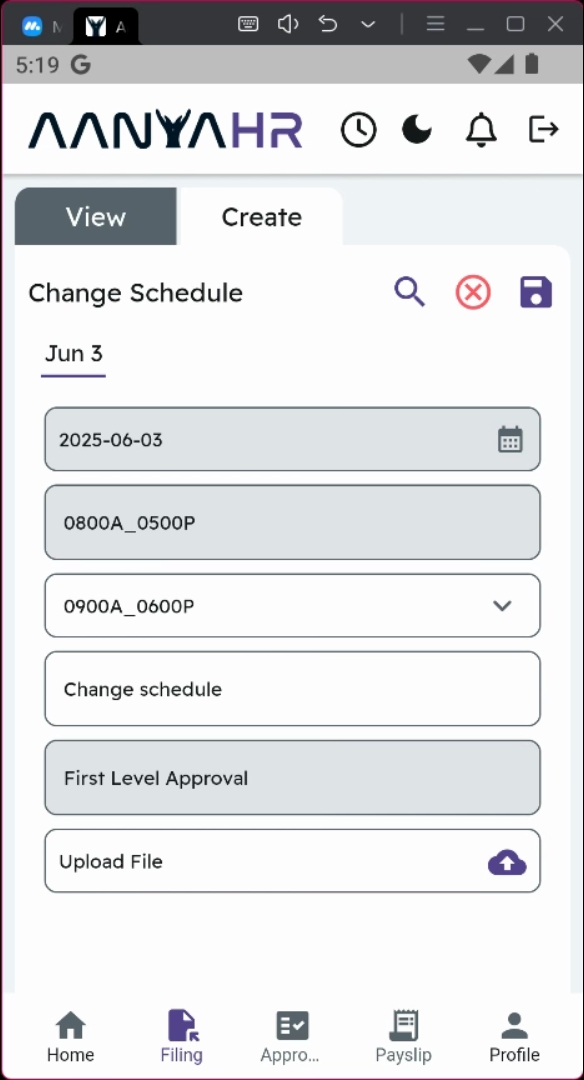
In the new Shape module, select your desired schedule, for example, 9 AM to 6 PM.
7. Retain Remarks
You have the option to retain any attached remarks or initial remarks along with your initial uploaded file.
8. Understand Approval Status
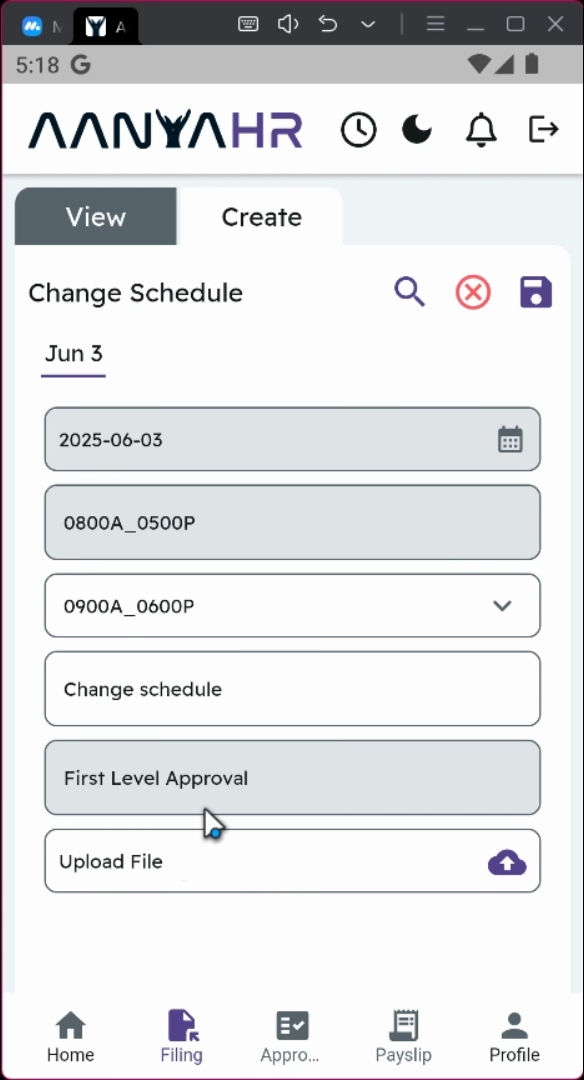
Note that the status of your filing will be tagged as First Level of Approval. All filings still under this status can be edited. However, once the filing reaches the Second Level or is approved, editing will no longer be permitted, and the only option available will be cancellation.
9. Save Your Changes
Once you have finalized your edits, click the Save button to proceed.
10. Acknowledge Overtime Cancellation
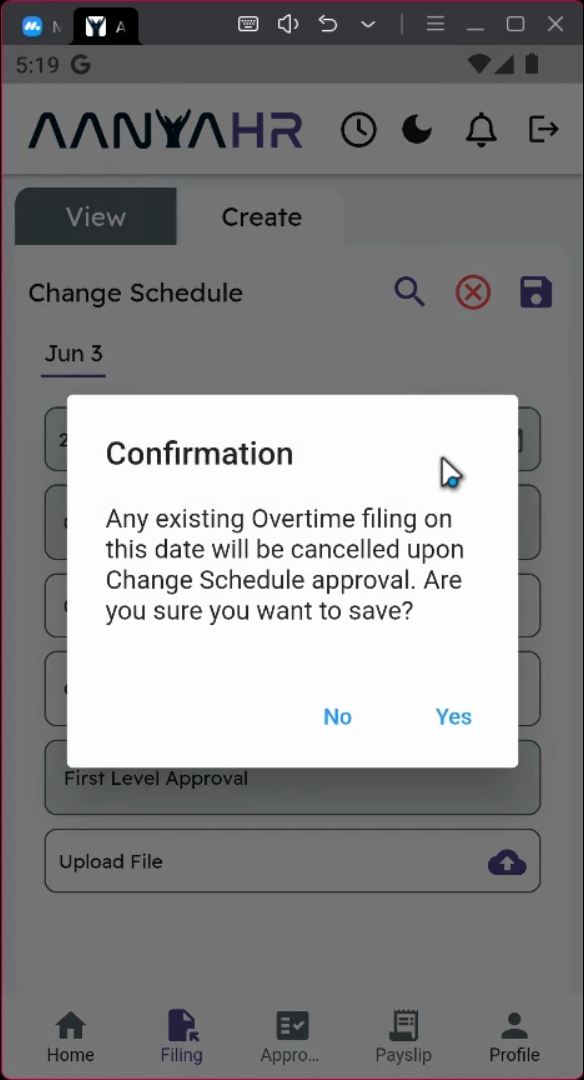
A prompt message will appear, informing you that all overtime filed on this date will be automatically canceled once the schedule is changed. Click Yes to proceed.
11. Confirm Your Changes
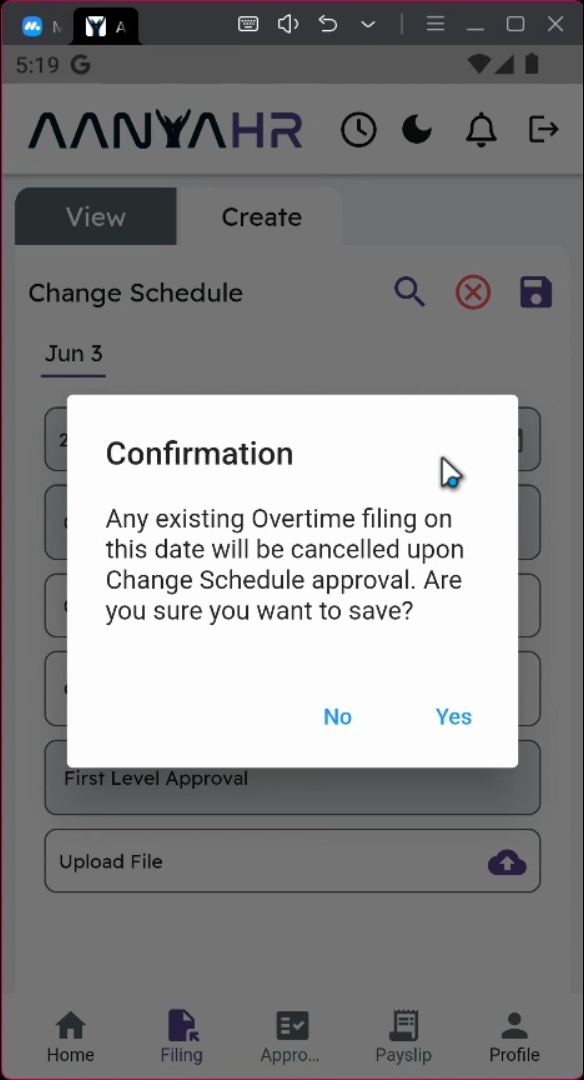
A confirmation prompt will appear. Click Yes to proceed with your changes.
12. Await Supervisor Approval
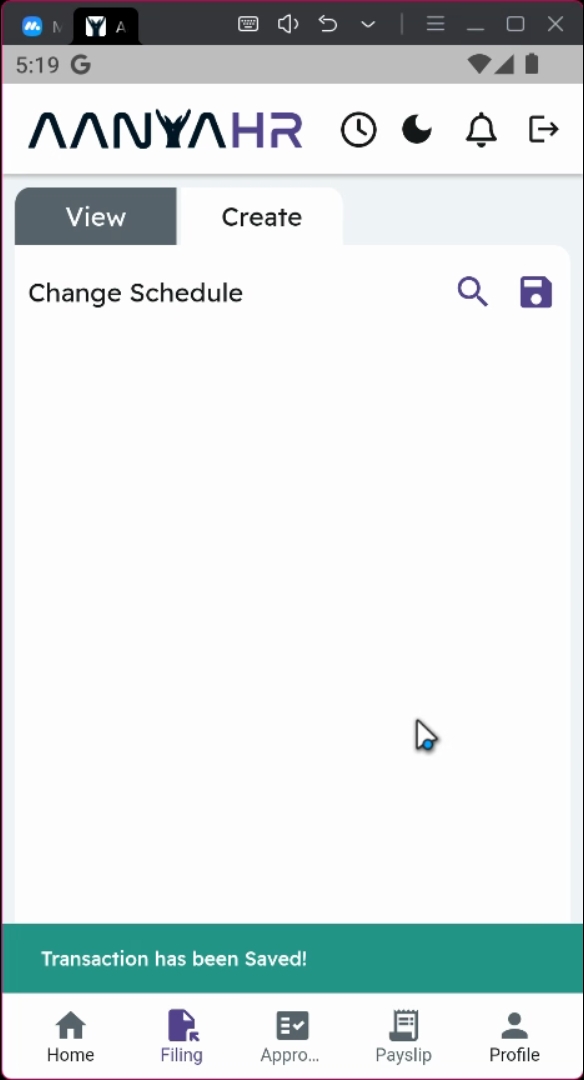
All edited filings will be automatically rerouted to your supervisor for approval.
13. Track Your Application Status
You can track the status of your request under the Application Status on the homepage, where it will be tagged as Pending.
Conclusion
By following these steps, you can effectively edit your initial file changes schedule in the Anya HR Mobile application. Make sure to keep an eye on your application's status for timely approval from your supervisor.