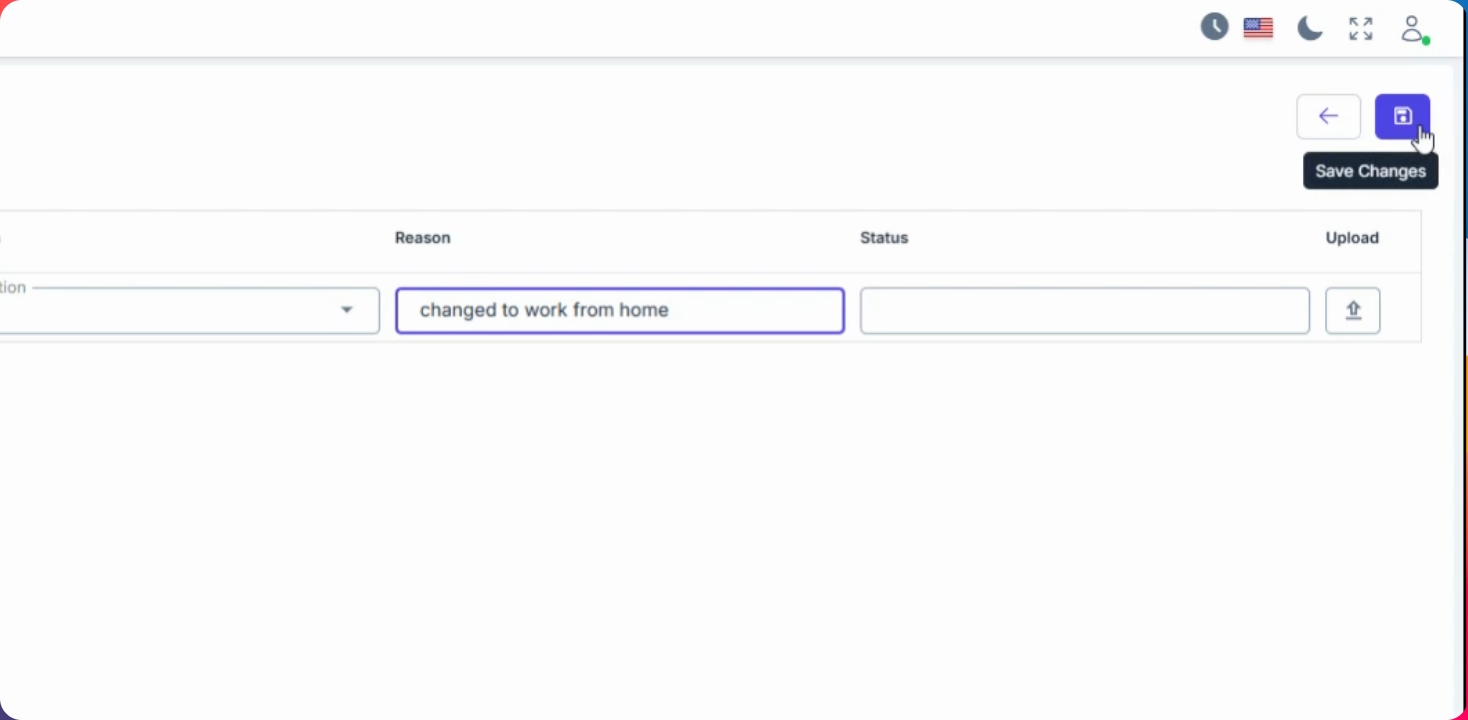
In this guide, you'll learn how to file a Change Location request in ESS. This process helps monitor employee locations and can be used for allowances. Let's look at the steps:
Step 1: Start a Change Location Filing
Navigate to ESS, go to Filings, click the Create button, and select Change Location as the filing type.
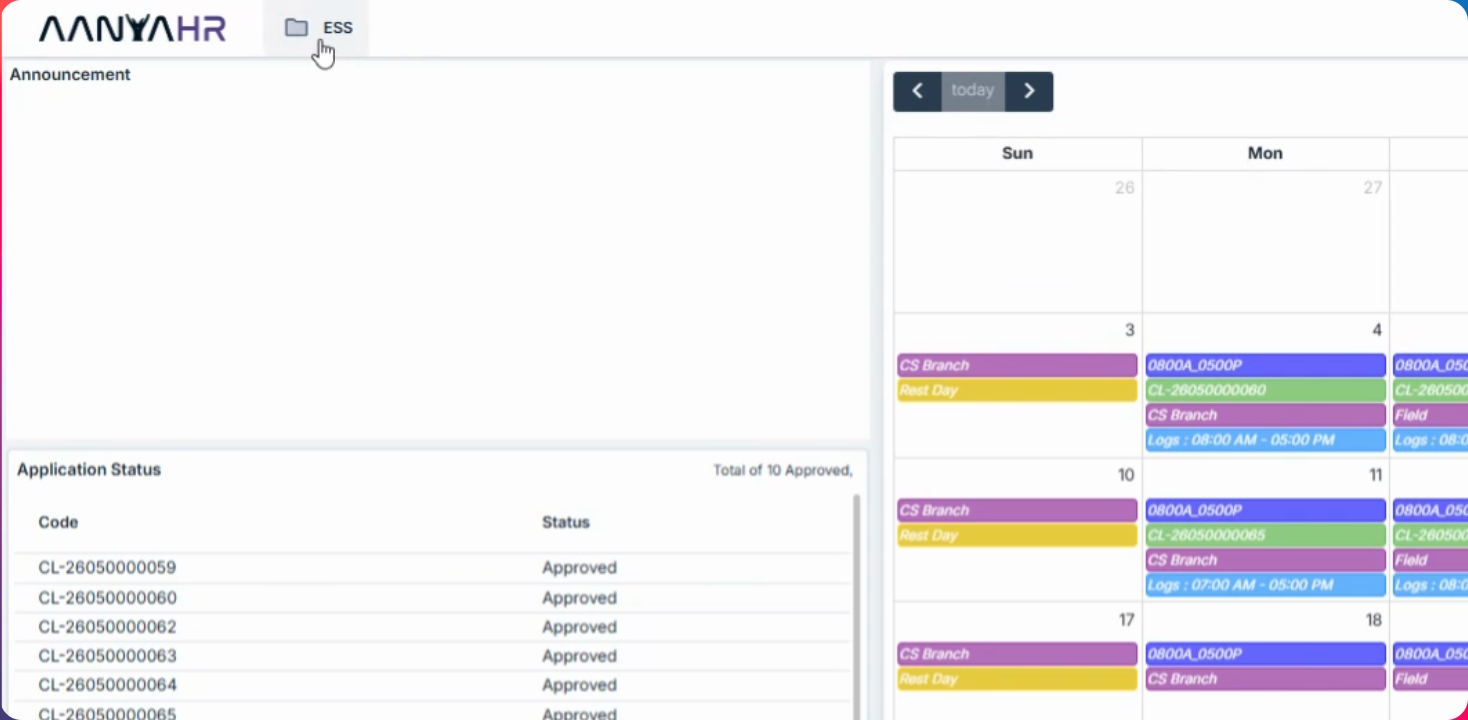
Step 2: Select Date Range
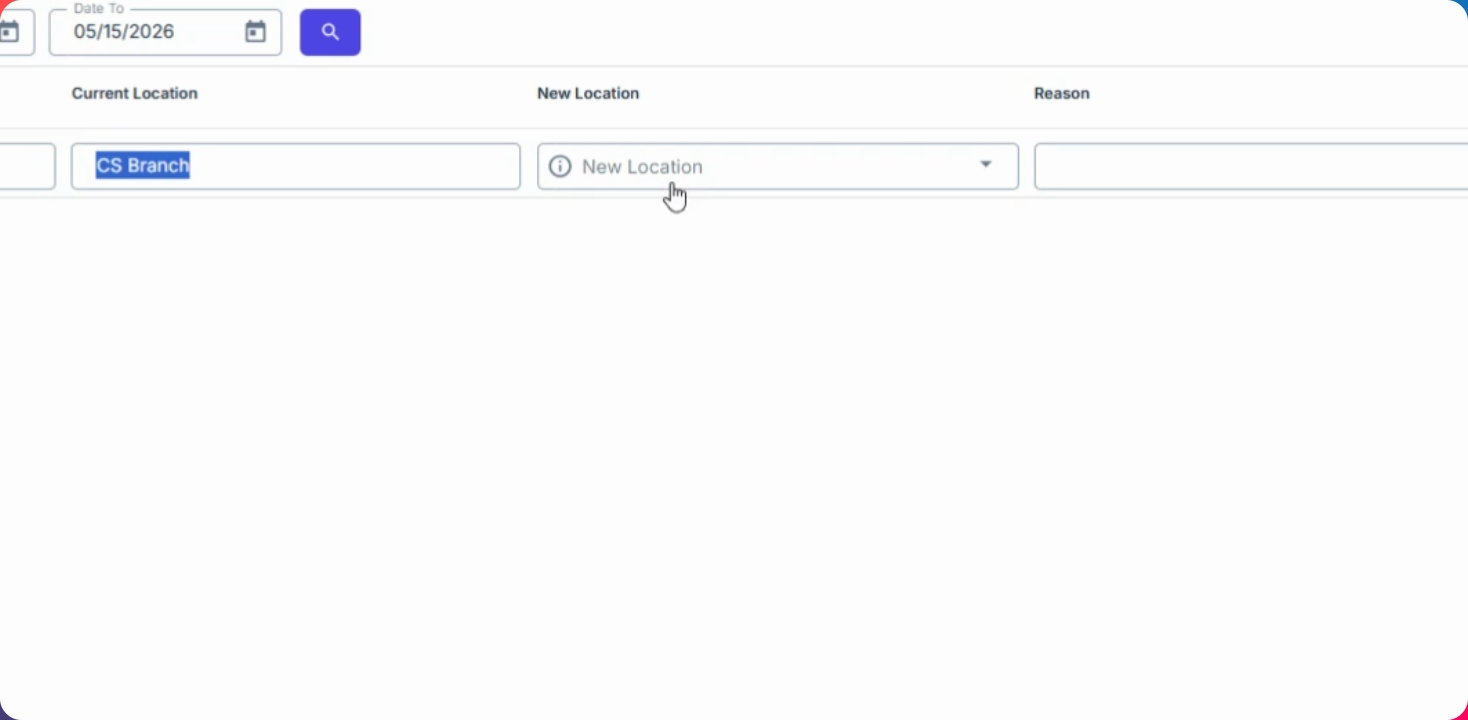
Choose the preferred date range for your Change Location request.

The locations available for selection are pulled from the branches set up in your admin settings. For example, your current location might be under the CS branch.
Step 3: Choose New Location
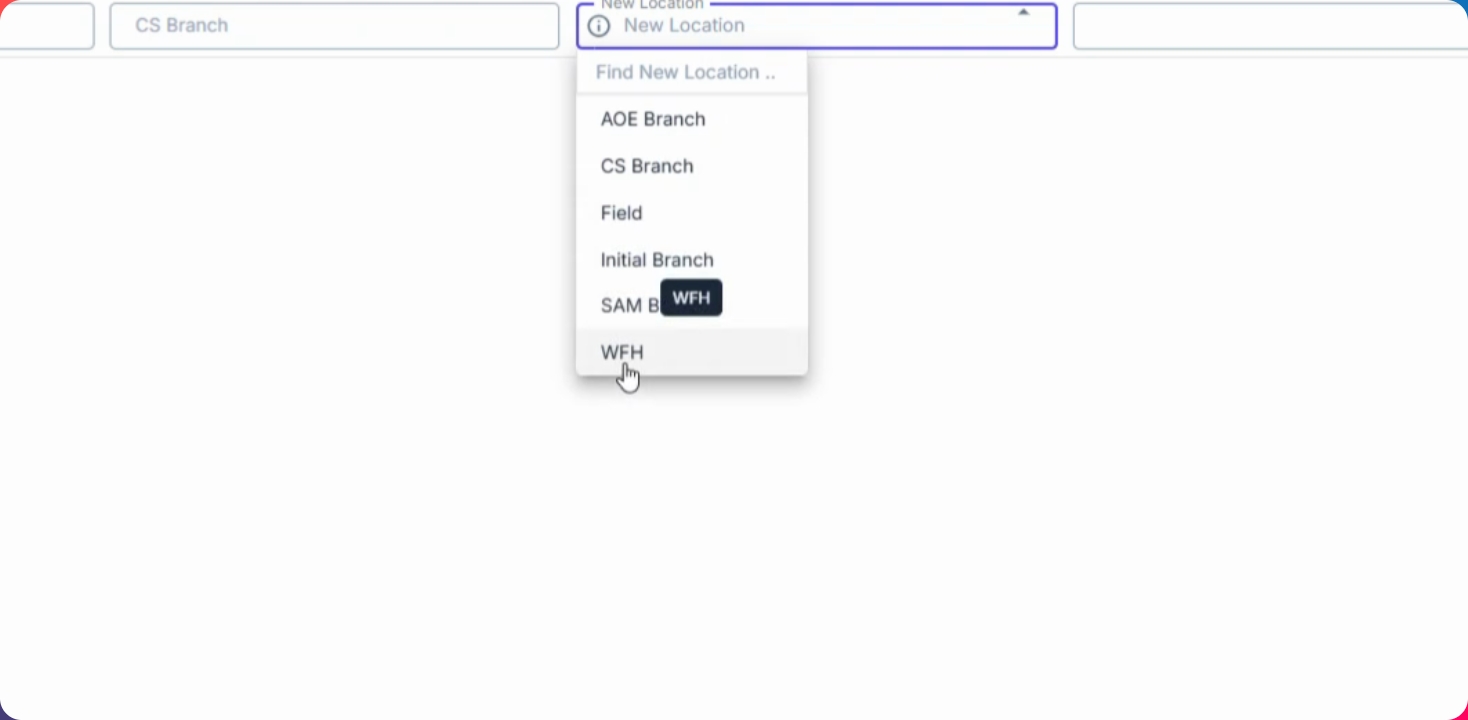
Click your desired location under New location. The selected location will reflect the branch.
You can also choose options such as field or work from home as your new location.
Step 4: Select Reason for Change
If requesting work from home, select your preferred reason from the available options.
Step 5: Save and Route for Approval
Click Save changes to proceed and route your request to your approver.