This guide will show you how to file for a Certificate of Employment (COE) using the ESS system. Let's look at the steps:
Step 1: Start a New COE Filing
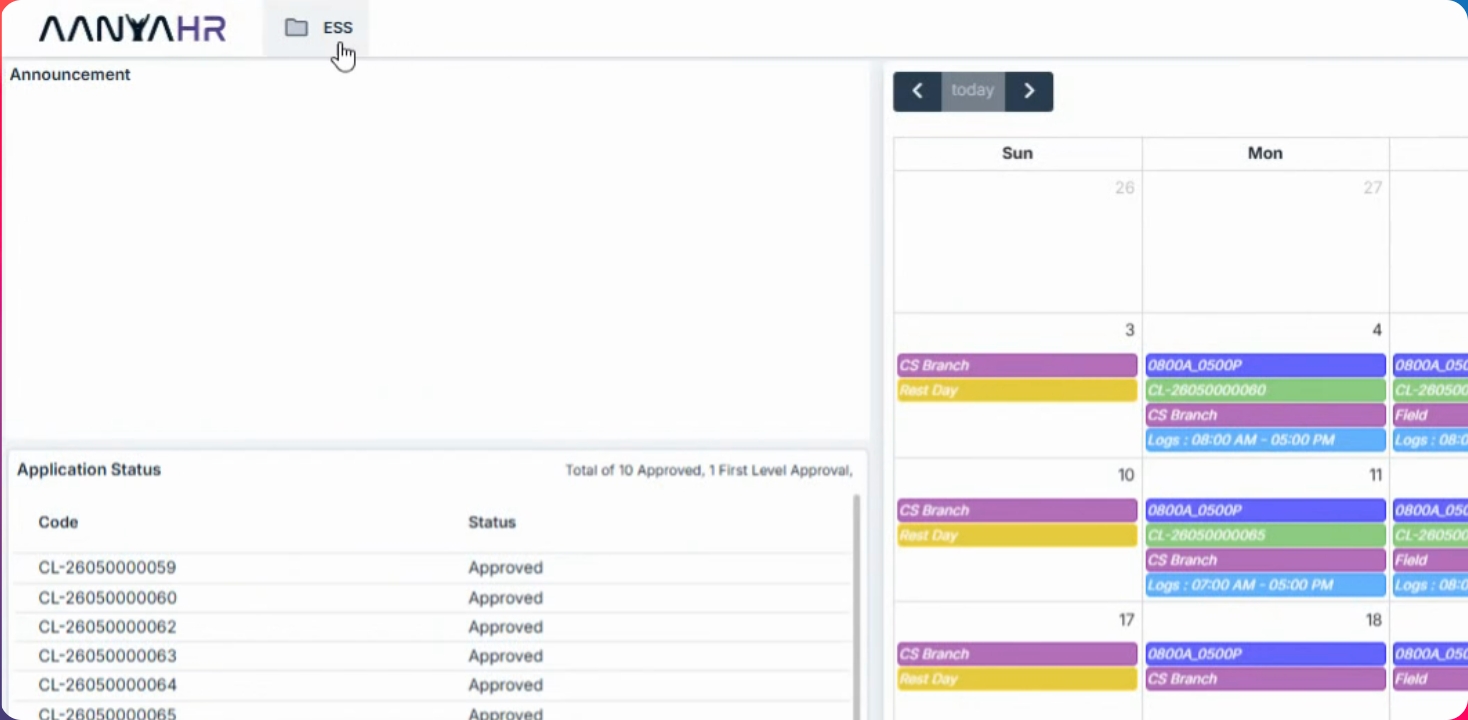
Go to the ESS menu, select Filings, click the Create button, and choose coe.
Step 2: Select COE Request Type
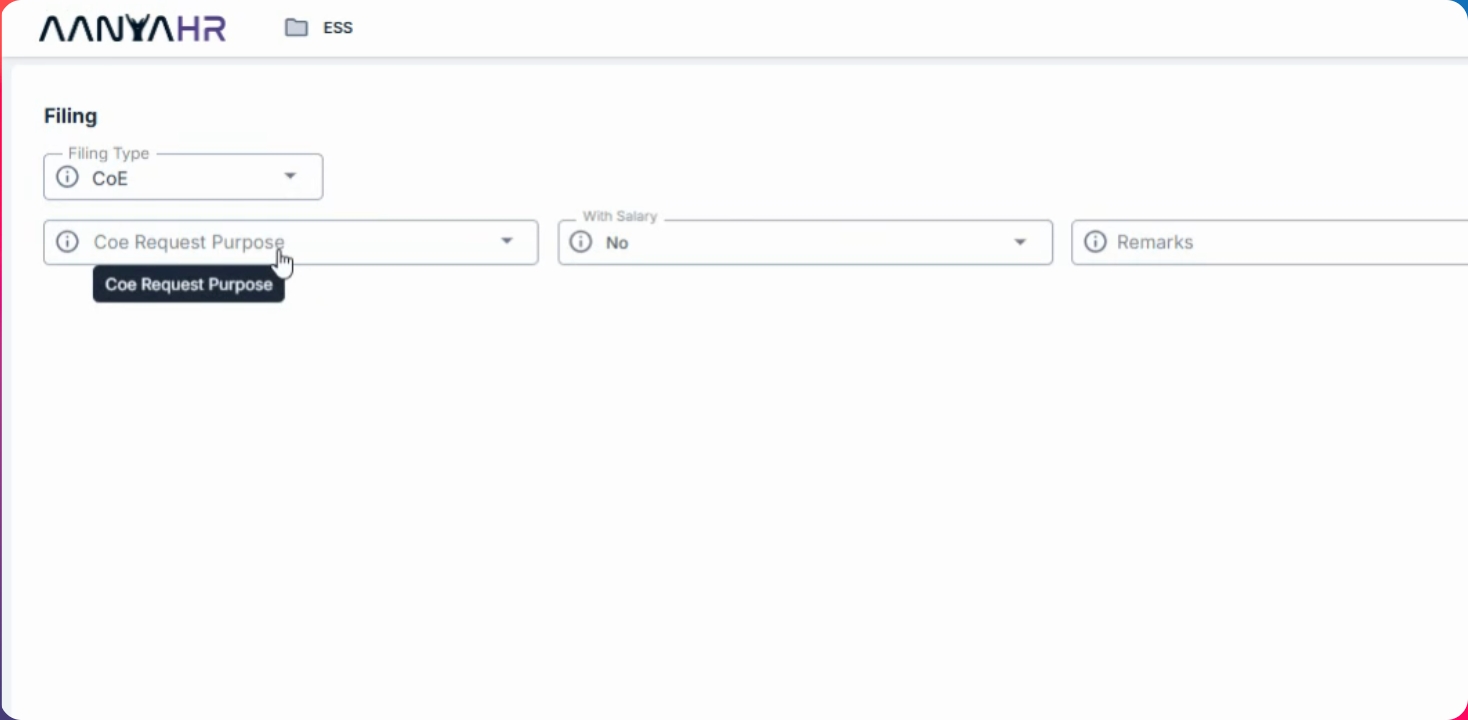
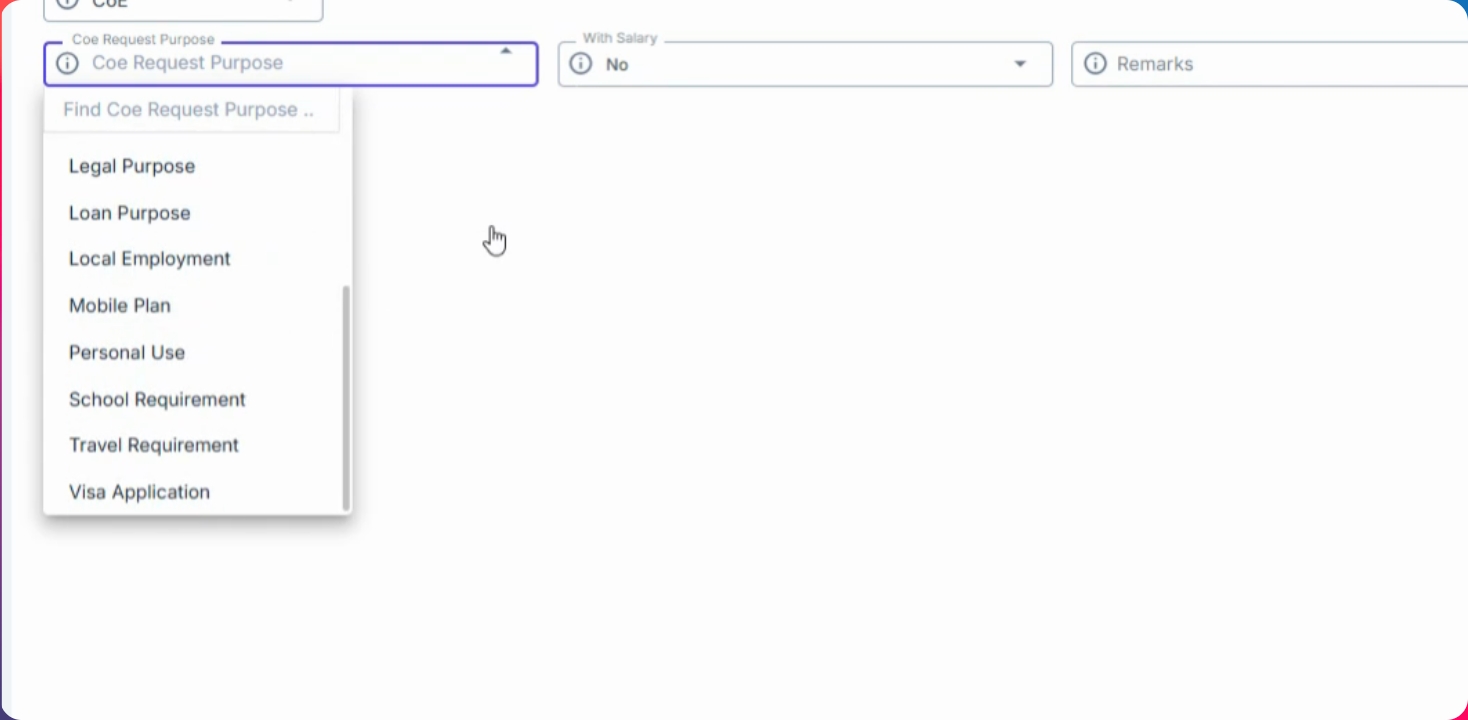
From the filing type options, choose your COE request and specify the purpose or reason for your request.
Step 3: Choose Background Preferences
Select the appropriate background preference for your request, such as bank enrollment, application, credit card, and others as needed.
Step 4: Indicate Salary Information
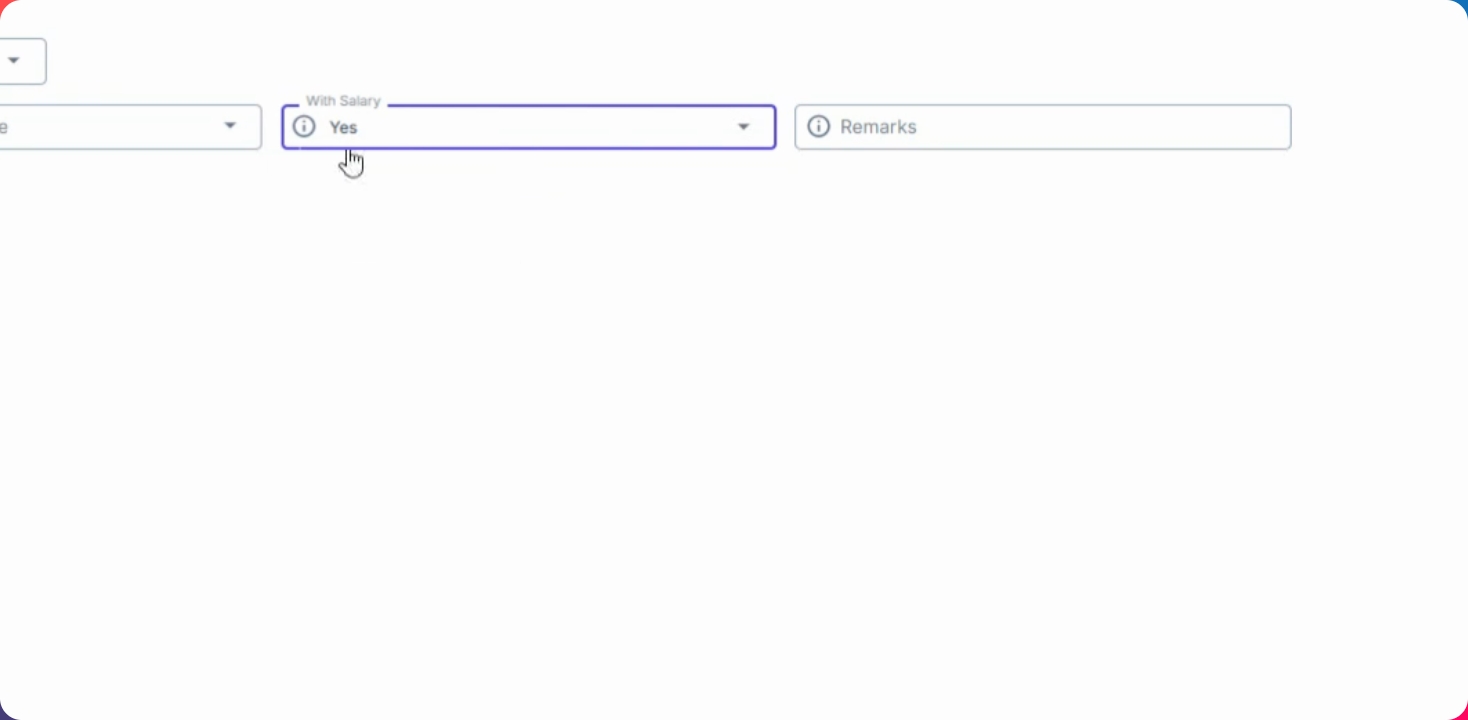
If you want your basic salary included on your COE, select the With Salary and yes option.
Step 5: Add Remarks and Submit
If you do not want your salary included, select NO and add any remarks for your COE request. Click Save Changes to submit. Your request will be routed to your approver.