

Introduction
Cancelling a request can be a straightforward process when you know where to look. In this tutorial, we will guide you step-by-step through the process of cancelling an existing request in the ESS Module. Whether you're cancelling a leave request or another type of filing, this guide will equip you with the knowledge to navigate the cancellation process efficiently.
How to Instructions
1. Access the ESS Module
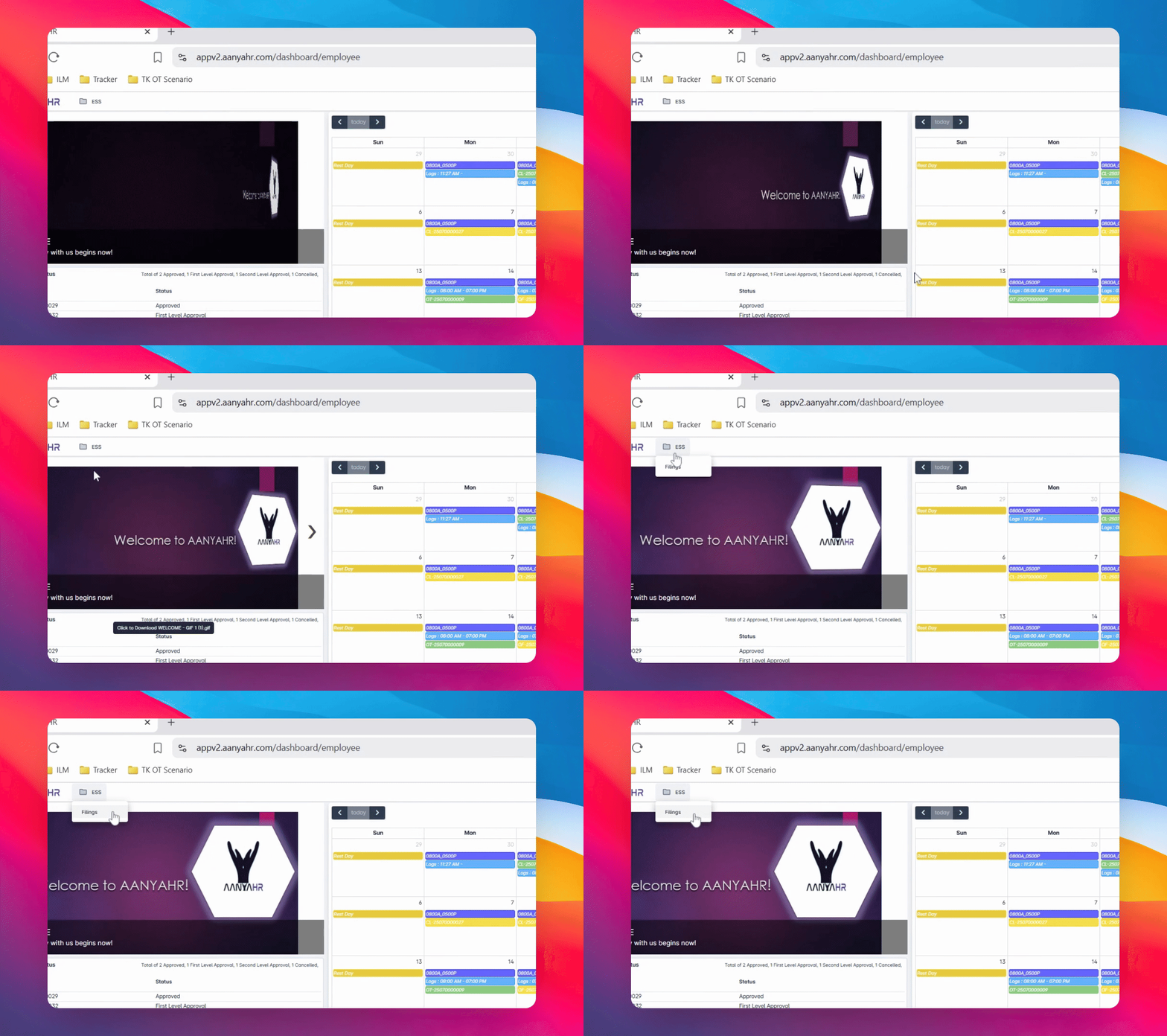
To begin the cancellation process, navigate to the ESS Module.
Once there, click on Filings to access the Filing list view.
2. Select Filing Type
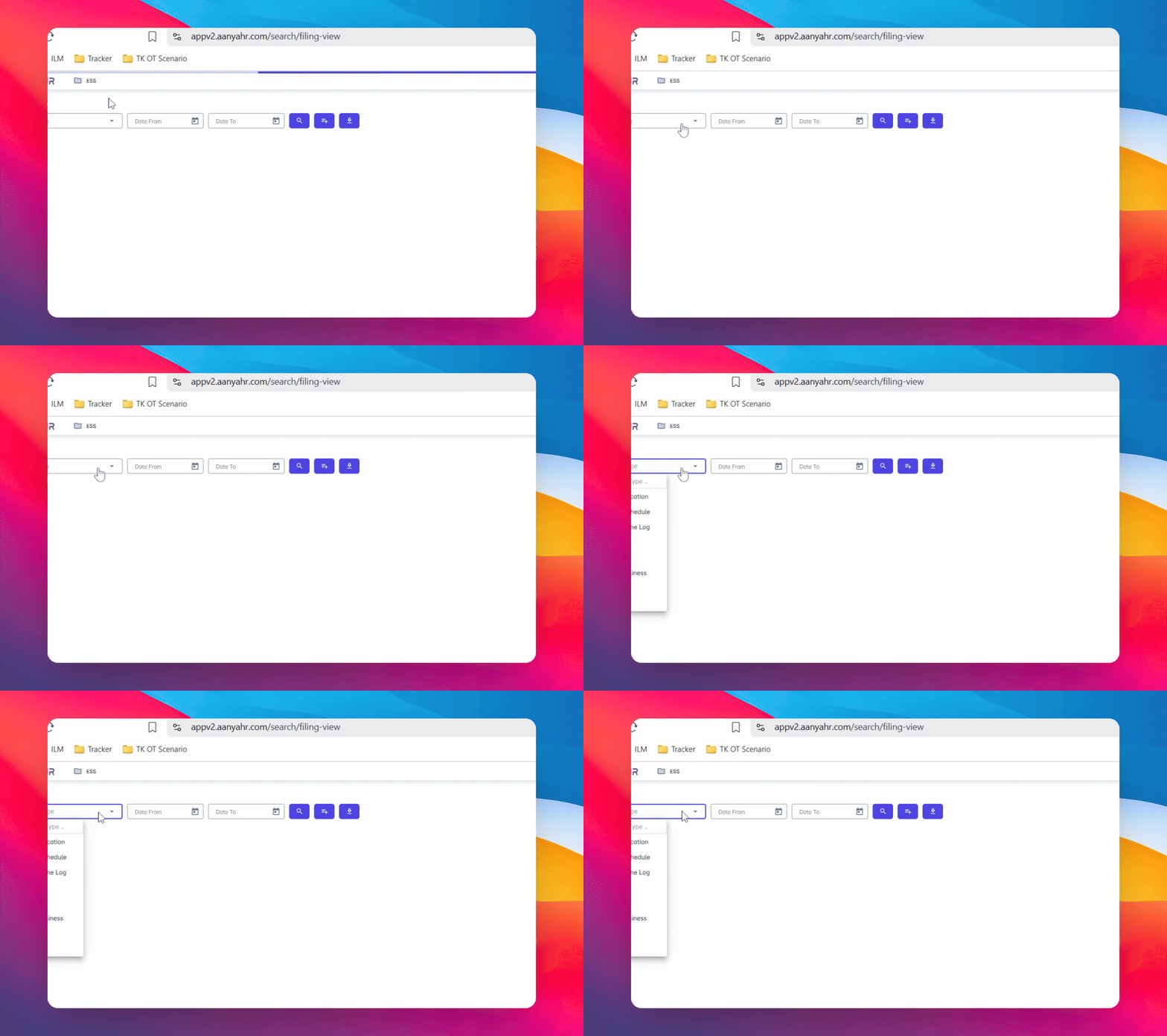
In the Filing type drop-down menu, select the specific type of filing you wish to view.
3. Filter Filings
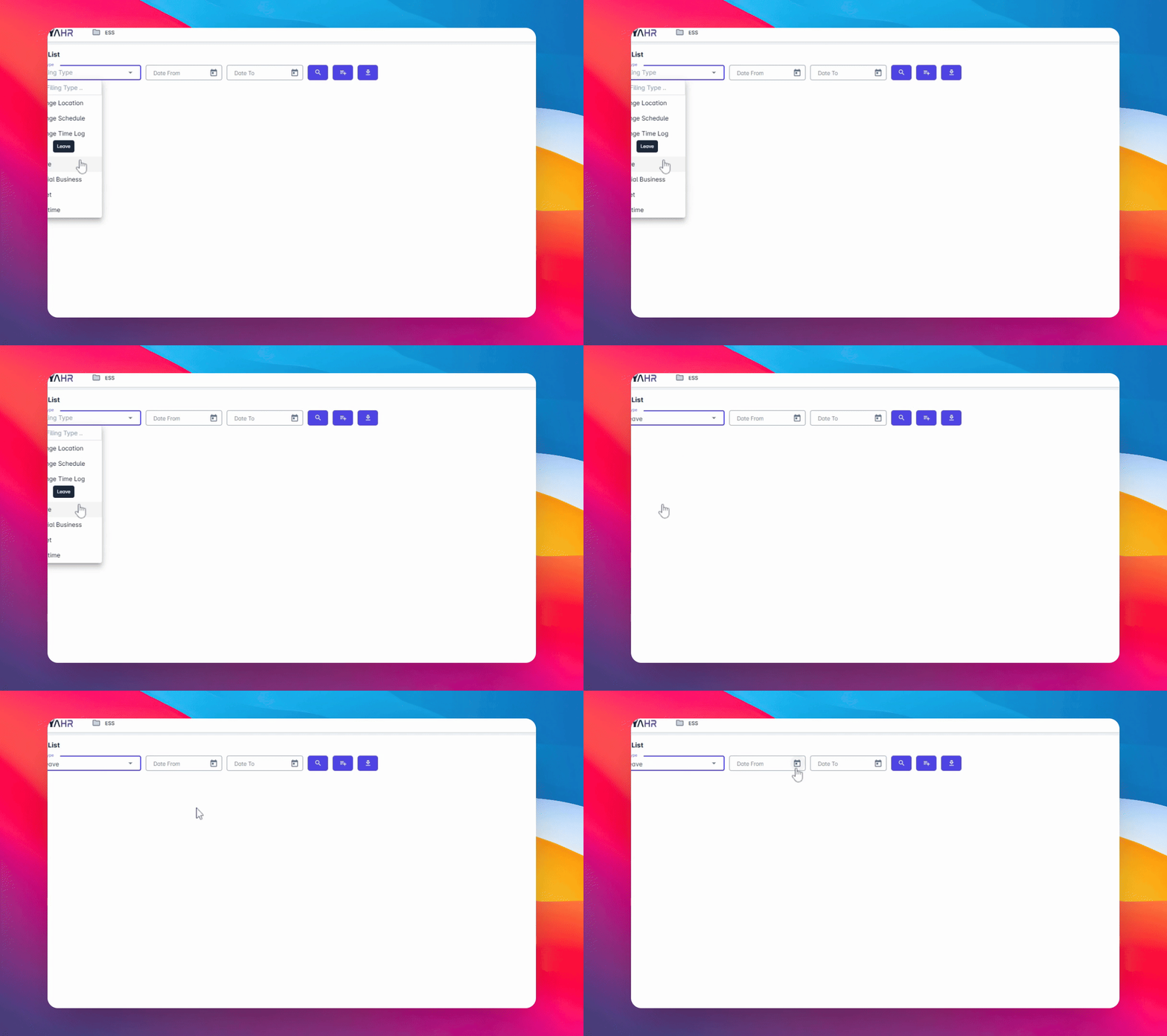
For this tutorial, we will focus on cancelling a leave request.
Choose the date from and date to to filter the filings you wish to cancel, and then click the Search button.
4. Review Result View
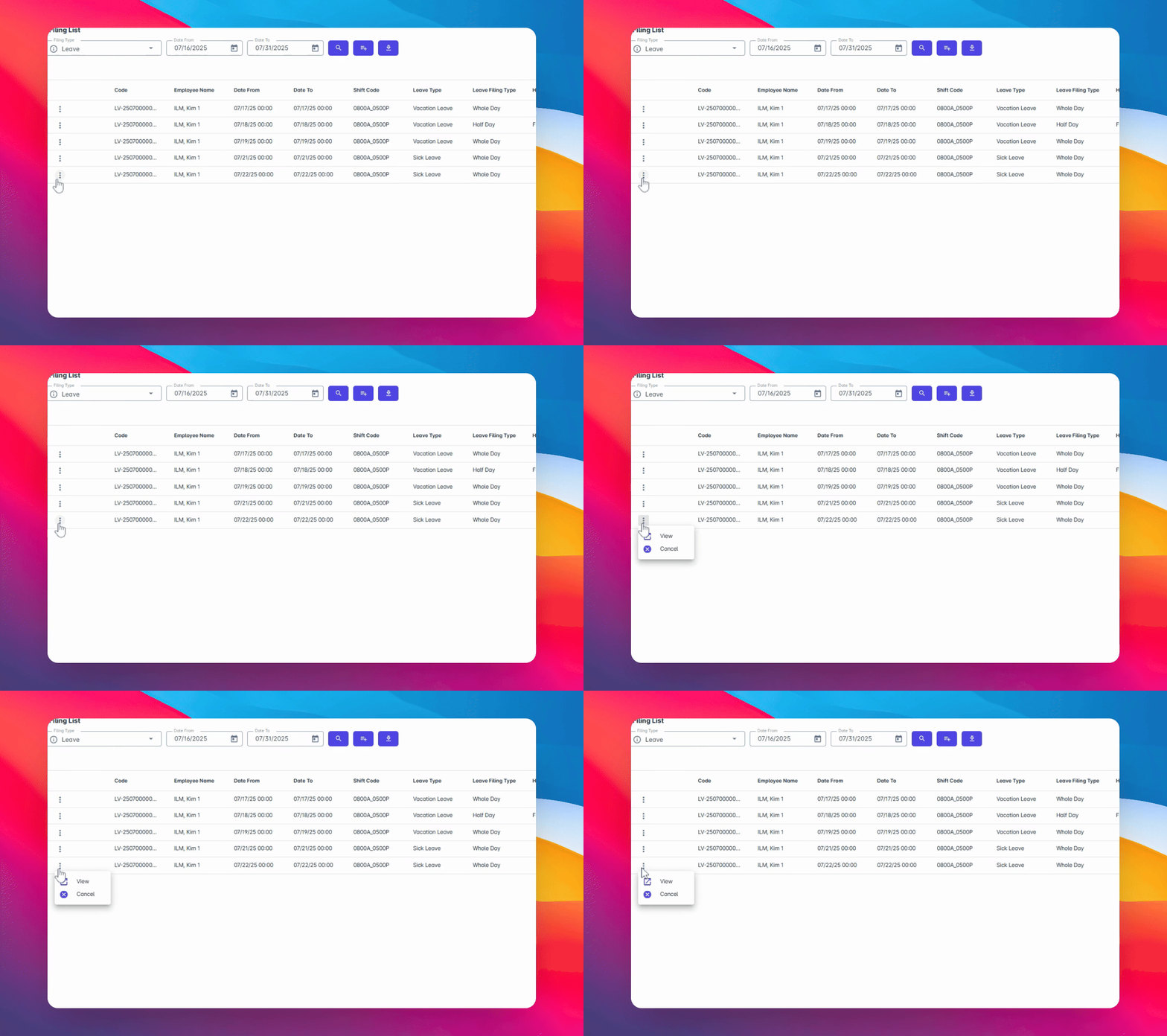
After clicking Search, the list of filings that match your selected filters will be displayed in the Result View panel.
5. Identify the Filing to Cancel
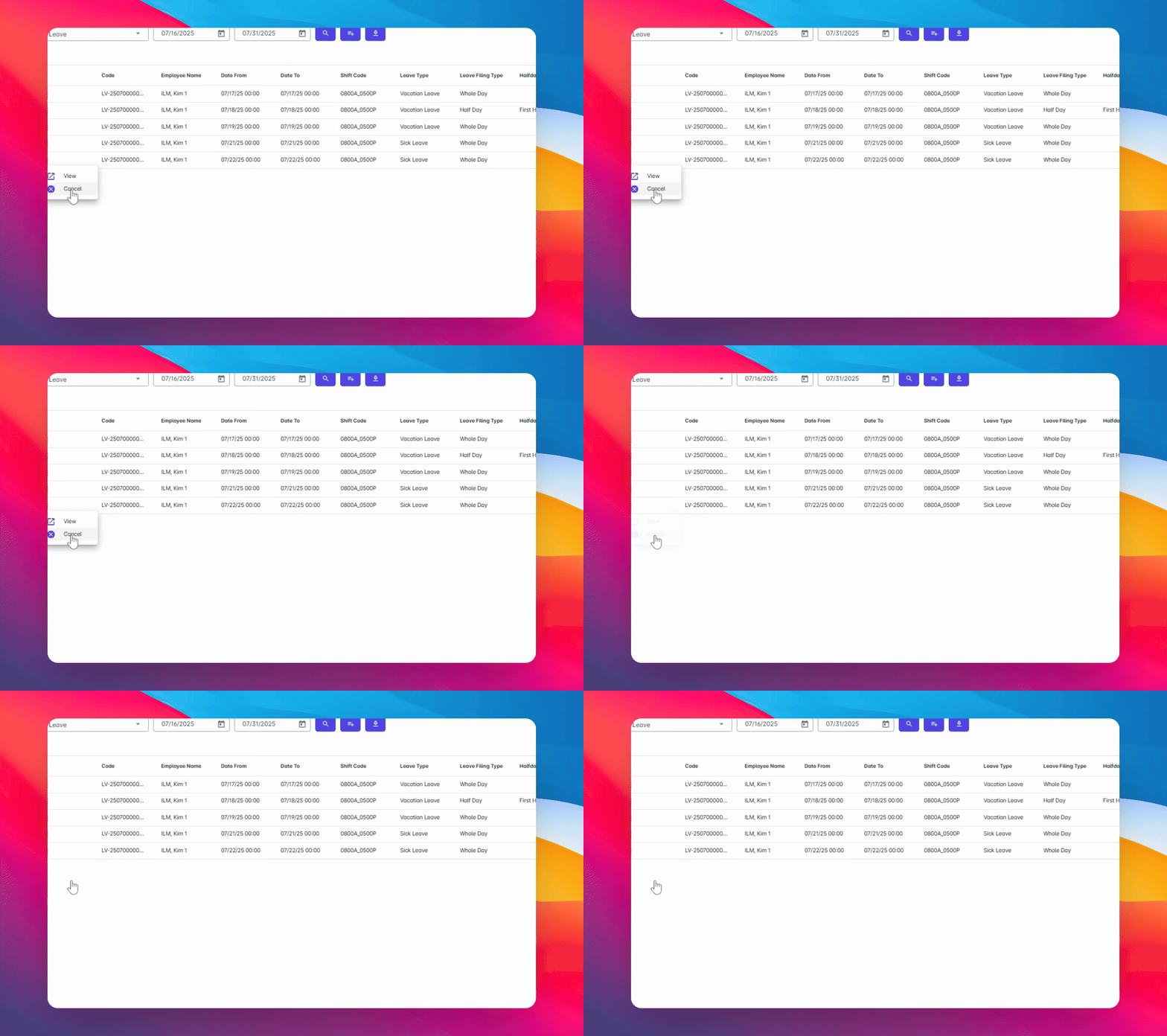
Locate the code corresponding to the filing you wish to cancel.
Once identified, click the three dots next to the code.
6. Select Cancel Action
This action will reveal a list of options.
Select Cancel to proceed with cancelling your request.
7. Confirm Cancellation
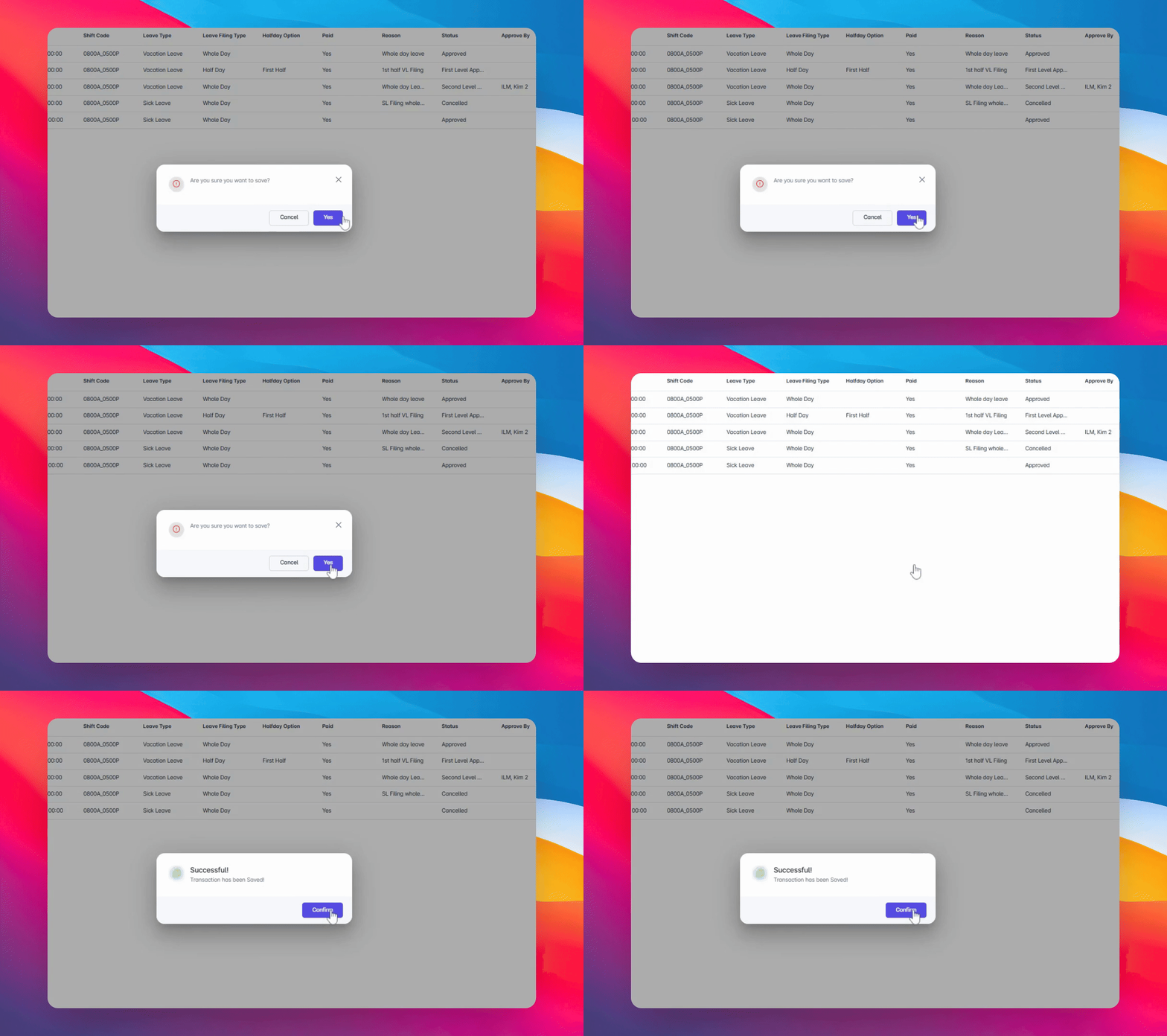
A confirmation message will appear asking you to confirm your action.
Click yes to proceed with the cancellation.
8. Completion of Cancellation
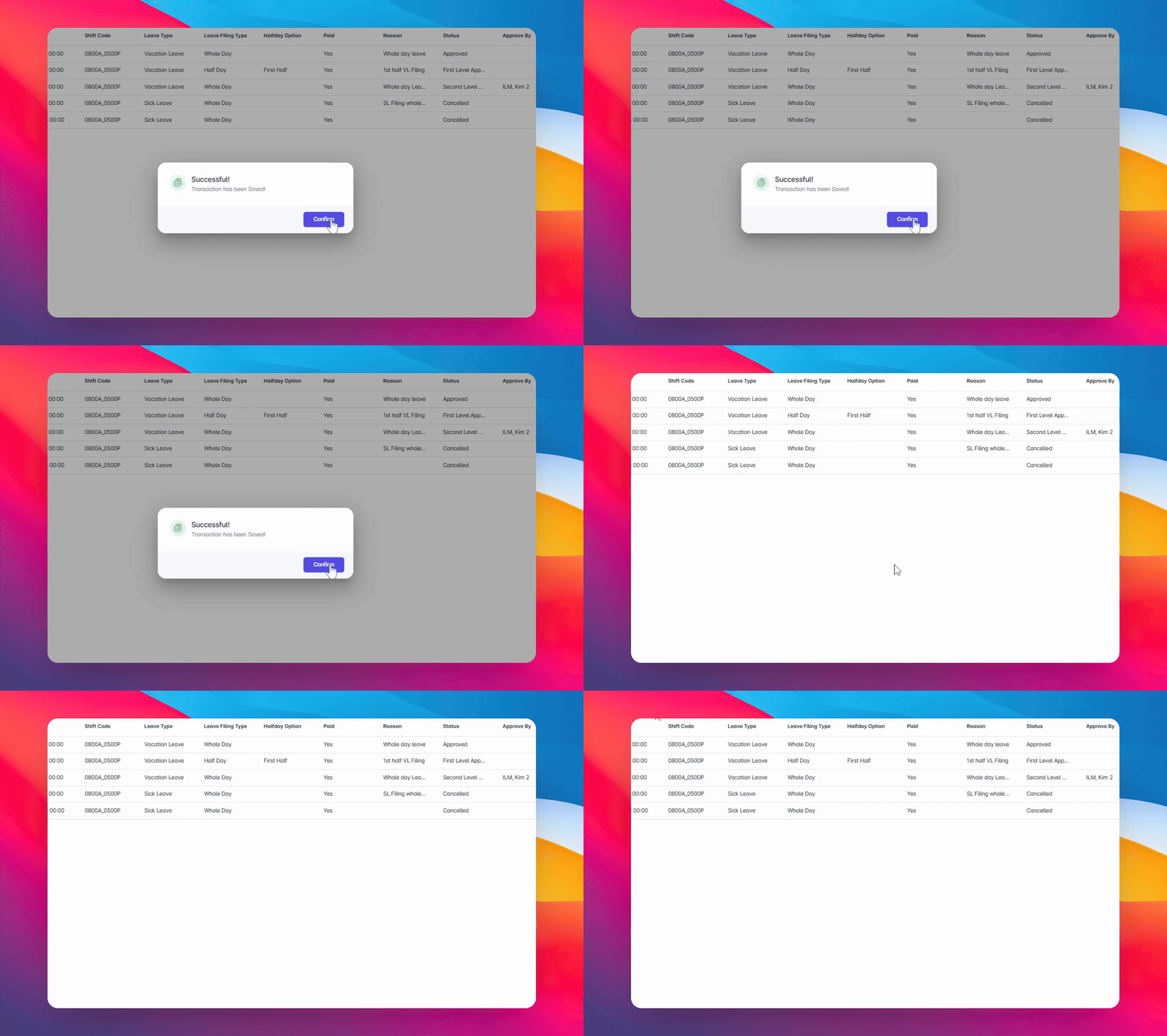
Once the cancellation is successful, click Confirm, and that’s it!
Your filing has now been cancelled.
Conclusion
Following these steps will ensure that you can successfully cancel your requests whenever necessary. Remember, you can cancel your request regardless of its status—whether it is approved or still pending approval.