

Introduction
Managing user permissions is vital for any organization, and in this tutorial, we'll guide you through the Access Control module of the Anya HR portal. You will learn how to easily add or modify user access, using provided default templates or customizing them to fit your specific needs. By the end of this guide, you'll be equipped with the knowledge to effectively control user permissions within your organization.
How to Instructions
1. Navigate to Access Control
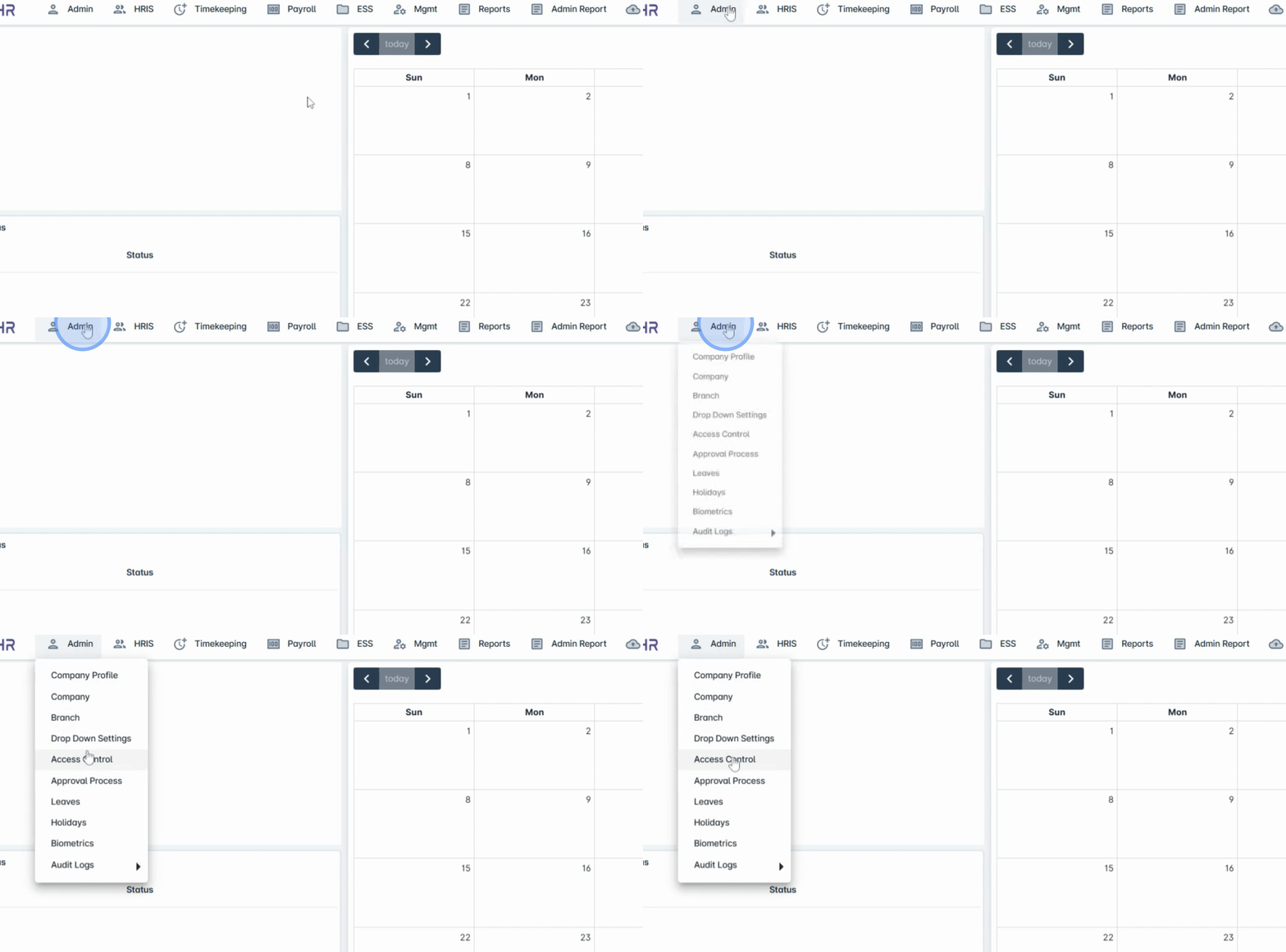
To begin, navigate to Admin and select Access Control.
2. Use Default Access Templates
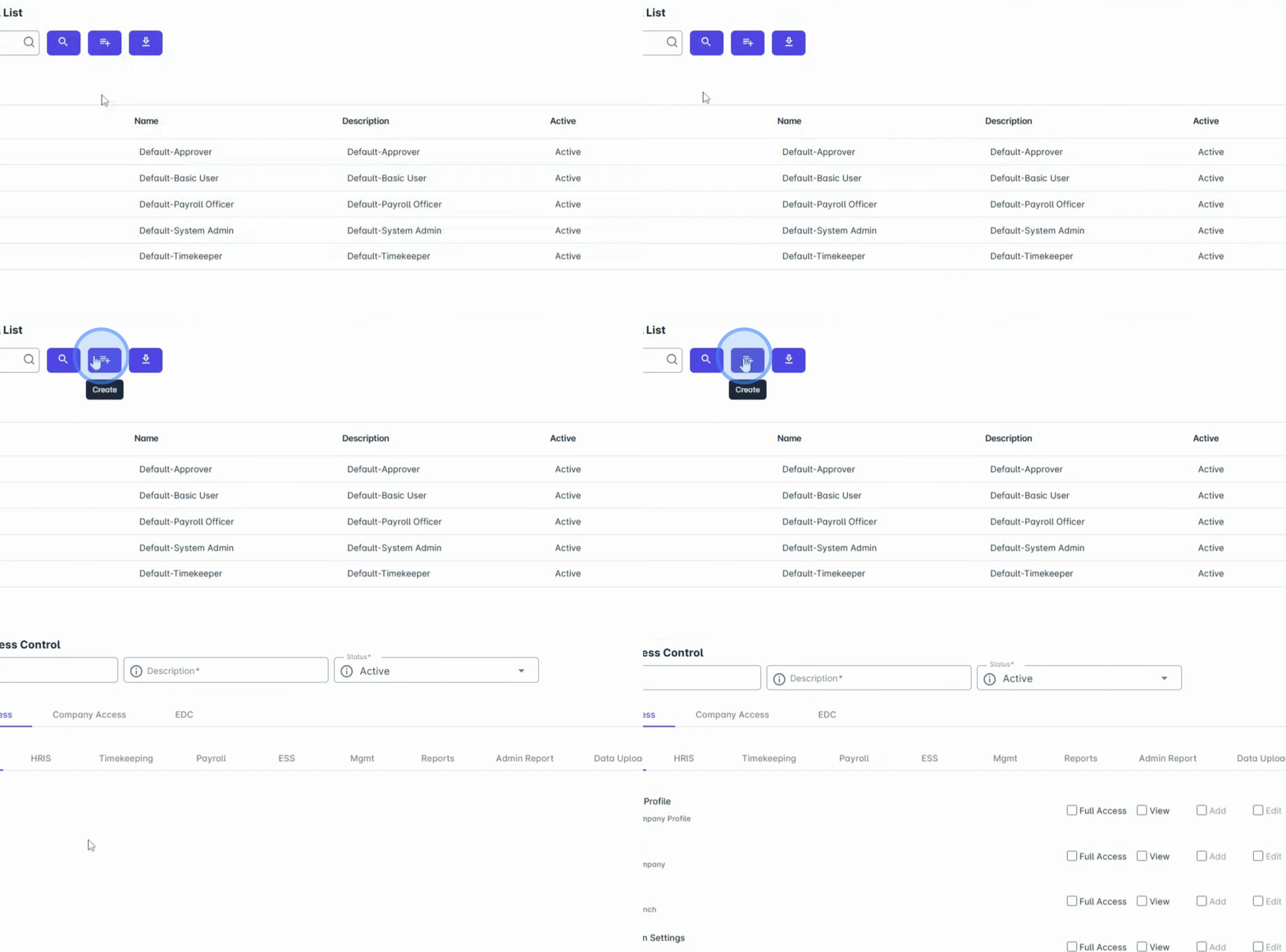
For your convenience, we have already provided default access templates that you can assign to users right away.
3. Create New Access
If you would like to customize further, you have two options. The first option is to create new access.
Simply click the Add button to start from scratch.
4. Enter Access Details
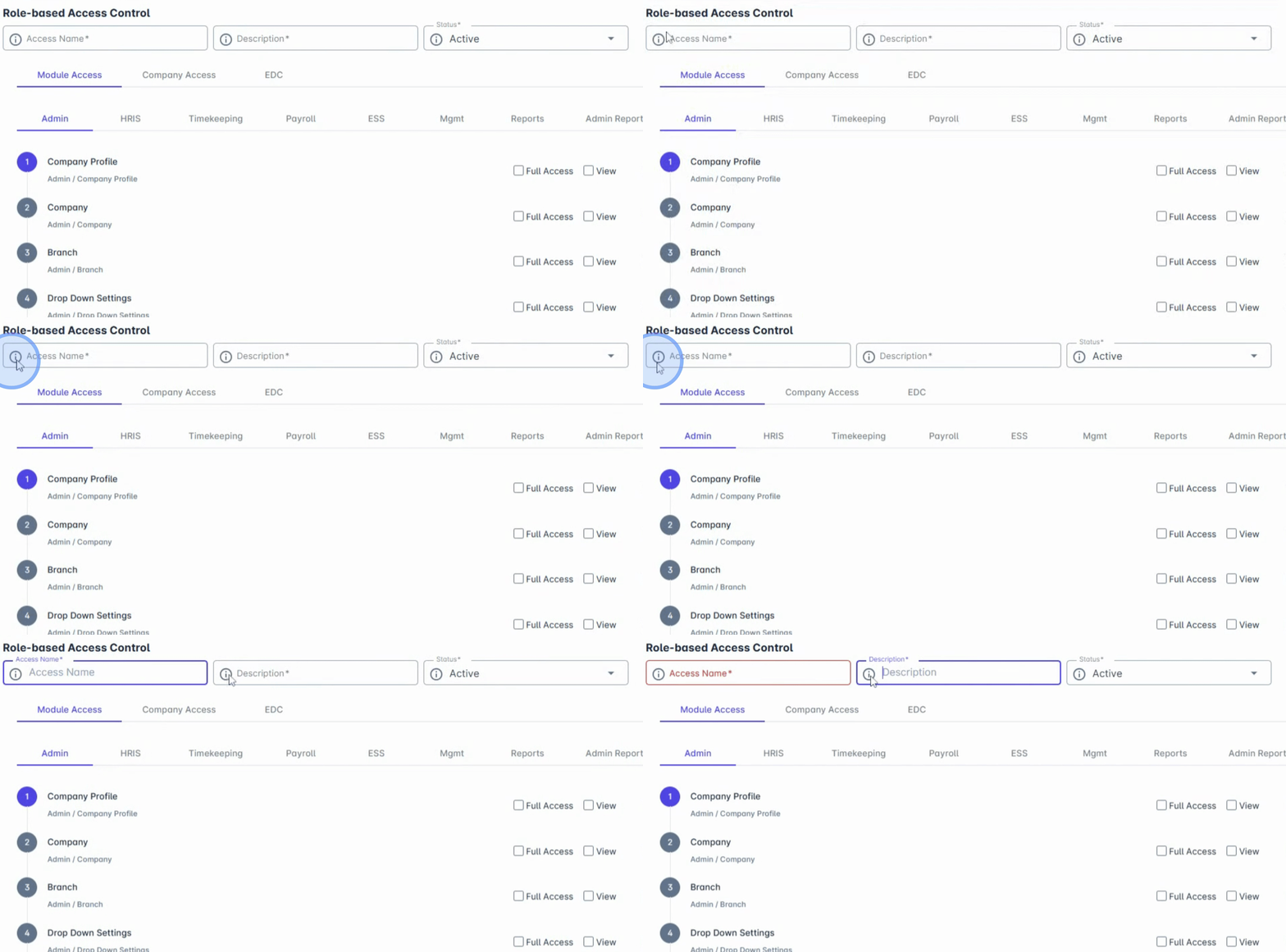
Enter an access name and description.
Then, select the modules you want to include, which can be under admin, HRIS, timekeeping, payroll, ESS Management Reports, Admin Reports, and Data Upload.
5. Save Changes
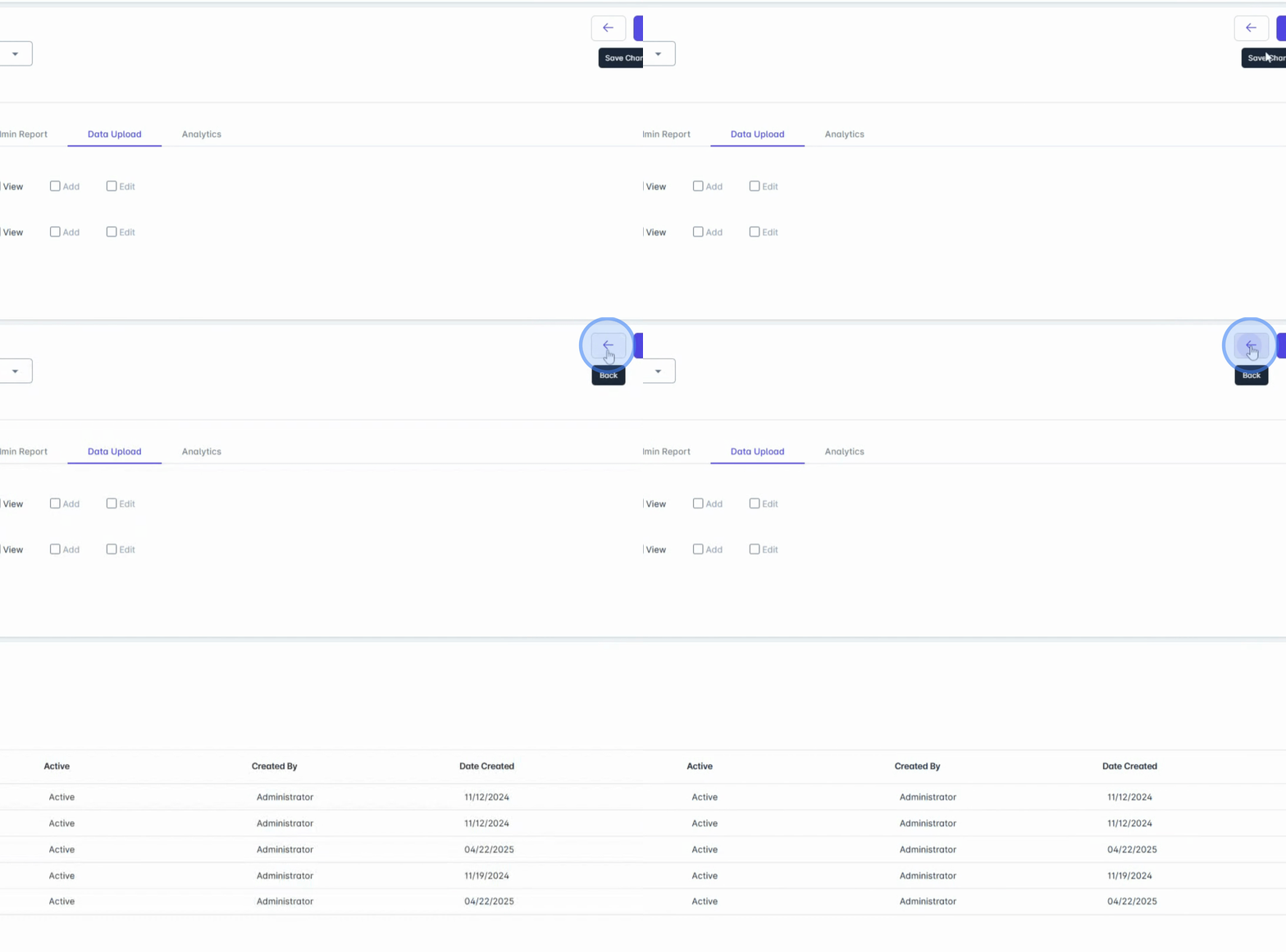
Once you're done, just click Save Changes.
6. Duplicate Existing Access
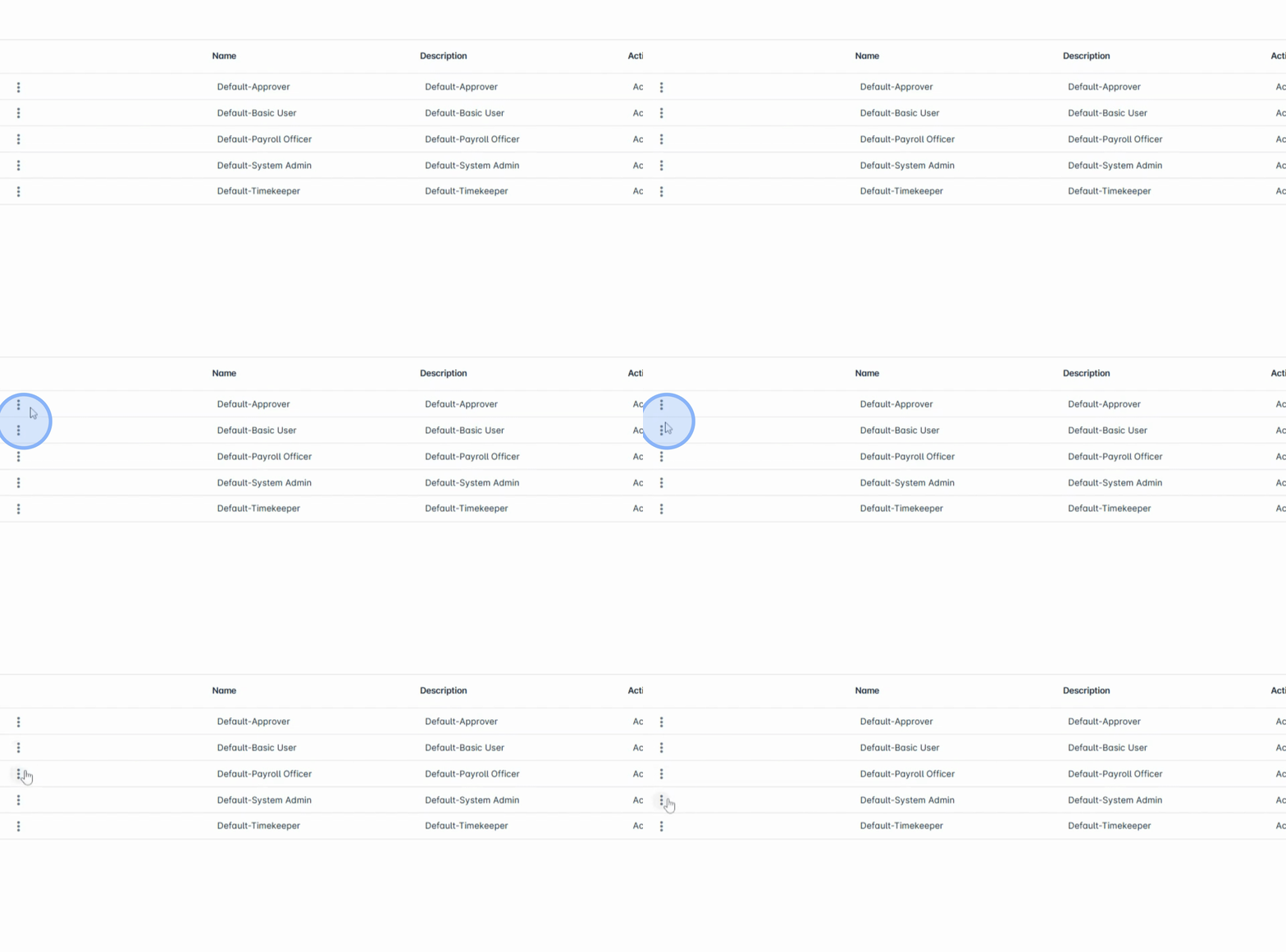
The second option is to duplicate existing access. If you want to base your new access level on an existing one, like a default access, you can easily duplicate it.
7. Modify Duplicated Access
Just click the three dots beside the access name and select Duplicate.
From there, you can modify the copied version as needed.
8. Finalize Duplicated Access
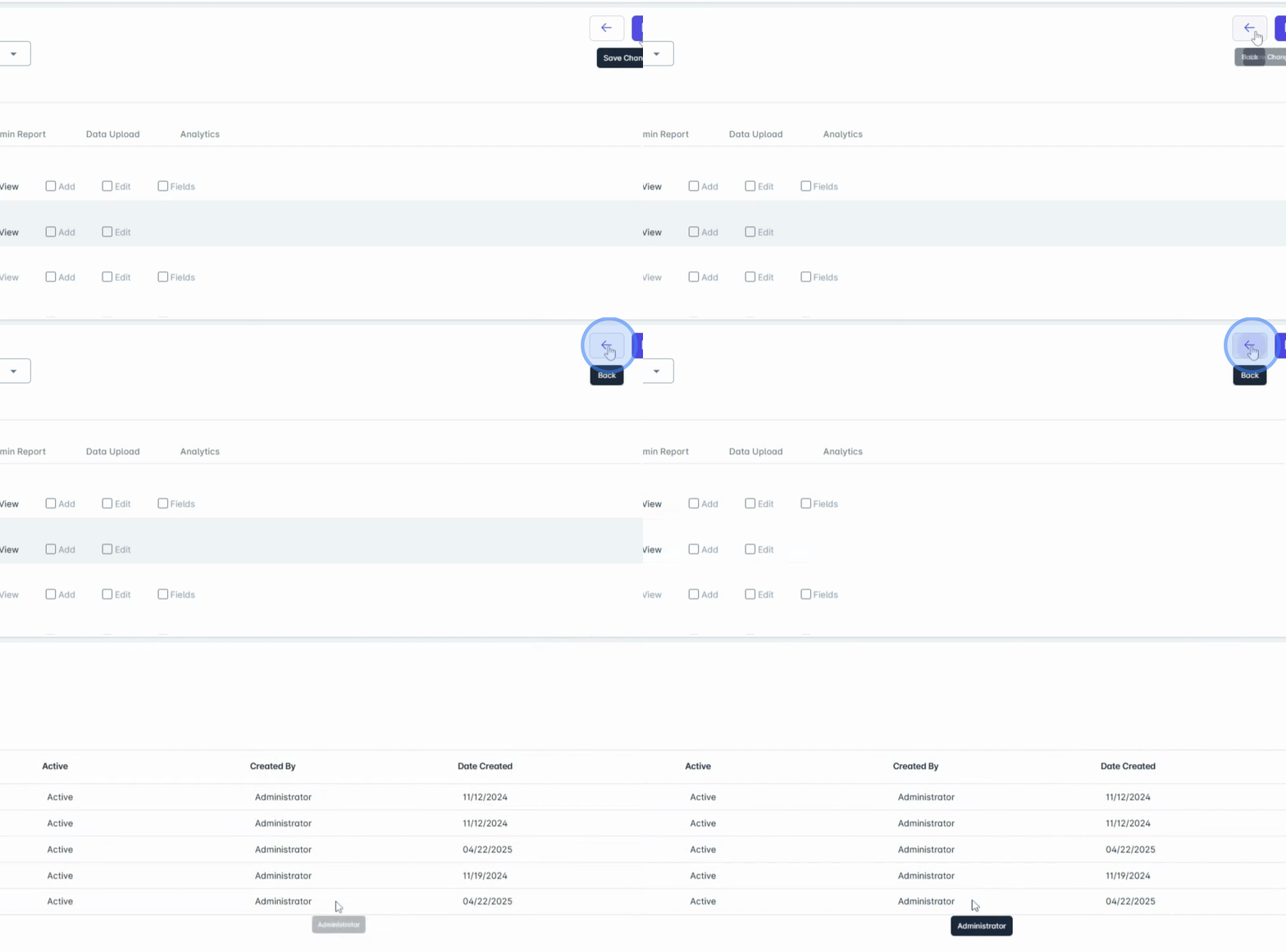
Finally, click Save Changes to ensure your new access level is saved.
9. Conclusion
And that's it! The Access Control module is designed to give you flexible control over who can do what within your organization.
Conclusion
By following these steps, you can efficiently manage user permissions and ensure that each member of your organization has the appropriate access they need to perform their roles.