

Introduction
Integrating your biometric attendance device with Anya HR is a straightforward process that can enhance your organization's timekeeping efficiency. In this tutorial, we will provide you with step-by-step instructions to ensure your device is compatible, configured, and seamlessly connected to Anya HR. By following these steps, you will enable automatic time log synchronization for your employees, allowing for accurate tracking in real time.
How to Instructions
1. Verify Device Compatibility
First, ensure that your biometric device is compatible with Anya HR. It must support ADMS or have a Cloud Server Settings feature. If you are uncertain about compatibility, feel free to check with our team, and we will assist you in verification.
2. Configure Cloud Server Settings
Once verified, the next step is to configure your device's cloud server settings.
3. Obtain Setup Assistance
If needed, our team at Illimitado will provide a detailed guideline or walk you through the setup process.
4. Log into Anya HR
After the cloud settings are in place, log into your Anya HR admin account and follow these steps.
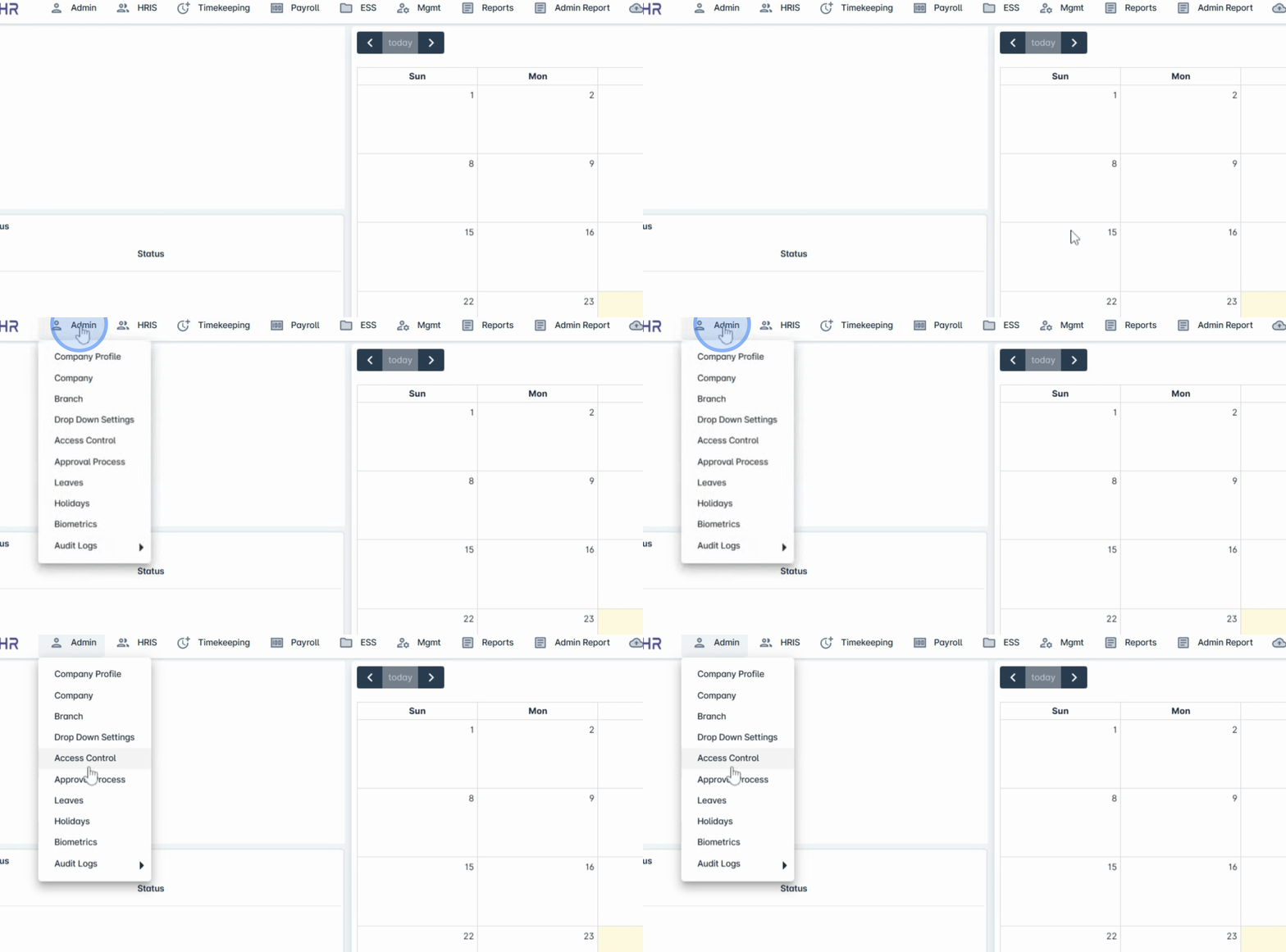
5. Navigate to Biometrics
Navigate to the Admin menu and select Biometrics.
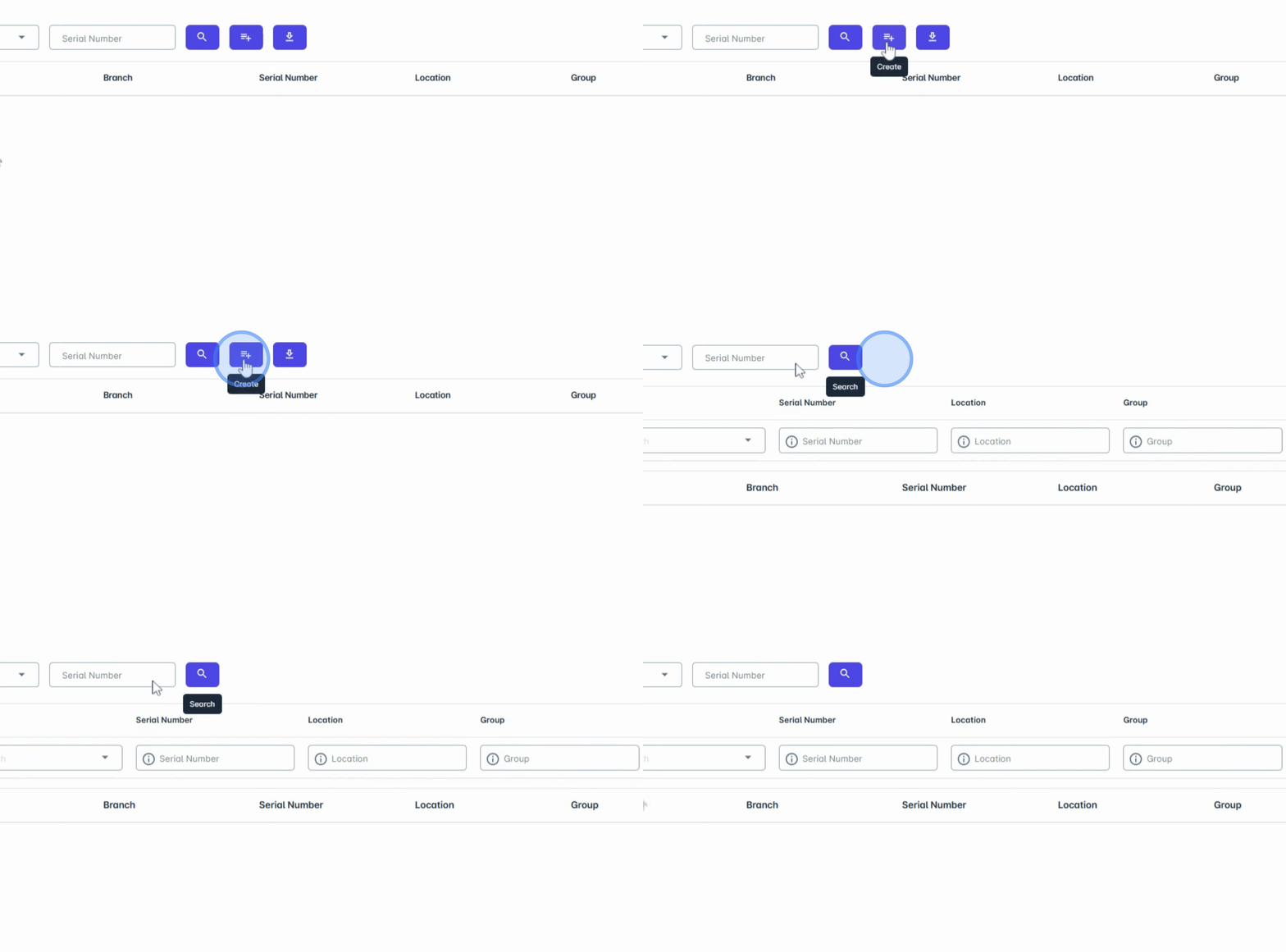
6. Create New Entry
Click the Create button to initiate the setup.
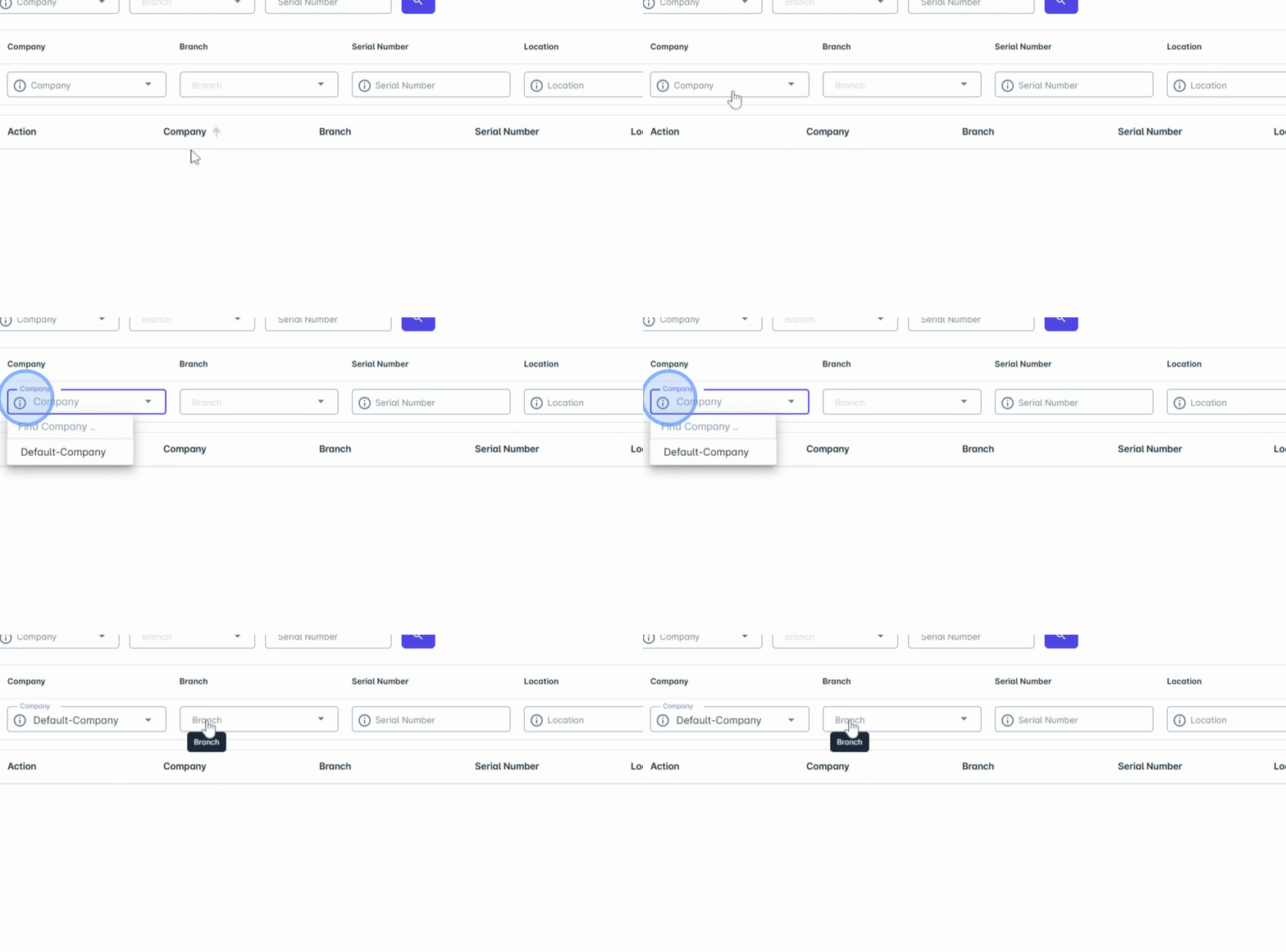
7. Fill Required Details
Fill out the required details, including Company, branch, and serial number. The serial number can be found on your biometric device. If you have multiple biometric devices across various locations, you can group them accordingly for easier tracking.
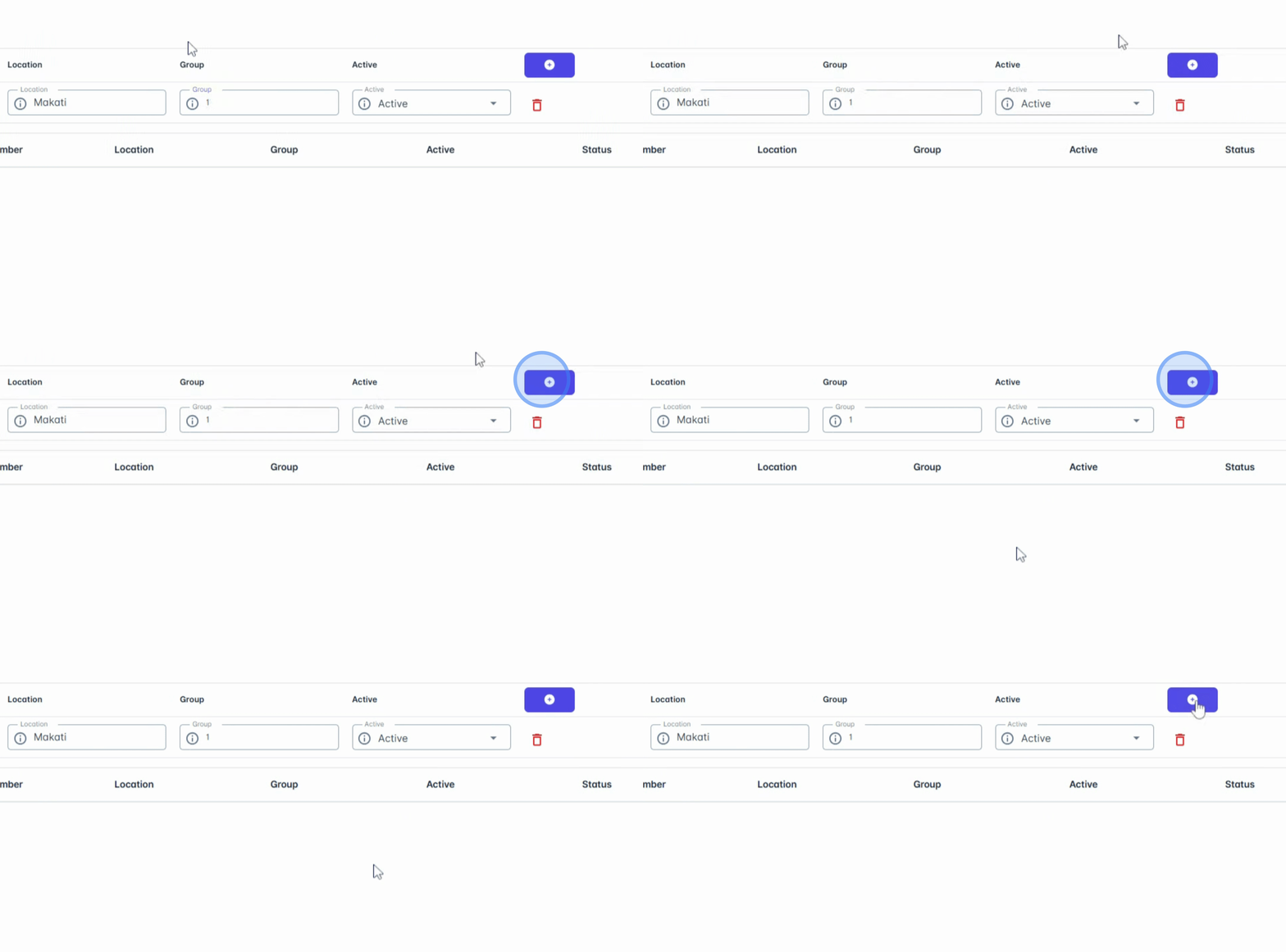
8. Add Device
Once all details are filled in, click the Add button.
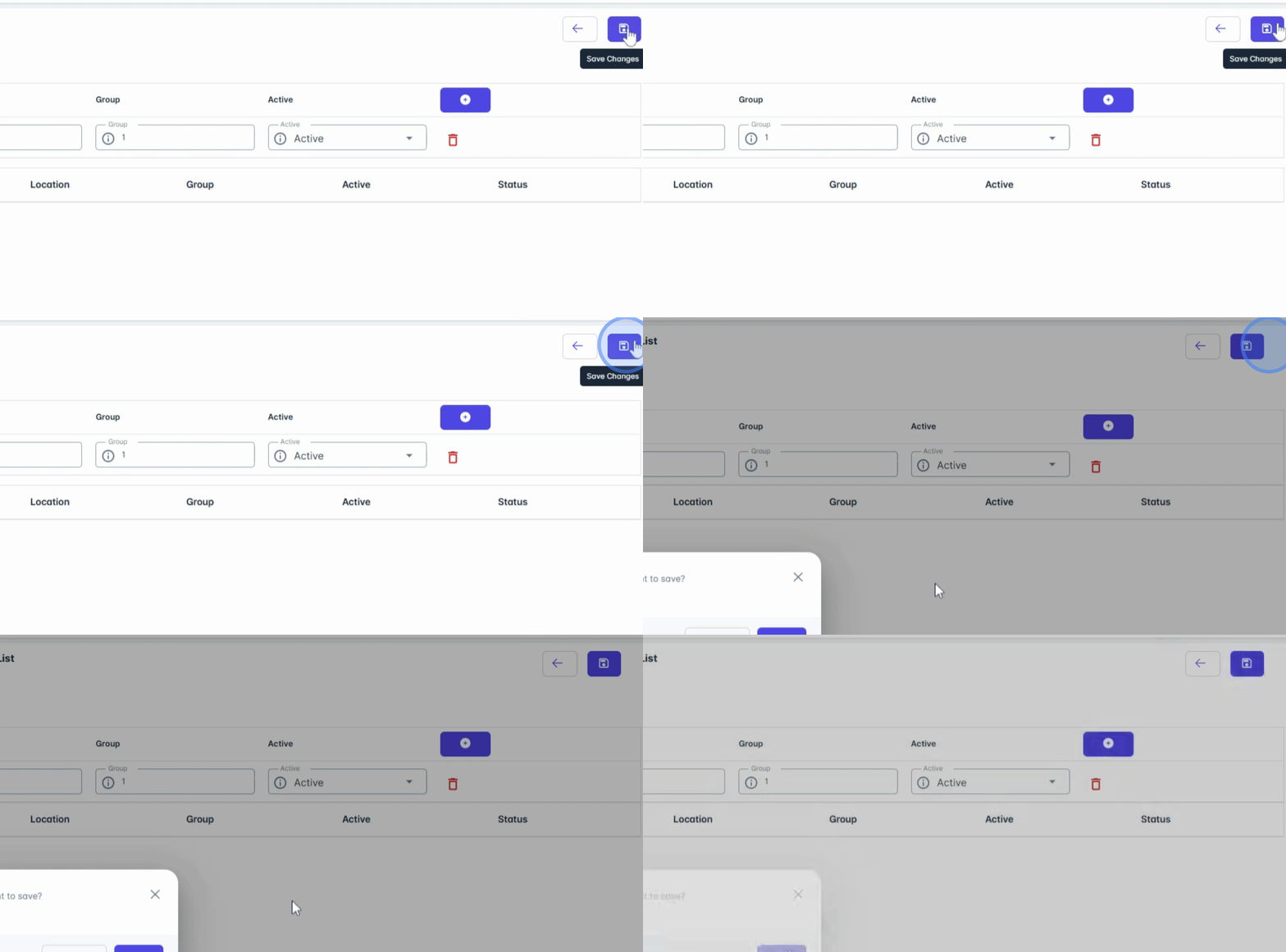
9. Save Changes
Click Save Changes to finalize the integration process.
10. Confirm Connection
After saving, Anya HR will begin syncing with your device. You will know it is connected successfully if the status shows as online in the biometric sections.
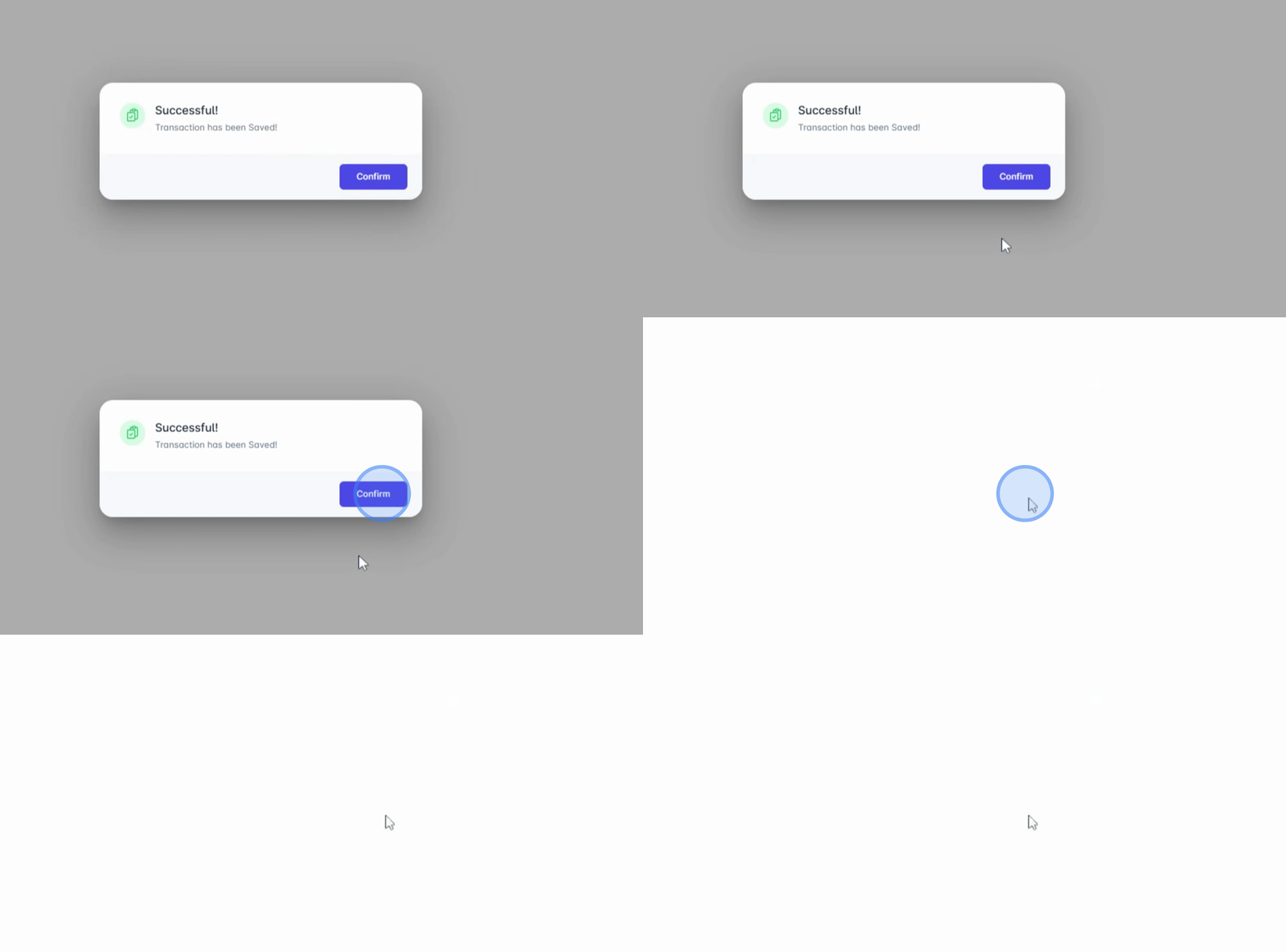
11. Integration Complete
That's it! Your biometric device is now fully integrated with Anya HR. From this point, clock-ins and clock-outs will automatically be recorded in real time, streamlining your timekeeping process.
Conclusion
By following these steps, you have successfully integrated your biometric attendance device with Anya HR, enhancing your timekeeping efficiency and ensuring accurate employee time logging.