To set up or add the employees on GPS tracker, kindly follow these steps:
Go to AanyaHR and login your account
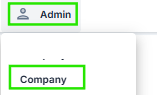
Go to Admin > Company
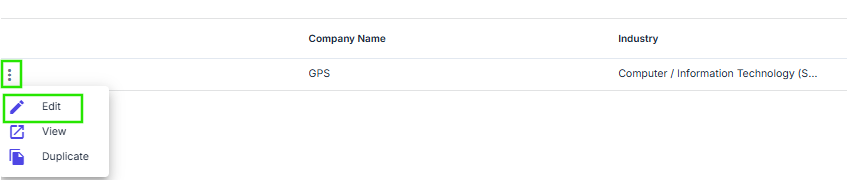
To edit the company, click the three (3) dots beside the Company Name and choose the edit button
On the Company Settings, you will able to see the “Employee Tracking” module

Click the Employee dropdown to show all employees. You have an option to select or add employees to be tracked using GPS tracker.
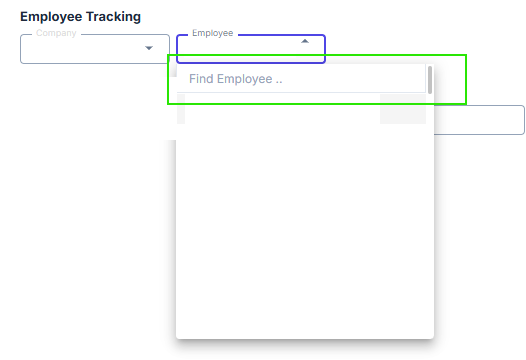
You can also search specific employees on the tracker by inputting their Last Name in the ‘Find Employee’ column
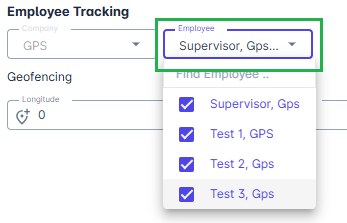
Once all employees are selected, you may click the Save button to apply changes.

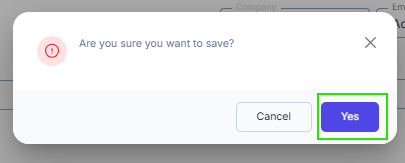
A prompt message will shown, click ‘Yes’ to proceed with the saving