

Introduction
Welcome to our tutorial on setting up leave types in the Anya HR system. In this guide, we will walk you through the process of configuring various leave options, including adding custom leaves, managing leave accrual, and establishing filing rules. By the end of this tutorial, you'll have a clear understanding of how to effectively manage leaves within your organization.
How to Instructions
1. Access the Admin Menu
First, navigate to the admin menu.
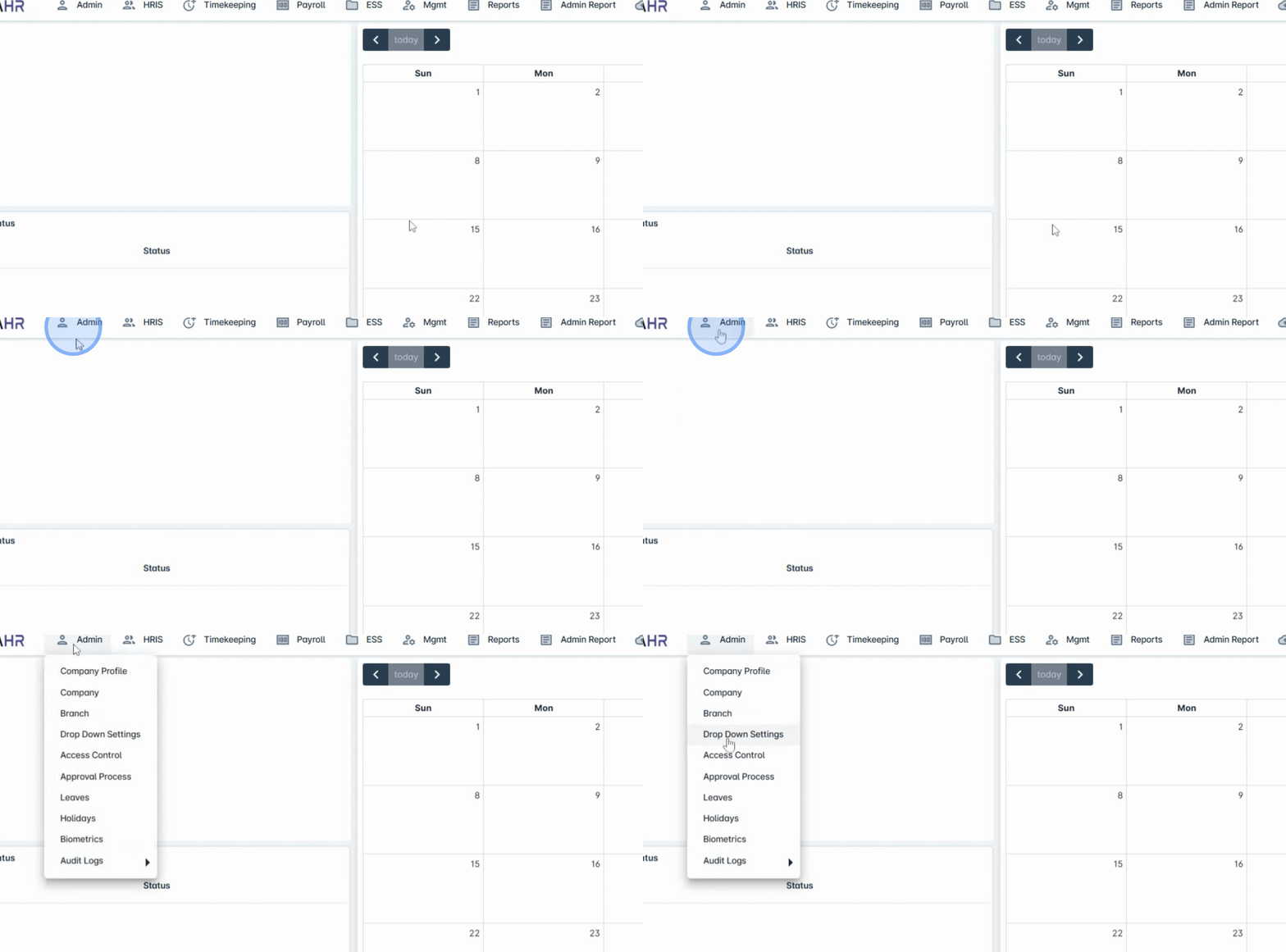
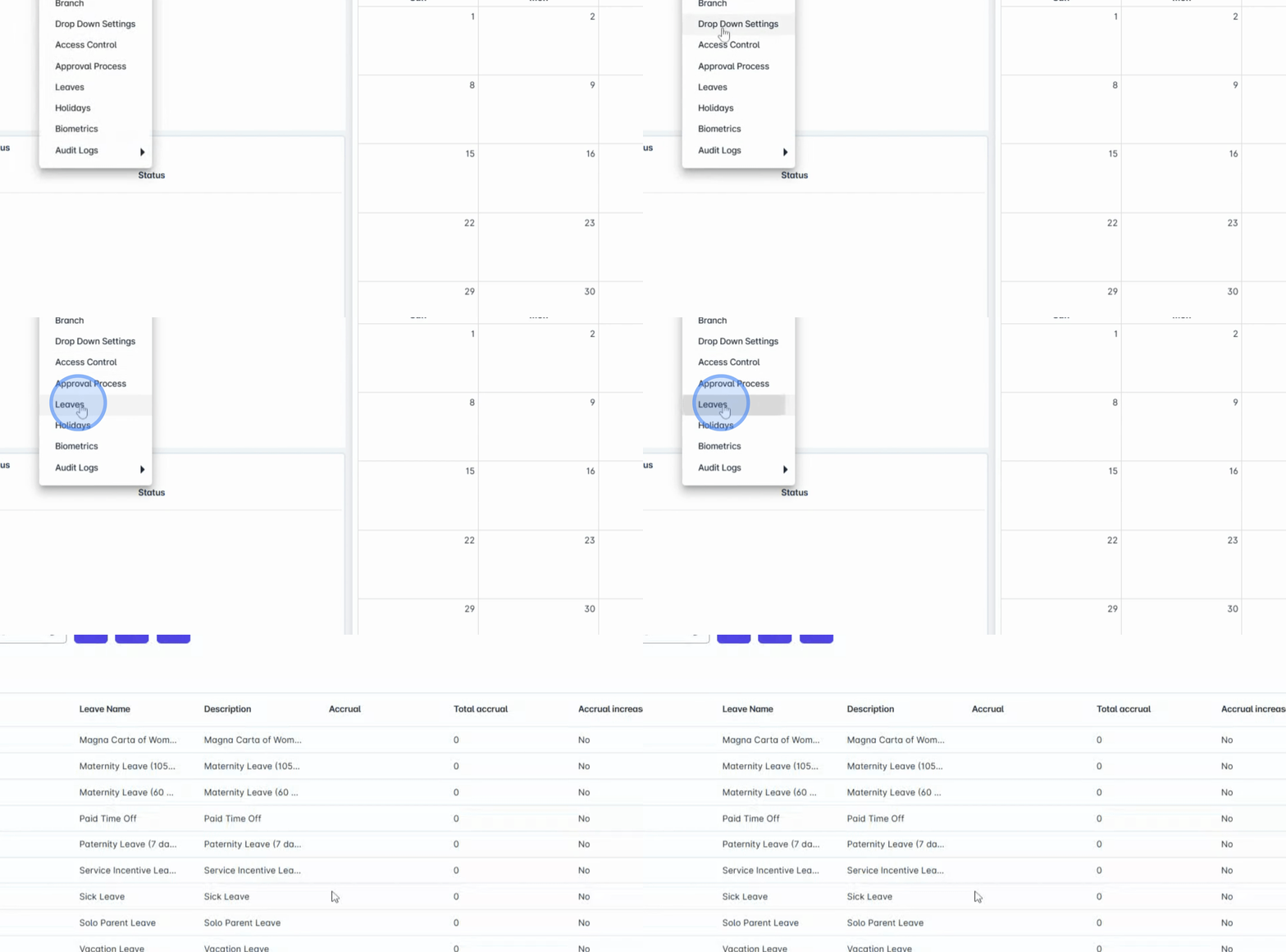
2. Select Leaves
Then, click on Leaves.
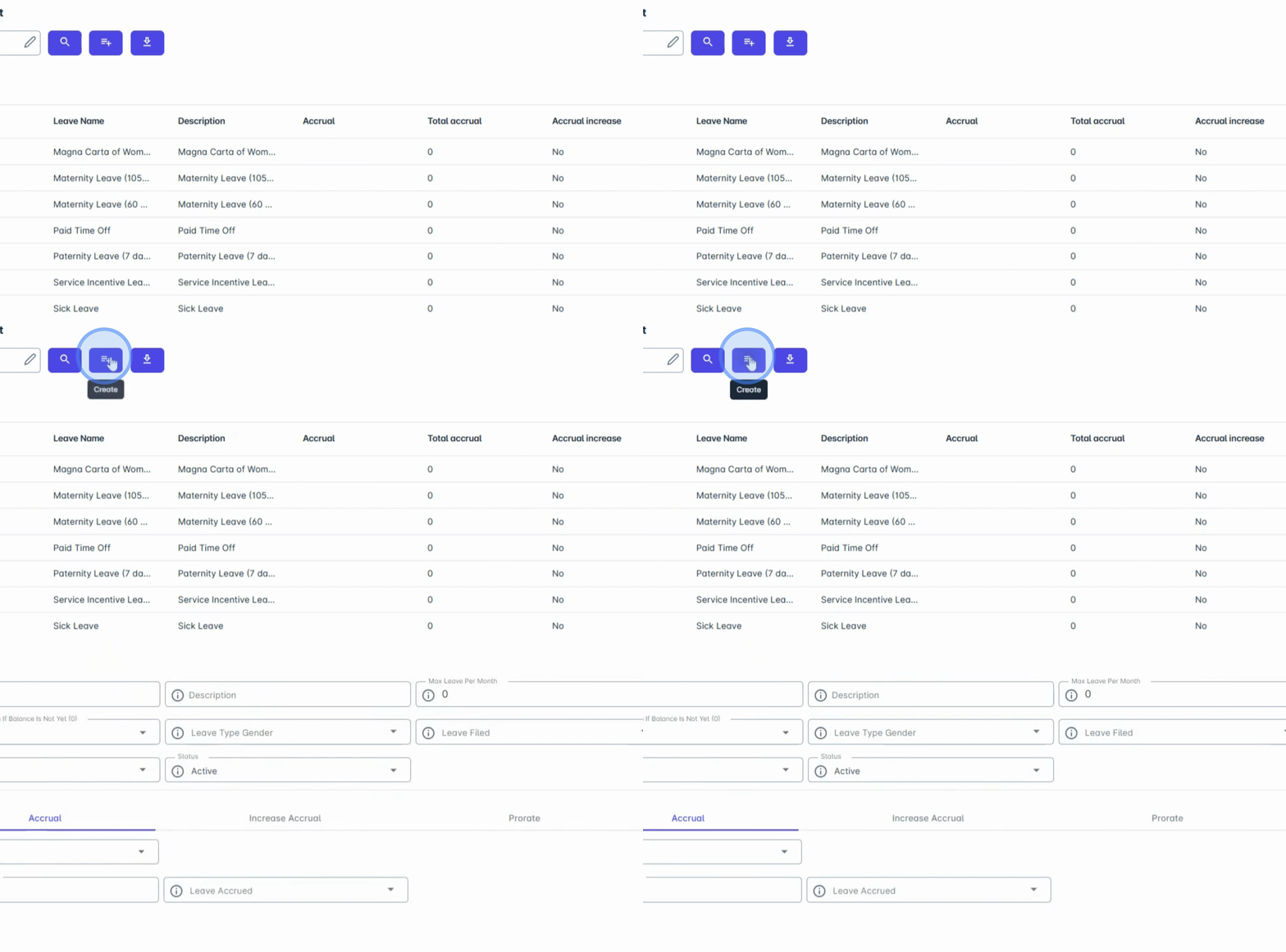
3. Add Custom Leave
If you would like to add a custom leave, simply click the Add button.
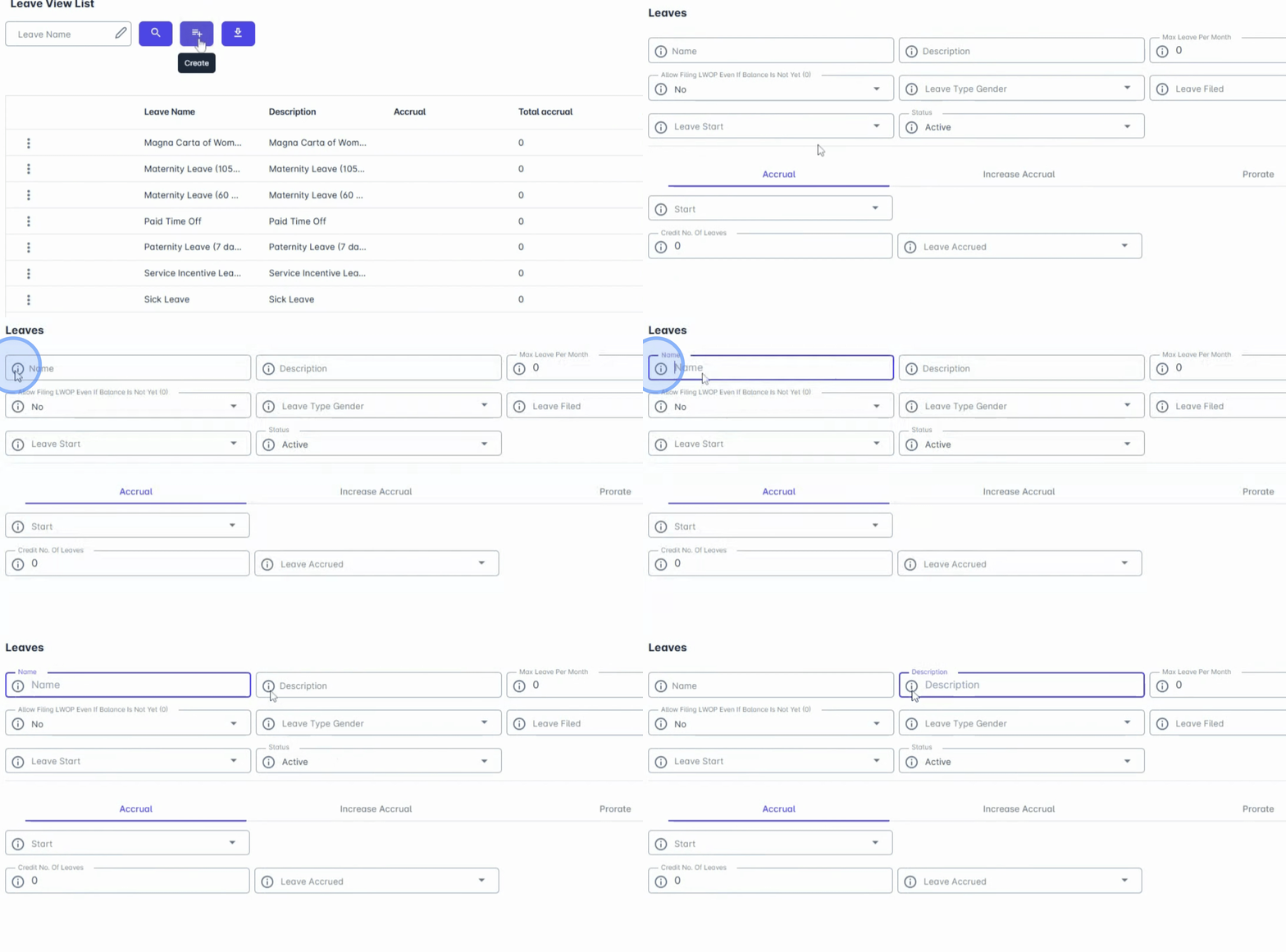
4. Fill Leave Details
Enter the leave name and description.
You will also need to fill out the Maximum leave per month.
5. Set Leave Consumption Limit
This sets the leave consumption limit per month for each leave category.
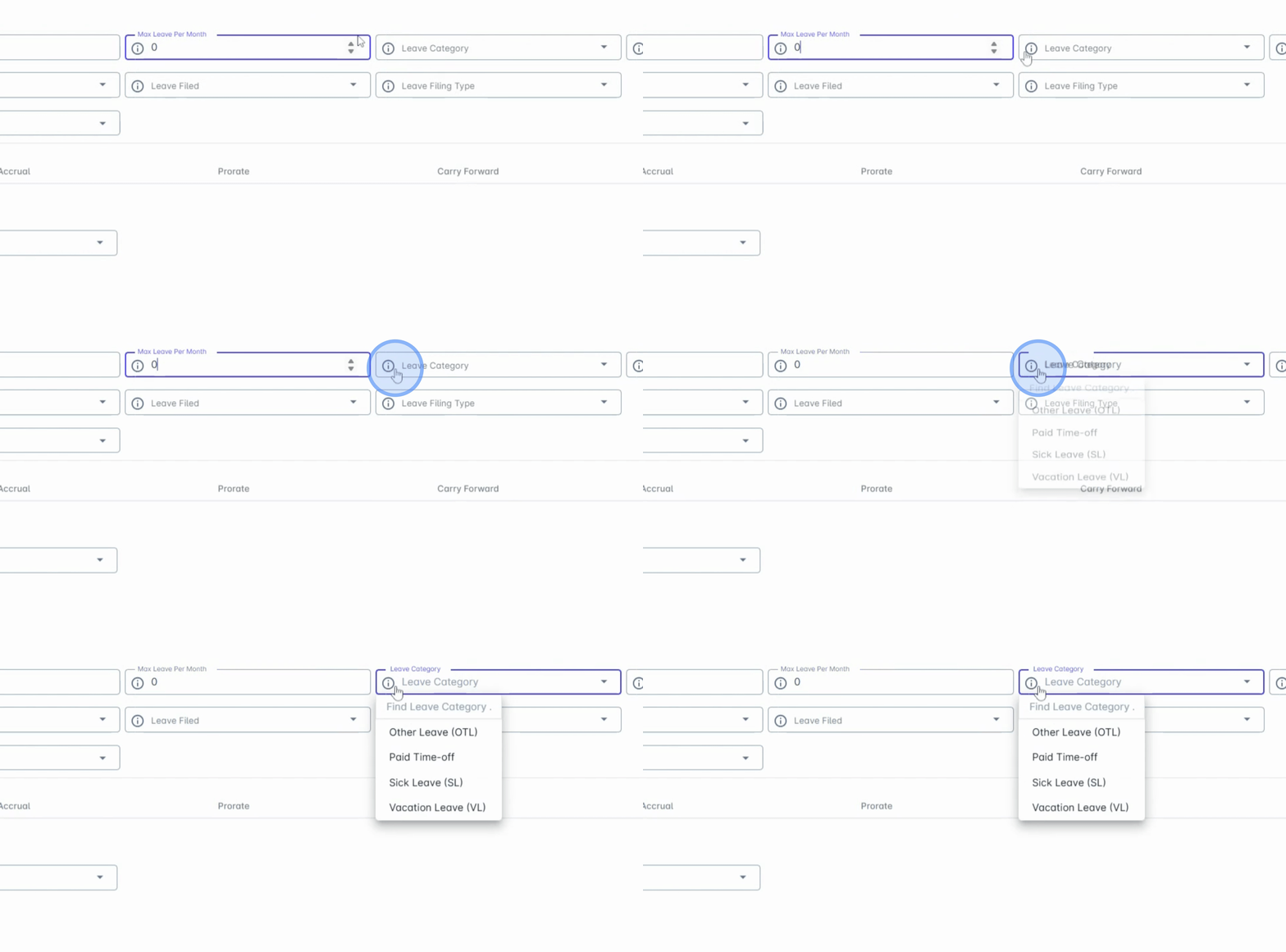
6. Classify Leaves
Classify your leaves under the options of other leave, paid time off, sick leave, or vacation leave.
7. Configure Filing Options
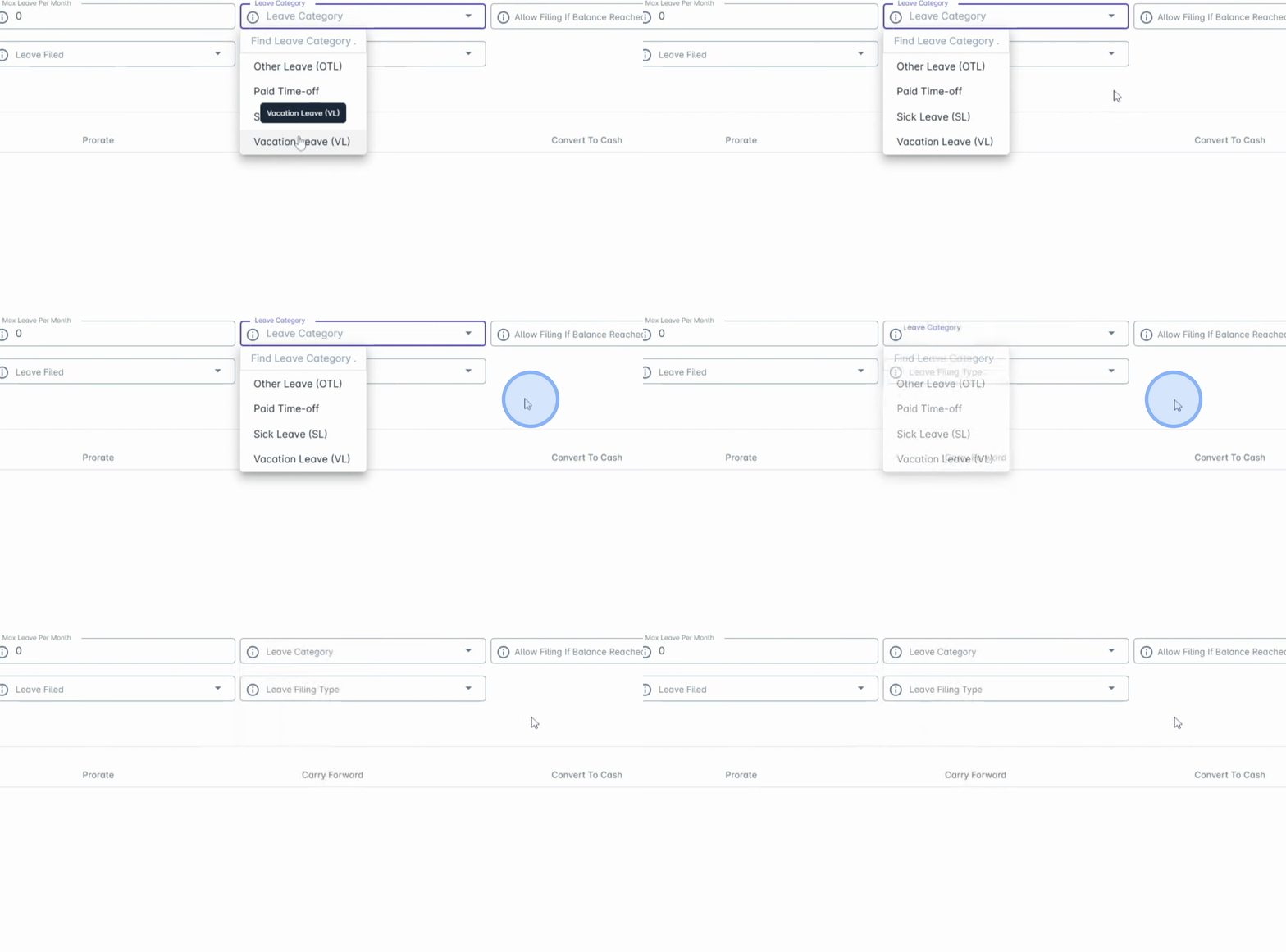
You can configure how the leave can be filed to allow employees to file even when their leave balance is zero.
To do this, enable Allow filing if balance reaches zero.
8. Enable LWOP Filing
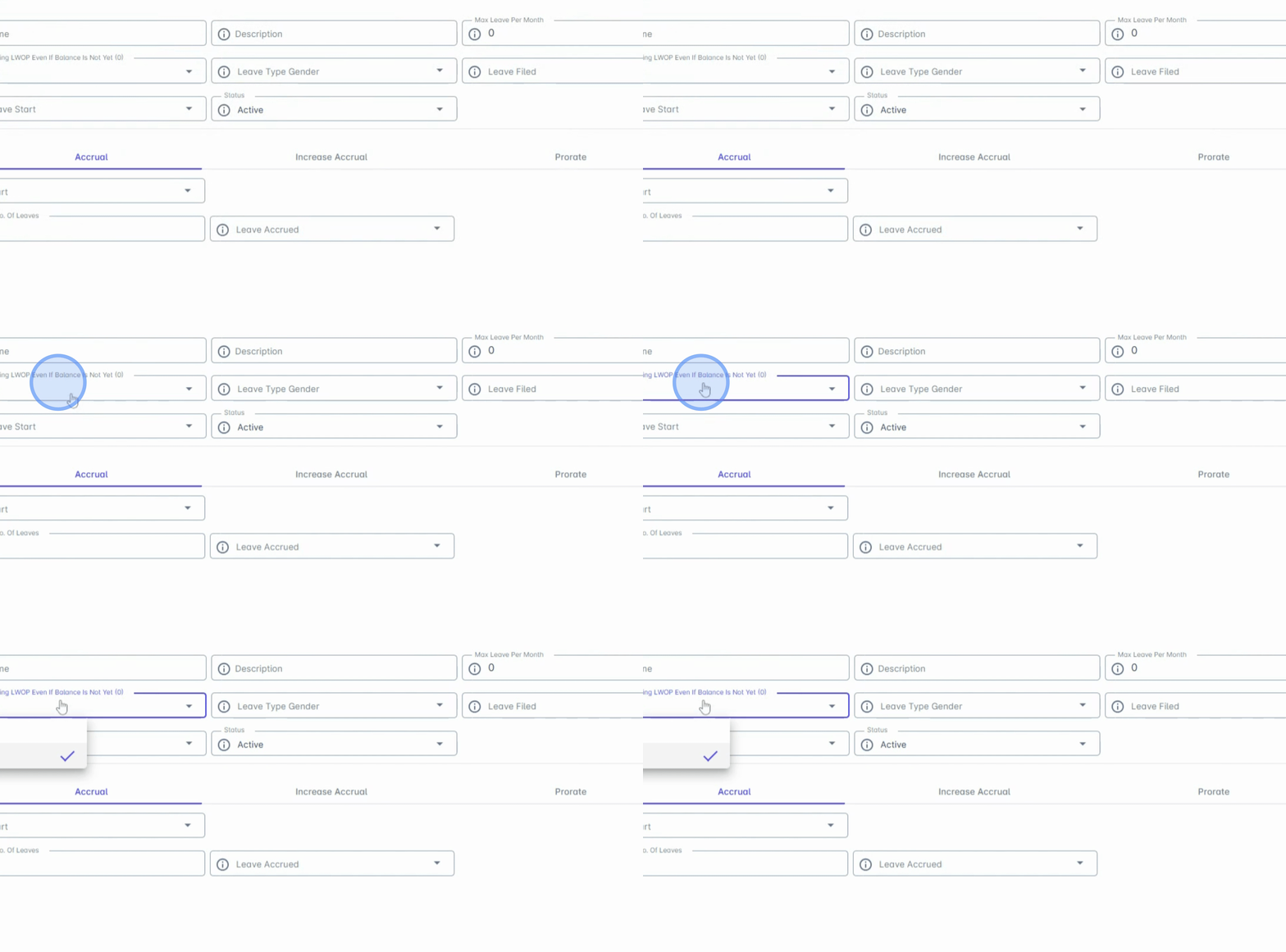
If employees want to file leave without pay (LWOP) even when they still have balances, enable Allow filing LWOP even if balance is not yet zero.
9. Configure Leave Availability by Gender
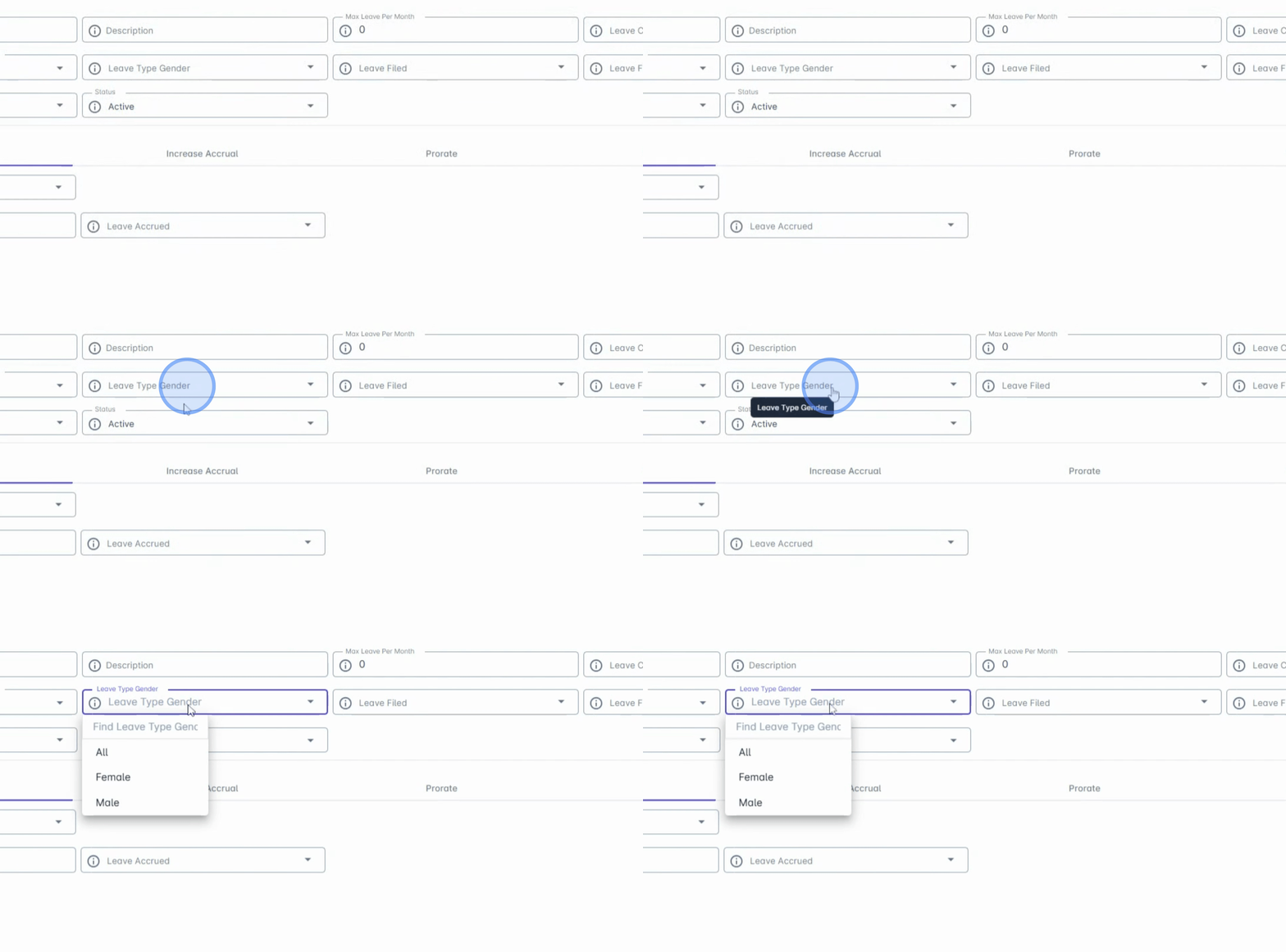
You can also configure leave availability based on gender by setting up the leave type gender, whether the leave is applicable to female, male, or both.
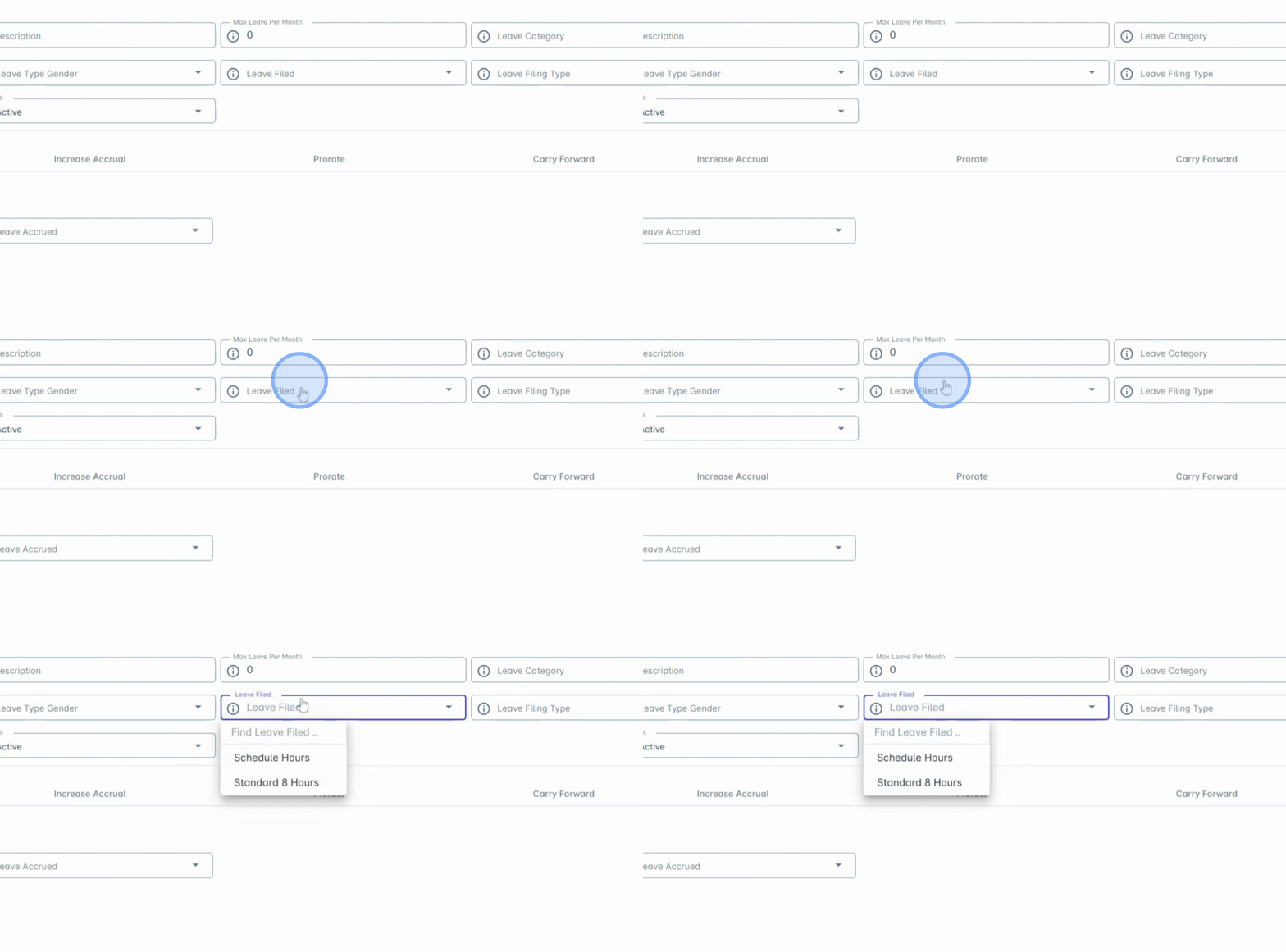
10. Select Leave File
Then, select the leave file.
11. Configure Schedule Hours
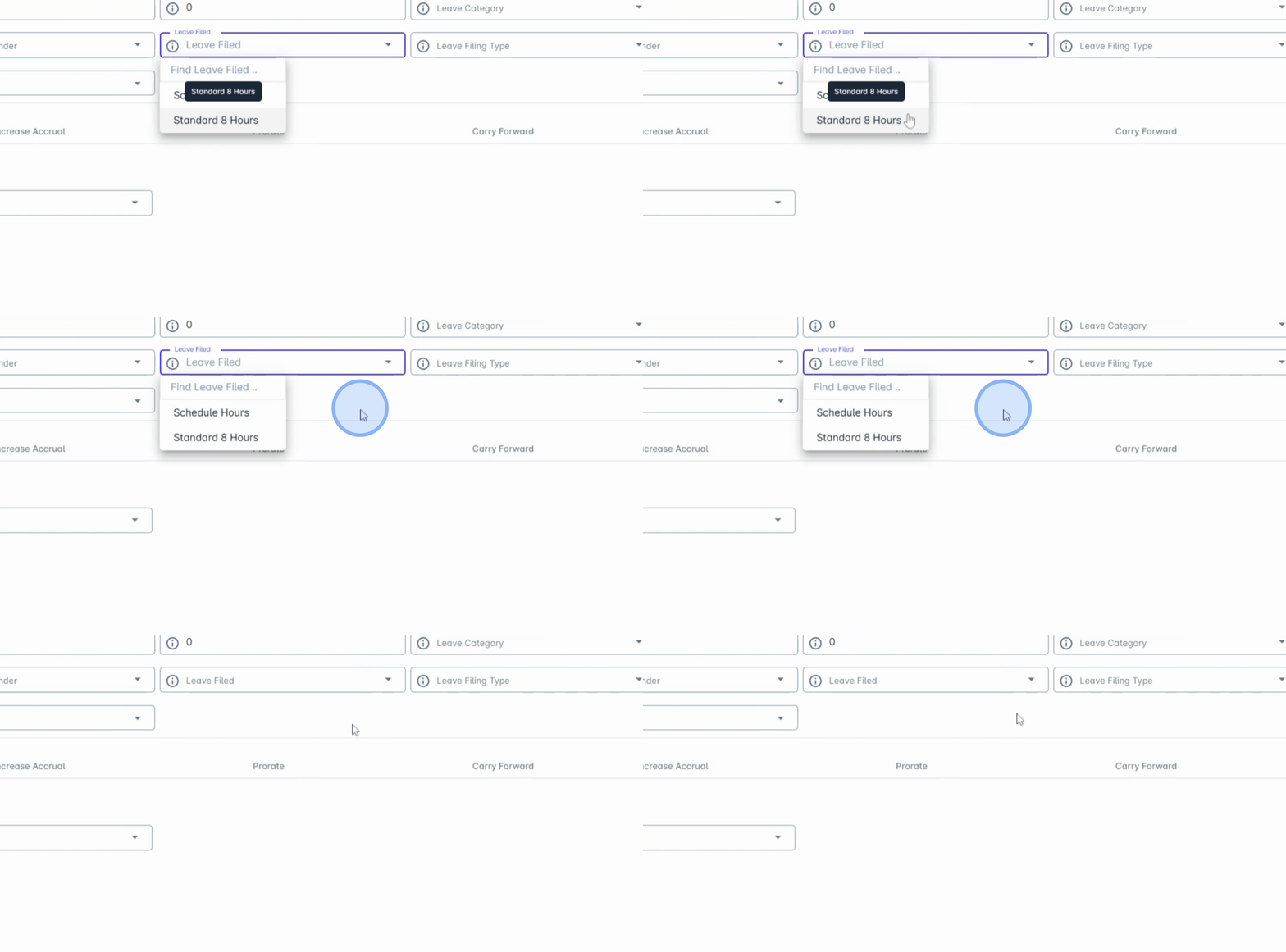
We have schedule hours set up which calculate and deduct actual leave balances based on a standard eight-hour workday.
12. Full Day Deduction
It deducts a full day regardless of the actual schedule.
13. Choose Filing Options
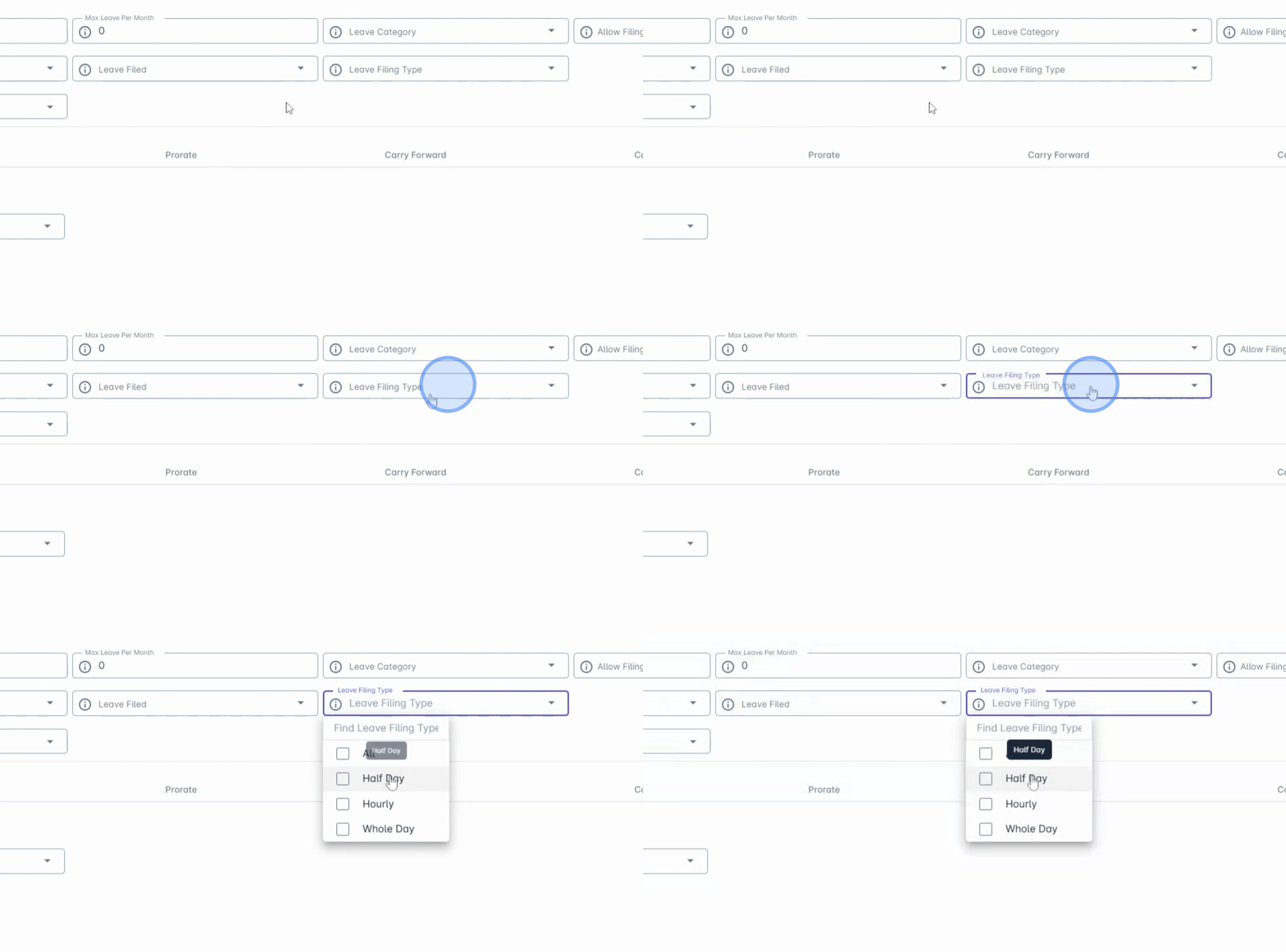
Next, choose how the leave can be filed: whether it’s by early, whole day, half day, or all three options.
14. Enable Automatic LIP Accrual
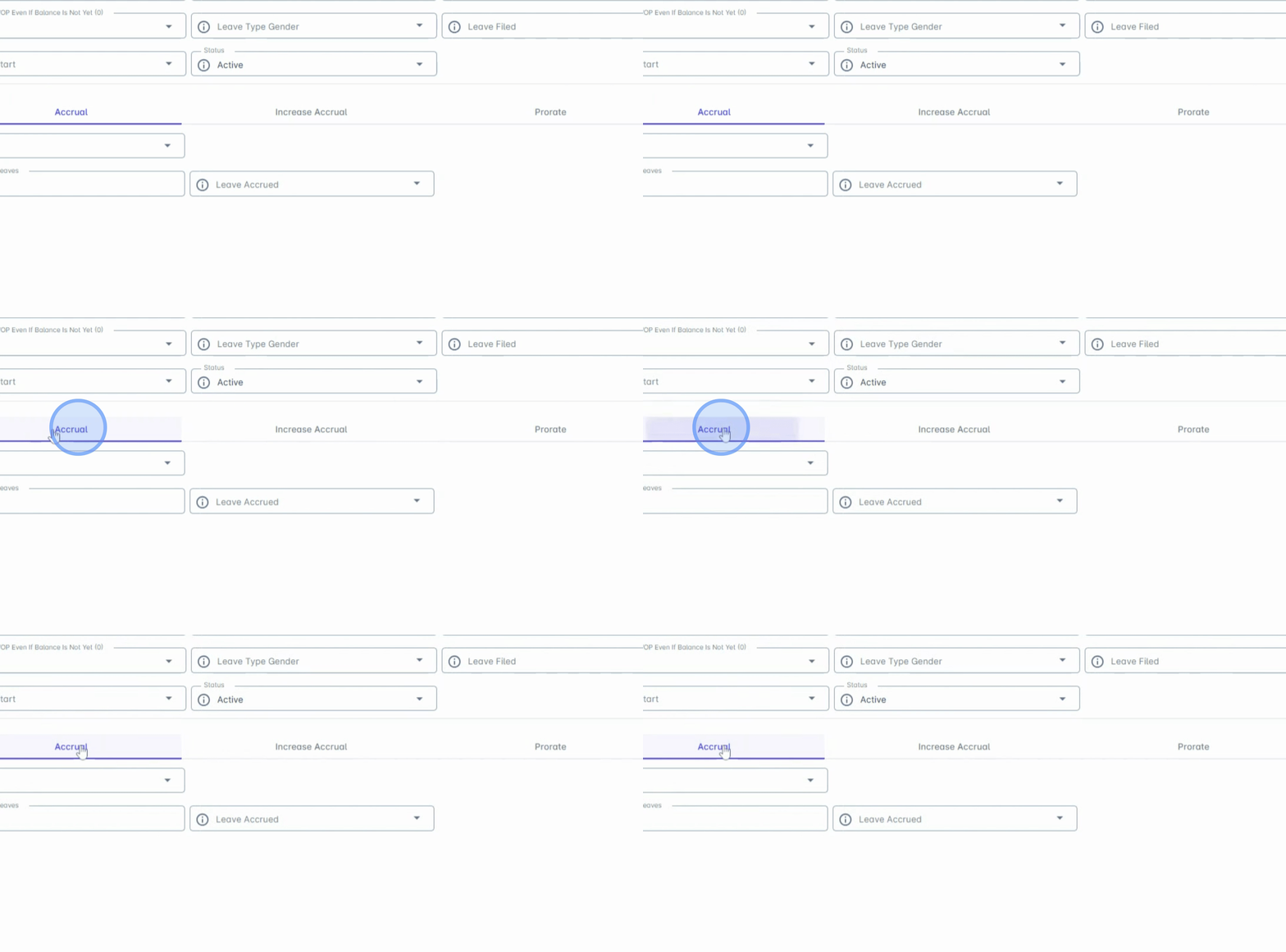
Anya HR also supports automatic LIP accrual.
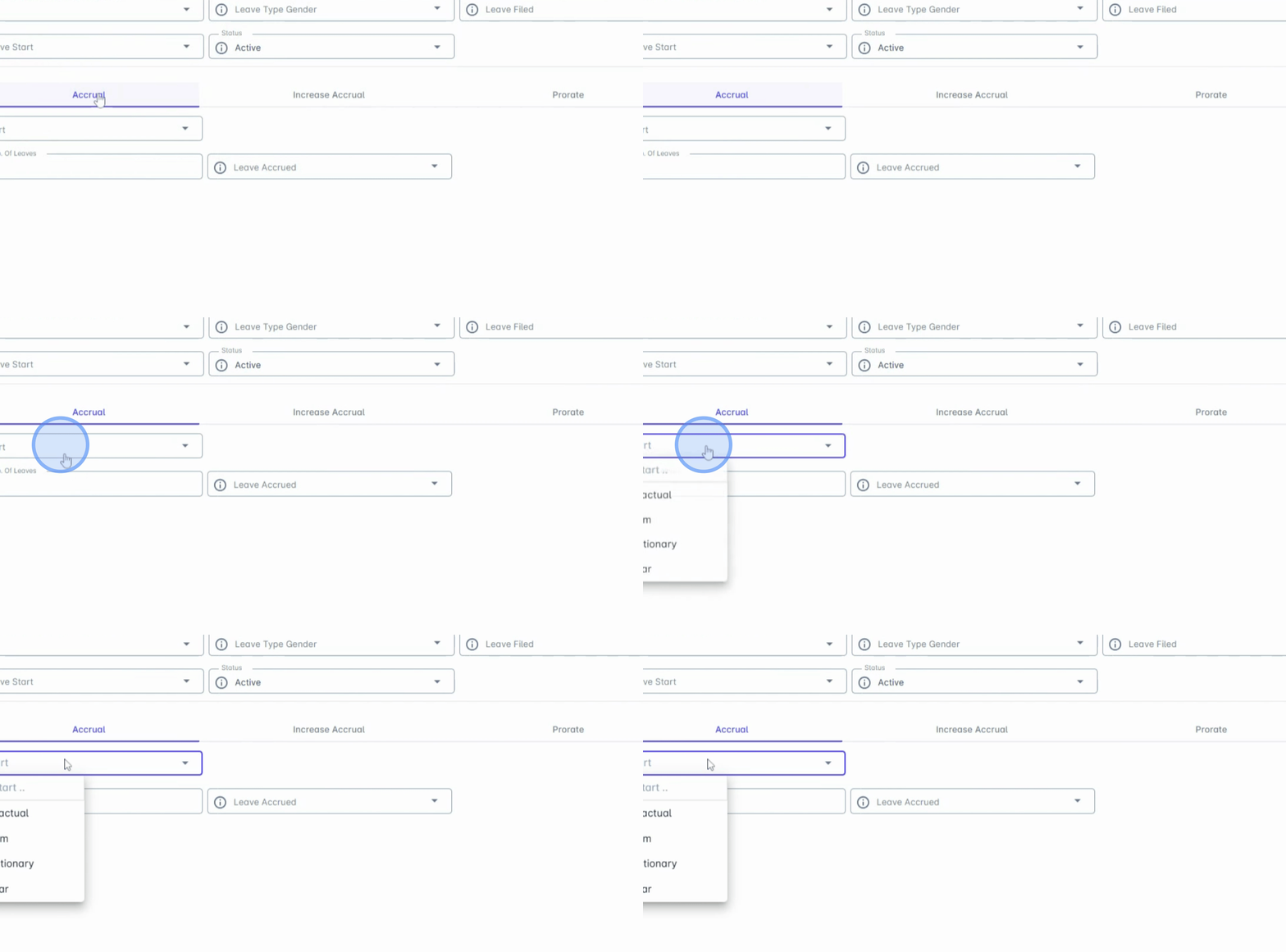
15. Configure Accrual Settings
You can configure when the accrual starts, whether it’s provisionary or regular, the initial balance, and the accrual frequency.
16. Increased Accrual Setup
If your leave accrues based on tenure shift, use the increased accrual setup.
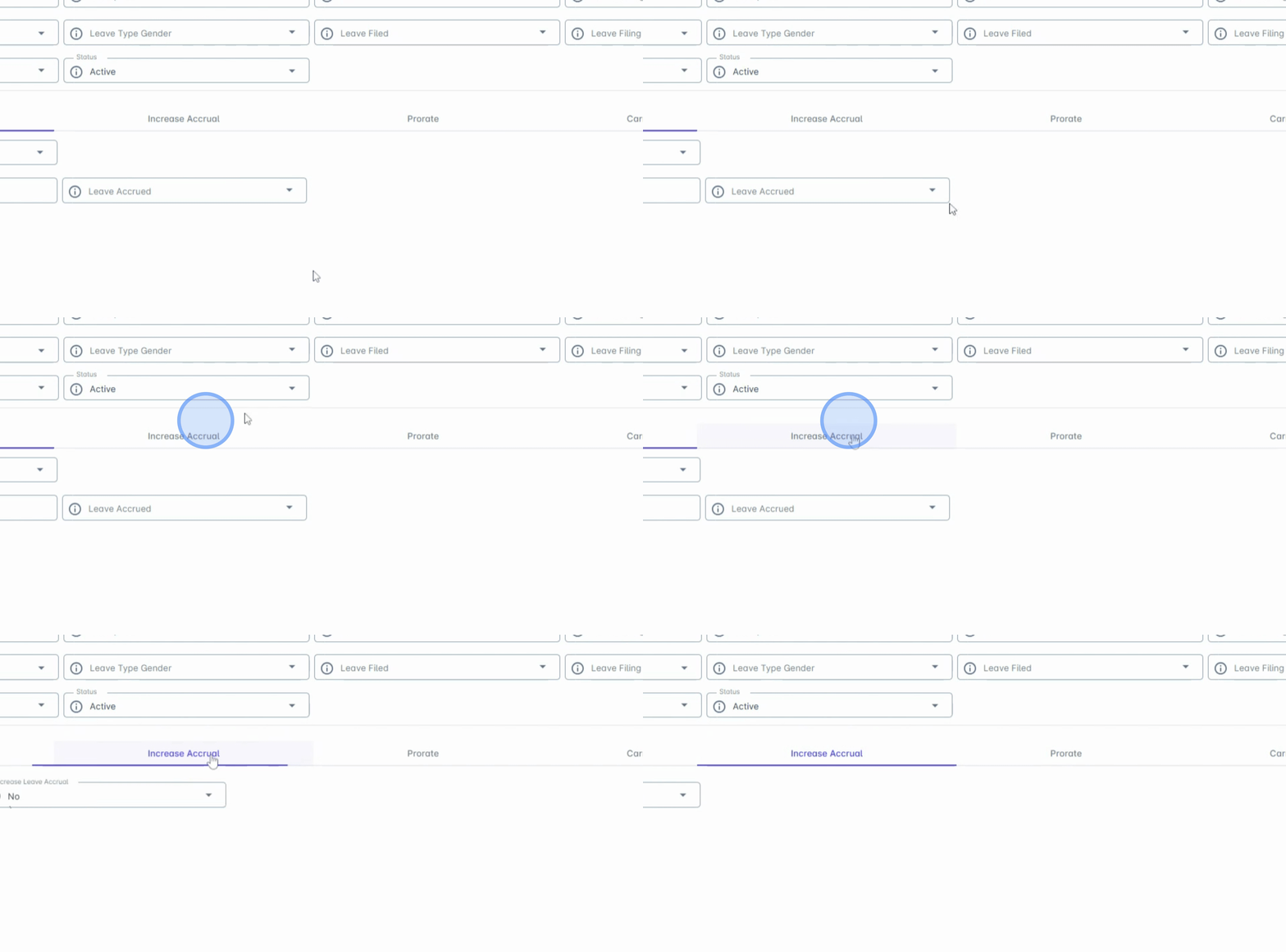
17. Set Added Leave Amount
You can set the added leave amount, the frequency of the accrual, and specific tenure shift for new hires.
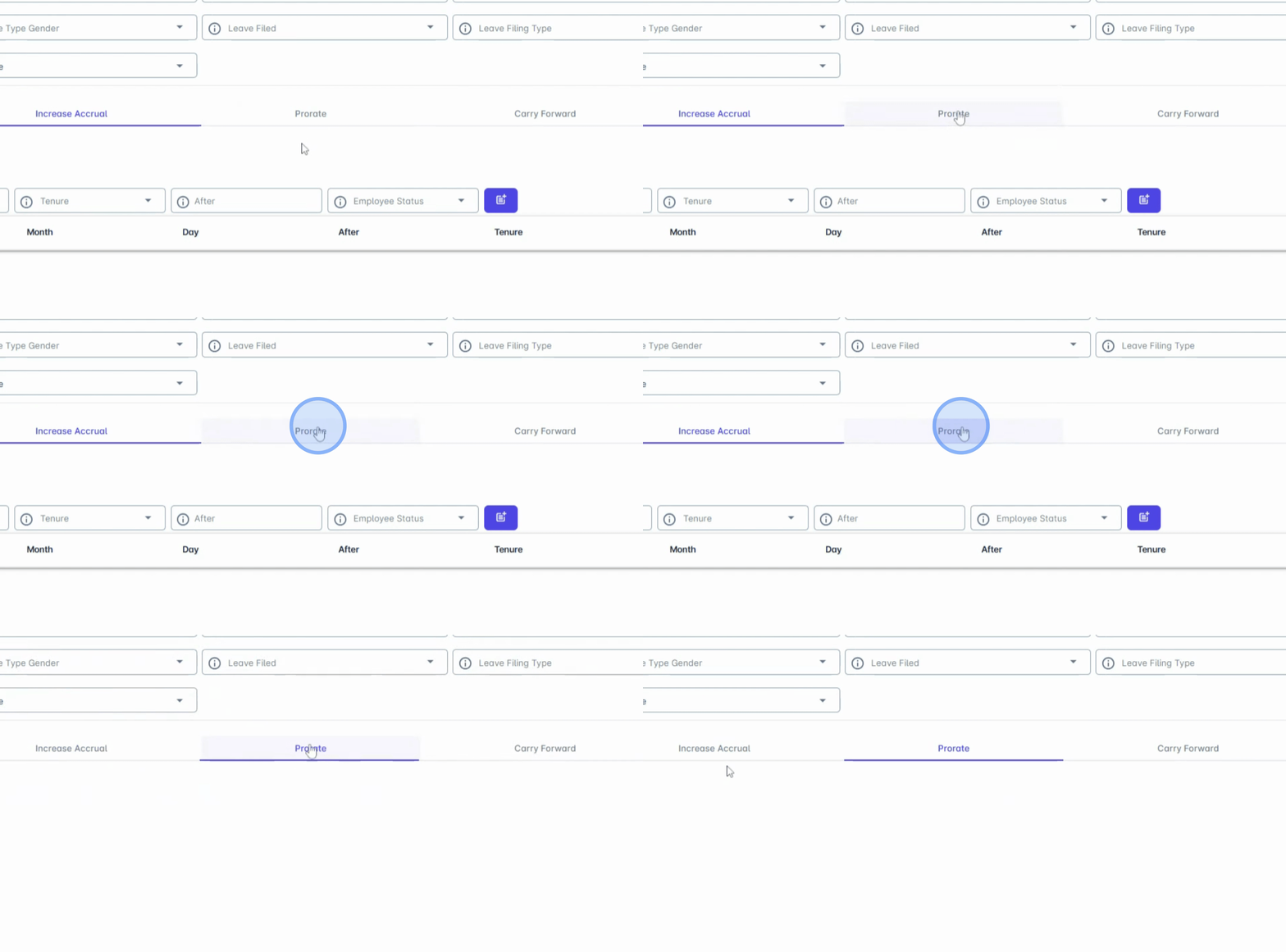
18. Prorate Leave Setup
We also support prorate leave setup. Just set the effective date range and the leave balance equivalent, considering year-end balances.
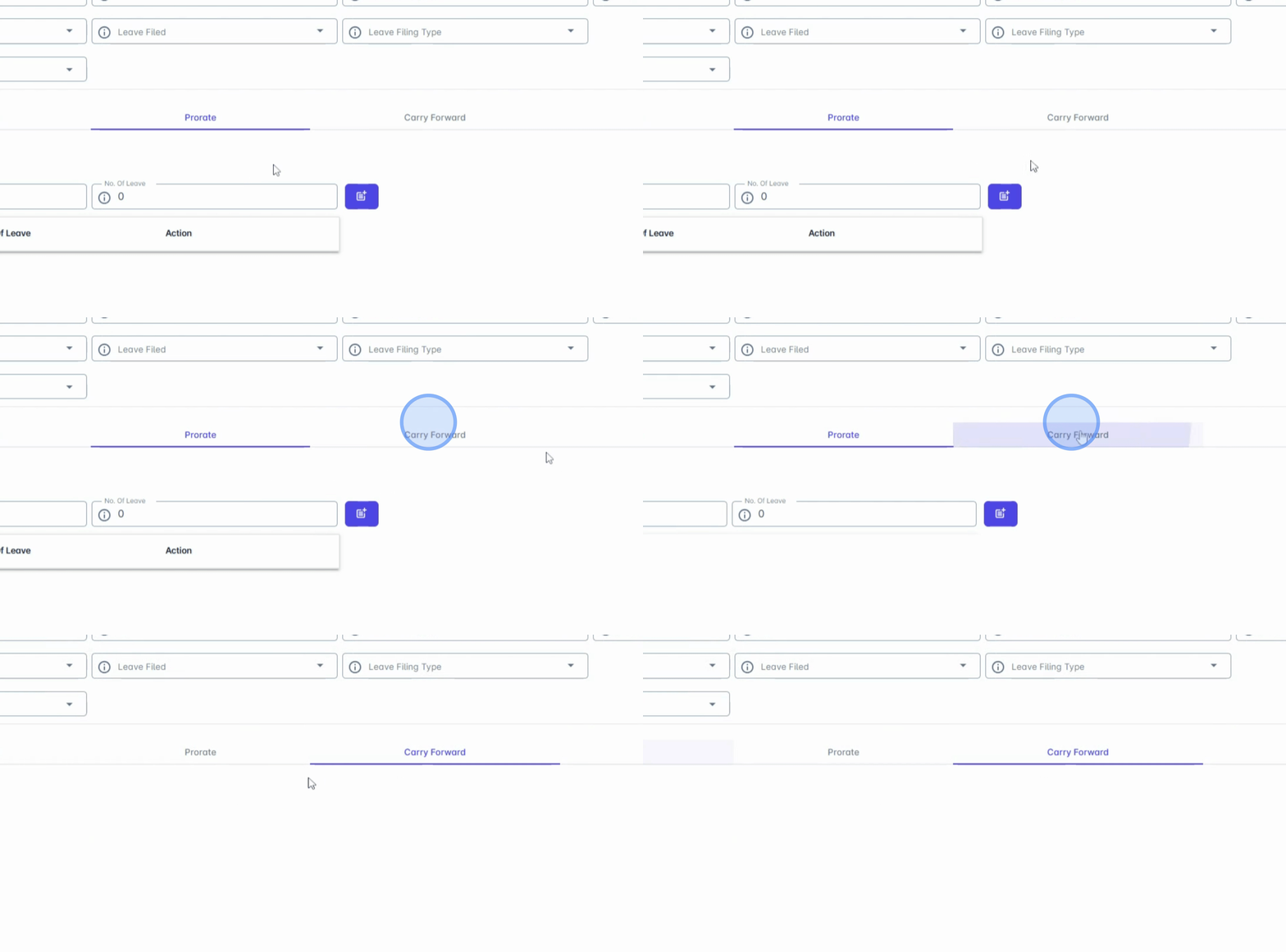
19. Use Carry Forward Setup
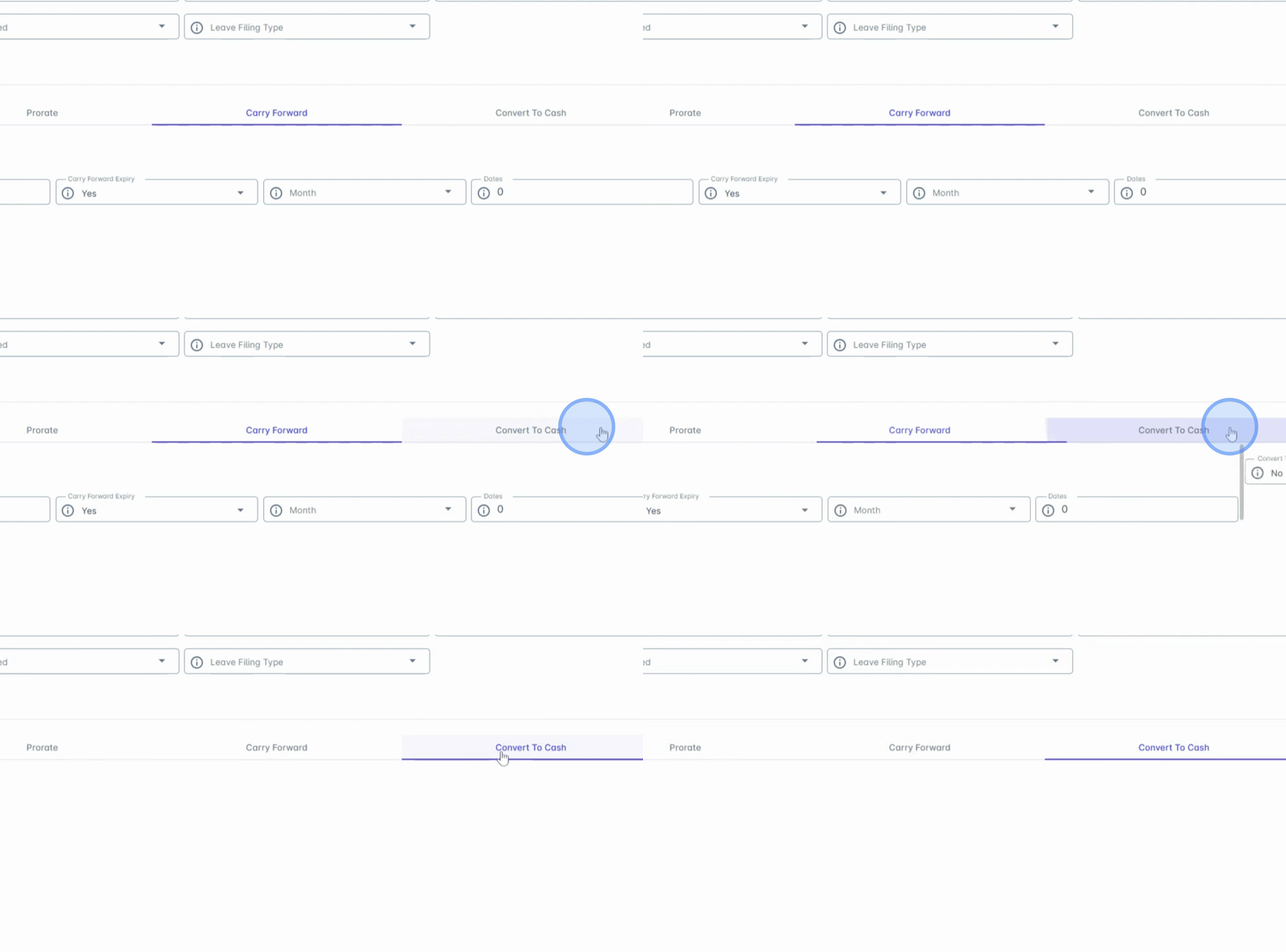
Use the carry forward setup to define how many leave days can be carried over and the expiration date for using them.
20. Convert LIP to Cash
Lastly, Anya HR gives you the flexibility to convert LIP to cash either annually or upon resignation. Just enter the number of taxable days and you're all set.
21. Save Changes
Finally, click Save Changes.
22. Review Changes
Once added, the leave will automatically reflect in all filings and reports across the system.
Conclusion
By following these steps, you will successfully set up the libs in your Anya HR system, ensuring a streamlined process for managing employee leaves.